Microsoft Edge is an excellent web browser, but it has its fair share of issues. One common problem is when Edge stops responding during your browsing sessions. This happens for many reasons, some of which you can fix pretty easily.
Having too many tabs or windows open, using problematic extensions, or running an obsolete version of the browser can cause Edge to become unresponsive. Luckily, you have various ways to get around the problem.
Close Multiple Open Tabs and Windows in Microsoft Edge
A major reason Edge freezes up is that you have too many tabs or windows open in your browser. This uses up your computer’s resources, sometimes leaving nothing for the browser to work with.
You can get around this problem pretty easily by closing all the unwanted tabs and windows open in your browser. Edge will free up your machine’s resources, making more RAM available for Edge to work with.

This doesn’t mean you should never keep multiple tabs or windows open. But you should only keep tabs and windows open you’re actually using. You can always open a new tab or window when you want.
Restart the Microsoft Edge Browser
Another quick way to resolve Edge’s responsiveness issue is to close and reopen the browser. Doing that turns off all of Edge’s features, tabs, and windows, giving all those items a fresh new chance to boot up.
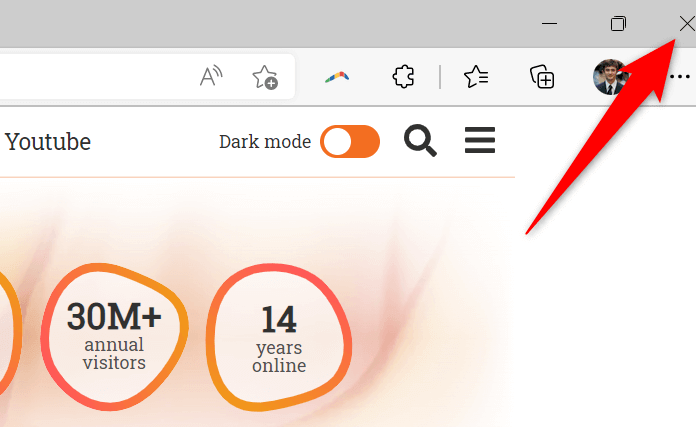
Make sure to save your unsaved online work before you restart Edge. When you’re ready, select the X icon at the top-right corner of Edge to close the browser.
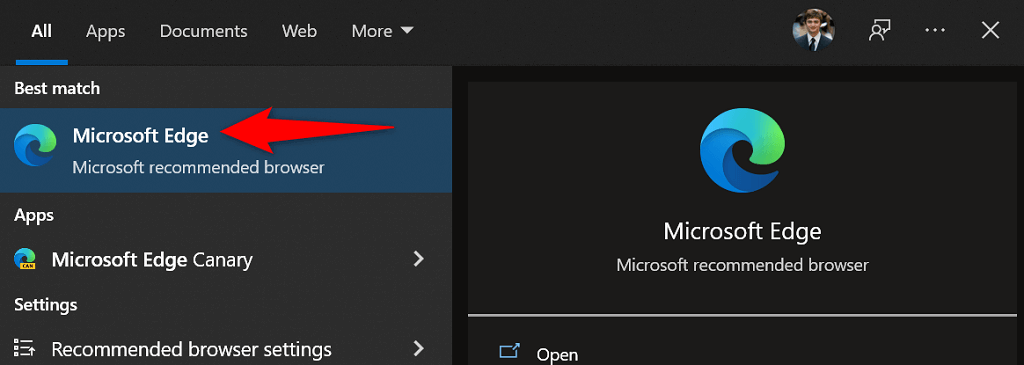
Relaunch the browser by accessing the Start menu, searching for Microsoft Edge , and selecting the browser in the search results.
Edge should now function as expected without responsiveness issues.
Restart Your Computer
If your Edge browser continues to be unresponsive, consider restarting your computer. This restarts all your computer’s system functions and installed apps, fixing minor glitches with those items.
Make sure to save your unsaved work before proceeding to restart your computer.
- Open the Start menu and select the Power option.
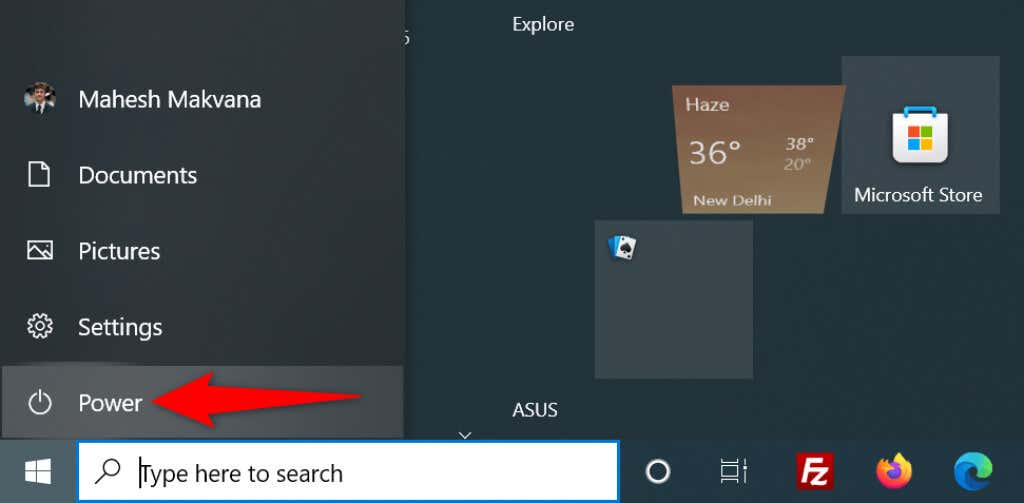
- Choose Restart in the Power menu.
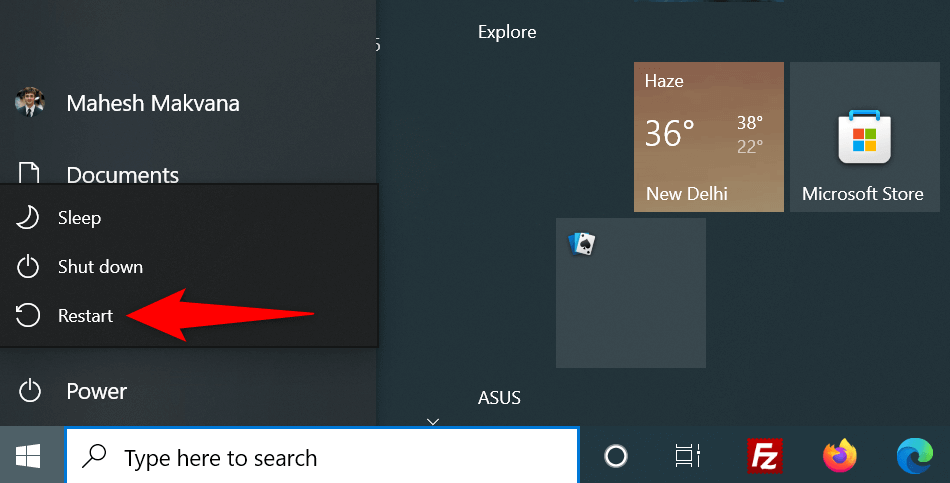
- Allow your PC to turn off and then turn it back on.
- Launch Edge when your PC boots back up, and browse your sites as usual.
Update Microsoft Edge to Resolve the Not Responding Issue
Edge’s responsiveness issue could be linked to the version of the browser you’re using. Obsolete versions often cause various problems, so you should always use the most up-to-date browser version on your computer.
You can fix the issue by updating Edge on your PC. It’s free, quick, and easy to do.
- Open Microsoft Edge on your computer.
- Select the three dots at the top-right corner and choose Help and feedback > About Microsoft Edge .
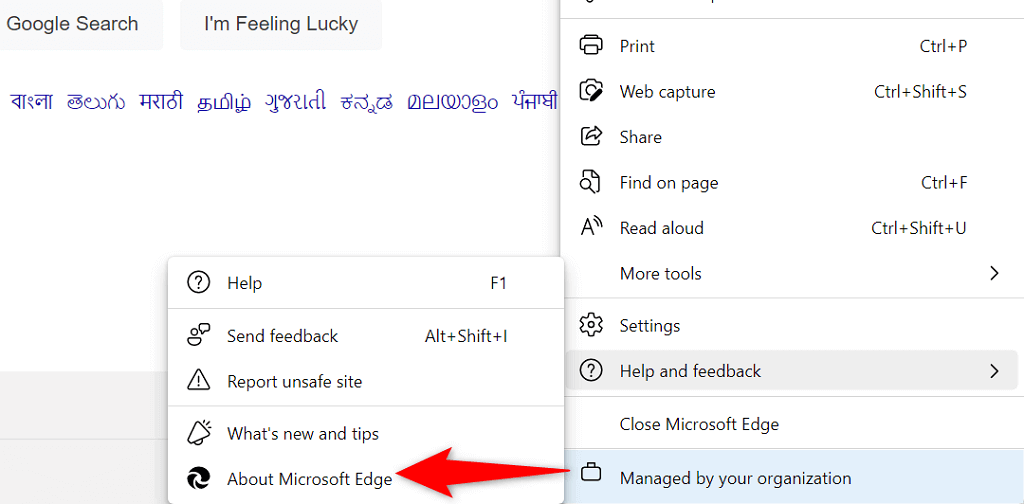
- Edge will automatically check for available updates. Install the updates if they’re available.
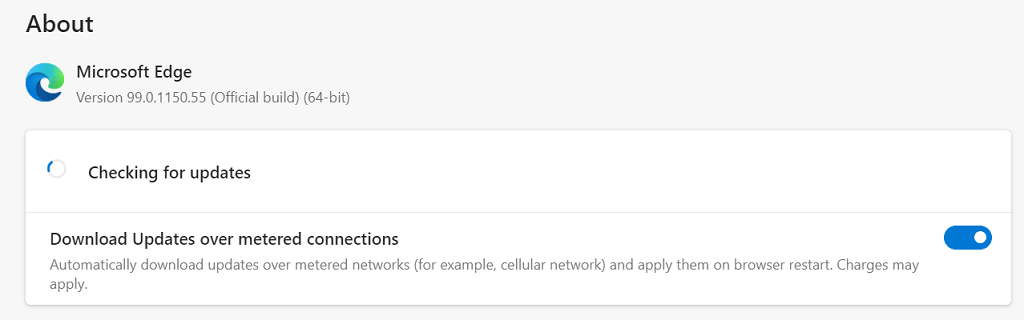
- Close and reopen Edge on your computer.
Update Your Computer’s Operating System
You should also routinely ensure that Windows is updated with the latest security and bug fixes. This helps resolve problems with your installed apps, including the Edge browser.
Updating Windows is a quick and hassle-free process. Here’s how to do that.
- Open Settings on your PC by pressing Windows + I .
- Select Update & Security on the Settings window.
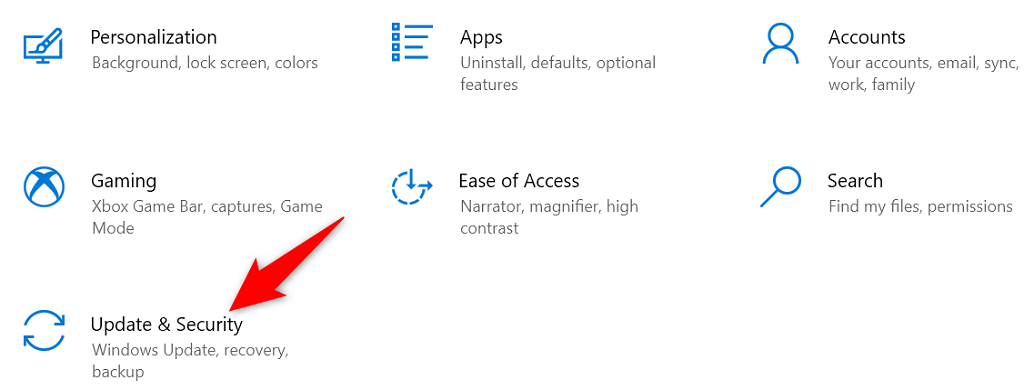
- Choose Windows Update from the sidebar on the left.
- Select Check for updates on the right to find the latest Windows updates.
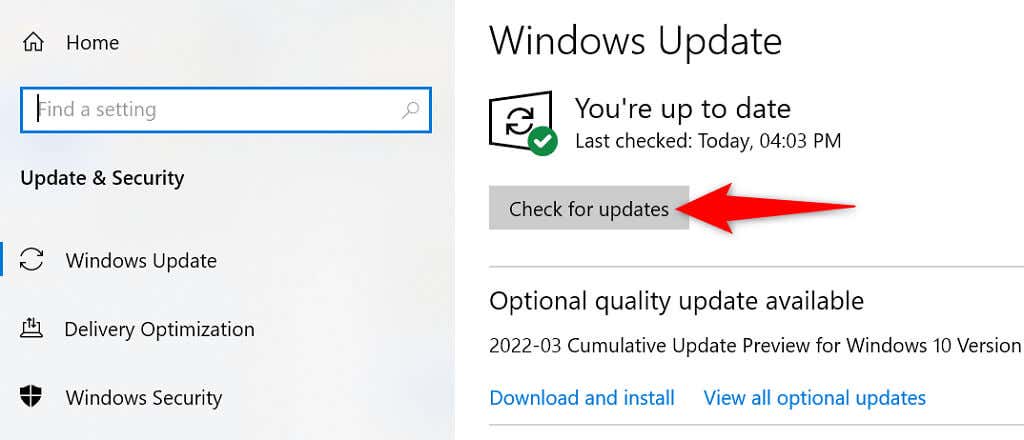
- Install the available updates and restart your PC.
Turn Off Microsoft Edge Extensions
Microsoft Edge lets you install third-party extensions to get the most out of your browser. Sometimes, one or more of these extensions are the culprit of various issues.
Your installed extensions could cause Edge to become unresponsive or even crash. In this case, you can disable all your browser extensions and see if that fixes the issue for you.
- Open Edge on your computer .
- Type the following in Edge’s address bar and press Enter : edge://extensions/

- You’ll see all your installed extensions. Disable each extension by selecting the toggle next to the extension.
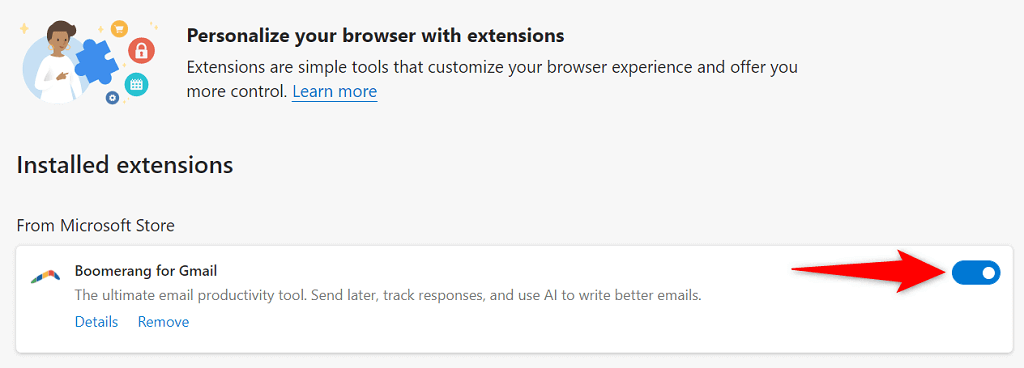
- Restart your browser.
- If Edge works fine, one or more of your extensions is the issue. In this case, enable one extension at a time to find the culprit.
- You can remove the problematic extension by selecting Remove .
Fix Microsoft Edge by Clearing Your Browsing History
Many days or months’ worth of saved browsing history could cause Edge to become unresponsive or crash . This isn’t the most common reason for the issue, but it’s worth looking into when Edge goes unresponsive.
You can delete your saved browser data to fix the issue. You get to choose what history items to delete, so you can be selective.
- Access Edge on your computer.
- Choose the three dots at the top-right corner and select Settings .
- Open the Privacy, search, and services tab from the sidebar on the left.
- Select Choose what to clear next to Clear browsing data now on the right pane.
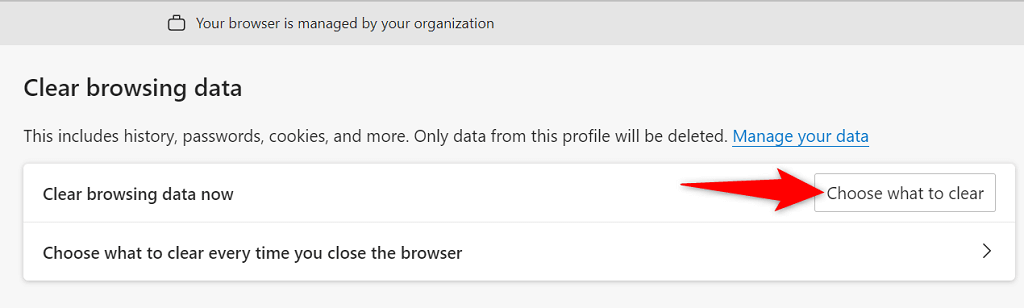
- Select the time range and the browsing items to remove. Then, choose Clear now at the bottom.
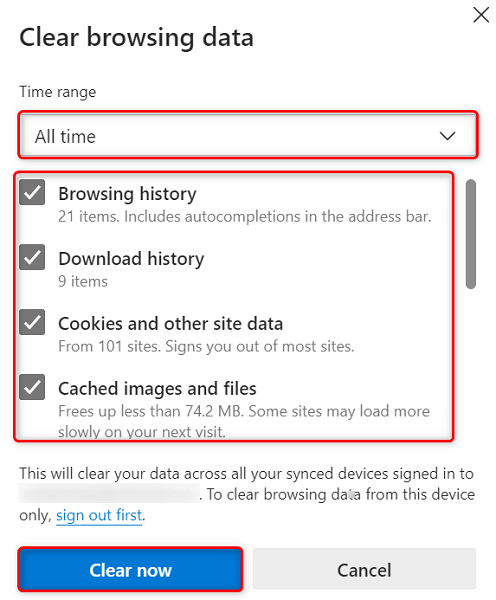
- Restart your web browser.
Reset Microsoft Edge
One way to resolve many of Edge’s issues is to reset the browser. Doing so erases your customized setting options and brings all those options back to their default values. This makes Edge as if you’re using the browser for the first time.
You’ll first disable data sync in Edge, so the browser doesn’t automatically load up your user account data from the cloud, and then reset the browser.
- Launch Edge , select the three dots at the top-right corner and choose Settings .
- Select Profiles from the sidebar on the left.
- Choose Sync followed by Turn off sync in the pane on the right.
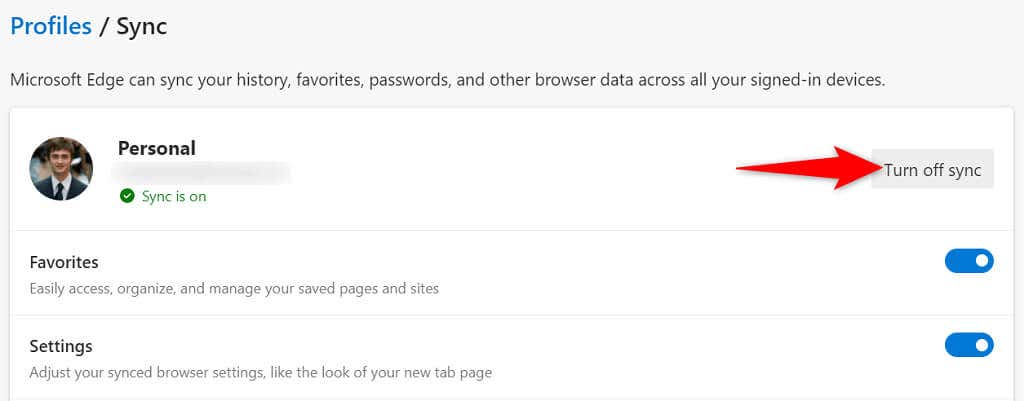
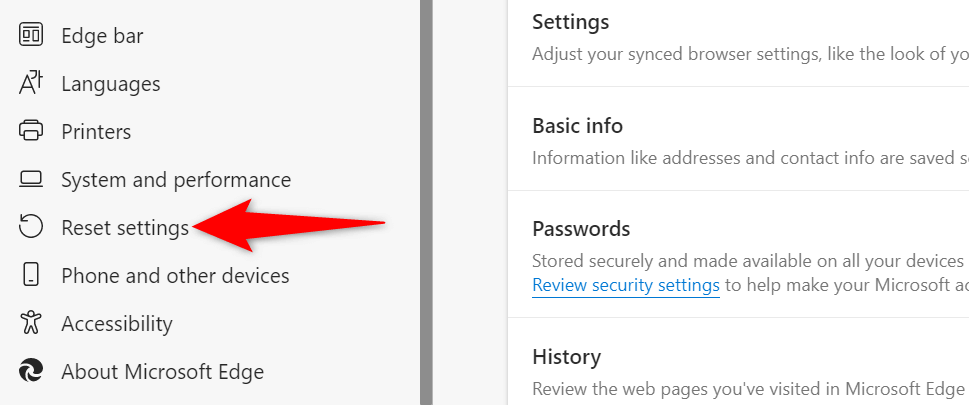
- When sync is disabled, select Reset settings in the left sidebar.
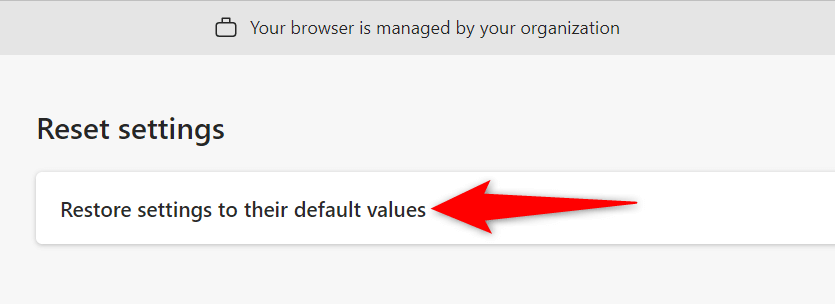
- Choose Restore settings to their default values on the right.
- Select Reset in the prompt to begin resetting Edge.
- Relaunch the browser when you’ve reset the settings.
Free Your Computer’s Storage Space to Fix Edge Not Working
Last but not least, you should have some free disk space on your computer. This is to allow Edge to store specific files locally on your machine. If you’re running out of space, there are many ways to free up the storage on your PC .
Once you’ve deleted unwanted files and reclaimed your precious storage, launch Edge, and the browser should function as expected.
Troubleshoot Microsoft Edge Problems on Your Computer
Many items can cause your Edge browser to stop responding. In most cases, you can fix those problematic items yourself and bring Edge back to a stable condition . The methods outlined above suggest what you should do when you find Edge being unresponsive. We hope this guide helps you out in resolving your browser problems.
- Microsoft Edge Shortcut Keep Appearing on Your Desktop? 5 Fixes to Try
- Microsoft Edge Not Opening? 11 Fixes to Try
- How to Uninstall Microsoft Edge From Your Windows 11 PC
- What Is Microsoft Edge WebView2 Runtime (And How to Reduce CPU Usage)?
- How to Fix status_breakpoint Error in Google Chrome and Microsoft Edge
Mahesh has been obsessed with technology since he got his first gadget a decade or so ago. Over the last few years, he’s written a number of tech articles on various online publications including but not limited to MakeTechEasier and Android AppStorm. Read Mahesh’s Full Bio
