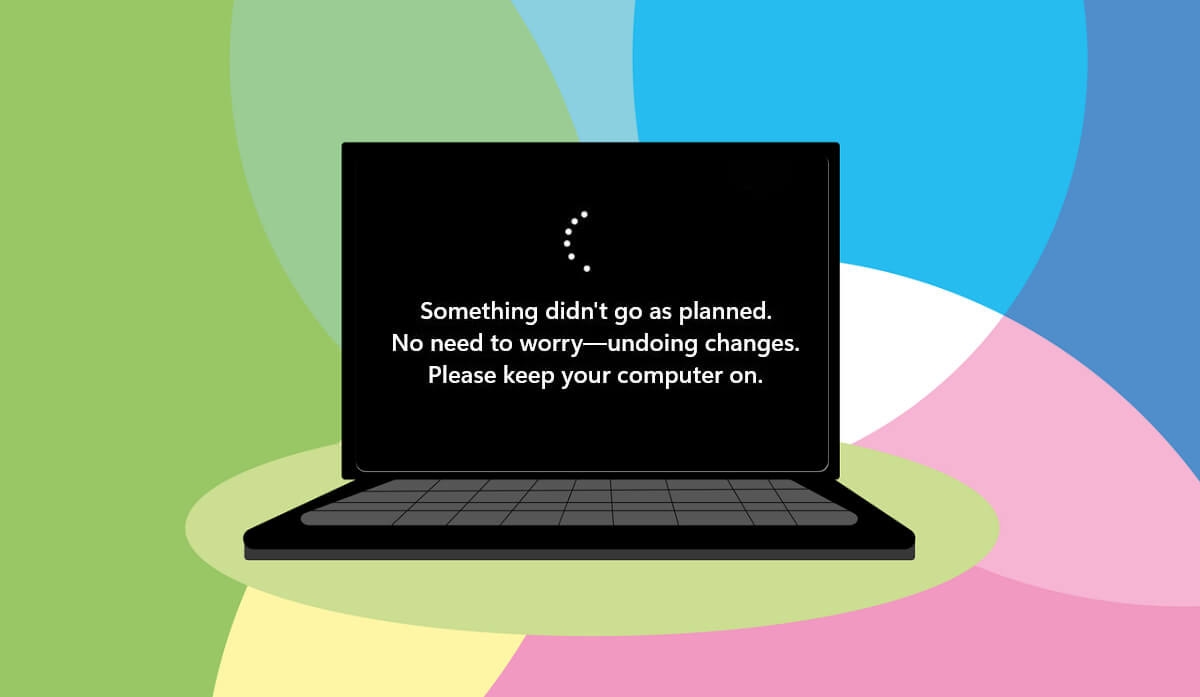
Windows displays the “Something didn’t go as planned. No need to worry—undoing changes.” message when it hits a roadblock updating your computer’s operating system. System file corruption and interference from conflicting software are some causative factors.
Luckily, the Windows Update issue is relatively easy to fix. Wait for your computer to boot, and take the troubleshooting steps below.
<img loading=“lazy” src=“https://helpdeskgeek.com/wp-content/pictures/2023/11/how-to-fix-something-didnt-go-as-planned-error-in-windows-11-1-compressed.jpg" onerror=“this.onerror=null;this.src=‘https://blogger.googleusercontent.com/img/a/AVvXsEhe7F7TRXHtjiKvHb5vS7DmnxvpHiDyoYyYvm1nHB3Qp2_w3BnM6A2eq4v7FYxCC9bfZt3a9vIMtAYEKUiaDQbHMg-ViyGmRIj39MLp0bGFfgfYw1Dc9q_H-T0wiTm3l0Uq42dETrN9eC8aGJ9_IORZsxST1AcLR7np1koOfcc7tnHa4S8Mwz_xD9d0=s16000';" alt=“How to Fix “Something Didn’t Go as Planned” Error in Windows 11 image 1 - 1”>
Run Windows Update Troubleshooter
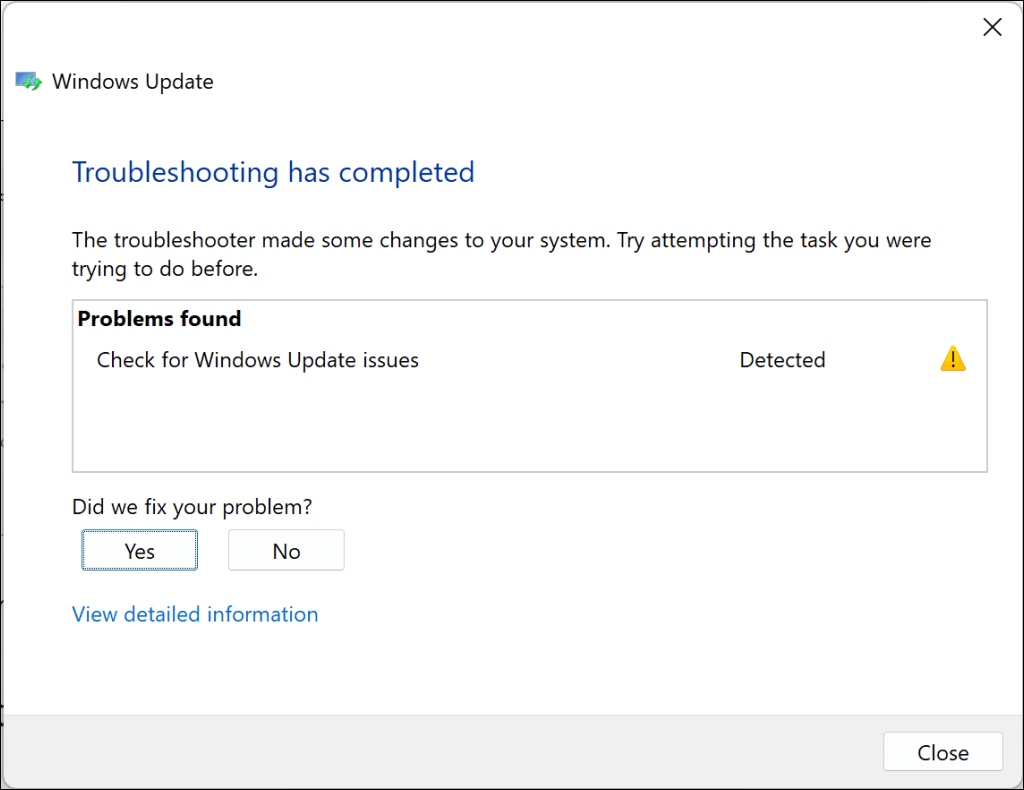
Running the Windows Update troubleshooter should be your first action to fix Windows Update errors . The troubleshooter can diagnose and resolve issues causing the “Something didn’t go as planned.” error.
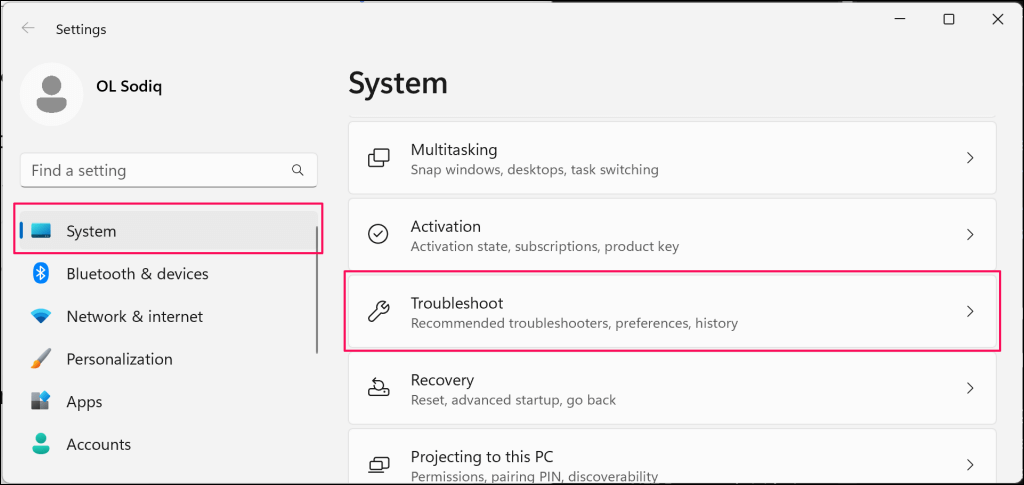
- Open the Windows Settings app, select System on the sidebar, and choose Troubleshoot .
<img loading=“lazy” src=“https://helpdeskgeek.com/wp-content/pictures/2023/11/how-to-fix-something-didnt-go-as-planned-error-in-windows-11-2-compressed.png" onerror=“this.onerror=null;this.src=‘https://blogger.googleusercontent.com/img/a/AVvXsEhe7F7TRXHtjiKvHb5vS7DmnxvpHiDyoYyYvm1nHB3Qp2_w3BnM6A2eq4v7FYxCC9bfZt3a9vIMtAYEKUiaDQbHMg-ViyGmRIj39MLp0bGFfgfYw1Dc9q_H-T0wiTm3l0Uq42dETrN9eC8aGJ9_IORZsxST1AcLR7np1koOfcc7tnHa4S8Mwz_xD9d0=s16000';" alt=“How to Fix “Something Didn’t Go as Planned” Error in Windows 11 image 2 - 2”>
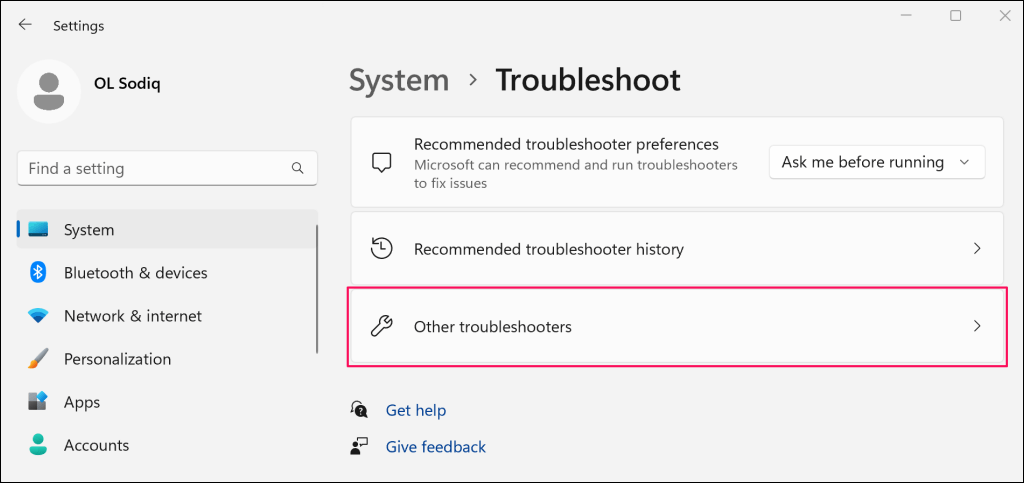
- Select Other troubleshooters in the “Options” section.
<img loading=“lazy” src=“https://helpdeskgeek.com/wp-content/pictures/2023/11/how-to-fix-something-didnt-go-as-planned-error-in-windows-11-3-compressed.png" onerror=“this.onerror=null;this.src=‘https://blogger.googleusercontent.com/img/a/AVvXsEhe7F7TRXHtjiKvHb5vS7DmnxvpHiDyoYyYvm1nHB3Qp2_w3BnM6A2eq4v7FYxCC9bfZt3a9vIMtAYEKUiaDQbHMg-ViyGmRIj39MLp0bGFfgfYw1Dc9q_H-T0wiTm3l0Uq42dETrN9eC8aGJ9_IORZsxST1AcLR7np1koOfcc7tnHa4S8Mwz_xD9d0=s16000';" alt=“How to Fix “Something Didn’t Go as Planned” Error in Windows 11 image 3 - 3”>
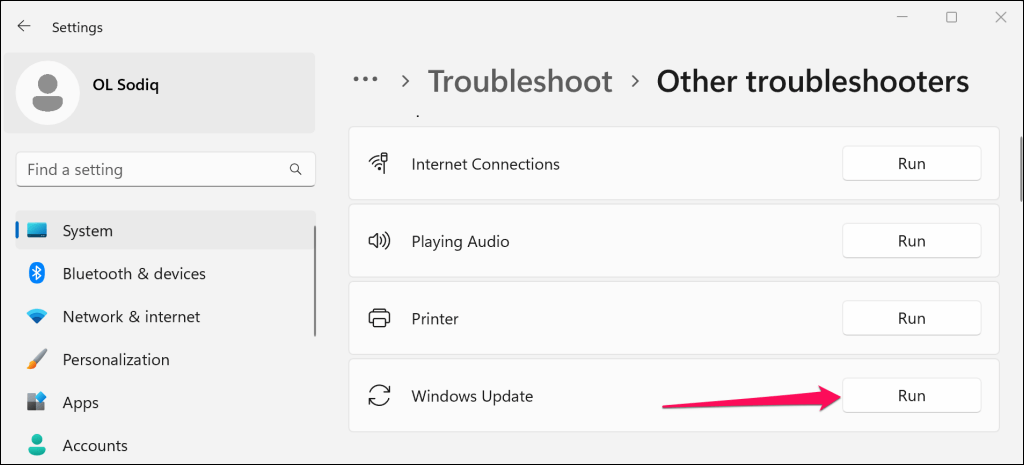
- Select the Run button next to “Windows Update.”
<img loading=“lazy” src=“https://helpdeskgeek.com/wp-content/pictures/2023/11/how-to-fix-something-didnt-go-as-planned-error-in-windows-11-4-compressed.png" onerror=“this.onerror=null;this.src=‘https://blogger.googleusercontent.com/img/a/AVvXsEhe7F7TRXHtjiKvHb5vS7DmnxvpHiDyoYyYvm1nHB3Qp2_w3BnM6A2eq4v7FYxCC9bfZt3a9vIMtAYEKUiaDQbHMg-ViyGmRIj39MLp0bGFfgfYw1Dc9q_H-T0wiTm3l0Uq42dETrN9eC8aGJ9_IORZsxST1AcLR7np1koOfcc7tnHa4S8Mwz_xD9d0=s16000';" alt=“How to Fix “Something Didn’t Go as Planned” Error in Windows 11 image 4 - 4”>
Microsoft recommends restarting your computer when the troubleshooter completes its diagnosis and applies any fixes.
<img loading=“lazy” src=“https://helpdeskgeek.com/wp-content/pictures/2023/11/how-to-fix-something-didnt-go-as-planned-error-in-windows-11-5-compressed.png" onerror=“this.onerror=null;this.src=‘https://blogger.googleusercontent.com/img/a/AVvXsEhe7F7TRXHtjiKvHb5vS7DmnxvpHiDyoYyYvm1nHB3Qp2_w3BnM6A2eq4v7FYxCC9bfZt3a9vIMtAYEKUiaDQbHMg-ViyGmRIj39MLp0bGFfgfYw1Dc9q_H-T0wiTm3l0Uq42dETrN9eC8aGJ9_IORZsxST1AcLR7np1koOfcc7tnHa4S8Mwz_xD9d0=s16000';" alt=“How to Fix “Something Didn’t Go as Planned” Error in Windows 11 image 5 - 5”>
You can also rerun the troubleshooter when your PC comes back on to check for additional errors. Try reinstalling the update after rerunning the Windows Update troubleshooter.
Run the System File Checker
The System File Checker (SFC) can repair or restore corrupt system files interrupting Windows Updates processes. Connect your computer to a Wi-Fi network and follow the steps below to run an SFC scan.
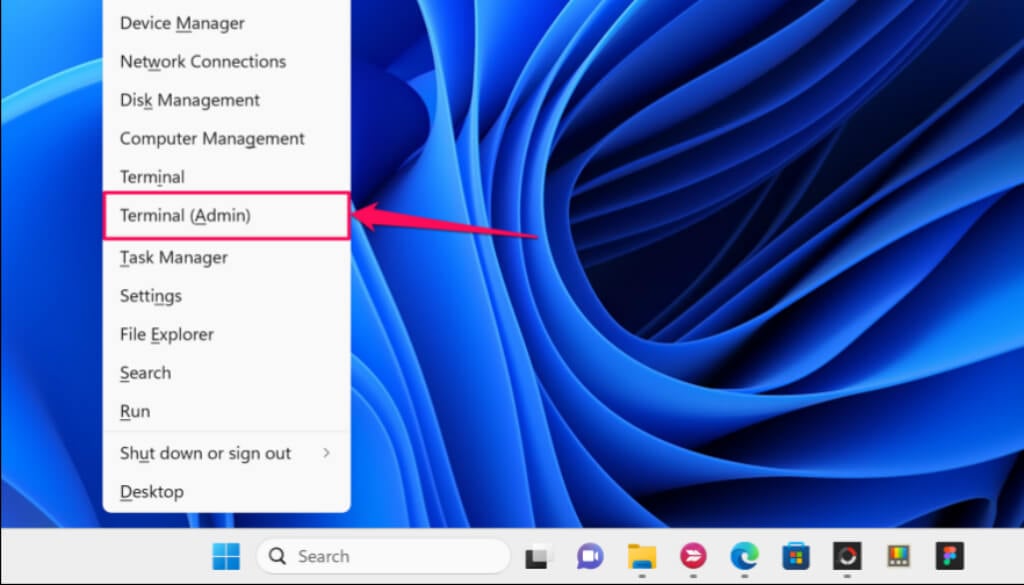
- Right-click the Windows logo on the taskbar and select Terminal (Admin) .
<img loading=“lazy” src=“https://helpdeskgeek.com/wp-content/pictures/2023/11/how-to-fix-something-didnt-go-as-planned-error-in-windows-11-6-compressed.jpg" onerror=“this.onerror=null;this.src=‘https://blogger.googleusercontent.com/img/a/AVvXsEhe7F7TRXHtjiKvHb5vS7DmnxvpHiDyoYyYvm1nHB3Qp2_w3BnM6A2eq4v7FYxCC9bfZt3a9vIMtAYEKUiaDQbHMg-ViyGmRIj39MLp0bGFfgfYw1Dc9q_H-T0wiTm3l0Uq42dETrN9eC8aGJ9_IORZsxST1AcLR7np1koOfcc7tnHa4S8Mwz_xD9d0=s16000';" alt=“How to Fix “Something Didn’t Go as Planned” Error in Windows 11 image 6 - 6”>
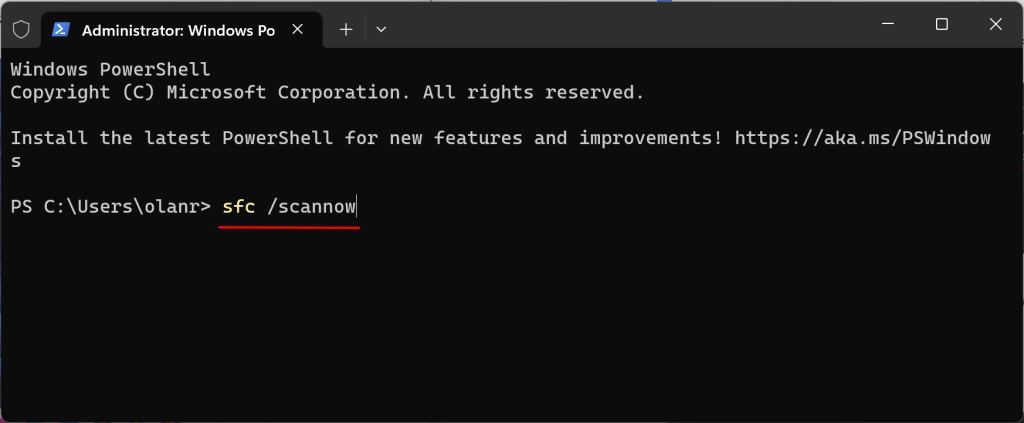
- Type sfc /scannow in the console and press Enter .
<img loading=“lazy” src=“https://helpdeskgeek.com/wp-content/pictures/2023/11/how-to-fix-something-didnt-go-as-planned-error-in-windows-11-7-compressed.png" onerror=“this.onerror=null;this.src=‘https://blogger.googleusercontent.com/img/a/AVvXsEhe7F7TRXHtjiKvHb5vS7DmnxvpHiDyoYyYvm1nHB3Qp2_w3BnM6A2eq4v7FYxCC9bfZt3a9vIMtAYEKUiaDQbHMg-ViyGmRIj39MLp0bGFfgfYw1Dc9q_H-T0wiTm3l0Uq42dETrN9eC8aGJ9_IORZsxST1AcLR7np1koOfcc7tnHa4S8Mwz_xD9d0=s16000';" alt=“How to Fix “Something Didn’t Go as Planned” Error in Windows 11 image 7 - 7”>
Wait 10-15 minutes for the scan results. Reinstall the update if you receive a “Windows Resource Protection found corrupt files and successfully repaired them.” message.
<img loading=“lazy” src=“https://helpdeskgeek.com/wp-content/pictures/2023/11/how-to-fix-something-didnt-go-as-planned-error-in-windows-11-8-compressed.png" onerror=“this.onerror=null;this.src=‘https://blogger.googleusercontent.com/img/a/AVvXsEhe7F7TRXHtjiKvHb5vS7DmnxvpHiDyoYyYvm1nHB3Qp2_w3BnM6A2eq4v7FYxCC9bfZt3a9vIMtAYEKUiaDQbHMg-ViyGmRIj39MLp0bGFfgfYw1Dc9q_H-T0wiTm3l0Uq42dETrN9eC8aGJ9_IORZsxST1AcLR7np1koOfcc7tnHa4S8Mwz_xD9d0=s16000';" alt=“How to Fix “Something Didn’t Go as Planned” Error in Windows 11 image 8 - 8”>
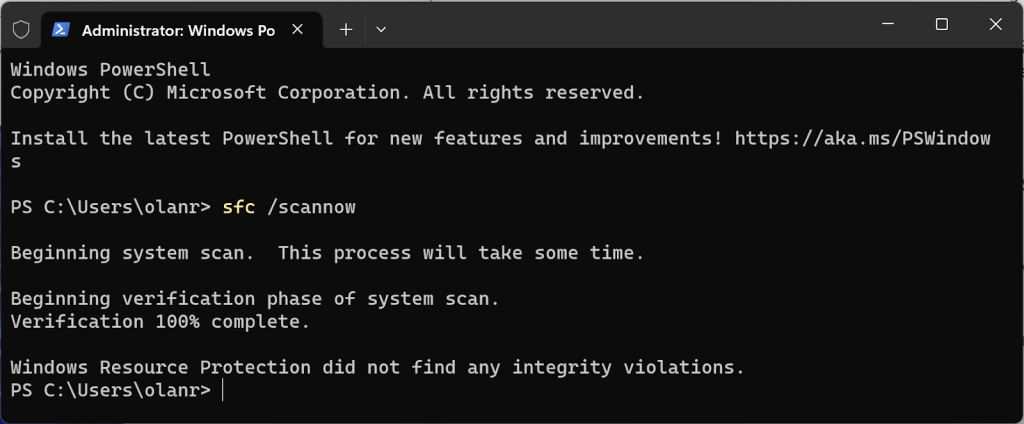
“Windows Resource Protection doesn’t find any integrity violations.” means your PC has no corrupt system file—take the next troubleshooting step if you receive this message.
Reset Windows Update Components
Windows Update components are files and services that help your computer detect, download, and install Windows and app updates. Follow the steps below to reset Windows Update components on your computer manually.
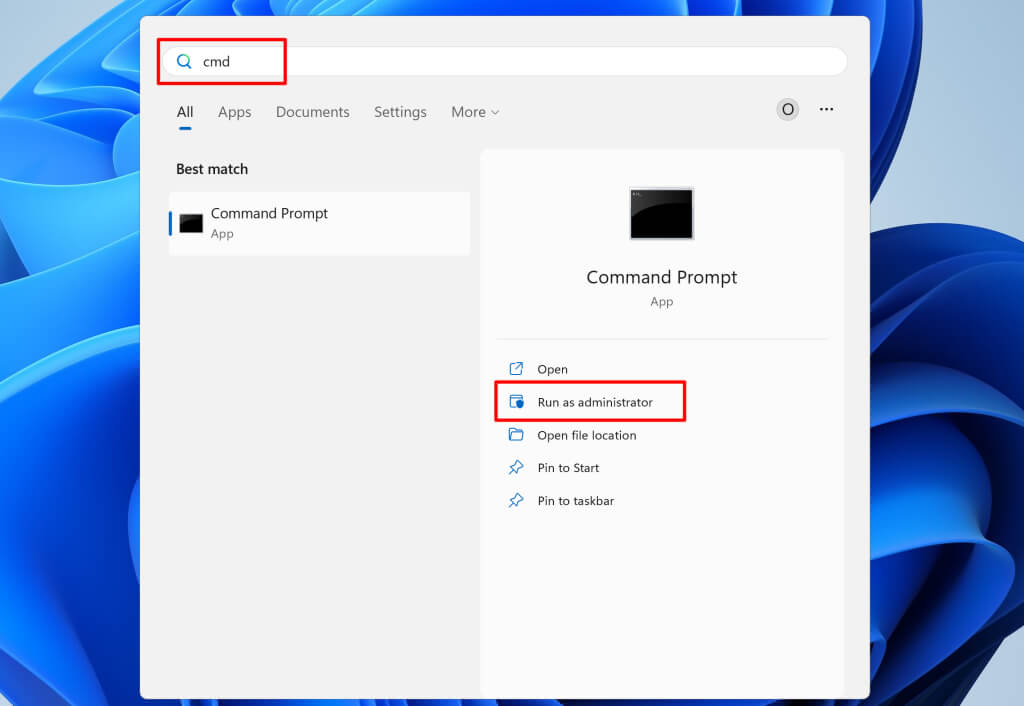
- Open the Start menu, type cmd in the search bar, and select Run as administrator below Command Prompt.
<img loading=“lazy” src=“https://helpdeskgeek.com/wp-content/pictures/2023/11/how-to-fix-something-didnt-go-as-planned-error-in-windows-11-9-compressed.jpg" onerror=“this.onerror=null;this.src=‘https://blogger.googleusercontent.com/img/a/AVvXsEhe7F7TRXHtjiKvHb5vS7DmnxvpHiDyoYyYvm1nHB3Qp2_w3BnM6A2eq4v7FYxCC9bfZt3a9vIMtAYEKUiaDQbHMg-ViyGmRIj39MLp0bGFfgfYw1Dc9q_H-T0wiTm3l0Uq42dETrN9eC8aGJ9_IORZsxST1AcLR7np1koOfcc7tnHa4S8Mwz_xD9d0=s16000';" alt=“How to Fix “Something Didn’t Go as Planned” Error in Windows 11 image 9 - 9”>
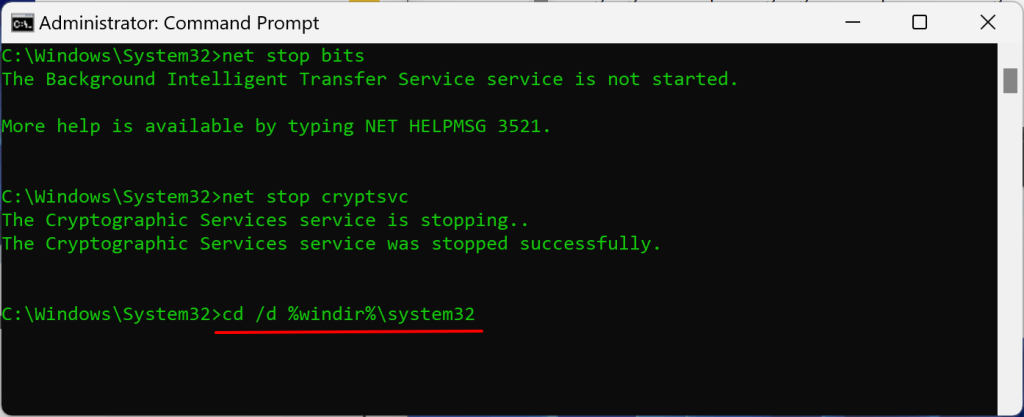
- Run the following commands consecutively in the Command Prompt console.
net stop wuauserv
net stop bits
net stop cryptsvc
The commands terminate the Windows Update, Background Intelligent Transfer Service, and Cryptographic services.
- Next, type or paste cd /d %windir%\system32 in the console and press Enter .
<img loading=“lazy” src=“https://helpdeskgeek.com/wp-content/pictures/2023/11/how-to-fix-something-didnt-go-as-planned-error-in-windows-11-10-compressed.png" onerror=“this.onerror=null;this.src=‘https://blogger.googleusercontent.com/img/a/AVvXsEhe7F7TRXHtjiKvHb5vS7DmnxvpHiDyoYyYvm1nHB3Qp2_w3BnM6A2eq4v7FYxCC9bfZt3a9vIMtAYEKUiaDQbHMg-ViyGmRIj39MLp0bGFfgfYw1Dc9q_H-T0wiTm3l0Uq42dETrN9eC8aGJ9_IORZsxST1AcLR7np1koOfcc7tnHa4S8Mwz_xD9d0=s16000';" alt=“How to Fix “Something Didn’t Go as Planned” Error in Windows 11 image 10 - 10”>
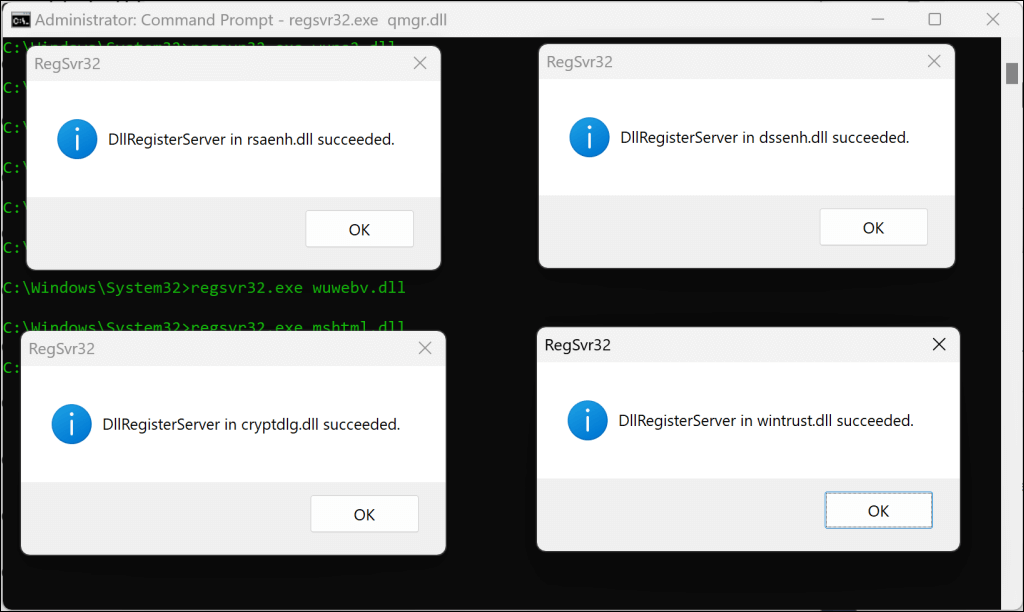
- Run the following commands to reregister the BITS and Windows Update DLL files in the Windows Registry.
regsvr32.exe atl.dll
regsvr32.exe urlmon.dll
regsvr32.exe mshtml.dll
regsvr32.exe shdocvw.dll
regsvr32.exe browseui.dll
regsvr32.exe jscript.dll
regsvr32.exe vbscript.dll
regsvr32.exe scrrun.dll
regsvr32.exe msxml.dll
regsvr32.exe msxml3.dll
regsvr32.exe msxml6.dll
regsvr32.exe actxprxy.dll
regsvr32.exe softpub.dll
regsvr32.exe wintrust.dll
regsvr32.exe dssenh.dll
regsvr32.exe rsaenh.dll
regsvr32.exe gpkcsp.dll
regsvr32.exe sccbase.dll
regsvr32.exe slbcsp.dll
regsvr32.exe cryptdlg.dll
regsvr32.exe oleaut32.dll
regsvr32.exe ole32.dll
regsvr32.exe shell32.dll
regsvr32.exe initpki.dll
regsvr32.exe wuapi.dll
regsvr32.exe wuaueng.dll
regsvr32.exe wuaueng1.dll
regsvr32.exe wucltui.dll
regsvr32.exe wups.dll
regsvr32.exe wups2.dll
regsvr32.exe wuweb.dll
regsvr32.exe qmgr.dll
regsvr32.exe qmgrprxy.dll
regsvr32.exe wucltux.dll
regsvr32.exe muweb.dll
regsvr32.exe wuwebv.dll
<img loading=“lazy” src=“https://helpdeskgeek.com/wp-content/pictures/2023/11/how-to-fix-something-didnt-go-as-planned-error-in-windows-11-11-compressed.png" onerror=“this.onerror=null;this.src=‘https://blogger.googleusercontent.com/img/a/AVvXsEhe7F7TRXHtjiKvHb5vS7DmnxvpHiDyoYyYvm1nHB3Qp2_w3BnM6A2eq4v7FYxCC9bfZt3a9vIMtAYEKUiaDQbHMg-ViyGmRIj39MLp0bGFfgfYw1Dc9q_H-T0wiTm3l0Uq42dETrN9eC8aGJ9_IORZsxST1AcLR7np1koOfcc7tnHa4S8Mwz_xD9d0=s16000';" alt=“How to Fix “Something Didn’t Go as Planned” Error in Windows 11 image 11 - 11”>
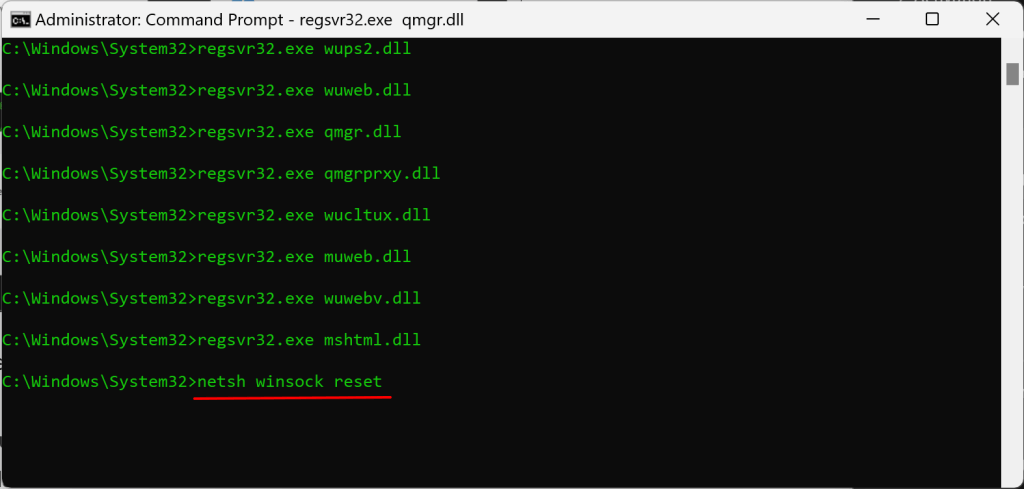
You should get a success message pop-up after running each command. The next step is to reset the Windows Socket (Winsock). That’ll fix issues preventing your device from connecting to the internet or downloading Windows Updates.
- Type or paste netsh winsock reset in the Command Prompt console and press Enter .
<img loading=“lazy” src=“https://helpdeskgeek.com/wp-content/pictures/2023/11/how-to-fix-something-didnt-go-as-planned-error-in-windows-11-12-compressed.png" onerror=“this.onerror=null;this.src=‘https://blogger.googleusercontent.com/img/a/AVvXsEhe7F7TRXHtjiKvHb5vS7DmnxvpHiDyoYyYvm1nHB3Qp2_w3BnM6A2eq4v7FYxCC9bfZt3a9vIMtAYEKUiaDQbHMg-ViyGmRIj39MLp0bGFfgfYw1Dc9q_H-T0wiTm3l0Uq42dETrN9eC8aGJ9_IORZsxST1AcLR7np1koOfcc7tnHa4S8Mwz_xD9d0=s16000';" alt=“How to Fix “Something Didn’t Go as Planned” Error in Windows 11 image 12 - 12”>
Reboot your computer when you see a “Successfully reset the Winsock Catalog” message, and try installing the Windows Update.
Clear Windows Update Cache
Files in the SoftwareDistribution folder help your computer update its operating system. Windows downloads the files automatically from Microsoft’s servers to swiftly execute the installation of Windows Update.
You might encounter Windows Update errors if the cache files in the SoftwareDistribution folder get corrupted. Delete Windows Update cache files if the “Something didn’t go as planned” error persists.
We recommend you stop the Windows Update service before clearing the Windows Update files.
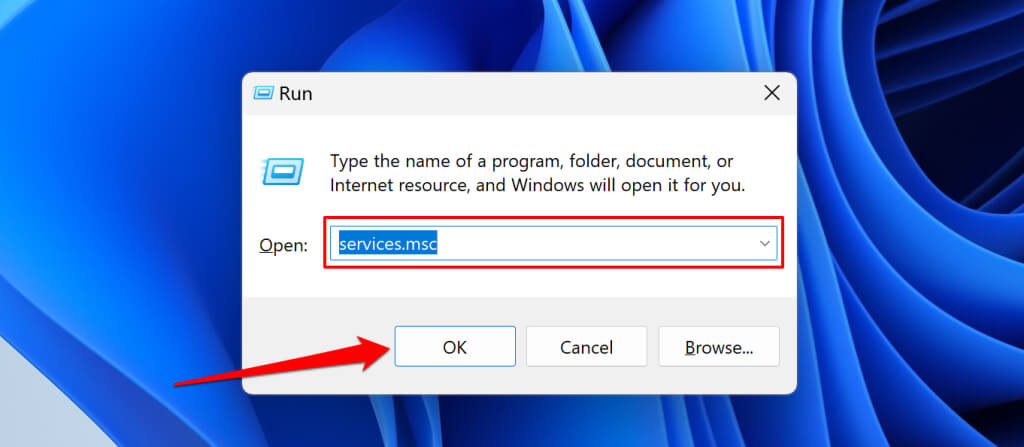
- Press the Windows key + R , type services.msc in the Windows Run box, and select OK .
<img loading=“lazy” src=“https://helpdeskgeek.com/wp-content/pictures/2023/11/how-to-fix-something-didnt-go-as-planned-error-in-windows-11-13-compressed.jpg" onerror=“this.onerror=null;this.src=‘https://blogger.googleusercontent.com/img/a/AVvXsEhe7F7TRXHtjiKvHb5vS7DmnxvpHiDyoYyYvm1nHB3Qp2_w3BnM6A2eq4v7FYxCC9bfZt3a9vIMtAYEKUiaDQbHMg-ViyGmRIj39MLp0bGFfgfYw1Dc9q_H-T0wiTm3l0Uq42dETrN9eC8aGJ9_IORZsxST1AcLR7np1koOfcc7tnHa4S8Mwz_xD9d0=s16000';" alt=“How to Fix “Something Didn’t Go as Planned” Error in Windows 11 image 13 - 13”>
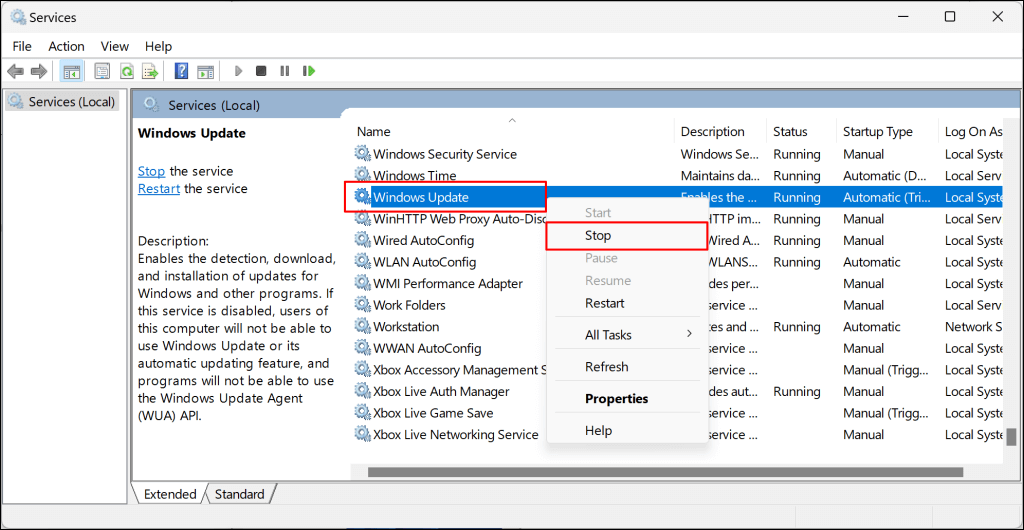
- Right-click Windows Update and select Stop .
<img loading=“lazy” src=“https://helpdeskgeek.com/wp-content/pictures/2023/11/how-to-fix-something-didnt-go-as-planned-error-in-windows-11-14-compressed.png" onerror=“this.onerror=null;this.src=‘https://blogger.googleusercontent.com/img/a/AVvXsEhe7F7TRXHtjiKvHb5vS7DmnxvpHiDyoYyYvm1nHB3Qp2_w3BnM6A2eq4v7FYxCC9bfZt3a9vIMtAYEKUiaDQbHMg-ViyGmRIj39MLp0bGFfgfYw1Dc9q_H-T0wiTm3l0Uq42dETrN9eC8aGJ9_IORZsxST1AcLR7np1koOfcc7tnHa4S8Mwz_xD9d0=s16000';" alt=“How to Fix “Something Didn’t Go as Planned” Error in Windows 11 image 14 - 14”>
- Press the Windows key + E to open the Windows File Explorer.
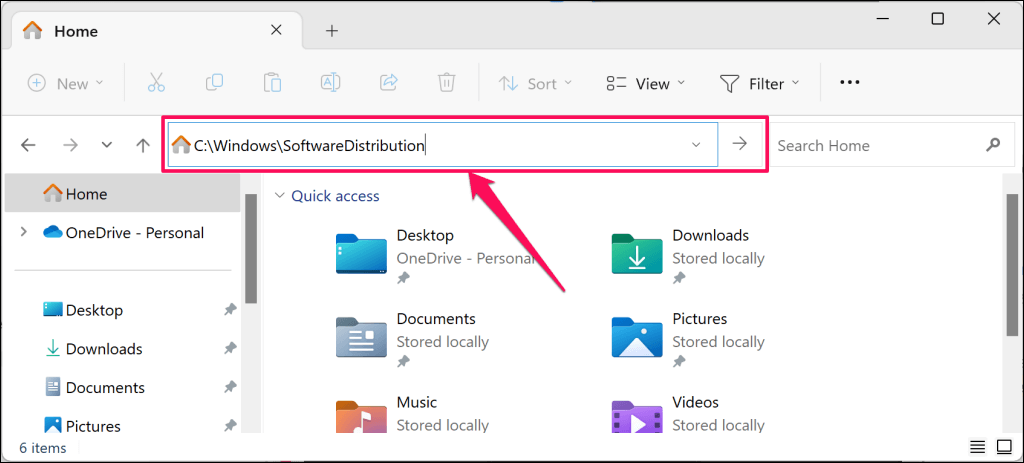
- Paste C:\Windows\SoftwareDistribution in the navigation pane and press Enter .
<img loading=“lazy” src=“https://helpdeskgeek.com/wp-content/pictures/2023/11/how-to-fix-something-didnt-go-as-planned-error-in-windows-11-15-compressed.png" onerror=“this.onerror=null;this.src=‘https://blogger.googleusercontent.com/img/a/AVvXsEhe7F7TRXHtjiKvHb5vS7DmnxvpHiDyoYyYvm1nHB3Qp2_w3BnM6A2eq4v7FYxCC9bfZt3a9vIMtAYEKUiaDQbHMg-ViyGmRIj39MLp0bGFfgfYw1Dc9q_H-T0wiTm3l0Uq42dETrN9eC8aGJ9_IORZsxST1AcLR7np1koOfcc7tnHa4S8Mwz_xD9d0=s16000';" alt=“How to Fix “Something Didn’t Go as Planned” Error in Windows 11 image 15 - 15”>
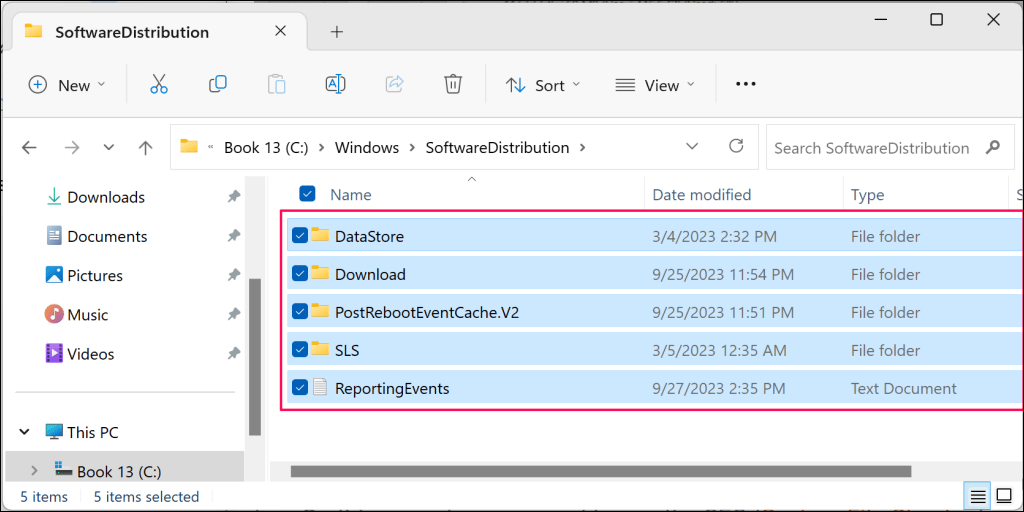
- Delete all files and sub-folders in the SoftwareDistribution folder or move them to a different location on your computer.
<img loading=“lazy” src=“https://helpdeskgeek.com/wp-content/pictures/2023/11/how-to-fix-something-didnt-go-as-planned-error-in-windows-11-16-compressed.png" onerror=“this.onerror=null;this.src=‘https://blogger.googleusercontent.com/img/a/AVvXsEhe7F7TRXHtjiKvHb5vS7DmnxvpHiDyoYyYvm1nHB3Qp2_w3BnM6A2eq4v7FYxCC9bfZt3a9vIMtAYEKUiaDQbHMg-ViyGmRIj39MLp0bGFfgfYw1Dc9q_H-T0wiTm3l0Uq42dETrN9eC8aGJ9_IORZsxST1AcLR7np1koOfcc7tnHa4S8Mwz_xD9d0=s16000';" alt=“How to Fix “Something Didn’t Go as Planned” Error in Windows 11 image 16 - 16”>
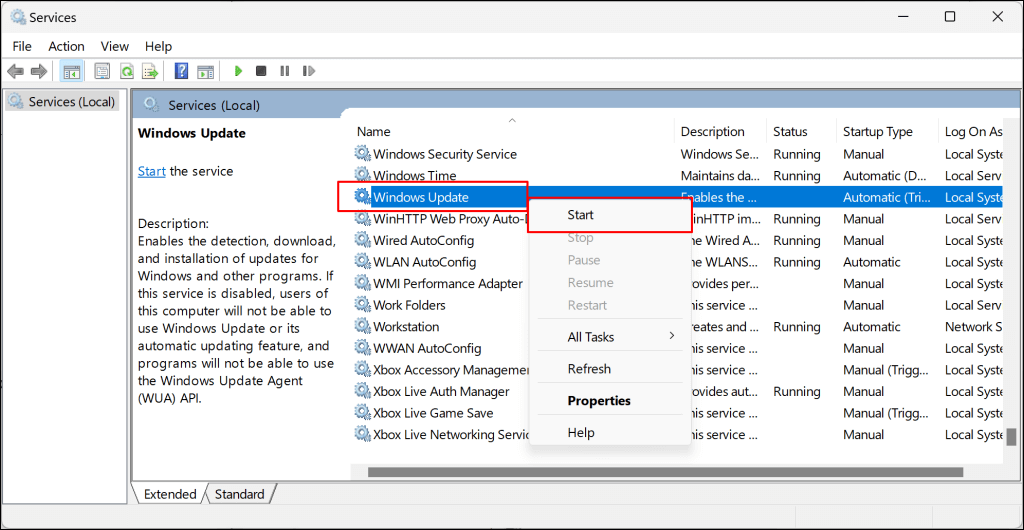
- Restart the Windows Update service and try reinstalling the update. Return to the Windows Services Manager, right-click Windows Update , and select Start .
<img loading=“lazy” src=“https://helpdeskgeek.com/wp-content/pictures/2023/11/how-to-fix-something-didnt-go-as-planned-error-in-windows-11-17-compressed.png" onerror=“this.onerror=null;this.src=‘https://blogger.googleusercontent.com/img/a/AVvXsEhe7F7TRXHtjiKvHb5vS7DmnxvpHiDyoYyYvm1nHB3Qp2_w3BnM6A2eq4v7FYxCC9bfZt3a9vIMtAYEKUiaDQbHMg-ViyGmRIj39MLp0bGFfgfYw1Dc9q_H-T0wiTm3l0Uq42dETrN9eC8aGJ9_IORZsxST1AcLR7np1koOfcc7tnHa4S8Mwz_xD9d0=s16000';" alt=“How to Fix “Something Didn’t Go as Planned” Error in Windows 11 image 17 - 17”>
Manually Install the Update Package File
The Microsoft Windows Update Catalog is a repository or database of all Windows Updates. If you can’t install an update through Windows Settings, download and install it manually from the Microsoft Update Catalog.
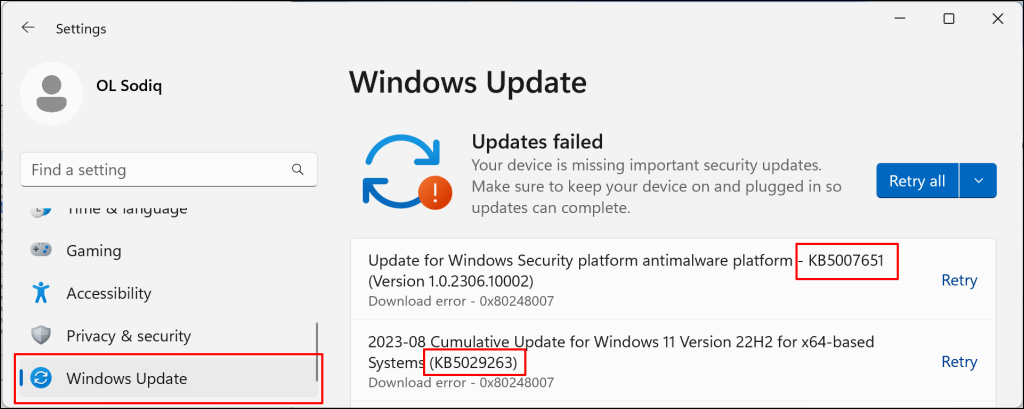
- Go to Settings , select Windows Update on the sidebar, and check the update name. Windows Updates names start with “KB,” and you’ll sometimes find them in parenthesis.
<img loading=“lazy” src=“https://helpdeskgeek.com/wp-content/pictures/2023/11/how-to-fix-something-didnt-go-as-planned-error-in-windows-11-18-compressed.png" onerror=“this.onerror=null;this.src=‘https://blogger.googleusercontent.com/img/a/AVvXsEhe7F7TRXHtjiKvHb5vS7DmnxvpHiDyoYyYvm1nHB3Qp2_w3BnM6A2eq4v7FYxCC9bfZt3a9vIMtAYEKUiaDQbHMg-ViyGmRIj39MLp0bGFfgfYw1Dc9q_H-T0wiTm3l0Uq42dETrN9eC8aGJ9_IORZsxST1AcLR7np1koOfcc7tnHa4S8Mwz_xD9d0=s16000';" alt=“How to Fix “Something Didn’t Go as Planned” Error in Windows 11 image 18 - 18”>
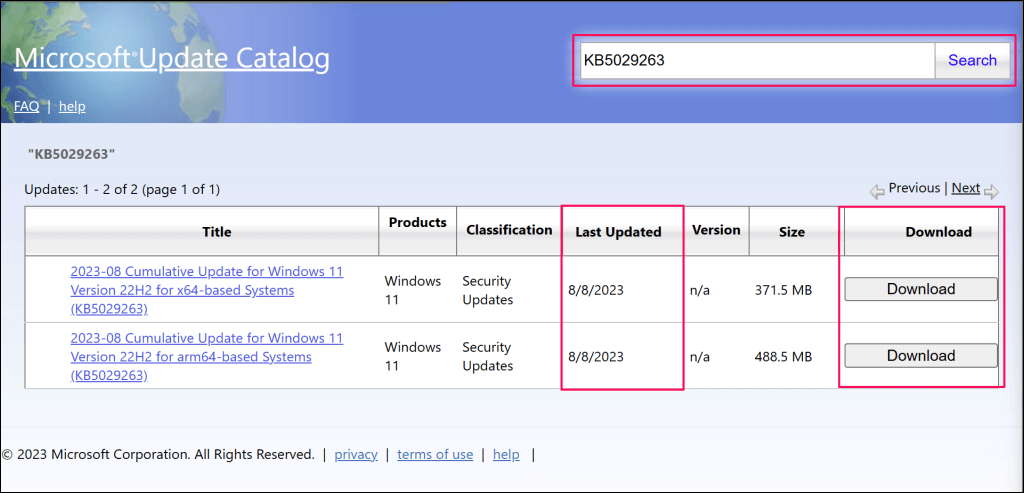
- Head to the Microsoft Update Catalog website , type the update name in the search box, and select the Search button.
<img loading=“lazy” src=“https://helpdeskgeek.com/wp-content/pictures/2023/11/how-to-fix-something-didnt-go-as-planned-error-in-windows-11-19-compressed.png" onerror=“this.onerror=null;this.src=‘https://blogger.googleusercontent.com/img/a/AVvXsEhe7F7TRXHtjiKvHb5vS7DmnxvpHiDyoYyYvm1nHB3Qp2_w3BnM6A2eq4v7FYxCC9bfZt3a9vIMtAYEKUiaDQbHMg-ViyGmRIj39MLp0bGFfgfYw1Dc9q_H-T0wiTm3l0Uq42dETrN9eC8aGJ9_IORZsxST1AcLR7np1koOfcc7tnHa4S8Mwz_xD9d0=s16000';" alt=“How to Fix “Something Didn’t Go as Planned” Error in Windows 11 image 19 - 19”>
If there are two versions of an update, download the one with the most recent “Last Updated” date.
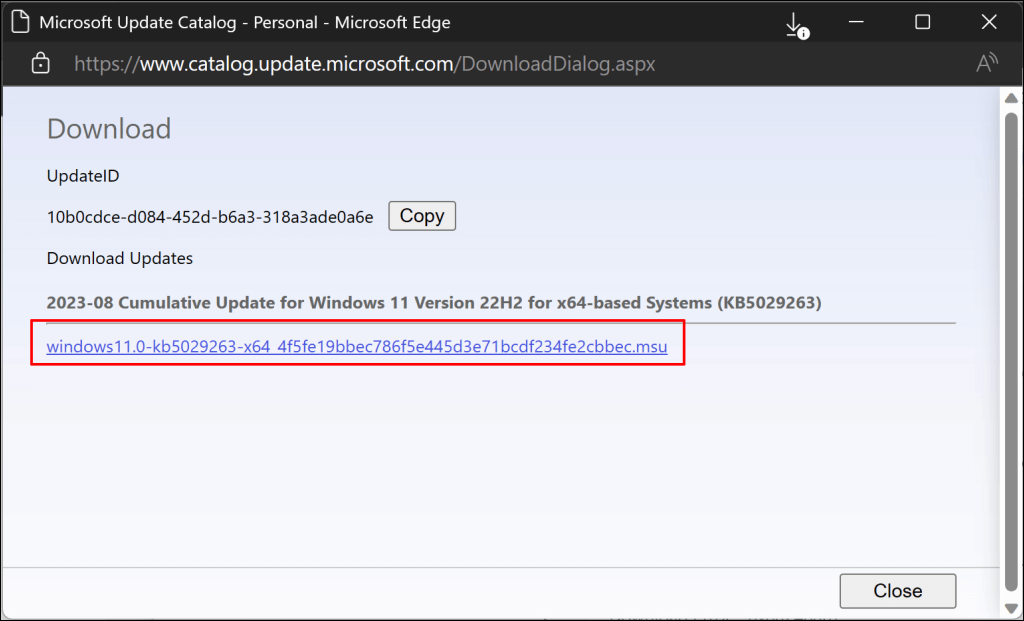
- Select the download link to save the Windows Update package file to your computer.
<img loading=“lazy” src=“https://helpdeskgeek.com/wp-content/pictures/2023/11/how-to-fix-something-didnt-go-as-planned-error-in-windows-11-20-compressed.png" onerror=“this.onerror=null;this.src=‘https://blogger.googleusercontent.com/img/a/AVvXsEhe7F7TRXHtjiKvHb5vS7DmnxvpHiDyoYyYvm1nHB3Qp2_w3BnM6A2eq4v7FYxCC9bfZt3a9vIMtAYEKUiaDQbHMg-ViyGmRIj39MLp0bGFfgfYw1Dc9q_H-T0wiTm3l0Uq42dETrN9eC8aGJ9_IORZsxST1AcLR7np1koOfcc7tnHa4S8Mwz_xD9d0=s16000';" alt=“How to Fix “Something Didn’t Go as Planned” Error in Windows 11 image 20 - 20”>
Double-click the file and follow the on-screen instructions to install the Windows Update.
Update Windows in Clean Boot State
Performing a clean boot starts Windows without non-essential startup programs and drivers. It’s a diagnostic state similar to booting Windows into Safe Mode . The clean boot environment temporarily hibernates software and services that could conflict with software or app updates.
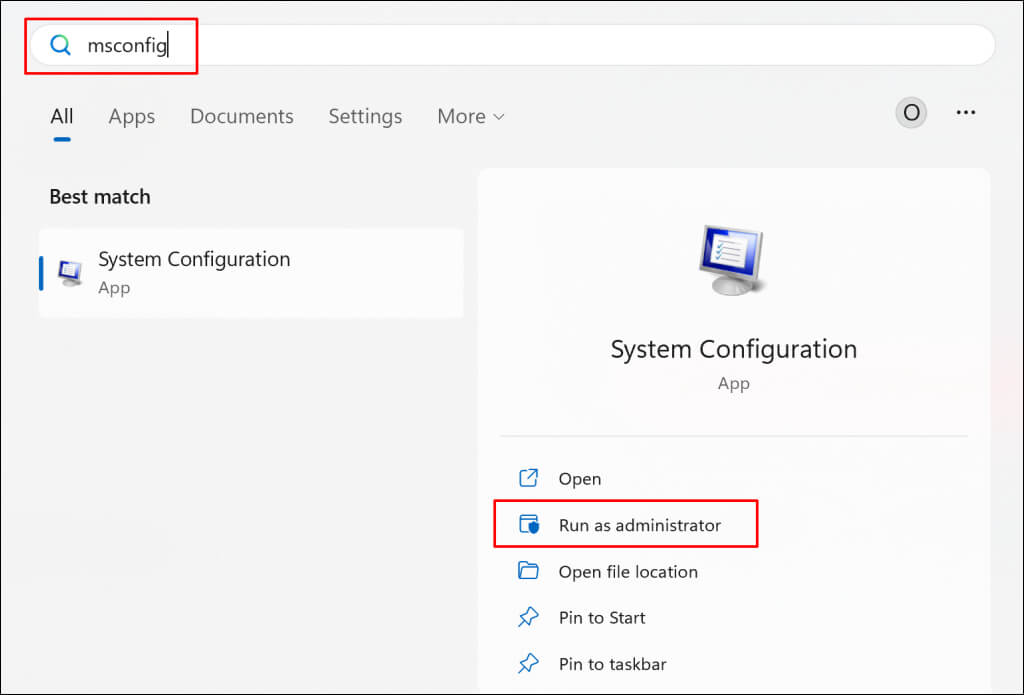
- Open the Start menu and type msconfig in the search bar. Select Run as administrator to open the System Configuration app with administrative privileges.
<img loading=“lazy” src=“https://helpdeskgeek.com/wp-content/pictures/2023/11/how-to-fix-something-didnt-go-as-planned-error-in-windows-11-21-compressed.jpg" onerror=“this.onerror=null;this.src=‘https://blogger.googleusercontent.com/img/a/AVvXsEhe7F7TRXHtjiKvHb5vS7DmnxvpHiDyoYyYvm1nHB3Qp2_w3BnM6A2eq4v7FYxCC9bfZt3a9vIMtAYEKUiaDQbHMg-ViyGmRIj39MLp0bGFfgfYw1Dc9q_H-T0wiTm3l0Uq42dETrN9eC8aGJ9_IORZsxST1AcLR7np1koOfcc7tnHa4S8Mwz_xD9d0=s16000';" alt=“How to Fix “Something Didn’t Go as Planned” Error in Windows 11 image 21 - 21”>
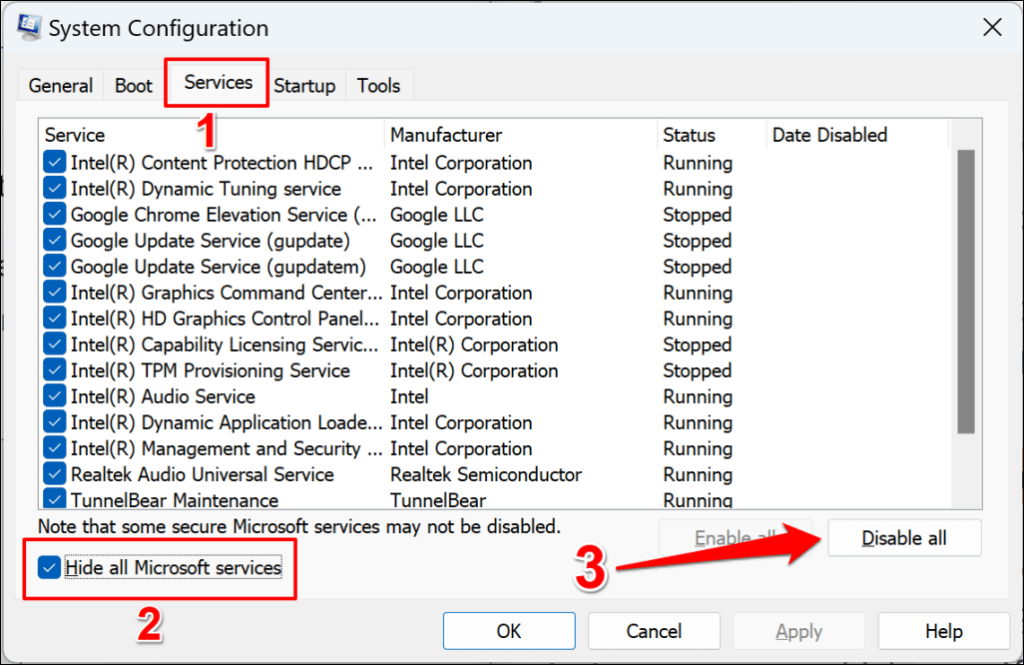
- Head to the Services tab, check the Hide all Microsoft services box, and select the Disable all button.
<img loading=“lazy” src=“https://helpdeskgeek.com/wp-content/pictures/2023/11/how-to-fix-something-didnt-go-as-planned-error-in-windows-11-22-compressed.png" onerror=“this.onerror=null;this.src=‘https://blogger.googleusercontent.com/img/a/AVvXsEhe7F7TRXHtjiKvHb5vS7DmnxvpHiDyoYyYvm1nHB3Qp2_w3BnM6A2eq4v7FYxCC9bfZt3a9vIMtAYEKUiaDQbHMg-ViyGmRIj39MLp0bGFfgfYw1Dc9q_H-T0wiTm3l0Uq42dETrN9eC8aGJ9_IORZsxST1AcLR7np1koOfcc7tnHa4S8Mwz_xD9d0=s16000';" alt=“How to Fix “Something Didn’t Go as Planned” Error in Windows 11 image 22 - 22”>
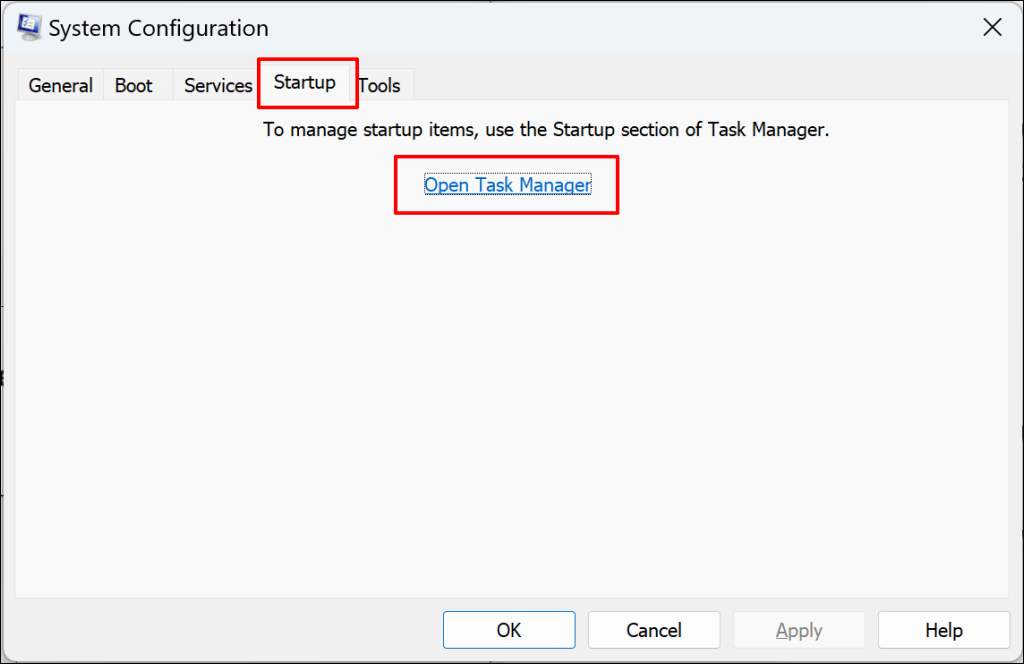
- Next, open the Startup tab and select Open Task Manager .
<img loading=“lazy” src=“https://helpdeskgeek.com/wp-content/pictures/2023/11/how-to-fix-something-didnt-go-as-planned-error-in-windows-11-23-compressed.png" onerror=“this.onerror=null;this.src=‘https://blogger.googleusercontent.com/img/a/AVvXsEhe7F7TRXHtjiKvHb5vS7DmnxvpHiDyoYyYvm1nHB3Qp2_w3BnM6A2eq4v7FYxCC9bfZt3a9vIMtAYEKUiaDQbHMg-ViyGmRIj39MLp0bGFfgfYw1Dc9q_H-T0wiTm3l0Uq42dETrN9eC8aGJ9_IORZsxST1AcLR7np1koOfcc7tnHa4S8Mwz_xD9d0=s16000';" alt=“How to Fix “Something Didn’t Go as Planned” Error in Windows 11 image 23 - 23”>
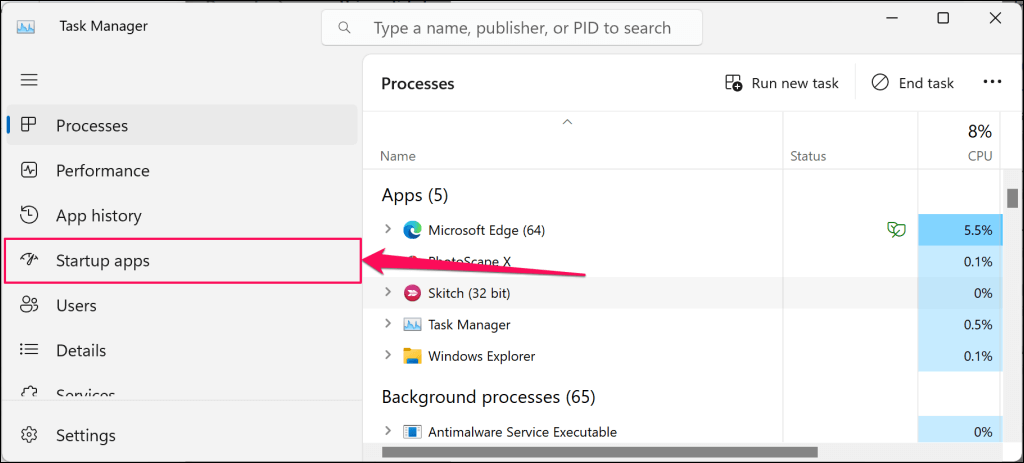
The Ctrl + Shift + Esc keyboard shortcut can also launch Task Manager. Select “Startup apps” on the sidebar and proceed to the next step.
<img loading=“lazy” src=“https://helpdeskgeek.com/wp-content/pictures/2023/11/how-to-fix-something-didnt-go-as-planned-error-in-windows-11-24-compressed.png" onerror=“this.onerror=null;this.src=‘https://blogger.googleusercontent.com/img/a/AVvXsEhe7F7TRXHtjiKvHb5vS7DmnxvpHiDyoYyYvm1nHB3Qp2_w3BnM6A2eq4v7FYxCC9bfZt3a9vIMtAYEKUiaDQbHMg-ViyGmRIj39MLp0bGFfgfYw1Dc9q_H-T0wiTm3l0Uq42dETrN9eC8aGJ9_IORZsxST1AcLR7np1koOfcc7tnHa4S8Mwz_xD9d0=s16000';" alt=“How to Fix “Something Didn’t Go as Planned” Error in Windows 11 image 24 - 24”>
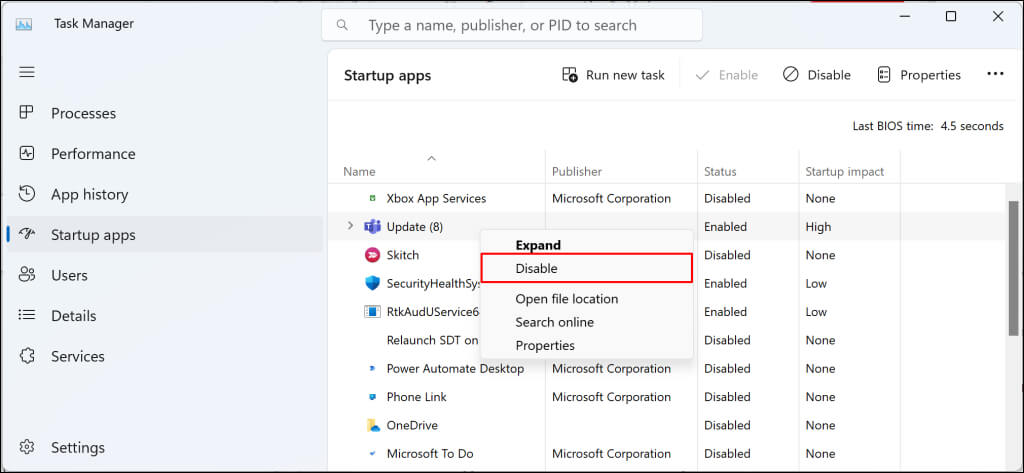
- Check the “Status” column and disable all startup-enabled apps. Right-click all startup-enabled apps and select Disable .
<img loading=“lazy” src=“https://helpdeskgeek.com/wp-content/pictures/2023/11/how-to-fix-something-didnt-go-as-planned-error-in-windows-11-25-compressed.jpg" onerror=“this.onerror=null;this.src=‘https://blogger.googleusercontent.com/img/a/AVvXsEhe7F7TRXHtjiKvHb5vS7DmnxvpHiDyoYyYvm1nHB3Qp2_w3BnM6A2eq4v7FYxCC9bfZt3a9vIMtAYEKUiaDQbHMg-ViyGmRIj39MLp0bGFfgfYw1Dc9q_H-T0wiTm3l0Uq42dETrN9eC8aGJ9_IORZsxST1AcLR7np1koOfcc7tnHa4S8Mwz_xD9d0=s16000';" alt=“How to Fix “Something Didn’t Go as Planned” Error in Windows 11 image 25 - 25”>
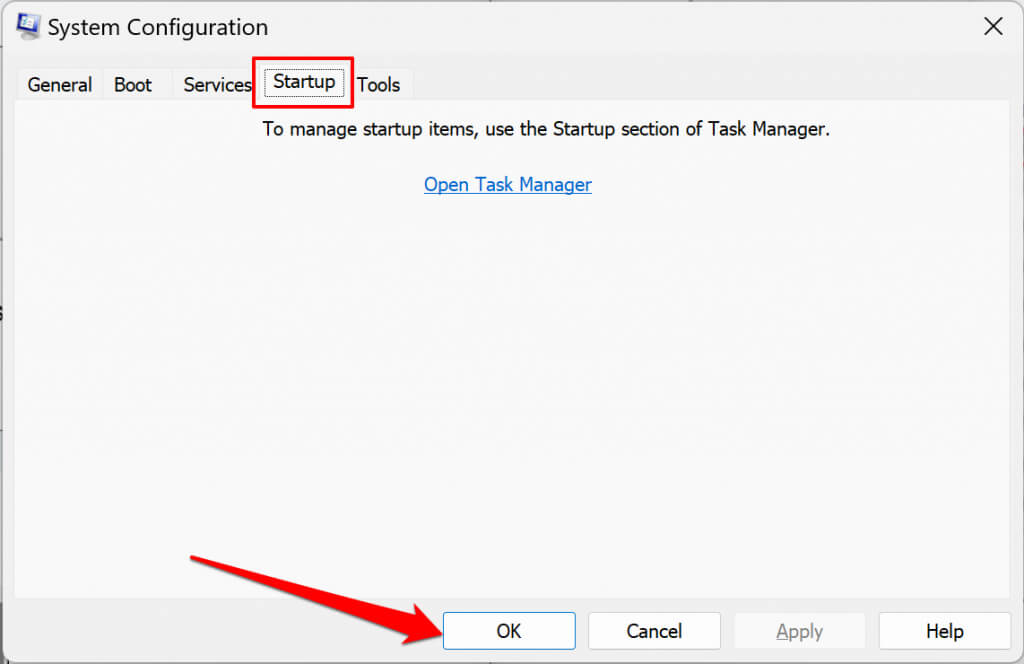
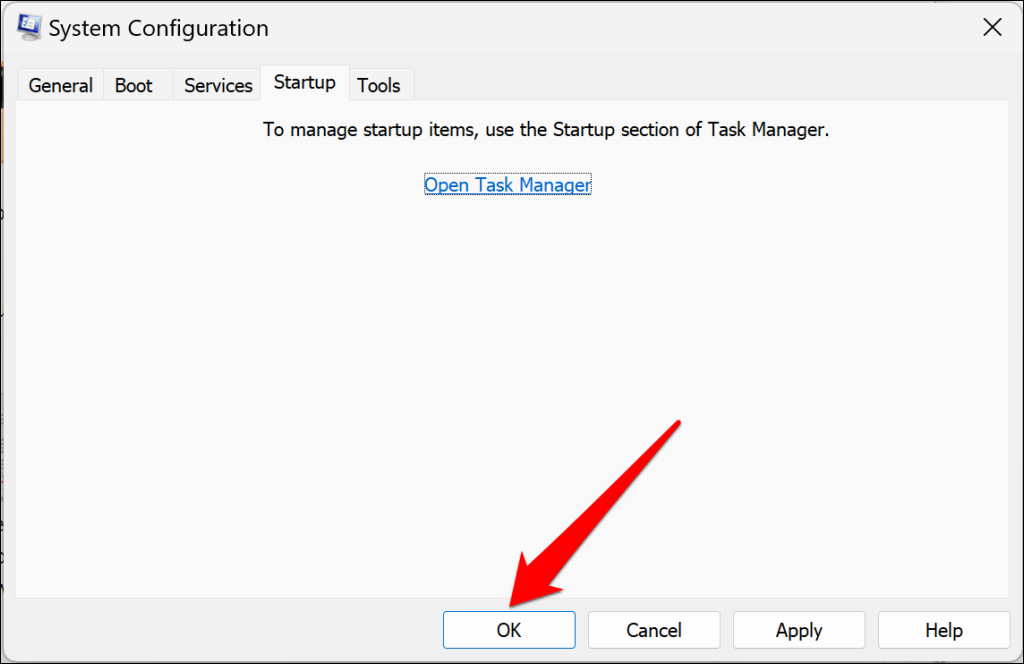
- Close the Task Manager, return to the Startup tab in the System Configuration tab, and select OK .
<img loading=“lazy” src=“https://helpdeskgeek.com/wp-content/pictures/2023/11/how-to-fix-something-didnt-go-as-planned-error-in-windows-11-26-compressed.jpg" onerror=“this.onerror=null;this.src=‘https://blogger.googleusercontent.com/img/a/AVvXsEhe7F7TRXHtjiKvHb5vS7DmnxvpHiDyoYyYvm1nHB3Qp2_w3BnM6A2eq4v7FYxCC9bfZt3a9vIMtAYEKUiaDQbHMg-ViyGmRIj39MLp0bGFfgfYw1Dc9q_H-T0wiTm3l0Uq42dETrN9eC8aGJ9_IORZsxST1AcLR7np1koOfcc7tnHa4S8Mwz_xD9d0=s16000';" alt=“How to Fix “Something Didn’t Go as Planned” Error in Windows 11 image 26 - 26”>
- Select Restart to enter the clean boot environment and reinstall the Windows Update when your PC reboots.
<img loading=“lazy” src=“https://helpdeskgeek.com/wp-content/pictures/2023/11/how-to-fix-something-didnt-go-as-planned-error-in-windows-11-27-compressed.jpg" onerror=“this.onerror=null;this.src=‘https://blogger.googleusercontent.com/img/a/AVvXsEhe7F7TRXHtjiKvHb5vS7DmnxvpHiDyoYyYvm1nHB3Qp2_w3BnM6A2eq4v7FYxCC9bfZt3a9vIMtAYEKUiaDQbHMg-ViyGmRIj39MLp0bGFfgfYw1Dc9q_H-T0wiTm3l0Uq42dETrN9eC8aGJ9_IORZsxST1AcLR7np1koOfcc7tnHa4S8Mwz_xD9d0=s16000';" alt=“How to Fix “Something Didn’t Go as Planned” Error in Windows 11 image 27 - 27”>
Reset your computer to exit the clean boot environment when the installation succeeds.
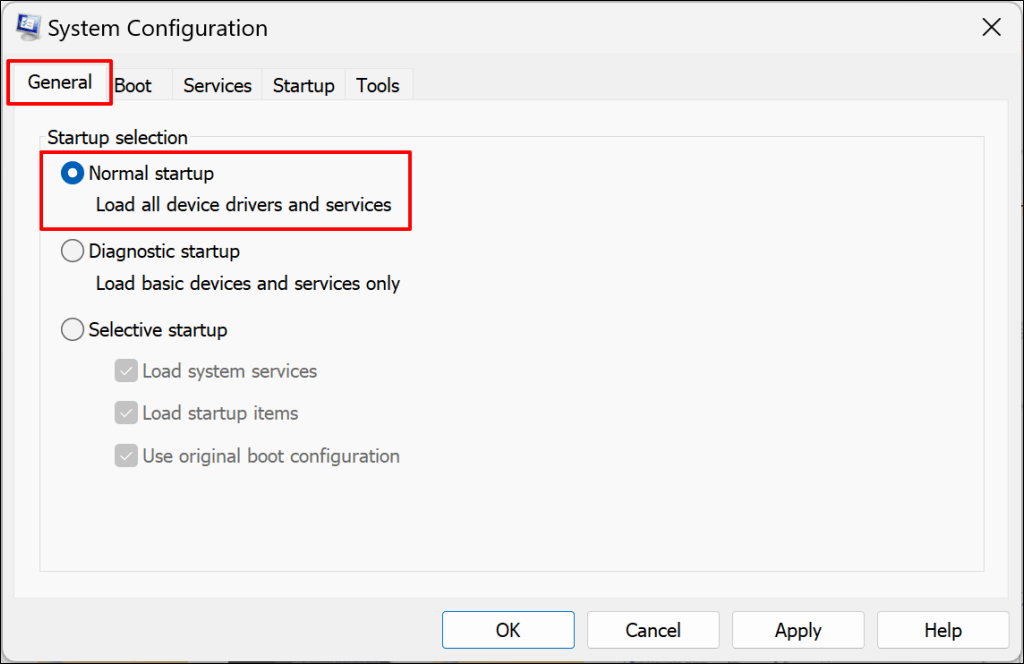
- Open the General tab in the System Configuration app and select Normal startup .
<img loading=“lazy” src=“https://helpdeskgeek.com/wp-content/pictures/2023/11/how-to-fix-something-didnt-go-as-planned-error-in-windows-11-28-compressed.png" onerror=“this.onerror=null;this.src=‘https://blogger.googleusercontent.com/img/a/AVvXsEhe7F7TRXHtjiKvHb5vS7DmnxvpHiDyoYyYvm1nHB3Qp2_w3BnM6A2eq4v7FYxCC9bfZt3a9vIMtAYEKUiaDQbHMg-ViyGmRIj39MLp0bGFfgfYw1Dc9q_H-T0wiTm3l0Uq42dETrN9eC8aGJ9_IORZsxST1AcLR7np1koOfcc7tnHa4S8Mwz_xD9d0=s16000';" alt=“How to Fix “Something Didn’t Go as Planned” Error in Windows 11 image 28 - 28”>
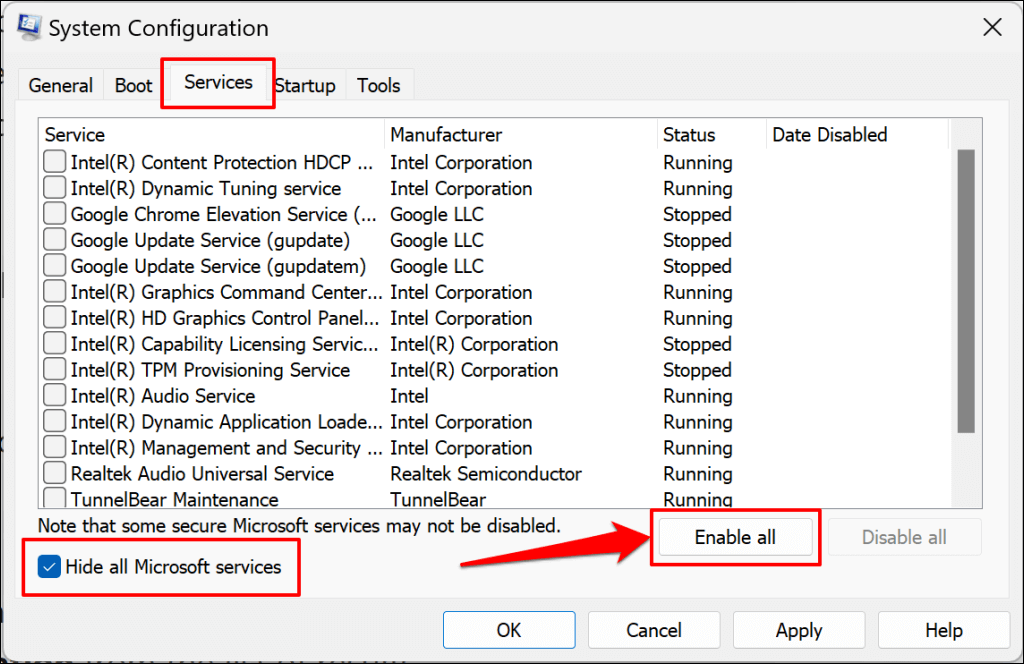
- Next, head to the Services tab, deselect the Hide all Microsoft services checkbox, and select the Enable all button.
<img loading=“lazy” src=“https://helpdeskgeek.com/wp-content/pictures/2023/11/how-to-fix-something-didnt-go-as-planned-error-in-windows-11-29-compressed.png" onerror=“this.onerror=null;this.src=‘https://blogger.googleusercontent.com/img/a/AVvXsEhe7F7TRXHtjiKvHb5vS7DmnxvpHiDyoYyYvm1nHB3Qp2_w3BnM6A2eq4v7FYxCC9bfZt3a9vIMtAYEKUiaDQbHMg-ViyGmRIj39MLp0bGFfgfYw1Dc9q_H-T0wiTm3l0Uq42dETrN9eC8aGJ9_IORZsxST1AcLR7np1koOfcc7tnHa4S8Mwz_xD9d0=s16000';" alt=“How to Fix “Something Didn’t Go as Planned” Error in Windows 11 image 29 - 29”>
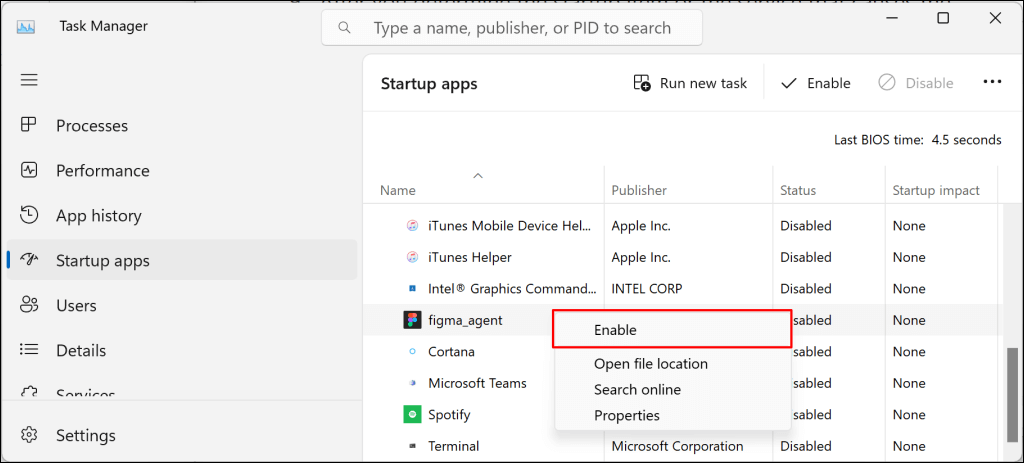
- Open the Startup tab, select Open Task Manager , and re-enable the startup programs you disabled in step #4.
<img loading=“lazy” src=“https://helpdeskgeek.com/wp-content/pictures/2023/11/how-to-fix-something-didnt-go-as-planned-error-in-windows-11-23-compressed.png" onerror=“this.onerror=null;this.src=‘https://blogger.googleusercontent.com/img/a/AVvXsEhe7F7TRXHtjiKvHb5vS7DmnxvpHiDyoYyYvm1nHB3Qp2_w3BnM6A2eq4v7FYxCC9bfZt3a9vIMtAYEKUiaDQbHMg-ViyGmRIj39MLp0bGFfgfYw1Dc9q_H-T0wiTm3l0Uq42dETrN9eC8aGJ9_IORZsxST1AcLR7np1koOfcc7tnHa4S8Mwz_xD9d0=s16000';" alt=“How to Fix “Something Didn’t Go as Planned” Error in Windows 11 image 30 - 30”>
- Right-click an application and select Enable .
<img loading=“lazy” src=“https://helpdeskgeek.com/wp-content/pictures/2023/11/how-to-fix-something-didnt-go-as-planned-error-in-windows-11-31-compressed.png" onerror=“this.onerror=null;this.src=‘https://blogger.googleusercontent.com/img/a/AVvXsEhe7F7TRXHtjiKvHb5vS7DmnxvpHiDyoYyYvm1nHB3Qp2_w3BnM6A2eq4v7FYxCC9bfZt3a9vIMtAYEKUiaDQbHMg-ViyGmRIj39MLp0bGFfgfYw1Dc9q_H-T0wiTm3l0Uq42dETrN9eC8aGJ9_IORZsxST1AcLR7np1koOfcc7tnHa4S8Mwz_xD9d0=s16000';" alt=“How to Fix “Something Didn’t Go as Planned” Error in Windows 11 image 31 - 31”>
- Close the Task Manager and select OK to close the System Configuration app.
<img loading=“lazy” src=“https://helpdeskgeek.com/wp-content/pictures/2023/11/how-to-fix-something-didnt-go-as-planned-error-in-windows-11-32-compressed.png" onerror=“this.onerror=null;this.src=‘https://blogger.googleusercontent.com/img/a/AVvXsEhe7F7TRXHtjiKvHb5vS7DmnxvpHiDyoYyYvm1nHB3Qp2_w3BnM6A2eq4v7FYxCC9bfZt3a9vIMtAYEKUiaDQbHMg-ViyGmRIj39MLp0bGFfgfYw1Dc9q_H-T0wiTm3l0Uq42dETrN9eC8aGJ9_IORZsxST1AcLR7np1koOfcc7tnHa4S8Mwz_xD9d0=s16000';" alt=“How to Fix “Something Didn’t Go as Planned” Error in Windows 11 image 32 - 32”>
- Select Restart to save the changes and exit the clean boot environment.
<img loading=“lazy” src=“https://helpdeskgeek.com/wp-content/pictures/2023/11/how-to-fix-something-didnt-go-as-planned-error-in-windows-11-27-compressed.jpg" onerror=“this.onerror=null;this.src=‘https://blogger.googleusercontent.com/img/a/AVvXsEhe7F7TRXHtjiKvHb5vS7DmnxvpHiDyoYyYvm1nHB3Qp2_w3BnM6A2eq4v7FYxCC9bfZt3a9vIMtAYEKUiaDQbHMg-ViyGmRIj39MLp0bGFfgfYw1Dc9q_H-T0wiTm3l0Uq42dETrN9eC8aGJ9_IORZsxST1AcLR7np1koOfcc7tnHa4S8Mwz_xD9d0=s16000';" alt=“How to Fix “Something Didn’t Go as Planned” Error in Windows 11 image 33 - 33”>
Uninstall Third-Party Security Software
Third-party security apps can interfere with OS update processes in Windows. Uninstall third-party security apps (antivirus, firewall, anti-malware, cleaner apps, etc.) on your PC and reinstall the update.
Uninstalling Malwarebytes resolved the Windows Update failure for some Windows 11 users in this Microsoft Community forum .
Before uninstalling any application, ensure you know how to reinstall it and have its product key. Also, verify that it is compatible with the new Windows Update you’re applying to your PC.
Reset Windows if Things Still Don’t Go as Planned
Resetting Windows or performing a clean reinstall of Windows 11 can resolve the issue if all troubleshooting fixes prove abortive. Contact Windows Support for assistance if the installation error persists.
- Sluggish Windows 11 PC? Try These 5 Windows 11 Tricks to Free up Virtual Memory
- How To Turn Off Notifications On Windows 11?
- How to Fix Windows 11 Boot Loops After Jan 2026 Update
- How to Remove Copilot AI in Window 11? New Update Available in Beta
- January 2026 Patch Tuesday: 7 Things Windows Users Should Do Before and After Updating
Sodiq has written thousands of tutorials, guides, and explainers over the past 4 years to help people solve problems with Android, iOS, Mac, and Windows devices. He also enjoys reviewing consumer tech products (smartphones, smart home devices, accessories, etc.) and binge-watching comedy series in his spare time. Read Sodiq’s Full Bio