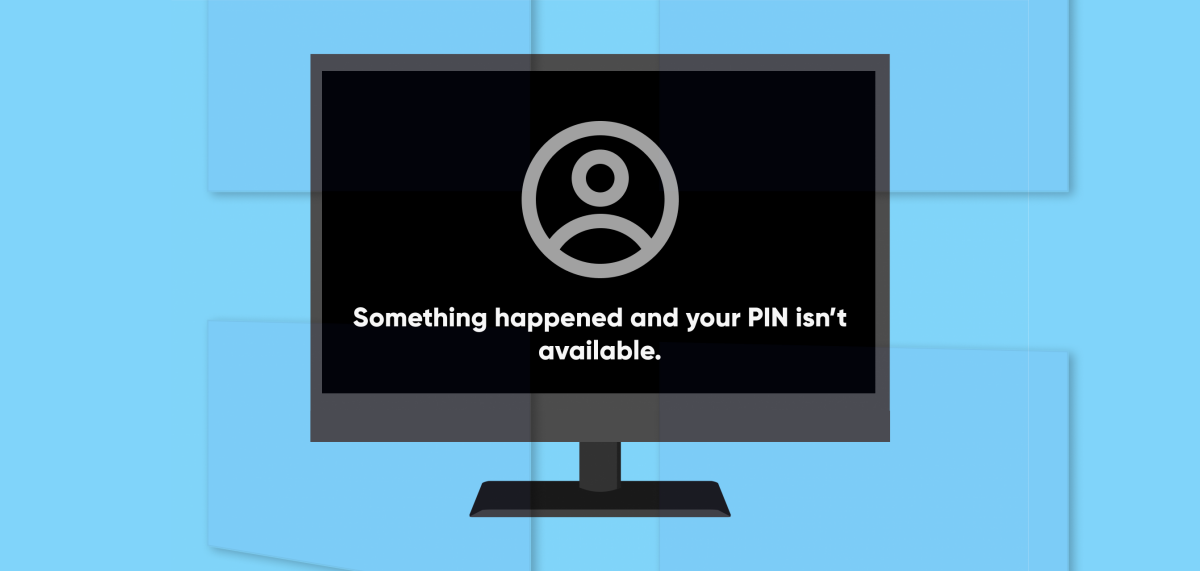
Malware infection, system file corruption, and permission errors can disrupt the PIN login option in Windows. These are some reasons why Windows displays the “Something happened and your PIN isn’t available” error when you enter your PIN on the lock screen.
“Something went wrong and your PIN isn’t available (status: 0xc000006d)” is another variation of the error. This tutorial highlights troubleshooting fixes for the 0xc000006d error code and similar error messages.
Reboot Your Computer
Shut down your PC and turn it on before trying the troubleshooting recommendations below. Press and hold down your computer’s power button until the screen goes black. Wait for 15-30 for your computer to shut down completely, and press the power button again to turn it back on.
Wait for Windows to boot the sign-in screen and try signing in to your computer again. Sign in with a password or boot your computer into safe mode if the error message persists.
Reset Your PIN Using Your Microsoft Account
You can reset your PIN from the login screen if your device is configured to sign in with a Microsoft account. This process requires an internet connection, so ensure your PC is connected to a Wi-Fi or Ethernet network.
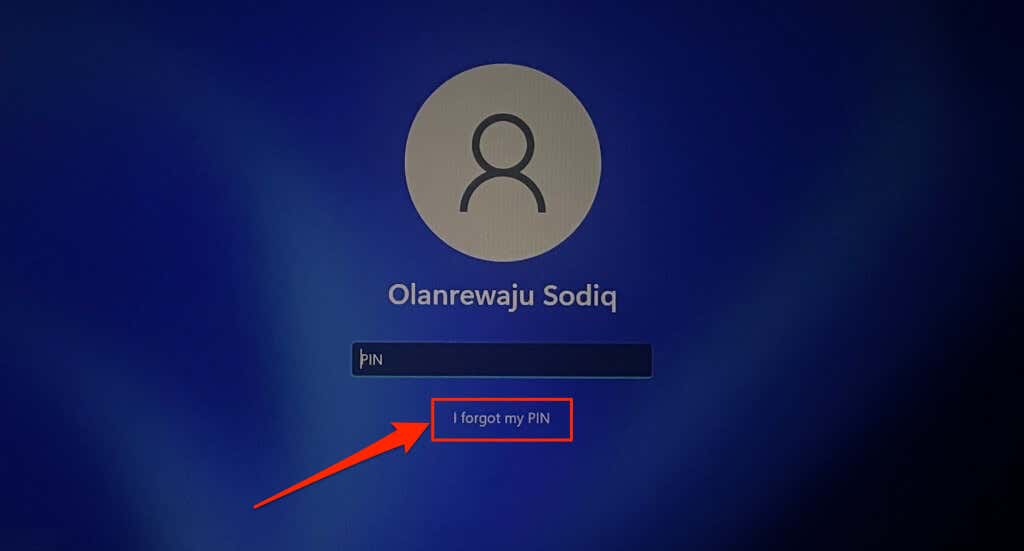
- Select the I forgot my PIN option on the login screen.
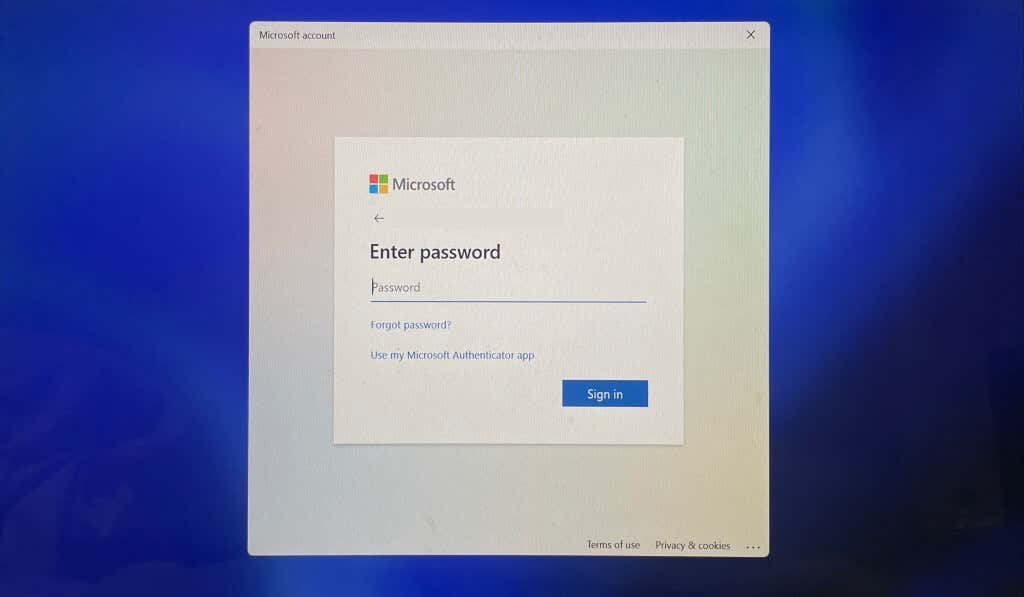
- Enter your Microsoft account password and verify your identity—if your account uses two-factor authentication.
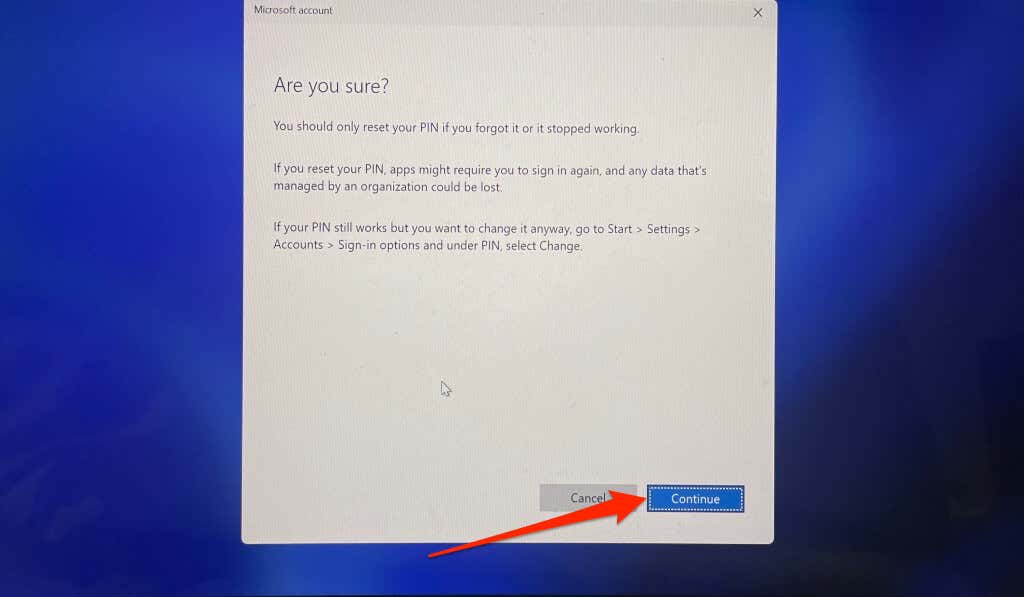
- Select Continue on the reset confirmation page.
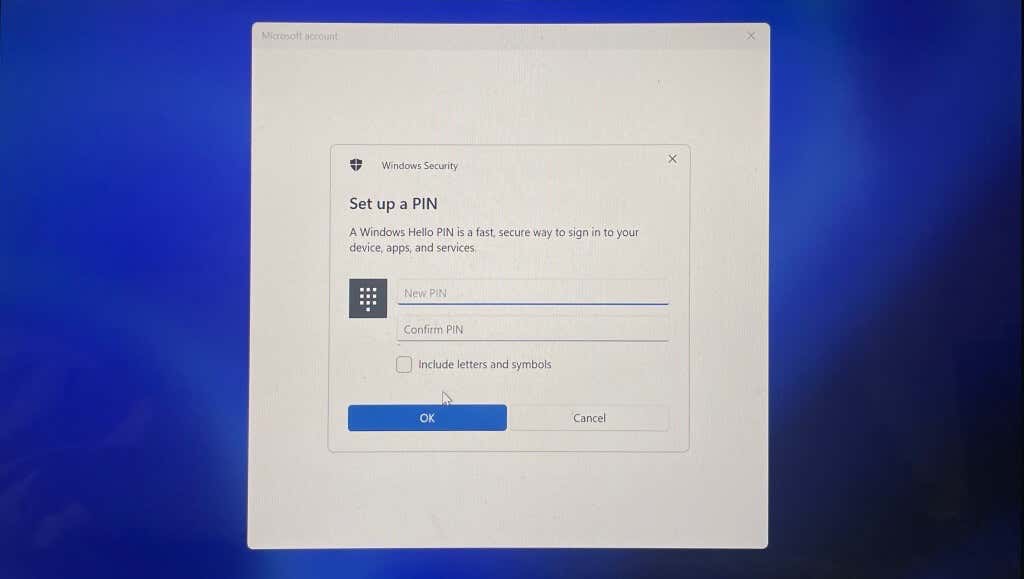
- Enter a new PIN in the provided dialog boxes and select OK . Windows will sign you into your account after the password reset process.
Reset Your PIN in Windows Settings (via Safe Mode)
Re-registering your PIN from scratch can also resolve the problem, especially if signing into Windows using a local account. Instead, sign in using alternate options like password or fingerprint, and follow the steps below. Boot your computer into safe mode if alternative sign-in options aren’t available.
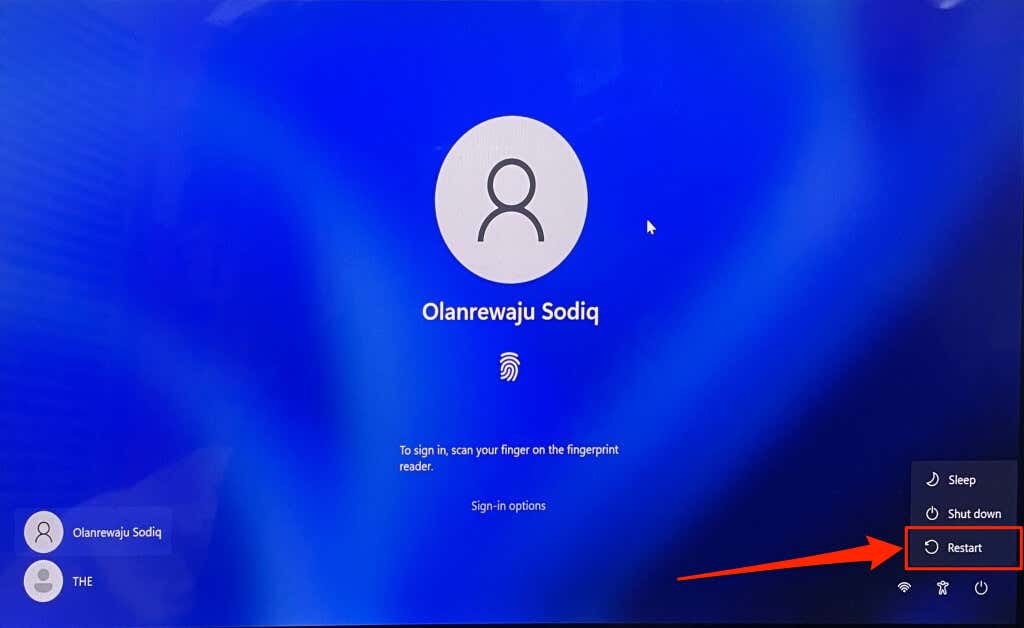
To boot into safe mode, select the power icon in the bottom-left corner of the sign-in screen. Next, press and hold the Shift key on your keyboard and select Restart .
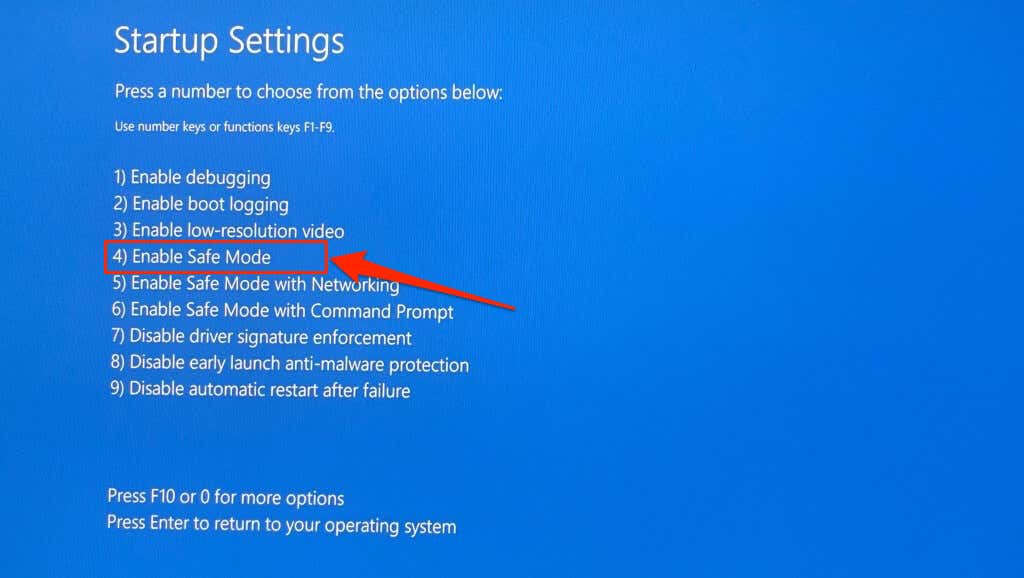
Select Troubleshoot > Advanced options > Startup Repair > Restart . Press the number key corresponding to the Enable Safe Mode option on the Startup Settings page. That’ll boot your computer into safe mode.
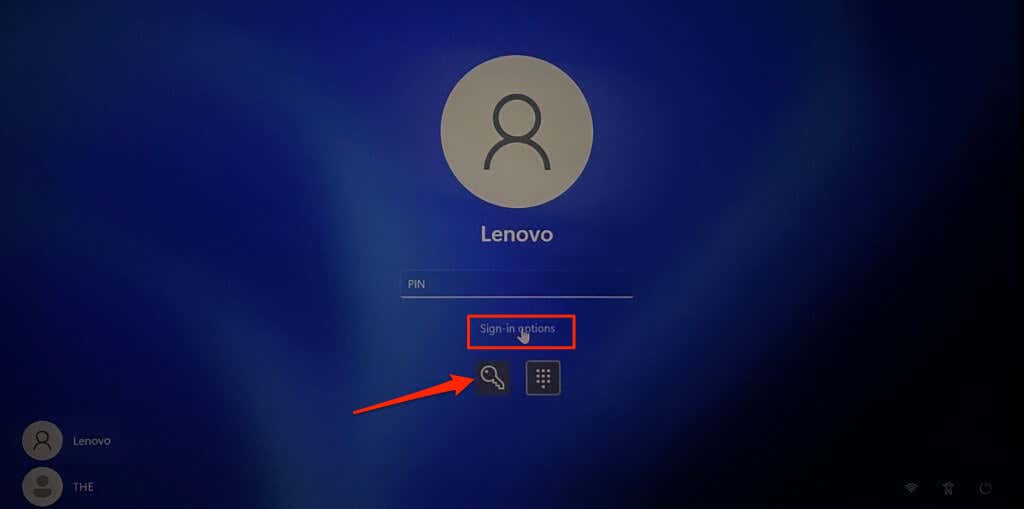
You need to sign in using a password or PIN in safe mode. Use the password sign-in option if your PIN still doesn’t work in safe mode. If you can’t enter safe mode from the sign-in screen, refer to this tutorial for other ways to boot Windows into safe mode .
- Select Sign-in options , select the key icon , and enter your account password in the dialog box.
- Open the Settings app (press Windows key + I ), select Accounts , and select Sign-in options .
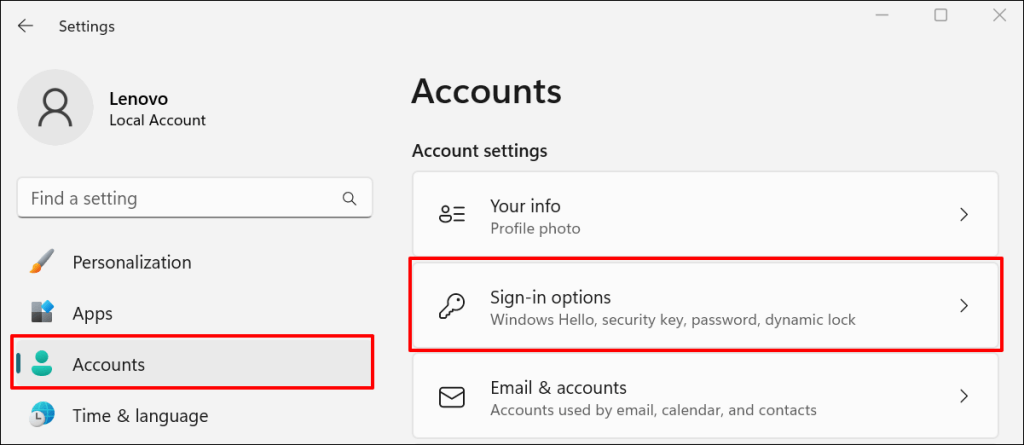
- Expand the PIN (Windows Hello) row and select Remove .
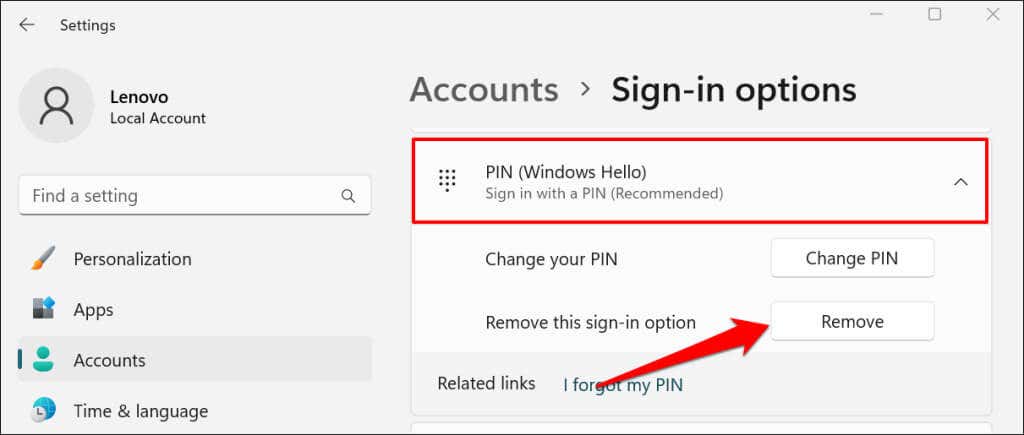
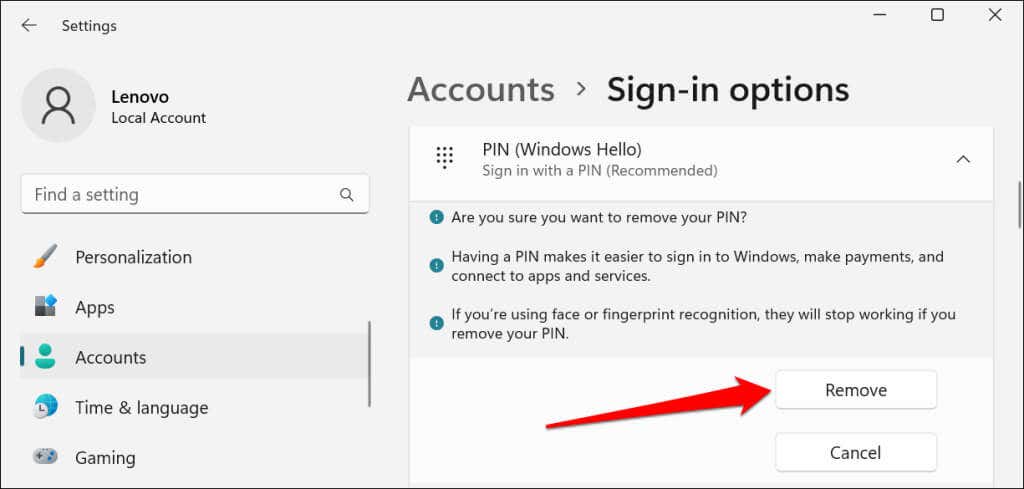
- Select Remove on the confirmation to proceed.
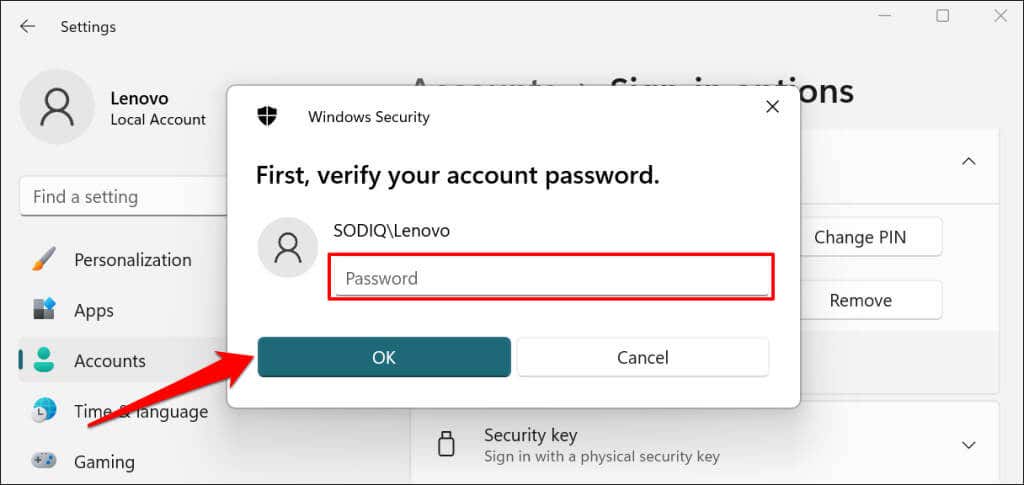
- Provide your account password again and select OK or press Enter to proceed.
Removing your PIN disables fingerprint and face recognition sign-in. Set up your PIN again to re-enable both options on the sign-in screen.
- Select the Set up button.
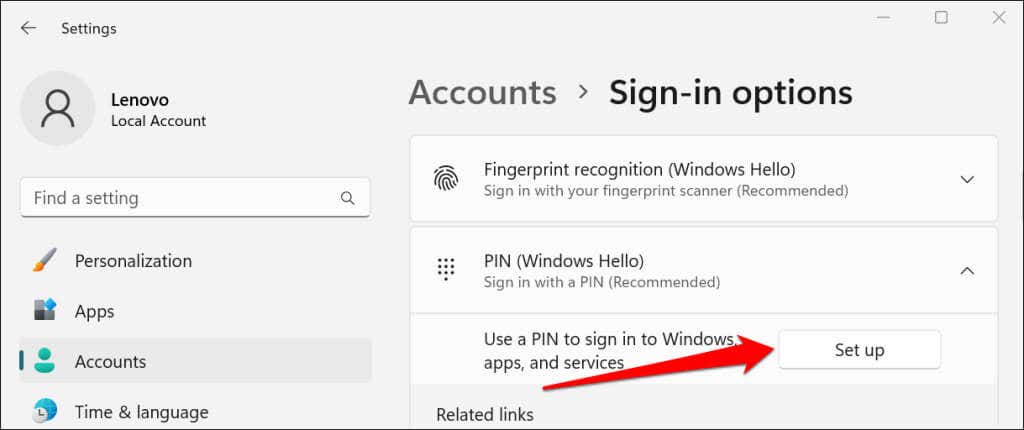
- Enter your account password to proceed.
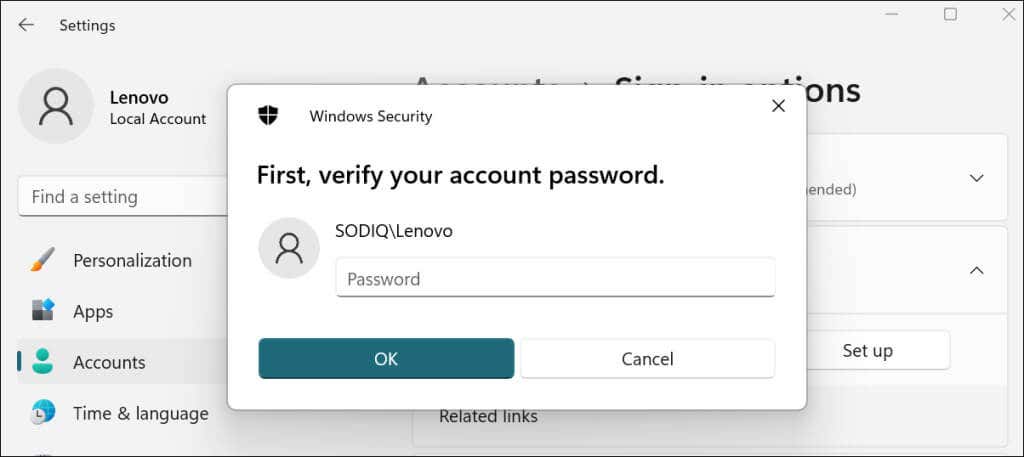
- Enter your preferred PIN in the dialog boxes and select OK .
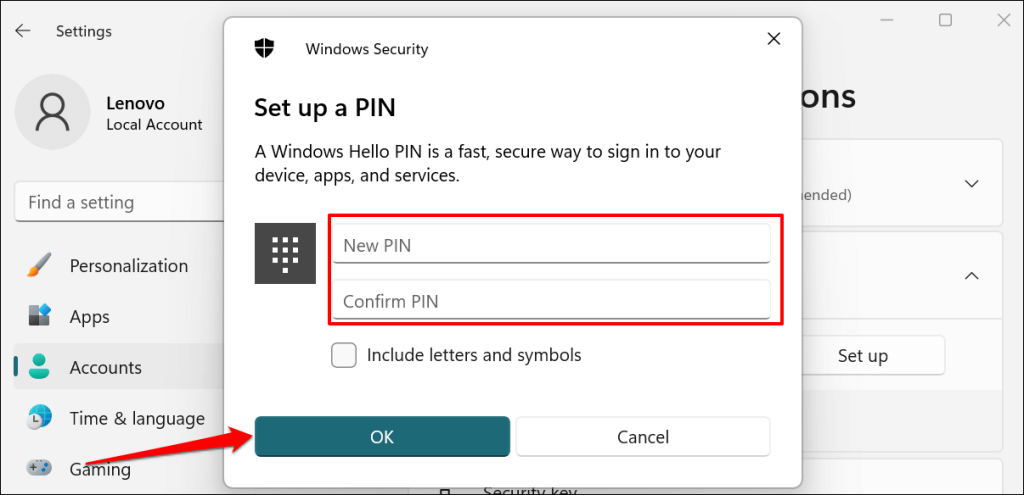
Lock or restart your computer and check if you can sign in with your PIN without any issues.
Delete Your PIN Manually
Windows stores your computer’s PIN and other security-related information in the Ngc folder. You may be unable to sign in with your PIN if the data in this folder is corrupt. Deleting the folder might help resolve the “Something went wrong and your PIN isn’t available” issue and other related errors.
The Ngc folder is accessible via File Explorer, so you must have access to the Windows user interface. Sign in using your fingerprint or password (or boot into safe mode) and follow the steps below.
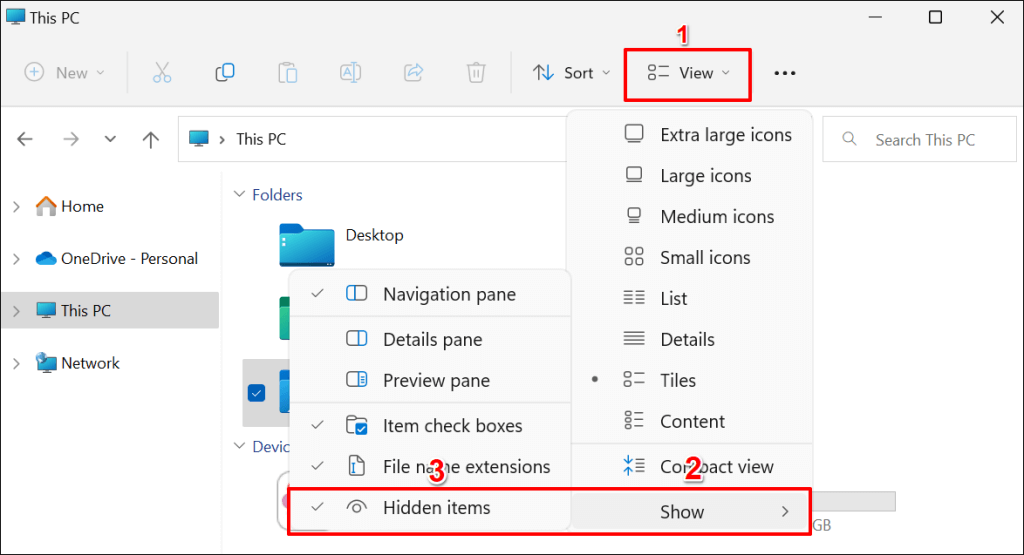
- Open the File Explorer and ensure you can view hidden files. Select View on the toolbar, select Show , and check the Hidden items options.
- Paste the path below in the address bar and press Enter .
C:WindowsServiceProfilesLocalServiceAppDataLocalMicrosoft
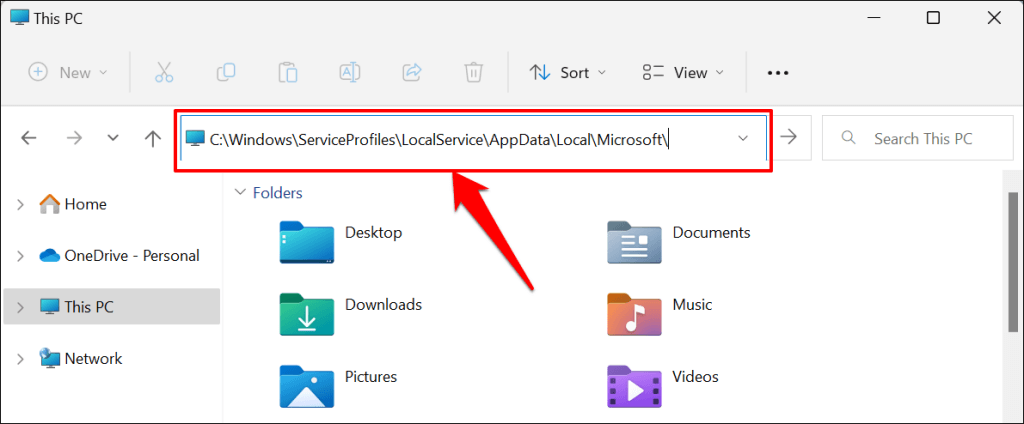
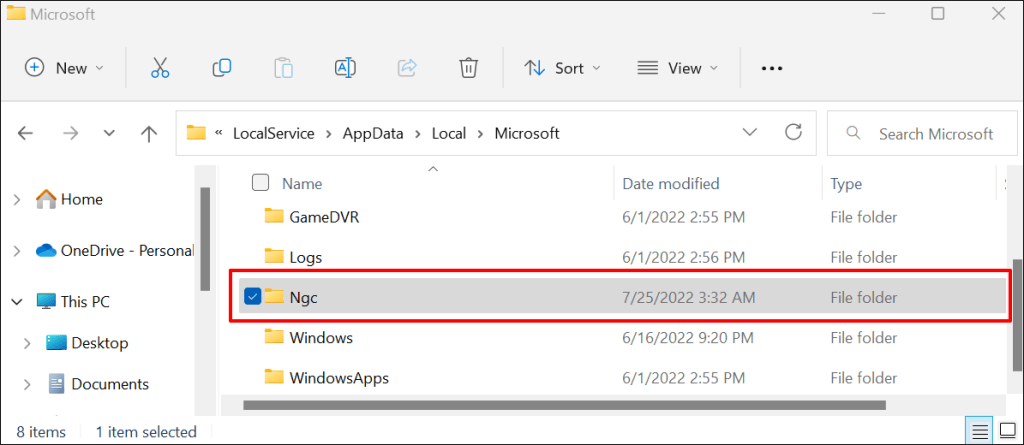
- Double-click the Ngc folder to access its content.
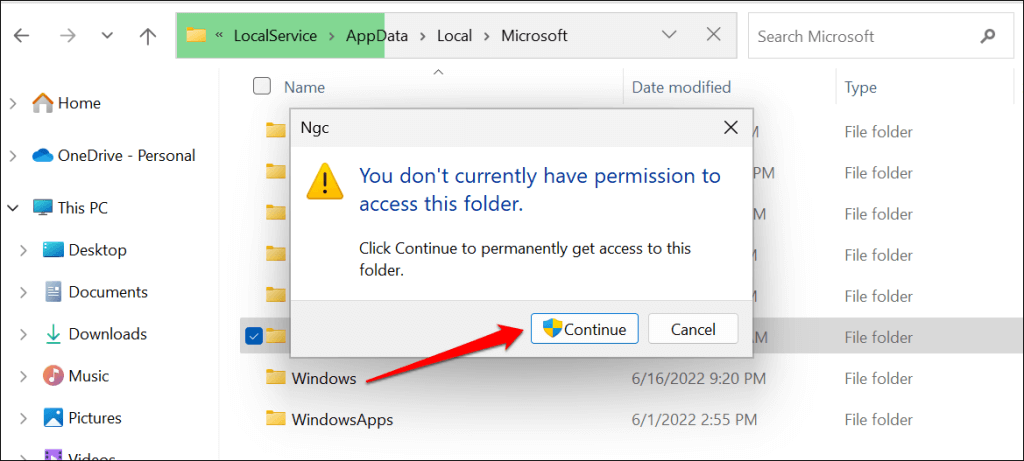
- Windows may display a “You don’t currently have permission to access this folder” error. Select Continue to proceed.
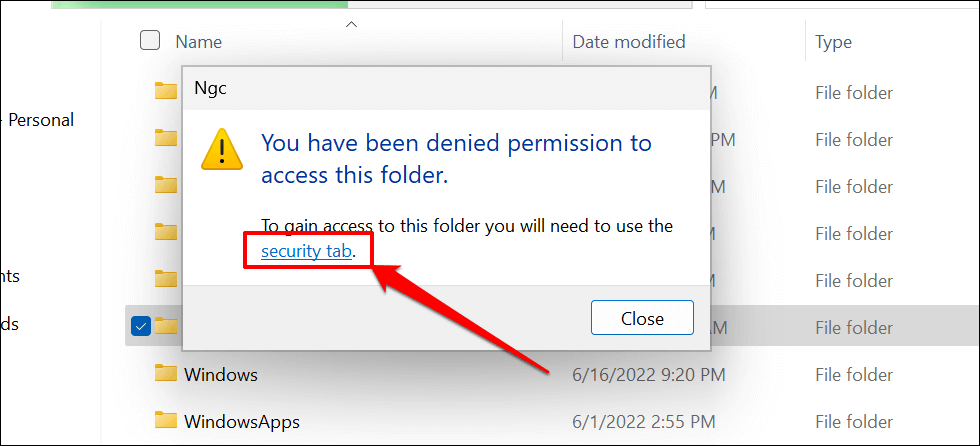
- Another error message should pop up. Select the Security tab to change the folder’s permissions.
- Select the Advanced button.
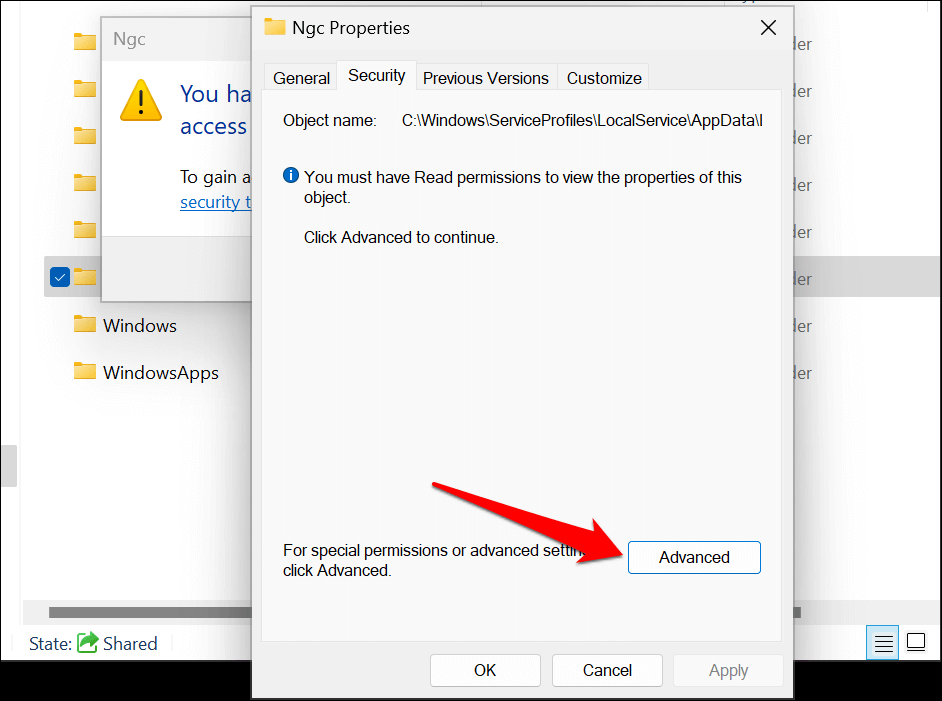
- Select Change in the “Owner: Unable to display current owner” row.
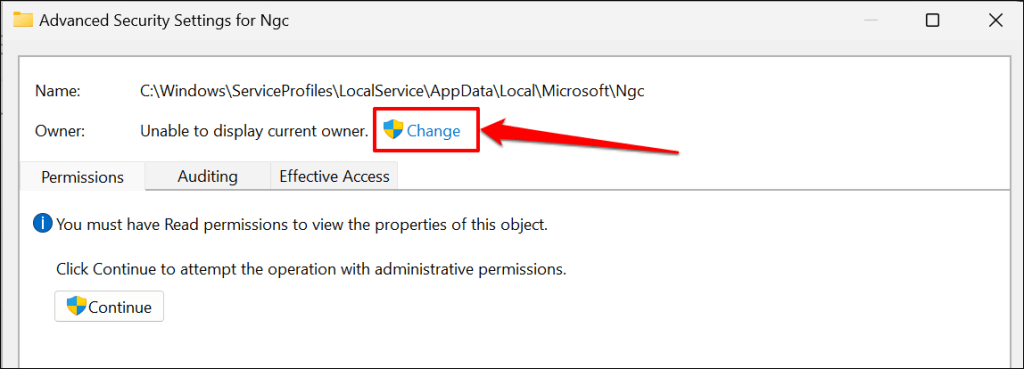
- Select Advanced .
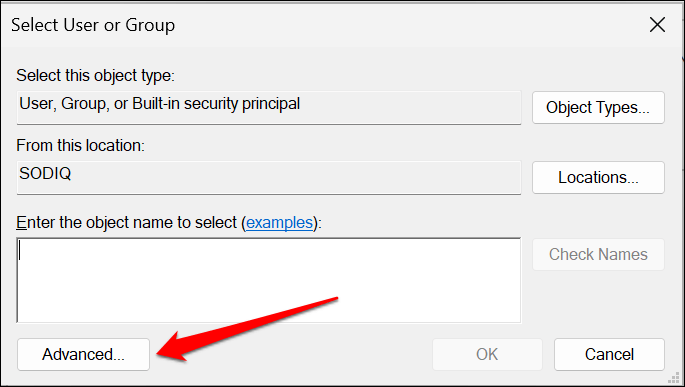
- Select the Find Now button, select your user account in the “Search results” section, and select OK . Ensure you select the account with admin privileges.
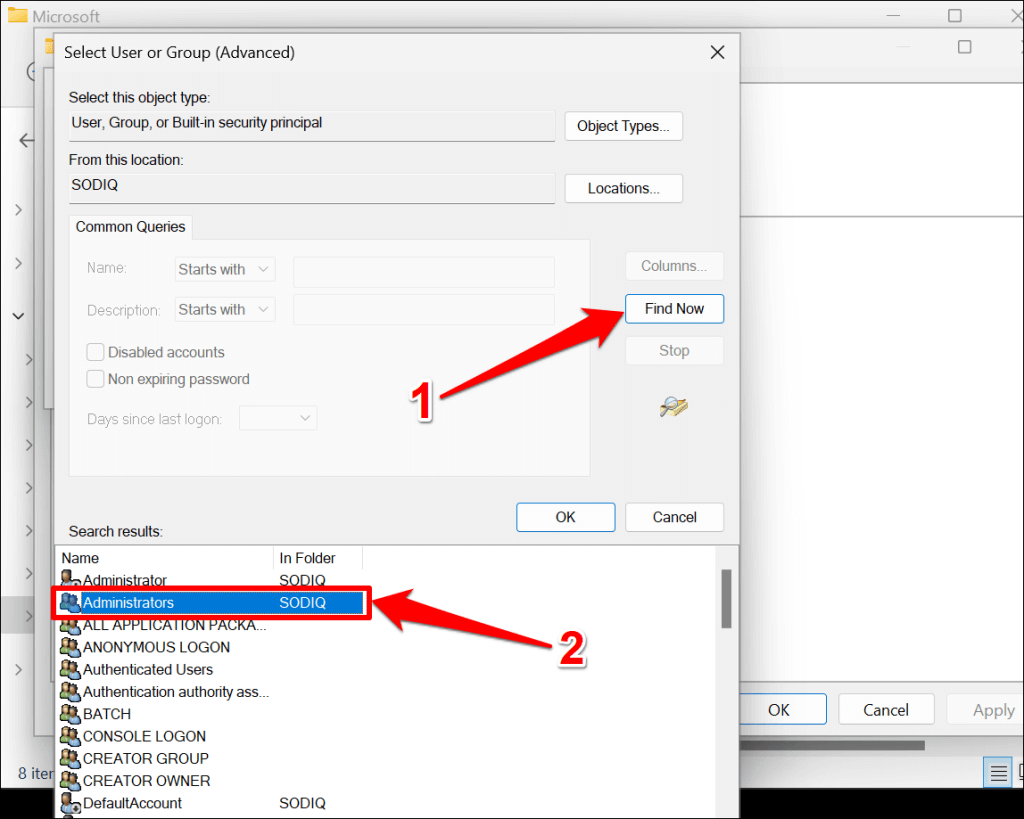
- Select OK to proceed.
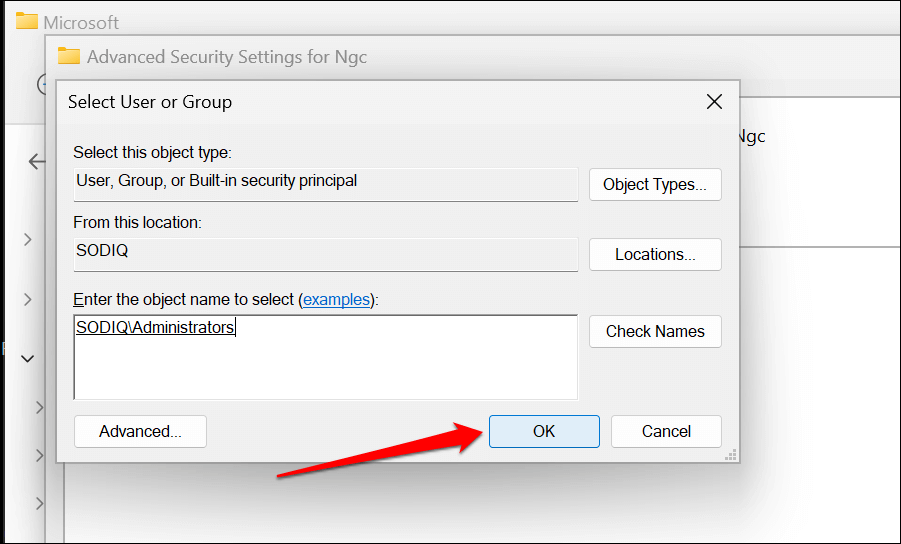
- Select Apply in the bottom corner and select OK on the Windows Security pop-up.
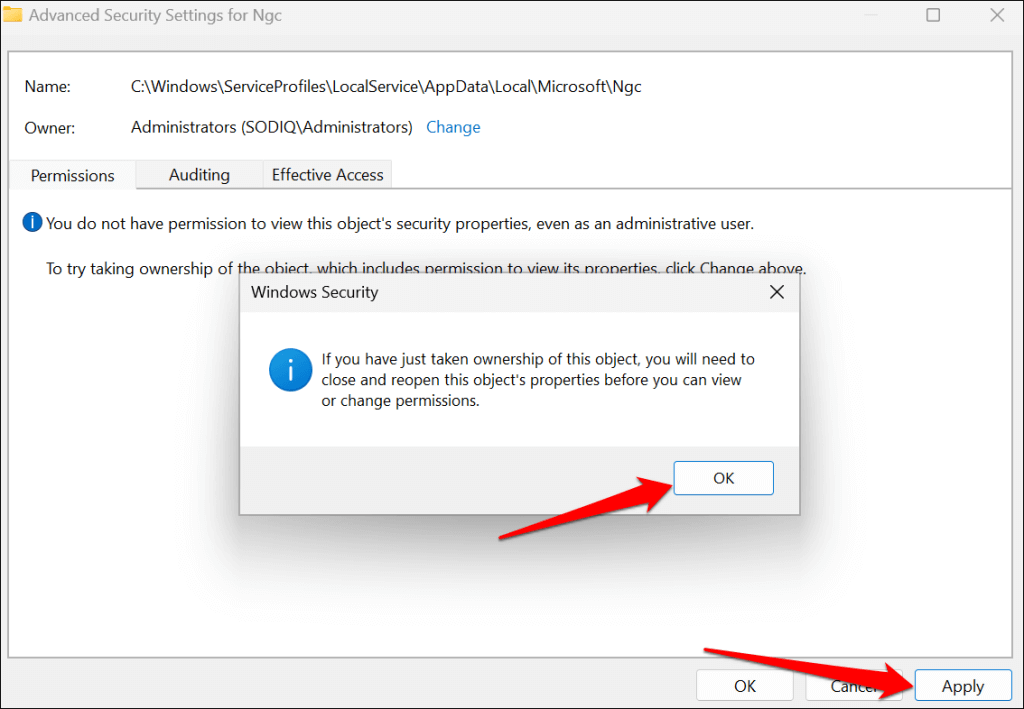
- Select Change permissions .
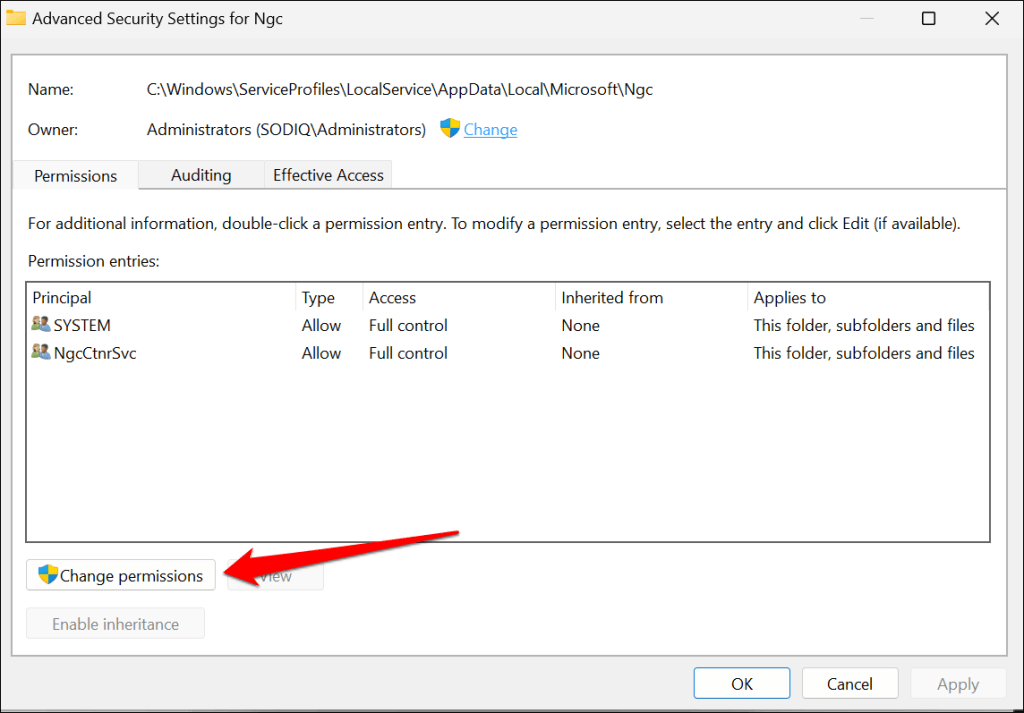
- Select Enable inheritance and select OK to save the changes.
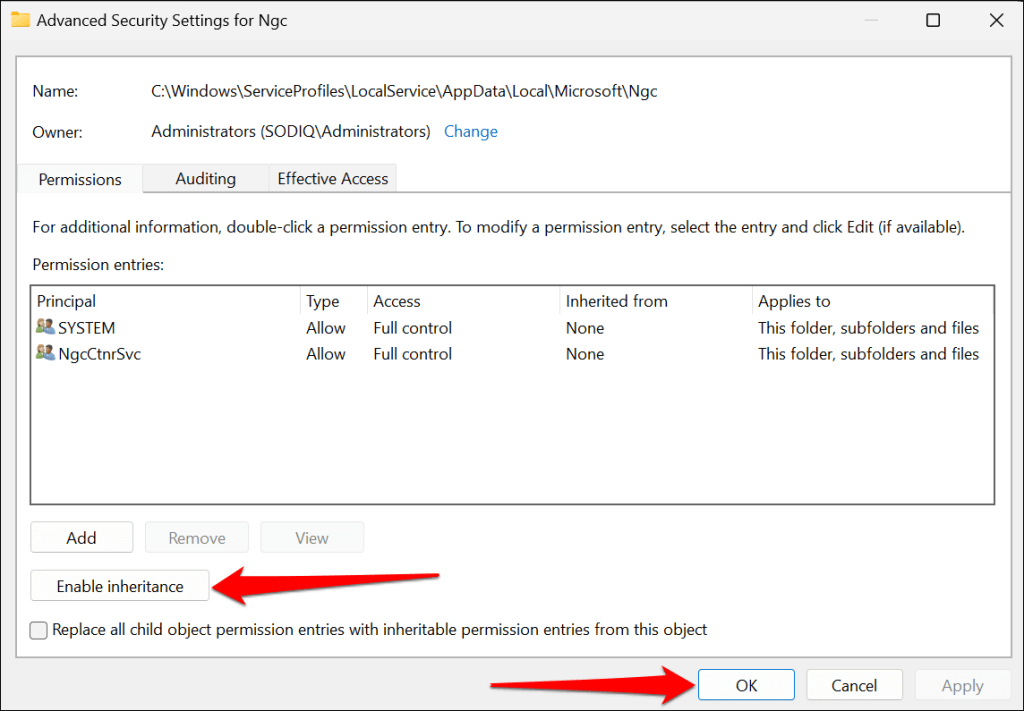
- Select OK .
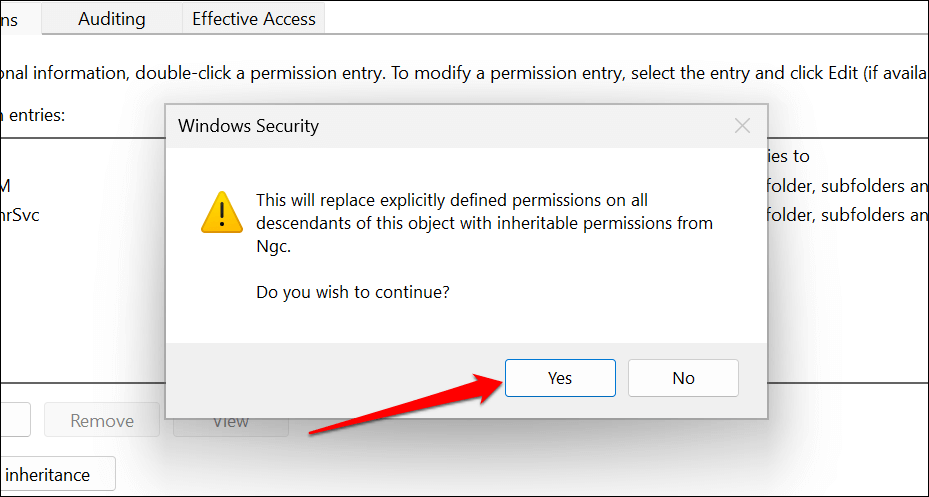
- Select Yes on the subsequent confirmation. You should now be able to open the Ngc folder.
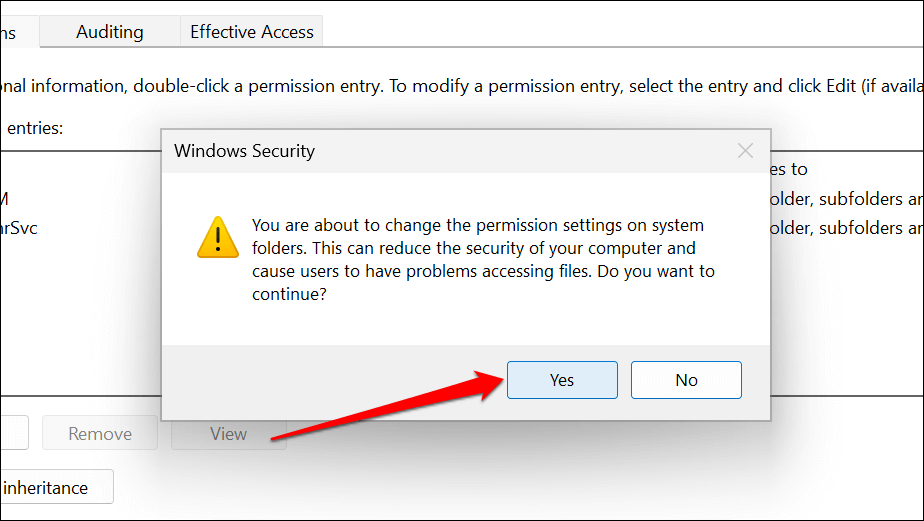
- Delete the content of the Ngc folder—right-click and select Delete . Better yet, move the content to a different location on your computer.
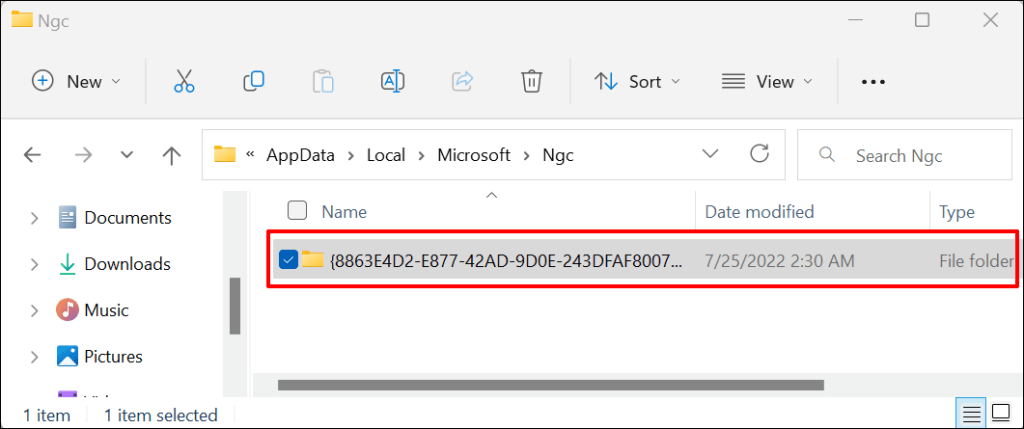
That’ll delete and reset your Windows Hello PIN. Proceed to the next step to set a new PIN.
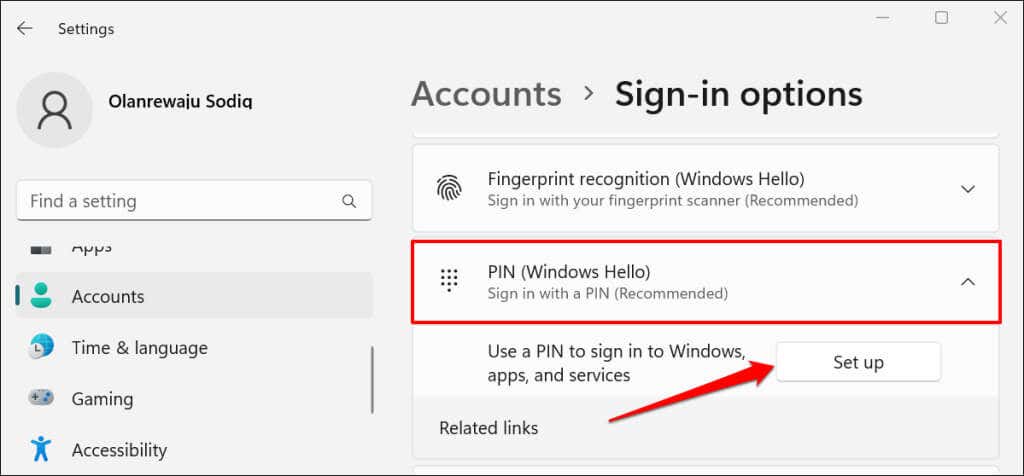
- Head to Settings > Accounts > Sign-in options > PIN (Windows Hello) and select Set up . Follow the prompts to set up a new sign-in PIN for your computer.
Enable Trusted Platform Module (TPM)
Windows Hello PIN works with the Trusted Platform Module (TPM) —a chip on your computer’s motherboard. Windows may fail to authenticate PIN sign-in if TPM is disabled in your computer’s Unified Extensible Firmware Interface (UEFI) or BIOS (basic input/output system) settings. Check your PC’s BIOS or UEFI settings and ensure the TPM chip is active.
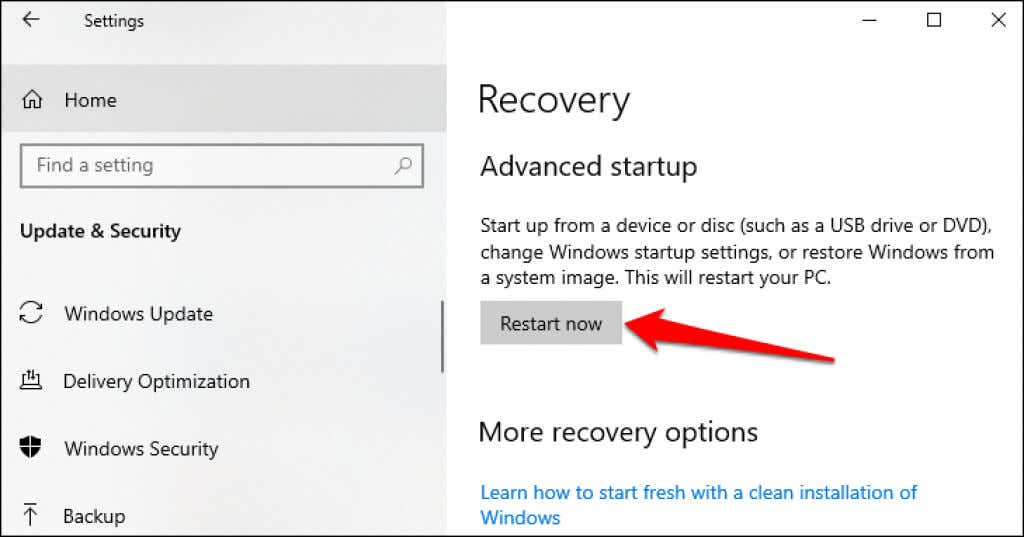
- If you can boot into safe mode, head to Settings > Updates & Security > Recovery and select Restart Now .
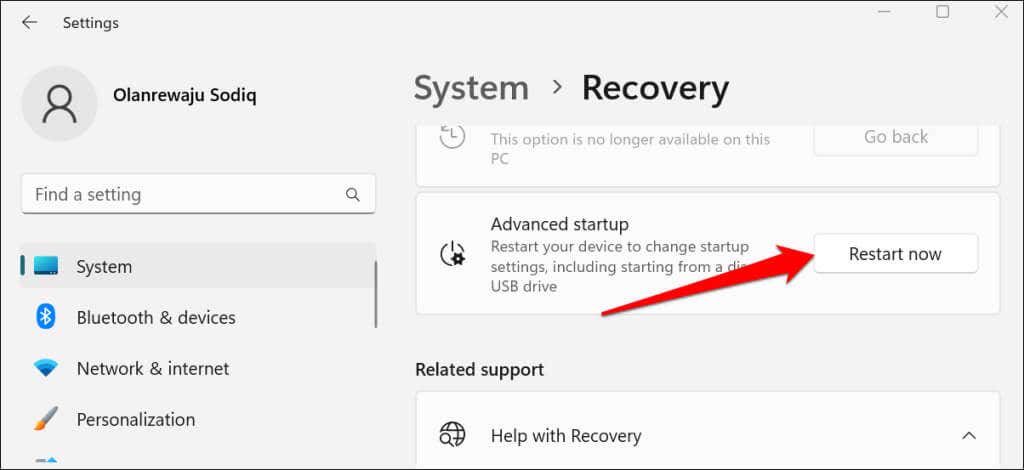
If your PC runs Windows 11, head to Settings > System > Recovery and select Restart now in the “Advanced startup” row.
If you can’t sign in to Windows, restart your PC and press the F2 function key repeatedly during the startup process. Depending on your PC model, repeatedly press the DEL , F8 , F10 , F12 , or ESC keys while your PC boots can also load the Advanced startup menu.
For more information, refer to our tutorial on booting the system recovery options in Windows 10 and 11 . Follow the steps below to enable TPM on your PC.
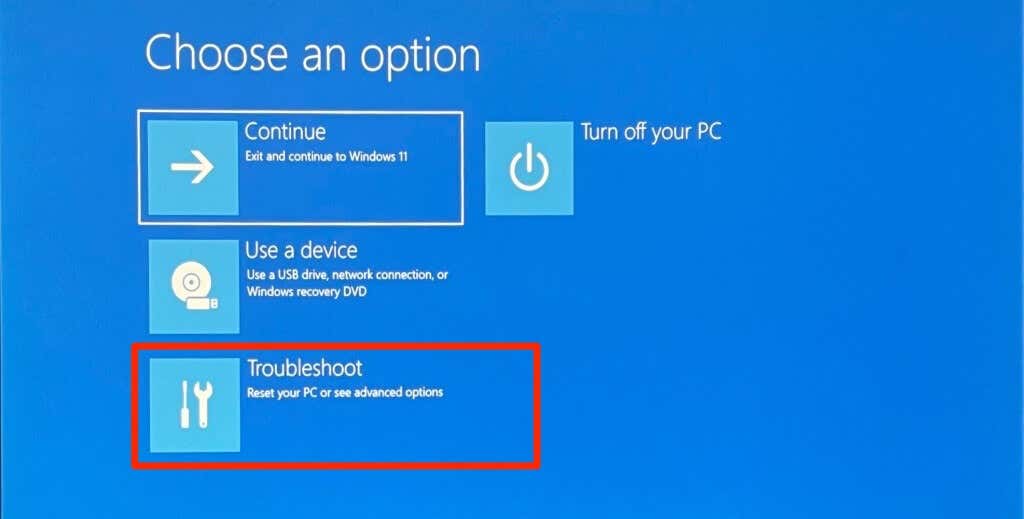
- Select Troubleshoot .
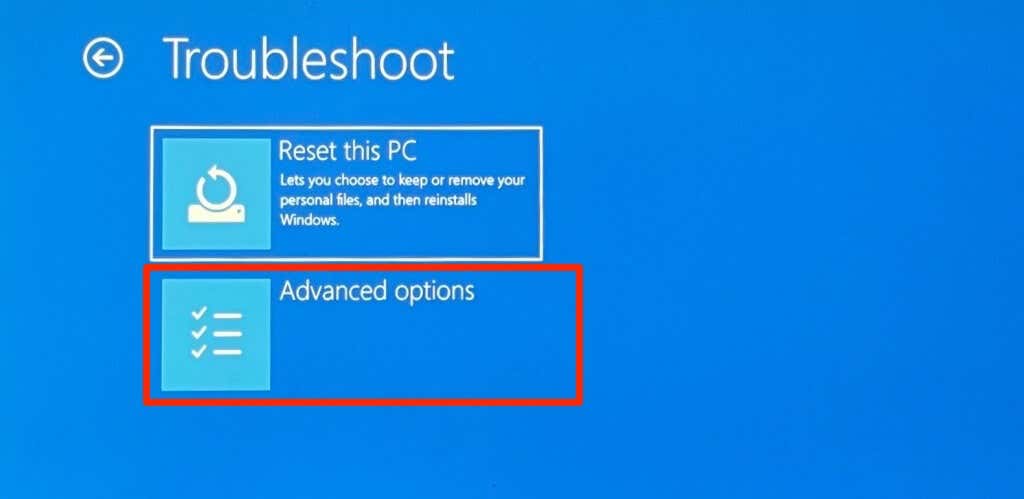
- Select Advanced options .
- Select UEFI Firmware Settings .
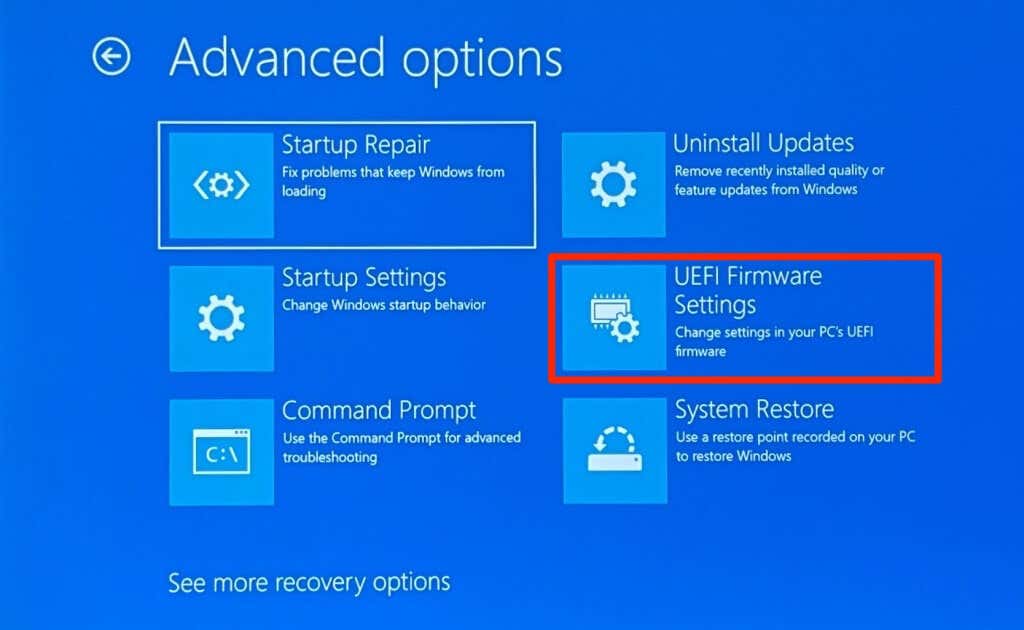
If you don’t find the “UEFI Firmware Settings” option on the page, your PC isn’t TPM-enabled.
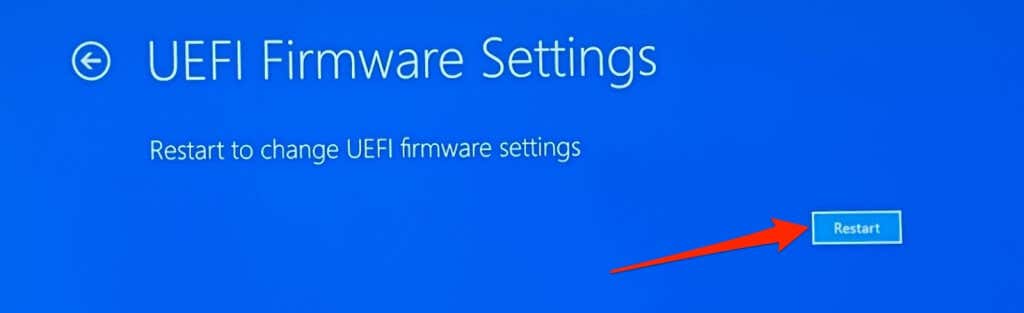
- Select the Restart button.
- Head to the Security tab and ensure “Intel Platform Trust Technology” is set to Enabled .
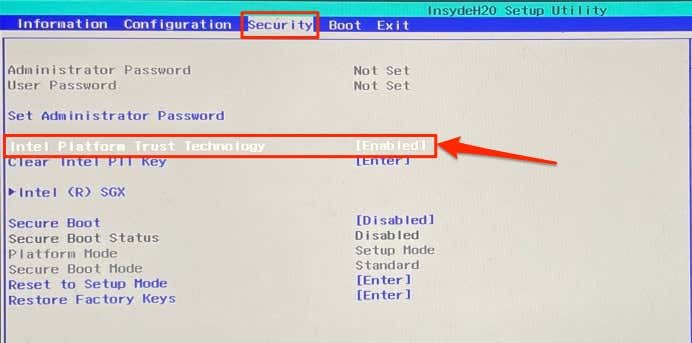
If TPM is disabled, press Enter , select Enabled using your keyboard arrow keys, and press Enter again. Note that PC manufacturers label their device’s TPM module differently. Look out for “TPM Device Selection,” “TPM Support,” “TPM 2.0 Security,” or “TPM Switch,” if you don’t find the “Intel Platform Trust Technology.”
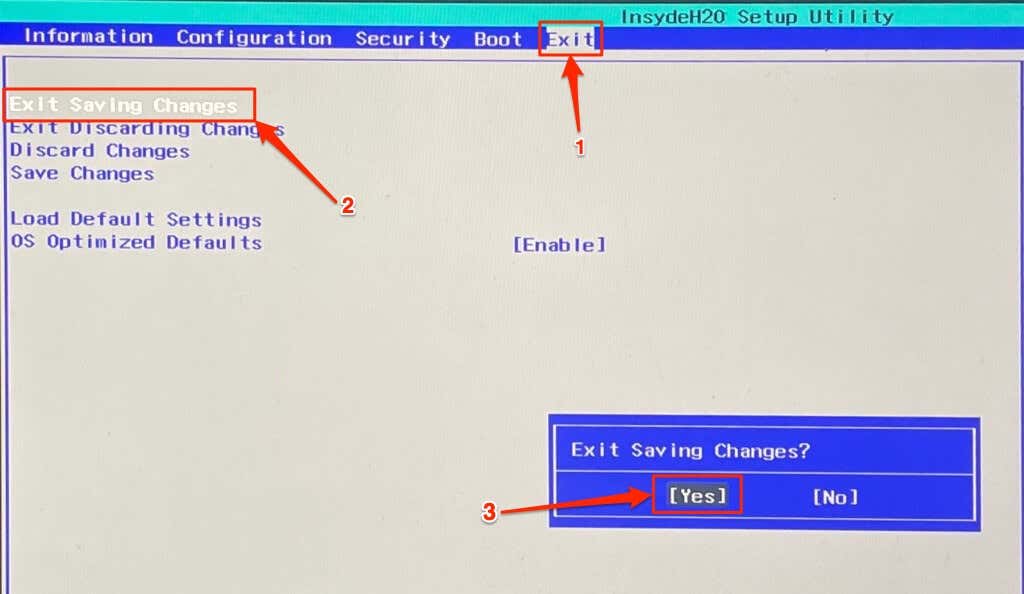
- Head to the Exit tab, navigate to Exit Saving Changes , select Yes , and press Enter .
Perform a system restore if the “Something happened and your PIN isn’t available error” persists.
8. Perform System Restore
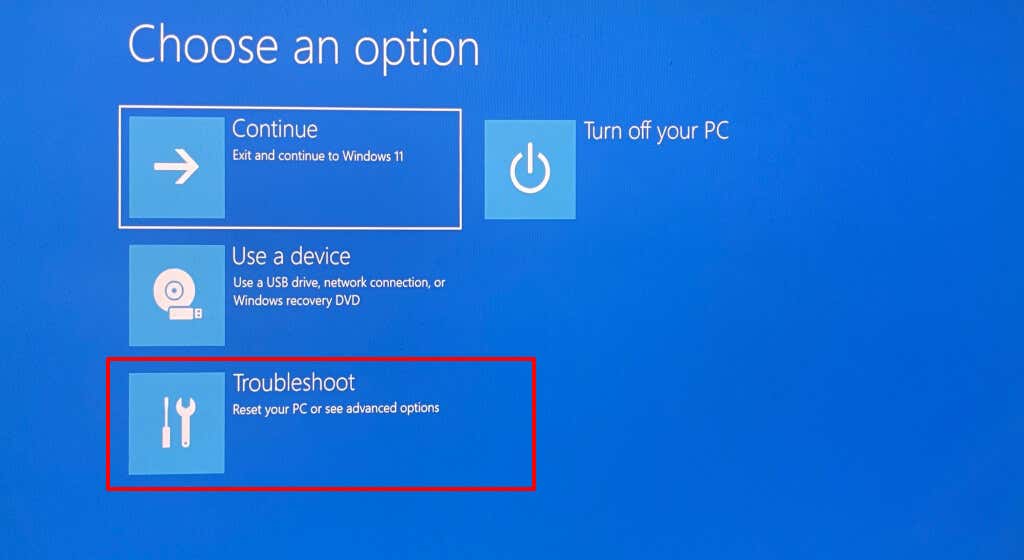
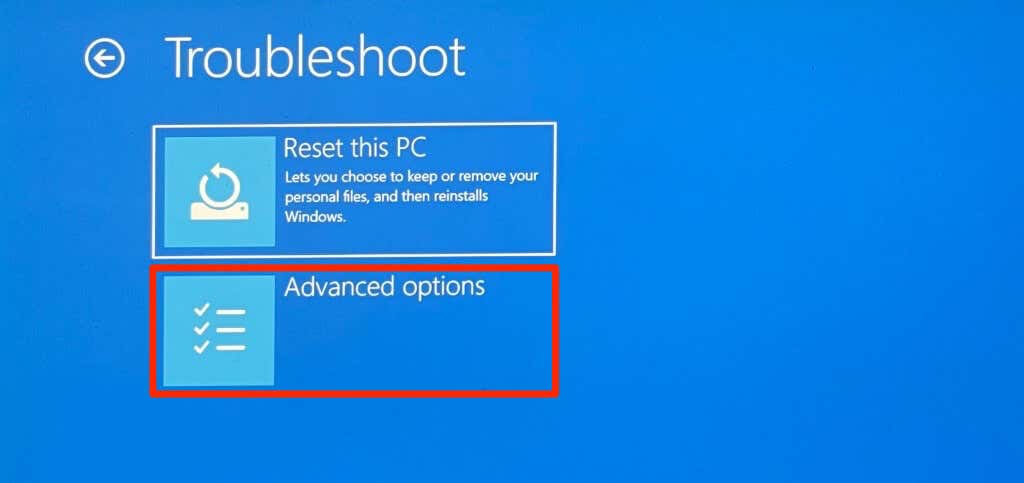
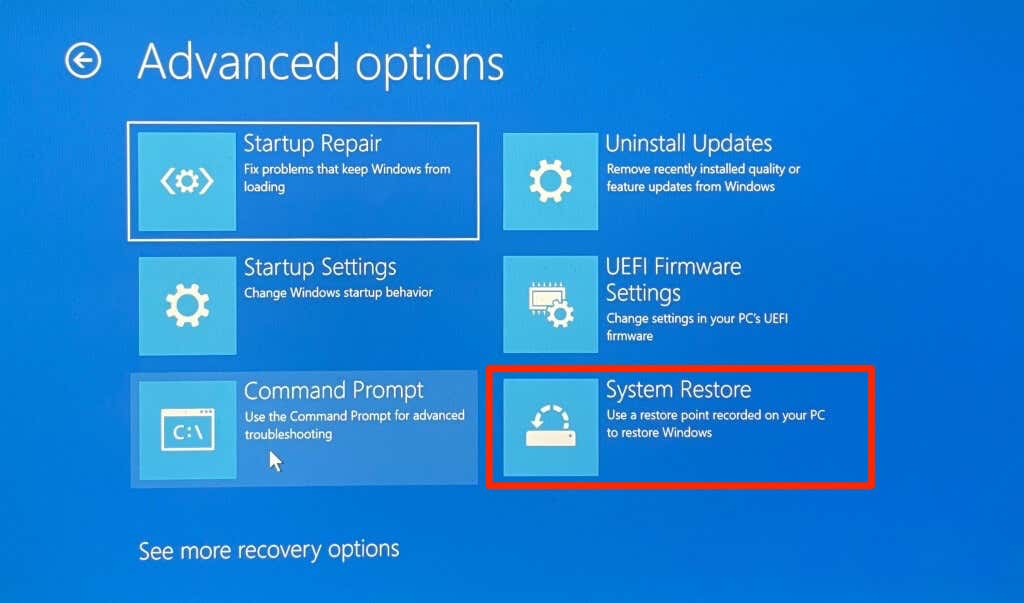
System Restore can undo file corruption, remove malware , uninstall bad drivers, and fix other problems causing PIN login to malfunction. Boot your computer into the Advanced startup menu and follow the steps below.
- Select Troubleshoot .
- Select Advanced options .
- Choose System Restore .
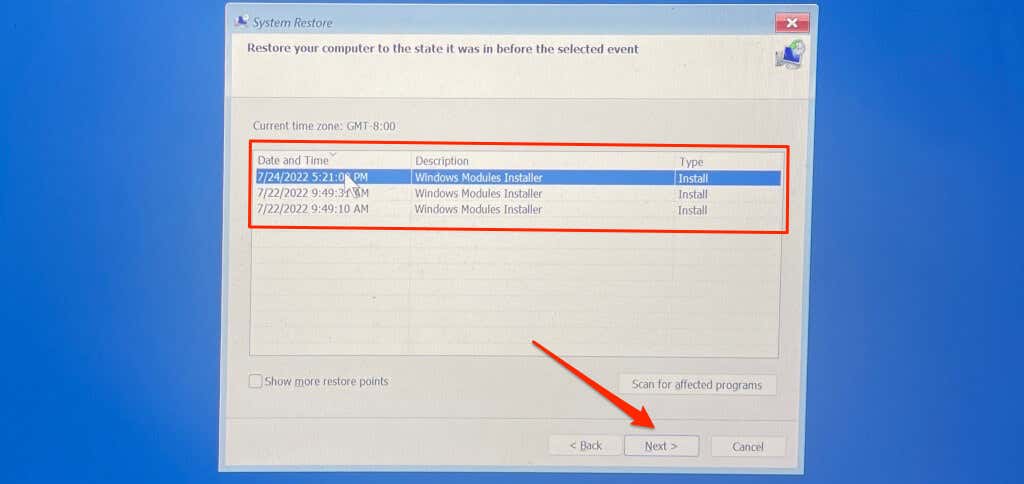
- Select Next to proceed.

- Select the most recent store point and select Next . Follow the prompts on the next page to start the system restore process.
Last Resort: Reset Your Computer to Default Settings
Factory resetting your PC (from the login screen) should fix the issue. Otherwise, contact Microsoft Support or your PC manufacturer for technical support.
- Preparing for Windows 10 End of Support: Upgrading to Windows 11
- How to Fix a “This file does not have an app associated with it” Error on Windows
- How to Fix an Update Error 0x800705b4 on Windows
- How to Resolve “A JavaScript error occured in the main process” Error on Windows
- How to Fix the Network Discovery Is Turned Off Error on Windows
Sodiq has written thousands of tutorials, guides, and explainers over the past 4 years to help people solve problems with Android, iOS, Mac, and Windows devices. He also enjoys reviewing consumer tech products (smartphones, smart home devices, accessories, etc.) and binge-watching comedy series in his spare time. Read Sodiq’s Full Bio
