Do you keep running into a “Your network preferences prevent content from loading privately” error when you open specific emails in Apple Mail? You also see a “Load Content Directly” button, but you must select that each time you want to view the full contents of these messages. Why is that?
There are several causes for this error. However, the most likely reason is when incoming mail fails to load because of a conflicting privacy or security feature on your Apple device.
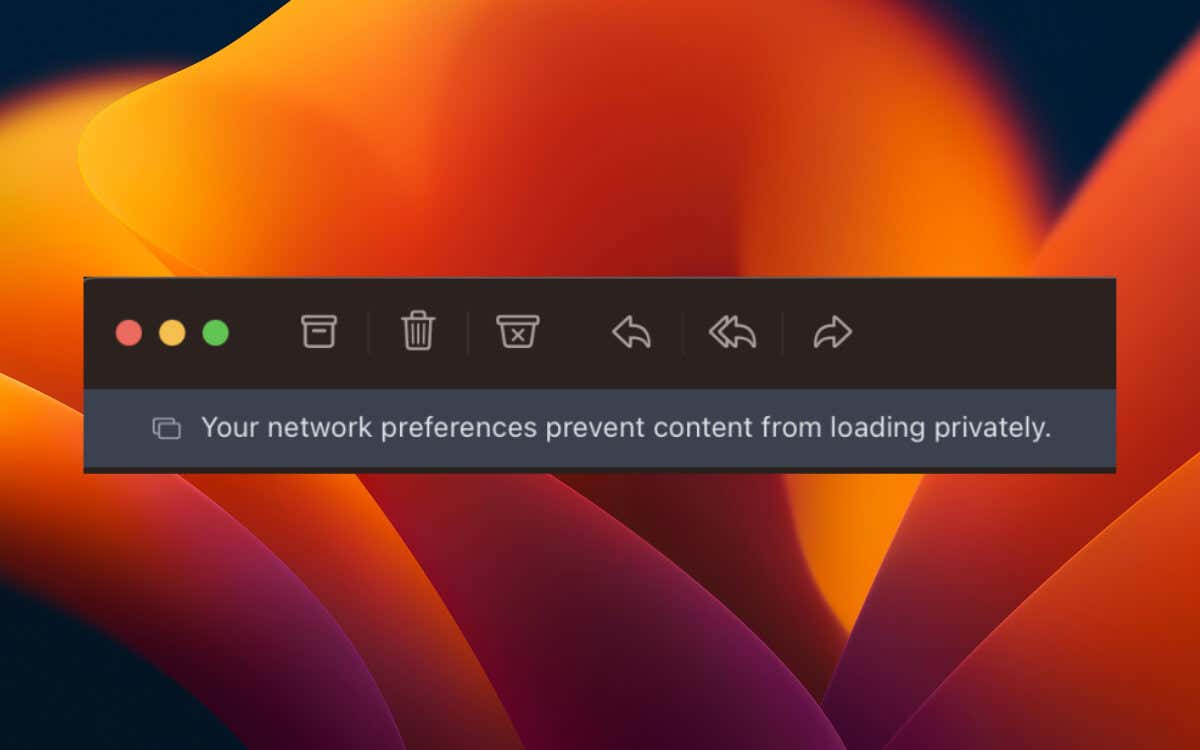
Work through the suggestions and solutions below to fix the “Your network preferences prevent content from loading privately” error in Apple Mail for iPhone, iPad, and Mac.
Disable Mail Privacy Protection
Starting with iOS 15, iPadOS 15, and macOS Monterey, Apple Mail comes with a feature called Mail Privacy Protection that prevents senders from tracking your location and profiling your email habits.
However, it can also prevent the Mail app from loading all of the contents within emails. Specifically, parts that need to be downloaded separately. You should disable the feature if that becomes a persistent problem.
Disable Mail Privacy Protection on iPhone & iPad
- Open the Settings app via the Home Screen or App Library.
- Scroll down the Settings menu and tap Mail .
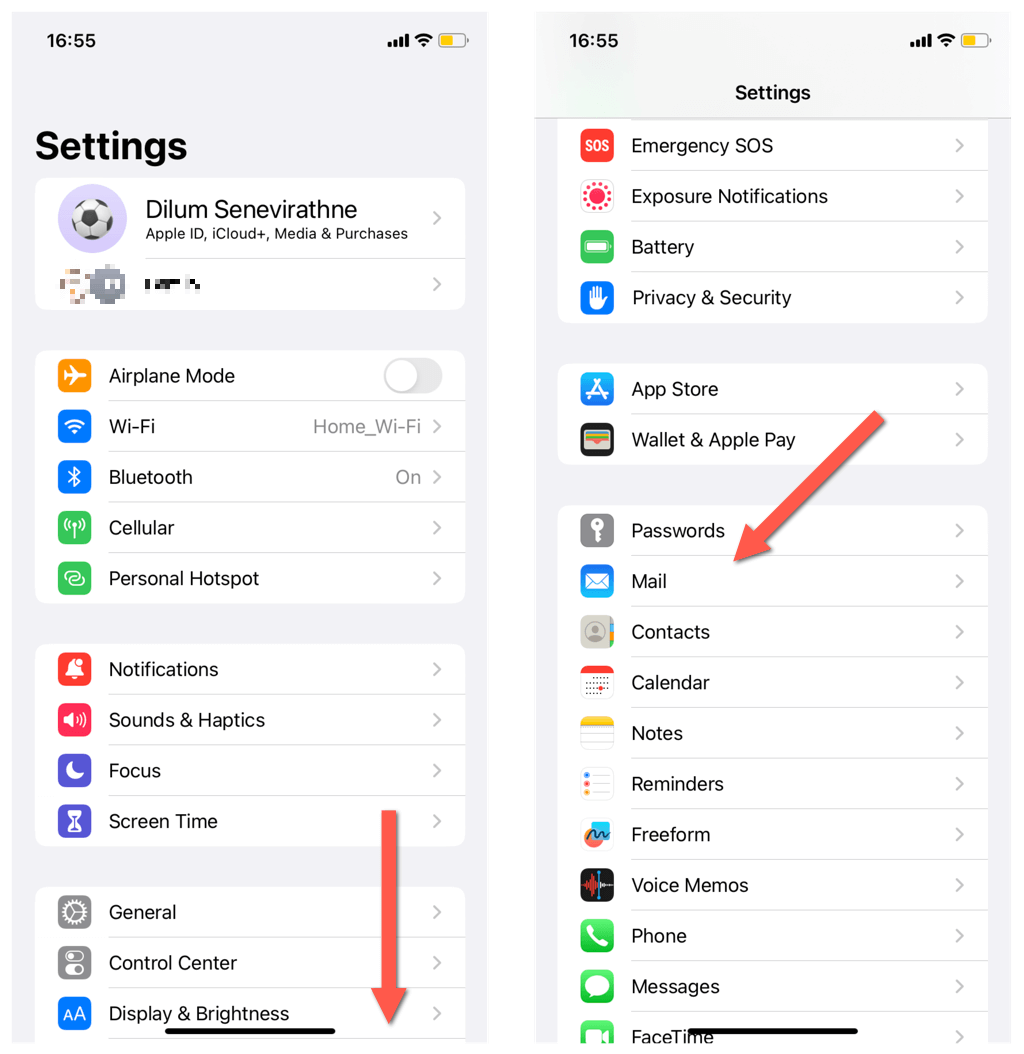
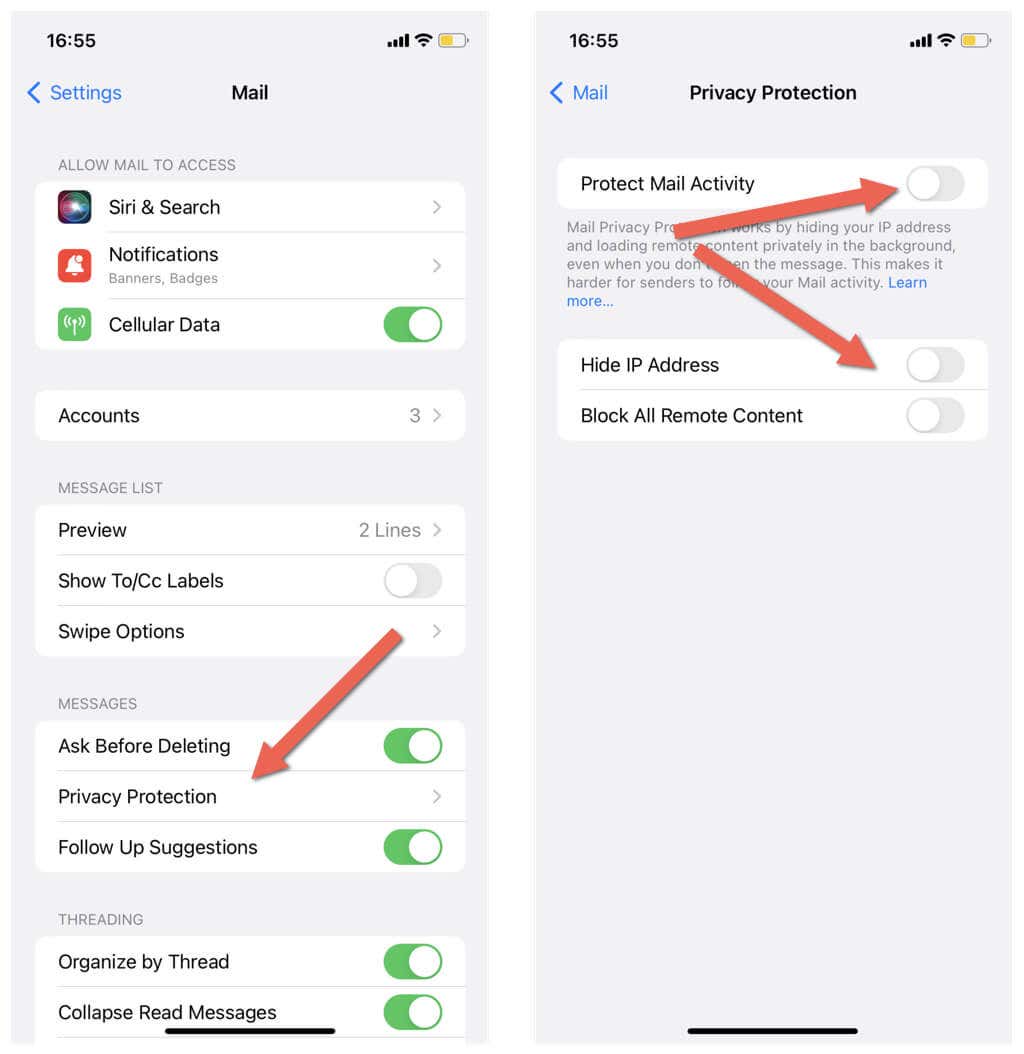
- Tap Privacy Protection .
- Turn off the switch next to Protect Mail Activity .
- Deactivate the sub-options labeled Hide IP Address and Block All Remote Content .
Disable Mail Privacy Protection on Mac
- Open the Mail app and select Mail > Preferences / Settings on the menu bar.

- Switch to the Privacy tab.
- Uncheck the box next to Protect Mail Activity , and then the boxes next to Hide IP Address and Block All Remote Content .

Disable Limits on IP Address Tracking
By default, internet connections on the iPhone, iPad, and Mac try to hide your IP address from email trackers. That’s good for privacy but can also result in “Your network preferences prevent content from loading privately” errors in Apple Mail. Stop your Apple device from imposing these limits and check if that makes a difference.
Disable Limit IP Address Tracking on iPhone & iPad
- Open Settings and tap Wi-Fi to access your Wi-Fi settings.
- Tap the Info icon next to your Wi-Fi network.
- Turn off the switch next to Limit IP Address Tracking .
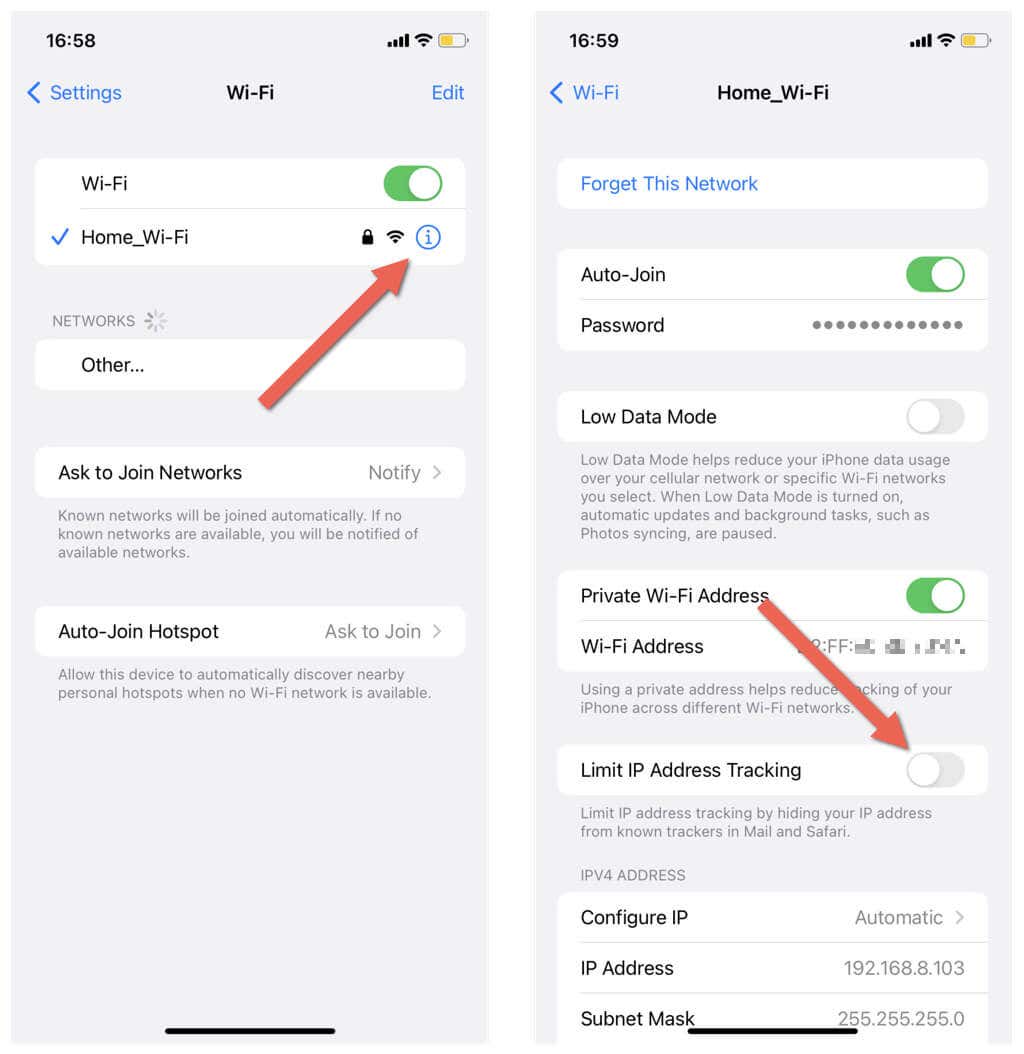
If the error shows up over cellular data, open the Settings app, go to Cellular Data > Cellular Data Options , and disable the Limit IP Address Tracking option.
Disable Limit IP Address Tracking on Mac
- Open the Apple menu and select System Preferences / Settings .

- Select Wi-Fi and choose Details next to your Wi-Fi network. In macOS Monterey, select Network > Wi-Fi .

- Disable the Limit IP Address Tracking option.

Check iCloud Private Relay’s Server Status
iCloud Private Relay is an iCloud+ feature that masks online activity on Apple devices to improve user privacy. However, server-side issues with Private Relay can stop Mail from loading email content.
Visit Apple’s System Status page via Safari or Chrome to check if there’s anything wrong with Private Relay. If iCloud Private Relay appears down, wait until Apple restores full feature functionality.

Turn Off iCloud Private Relay
Another way to fix the “Your network preferences prevent content from loading privately” error in Mail is to disable iCloud Private Relay from running on your iPhone, iPad, or Mac.
Turn Off iCloud Private Relay on iPhone & iPad
- Open Settings on your iOS device and tap your Apple ID.
- Select iCloud .
- Scroll down to the iCloud+ section and tap Private Relay .
- Turn off the switch next to Private Relay .
- Choose Turn Off Until Tomorrow to temporarily disable Private Relay, or Turn Off Private Relay to switch it off indefinitely.

Turn Off iCloud Private Relay on Mac
- Open the System Preferences/Settings app and select your Apple ID.
- Select iCloud .

- Select Private Relay .

- Select the Turn Off button.

- Pick between the Turn Off Until Tomorrow and Turn Off Private Relay options.
Disable Antivirus and Firewall (Mac Only)
If the problem persists and you use a third-party antivirus or firewall software on your Mac , make sure it isn’t interfering with how the Mail app works.
Begin by pausing the utility. If that helps, add the Mail app to its exceptions list or check if there are any privacy and security options related to mail protection that you can disable.
Switch Off Third-Party VPNs
Third-party VPNs (virtual private networks) are another reason why the “Your network preferences prevent content from loading privately” error shows up in Mail. If you use one, disconnect it through the VPN’s app user interface.
You can also disable a VPN through your Apple device’s network settings. On an iPhone, iPad, or Mac running the latest system software, open the Settings/System Settings app, select VPN , and disable the switch under VPN Configurations .

Use A Different Internet Connection
Sometimes, the Mail app’s email content loading issues can be limited to a specific Wi-Fi network. For example, this could be due to a router-level DNS content blocker like Pi-Hole.
Try switching to a different internet connection or use cellular data. If that helps, avoid connecting to the problematic network. If the problem occurs on your home network, contact your internet service provider for help.
Reset the Network Preferences
A corrupt or broken network settings configuration on your Apple device could cause mail-loading issues. Reset them to factory defaults and see if that resolves the problem.
Note : Resetting your network settings wipes out all saved Wi-Fi connections and passwords, so be prepared to reconnect to them manually afterward.
Reset Network Settings on iPhone & iPad
- Open the Settings app and select General .
- Go to Transfer or Reset iPhone > Reset .
- Tap Reset Network Settings .

Reset Network Settings on Mac
- Open Finder and select Go > Go to Folder on the menu bar.

- Enter the following path and press Enter :
/Library/Preferences/SystemConfiguration/

- Control-click the following files and select Move to Trash :
com. apple .airport.preferences.plist
com. apple .network.identification.plist
com. apple .network.eapolclient.configuration.plist
com. apple .wifi.message-tracer.plist
NetworkInterfaces.plist
Preferences.plist

- Open the Apple menu and select Restart .
- Uncheck the box next to Reopen windows when logging back in and select Restart again.
Update Your iPhone and Mac
Next, update your Apple device to rule out potential glitches in the system software and the Mail app that could trigger the “Your network preferences prevent content from loading privately” error.
iPhone & iPad
- Open the Settings app and tap General .
- Select Software Update and wait until the device checks for new iOS or iPadOS updates.
- Tap Download & Install .

Mac
- Open the Apple menu and select System Settings > Preferences .
- Select Software Update and wait until your Mac checks for new macOS updates.
- Select Update Now .

Your Network Settings Aren’t Preventing Content From Loading Privately Anymore
The solutions above hopefully helped you fix the “Your Network Settings Prevent Content From Loading Privately” error on your iPhone, iPad, or Mac. Clearly, some fixes involve turning off settings that downgrade your privacy, so you might want to try turning them back on later.
If the problem persists, contact Apple Support or your email service provider for further troubleshooting advice.
- Apple Mail vs Microsoft Outlook: Which Is Better?
- How to Schedule, Undo Send, and Get Apple Mail Reminders
- How to Customize Your Stationery in Apple Mail
- Fix Apple Watch Charging Problems (All Models)
- How to Use Your iPhone as a USB Drive on Mac and PC
