Microsoft Windows’ printer error “0x0000011b” occurs when you try to print something using a network-shared printer. This error usually occurs after installing a faulty Windows update. We’ll show you how to fix that as well as tweak other system settings to resolve your error.
Other reasons you may get the error include an enabled CVE-2021-1678 mitigation option, faulty printer drivers, corrupt Windows system files, and more. You’ll learn how to fix all these items in this guide.
Uninstall the Problematic Windows Update
If you’ve started receiving the “0x0000011b” printer error after installing a Windows update, that update might be faulty. In this case, you can roll back the update (uninstall it) and resolve your issue.
Later, you can check back and install an update that brings your operating system to a newer version without causing issues.
- Launch Control Panel by accessing the Start menu, searching for Control Panel , and selecting the utility in the search results.
- Select Uninstall a program on the Control Panel’s main window.
- Choose View installed updates in the left sidebar to view your update history.
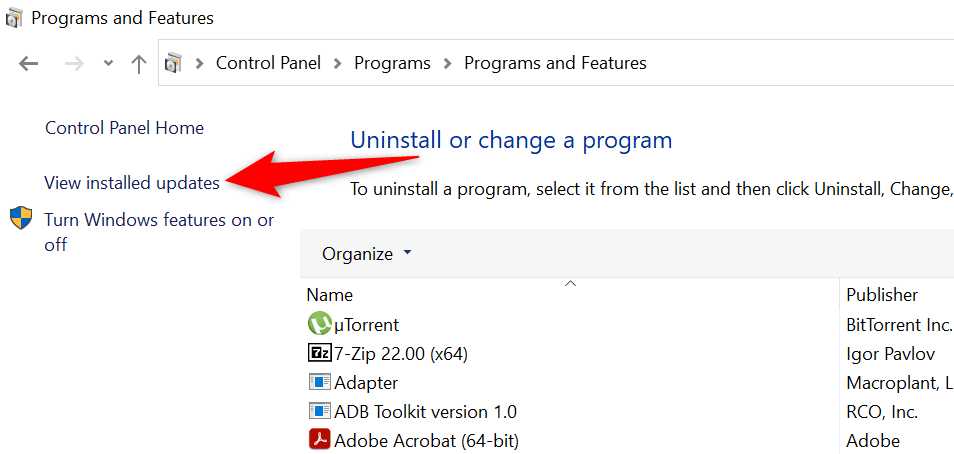
- Select the most recent update on the right and choose Uninstall at the top.
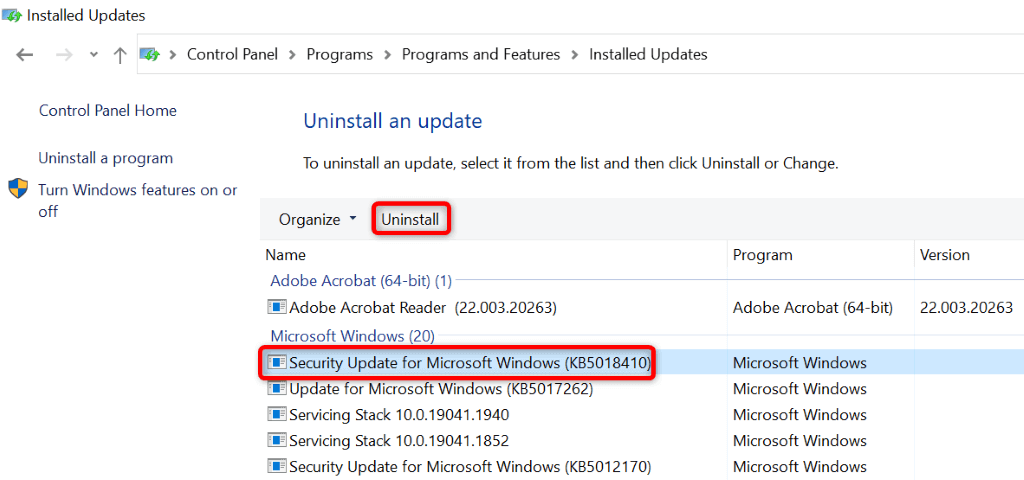
- Select Yes in the prompt.
- Restart your PC when the update is removed. You can do that by opening Start , selecting the Power icon, and choosing Restart .
When your PC turns back on, try to print a test page using your network printer and see if that works.
Fix Your Printing Error by Disablingthe CVE-2021-1678 Mitigation
Another way to resolve the printer error “0x0000011b” is by disabling a Windows option called CVE-2021-1678 mitigation. This option is known to cause your printer problem.
You’ll need to modify a registry key using Registry Editor to turn the feature off on your PC.
- Open Run by pressing Windows + R .
- Type the following in the Run dialog box and press Enter : regedit
- Select Yes in the User Account Control prompt.
- Type the following in the registry path field at the top and press Enter : ComputerHKEY_LOCAL_MACHINESYSTEMCurrentControlSetControlPrint
- Right-click anywhere blank on the right pane and choose New > DWORD (32-bit) Value .
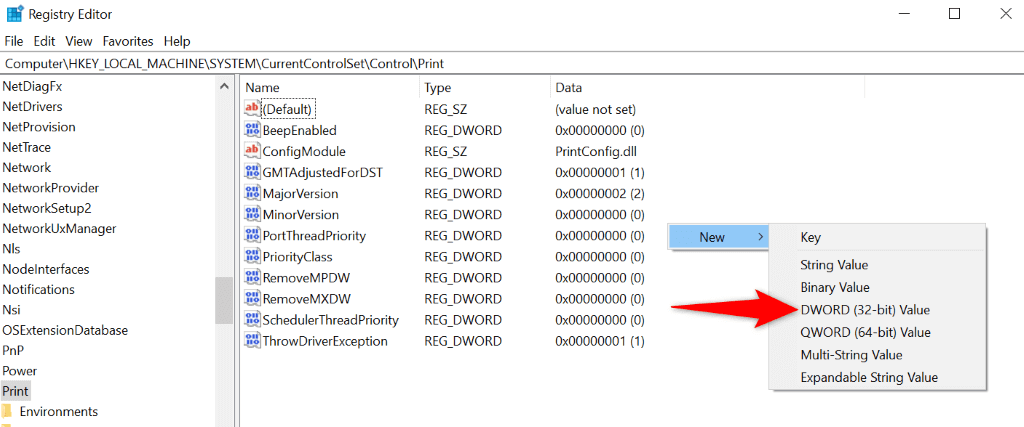
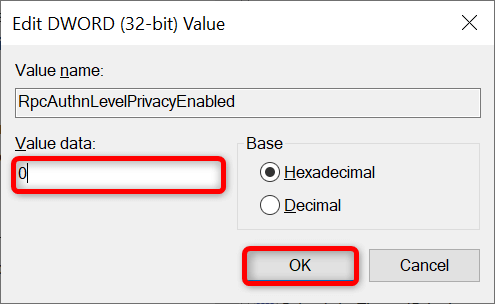
- Use the following as the name for your DWORD: RpcAuthnLevelPrivacyEnabled
- Double-click the newly-created DWORD, enter 0 in the Value data field, and select OK .
- Close Registry Editor .
- Reboot your Windows PC.
Use the Windows 10/11 Printer Troubleshooter
If your printer error persists and you can’t print your documents, use Windows’ built-in printer troubleshooter and see if that fixes your issue. This troubleshooter detects and resolves your printer issues on its own.
- Open Settings by pressing Windows + I .
- Select Update & Security in Settings.
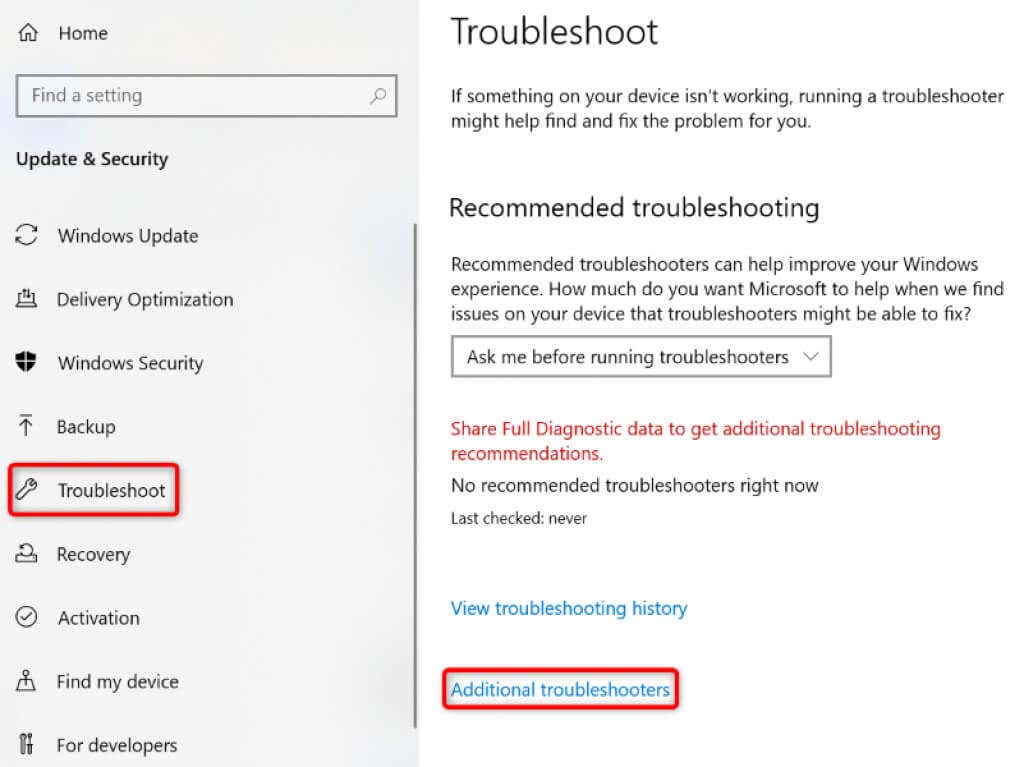
- Choose Troubleshoot in the sidebar on the left.
- Select Additional troubleshooters on the right.
- Choose Printer and select Run the troubleshooter .
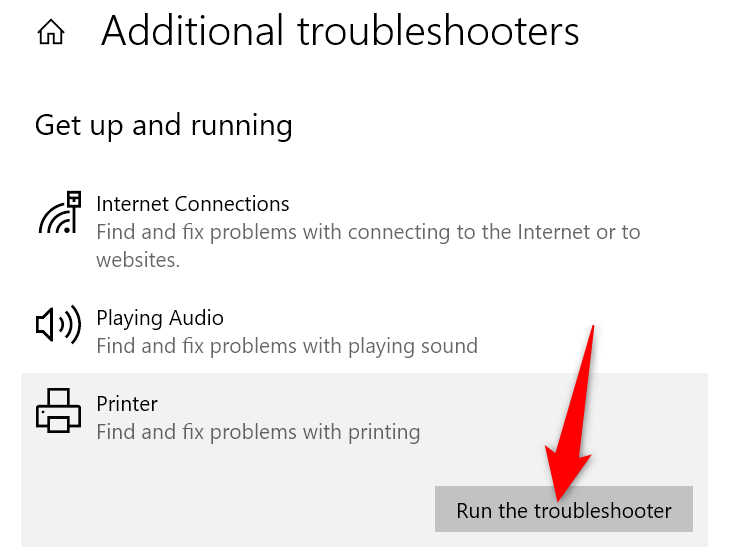
- Allow the troubleshooter to find and fix issues with your printer.
When your printer issue is resolved, try to print a document and see if that works.
Update Your Printer Drivers to Fix the Error 0x0000011b
Most printer errors are the result of corrupt or outdated drivers. You can fix this easily by updating your installed drivers to the latest version. Windows offers a utility called Device Manager to help you automatically find drivers for all your attached devices.
- Open Start , find Device Manager , and select the tool in the search results.
- Expand Print queues , right-click your printer, and choose Update driver .
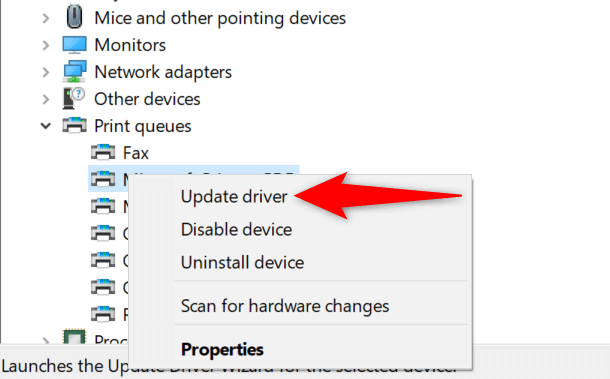
- Select Search automatically for drivers .
- Let Windows find and install the latest drivers for your printer.
- If Device Manager can’t find newer drivers, try to locate the latest drivers by selecting Search for updated drivers on Windows Update .
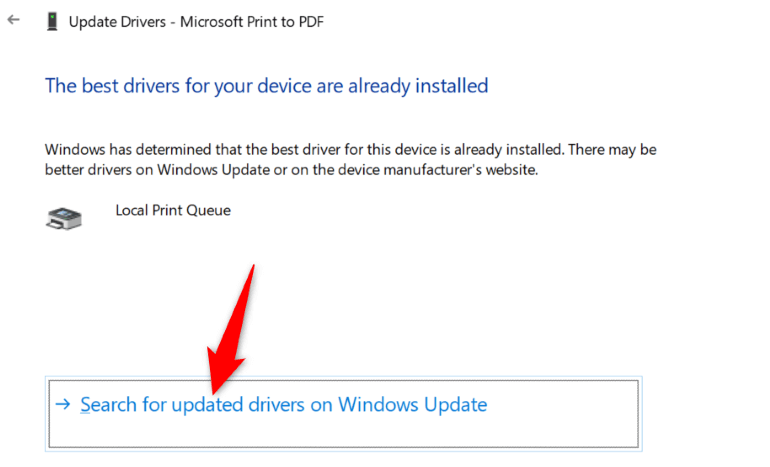
- Reboot your PC when your printer drivers are updated.
Now, try to print something using your printer, and you shouldn’t get any errors anymore.
Install Your Pending Windows Updates
Your Windows system’s bugs can cause your printer to malfunction, resulting in various error messages, including “0x0000011b.” You can fix nearly all the system issues by updating Windows to the latest version.
Updating your Windows PC is quick, easy, and free.
- Launch Settings by pressing Windows + I .
- Select Update & Security in Settings.
- Choose Windows Update in the sidebar on the left.
- Select Check for updates on the right.
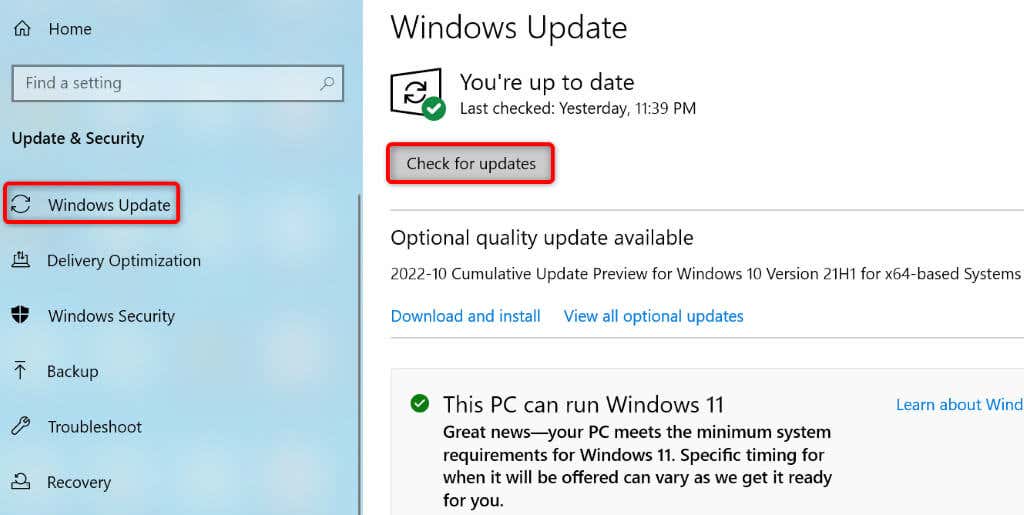
- Install the available updates.
- Restart your PC.
Fix Windows 11/10’s Corrupt Files
Windows’ corrupt files can cause your system features to go haywire. Your printer error may have resulted from such files. In this case, use your PC’s built-in System File Checker (SFC) tool to find and fix faulty files.
The SFC tool runs on its own for the most part, so you don’t have to manually locate any files and try to fix them. You can use this tool from a Command Prompt window on your PC, as follows.
- Open Start , search for Command Prompt , and select Run as administrator .
- Select Yes in the User Account Control prompt.
- Type the following in CMD and press Enter : DISM.exe /Online /Cleanup-image /Restorehealth
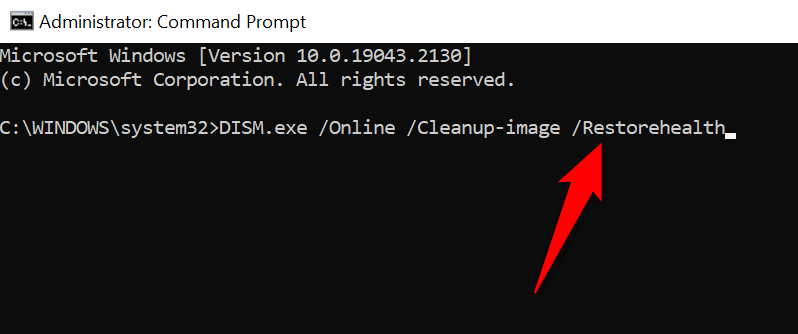
- After executing the above command, run the following command: sfc /scannow
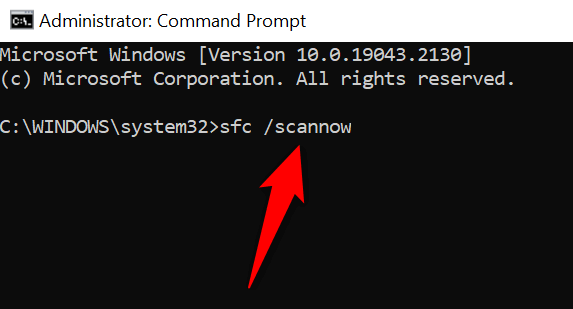
- Restart your PC when you’ve fixed the corrupt files.
Uninstall and Reinstall Your Printer to Resolve the 0x0000011b Error
If all else fails to resolve your “0x0000011b” printer error, remove and reinstall your printer on your system to fix the problem. Doing so deletes all of your printer’s files and sets up the printer from scratch. This fixes nearly all your printer-related issues.
- Open Start , search for Control Panel , and select the tool in the search results.
- Select View devices and printers in the Control Panel.
- Right-click your faulty printer on the list and choose Remove device .
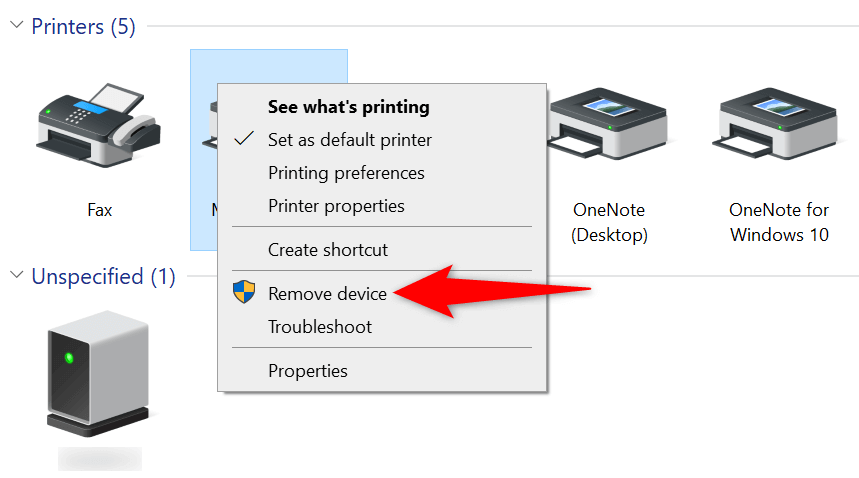
- Select Yes in the prompt to remove the printer.
- Unplug and replug your printer into your computer.
- Access Control Panel > View devices and printers and select Add a printer at the top.
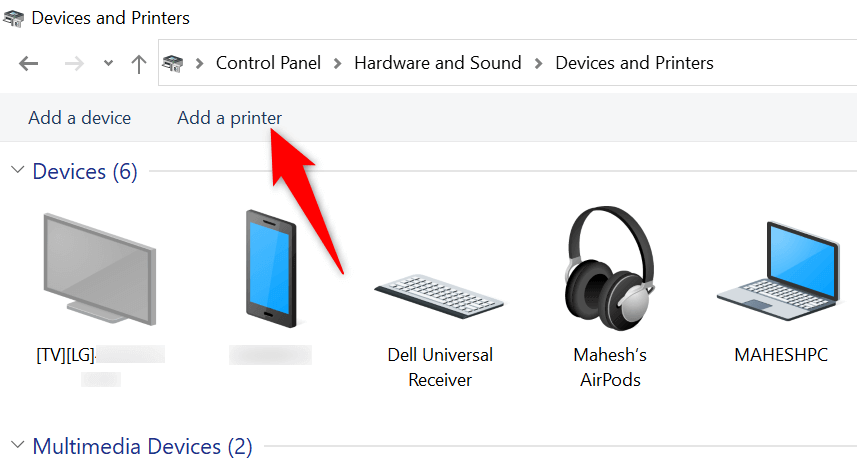
- Finish adding the printer to your PC.
Resolve Your Printer Error to Resume the Pending Print Jobs
It’s frustrating when you want to print something urgently and a printer error shows up. Luckily, you can fix most printer-related issues by tweaking a few items here and there on your Windows system. Once you’ve done that, your printer will communicate with your PC and let you print all your files.
Happy printing!
- How to Fix the “Error – Printing” Status Error in Windows
- 7 Ways to Fix HP Printers ”Driver Is Unavailable” Error on Windows PC
- How to Fix Your Printer’s “Driver is unavailable” Error on Windows
- 7 Ways to Fix ”Windows Cannot Connect to the Printer”
- Print Job Won’t Delete in Windows? 8+ Ways to Fix
Mahesh has been obsessed with technology since he got his first gadget a decade or so ago. Over the last few years, he’s written a number of tech articles on various online publications including but not limited to MakeTechEasier and Android AppStorm. Read Mahesh’s Full Bio
If your Windows PC displays a “Driver is unavailable” error, that means your system can’t find the correct drivers for your printer. You can’t print your documents or other items when this issue occurs. However, you can fix the problem by tweaking a few driver options on your PC.
The most common reason for the above error is outdated driver software. Other reasons include faulty drivers, corrupt Windows system files, and more. We’ll show several options to fix these problems so your printer starts working again.
Update Printer Drivers
The first solution to try when your PC displays a “Driver is unavailable” error is to update your printer drivers. Doing so updates the files that help your printer communicate with your computer.
You can use Windows’ Device Manager to perform the update process.
- Open the Start menu, search for Device Manager , and select the tool in the search results.
- Expand Print queues , right-click your problematic printer, and choose Update driver .
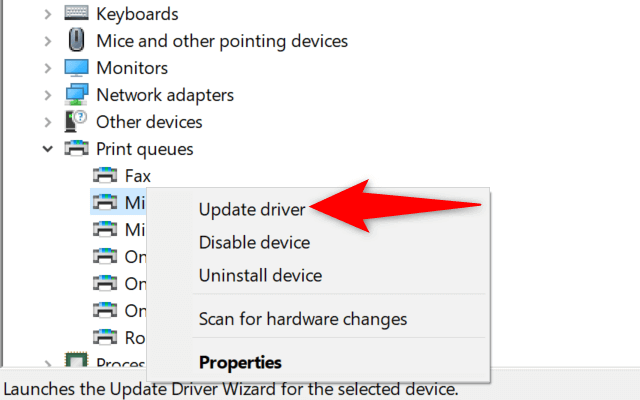
- Select Search automatically for drivers on the window that opens.
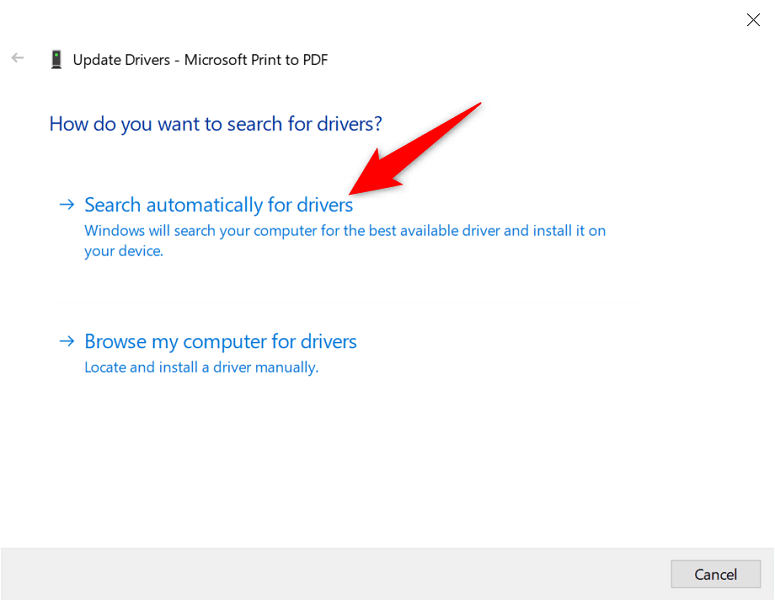
- Let Windows find and install the latest drivers.
- If no drivers are available, Device Manager will say that you already have the best drivers installed. In this case, quit the window by selecting Close .
Automatically Reinstall Printer Drivers
If the above method didn’t work, try completely removing and reinstalling your printer’s driver. This removes the problematic files that may be causing the “Driver is unavailable” error.
Again, use the Device Manager utility to perform the process.
- Launch the Start menu, search for Device Manager , and select the app in the search results.
- Expand Print queues , right-click your printer, and choose Uninstall device .
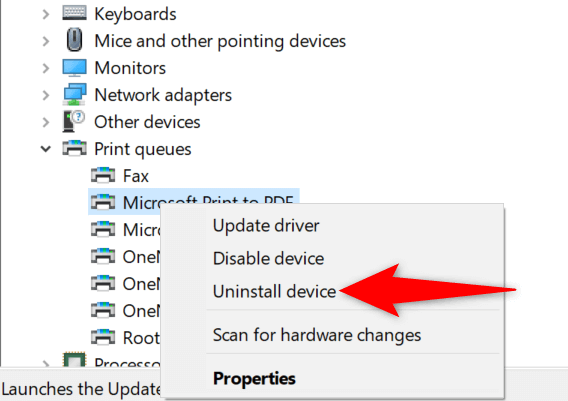
- Enable Delete the driver software for this device and select Uninstall .
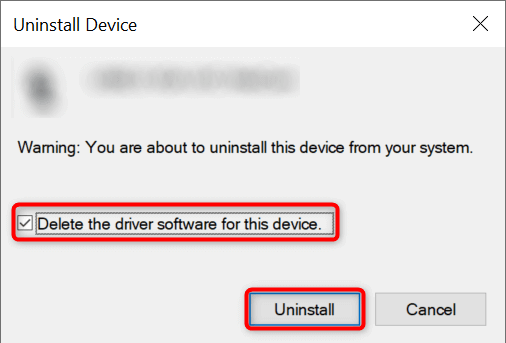
- Unplug the printer from your PC.
- Restart your PC by right-clicking the Start menu icon and choosing Shut down or sign out > Restart .
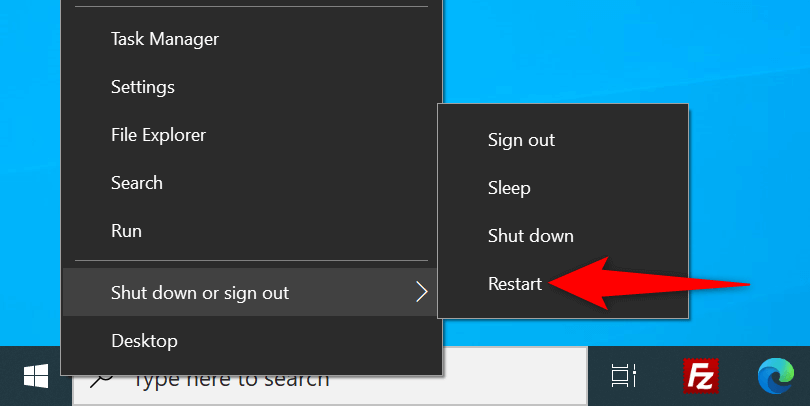
- Plug your printer back into your PC.
- Follow the on-screen instructions to reinstall the printer drivers.
Manually Reinstall Printer Drivers
Windows’ default printer drivers may not always work. If this is the case with you, manually download the drivers from your printer manufacturer’s website and install them.
Here’s how to do that.
- Launch Device Manager , right-click your printer in Print queues , and select Uninstall device .
- Enable the Delete the driver software for this device option and choose Uninstall device .
- Unplug your printer from your PC and reboot your PC.
- Connect the printer to your PC.
- Launch a web browser, access your printer manufacturer’s website, and download the latest drivers.
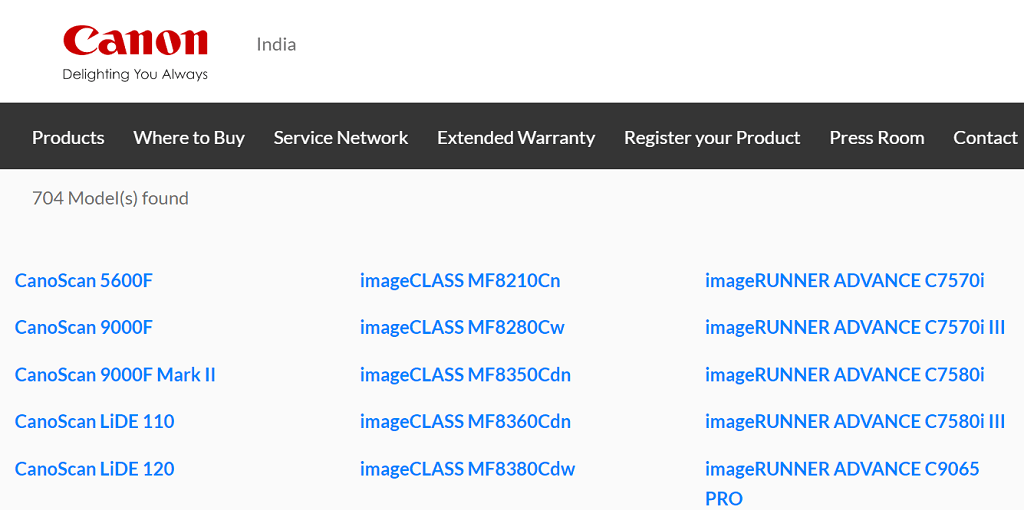
- Double-click the downloaded file to begin the installation process.
Update Windows 10 or Windows 11
Windows’ core updates sometimes help fix many device issues. You may be able to resolve the “Driver is unavailable” error by updating your Windows 10 or Windows 11 computer.
- Launch the Settings app by pressing Windows + I at the same time.
- Choose Update & Security on the Settings window.
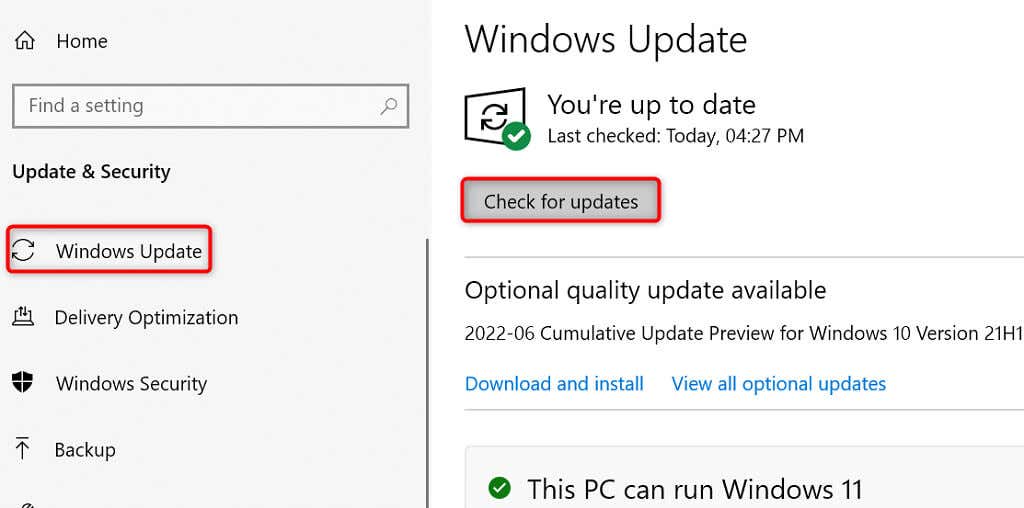
- Select Windows Update from the sidebar on the left.
- Choose Check for updates in the pane on the right.
- Install the available updates.
- Reboot your PC.
Prevent a Faulty Driver Update From Installing
Both Windows 10 and 11 automatically update your device drivers via Windows Update. Sometimes, these updates are faulty, causing random issues with your devices.
If you’ve been experiencing the “Driver is unavailable” only recently, your driver update might be the culprit. In this case, roll back the update and prevent Windows from installing the same update again.
- Download Microsoft’s Show or hide updates tool.
- Launch the newly downloaded wushowhide.diagcab file.
- Select Next on the tool’s first screen.
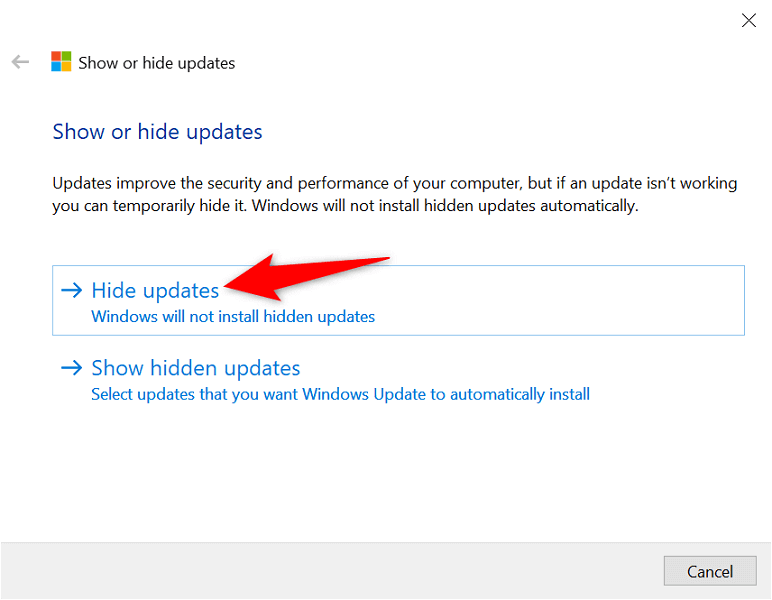
- Choose Hide updates .
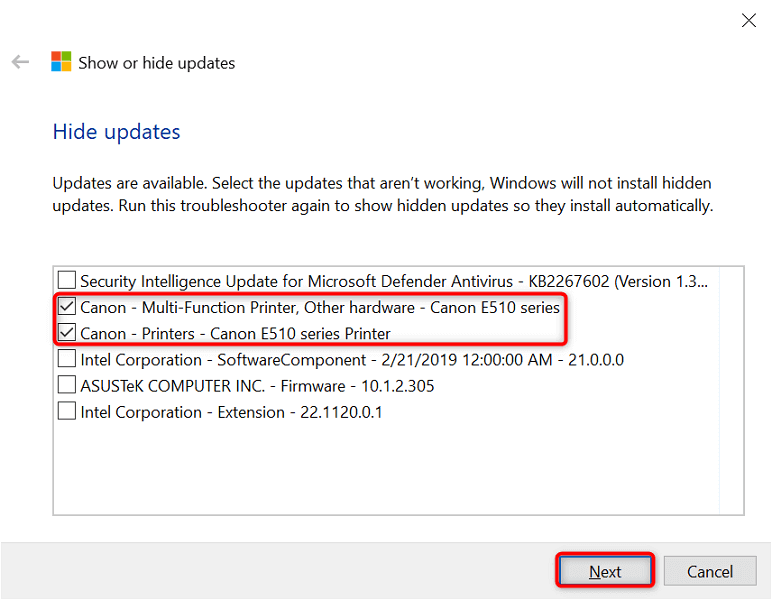
- Enable the box beside your printer update. Then, select Next at the bottom.
- Select Close the troubleshooter .
Windows will now block the printer driver updates from installing.
Later, you can re-enable those updates by choosing Show hidden updates and activating your printer’s option.
Use Generic Printer Drivers
Microsoft offers generic printer drivers to use when your actual ones don’t work. You may want to use these to temporarily fix the “Driver is unavailable” error and print your documents.
- Right-click the Start menu and choose Device Manager .
- Expand Print queues , right-click your printer, and choose Update driver .
- Select Browse my computer for drivers .
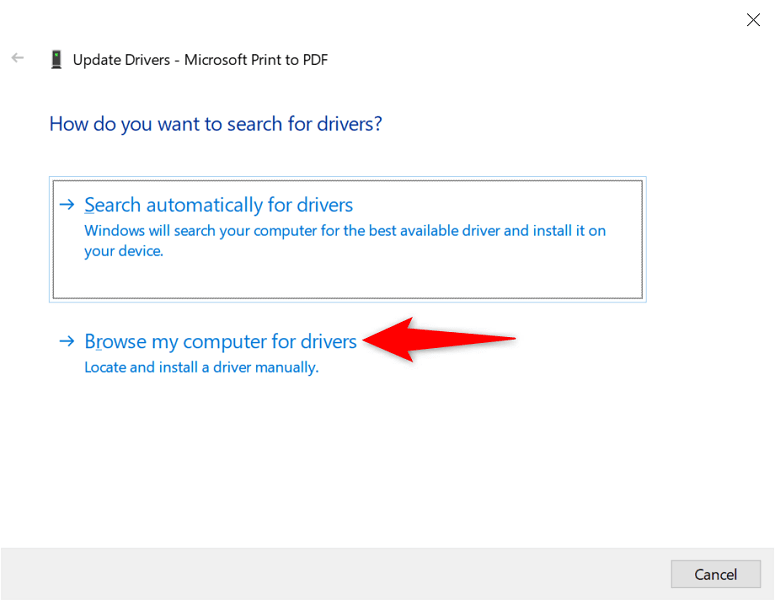
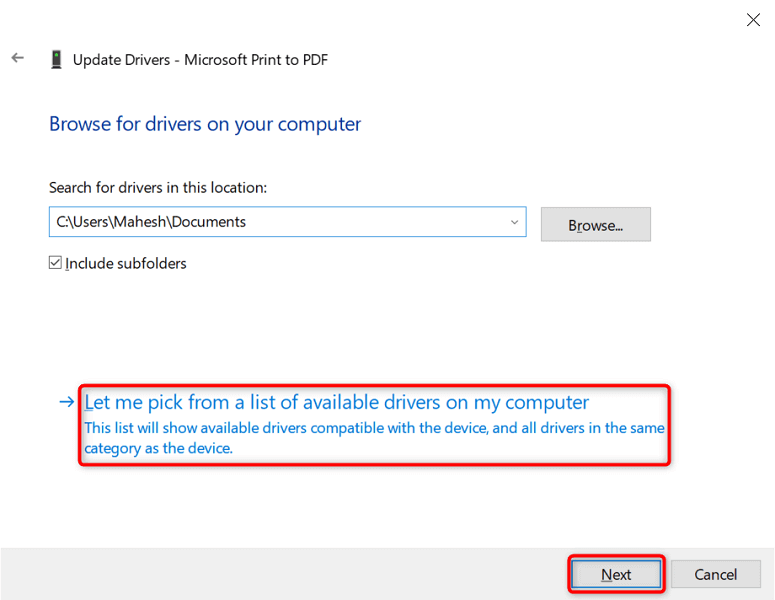
- Choose Let me pick from a list of available drivers on my computer .
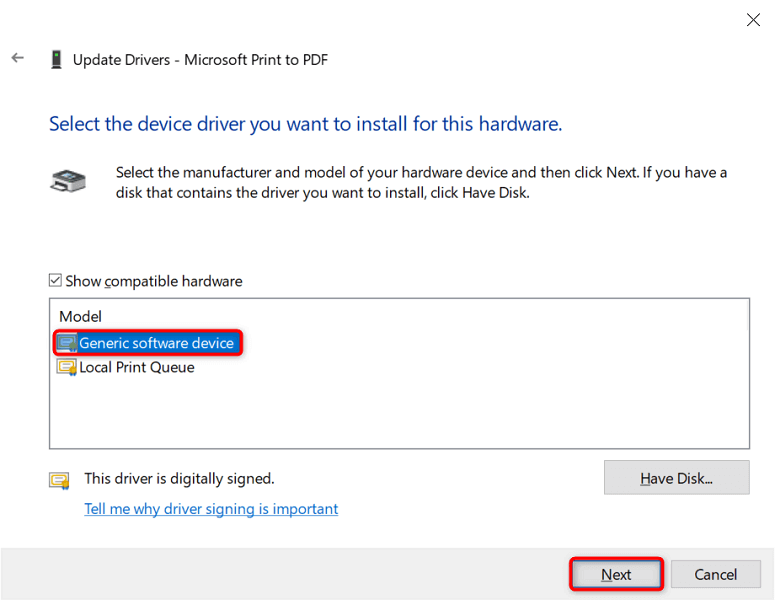
- Select Generic software device and choose Next .
- Restart your PC.
Fix Corrupt Windows Files
Corrupt Windows system files can make your devices go haywire. Your “Driver is unavailable” issue may be the result of a faulty core file. Luckily, you can fix the issue by checking and repairing all your problematic system files .
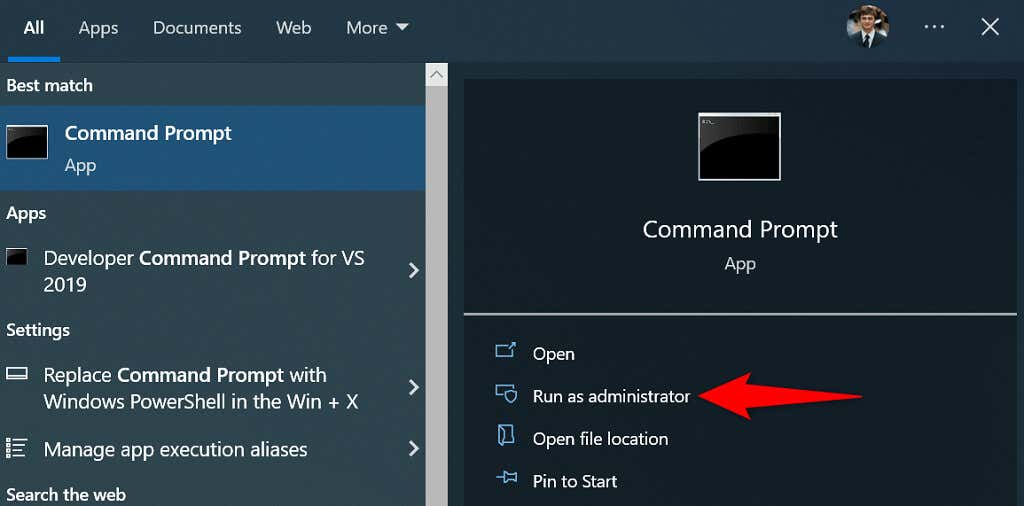
- Open the Start menu, search for Command Prompt , and select Run as administrator .
- Select Yes in the User Account Control prompt.
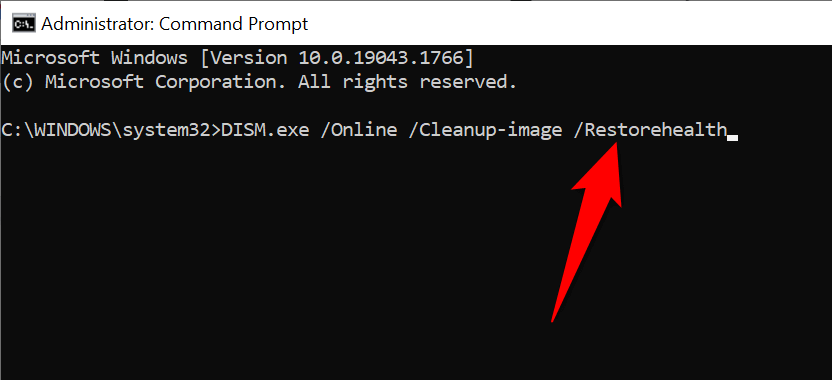
- Type the following on the Command Prompt window and press Enter . Wait for the command to finish executing: DISM.exe /Online /Cleanup-image /Restorehealth
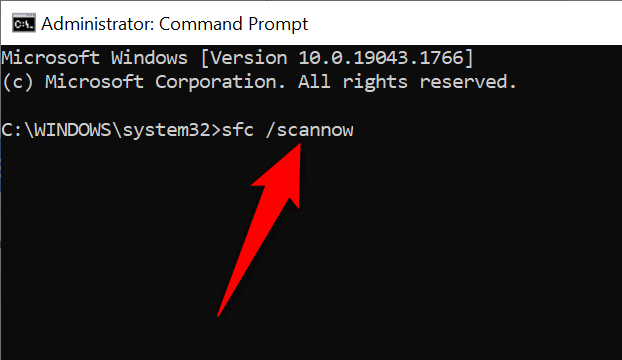
- Next, run the following command: sfc /scannow
- Wait for the tool to find and fix faulty files on your machine.
Making “Unavailable” Printer Drivers Available in a Few Easy Ways
Windows’ “Driver is unavailable” error makes your printer unusable, but not for long if you follow the methods outlined above and resolve the underlying problems. Once you’ve done that, you can print all your documents as well as configure various options for your printer on your Windows PC. Enjoy!
- How to Fix the “Error – Printing” Status Error in Windows
- 7 Ways to Fix HP Printers ”Driver Is Unavailable” Error on Windows PC
- 7 Ways to Fix ”Windows Cannot Connect to the Printer”
- Print Job Won’t Delete in Windows? 8+ Ways to Fix
- Preparing for Windows 10 End of Support: Upgrading to Windows 11
Mahesh has been obsessed with technology since he got his first gadget a decade or so ago. Over the last few years, he’s written a number of tech articles on various online publications including but not limited to MakeTechEasier and Android AppStorm. Read Mahesh’s Full Bio
RIFF,˜ WEBPVP8L˜ /ÿƒj ‡9 Ø´‘LrJÇÌLãÜ(·ë½údæVFy èµm›zÎÕógûûzøþ…}¤Ãôd;y¾>°kÛN ’+0Ìð;5L-SÑ”6-0ƒILóa†${/™H’@Ûc¶’t <
In the cult-classic film Office Space, there’s an iconic scene where a group of office workers take their lamentable printer/copier into a field and proceed to destroy it with a vengeance while an explicit rap song plays in the background.
For many people that scene is a form of wish fulfilment. If only we could take the printers that make our own lives a misery out to a field for a quick execution. Unfortunately, that’s not really an option in real life, so your best choice is to find and fix printer problems as they crop up.
Although printer problems can feel like infuriating mysteries, once you know where to look and how to narrow down the causes of your issues most of that pent-up rage should disappear. Unfortunately, we can’t help you with any other deep-seated issues that remain. Let’s start off with the quick and easy troubleshooting checks.
Turn It Off and On Again
Yes, it’s a bit of a joke, but so many random problems go away when you just restart things. In this case that means restarting both the computer and printer. Resetting your gear is always a good first step.
If it’s a wireless printer, make sure to restart your wireless router just to make sure the network is running properly.
But, The Printer Doesn’t Power
On!
If your printer has been working properly and then suddenly won’t play ball any more, the first thing you should check is whether it’s powered-on. Yes, it seems like a simple issue, but even the most tech-savvy among us can overlook something as simple as a dead outlet/power strip, loose cable or busted printer power supply.
So check whether the outlet works properly either by plugging the printer into a known working outlet/power strip or by plugging a known working device into the suspicious outlet.
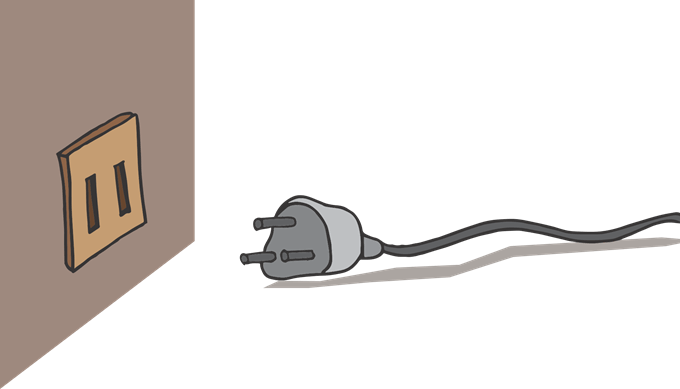
If the outlet is fine, the next step is to check the cable itself. It may have pulled out of the printer or the cable could be damaged. If you don’t have another cable to swap out as a test, you can also use a multimeter to make sure that power is making it all the way through the cable.
Some printers have two power switches. One operates the power supply. This is usually hidden at the back of the machine, near the power connector. The other is the one you’d use to switch the printer on during normal operation. The front power switch isn’t a power switch, but a standby toggle. In any event, if the power supply switch is off, nothing else will work either.
The Data Connection
Your printer needs more than just power in order to produce printed pages. It also needs data from the host system so that it knows where the ink should go. In the old days, this data flowed over a parallel port connection. However, that connection standard is now obsolete and just about every printer on the market will use the ubiquitous USB standard.
It’s also becoming more and more common for printers to have Wi-Fi modules, which turns them into home network printers. Printers can also come with an Ethernet connection, but this is more common with enterprise level equipment.
Whatever connection type your printer uses, checking that all of the connections work properly is one of the most basic printer troubleshooting steps .
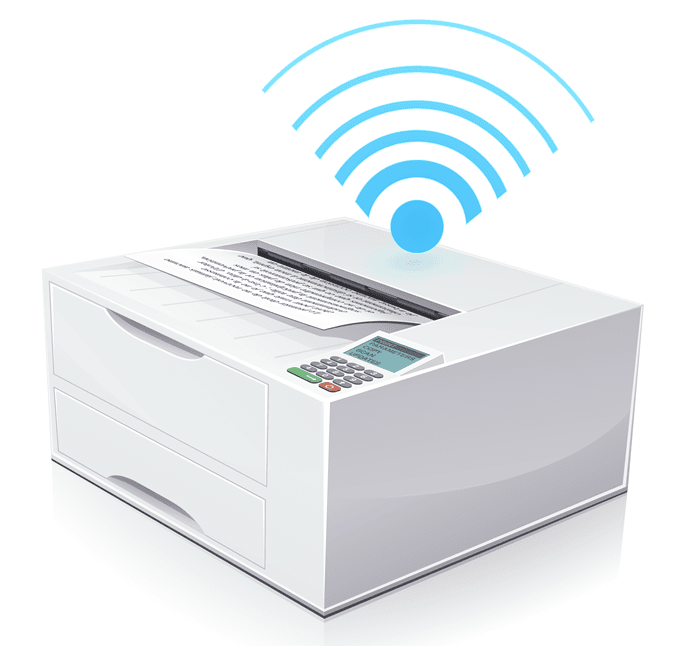
With wired connections, make sure the plugs on either end are connected properly. If that doesn’t fix the problem, test the cable on another device, or swap the cables with known working ones from another device.
For Wi-Fi-connected printers, things are a little trickier. Refer to the manual on how to connect the printer to Wi-Fi and try to connect manually. You can also go into your router’s dashboard to check the list of connected devices . You can quickly determine if the printer has successfully connected to the network or not.
It’s also a good idea to temporarily try a wired connection if the Wi-Fi doesn’t seem to work. If that fixes the issue, then you know the problem is somewhere in the Wi-Fi chain.
Error Messages Can Help
(Sometimes)
If your printer does come on but has another issue, then you are embarking on a different troubleshooting journey.
Believe it or not, printers have become a lot smarter over time. They can often tell you exactly what’s wrong or at least help move you in the correct direction. If the printer has a warning light or a screen, you can refer to the user manual for that model to interpret what the self-diagnosed error is.
Papers Please
One of the most common reasons that a printer refuses to budge is because it lacks paper. On small home inkjet printers, it’s easy to see if there’s any paper left in the feeder tray.
However, you may still get a paper error despite paper being visible in the tray. In this case the issue usually solved by removing the paper, neatly aligning it and then putting it back into the tray properly so that the feeder mechanism can grab the next sheet properly.
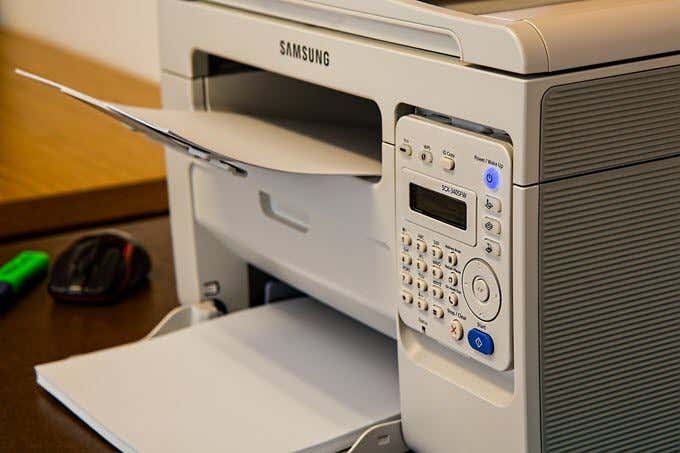
Laser printers tend to store their paper sheets in a tray, which slides completely into the machine. So if the printer says it has no paper then it usually means simply refilling the tray.
There is one wrinkle to this though. Some printers have multiple sources of paper. For example, one tray for A4 sheets and another for A3. You may have the wrong paper source selected if you check the tray and find paper there.
For example, when printing on envelopes or notecards, you normally have to use a much smaller tray that pulls out separately. It can sometimes be hard to find this tray, so check your printer manual in this case.
Getting Out of a (Paper) Jam
A paper jam happens when paper literally jams the roller mechanisms that move paper through the system. This could happen for several reasons. For example, the printer may pull in more than one page at a time. A sheet of paper could be pulled in at an angle or have a fold or tear in it.
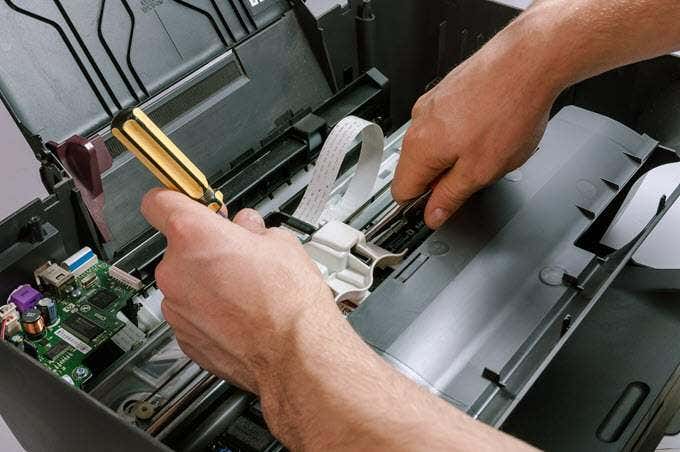
In order to resolve a paper jam, you’ll have to open up your printer. All printers have an access panel from where you can get to the rollers and the rest of the feeding mechanism. Open that panel and then carefully extract the paper.
Using good quality paper will help prevent paper jams. The printer’s manual should list the recommended paper types.
Ink and Toner
If your prints are coming out faded or otherwise not as they should, you could be running low on ink or toner. Depending on the type of printer you are using, not all printers can measure this directly, especially in the case of inkjets.
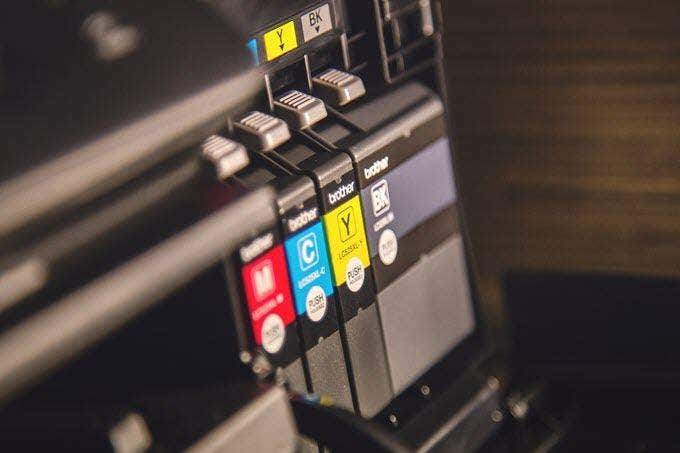
They rely on you telling them when a new tank of ink is installed and then guesstimate how much is left based on how much has been used. Sometimes that calibration gets reset, so the printer reports there is ink when there is none. If your prints look a little colorless, consider replacing the ink cartridges.
Windows Woes
A common source of printer problems isn’t the printer at all, but the computer and its operating system. We’ve come a long way from the janky printer software and drivers haunting the early days of personal computing.
In Windows 10, the first stop is check out your printer settings under “Printers and Scanners”. Just open the Start Menu, type “Printers” and click on “Printers and Scanners”.
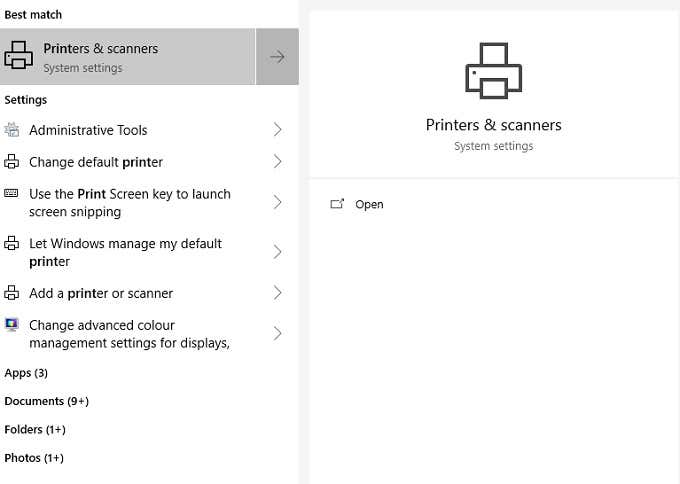
Here you see connected printers listed. If your printer is listed, it means Windows sees it OK. Click on the printer listing.
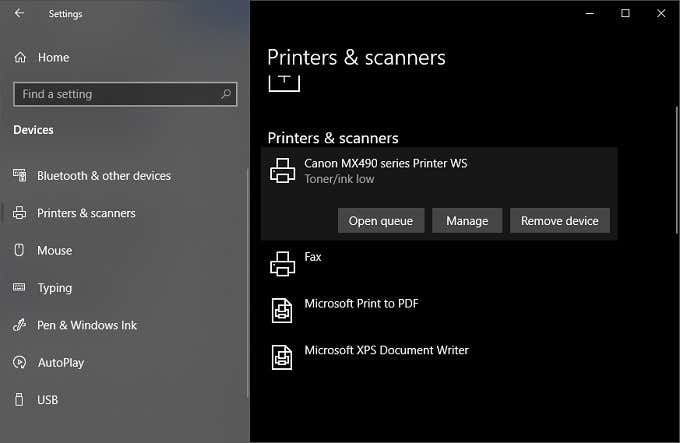
Three option will drop down. Click on “Open Queue”
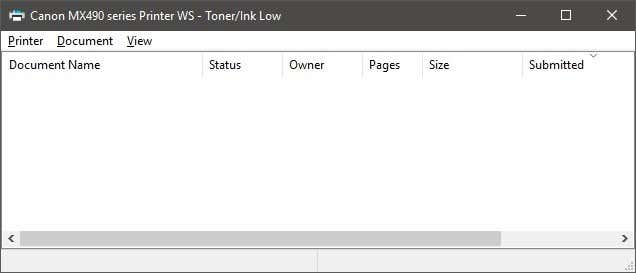
Here you can see any print jobs that have stalled or otherwise messed with your prints. You can cancel them here directly and clean up the pipes.
You can also read our other posts on how to clear the print queue manually if you can’t do it using the GUI interface shown above.
Software, Hard Times
When your printer is giving you grief, but seems to be physically OK, the first step is to update your drivers and software. Search for your printer model’s support website and find the latest software and drivers for it. We recommend that you uninstall the current drivers and software, just in case something got corrupted.
If the problem persists after cleanly reinstalling both drivers and software , you need to look elsewhere.
One quick way to resolve printer issues is to delete the printer and then try to reinstall it. You can read our previous guide on how to install a wireless or network printer in Windows 10.
If your printer worked perfectly not too long ago, you can use System Restore to roll things back to that date. If that fixes the problem, then you know it was a new software package (such as an antivirus) or other change like a Windows update that borked things.
Most printer manufacturers also have their own printer troubleshooting software. I’ve written about HP Print and Scan Docto r to resolve common printer issues.
Use A Different Computer
If you want to rule out the computer as the problem, the easiest way is to hook the printer up to another computer. If the problem goes away, then the culprit is clear.
If your computer is the problem and none of the remedies above work, then you may want to consider resetting or reinstalling the operating system. It’s a measure of last resort, but after eliminating the most common issues, it might be the fastest way to get back on track.
- How to Fix the “Error – Printing” Status Error in Windows
- HP Printer Not Printing Black? 10 Fixes to Try
- How to Fix Missing or Failed Printhead Error on HP Printers
- How to Add a Printer to Your Chromebook
- How to Fix the Printer Error “0x0000011b” on Windows
Founder of Help Desk Geek and managing editor. He began blogging in 2007 and quit his job in 2010 to blog full-time. He has over 15 years of industry experience in IT and holds several technical certifications. Read Aseem’s Full Bio
Nothing can be more frustrating than carefully compiling your work and pressing print, only for your printer to randomly produce blanks. The printer may be new or in good working condition, but the printout is blank or missing ink.
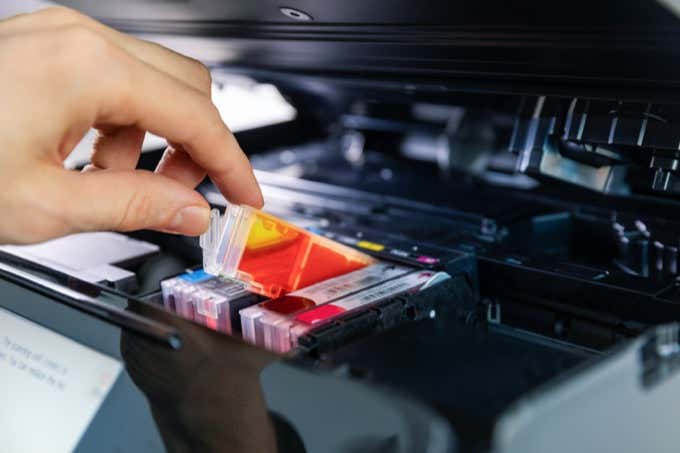
While an empty ink cartridge is a common reason for this problem, it’s not always the case. You may replace your printer’s ink cartridges with new ones and still encounter the same problem.
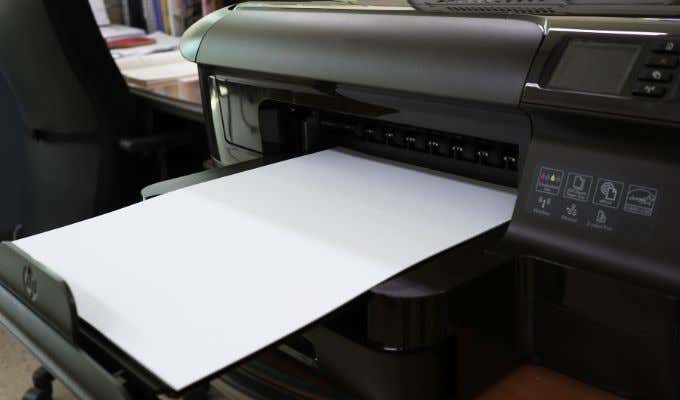
In this guide, we’ll look at some other possible reasons why your printer is printing blank pages and how you can resolve them.
Why Is My Printer Printing Blank Pages?
If you’ve checked your ink cartridges and they still have enough ink to print, chances are that your printer might still randomly produce blanks. Some of the reasons why you still get blank printouts include:
- Congested nozzles
- Improper cartridge installation
- Cartridges dislodged from their proper place
- Driver and software issues
- Wrong paper size
- Blank pages in the document you’re printing
If you’re trying to print an Excel document and you’re getting blank printouts, there are several conditions in which this behavior can occur including:
- An error on a cell on the page you’re trying to print
- Errors selected to print as blank
- Data on a page is only in cells formatted in such a way that they’re blank
- Worksheet contains hidden columns with manual page breaks
- Worksheet contains drawing objects in unexpected areas
- Completely blank pages ahead of any pages containing data, which print as blank
What to Do When Your Printer Is Printing Blank Pages
No matter the cause of the problem, we’ll give you some solutions you can try to stop your printer from printing blank pages.
Preliminary Checks
- Place your printer on a flat, stable surface as any slight tilt can lead to printing issues.
- Replace the old ink cartridge if it’s low on ink. Make sure you’re using genuine ink or toner supplies for your printer.
- Ensure that you have removed the tape from your ink cartridge when installing it in your printer.
- Print a nozzle check pattern or test page to check whether the nozzles may be clogged. Use the Print Head Nozzle Check if your printer has that option and clean the print head if necessary.
- Check that the printing paper you’re using fulfills the printer’s specifications. For example, vellum or transparent paper isn’t supported by some printers.
- Ensure that your document has the correct paper size, orientation, layout and other printing settings.
Select Skip Blank Page
Make sure there’s no blank page in the document you’re trying to print. You can use the Print Preview function to check for any blank pages and remove them before printing. Alternatively, select Skip Blank Page in your printer software.
- In Windows 10, select Start > Settings > Devices > Printers & Scanners .
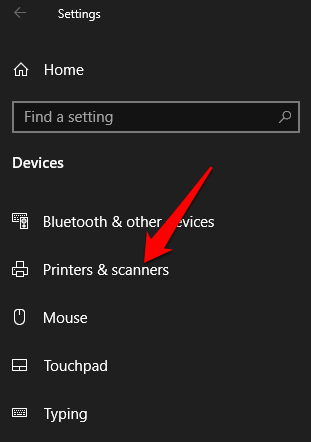
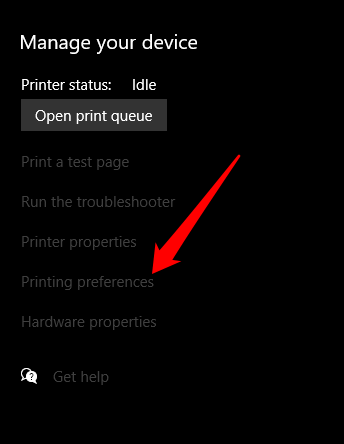
- Select your printer and then select Manage > Printing Preferences and then select Skip Blank Page .
- On your Mac, select menu > System Preferences > Printers & Scanners > Options & Supplies .
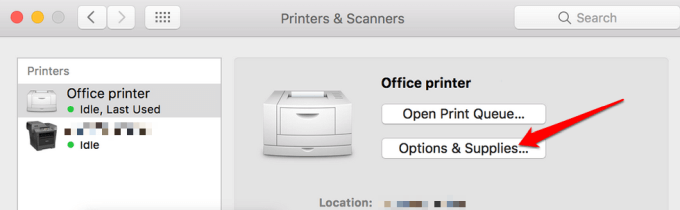
- Select the Driver or Options tab and then set Skip Blank Page to On .
Restart the Printer
For most devices, a restart usually resolves minor glitches so you can try and restart your printer and check if the blank printout issue goes away. Open your printer, remove both cartridges and unplug the power cord plus other cables from the printer.
After 10-15 minutes, plug the power cord and other cables back into the printer, reinstall both cartridges, switch the printer on and print a test page.
Align the Printer
If you just replaced your old ink cartridges, it’s imperative that you align them and calibrate the printer. This way, the cartridges won’t become misaligned and cause blank printouts or misaligned text.
For this guide, we’re using a HP printer so the steps may differ depending on your printer model.
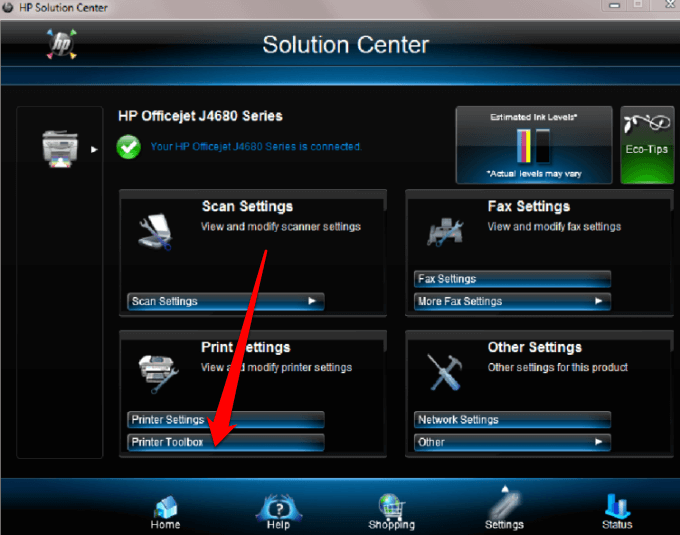
- Turn on your printer, load some paper and go to the HP Solution Center. Select Settings > Print Settings .
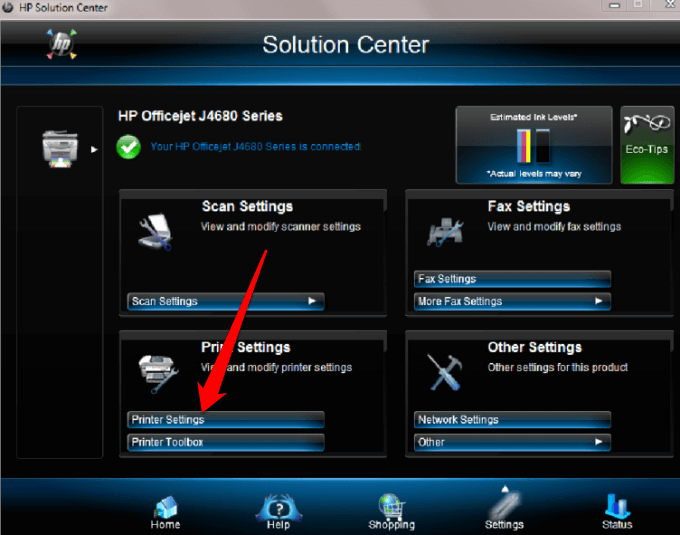
- Next, select Printer Toolbox .
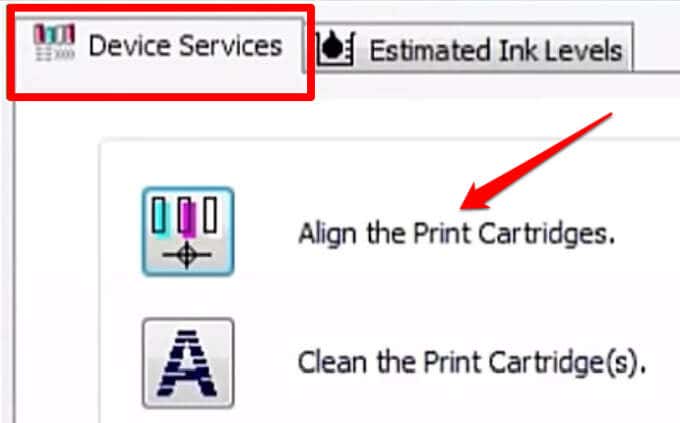
In the Printer Toolbox window, select Align the print cartridges under Device Services and then select Align . Follow the on-screen instructions to complete the process.
Run the Windows Printer Troubleshooter
If you’re still getting blank printouts, you can use the built-in printer troubleshooter utility to automatically detect and resolve printer issues.
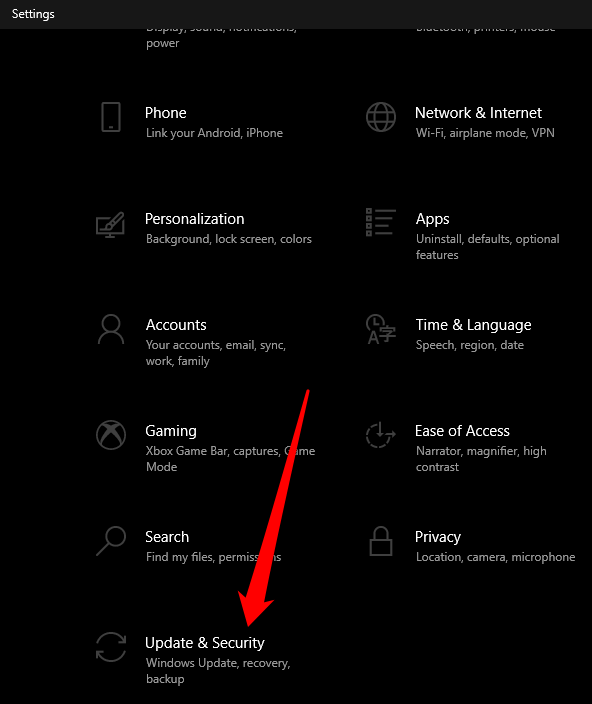
- Right-click Start > Settings > Update & Security .
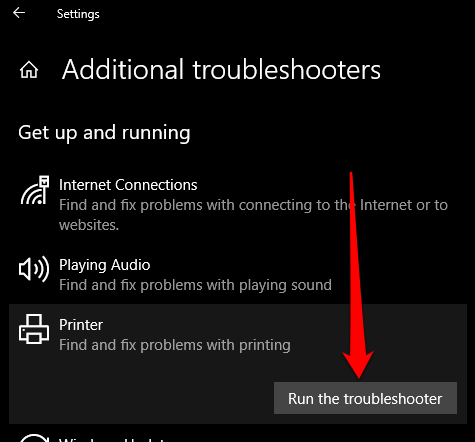
- Select Troubleshoot > Additional Troubleshooters and then select Printer under the Get up and running section.
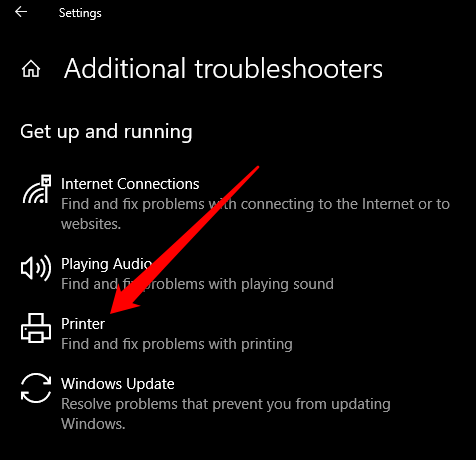
- Next, select Run the troubleshooter to begin.
Update the Printer Driver
Printer driver issues may also cause your printer to print blank pages.
To resolve this, you may need to update the printer driver or uninstall and reinstall it back so as to get the newest version of the driver. You can update your printer’s drivers by visiting the device manufacturer’s official page and downloading the available driver updates.
You can also update your printer driver via the Device Manager in Windows 10.
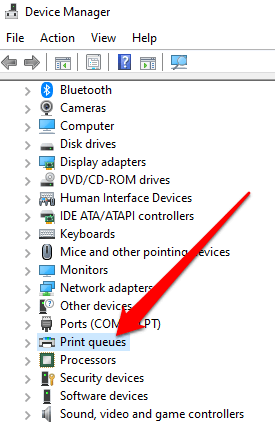
- Right-click Start > Device Manager and select the Print queue section to expand it.
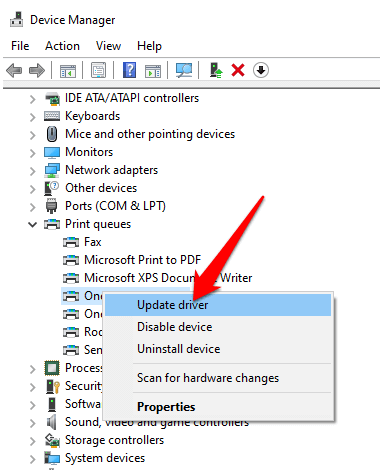
- Right-click your printer’s name and select Update driver .
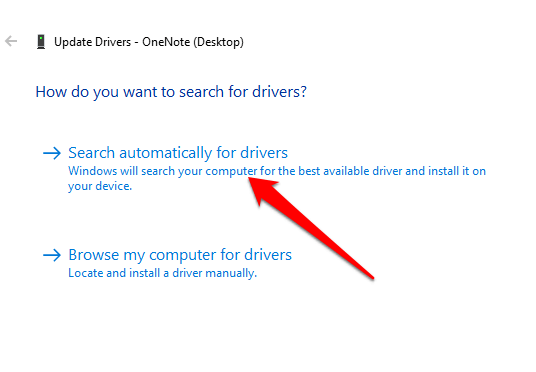
- Select Search automatically for updated driver software .
Print in Backup Mode
If you’ve completed all the preceding steps and you’re still getting blank printouts, you can try to print in backup mode. This workaround is useful when your printer has two cartridges such that you can remove the problem cartridge and print with the remaining one. For instance, you can remove the black cartridge and print with the remaining color cartridge.
Stop Printing Only Data
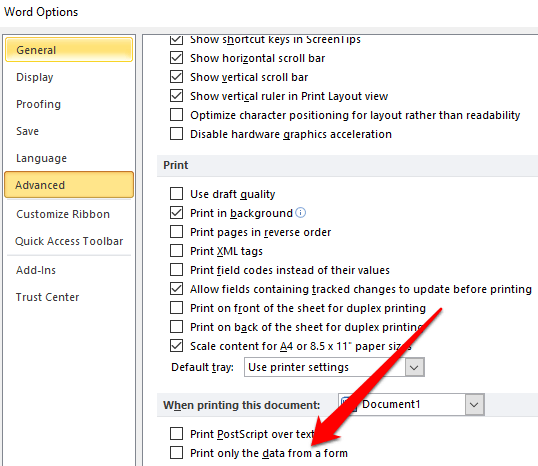
Sometimes you may see your document normally in Print Preview mode, but you get blank printouts or the pages contain data and nothing else. In such cases, you may have enabled the Print only the data from a form option.
- To uncheck this option, select File > Options > Advanced .
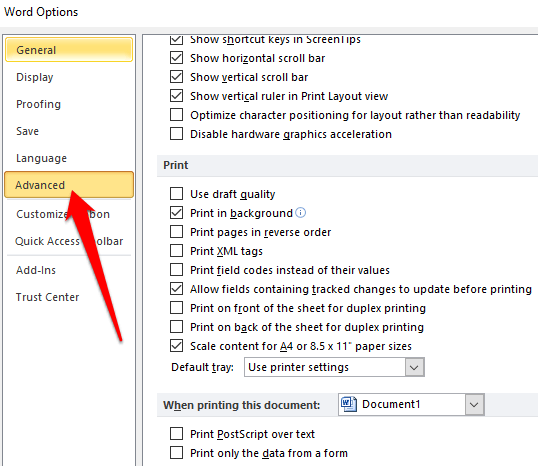
- Scroll down to Print and uncheck the box next to Print only the data from a form . Select OK and try to print your document again.
Print Directly to the Printer
By default, the Spool prints documents so the program finishes printing faster option is selected on your printer. This may be the reason you’re getting blank printouts, but you can uncheck the option and choose to print directly to the printer.
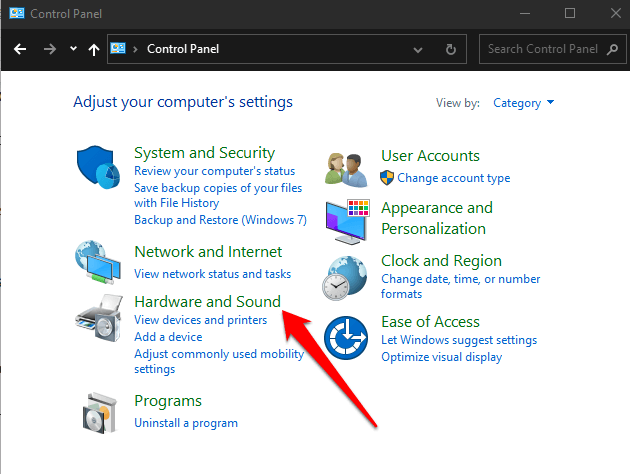
- Open Control Panel and select Hardware and Sound .
- Select Devices and Printers .
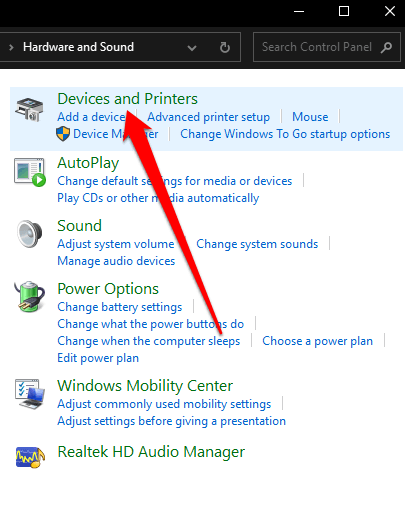
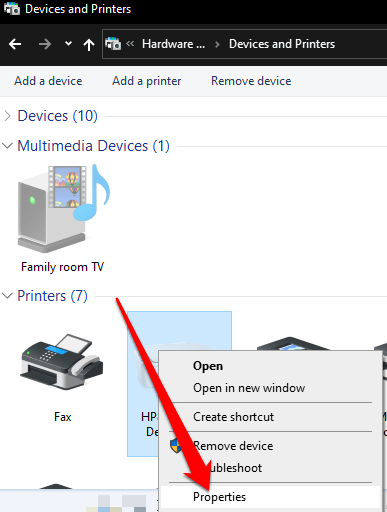
- Right-click your printer, select Properties > Advanced tab. Check the box next to Print directly to the printer and try printing your document again.
Why Is My Printer Printing Blank Pages in Excel?
If you’re having the same issue on Excel documents, try the following workarounds.
Use a Shortcut to Find Cells with Formulas that Return Blank Values
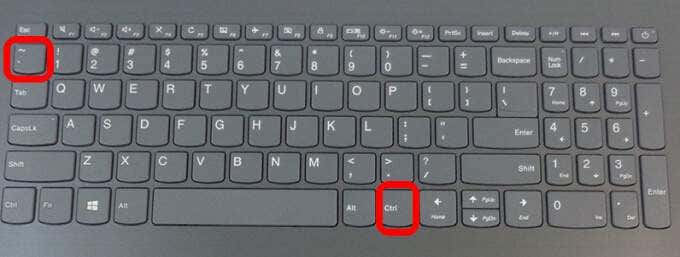
If your worksheet is still blank when printing it out, check whether there are formulas returning a blank value to a cell or cells. Press CTRL + ~ keys on your keyboard to see all the formulas on your worksheet. If you see any blank value formulas, delete the ones you don’t need and try to print again.
Set a Specific Area to Print
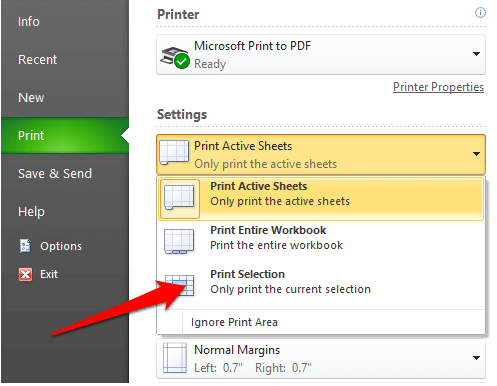
You can also set a printing selection on your worksheet so that you print a specific range. If you don’t set a specific area to print, pages that are completely blank may be unexpectedly printed.
Excel prints out cells shown in Print Preview mode. If you’re still getting blank printouts, chances are that you have a row or column that’s stretching past the Print Preview boundary.
Excel would see this as several blank pages that need to be printed to link the filled cells together. You can select Page Layout > Margins > Narrow to reduce the margins so they fit within the Print Preview boundary or set a specific area to print.
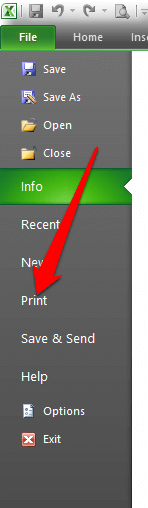
- Select File > Print .
- Under the Settings dropdown, select Print Selection .
- Select the range of pages you want to print and then select Print .
Print Documents Normally Again
We hope one of these solutions helped you fix the printer printing blank pages.
If the printing problem persists, contact your printer manufacturer’s customer support and schedule a repair or replacement if the warranty is still valid.
We’ve covered how to troubleshoot common printer problems in Windows 10 , but if you’re using a wireless printer, turn to our guide on how to troubleshoot WiFi printers .
Let us know what worked for you by leaving a comment below.
- How to Fix the “Error – Printing” Status Error in Windows
- HP Printer Not Printing Black? 10 Fixes to Try
- How to Fix Missing or Failed Printhead Error on HP Printers
- How to Add a Printer to Your Chromebook
- How to Fix the Printer Error “0x0000011b” on Windows
Elsie is a technology writer and editor with a special focus on Windows, Android and iOS. She writes about software, electronics and other tech subjects, her ultimate goal being to help people out with useful solutions to their daily tech issues in a simple, straightforward and unbiased style. She has a BCom degree in Marketing and currently pursuing her Masters in Communications and New Media. Read Elsie’s Full Bio
