Outlook displays “We are unable to connect right now” when the app can’t communicate with the Microsoft Exchange Server. When this happens, you can’t activate Microsoft Outlook nor send and receive emails via Microsoft Outlook.
This tutorial covers troubleshooting workarounds to get Microsoft Outlook working again on Windows 10 and 11 computers.

Troubleshoot Your Internet Connection
First things first: verify that your computer has internet access. Visit several web pages in your web browser or try to download/install an app in the Microsoft Store. Your network is the culprit if other applications also cannot access the internet.
Flush your computer’s DNS cache , disable your VPN/proxy/firewall, and reopen Outlook. If you’re using a Wi-Fi network, rebooting your router should fix the connectivity issues. Otherwise, contact the network administrator for support. Refer to our Wi-Fi troubleshooting guide for more solutions.
Turn Off “Work Offline” Mode
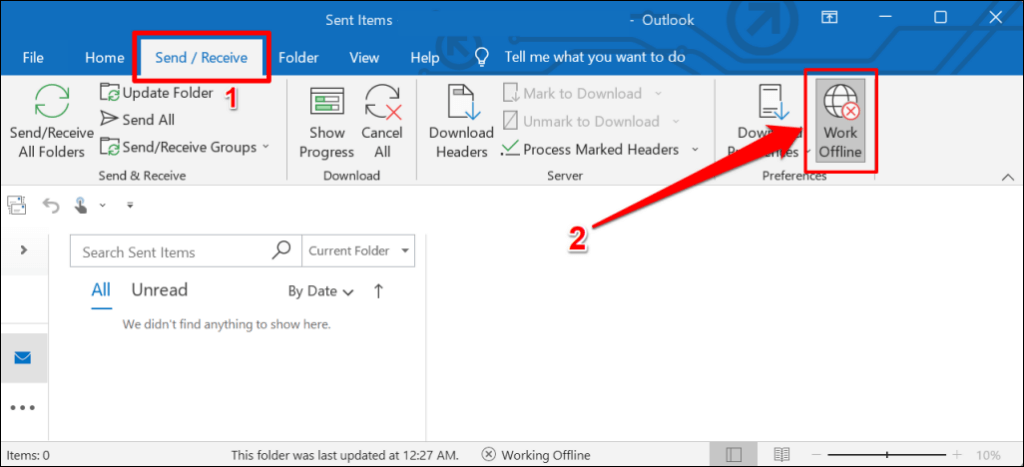
Outlook has a “Work Offline” mode that allows you to access old emails or compose emails without an internet connection. Leaving this mode enabled all the time can cause server issues and other Outlook errors . Launch Excel, head to the Send / Receive tab, and deselect Work Offline .
Restart Outlook
Closing and reopening Outlook is a quick way to restore the application’s connection to Microsoft servers.
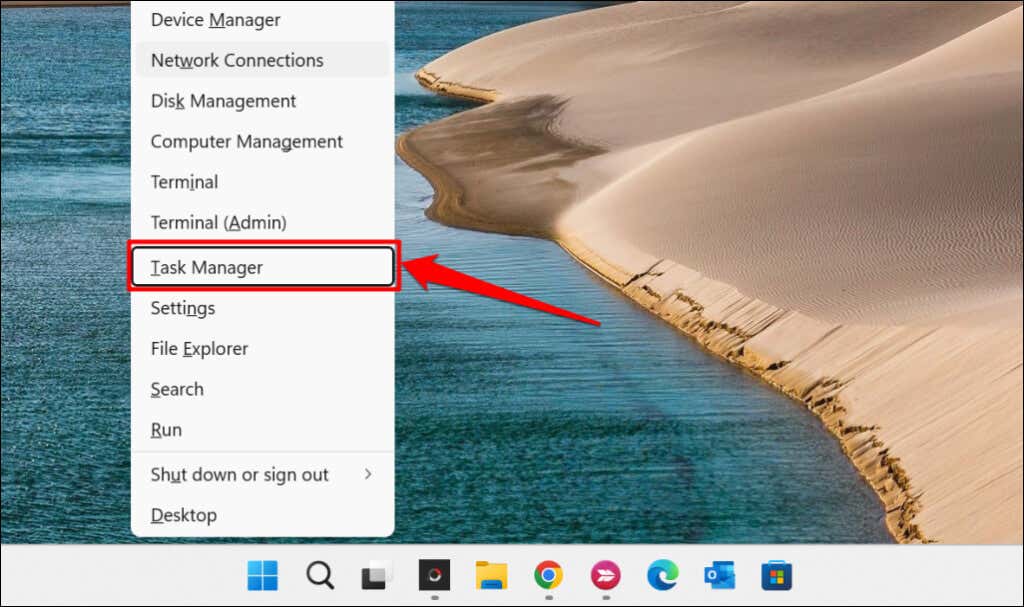
- Right-click the Start menu icon or press Windows key + X and select Task Manager in the Quick Access menu.
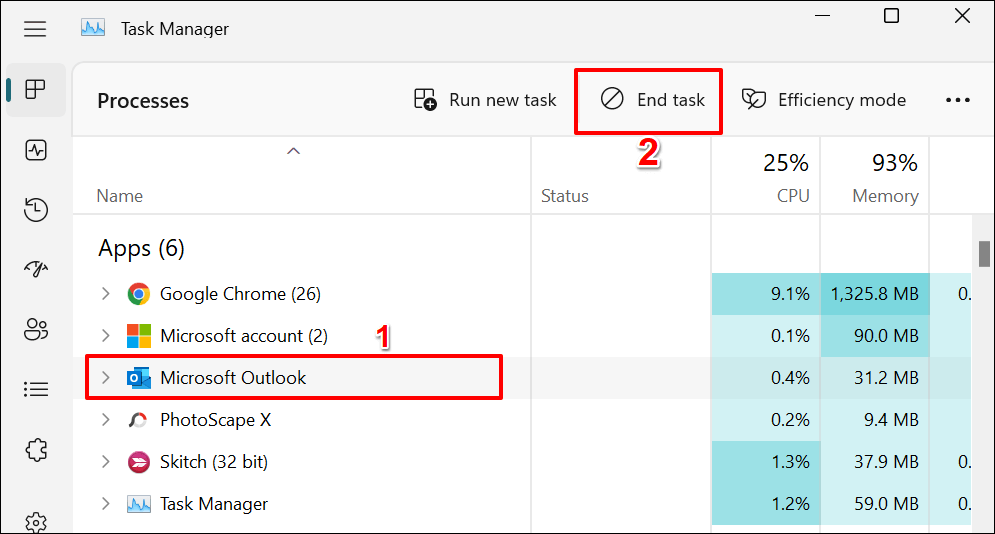
- Select Microsoft Outlook on the list of apps and select the End task icon.
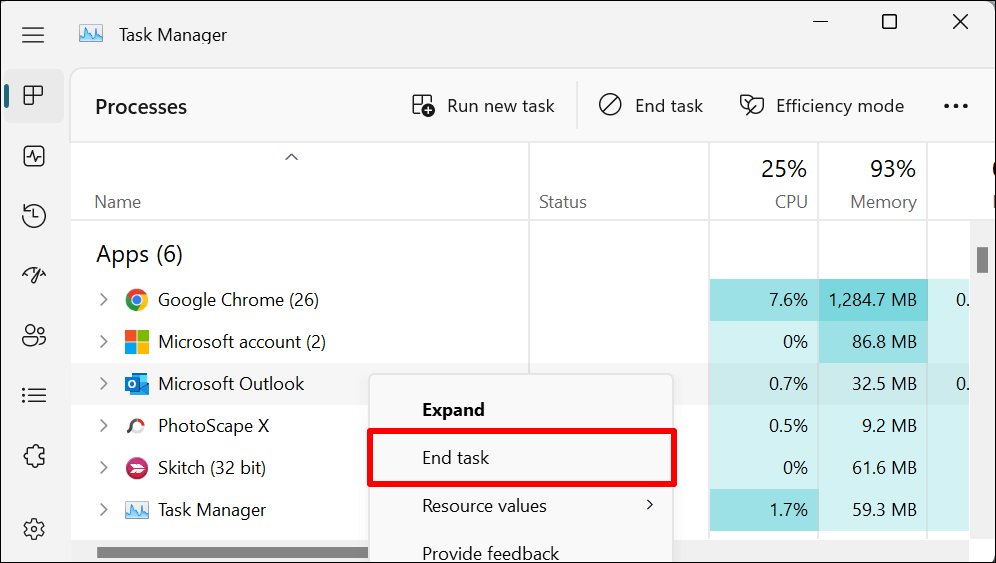
Alternatively, right-click Microsoft Outlook and select End task on the context menu.
Open Outlook again and check if you can sign in or activate Outlook with your Microsoft account.
Enable the Network Connectivity Status Indicator (NCSI)
The Network Connectivity Status Indicator (NCSI) helps Windows determine whether your computer successfully connects to the internet. Disabling the NCSI on your computer will trigger the “We are unable to connect right now” error in Microsoft Outlook and other Office 365 apps. An inactive NCIS also prevents Windows from downloading or installing updates.
Follow the steps below to verify the status of your computer’s Network Connectivity Status Indicator (NCSI).
Note: Making incorrect changes to the Windows Registry or deleting important registry keys can cause some Windows components to stop working. Hence, we strongly recommend backing up your PC’s Windows Registry before you proceed. You can easily undo unwanted changes if anything goes wrong by restoring the backup.
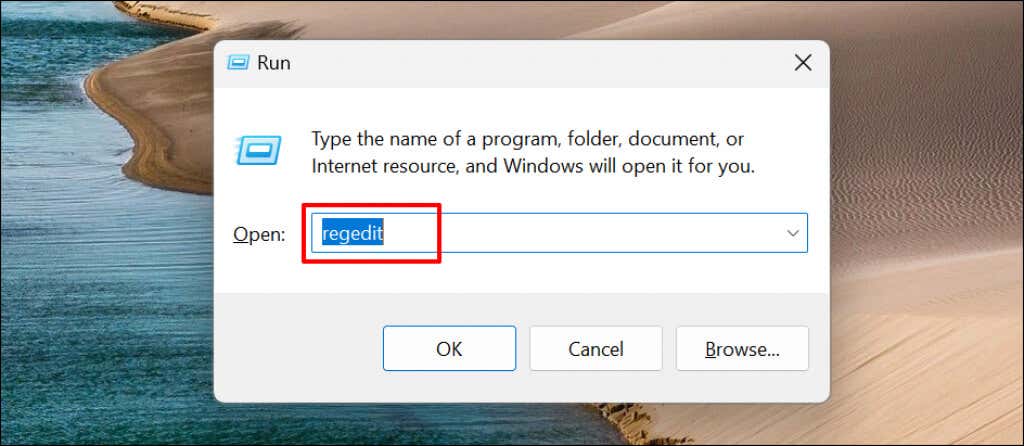
- Press the Windows key + R , type regedit in the Run box, and press Enter .
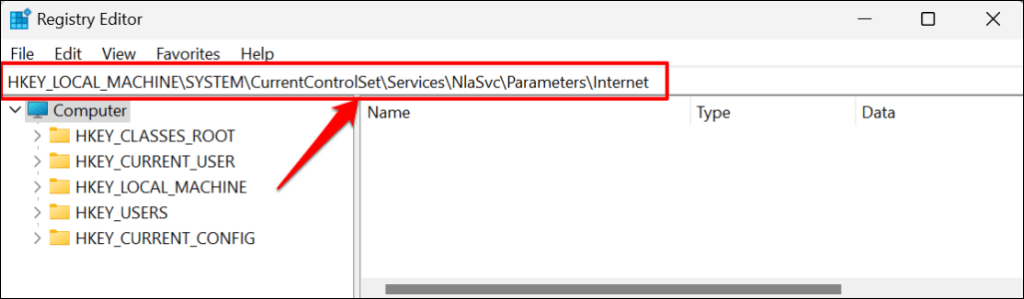
- Paste the path below in the Registry Editor’s address bar and press Enter .
HKEY_LOCAL_MACHINE\SYSTEM\CurrentControlSet\Services\NlaSvc\Parameters\Internet
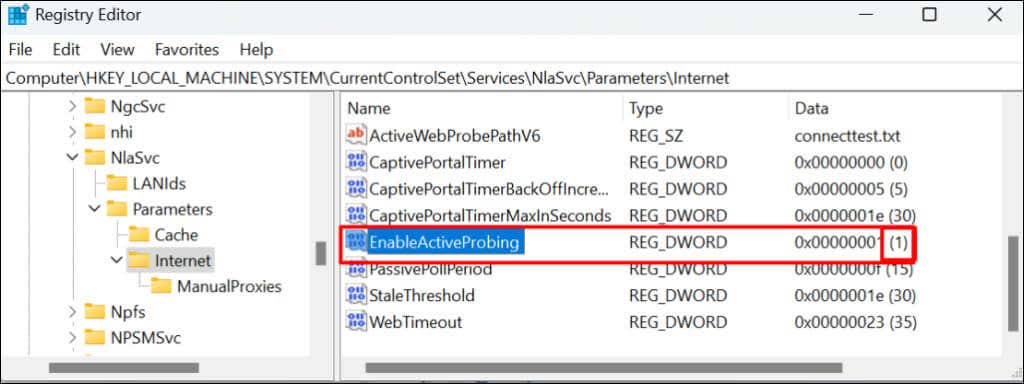
- Locate the EnableActiveProbing DWORD entry and ensure its value data (the digit in the bracket) is set to 1 . A zero (0) value data means the NCSI active probe is disabled. Double-click EnableActiveProbing to modify its value data.
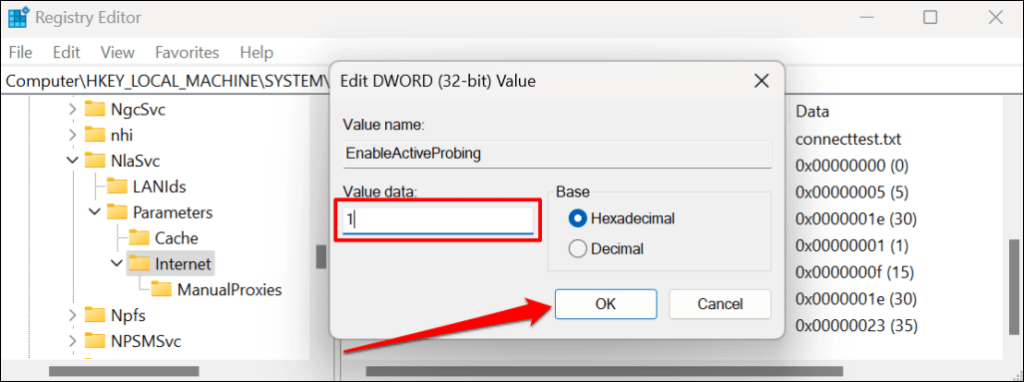
- Type 1 into the “Value data” dialog box and select OK . That enables the Network Connectivity Status Indicator on your computer.
- Next, paste the path below in the Registry Editor’s address bar and press Enter .
HKLM\Software\Policies\Microsoft\Windows\NetworkConnectivityStatusIndicator
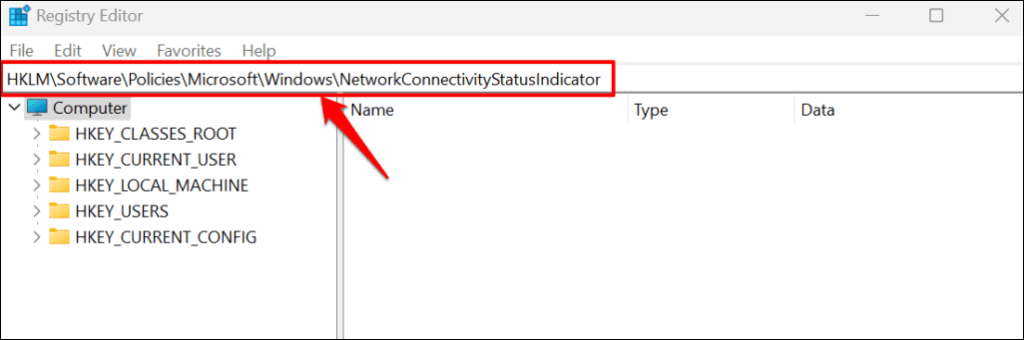
NCSI is enabled in Windows if the NoActiveProbe entry is missing in the specified path. Set NoActiveProbe’s value data to zero (0) or delete the entry if present in the path.
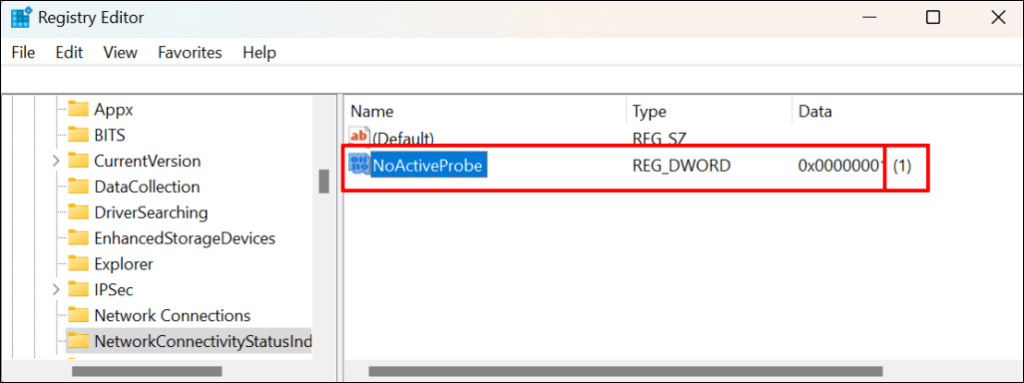
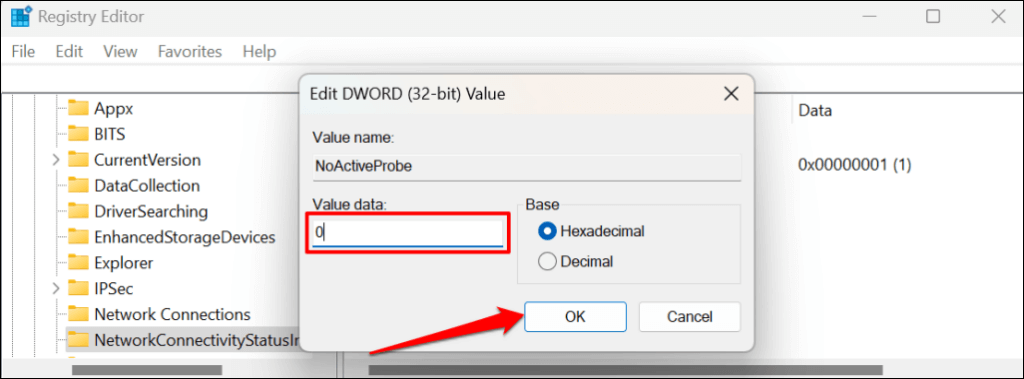
- Modify the “NoActiveProbe” if its value data is set to one (1). Double-click the entry, change the Value data to 0 , and select OK .
Alternately, right-click the entry, select Delete , and select Yes on the confirmation prompt.
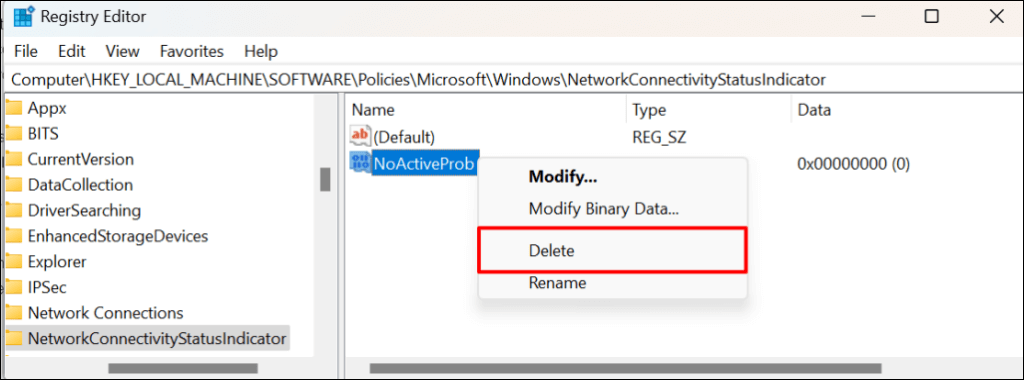
That’ll delete the entry and turn on your computer’s Network Connectivity Status Indicator (NCSI). Open Microsoft Outlook and check if you can activate or use the app.
Change the Network List Service Startup Type
The Network List Service helps Windows identify networks your computer joins. Likewise, the service notifies applications of changes to your network properties.
Microsoft Outlook and other apps or services will malfunction if there’s a problem with the Network List Service. Restarting the service and changing its startup type resolved the issue for some Windows users . Close Microsoft Outlook and follow the steps below.
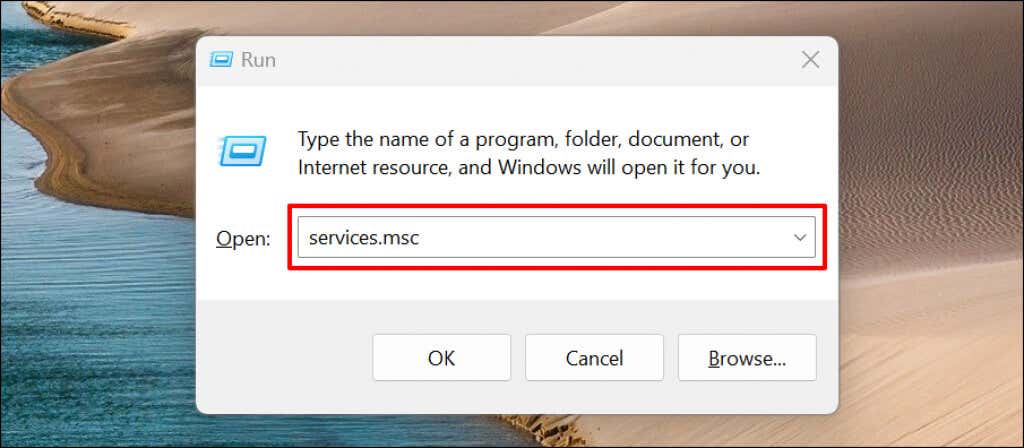
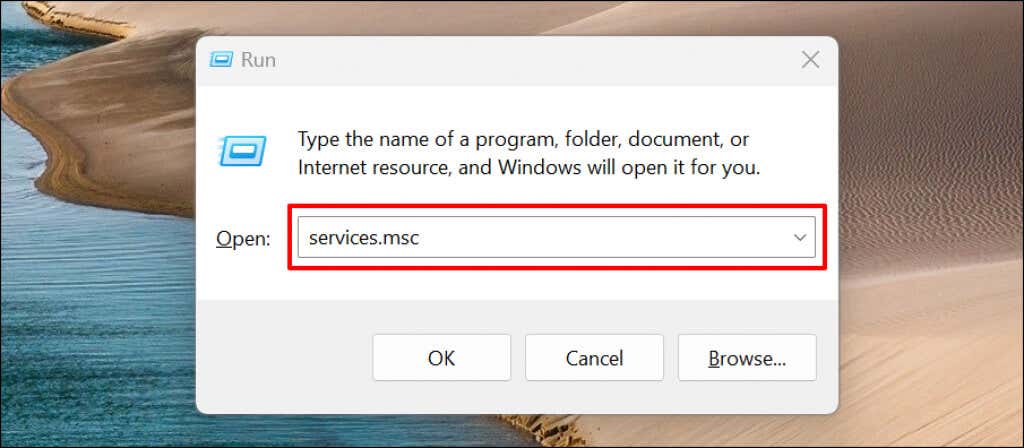
- Press Windows key + R , type services.msc in the dialog box, and press Enter .
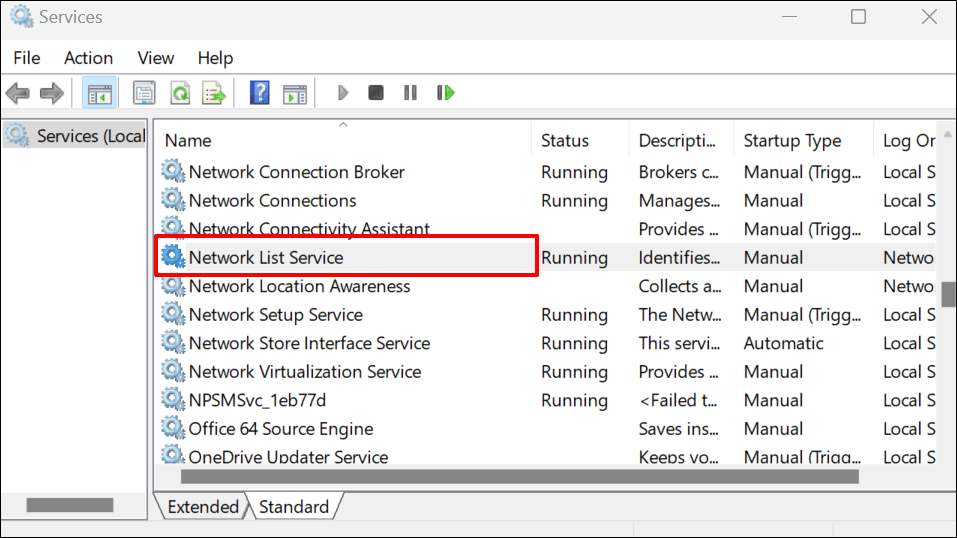
- Locate and double-click Network List Service .
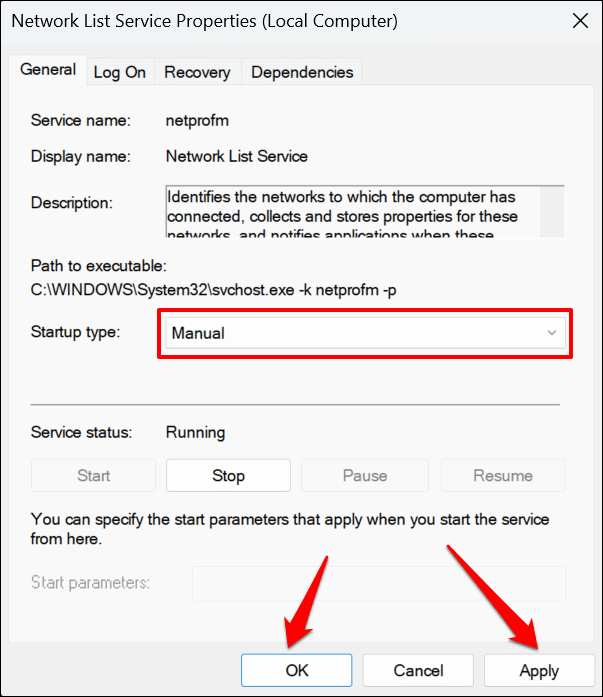
- Change the “Startup type” to Manual , select Apply , and select OK .
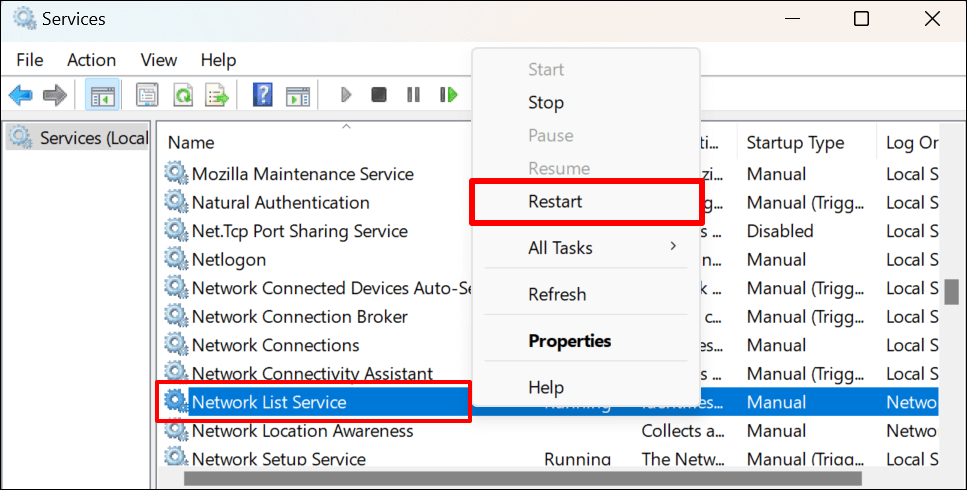
- Next, right-click the Network List Service and select Restart .
Open Outlook and check if you can successfully link your Microsoft account.
Restart the Network Location Awareness Service
The Network List Network Location Awareness (NLA) service helps Windows understand how to manage your computer’s network connection. The Network List Service also relies on the NLA to start and work correctly.
Restarting the NLA proved effective for many Windows users who faced similar errors activating Microsoft 365 apps. Follow the steps below to restart your computer’s Network Location Awareness service.
- Press Windows key + R , type services.msc in the dialog box, and select OK .
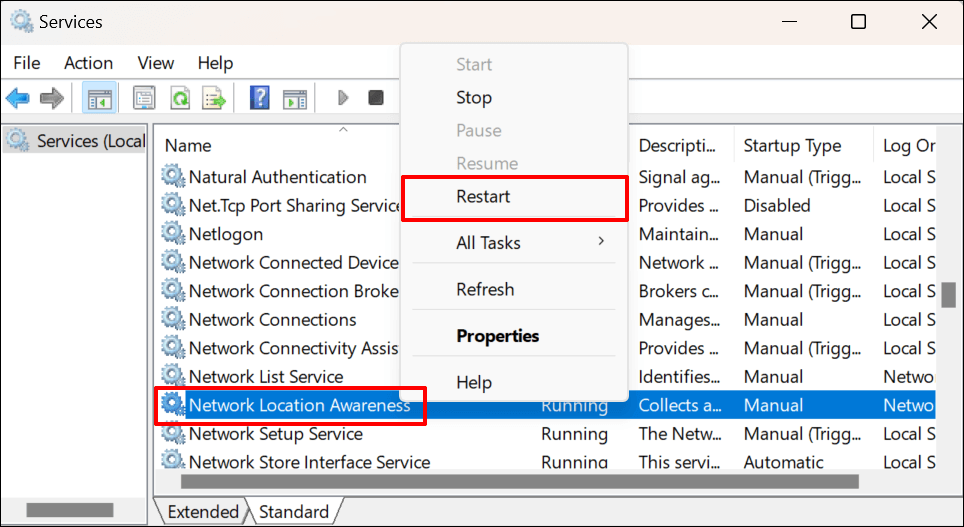
- Right-click Network Location Awareness and select Restart . Select Start if “Restart” is unavailable or grayed out on the context menu.
Rebuild Outlook Data File
Data corruption could also prompt the “We are unable to connect right now” error in Outlook. Rebuild Microsoft Outlook’s data file on your PC and check if that stops the error message.
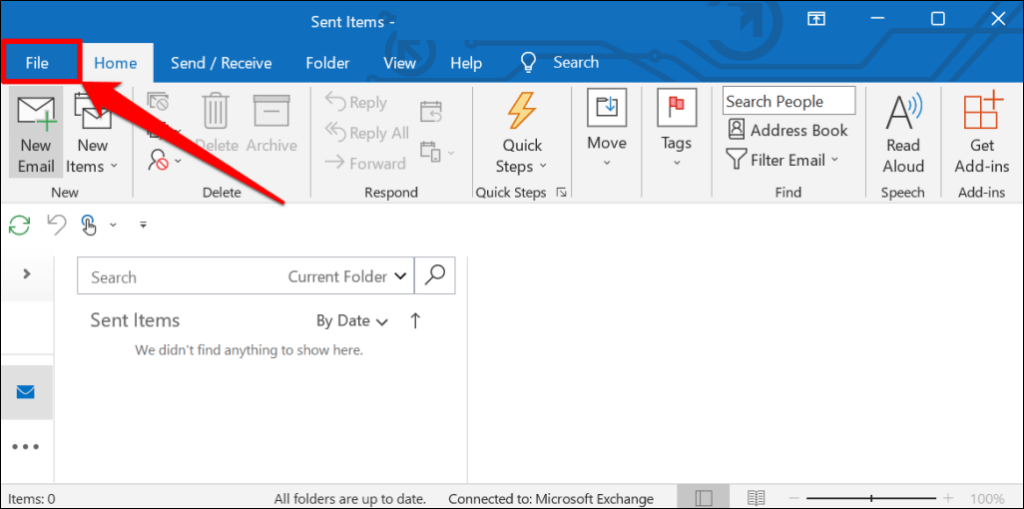
- Open Outlook’s File menu.
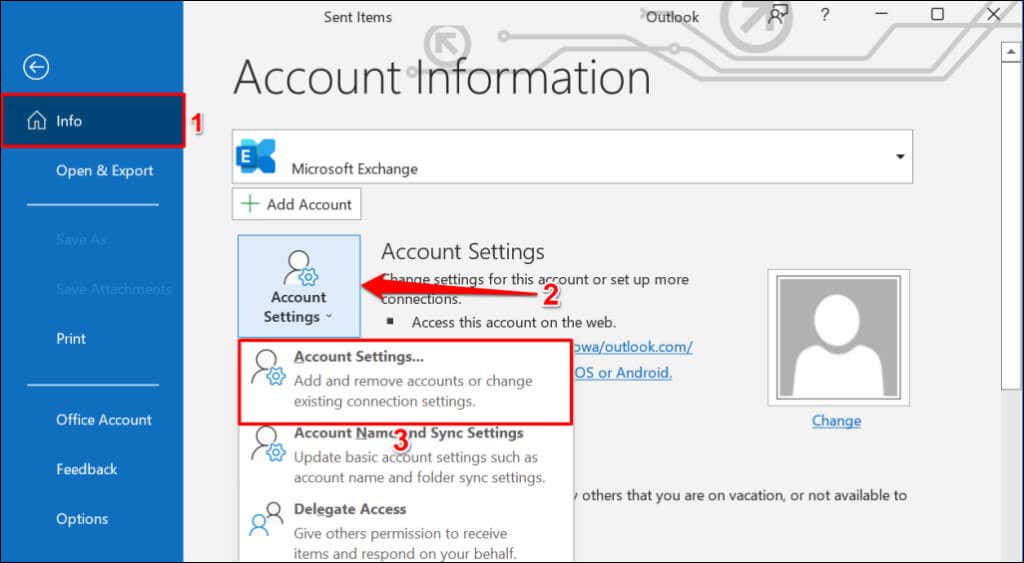
- Head to the Info section on the sidebar, select Account Settings , and choose Account Settings .
- Go to the Data Files section, select your Outlook account, and select Open File Location .
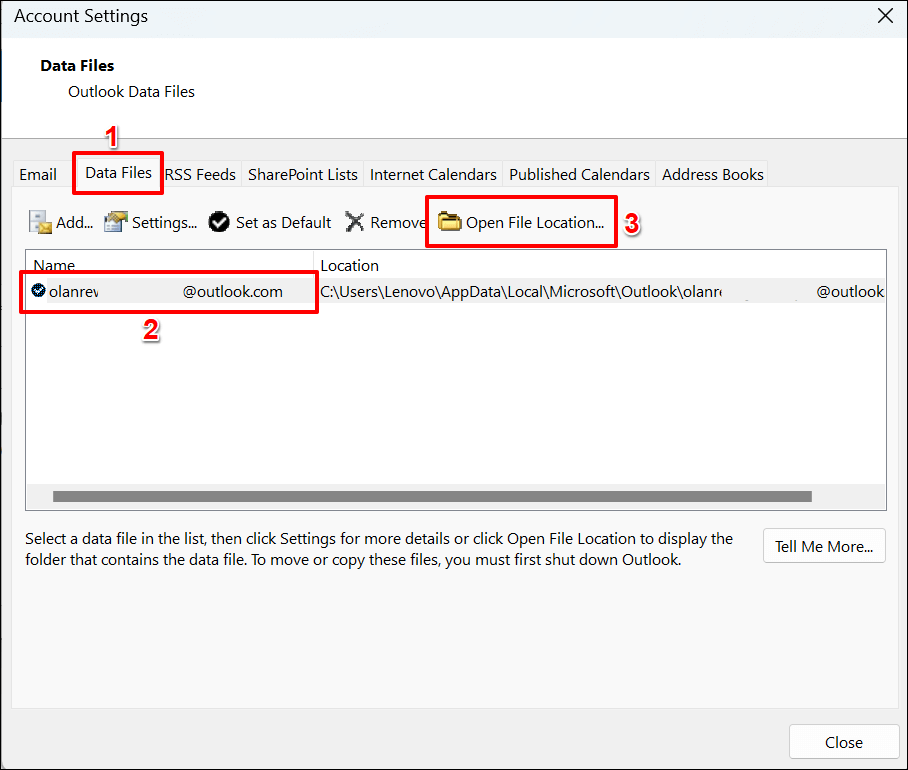
- Move the Outlook data file with your email account to a different location on your computer.
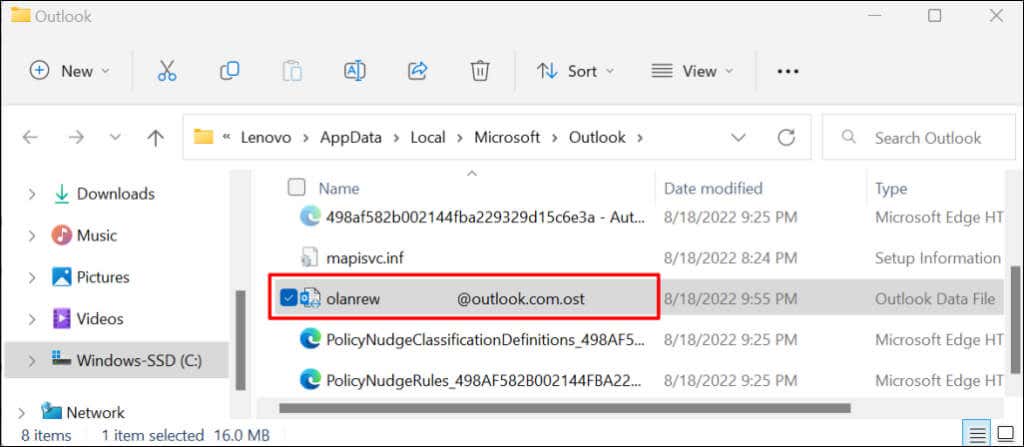
When you close and reopen Microsoft Outlook, the application will build or create a new data file. If the error persists, close Outlook, move the old data file back to Outlook’s folder, and try the recommendation below.
Disable Outlook Extensions
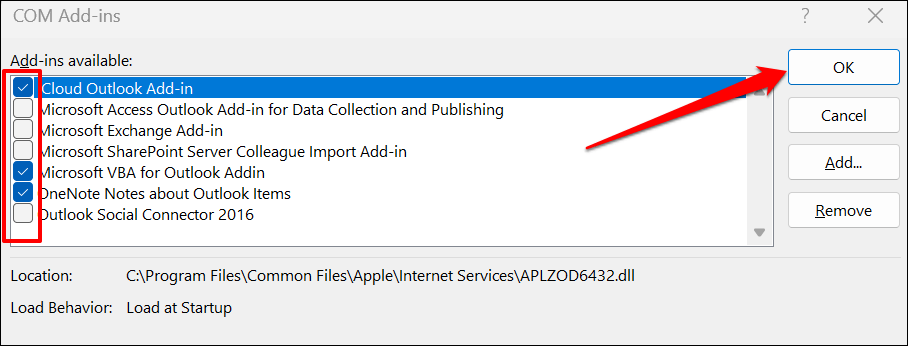
Corrupt third-party extensions or add-ins can cause Microsoft Outlook to malfunction on your computer. Disable add-ins in Outlook and restart Outlook.
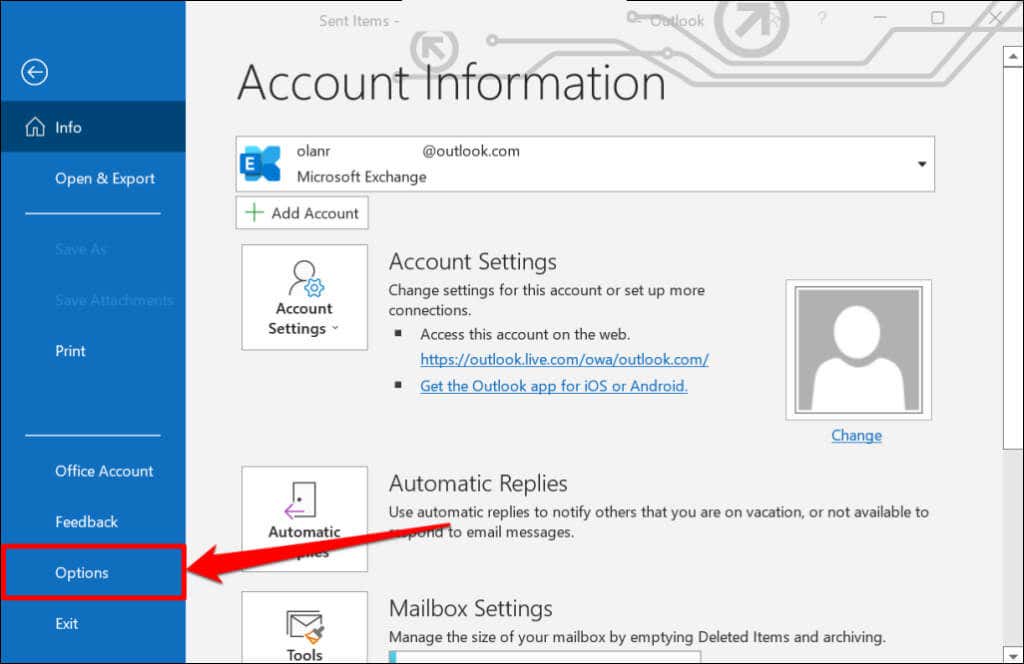
- Open Microsoft Outlook, select File on the menu bar, and select Options on the sidebar.
- Select Add-ins on the sidebar and select the Go button at the bottom of the page.
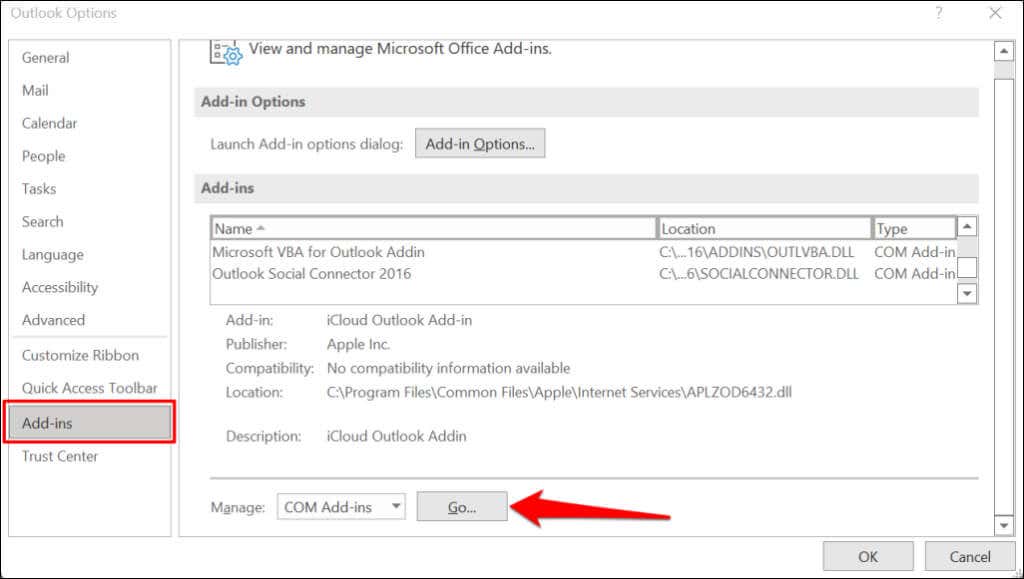
- Uncheck all extensions on the page, select OK , and restart Microsoft Outlook.
Repair Microsoft Outlook
Repair Microsoft Outlook if none of the troubleshooting solutions above stops the “We are unable to connect right now” error.
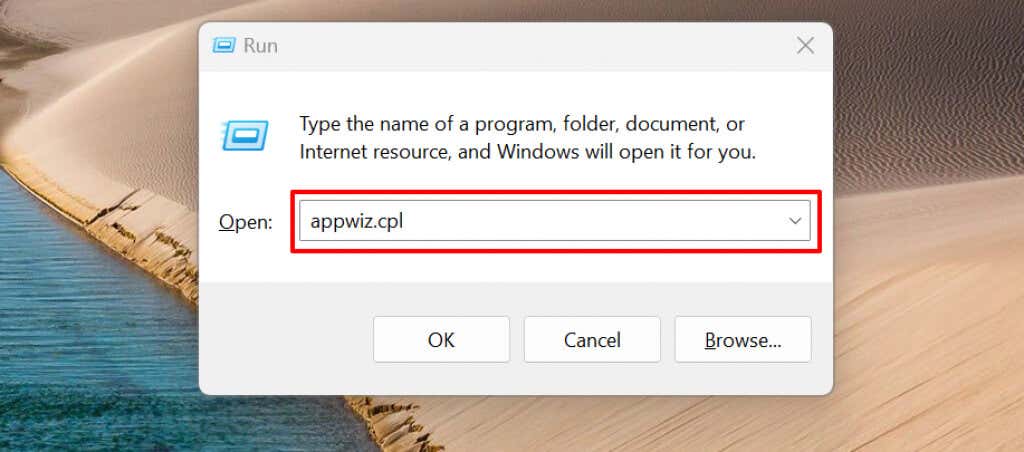
- Press Windows key + R , paste appwiz.cpl in the dialog box, and press Enter .
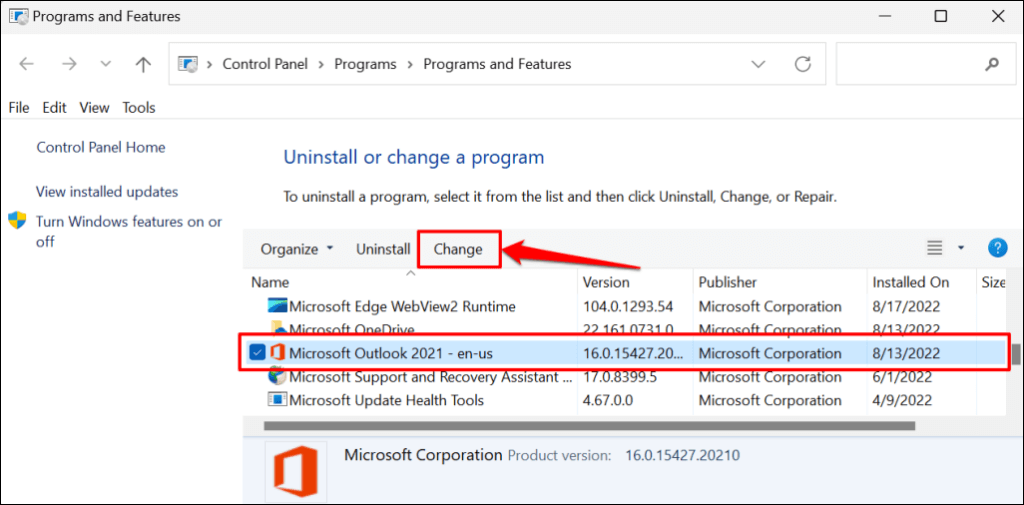
- Select Microsoft Outlook on the program list and select Change .
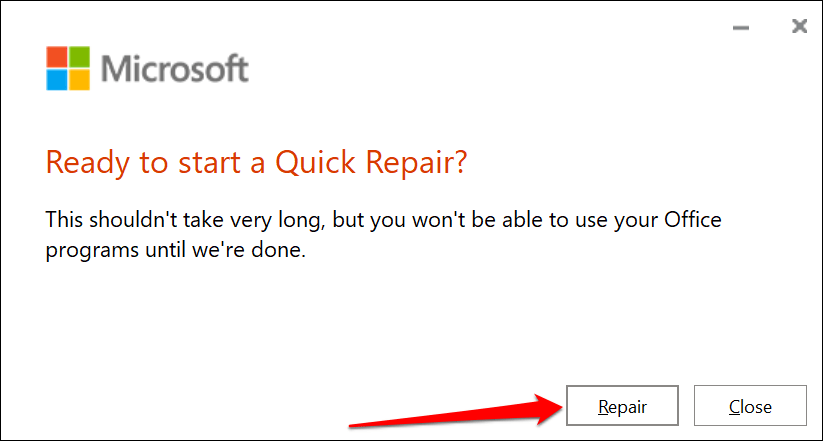
- Select Quick Repair or Online Repair and select the Repair button.
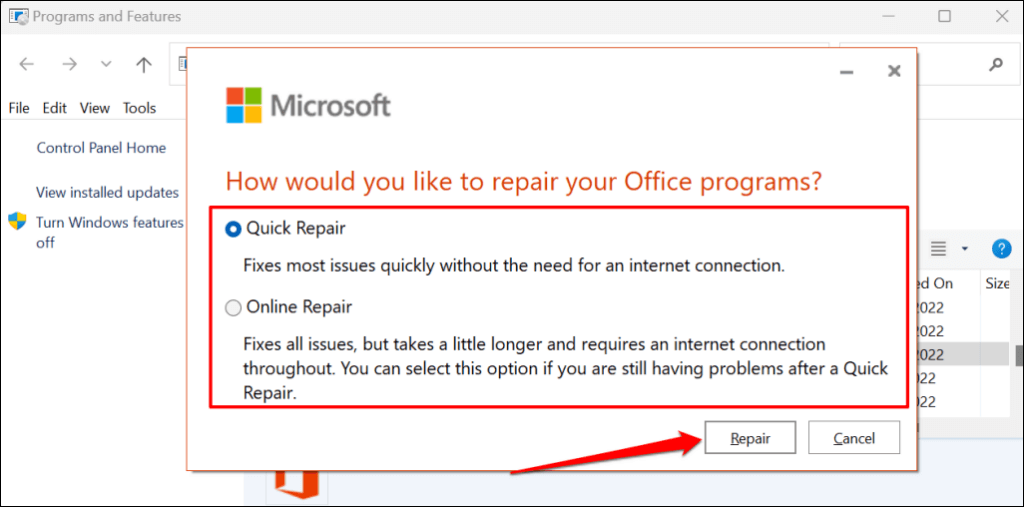
We recommend trying a Quick Repair first. Run an Online Repair if the “We are unable to connect right now” error persists after a Quick Repair.
- Select the Repair button to proceed.
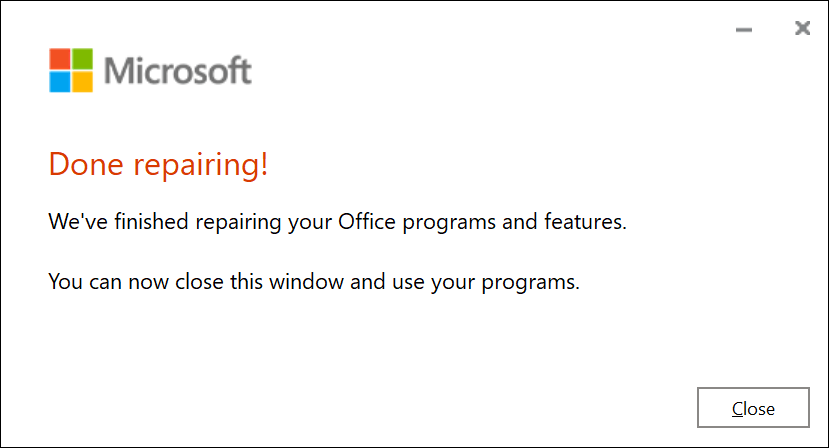
Close the repair tool and launch Outlook when you get a success message.
Get Outlook Connected
You can also try rebooting your computer or updating its operating system to the latest Windows version. Contact Microsoft Support via the Outlook Help Center if the error persists after trying the troubleshooting fixes in this tutorial.
- How to Report Phishing Emails in Outlook
- Top 6 Ways to Fix Outlook Error 0x8004010f
- How to Make an Email Group in Outlook
- How to Change the Default Browser in Outlook
- How to Pin Emails in Outlook
Sodiq has written thousands of tutorials, guides, and explainers over the past 4 years to help people solve problems with Android, iOS, Mac, and Windows devices. He also enjoys reviewing consumer tech products (smartphones, smart home devices, accessories, etc.) and binge-watching comedy series in his spare time. Read Sodiq’s Full Bio
