Source Fdaytalk
The Windows 11 KB5074109 update has introduced security enhancements, but for some PCs, it has caused a critical issue. The update prevents Windows from mounting the boot volume. Consequently, it results in:
- Black or blue screens of death(BSOD)
- Inability to reach the PC
- Automatic restart loops
Users must enter the Windows Recovery Environment (WinRE) to solve the issue.
Use Windows Recovery Environment (WinRE)
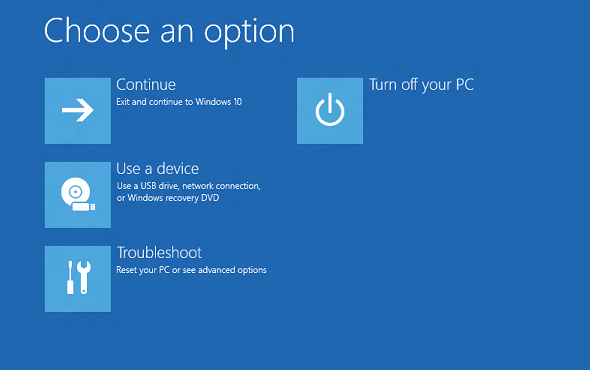
Windows Recovery Environment (WinRE) provides access to advanced tools when Windows fails to start.
Source Microsoft
Method A: Automatic Entry
- Start your computer
- As soon as you see the Windows logo, press and hold the power button until the System shuts down.
- You must repeat this process three times in a row. After multiple interruptions, WinRE will launch automatically.
Method B: Boot from Installation Media
If, in any case, the automatic launch does not work, use a Windows 11 USB drive:
- Integrate a Windows 11 USB installation
- Boot the System through the BIOS or UEFI boot menu
- Press the command Repair your computer , go to Troubleshoot , and choose Advanced options .
Uninstall the Problematic Update
Source Microsoft
Once WinRE is launched automatically:
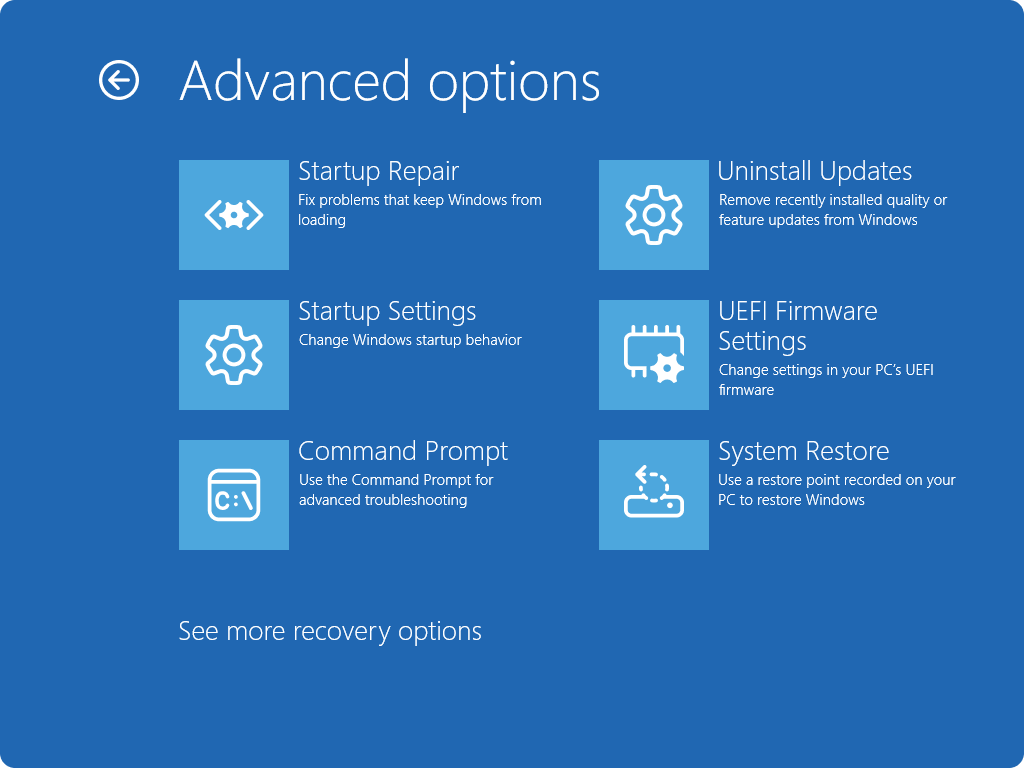
- Choose the option, Troubleshoot, go to advanced options, and click on “Uninstall updates
- Make sure you select to uninstall the latest quality update (KB5074109)
- Follow the process and reboot your computer.
This is one of the safest fix methods because it uninstalls the update causing the boot loop.
If Uninstall Fails or Isn’t Available
In some cases, you might encounter the error 0x800f0905 because the GUI uninstaller is missing.
Try System Restore (WinRE)
- Choose Troubleshoot, go to advanced options, and click System Restore.
- Thus, choose a restore point before the update happens.
Additionally, if a restore point exists, it restores the files automatically rather than using the command manually.
After Recovery — Pause Future Updates
Once you regain access:
- Pause Windows updates by going to Settings, then Windows Update.
- Click on Pause updates for 7-30 days. This is to prevent re-installing KB5074109 before the issue is resolved.
Furthermore, ensure to take a complete backup after the recovery. This step will protect you from any future update missteps.
If WinRE can’t access your volume or commands fail due to drive corruption, consider contacting Microsoft Support or a professional. Some reports indicate that corrupted boot metadata on BitLocker drives may require specialist assistance.
- Sluggish Windows 11 PC? Try These 5 Windows 11 Tricks to Free up Virtual Memory
- How To Turn Off Notifications On Windows 11?
- How to Remove Copilot AI in Window 11? New Update Available in Beta
- January 2026 Patch Tuesday: 7 Things Windows Users Should Do Before and After Updating
- How to Fix Windows 11 December Update Bugs (File Explorer Flashes, WSL + VPN Issues)
Ananya Dixit is a seasoned content writer and editor with over seven years of experience in tech, finance, and media. She has written extensively about Microsoft technologies, covering multiple versions of Windows—from Windows 7 and 10 to the latest Windows 11 releases. Her work includes in-depth troubleshooting guides, feature breakdowns, how-to tutorials, optimization tips, and coverage of new system updates.Ananya is also passionate about trending topics in the tech world, including AI tools as her personal favorite, digital privacy, productivity apps, and the newest features rolling out across Android and iOS. Read Ananya’s Full Bio
