Windows will display the error code 0x80070005 when there’s a problem installing Windows updates . You might also encounter the error if Windows cannot activate or run certain Office applications, particularly after a Windows update. The error code basically tells you that Windows doesn’t have the required files or registry permissions to execute an operation.
We highlight seven potential troubleshooting solutions to the Windows error code 0x80070005.
1. Run the Windows Update Troubleshooter
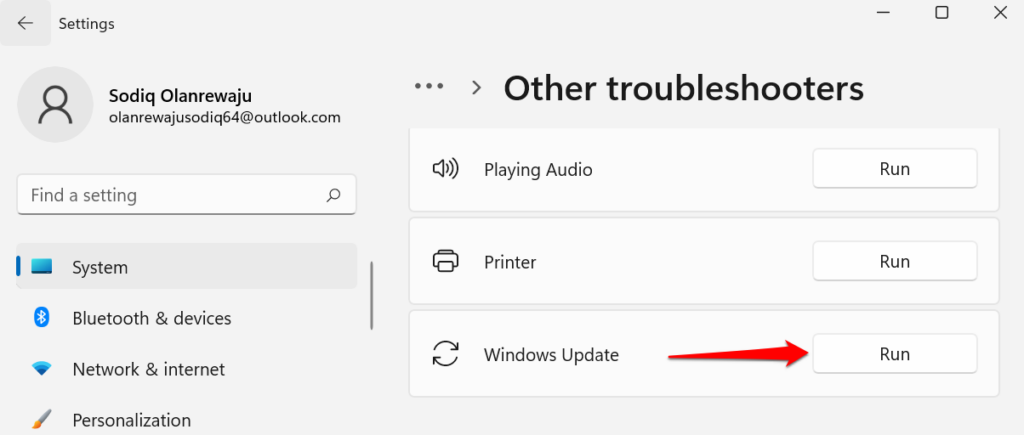
Do this if you’re getting the 0x80070005 error code when you’re trying to install a Windows update. The Windows Update troubleshooter can also fix other errors during an update.
In Windows 11, go to Settings > System > Troubleshoot > Other troubleshooters and select the Run button next to Windows Update.
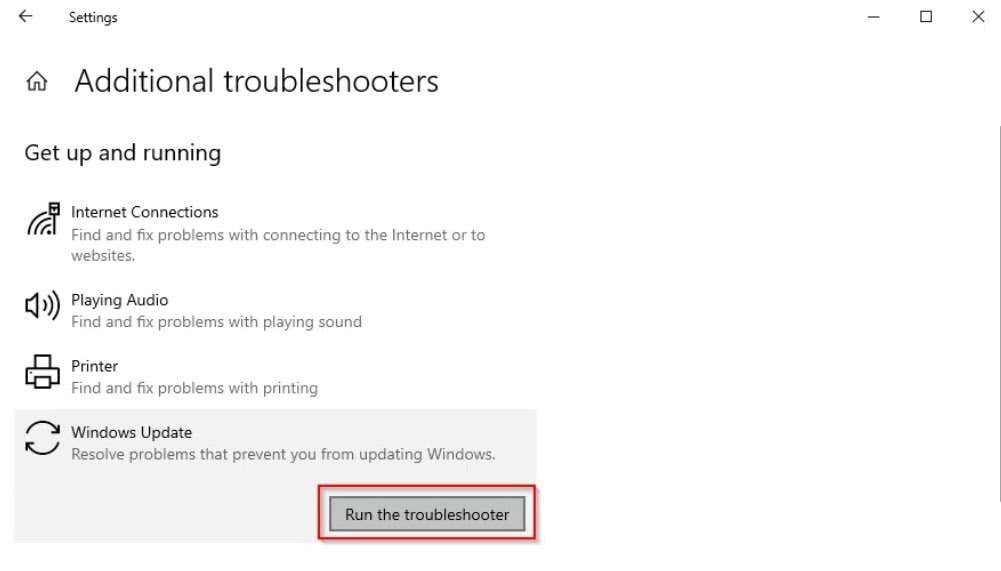
If you have a Windows 10 computer, head to Settings > Update & Security > Troubleshoot > Additional troubleshooter > Windows Update and select Run the troubleshooter .
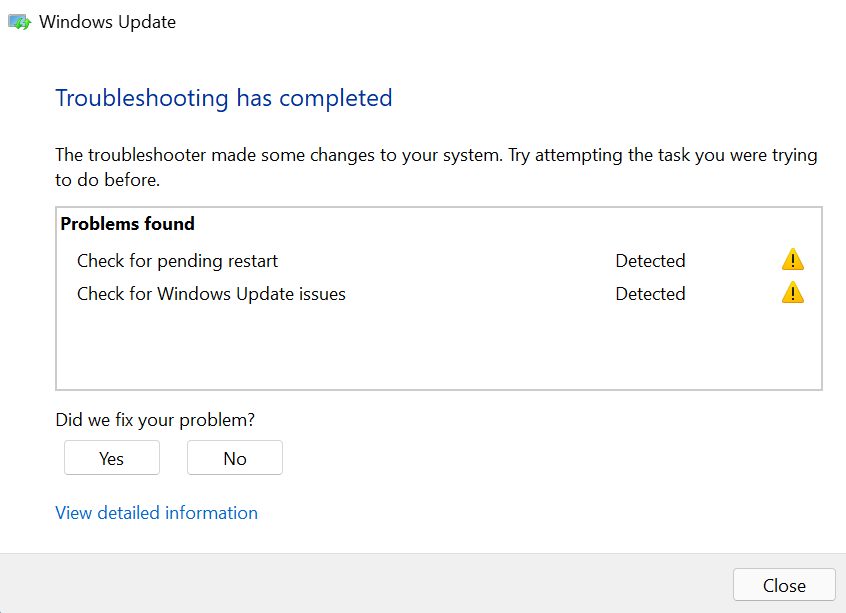
Wait for the troubleshooter to diagnose potential problems causing the error code 0x80070005 and follow the on-screen recommendations.
2. Scan for Malware and Viruses
Malware and viruses often delete essential system files and registry keys needed to run certain programs and install Windows updates. Use third-party software to scan your PC for malware and viruses or turn on real-time protection in the Windows Security app.
Go to Settings > Privacy & security > Windows Security > Open Windows Security > Virus & threat protection > Manage settings and toggle on Real-time protection .
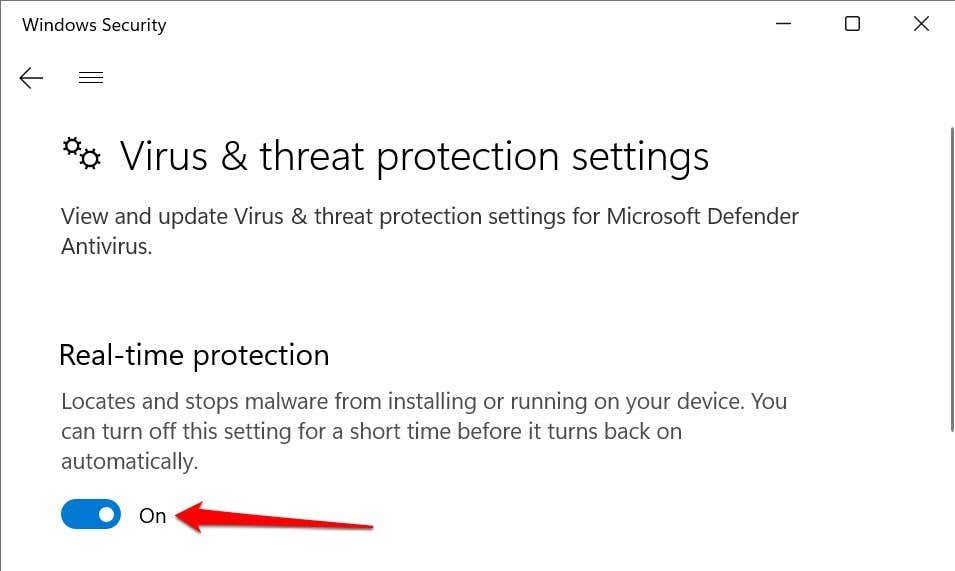
In Windows 10, head to Settings > Update & Security > Windows Security > Virus & threat protection > Manage settings and turn on Real-time protection .
3. Run the System File Checker
The System File Checker (SFC) is a command-line tool that checks for corrupt, damaged, and missing system files in Windows . If the tool finds any, it replaces them with a fresh copy.
If you’re getting the 0x80070005 because a vital system file is missing or damaged, running the SFC is your best bet at fixing the problem. Connect your computer to the internet and follow the steps below.
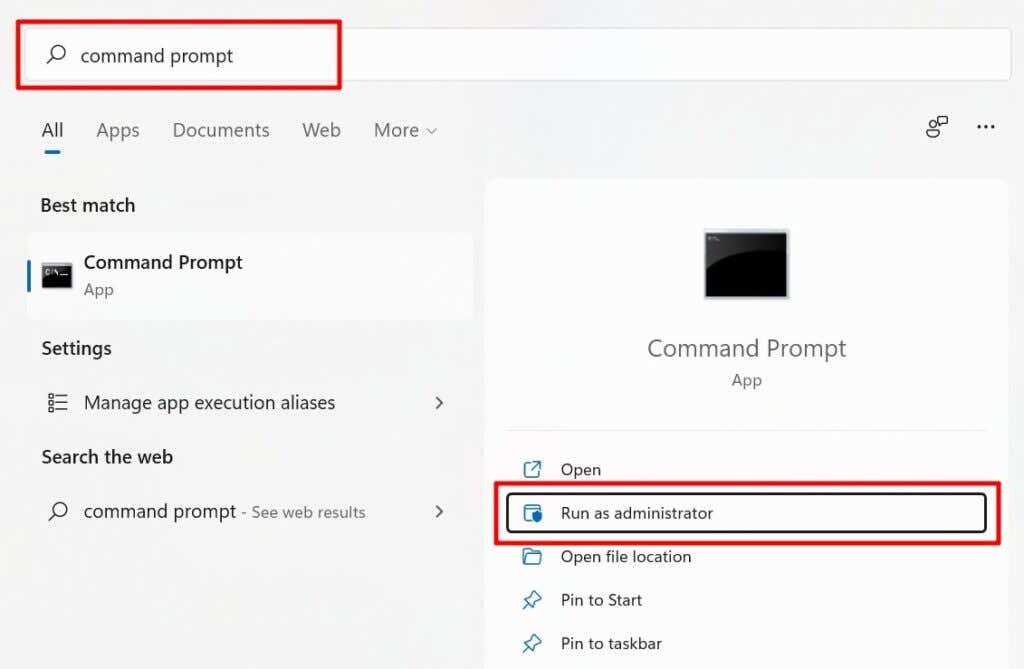
- Type command prompt in the Windows Search bar and select Run as administrator .
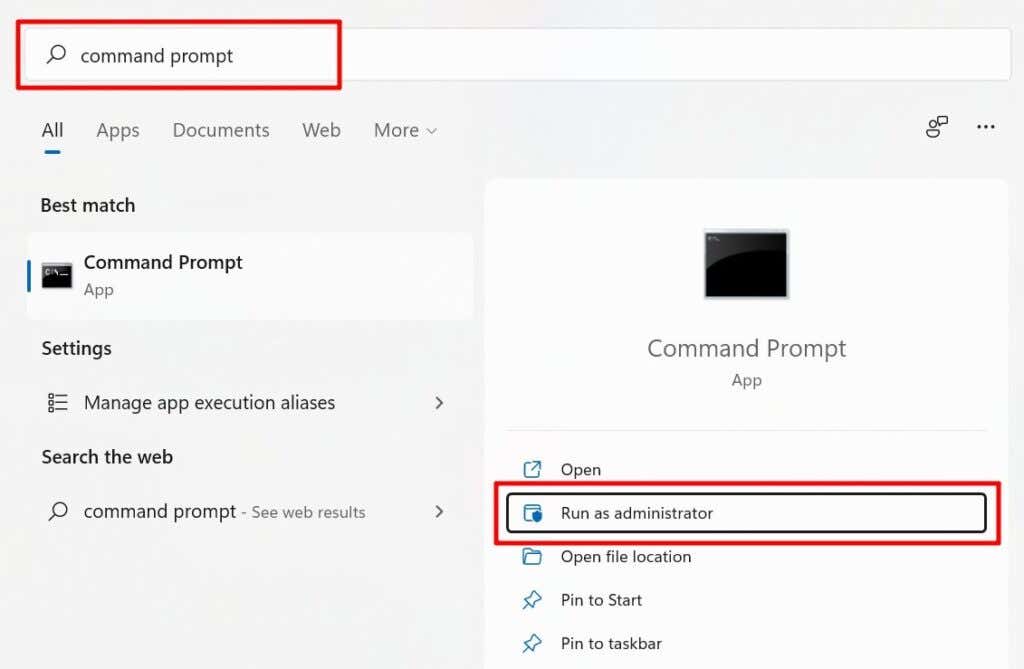
If your PC runs Windows 8 or newer, Microsoft recommends running the Deployment Image Servicing and Management (DISM) tool before running the System File Checker. Otherwise, jump to Step #3 if you have a Windows 7 PC.
- Type or paste DISM.exe /Online /Cleanup-image /Restorehealth in the terminal and press Enter .
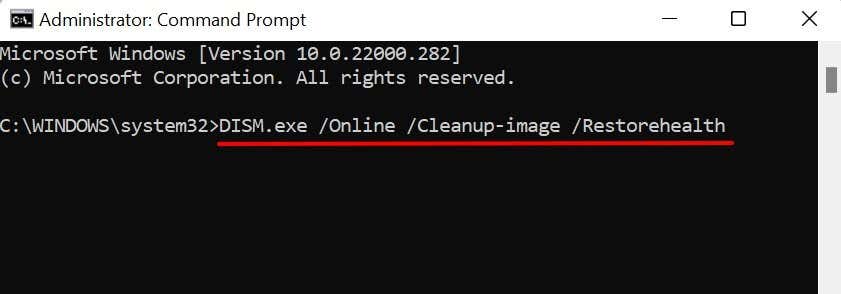
Run the System File Checker (see next step) when you get a success message that “The restore operation completed successfully.”
- Type or paste sfc /scannow in the terminal and press Enter .
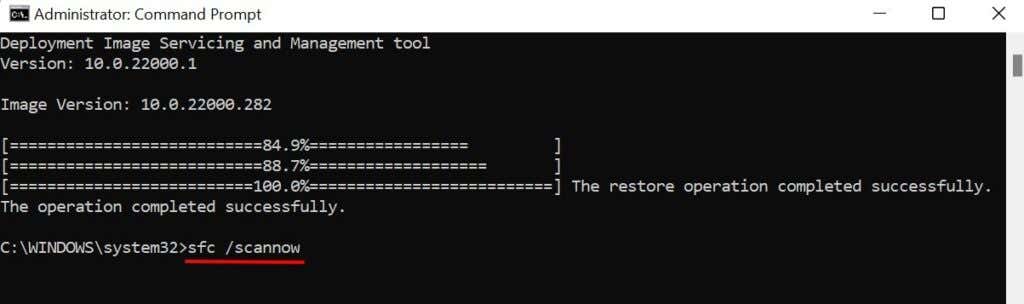
Wait for a success message, close the Command Prompt window, and rerun the app/operating system, throwing off the 0x80070005 error. You might have to restart your computer to finish pending repair operations.
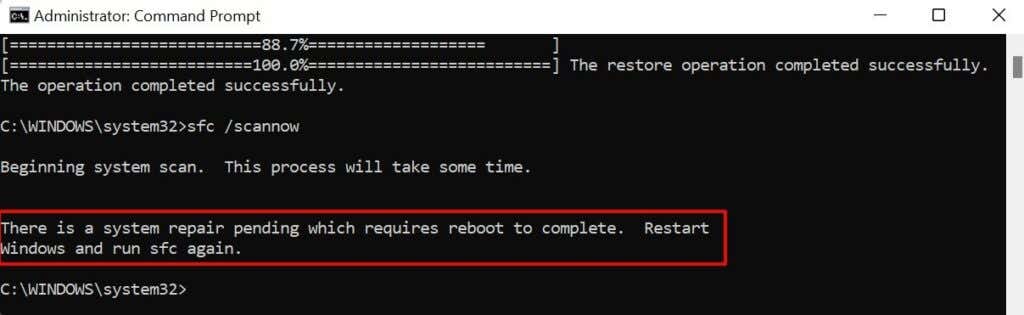
So, pay attention to the on-screen message when running the System File Checker.
4. Update the Windows Registry
Microsoft recommends updating the registry if the error code 0x80070005 pops up in an Office application after updating Windows. Deleting or damaging any item in the registry can cause other problems in Windows. So, ensure you back up the Windows Registry before performing the update.
Close all Microsoft Office applications and follow these steps:
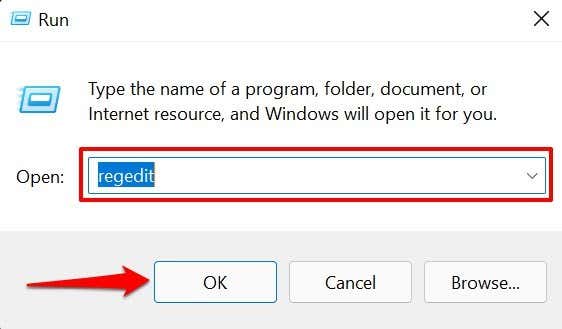
- Press the Windows key + R , type regedit in the Run box, and select OK .
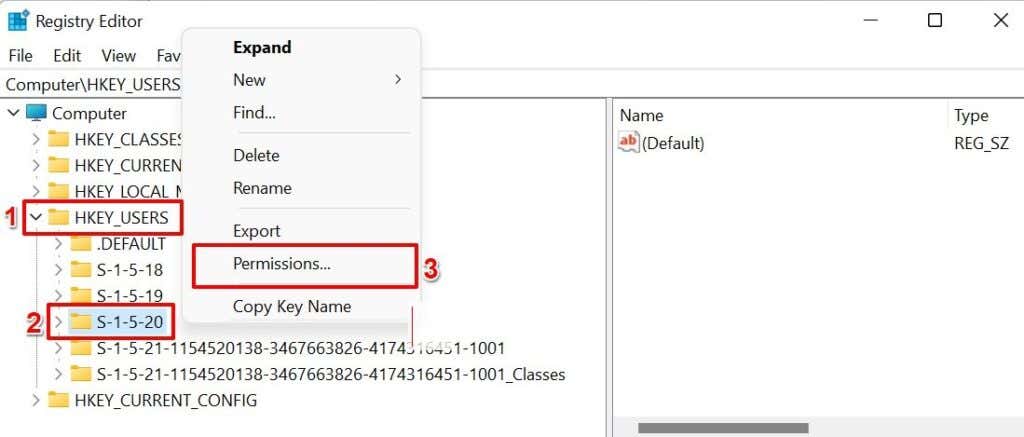
- Expand the HKEY_USERS folder, right-click the S-1-5-20 folder, and select Permissions in the context menu.
- Select Add .

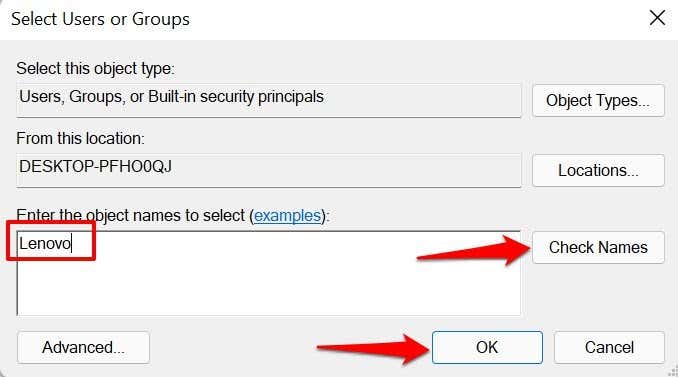
- Type your name of the current user in the dialog box, select Check Names , and select OK .
- Next, select Advanced . That’ll open the Advanced Security Settings menu for the registry folder.
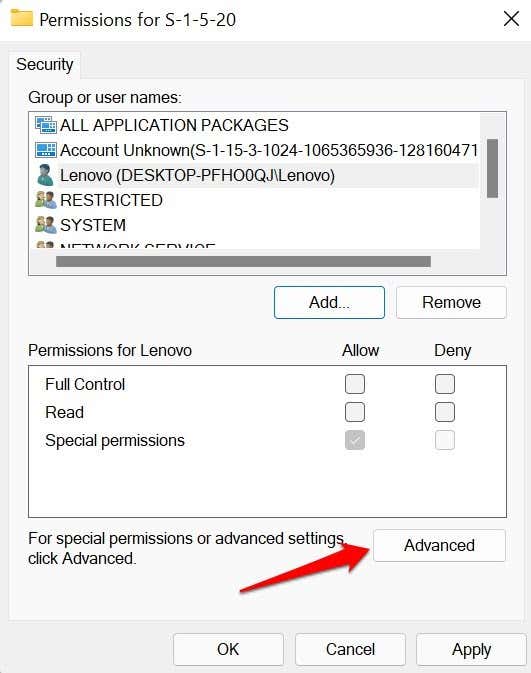
- In the “Permissions” tab, select the newly-created user, and choose Edit .
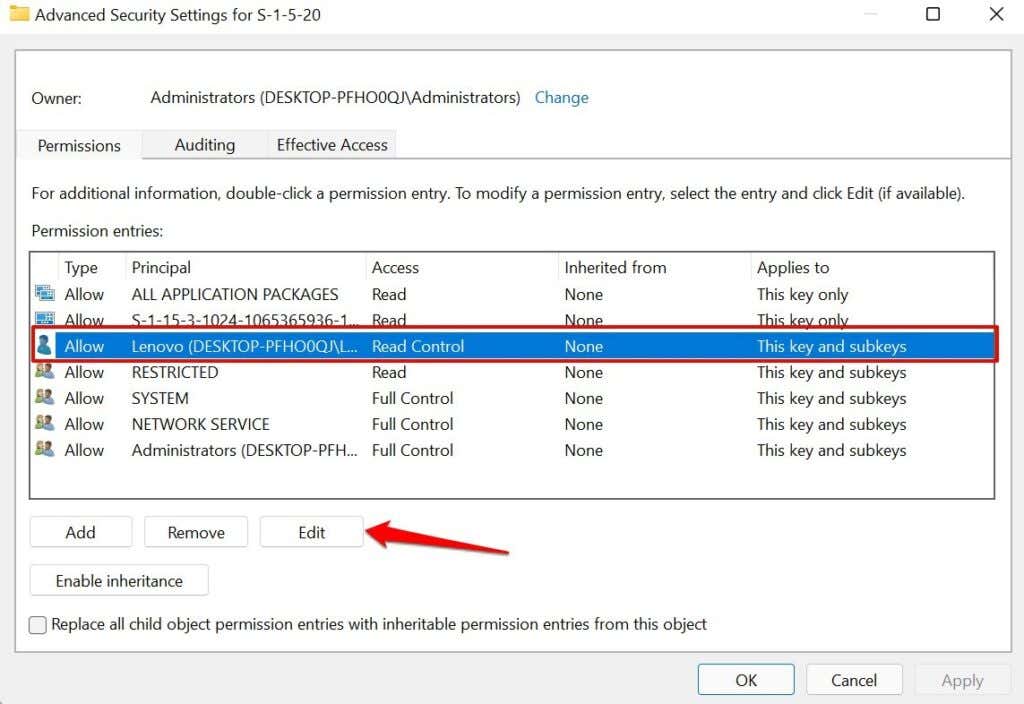
- Check the Full Control box and select OK .
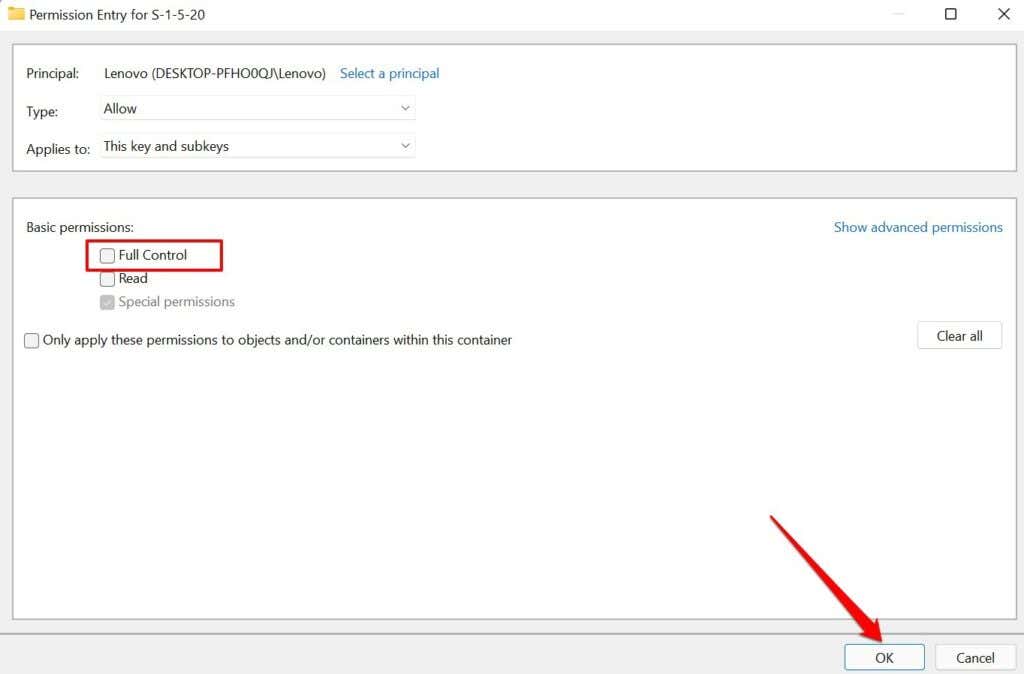
- Select NETWORK SERVICE and select Edit .
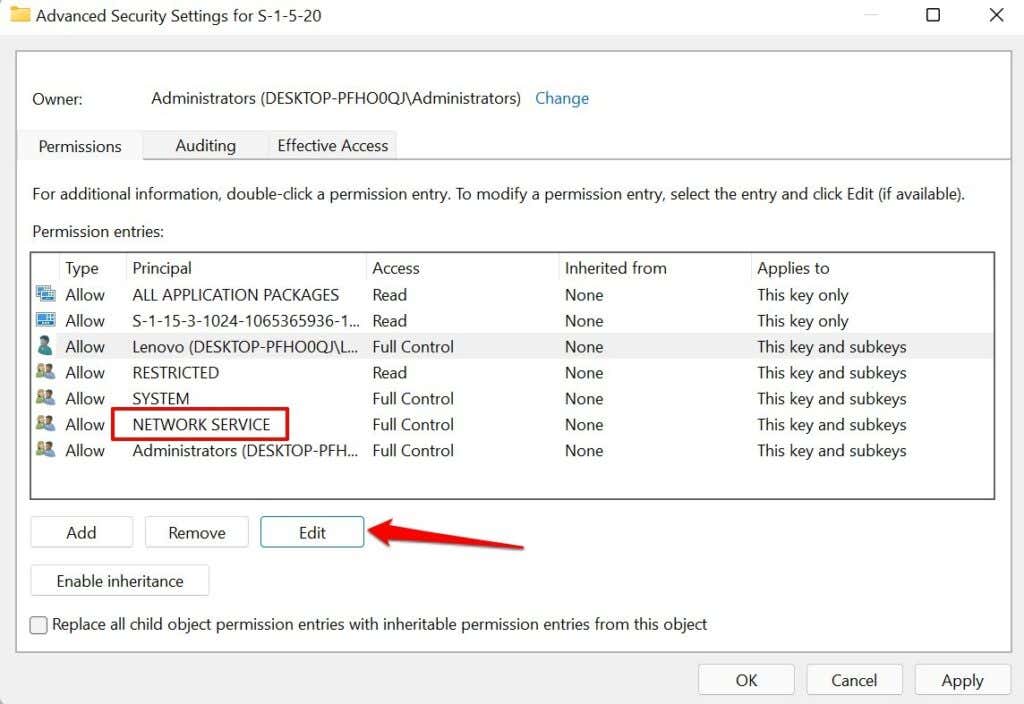
- Check the Full Control box and select OK .
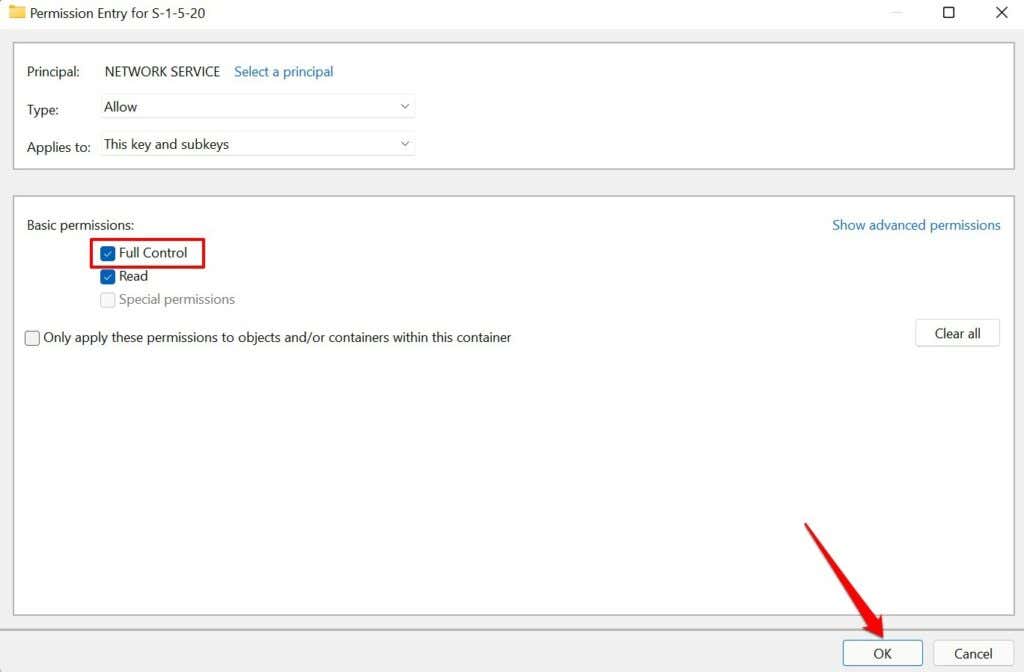
- Finally, check the Replace all child object permission entries with inheritable permission entries from this object and select OK .
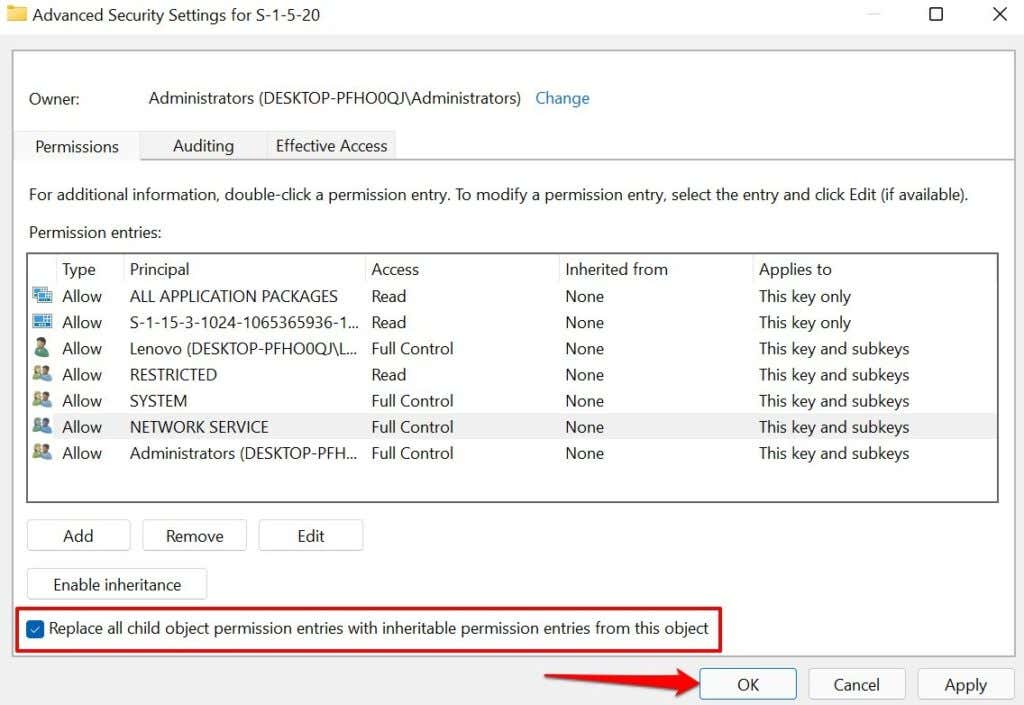
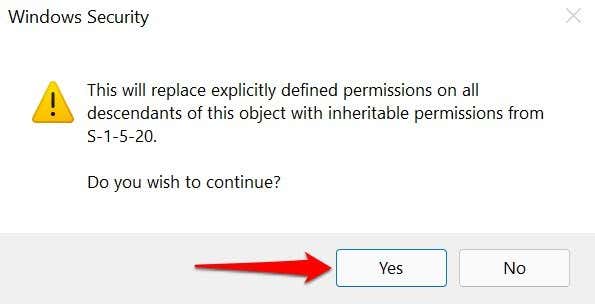
- Select Yes on the confirmation prompt.
- Select Apply and then OK .

Close the Registry Editor, reopen the Office app and check if that stops the 0x80070005 error code.
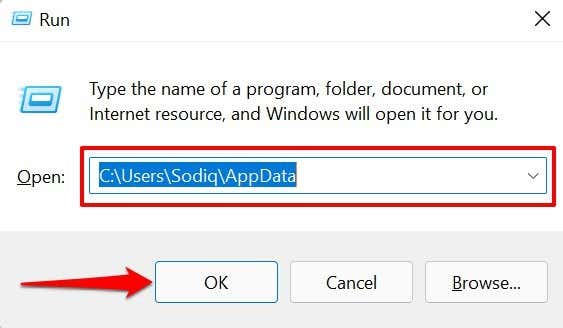
- Press the Windows key + R to open the Windows Run box.
- Type C:UsersUSERNAMEAppData in the dialog box and select OK .
Note: Replace C: with drive letter where Windows is installed. Likewise, replace USERNAME with your PC’s username.
- Right-click the Local folder and select Properties in the context menu.
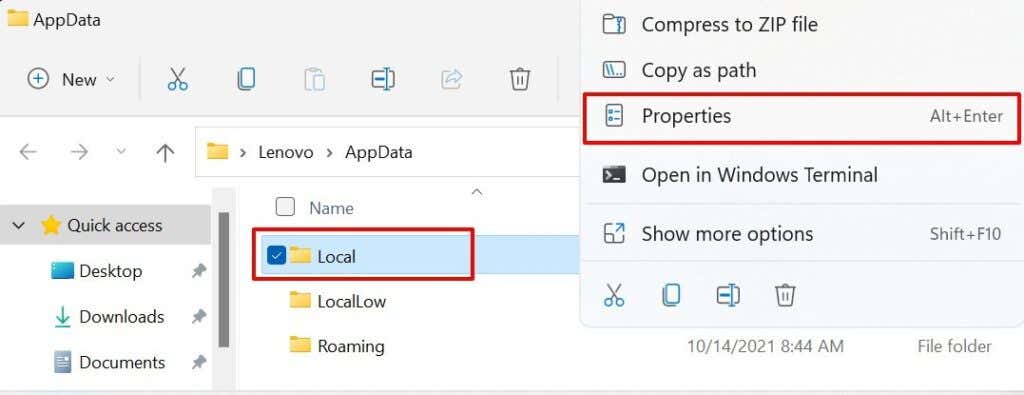
- Head to the Security tab and select Edit .

- Select Add .
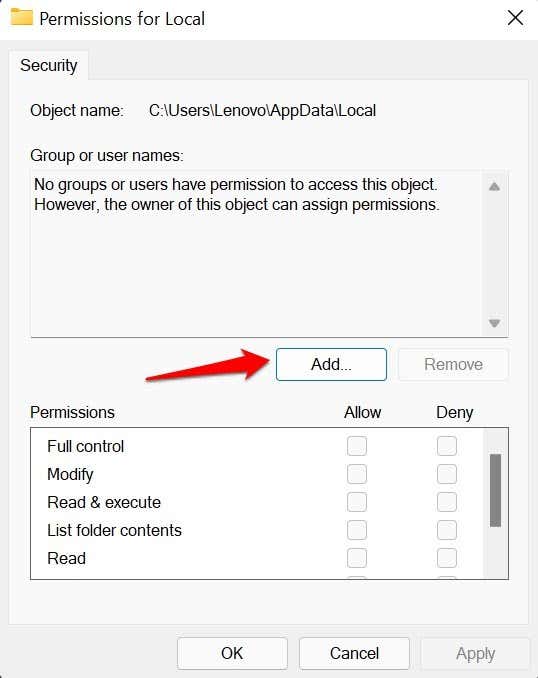
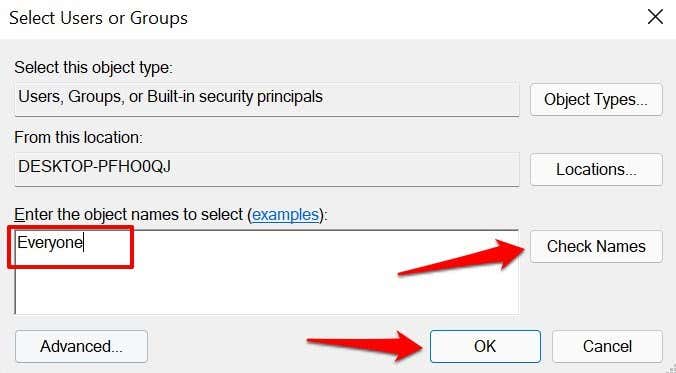
- Type Everyone in the dialog box, select Check Names, and choose OK afterward.
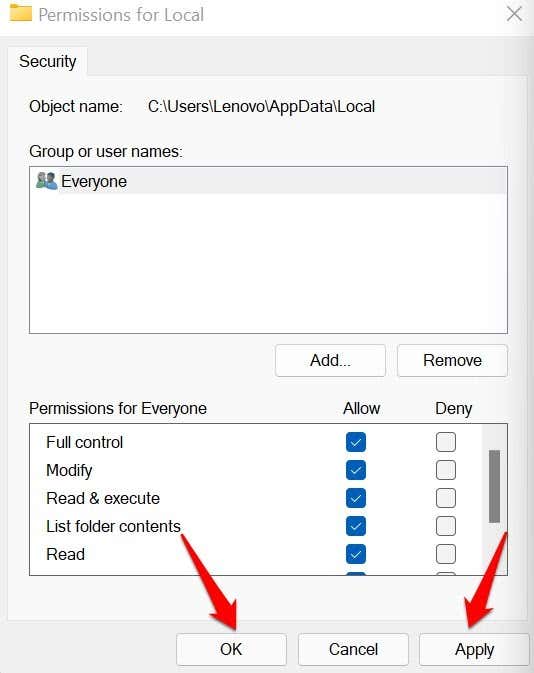
- Select Everyone , check the Allow box in the “Full control” column.

- Select Apply and then OK .
- You might get an “Error Applying Security” a couple of times while Windows sets the permissions. Keep selecting Continue until the end of the process.
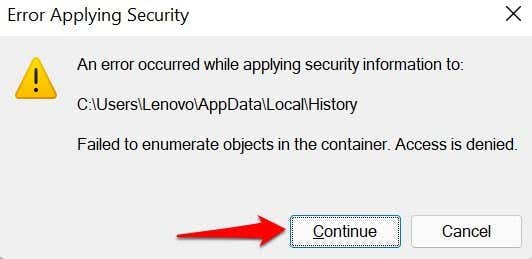
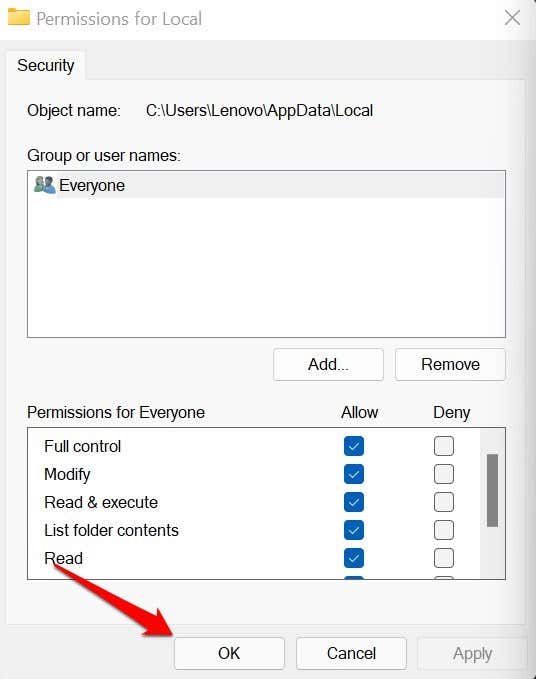
- Select OK to close the Local Permissions for the Local window and reinstall the Windows update.
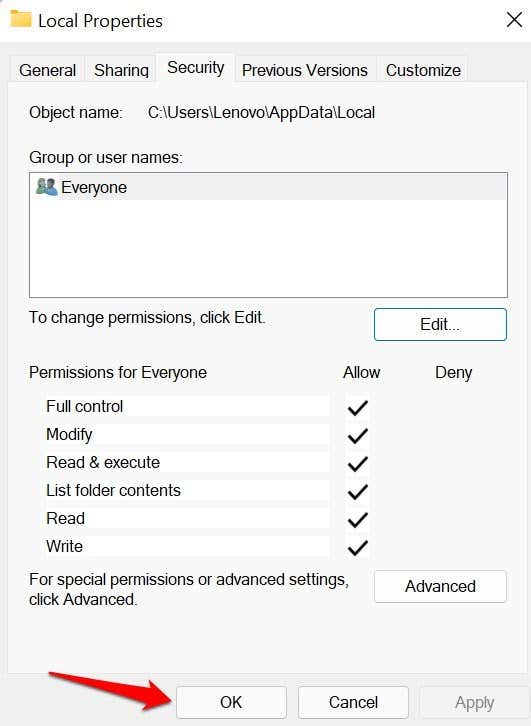
- Select OK again to save the changes.
5. Check Your Firewall Settings
You can resolve the 0x80070005 error by configuring the SVCHOST (the host process for Windows services) to bypass your firewall settings.
- Type firewall in the Windows Search bar and select Firewall & network protection on the results page.
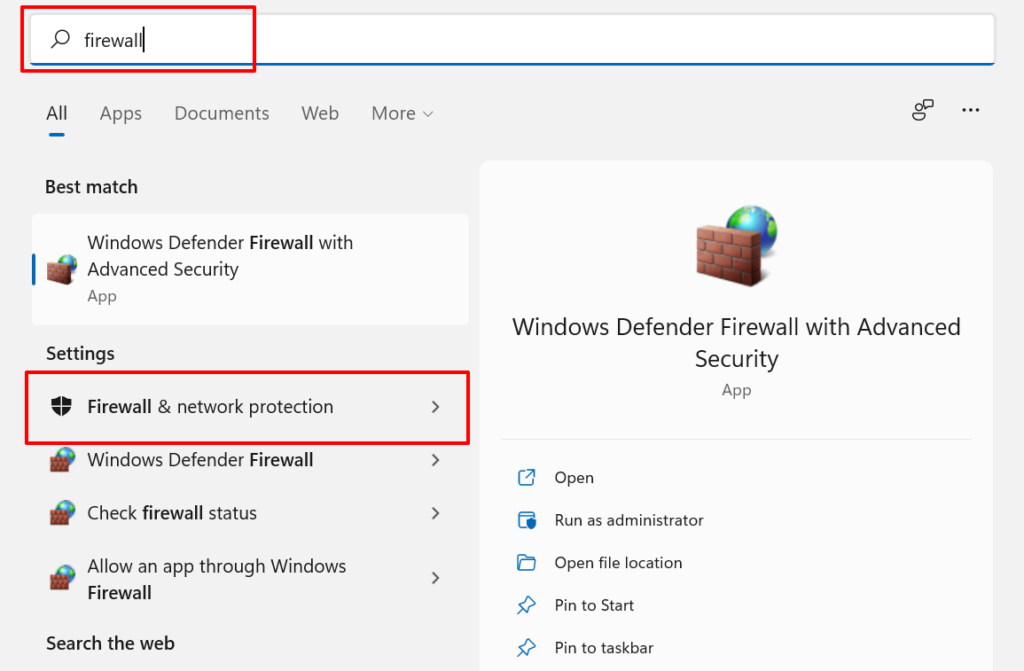
- Scroll to the bottom of the page and select Allow an app through firewall .
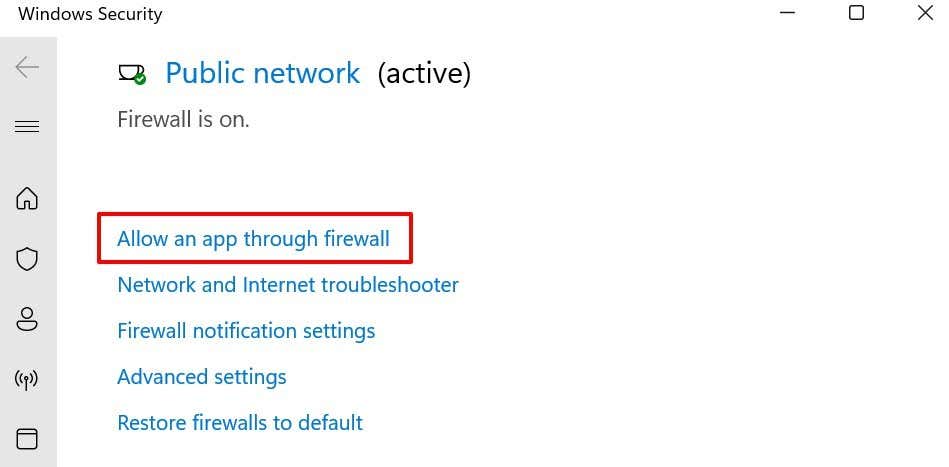
That’ll redirect you to the Windows Defender Firewall window in the Control Panel.
- Select Change settings .

- Select Allow another app .

- Select Browse .

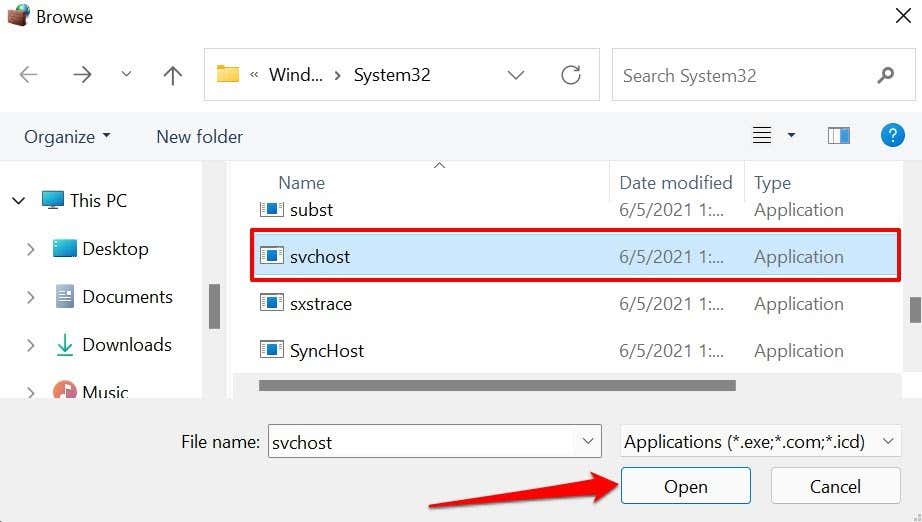
- Select svchost and select Open .
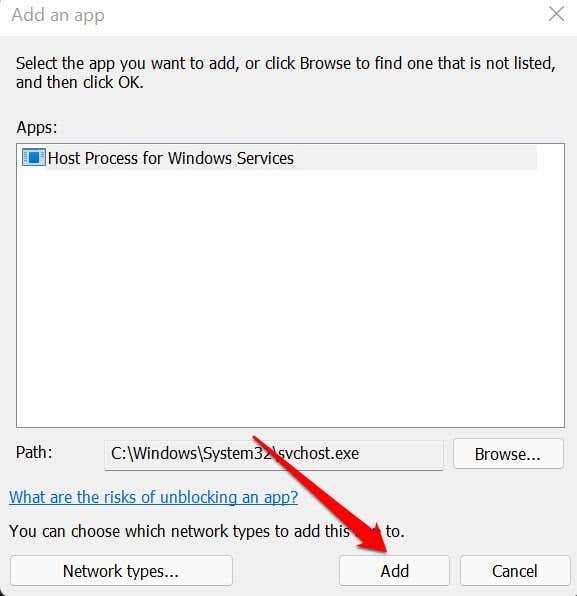
- Select Add to continue.
- Ensure you check the “Private and “Public” columns for the Host Process for Windows Services.
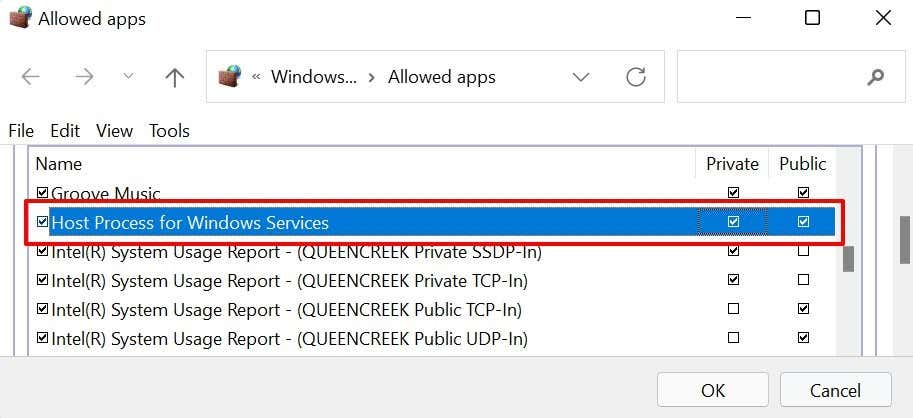
- Select OK and try updating your PC again.
6. Perform a Clean Boot
Performing a clean boot in Windows can help diagnose the cause of startup errors, frequent app crashes, and Windows Update problems. When you perform a clean boot, your PC temporarily disables non-essential services. That’ll help isolate and diagnose software conflict causing the error code 0x80070005 when updating Windows or running Office apps.
Make sure you’re signed in to your PC using an administrator account before initiating a clean boot.
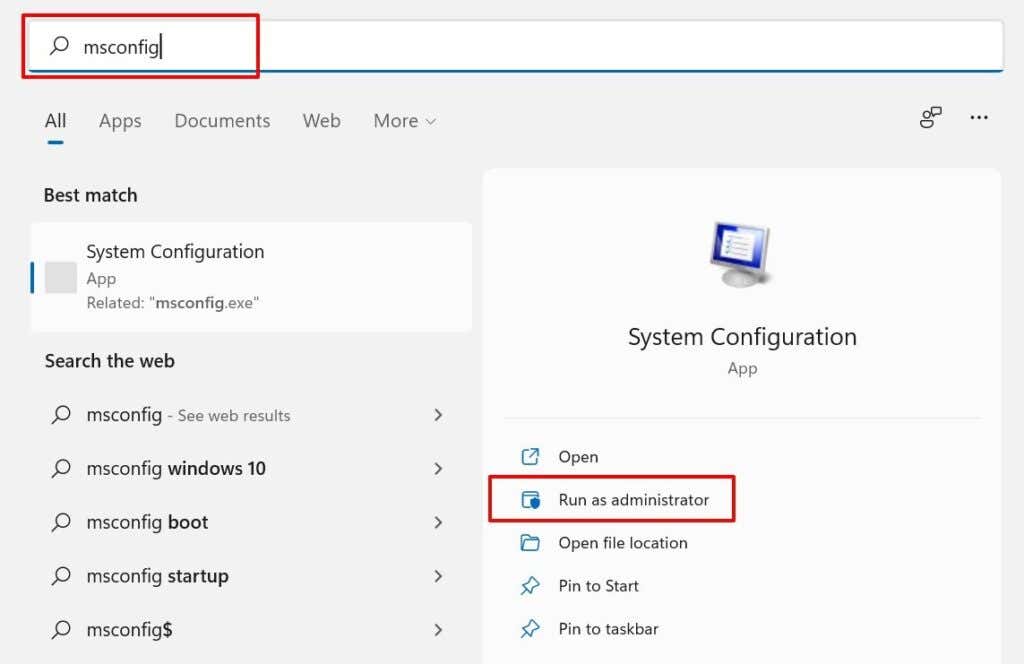
- Type msconfig in the Windows Search box and run System Configuration as an administrator.
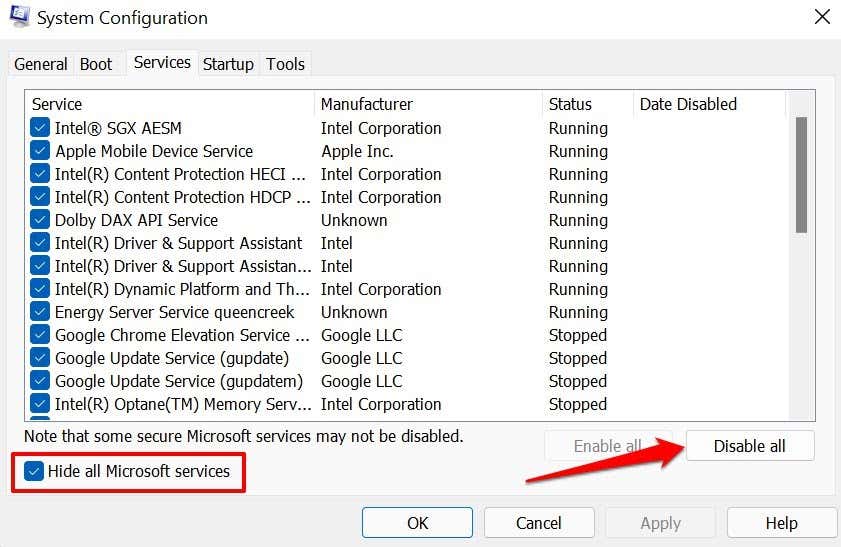
- Head to the Services tab, check the Hide all Microsoft services box and select Disable all .
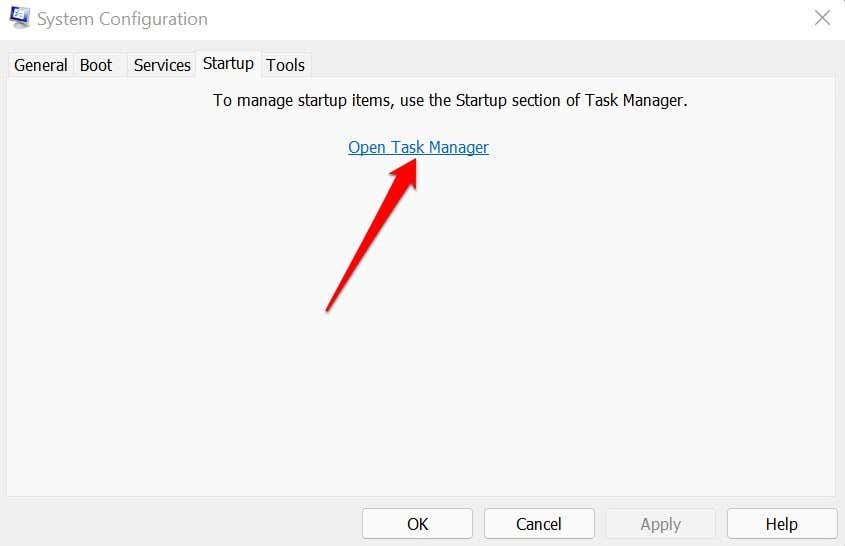
- Afterward, go to the Start-up tab and select Open Task Manager .
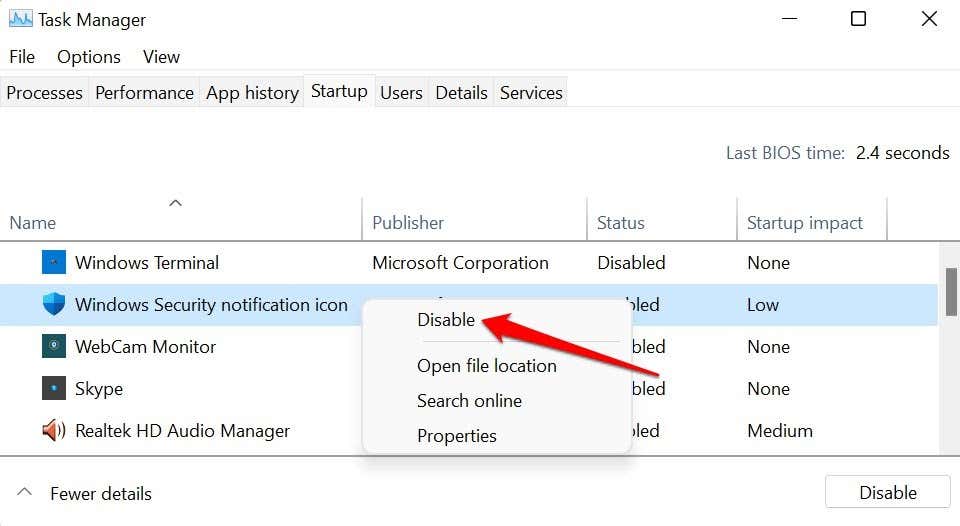
- Right-click a program in the list and select Disable . Do this for all apps in the Startup tab.
Close the Task Manager and restart your computer to boot into a “clean” environment. If you don’t get the 0x80070005 error after the clean boot process, that means one of the disabled apps is responsible for the error.
7. Reset Windows Update Components
Reset all components of the Windows Update agent if the error persists after trying the troubleshooting steps above.
- Type command prompt in the Windows Search bar and select Run as administrator .
- Type or paste net stop wuauserv in the terminal and press Enter . This command will stop the Windows Update service.

- Next, type or paste rd /s /q %systemroot%SoftwareDistribution and press Enter .

- Finally, type or paste net start wuauserv and press Enter to restart the Windows Update service.
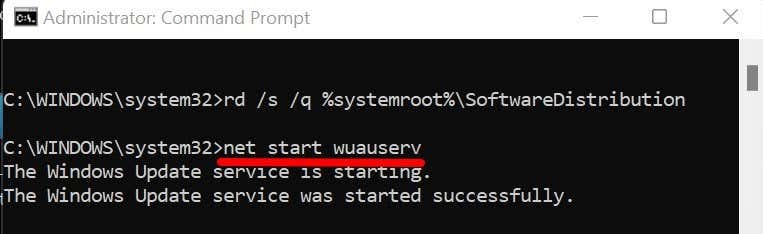
Close the Command Prompt window and check if you can now install Windows Updates without the 0x80070005 error code.
Last Resort: Reset Windows
Reset Windows to factory settings if you still can’t install Windows updates or run Office apps due to the 0x80070005 error.
- Preparing for Windows 10 End of Support: Upgrading to Windows 11
- How to Fix a “This file does not have an app associated with it” Error on Windows
- How to Fix an Update Error 0x800705b4 on Windows
- How to Resolve “A JavaScript error occured in the main process” Error on Windows
- How to Fix the Network Discovery Is Turned Off Error on Windows
Sodiq has written thousands of tutorials, guides, and explainers over the past 4 years to help people solve problems with Android, iOS, Mac, and Windows devices. He also enjoys reviewing consumer tech products (smartphones, smart home devices, accessories, etc.) and binge-watching comedy series in his spare time. Read Sodiq’s Full Bio
