Windows 10 and 11’s Windows + Shift + S keyboard shortcut allows you to take screenshots without opening any apps. When this keyboard combination stops working, you can’t take screenshots using this method.
There are many reasons the keyboard shortcut doesn’t work. The first thing to check is your PC’s keyboard and ensure all keys are functional. Then, ensure the keyboard is correctly plugged into your PC and the connection isn’t loose.
If you’ve tried those solutions but to no avail, the following advanced tips should help you resolve the issue.
Use the PrntScrn Button to Take Screenshots
If you urgently need to take screenshots and the Windows + Shift + S keyboard shortcut doesn’t work, use an alternate method to make your screenshot. This method is to use the PrntScrn button on your keyboard .
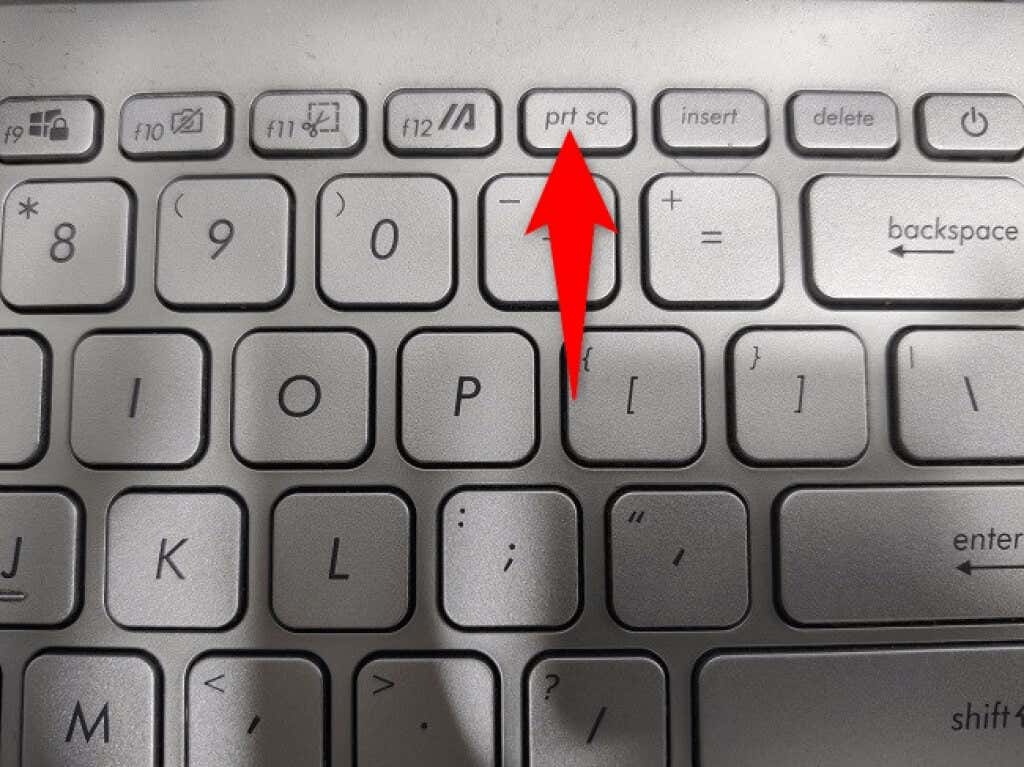
When you press the Print Screen key, your PC captures a screenshot and saves that to your clipboard. You can then open an image editing app, like Microsoft Paint , and use Ctrl + V to paste your screenshot there. Then, save the image as usual.
With this method, you don’t have to wait until Snip & Sketch’s issue is resolved to take a screenshot.
Allow Snip & Sketch’s Notifications on Your PC
When you press the Windows + Shift + S keyboard shortcut, Snip & Sketch displays a pop-up that you can click to open the image in the app. If you’ve disabled notifications for this app on your PC , that may be why your screenshots aren’t captured.
In this case, you can fix the issue by enabling all notifications for Snip & Sketch on your PC.
- Open the Settings app by pressing Windows + I at the same time.
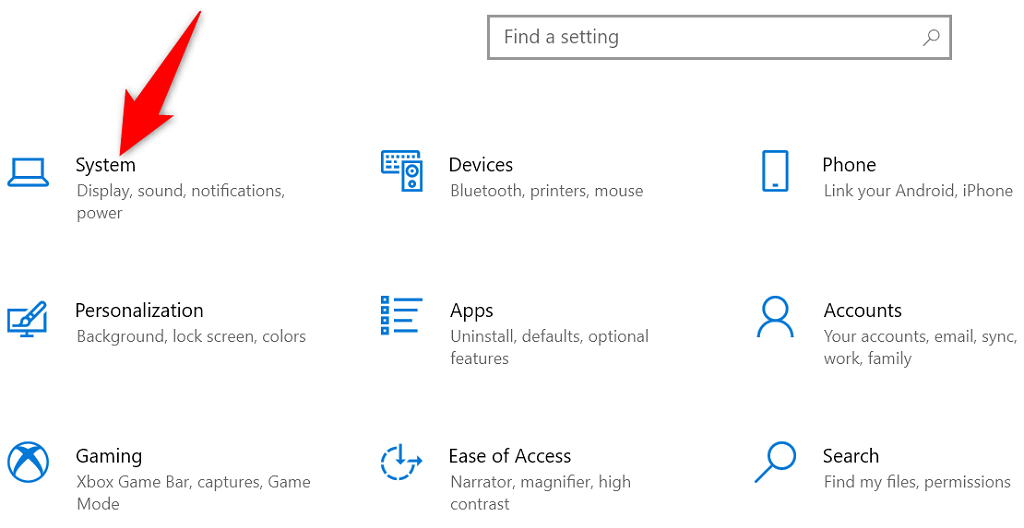
- Choose System on the main Settings window.
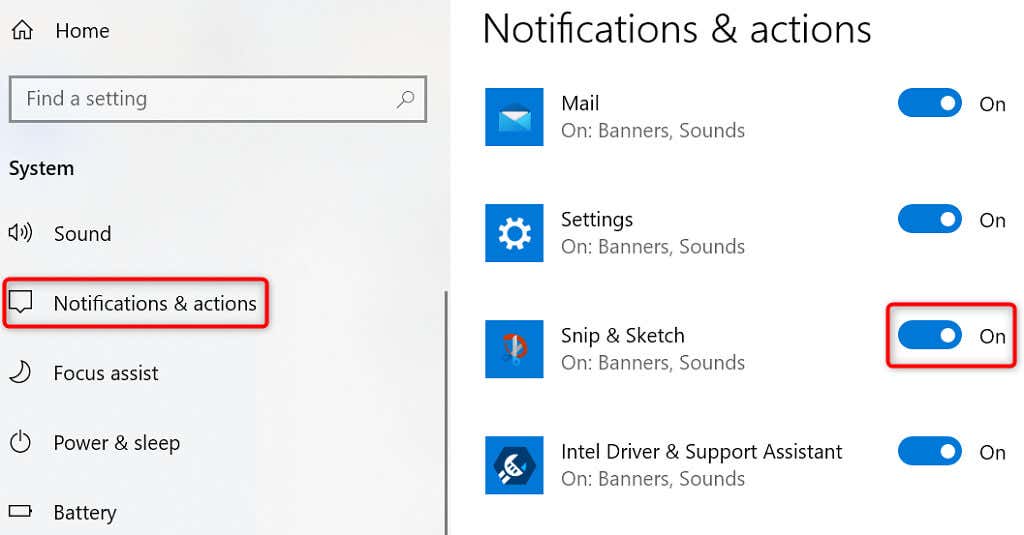
- Select Notifications & actions from the sidebar on the left.
- Turn on the toggle for Snip & Sketch on the right pane.
- Take a screenshot using Windows + Shift + S , and you should see a notification.
Turn On Clipboard History on Your Windows 10/11 PC
Windows’ clipboard history allows you to copy and store multiple items on your clipboard to paste. When you run into problems with Snip & Sketch’s screenshot feature, it’s worth enabling clipboard history to see if that allows you to paste your screenshots.
Enabling the history feature for the clipboard is as easy as toggling on an option.
- Launch Settings by pressing Windows + I keys.
- Select System on the Settings window.
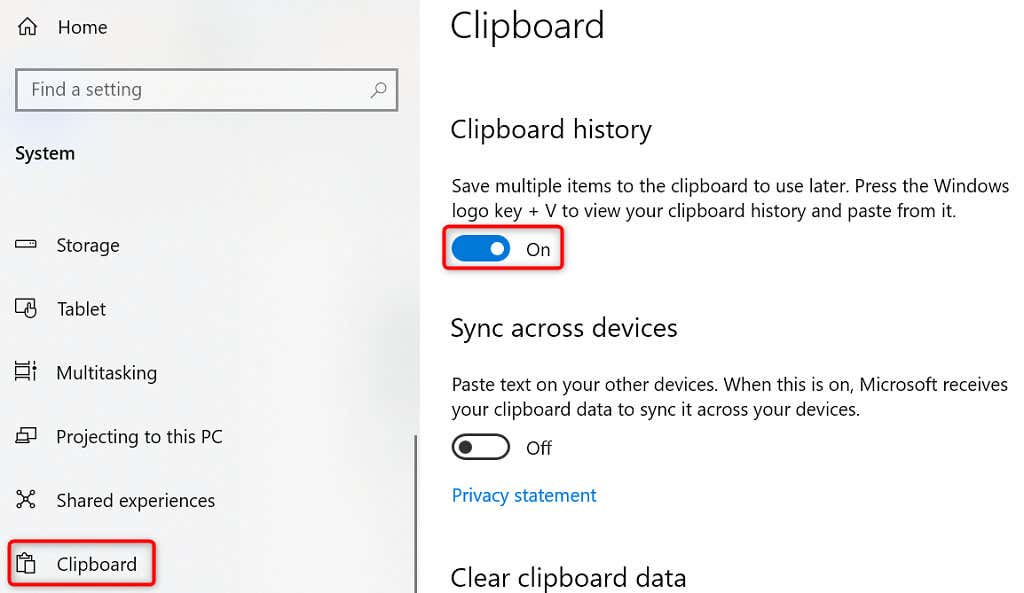
- Choose Clipboard from the sidebar on the left.
- Enable the Clipboard history switch in the pane on the right.
- Capture a screenshot by pressing Windows + Shift + S simultaneously.
- Open Microsoft Paint and create a new blank image.
- Press Windows + V , select your screenshot on the page, and it’ll be pasted on the Paint canvas.
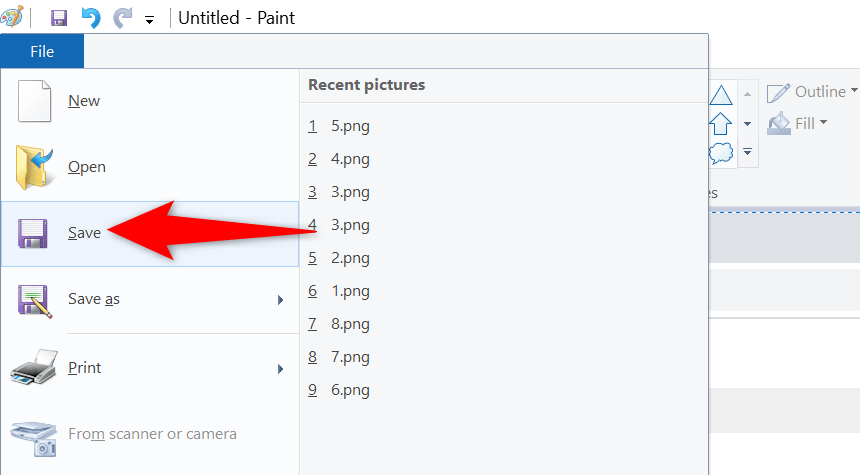
- Save the screenshot by choosing File > Save in Paint.
Reset Snip & Sketch to Fix Windows Screenshot Shortcut
When you have issues with an app on your PC, it’s worth resetting that app’s options to fix the problem potentially. You can reset Snip & Sketch’s options and possibly bring Windows + Shift + S back into action.
Windows has a built-in option to reset your apps. Here’s how you can use that option.
- Open Windows Settings by pressing Windows + I .
- Choose Apps on the Settings window.
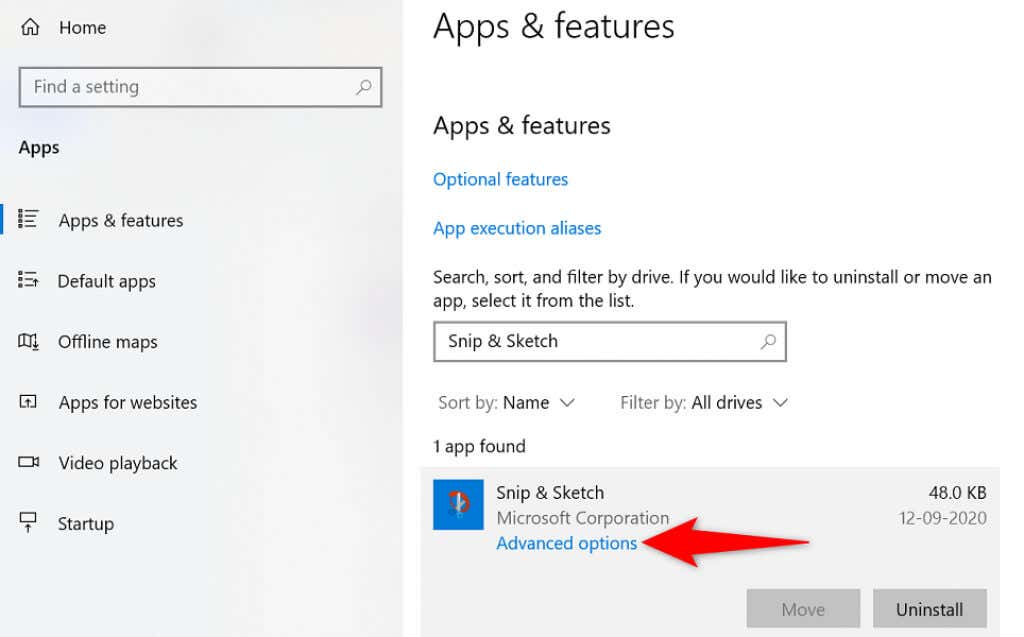
- Find and select Snip & Sketch on the list. Then, choose Advanced options .
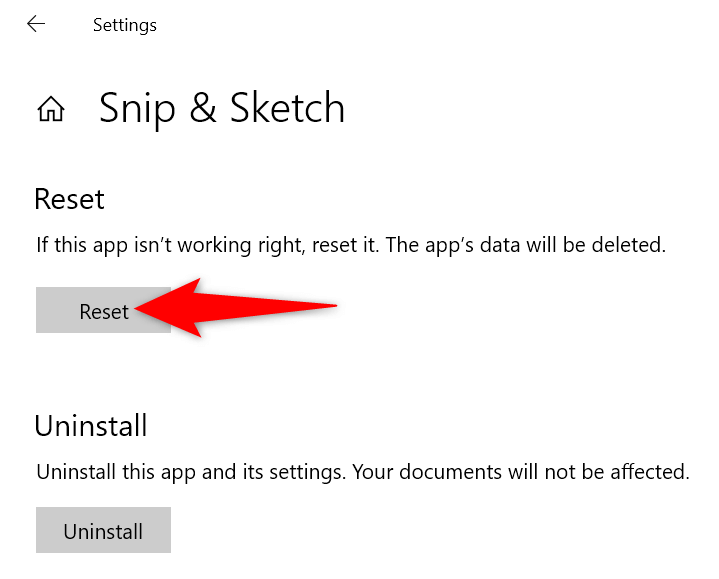
- Scroll down the page and select the Reset button.
- Choose Reset in the prompt that opens.
- Launch Snip & Sketch after you’ve reset the app.
- Use the Windows + Shift + S keyboard shortcut to try to take a screenshot.
Reinstall Snip & Sketch on Your PC
If you reset Snip & Sketch, but that didn’t fix the problem, try uninstalling and reinstalling the app on your PC. Your app probably suffers from core file problems, and reinstalling is how to fix that.
You can use Microsoft Store to get a fresh copy of the app, which will replace the problematic app files with the working ones.
- Open Settings by pressing Windows + I .
- Select Apps in Settings.
- Find and select Snip & Sketch on the app list. Then, choose the Uninstall button.
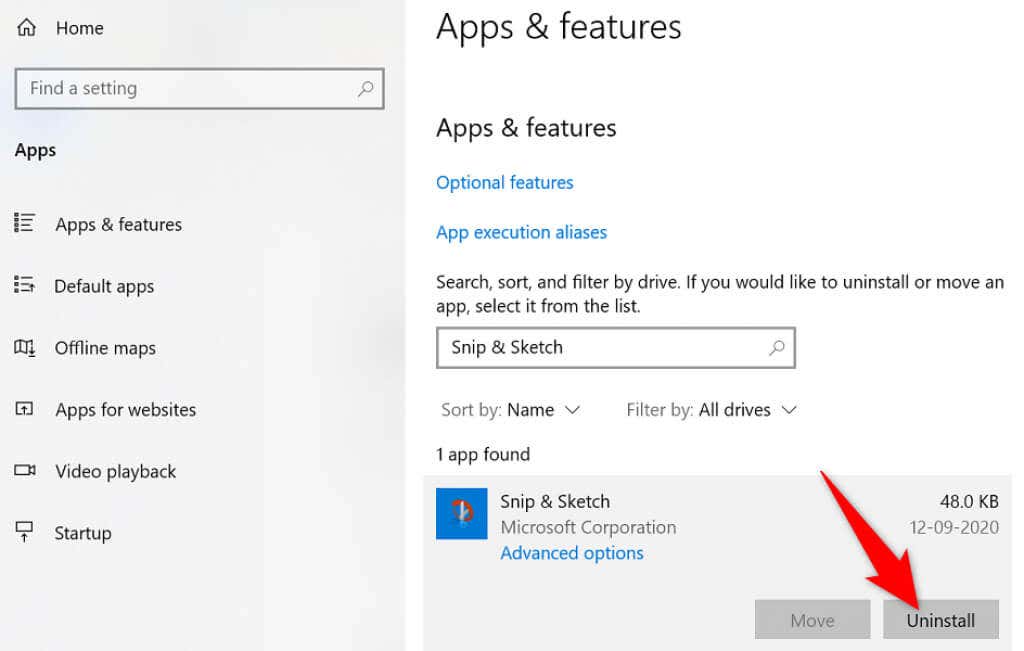
- Select Uninstall in the prompt.
- Open the Start menu, search for Microsoft Store , and select the item on the list.
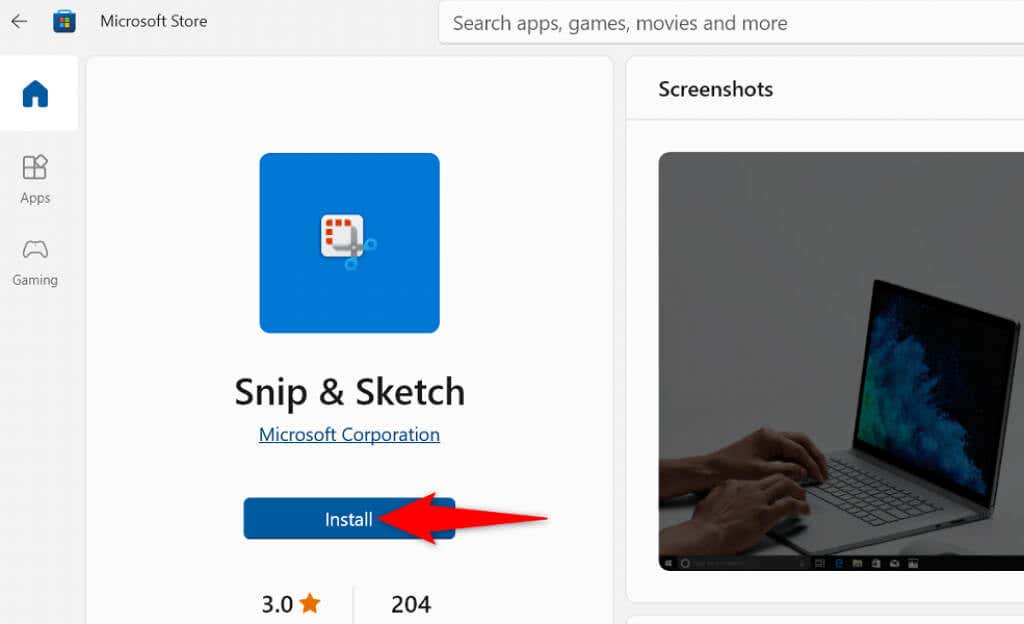
- Search for and select Snip & Sketch in the Store.
- Choose Install to download the app to your PC.
Clean Boot Your Windows PC
One reason the Windows + Shift + S keyboard shortcut isn’t working is that the other apps on your PC are causing interference with Snip & Sketch. These are usually the malicious apps that affect how other apps function on your computer.
You can verify if that’s the case by clean booting your Windows PC . Your PC only loads essential items when you do that. This allows you to find the culprit app on your machine.
Once you know what app is causing the problem, you can remove it from your machine. Your issue should be resolved then.
Start Taking Screenshots With Windows + Shift + S Once Again
There are many reasons Snip & Sketch’s keyboard shortcut won’t work to help you take screenshots . If you find yourself in this situation, you can use the mentioned methods to fix your issue.
Once you’ve identified and fixed the underlying problem, your keyboard shortcut will start working.
- Preparing for Windows 10 End of Support: Upgrading to Windows 11
- How to Fix a “This file does not have an app associated with it” Error on Windows
- How to Fix an Update Error 0x800705b4 on Windows
- How to Resolve “A JavaScript error occured in the main process” Error on Windows
- How to Fix the Network Discovery Is Turned Off Error on Windows
Mahesh has been obsessed with technology since he got his first gadget a decade or so ago. Over the last few years, he’s written a number of tech articles on various online publications including but not limited to MakeTechEasier and Android AppStorm. Read Mahesh’s Full Bio
The Print Screen button can easily capture your screen in Windows 10 . PrtScr is one of the most well recognized keys on a keyboard and it’s a function that everyone knows how to use. It’s the simplest way to take a screenshot as it captures the entire screen, which can be helpful at times.
However, the tips below can help when Print Screen is not working on your Windows PC or Mac. Macs don’t have a Print Screen button, but the built-in screenshot shortcuts might not work and we’ll help you fix that issue if you’re experiencing it.
What to Do When Print Screen is Not Working
Try some of the quick fixes below and see if they help before moving to other solutions in this guide.
Quick Fixes
- Check the clipboard on your computer to see if the screenshot has been saved there. Press Windows logo key + V to access the clipboard.
- Update your operating system .
- Use the on-screen keyboard to access the virtual PrtScn button and capture your screen. Select Start > AllPrograms > Accessories > Ease of Access > On-Screen Keyboard .
- Hold down the F Lock or F Mode keys to disable them to see if that gets the Print Screen key working again.
- Disable any third party screenshot programs like, Snagit, on your system.
- Check out our guide on how to capture full page screenshots in Chrome & Firefox if the Print Screen button is not working for those browsers.
- Make sure the key itself is functioning properly. You can do this using an online key tester . If broken, you may need to replace the keyboard. It may also be worth investing in a mechanical keyboard , which are known to be more durable and last longer.
How to Fix Print Screen Not Working in Windows 10
You can troubleshoot the Print Screen not working problem on your Windows PC using the following solutions.
Use a Hotkey Combination
Windows 10 has lots of helpful keyboard shortcuts for taking screenshots. Use the hotkey combinations below to see if you can capture these alternative screenshots.
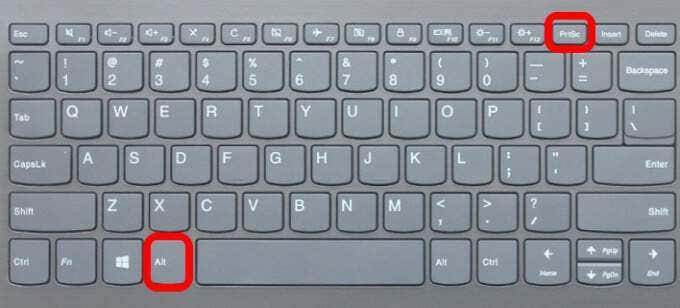
- Press Alt + PrtScn to capture the currently selected window.
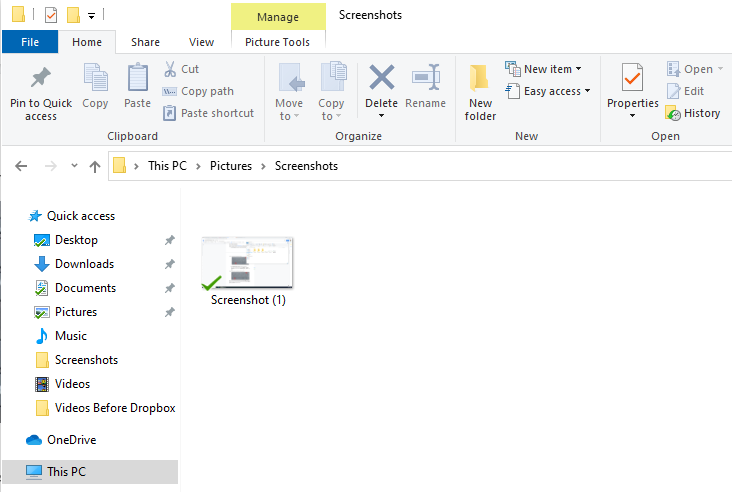
- Press Windows logo key + PrtScn to capture the screenshot. In this case, the screenshot will be saved to File Explorer > Pictures > Screenshots .
You can also use Fn + Windows logo key + PrtScn on your laptop.
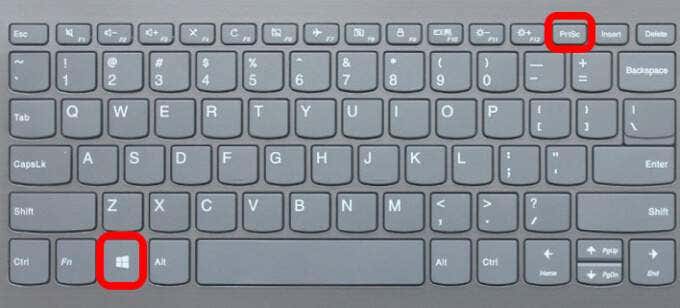
- If your PC uses the HID keyboard driver, use the Fn + PrtScn combination to capture your screen. If your device doesn’t have the PrtSc key, use Fn + Windows logo key + Space Bar to capture the screen.
These keyboard shortcuts will save this image to the Windows clipboard. Open a photo app, like MS Paint, and paste the image if you want to save it as a file.
Update Keyboard Driver
If the keyboard driver is outdated, corrupted or incorrect, it may cause the Print Screen function not to work properly and may need an update.
- Right-click Start > Device Manager .
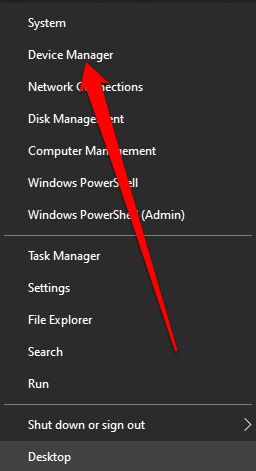
- Select the Keyboards section to expand it, right-click your keyboard and select Update driver .
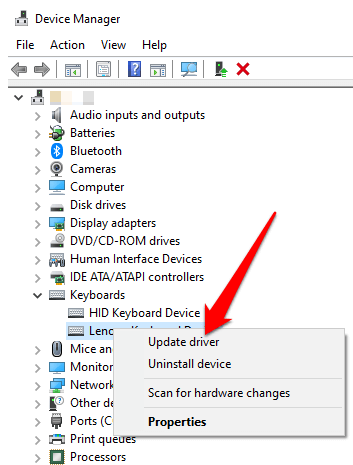
- Next, select Search automatically for updated driver software to install the latest keyboard driver.
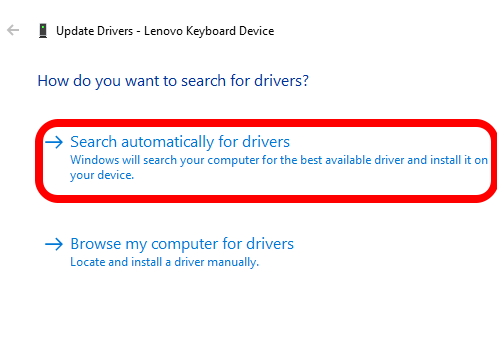
- Restart your computer and see if the Print Screen function works.
Note : You can also go to your keyboard manufacturer’s official website, look for the latest driver, download and install it.
Use Game Bar
If you’re still not able to use the Print Screen function, you can use Game Bar to take a screenshot. Game Bar is a built-in feature in Windows 10 that allows you to record your screen and capture screenshots while playing PC games.
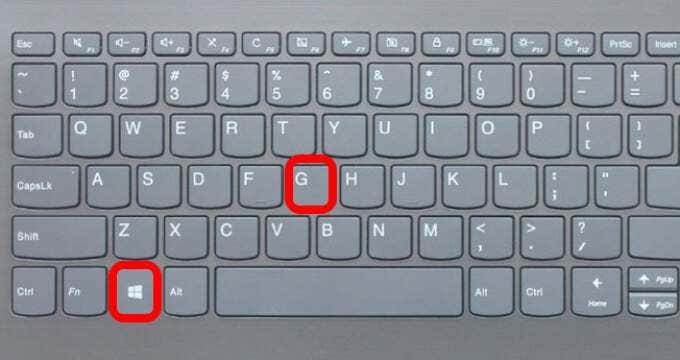
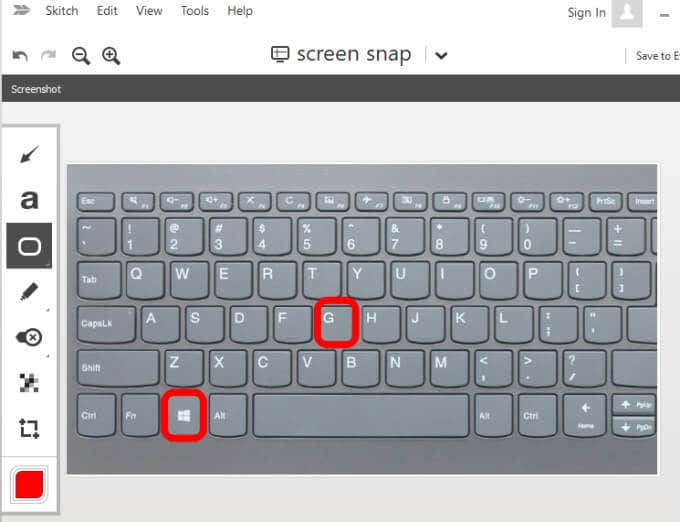
- Press Windows logo key + G to open Game Bar and capture everything on your screen.
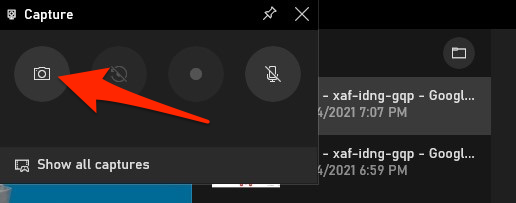
- In the Game Bar screen, select the Screen Capture icon.
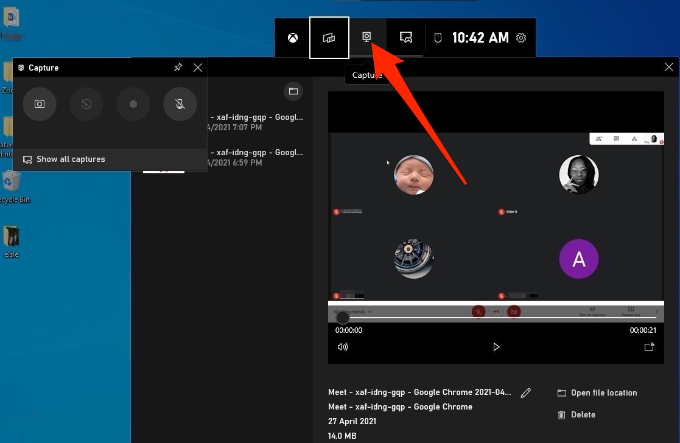
- Next, select the camera icon to take a screenshot.
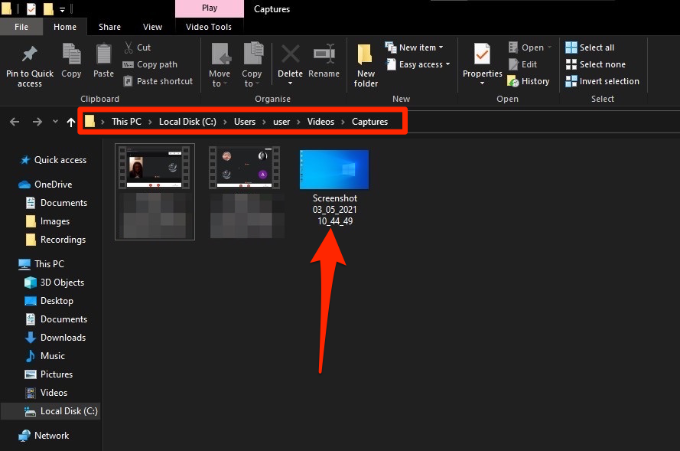
Your screenshot will be saved in the Captures folder. Go to This PC > Local Disk (C:) > Users > User > Videos > Captures .
Edit the Windows Registry
The Windows Registry stores information like user profiles, apps installed on your PC and others, which are needed to configure the system. You can edit the registry to fix the Print Screen button not working problem on your computer.
Note : Follow these steps carefully because any slight mistake could affect your computer adversely. Before you begin, create a System Restore point or back up your computer including your media files.
- Right-click Start > Run , type regedit in the Run box and press Enter or select OK .
- Navigate to this registry key: HKEY_CURRENT_USER\Software\Microsoft\Windows\CurrentVersion\Explorer .
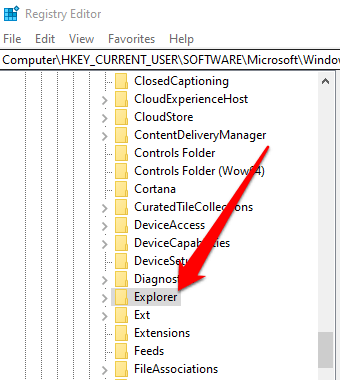
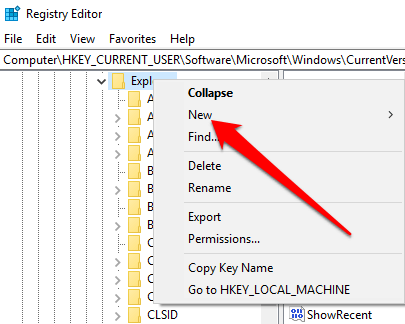
- Right-click Explorer, select New > DWORD and then rename it ScreenShotIndex .
- Double-click DWORD , set the Value data to 1 and then select OK .
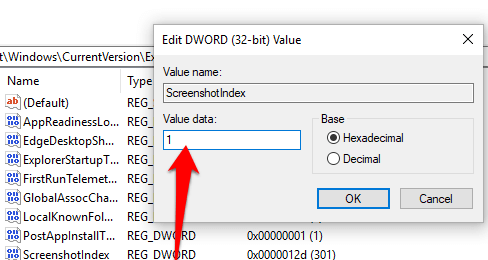
- Navigate to HKEY_CURRENT_USER\Software\Microsoft\Windows\CurrentVersion\Explorer\User Shell Folders .
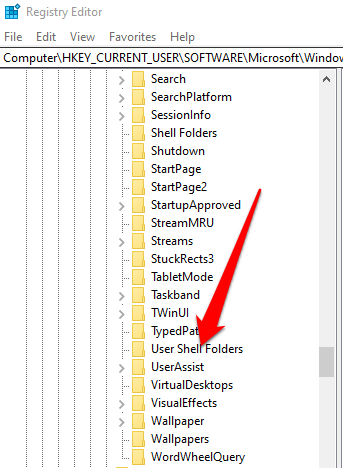
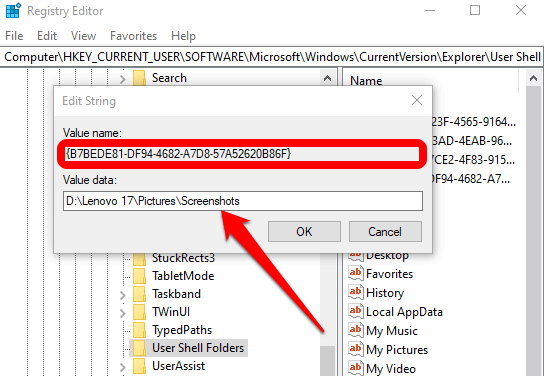
- Check whether the {B7BEDE81-DF94-4682-A7D8-57A52620B86F} string’s Value data reads %USERPROFILE%\Pictures\Screenshots .
- Exit the Registry Editor and restart your computer.
- Click PrtScn or Windows logo key + Fn + PrtSc keys. You can check for the screenshot in File Explorer > Pictures > Screenshots folder.
How to Fix Print Screen Not Working on a Mac
While your Mac may not have the PrtScn button, the built-in screenshot feature may stop working and you may not know how to fix it. Here are a few things to try.

- Confirm that your screenshots are available in the correct location i.e. your desktop, as this will determine whether the screenshot function works or not.
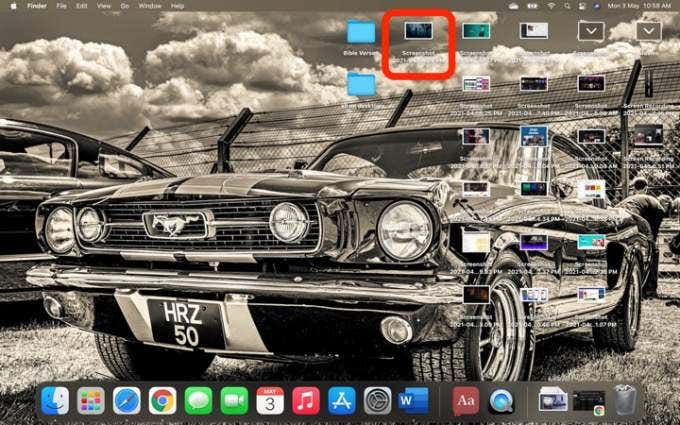
- Use the Preview app or Screenshot app (macOS Mojave or later versions) to take screenshots.
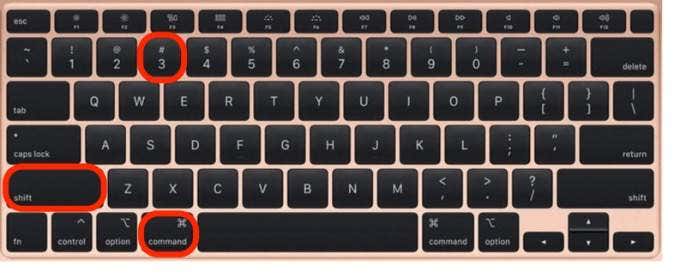
- Restart the Mac and take screenshots using Shift + Command + 3 to capture the whole screen or Shift + Command + 4 to capture a portion of the screen.
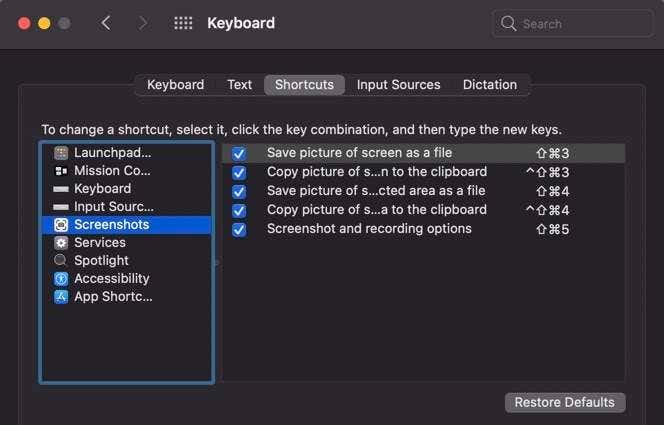
- Check whether the screenshots keyboard shortcuts are enabled, or they’ve been reassigned to other actions. Go to Menu > System Preferences > Keyboard > Shortcuts .
- Use Grab to take a screenshot. Select Go > Applications > Utilities > Grab to open it and then select Capture to take a screenshot. In macOS Mojave and later, Grab has been replaced with a new tool. You can access it by pressing Command + Shift + 5 .
- Reset the NVRAM to resolve issues with functionality and core Mac apps.
Other Alternatives
Listed below are some alternatives to the Print Screen button:
- Use the built in Use Snip & Sketch for Windows .
- Use tools like Snagit or Skitch , which take great screenshots on Windows and Mac computers.
- Preparing for Windows 10 End of Support: Upgrading to Windows 11
- How to Fix a “This file does not have an app associated with it” Error on Windows
- How to Fix an Update Error 0x800705b4 on Windows
- How to Resolve “A JavaScript error occured in the main process” Error on Windows
- How to Fix the Network Discovery Is Turned Off Error on Windows
Elsie is a technology writer and editor with a special focus on Windows, Android and iOS. She writes about software, electronics and other tech subjects, her ultimate goal being to help people out with useful solutions to their daily tech issues in a simple, straightforward and unbiased style. She has a BCom degree in Marketing and currently pursuing her Masters in Communications and New Media. Read Elsie’s Full Bio
