Reload YouTube (And Your Web Browser)
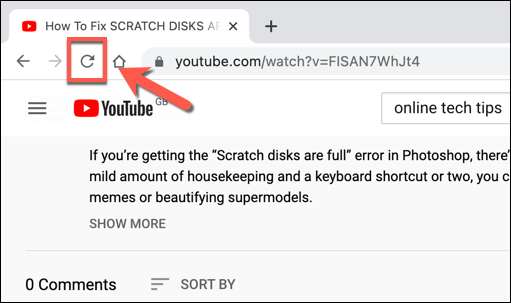
However, this assumes that there isn’t another problem with your browser or connection, such as DNS connectivity issues. If refreshing the page doesn’t fix it, you may want to close and restart your browser first before you consider other fixes.
Disable Browser Extensions
Certain browser extensions, especially ad blocking extensions , can affect how certain pages load in your web browser. If you’re using an overzealous ad blocking extension, for instance, this could stop certain underlying scripts on the YouTube website from loading.
- If you’re using Google Chrome, you can quickly disable Chrome ad-blocking extensions by selecting the three-dots menu icon > More Tools > Extensions .
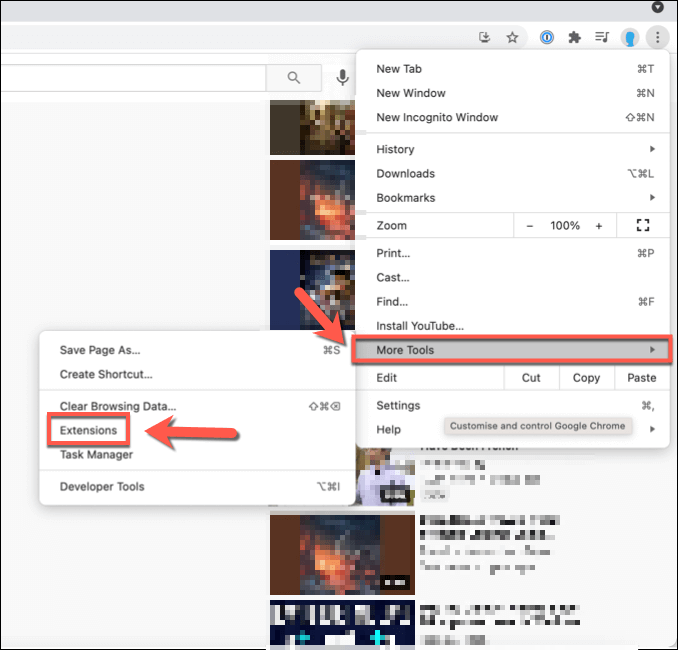
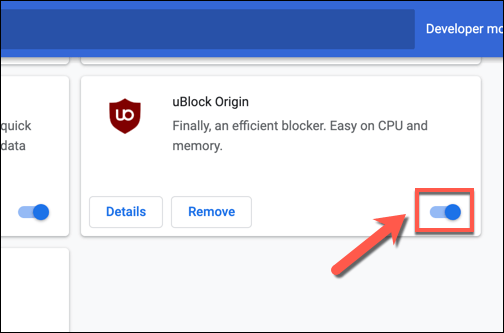
- You’ll see a list of installed extensions in the Extensions menu. To disable any extension you believe might cause issues with YouTube, select the slider button for that extension, switching it to the Off position. If you’re unsure whether any of the extensions are causing this problem, disable all extensions to test your browser.
Clear Browser Data or Reset Your Browser Entirely
While it isn’t a fool-proof solution, clearing your browser data is a good way to ensure that any pages you load are refreshed. Rather than relying on a cached page history to load YouTube, this ensures that your browser loads all YouTube’s files from scratch.
- To clear your cache in Google Chrome, select the three dots menu icon > Settings .
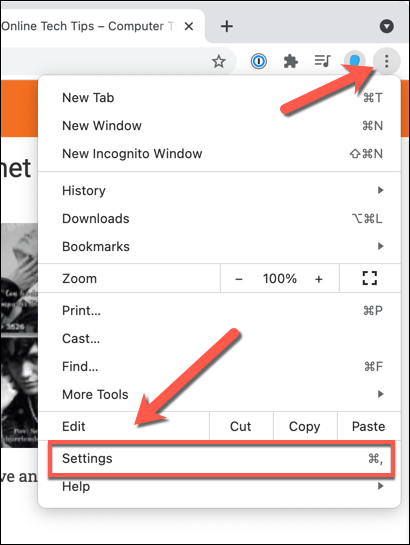
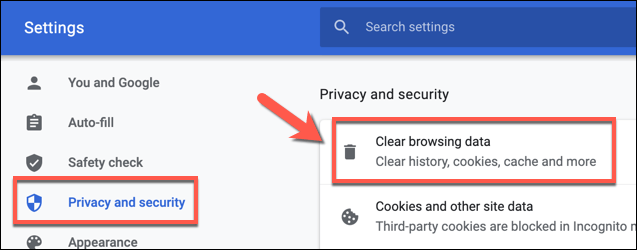
- In the Settings menu, select Privacy and security > Clear browsing data .
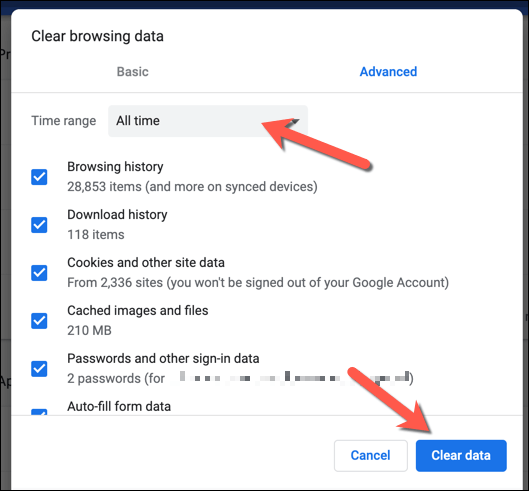
- In the Clear browsing data menu, make sure that All time is selected from the Time range drop-down menu and that all of the available checkboxes are selected. Select Clear data to clear your browser cache and web history at this point.
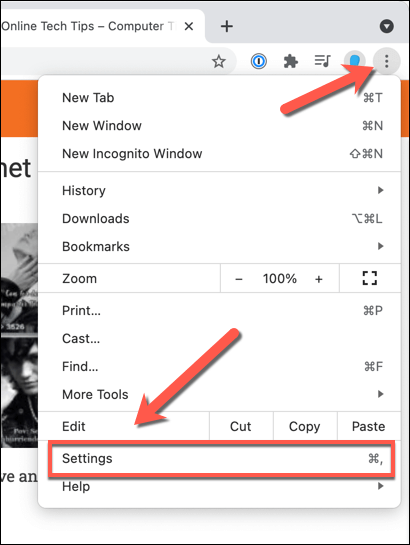
- To do this in Chrome, select the three dots menu icon > Settings .
- Select Advanced > Reset settings from the side menu, then select Restore settings to their original defaults .

- Confirm that you want to reset your settings accordingly. This will wipe your entire browser configuration, including custom startup pages, any installed extensions, and your browser cache and history. Select Reset settings to do this.
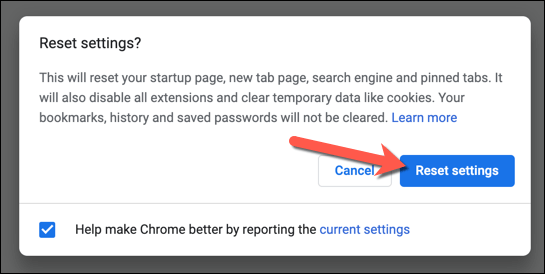
This will reset your Chrome browser profile entirely. If the issue isn’t resolved at this point, the issue may point to problems with your connection instead. You could also think about switching to another browser, such as Firefox or Microsoft Edge, as this will circumvent any issues with the browser you’re using directly.
Disconnect from VPNs and Proxies (and Check Your Connection)
If you’re using a virtual private network (or VPN) to connect to the internet, or if you tunnel your web traffic using a proxy server, then you may find that certain webpages (like YouTube) don’t load correctly.
This could be by design, where certain websites prevent parts or an entire page from loading when a known VPN or proxy is in use as a way to reduce the risk of spam or network attacks. However, it could also be caused by a misconfigured or broken connection.
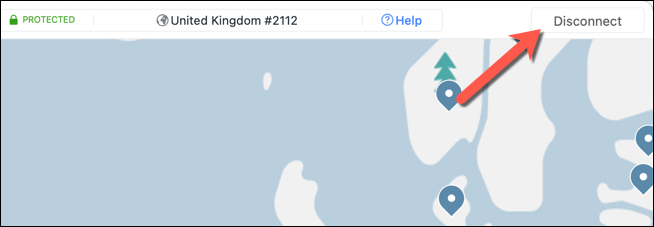
Unfortunately, in this instance, you may need to disconnect from the VPN or remove the proxy server settings to allow YouTube to load correctly. If you’re on a corporate network, speak to your network administrator first to determine whether the connection issues can be resolved internally.
You should also check that your connection (without a VPN or proxy) is stable and functioning properly. For instance, if your ISP’s DNS servers are faulty and prevent certain pages from loading properly, you may need to change your DNS provider and switch to a public DNS server instead.
Resolving YouTube Connection Issues
- How to Fix YouTube “You’re Offline” Error on Your PC
- YouTube Video Not Processing or Uploading? Try These 9 Fixes
- Why YouTube Is Slow on Your Device (And How to Fix)
- How to Customize YouTube’s Recommended Videos Feed
- YouTube TV Not Working? 8 Ways to Fix It
Ben Stockton is a freelance technology writer based in the United Kingdom. In a past life, Ben was a college lecturer in the UK, training teens and adults. Since leaving the classroom, Ben has taken his teaching experience and applied it to writing tech how-to guides and tutorials, specialising in Linux, Windows, and Android. He has a degree in History and a postgraduate qualification in Computing. Read Ben’s Full Bio
