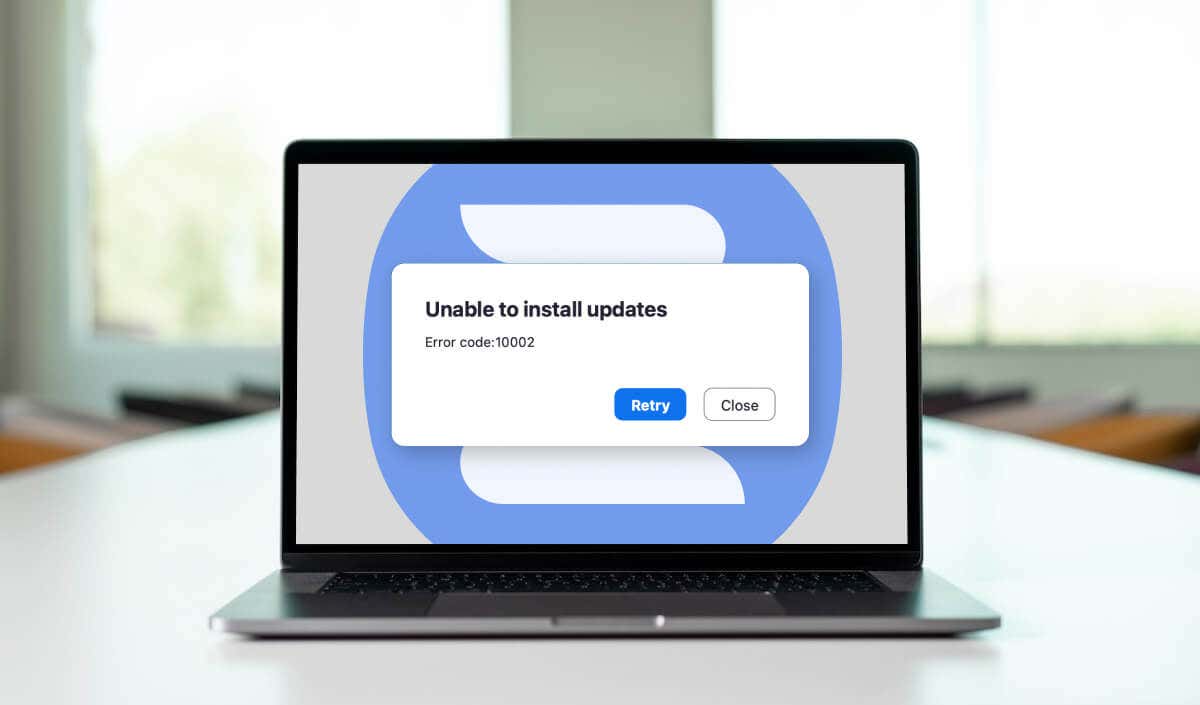
The Zoom desktop client throws an “Error code: 10002” message when it runs into issues performing an auto-update. The problem stems from internet connectivity issues or interference from third-party antivirus software.
You might also get this error if your Mac runs a buggy or outdated software version . This tutorial highlights troubleshooting solutions for the “Error code: 10002” message in Zoom.
Check Your Internet Connection
Zoom requires an internet connection to download and install updates. You might encounter the “Error code: 10002” message if your Mac’s internet connection gets cut out when installing a Zoom update.
Verify that your Mac has an internet connection and retry the installation. Opening a site in your web browser is a good litmus test to determine whether or not your Mac has internet access.
Reset your Mac’s network settings if you can’t access the internet despite being connected to a Wi-Fi or Ethernet network. Rebooting your router can also resolve internet connectivity issues.
Force Close and Reopen Zoom

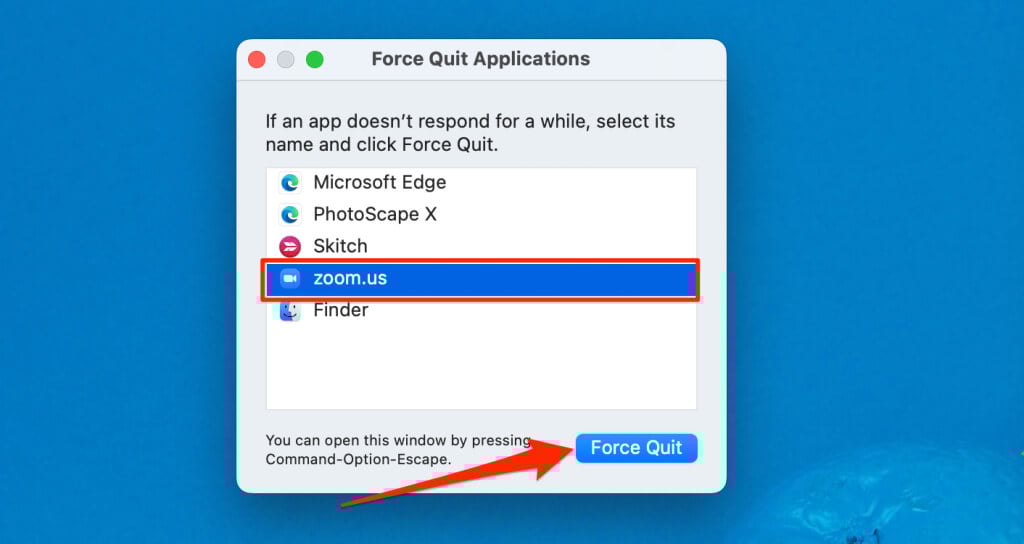
Force quitting a malfunctioning or unresponsive app in macOS can get it working correctly again.
- Press Command + Option + Escape to open the “Force Quit Applications” window.
- Select zoom.us and then Force Quit .
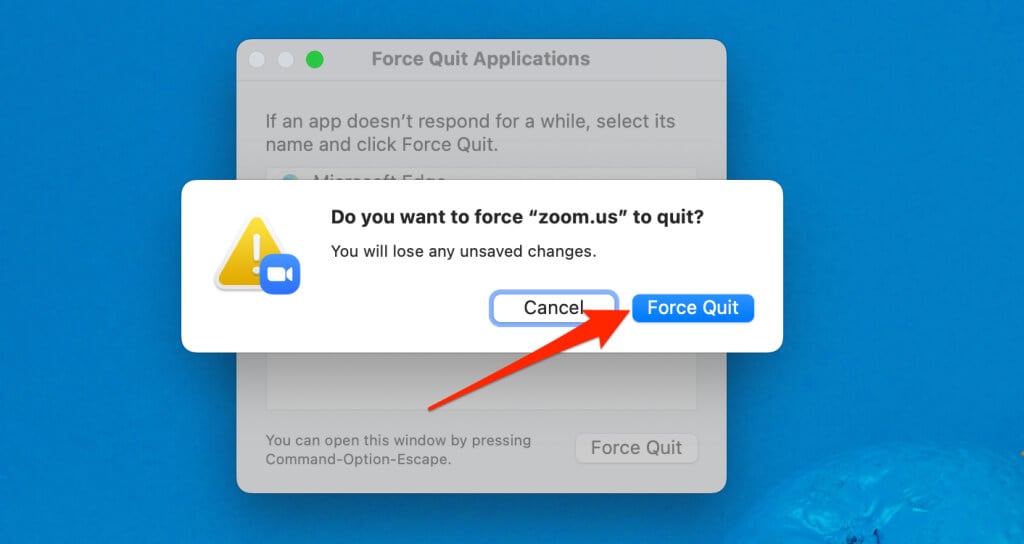
- Select Force Quit on the pop-up to continue.
Turn Off Your Antivirus
Malware protection software can interfere with Zoom’s update installation process and trigger the “Error code: 10002” message.
Force close the Zoom app and temporarily disable any antivirus or antimalware software installed on your Mac. Reopen Zoom and check if it works without throwing any error message.
Reboot Your Mac
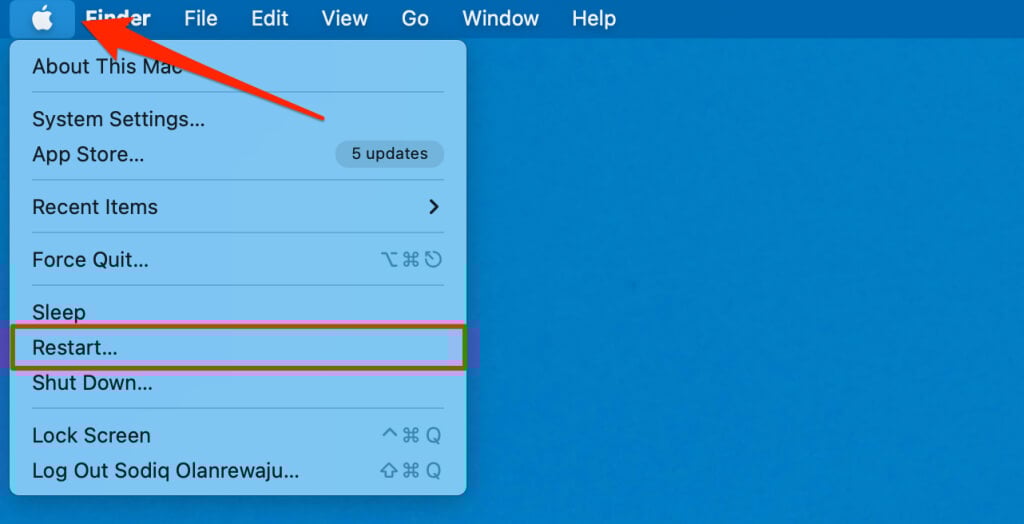
Performing a reboot might fix temporary system glitches preventing the installation of Zoom updates. Close all applications (to avoid losing unsaved data) and reboot your Mac.
Select the Apple icon in the top-right corner of the menu bar and select Restart .
Connect your Mac to the internet, reopen Zoom, and try updating the app to the latest version.
Add Zoom to Login Items
Configuring macOS to open Zoom whenever you log in can help the app install updates without issues. Close Zoom and follow these steps to add the app to your Mac’s login items list.
- Open System Settings , select General on the sidebar, and choose Login Items .
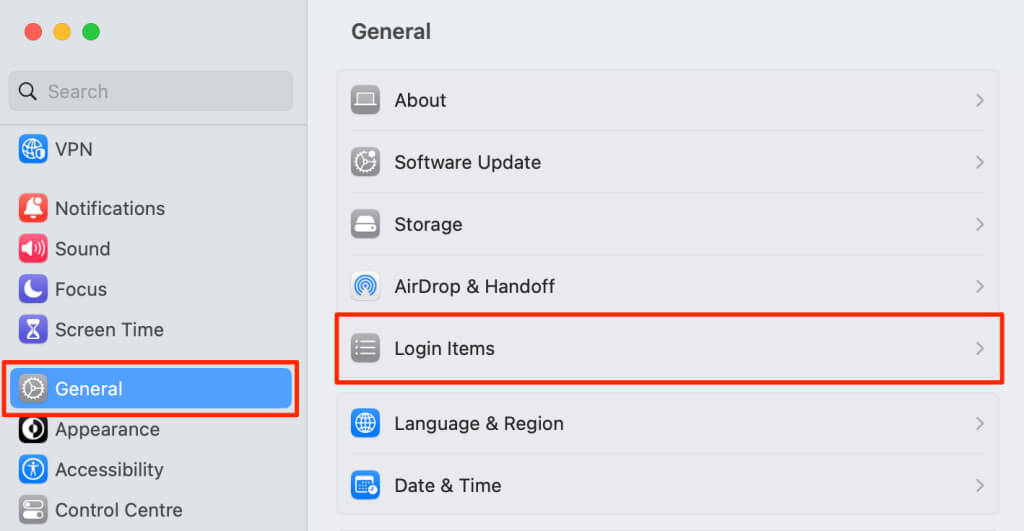
Head to System Preferences > Users & Groups if your Mac runs macOS Monterey (or older). Afterward, select your user account on the sidebar and switch to the Login Items tab.
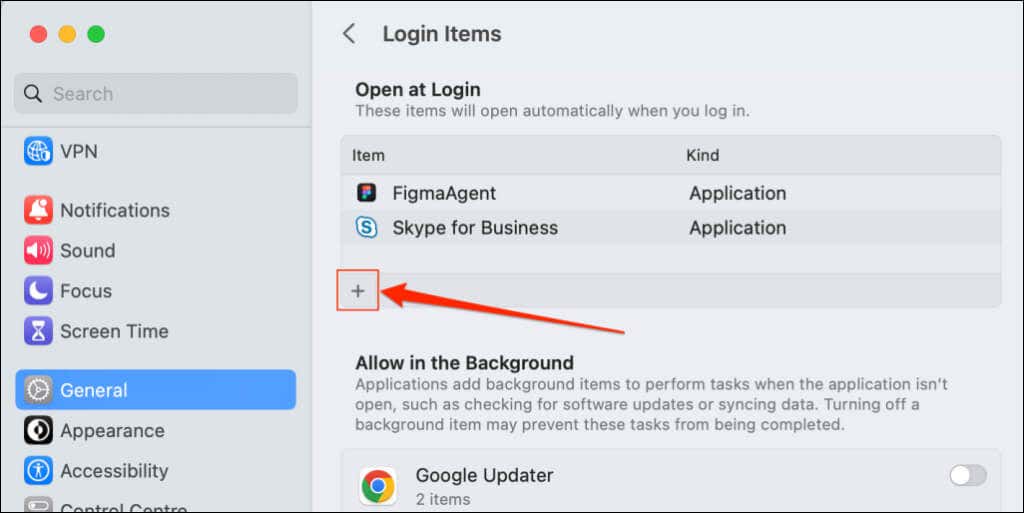
- Select the plus icon (+) below the list of login items.
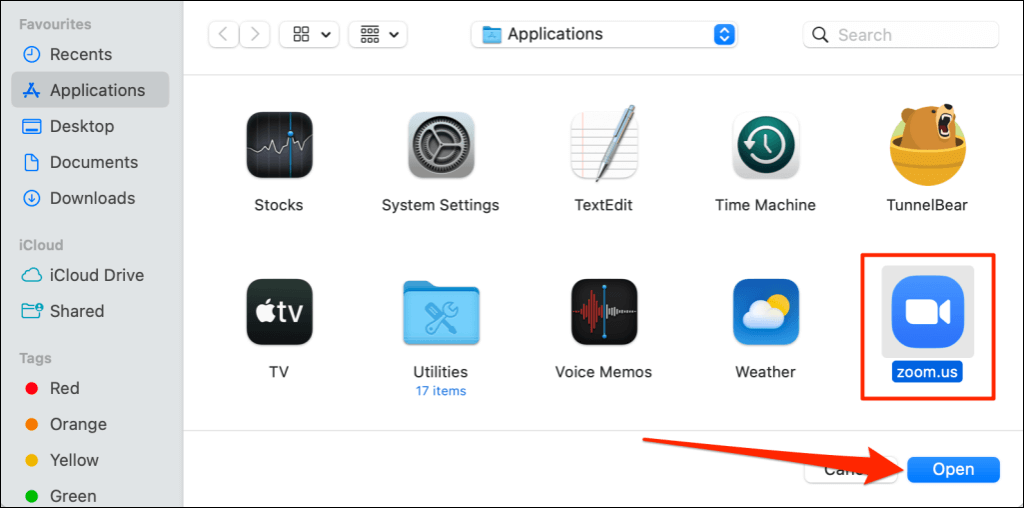
- Select zoom.us and then Open .
Update your Mac’s operating system if adding Zoom as a login item doesn’t stop the “Error code: 10002” issue.
Update Your Mac
You might encounter the “Error code: 10002” message when updating Zoom on devices with outdated or buggy macOS versions. According to Zoom , this error is prevalent in Zoom version 5.11.6 – 5.12.0 on Macs running macOS 13 Ventura beta 5 (or higher). Head to your Mac’s settings menu and update its software to the latest version .
Open the System Settings app, select General on the sidebar, and select Software Update .
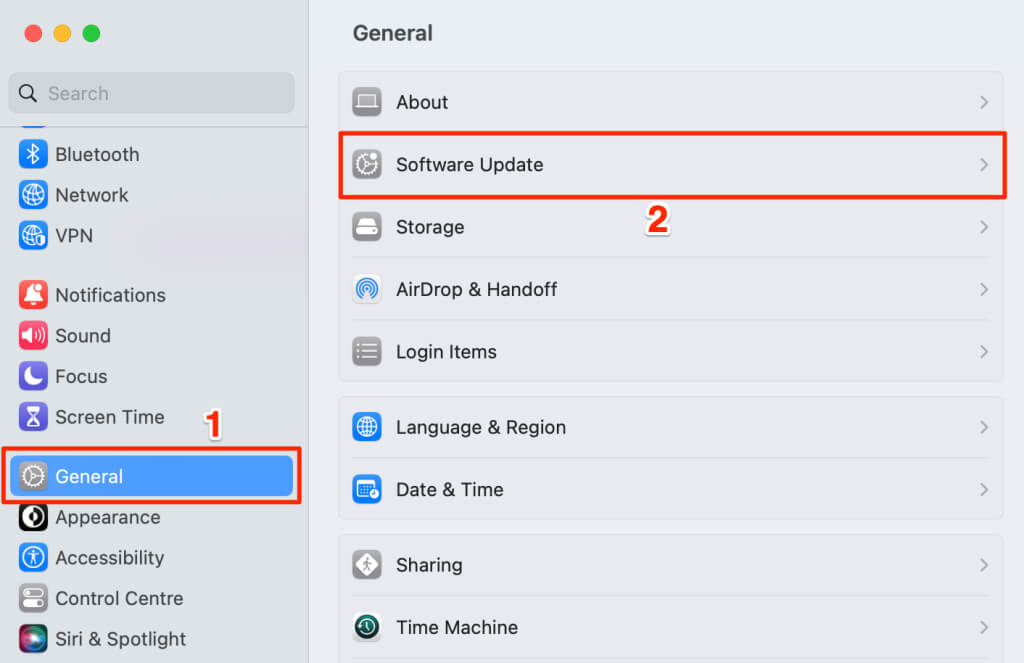
If your Mac runs macOS Monterey 12 (or older), open System Preferences and select Software Update .
Install any update available on the Software Update page, reboot your Mac, and try updating the Zoom desktop client again.
Uninstall and Reinstall Zoom
Delete the Zoom desktop client on your Mac and install the latest version on Zoom’s website. Follow the steps below to uninstall and delete Zoom application files from your Mac.
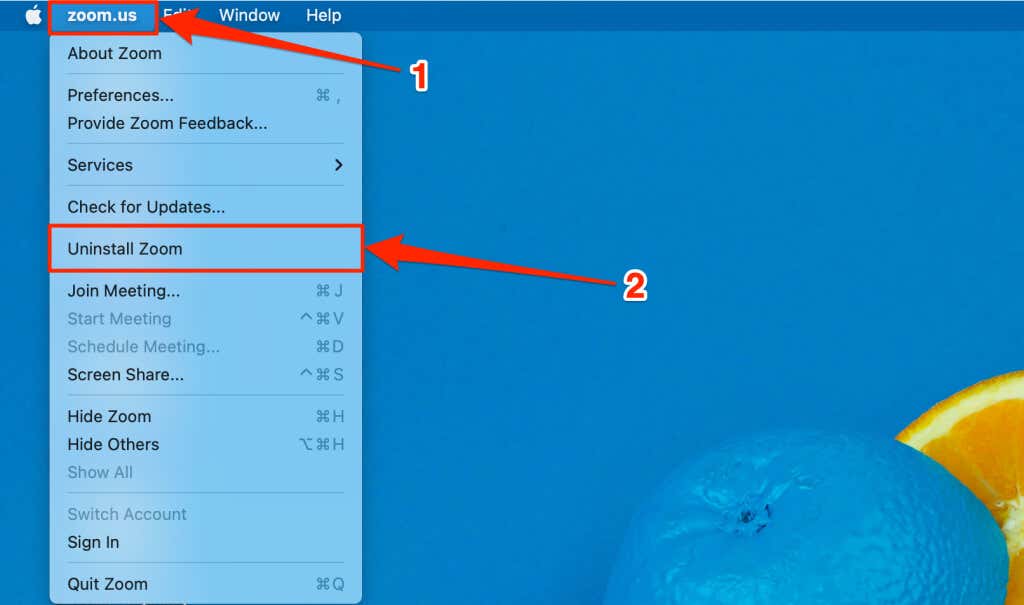
- Open the Zoom desktop client, select zoom.us on the menu bar, and select Uninstall Zoom .
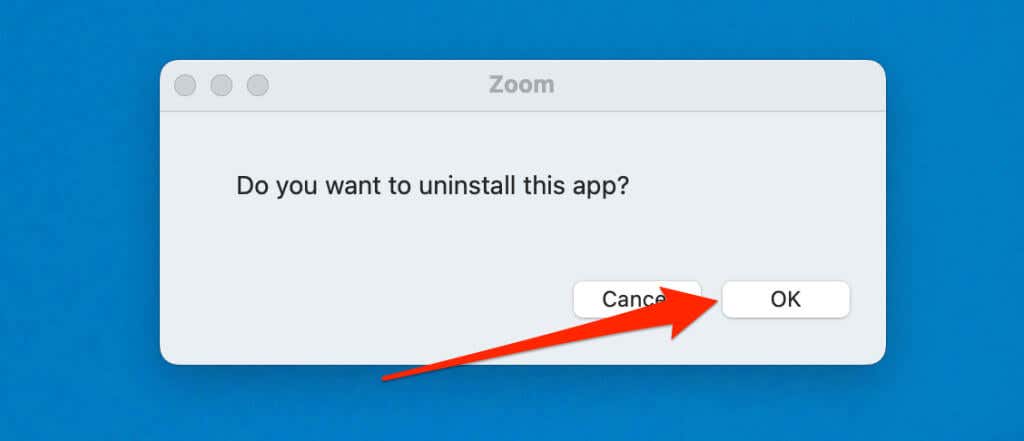
- Select OK on the confirmation pop-up to remove Zoom from your Mac.
Alternatively, open the Applications folder in Finder, right-click the zoom.us app icon, and select Move to Bin .
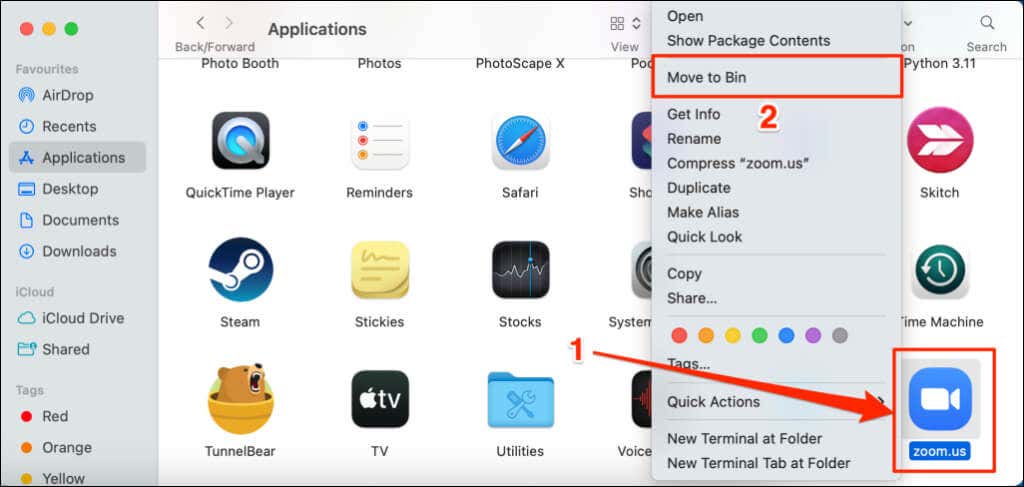
That’ll uninstall Zoom and delete the app’s files from your Mac. Proceed to the next step to delete all Zoom-related files and folders.
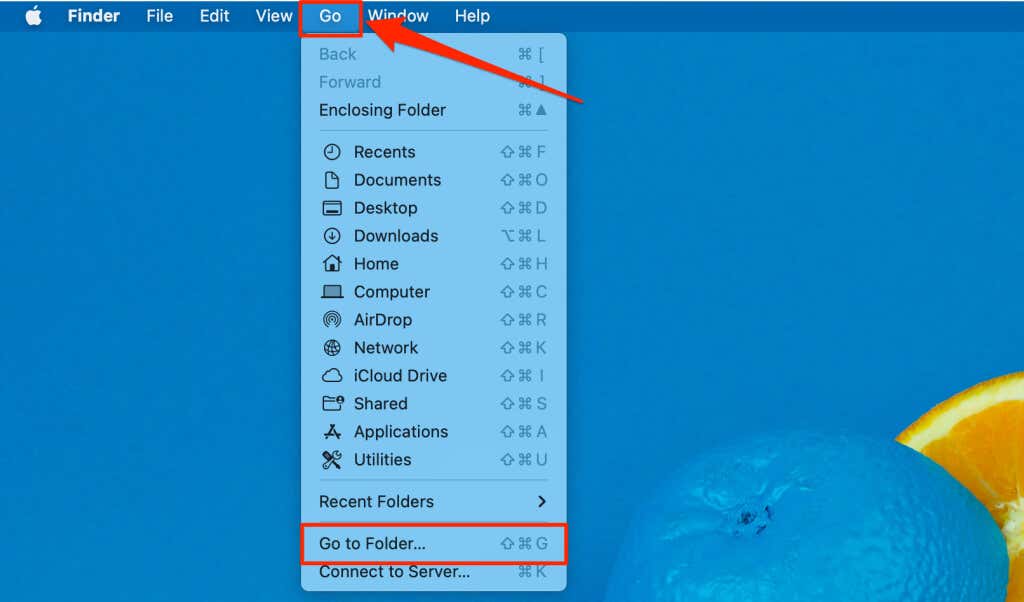
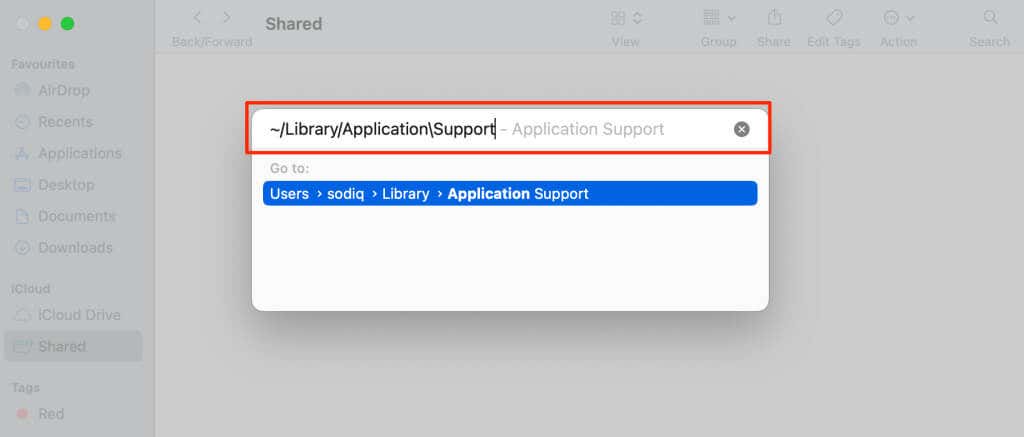
- Open Finder and press Command + Shift + G . Alternatively, select Go on the menu bar and choose Go to Folder .
- Paste ~/Library/ApplicationSupport in the dialog box and press Return on your keyboard.
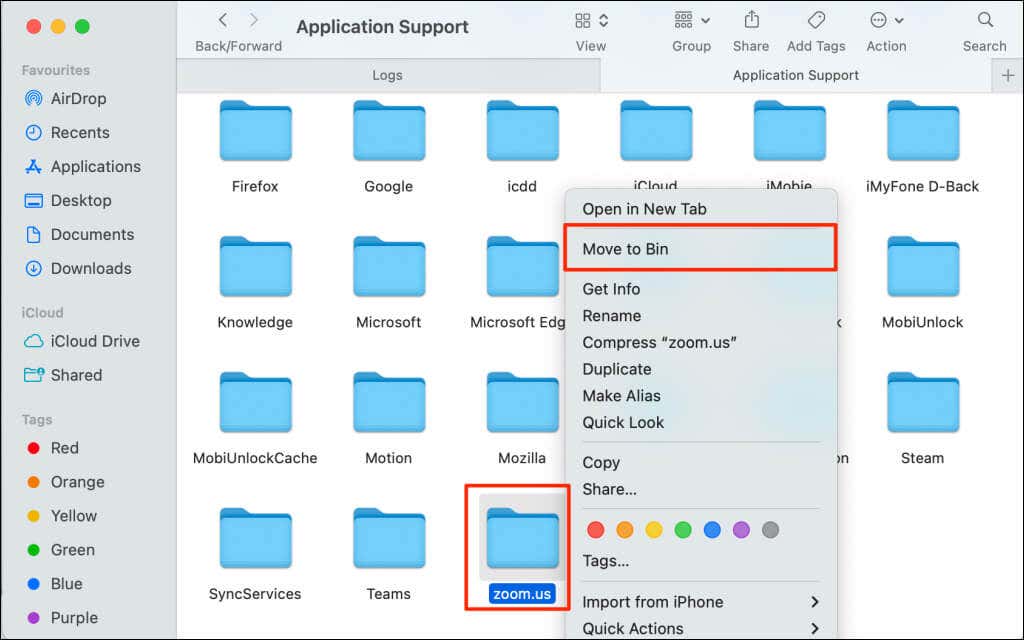
- Right-click the zoom.us folder and select Move to Bin .
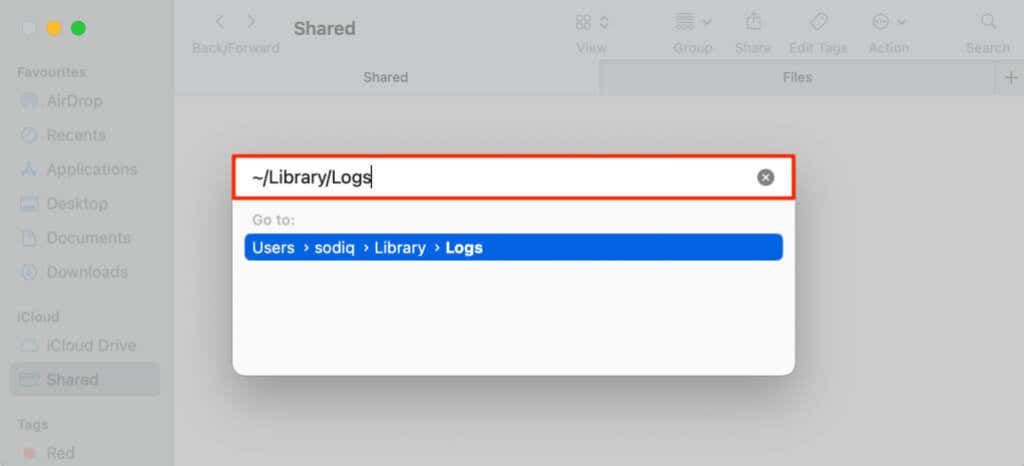
- Press Command + Shift + G again, paste ~/Library/Logs in the dialog box, and press Return .
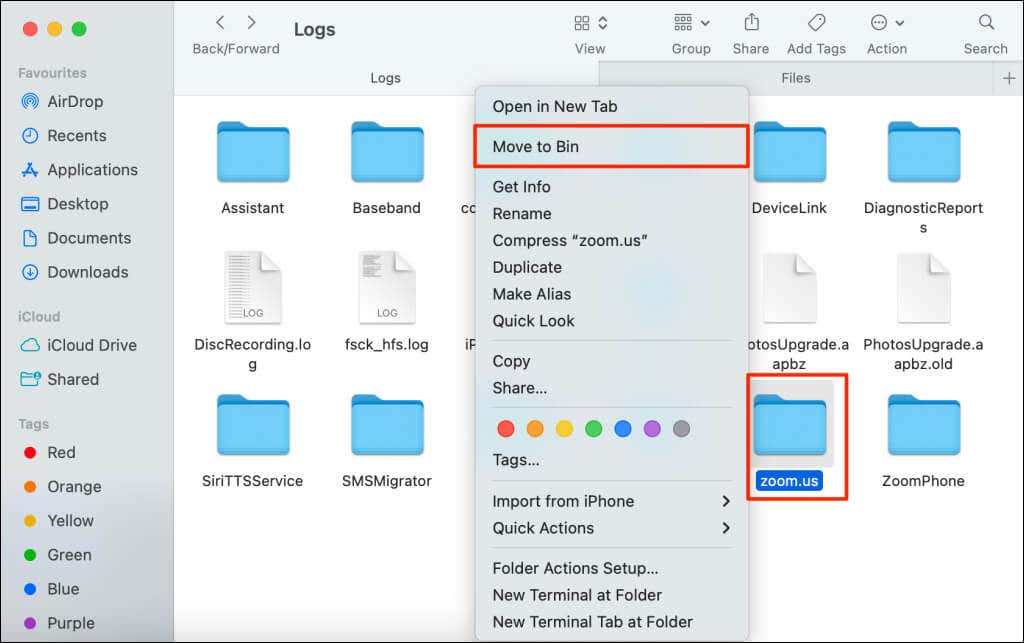
- Right-click the zoom.us folder and select Move to Bin .
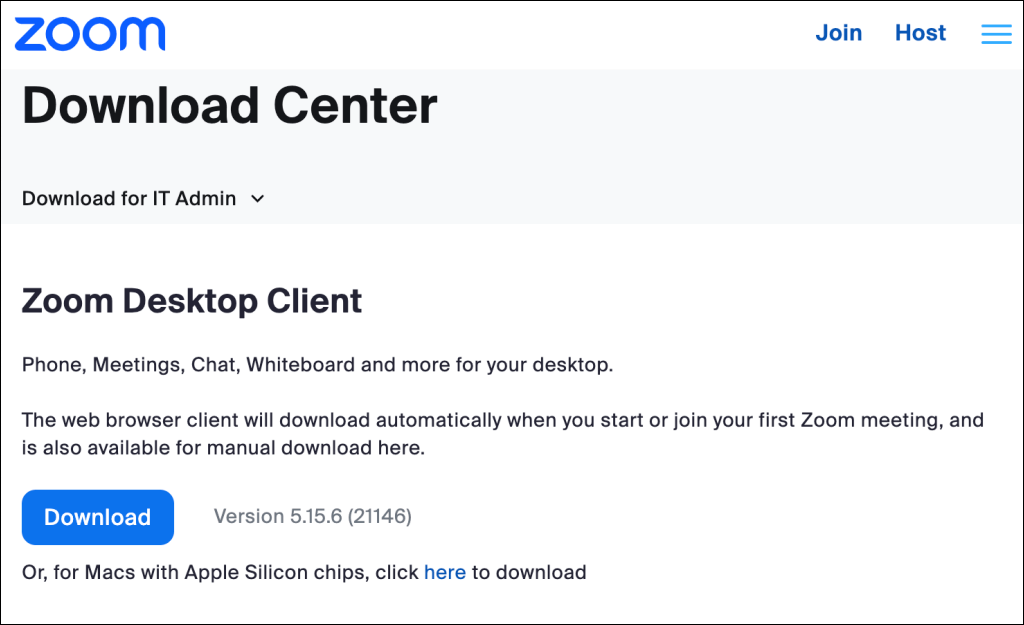
- Redownload the Zoom desktop client for macOS from Zoom’s Download Center .
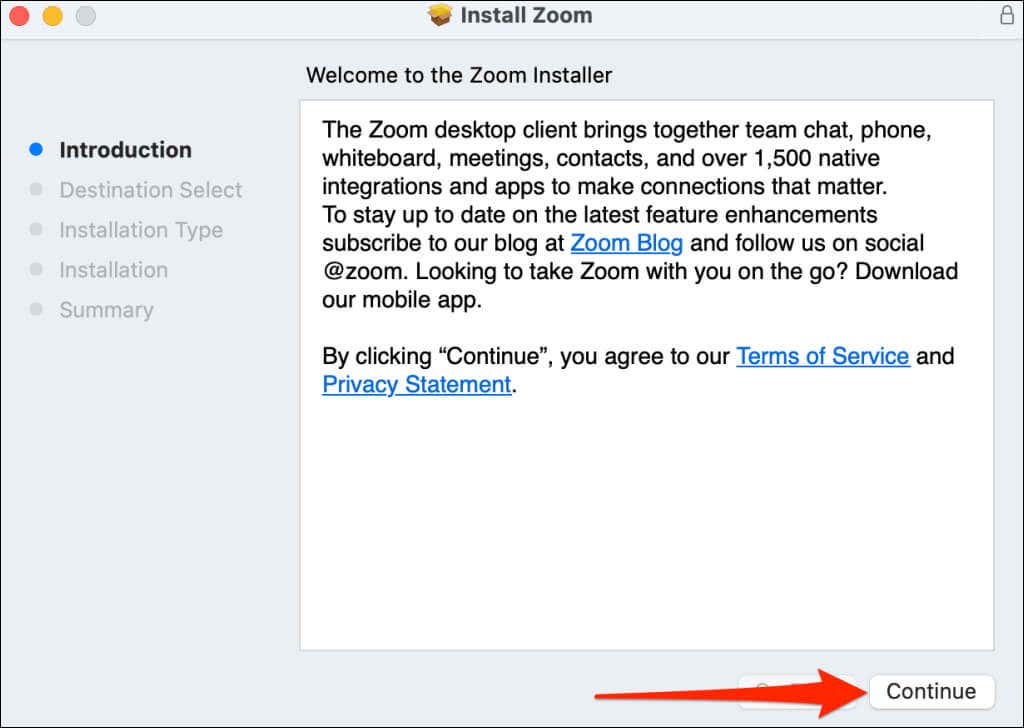
- Double-click the Zoom installer package and follow the on-screen instructions.
Use the Zoom Web Client or Seek Technical Support
Contact Zoom Support if Zoom displays the “Error code: 10002” message after trying the above troubleshooting tips. Use the Zoom web client to host or join a meeting while you await a response from Zoom Support.
- How to Connect Xbox Controllers to Your Mac
- How to Chromecast From Mac to Your TV
- How to Install and Run Linux on Mac
- How to Turn Off or Delete Siri Suggestions (iPhone and Mac)
- How to Take Pictures on Mac
