When you want to make text stand out in your document, you can highlight it using a color. Unlike Microsoft Word, Apple Pages doesn’t have a simple button to color text. Here’s how to highlight in Pages on Mac, both specific text and paragraphs.
How to Highlight Text in Pages
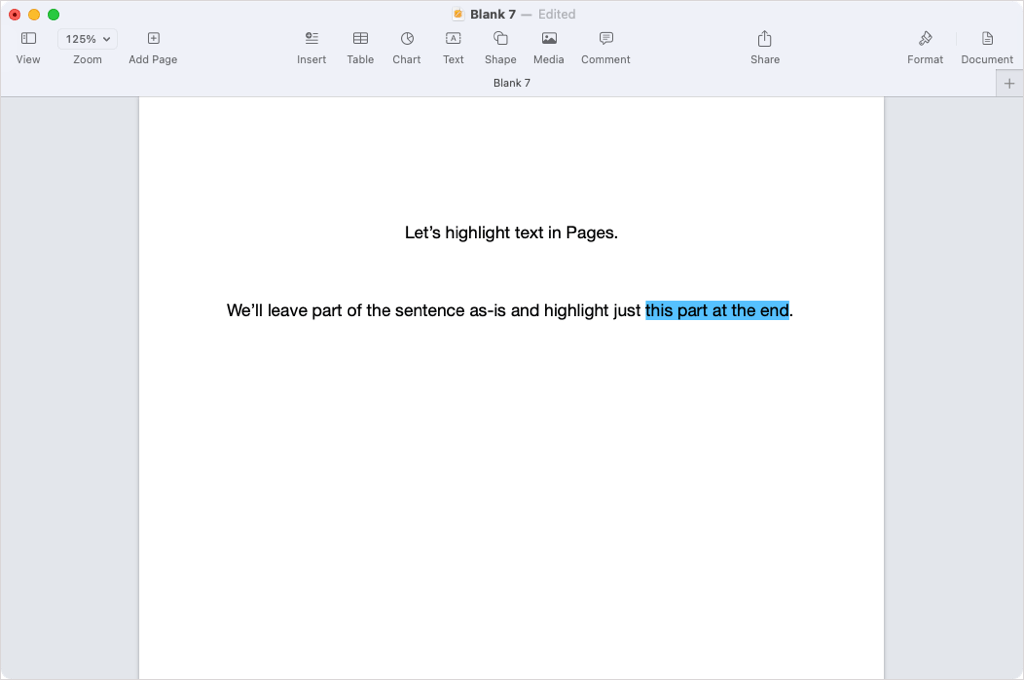
You can highlight a specific portion of text in your Pages document on Mac.
- Select the text you want to highlight by doing one of the following, either on the page or inside of a text box:
- Drag your cursor through the text.
- Double-click to select a word.
- Triple-click to select a sentence.
- Use the Format button on the top right to open the sidebar and choose the Style button near the top.

- Select the Show more text options (gear) button in the Font section.
- Hover your cursor over the color selector to the right of Text Background and select the arrow when it displays. Alternatively, select the color wheel for a particular color.

- Pick a highlight color from the palette or color wheel pop-up box.

You’ll then see your selected text highlighted in the color of your choice. Select any spot in your document to close the text options menu and optionally close the sidebar by deselecting the Format button.

If you want to change the color after you apply it, follow the same steps and pick a different color from the palette for your text selection.
Remove a Highlight From Text
If after you highlight text in Pages you want to remove the effect, this is just as easy.
- Select the highlighted text, open the sidebar using the Format button, and pick Style at the top.
- Open the Show more text options menu.
- Use the Text Background arrow to open the color palette and choose the option in the bottom right corner which is a white rectangle with a line through it.

How to Highlight a Paragraph in Pages
If you prefer to highlight an entire paragraph or even more than one, you can do this in just a few steps in the Pages app as well.
- Select the paragraph(s) you want to highlight. If you want to highlight all words in a text box, select the box.
- Use the Format button to open the sidebar and choose the Layout button near the top.

- Expand the Borders & Rules section at the bottom of the sidebar.
- Hover your cursor over the color selector to the right of Paragraph Background and select the arrow when it displays. Alternatively, use the color wheel for a certain color.

- Pick a background color from the template color palette or color wheel pop-up box.

You’ll then see your paragraph(s) with the highlight effect you picked and you can deselect the Format button to close the sidebar if you like.

If you want to change the color later, follow the same steps and choose a different color from the palette.
Remove Highlight From a Paragraph
Just like removing the highlight from specific text, you can delete the highlight from a paragraph.
- Select the highlighted text, open the sidebar using the Format button, and pick Layout near the top.
- Use the Paragraph Background arrow to open the color palette and choose the option in the bottom right corner which is a white rectangle with a line through it.

For more, look at how to print on an envelope in Apple Pages on macOS.
- How to Print on an Envelope in Apple Pages
- Fix Apple Watch Charging Problems (All Models)
- How to Use Your iPhone as a USB Drive on Mac and PC
- Apple’s Big Week: Design Debates, AI Ambitions, and Regulatory Roadblocks
- How to Connect Xbox Controllers to Your Mac
If there’s one thing that stands the test of time with printing, it’s envelopes. Sure, you can write by hand the recipient’s name and address along with the return address. However, you may want a professional-looking envelope or have the addresses saved on your computer.
With Apple’s Pages app , you can copy and paste the address, automatically add the return address, and print envelopes in whatever size you need. If you’re ready, grab your Mac as we show you how to print on an envelope in Pages.

Open an Envelope Template in Pages
For a quick start on printing your envelope, Pages offers templates.
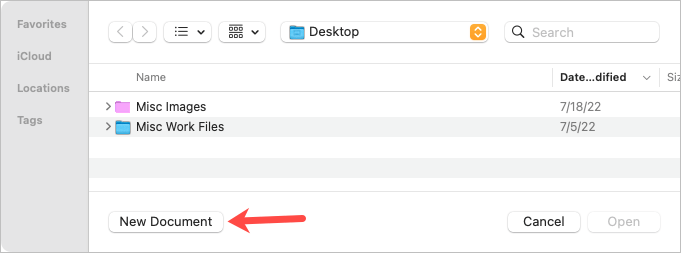
- Open Pages and select New Document .
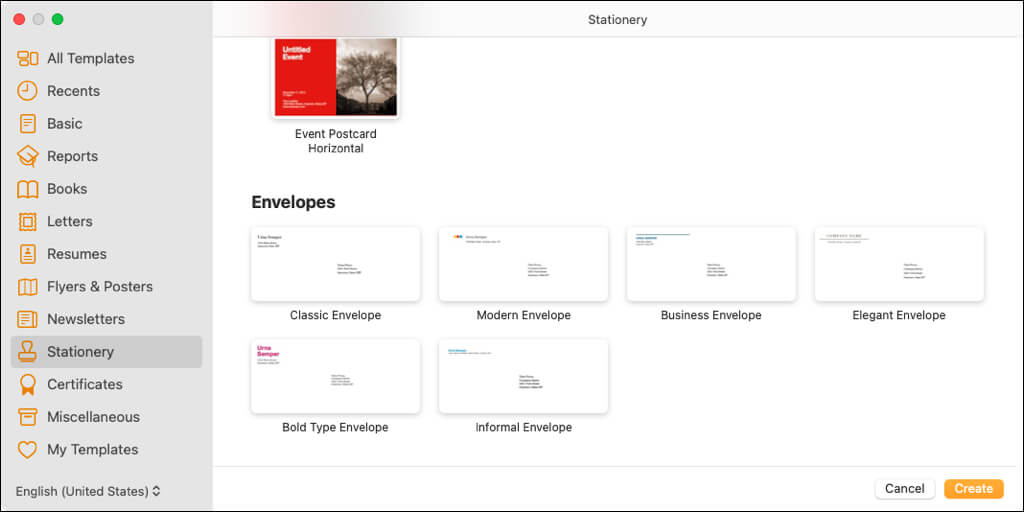
- Select either All Templates or Stationery on the left side and then scroll to the Envelopes section on the right.
- You can pick from size envelope styles including business, elegant, and informal. Choose the one you want to use and select Create .
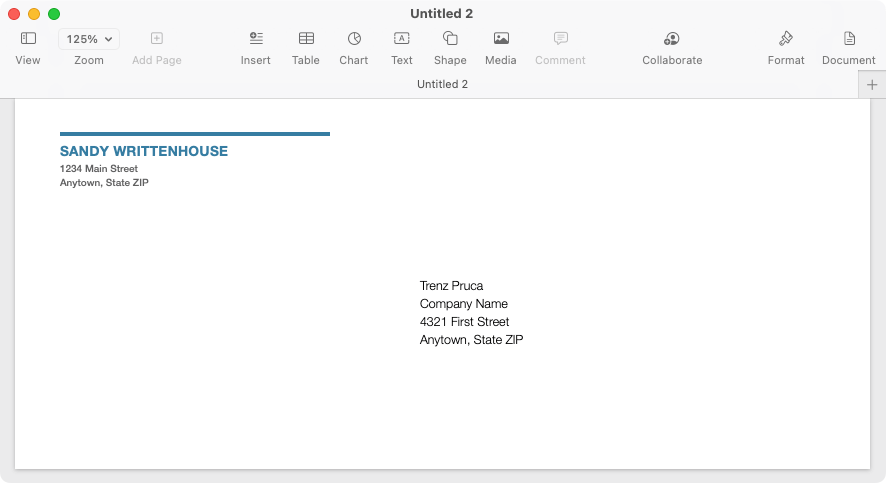
You’ll see the envelope template open with the recipient and return address fields filled with placeholder data. If you have your name attached to Pages, you may see it as the return address name.
Edit and Set Up the Envelope for Printing
With the envelope template open in Pages, you can edit the names and addresses, choose the printer, and select an envelope size.
To enter the names and addresses, simply select the current text and type your own. You can also copy it from another spot like the Contacts app and paste it.
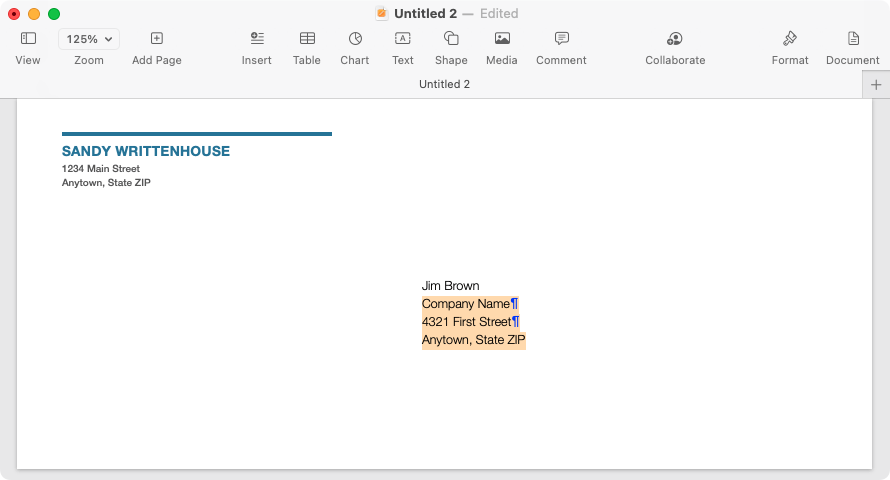
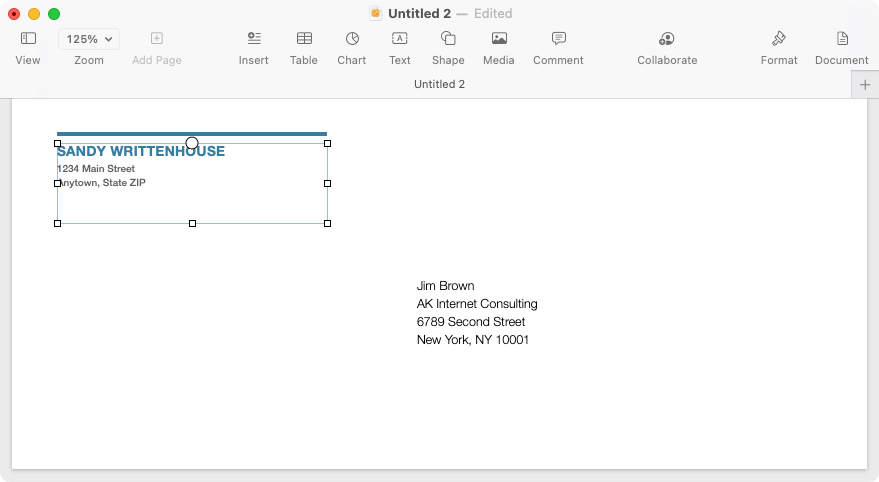
Note that the return address is in a text box. So you can also move it or resize it if you like.
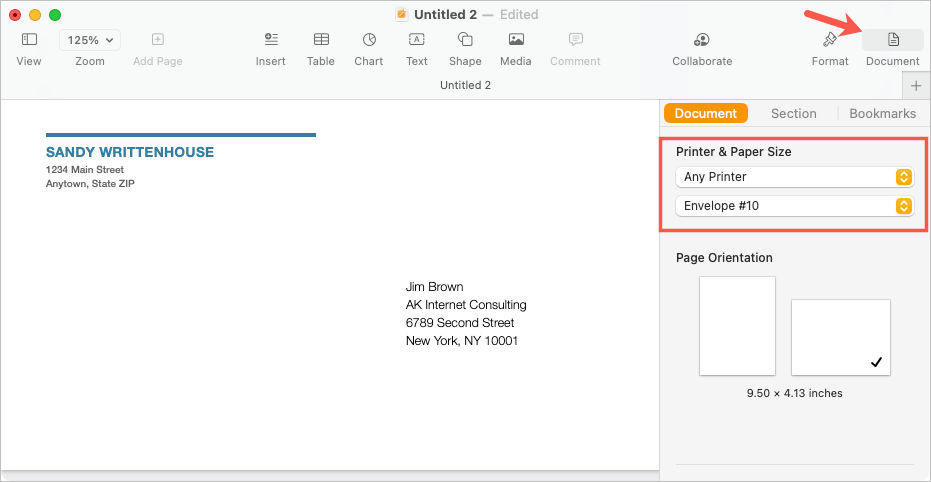
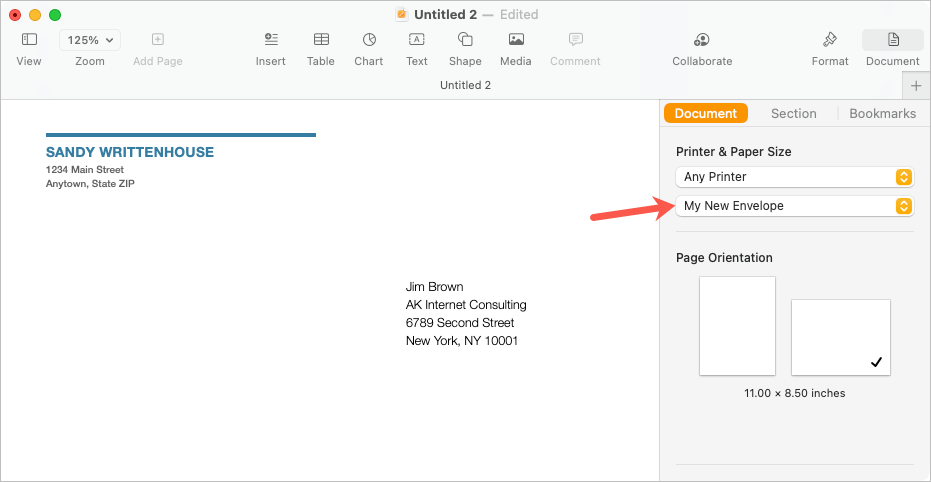
To select a printer and envelope size, choose the Document button on the top right of Pages to display the sidebar. Go to the Document tab in the sidebar and choose your printer using the drop-down box on the top. Then, use the next drop-down box to pick your envelope size.
Create a Custom Envelope Size
If you don’t see the envelope size you need, you can set up a custom size.
- With Pages still open, select File > Page Setup from the menu bar.
- In the pop-up window, use the Paper Size drop-down menu to pick Manage Custom Sizes .
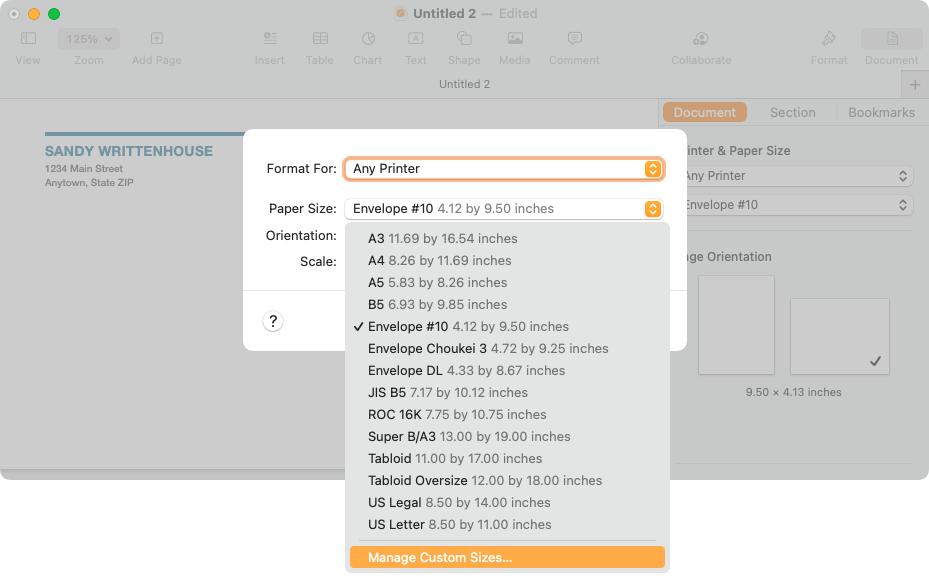
- In the subsequent window, select the plus sign on the left to add a new size.
- Enter the dimensions, margins, and other measurements necessary on the right.
- Double-click the default name “Untitled” in the list on the left and give it a name of your choice.
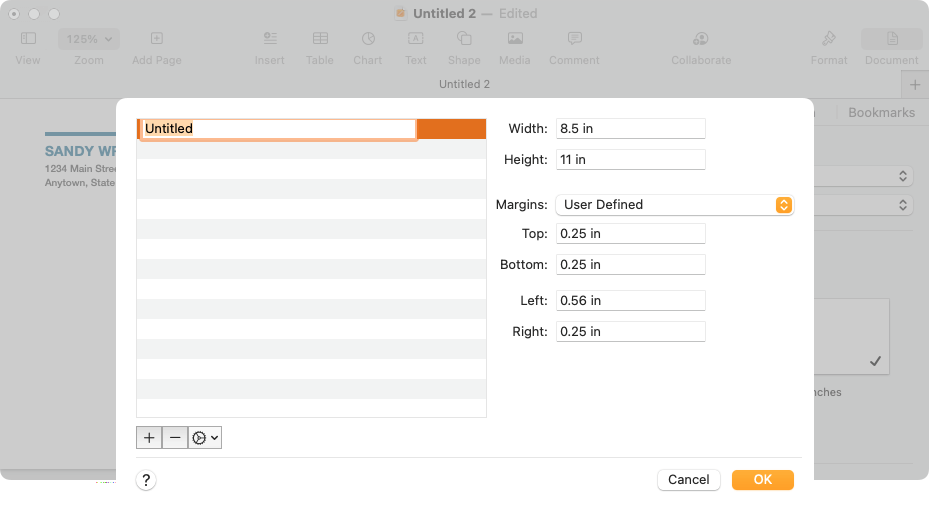
- Select OK when you finish and OK when you’re directed to the first pop-up window.
You can then choose that custom option in the Document sidebar for the envelope size.
Print Your Envelope
When you’re ready to print your envelope, start by placing the envelope in your printer according to the manufacturer’s instructions. Then, follow these steps to print.
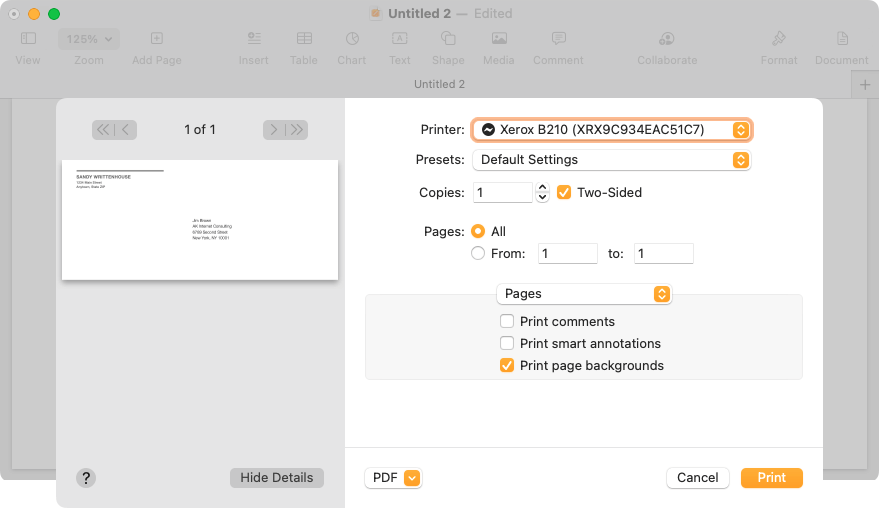
- Go to File > Print in the menu bar or use the keyboard shortcut Command + P .
- In the pop-up window, you can select a different printer , use any presets you have, or make any other adjustments you need to the print options. You’ll also see a preview of the envelope on the left.
- Select Print and head to your printer for the envelope.
Save the Envelope as a Template
If you set up your envelope in a way that you want to reuse it by making edits to the name and address, you can save it as a template of your own. This is a huge time-saver for printing envelopes moving forward.
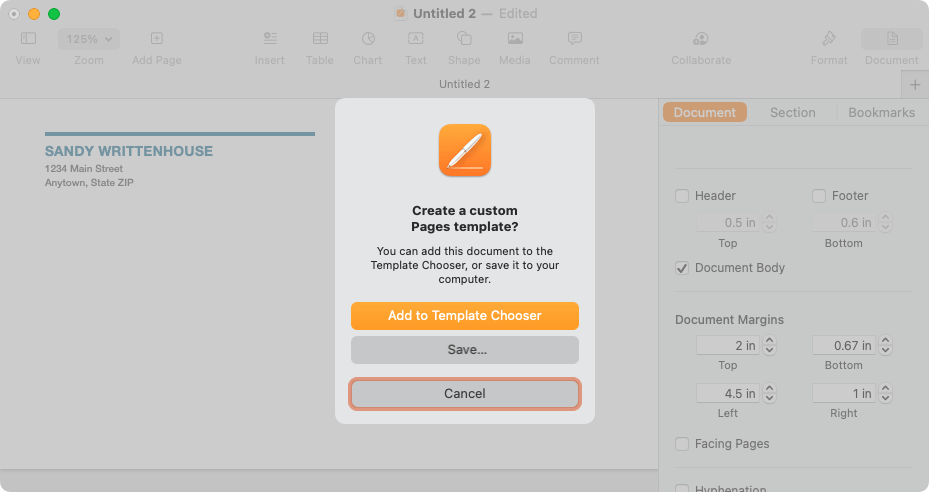
Select File > Save As Template from the menu bar . In the pop-up window, you can choose to add the template to the Template Chooser or simply save it to your computer.
Add to the Template Chooser
To add it to the Template Chooser, pick that option in the pop-up window. When the Template Chooser appears, name your template and press Return .
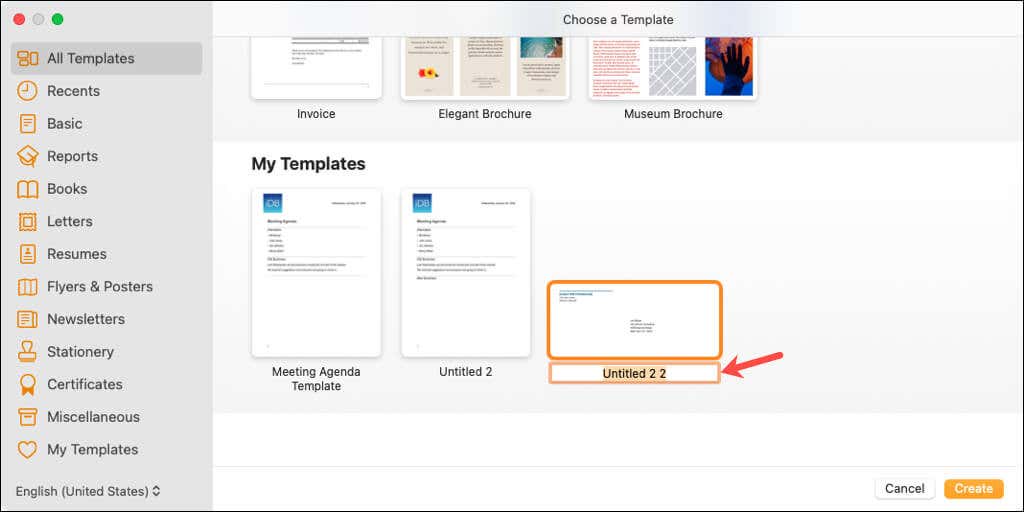
You’ll then see that template in the My Templates area of the Chooser when you open Pages next time.
Save the Template to Your Computer
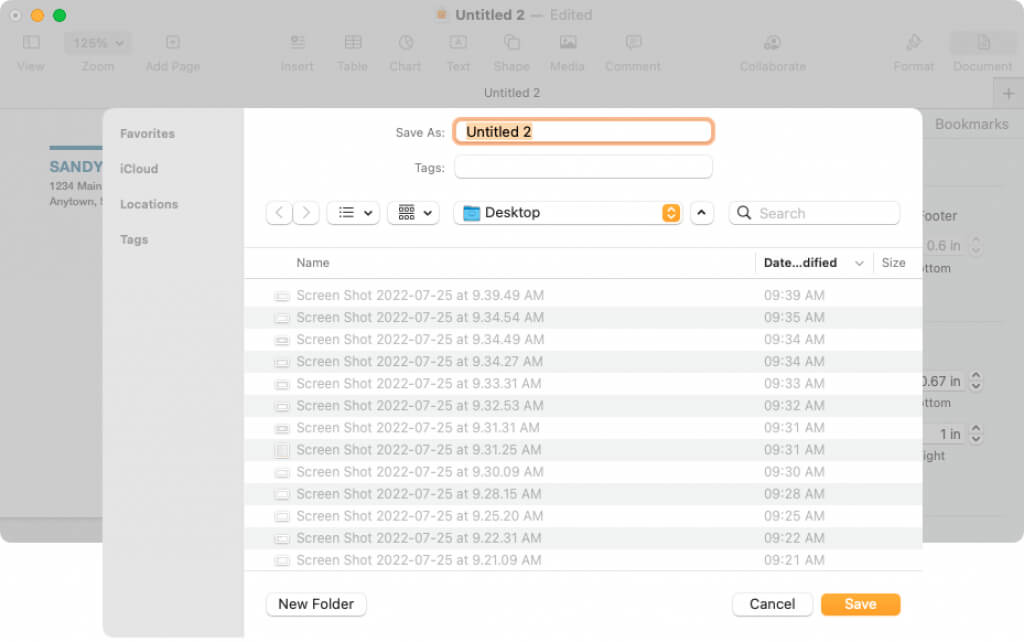
To save the template to your computer, pick Save in the dialog box. Select the location to save the template, give it a name you’ll remember, and pick Save .
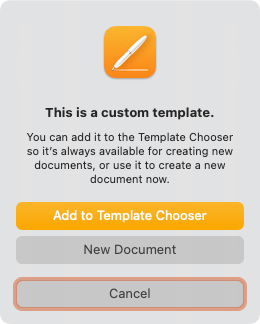
To use the template, double-click it. You’ll be asked if you want to open it in a New Document or add it to the Template Chooser (again). To simply open and use it, pick New Document .
Now that you know how to print on an envelope in Pages, check out how to print double-sided or how to print in black and white on Mac.
- How to Highlight Texts in Apple Pages
- Fix Apple Watch Charging Problems (All Models)
- How to Use Your iPhone as a USB Drive on Mac and PC
- Apple’s Big Week: Design Debates, AI Ambitions, and Regulatory Roadblocks
- How to Connect Xbox Controllers to Your Mac
