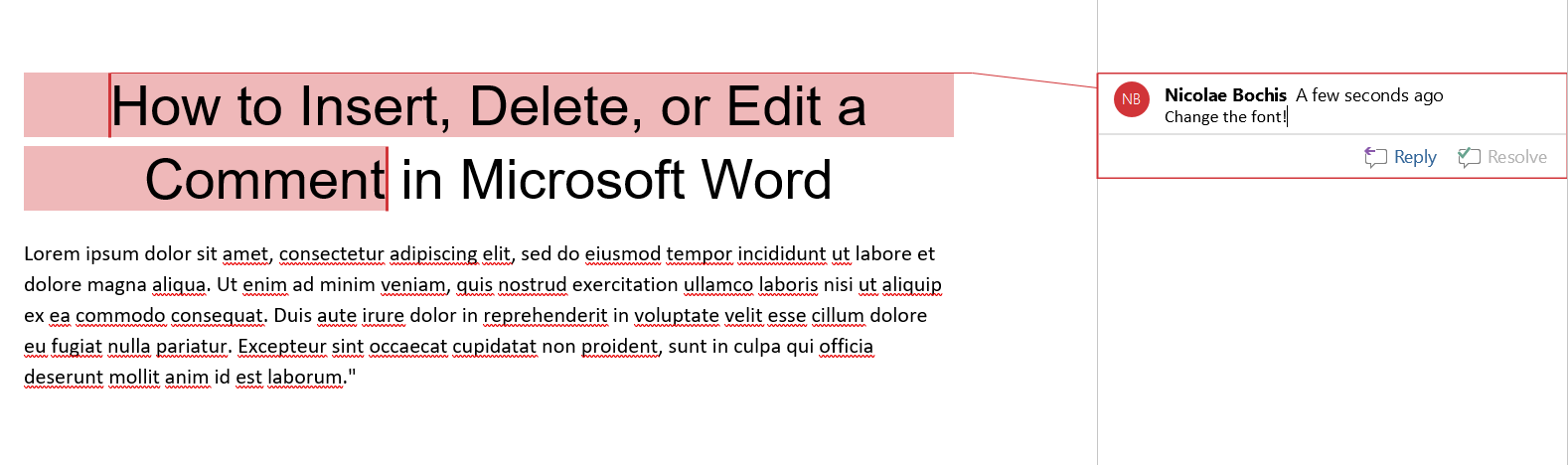
Where Are the Comment Tools in Word?
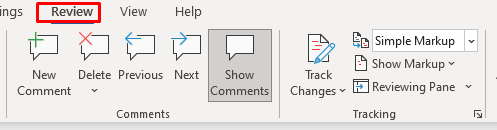
How to Insert a Comment
- Select the text you want to comment on. The selected text will be marked as a comment scope. It is a part of the text to which the comment refers to.
- Go to the Review tab .
- Select New Comment .
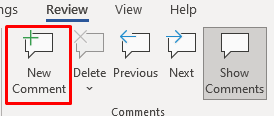
That’s all that there is to it. You successfully inserted a new comment. You’ll now see a dialog box, also known as the markup area, opened in the margin of the document. This margin is referred to as the Reviewing Pane. Go ahead and type your comment. When you are done with the comment, press the Esc key to return to the text of the document. You can also just click your mouse anywhere in the text of the document.

Now here’s the alternative way to insert a new comment:
- Select the text.
- Go to the Insert tab.
- Select Comment .

Now leave your comment.
And finally, you can insert a comment by using the Alt + Ctrl + M shortcut on the selected text.
How to Reply to a Comment
Adding a reply to an already existing comment is pretty straightforward.
- Select the comment box of the already existing comment.
- Select the Reply button below the comment text.

- Type your reply and press Esc when finished or left-click anywhere in the document’s text area.
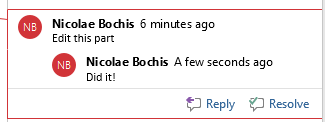
Replies to a comment are displayed below the original comment.

How to Edit a Comment in Word
Editing a comment is simple. Just click anywhere in the markup area of the comment you want to edit and make the changes you see fit. You can add more text, delete what’s extra, or modify it in any other way.
Resolving a Comment
To mark a Word comment as resolved follow these steps:
- Select the comment you want to mark as resolved and click anywhere on its text.
- Select the Resolve button that appears below the comment text.
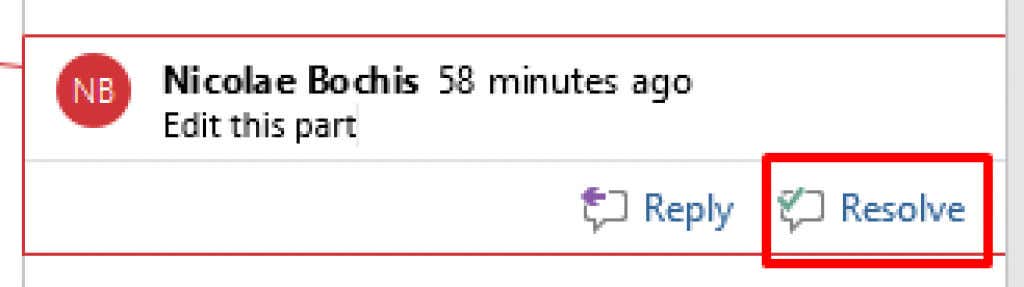
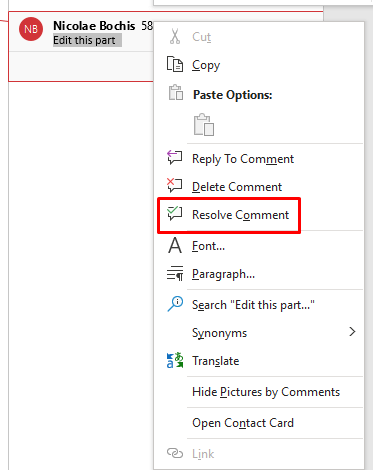
You can also right-click on the comment and select Resolve Comment from the drop-down menu instead.
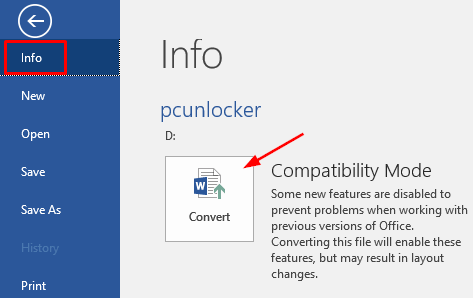
Note that the Resolve button may be grayed out. In that case, you can’t resolve the comment. When this happens it can mean that the document was made in Word 2010 or an earlier version. “Resolve comment” is a feature introduced in Word 2013. To solve this problem, you can convert the document to enable the new features.
- Go to the File tab in the ribbon.
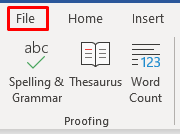
- Choose Info in the side menu, and then select Convert .
- Save the newly converted document.
Remember that converting a document can result in some unexpected changes in its formatting. The most common change is the width of tables due to the difference in handling the cell margins between different Microsoft Word versions.
How to Delete a Comment in Word
You can delete one comment at a time, or delete them all at once from the same document. If you delete a comment that had replies, all the replies will be deleted as well. However, if you only delete the reply, the main comment will remain intact.
To delete a single comment follow these steps:
- Click anywhere in the comment text.
- Go to the Review tab and select Delete .
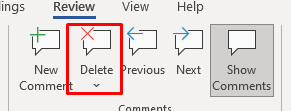
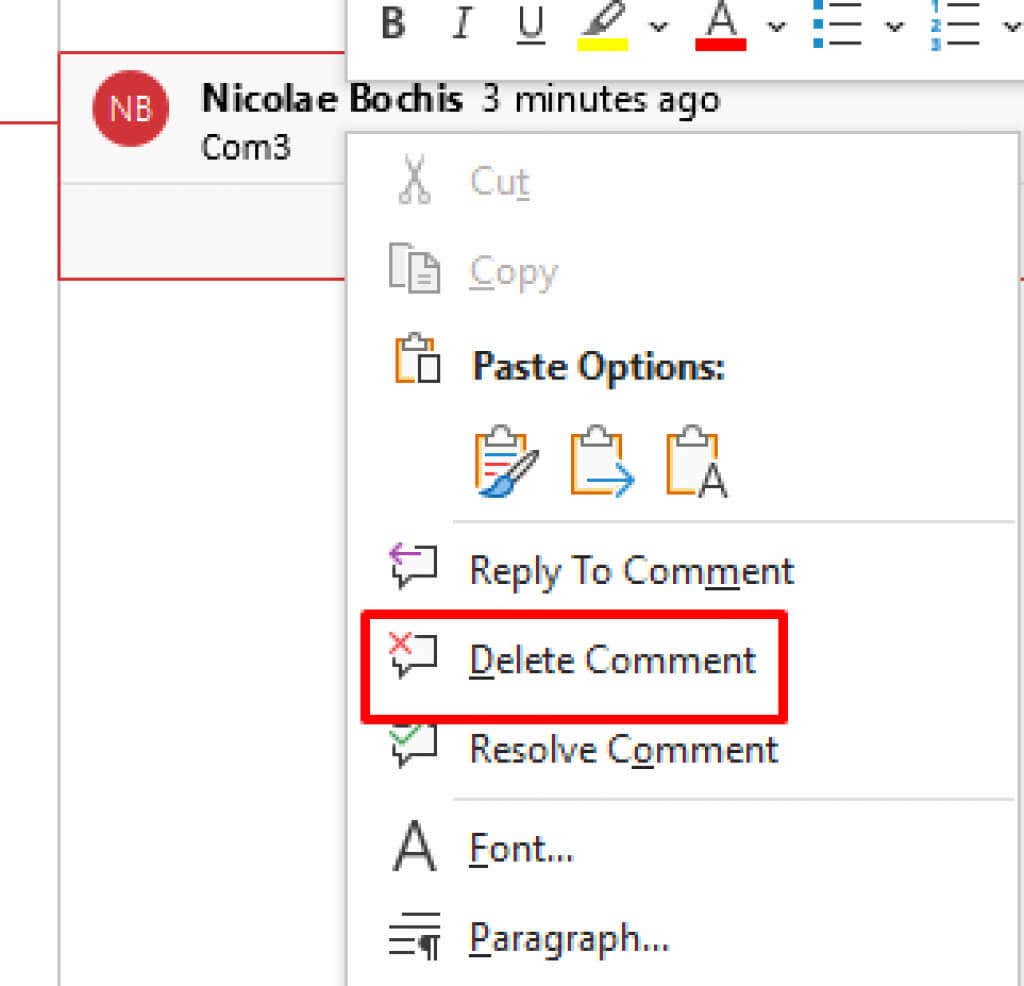
The alternative is to right-click on the comment you want to delete and select Delete Comment from the menu.
- Go to the Review tab without selecting any comment.
- Click the down arrow under the Delete button.
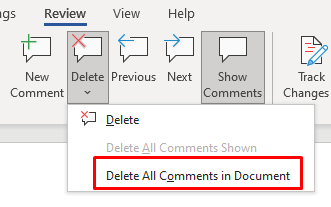
- Select Delete All Comments in Document from the drop-down menu .
Method 1:
- Go to the Review tab.
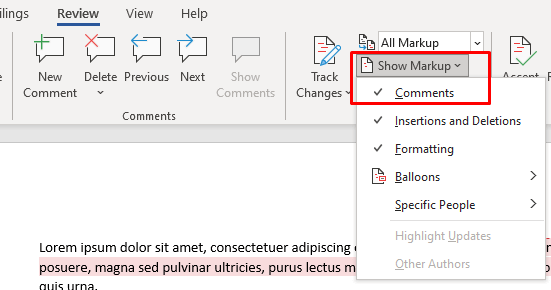
- Go to the tracking group and select Show Markup .
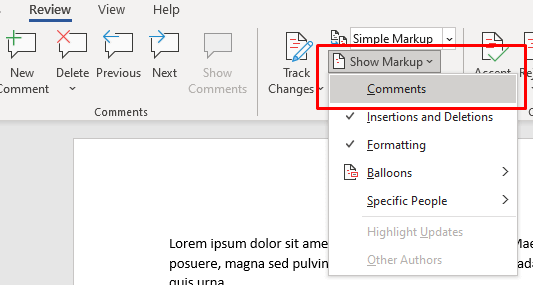
- Choose Comments . Now if you go back to the same menu, you’ll see “Comments” without a check mark, which means they are now hidden.
Method 2:
- Go to the Review tab.
- Go to the tracking group and choose No Markup in the Display for Review section.
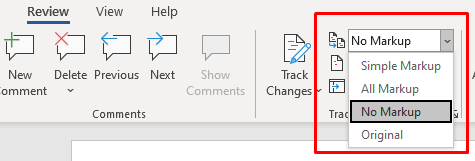
- Go to the Review tab.
- Go to the tracking group and choose All Markup or Simple Markup .
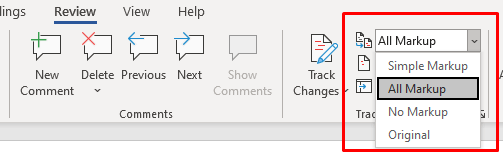
- Then select Show Markup , and make sure that Comments are checked.
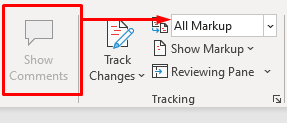
To fix this, set it to Simple Markup .

Now that you know how to insert, delete, or edit a comment in Microsoft Word, you can make changes to your document with ease. If you have any other questions about using Microsoft Word, leave us a comment down below and we’ll try to help you out.
- How to Remove Headers and Footers in Word Documents
- How to Clear Formatting in Word
- How to Remove Unwanted Lines in Word Documents
- How to Select All Text in Word Documents
- How to Insert Arrows in Microsoft Word Documents
Nicolae is a Jack of all trades technology writer with a focus on hardware, programming languages, and AI image-processing software. Over the last five years, he has ghostwritten numerous tech how-to guides and books on a variety of topics ranging from Linux to C# programming and game development. Nicolae loves everything that has to do with technology and his goal is to share his knowledge and experience with others. Read Nicolae’s Full Bio
