If you’re in the process of writing an academic or scientific document, you may have found that you need subscripts or superscripts. Don’t fret — these are easy to insert. All you need to do is remember a few easy shortcuts, and you’re done.
This tutorial will explain how to insert superscripts in Word for web, mobile, and desktop PC.

How to Insert Superscripts and Subscripts in Word
Here are a few different ways you can insert superscripts and subscripts in Microsoft Word. These directions should work for both the Windows and Mac versions of Microsoft Word.
Use the Buttons
- Open your Microsoft Word doc.
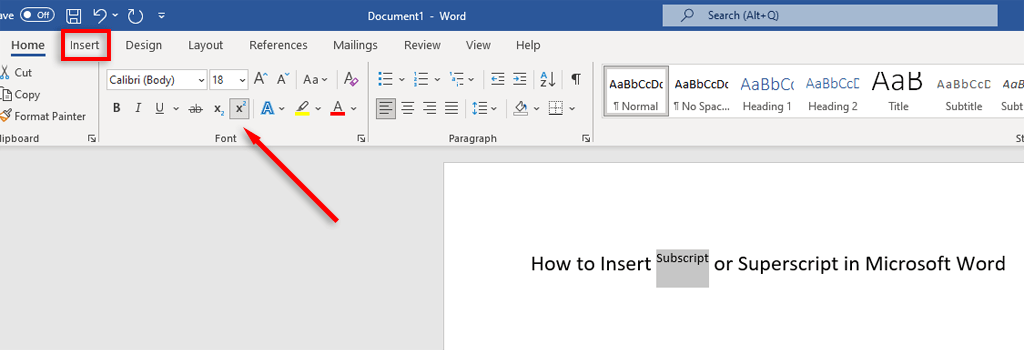
- Select the line you want to be either superscript or subscript text.
- In the ribbon, select the Home tab , then select either the Subscript button or Superscript button.
Use Keyboard Shortcuts
Microsoft lets you use and create keyboard shortcuts for all the Microsoft 365 apps .
- Select the text you want to format.
- Press Ctrl + Shift + the Plus sign (the + key) for superscript.
- Press Ctrl + Shift + the equals sign (the = key) for subscript formatting.
Note: If you’re using a Mac, the shortcut keys will be Command + Shift + + or Command + Shift + the minus key (the – key).
Use the Font Dialog Box
- Highlight the line of text you want to change.
- In the ribbon, select the Home tab .
- In the Font Group, select the Font Dialog Box Launcher by pressing the arrow at the bottom-right corner.
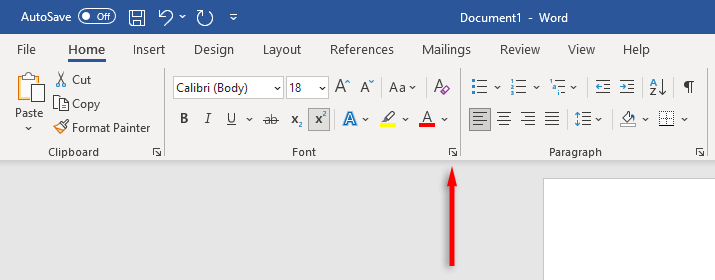
- In the Font section, tick the checkbox for subscript or superscript, then select OK .

Use the Symbol Box
If you want to format a special character (like the Trademark symbol) as either subscript or superscript, do the following:
- Put your cursor where you want to insert the subscript or superscript character.
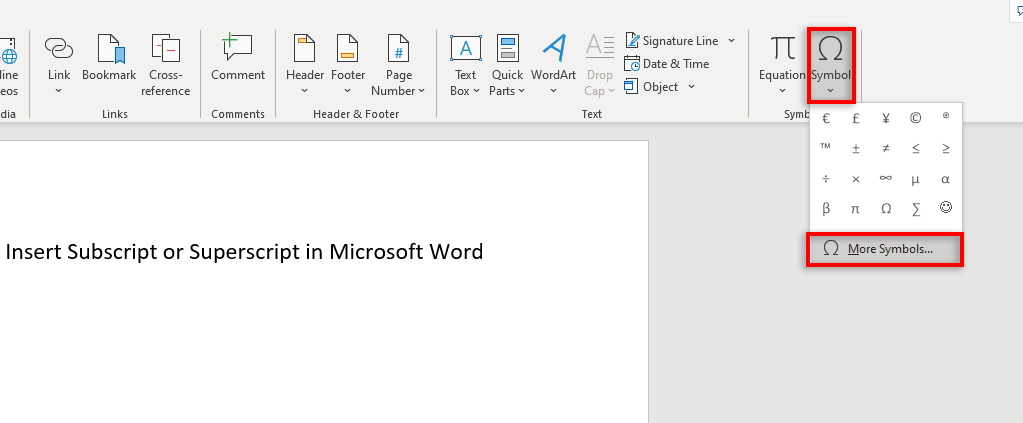
- Select the Insert tab in the ribbon.
- Select Symbol , then in the drop-down menu select More symbols…
- Select the Subset drop-down menu, then choose Superscripts and Subscripts .
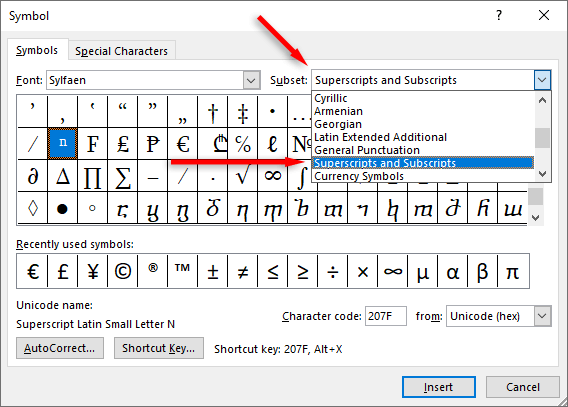
- Find the special character you want to insert into your Word document, then select Insert .
Note: To undo an accidental change, simply press Ctrl + Spacebar (or Command + Spacebar on Mac).
How to Insert Superscripts or Subscripts on Word Online
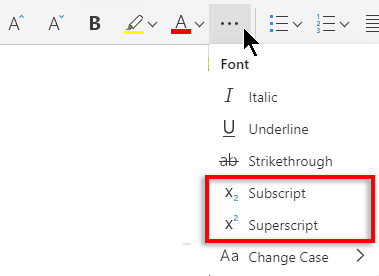
On the web version of Microsoft Word, the process is slightly different:
- Highlight the normal text you want to format.
- In the Home tab , select More Font Options (the three horizontal dots).
- Select Subscript or Superscript .
It’s As Easy as That
You might’ve thought you’d never need these characters, but all of a sudden you’re writing chemical formulas or mathematical equations for an assignment. Luckily, formatting text as subscript and superscript in Microsoft Word is incredibly easy. Commit your preferred method to memory, and never worry about how to insert subscripts or superscripts ever again.
- How to Remove Headers and Footers in Word Documents
- How to Clear Formatting in Word
- How to Remove Unwanted Lines in Word Documents
- How to Select All Text in Word Documents
- How to Insert Arrows in Microsoft Word Documents
Jake Harfield is an Australian freelance writer whose passion is finding out how different technologies work. He has written for several online publications, focusing on explaining what he has learned to help others with their tech problems. He’s an avid hiker and birder, and in his spare time you’ll find him in the Aussie bush listening to the birdsong. Read Jake’s Full Bio
