Do you need to use an application only available for Windows on your Chromebook? We’ll show you how to use “emulators” or “compatibility layer apps” to install Windows-based applications on your Chromebook.
Enable the Linux Development Environment
Programs that allow Chromebooks to run Windows applications are Linux-based. Hence, you must enable your Chromebook’s Linux development environment to install and run Windows apps.
Connect your Chromebook to Wi-Fi and follow the steps below to set up the Linux development environment.
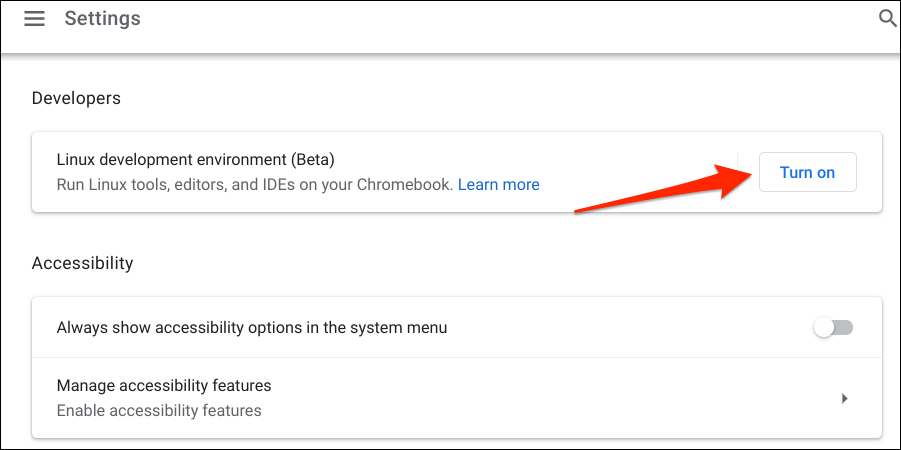
- Head to Settings > Advanced > Developers and select Turn on on the “Linux development environment” row.
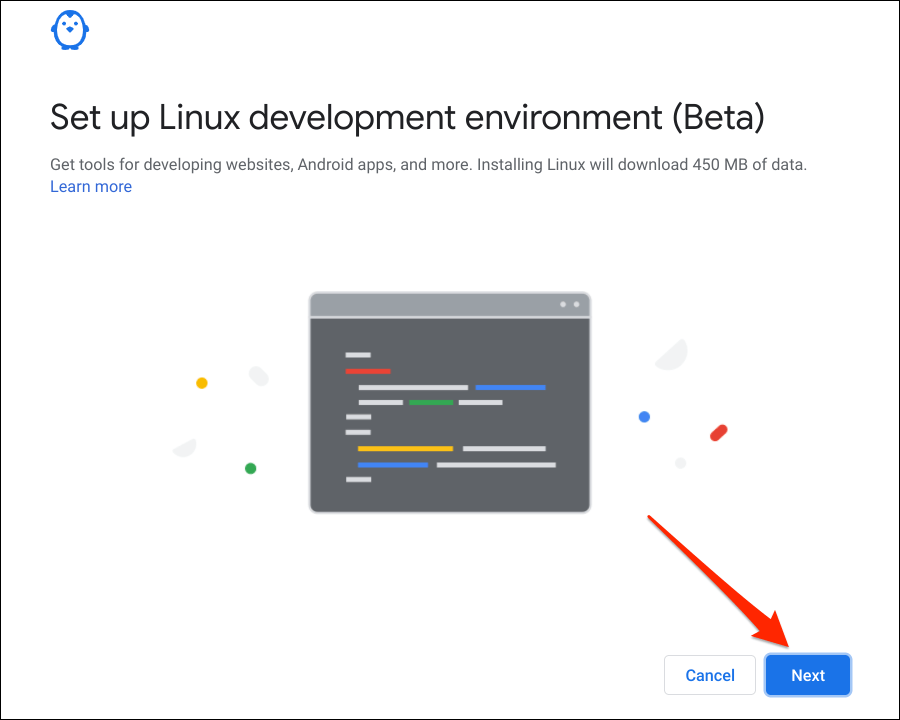
- Select Next to continue.
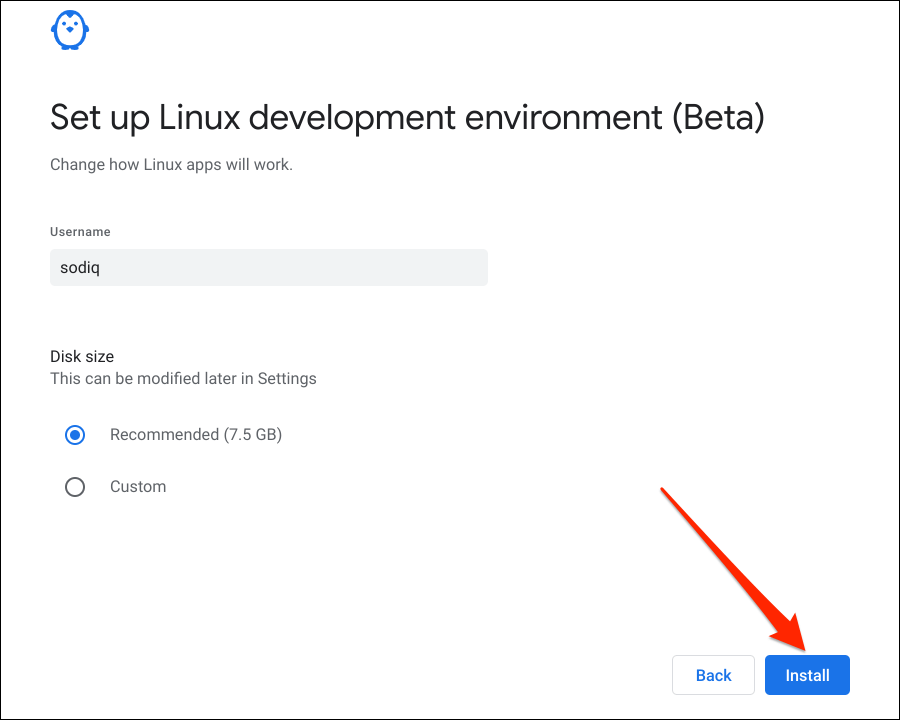
- Enter a preferred name for the Linux virtual machine, choose the Recommended disk size, and select Install .
Run Windows Apps Using CrossOver
CrossOver is a Linux-based software that allows you to run Windows-based apps on ChromeOS and macOS computers. Although CrossOver is a paid software (costs $14.00), you can use the trial version for 2-weeks without payment.
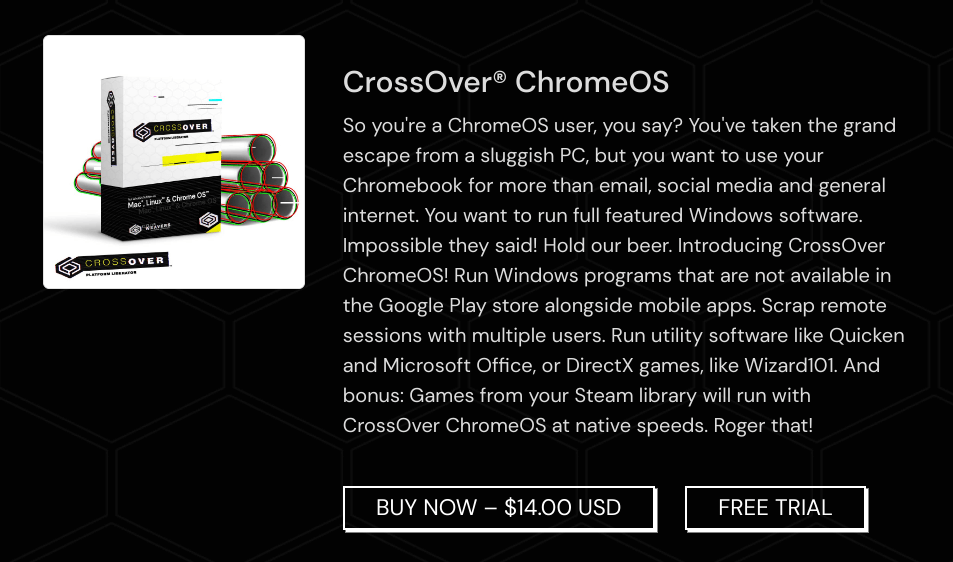
Create an account on the developer’s (CodeWeavers) website and download the CrossOver ChromeOS app or free trial. Follow the steps below to set up CrossOver and use it to run Windows apps on your Chromebook.
- Open the Files app and head to the directory where you saved the CrossOver Linux setup file.
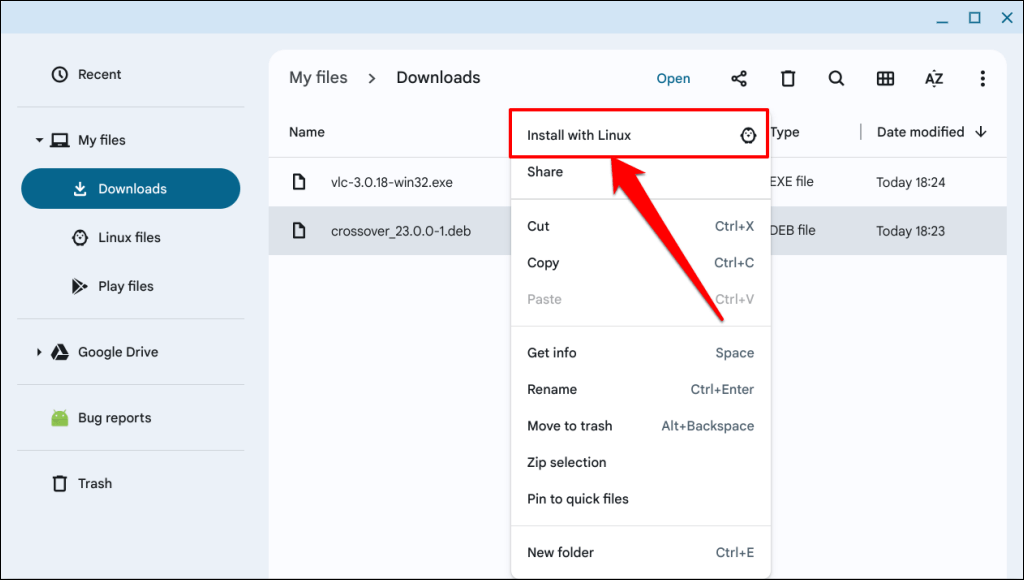
- Double-click the CrossOver Debian file or right-click and select Install with Linux .
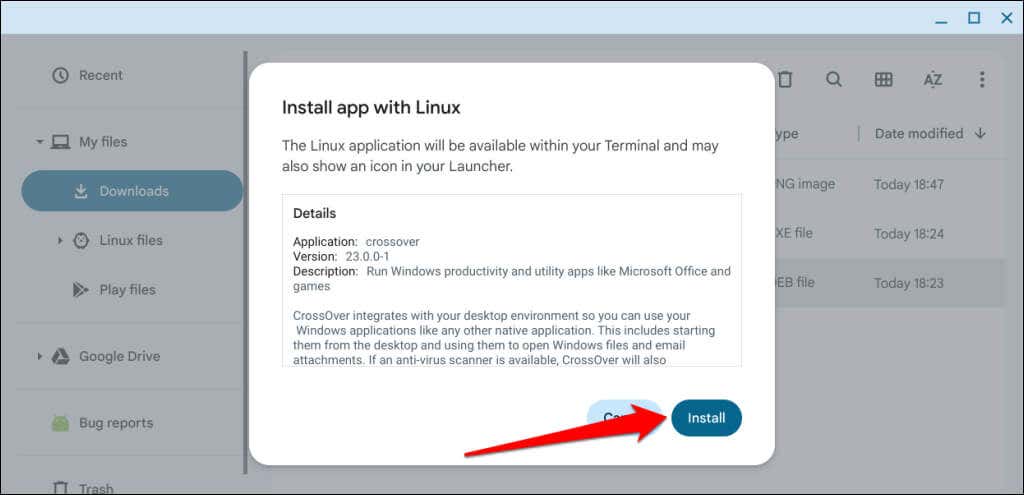
- Select the Install button to proceed with the installation.
- Select OK to close the Linux installer window.
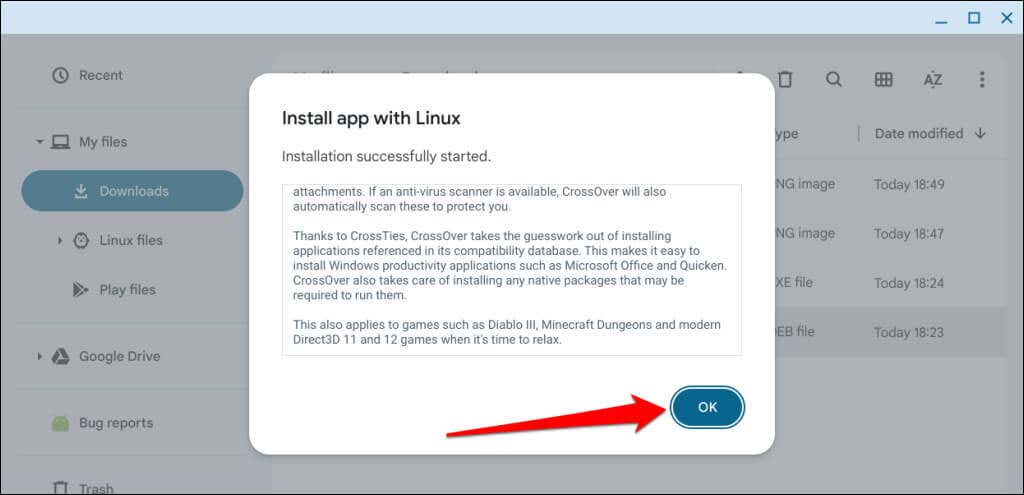
You should see the app installation progress in your Chromebook’s status area—bottom-right corner of the screen. Proceed to the next step when you see an “Installation complete” success message.
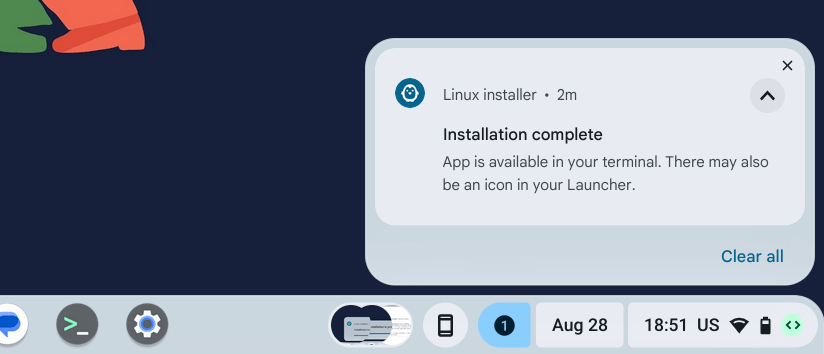
- Press your Chromebook’s Search key, open your Launcher’s “Linux apps” folder, and select CrossOver.
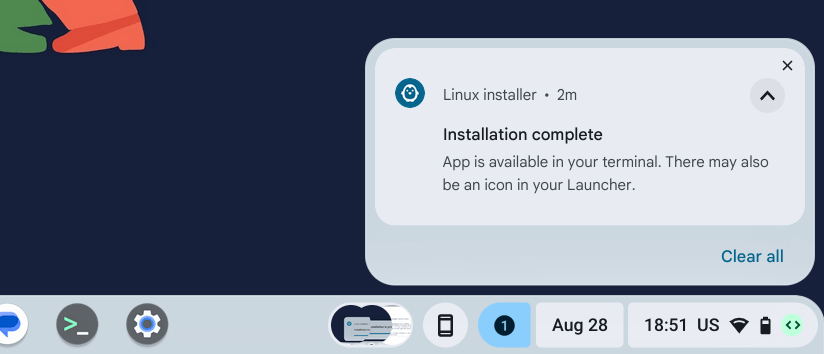
- Sign in to your CodeWeaver account when prompted to link your free trial or purchase the CrossOver app.
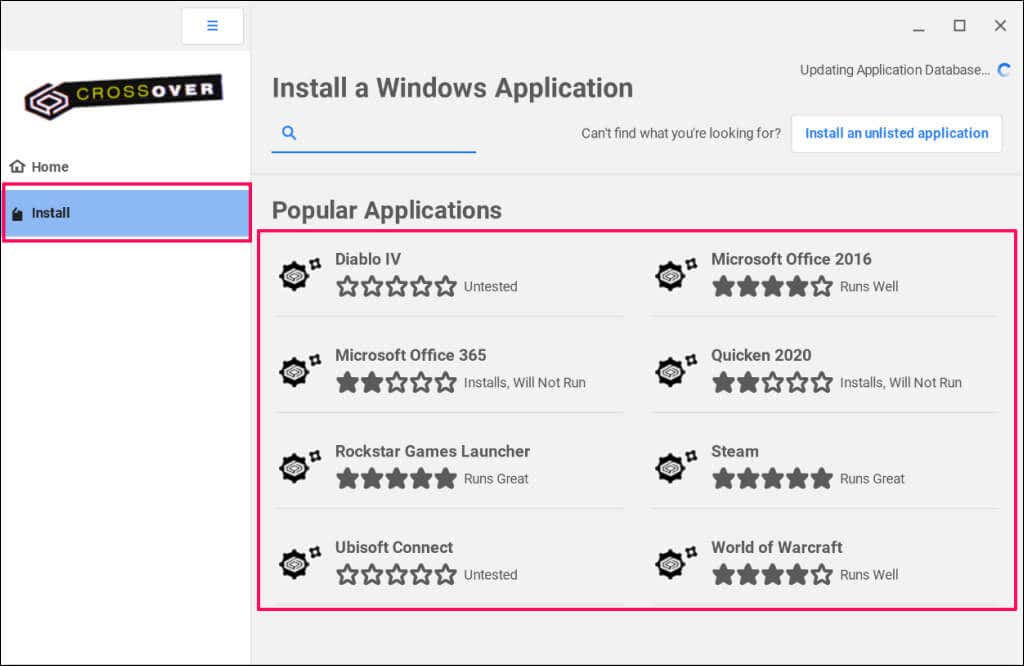
- Head to the Install tab to see Windows applications in CrossOver’s library.
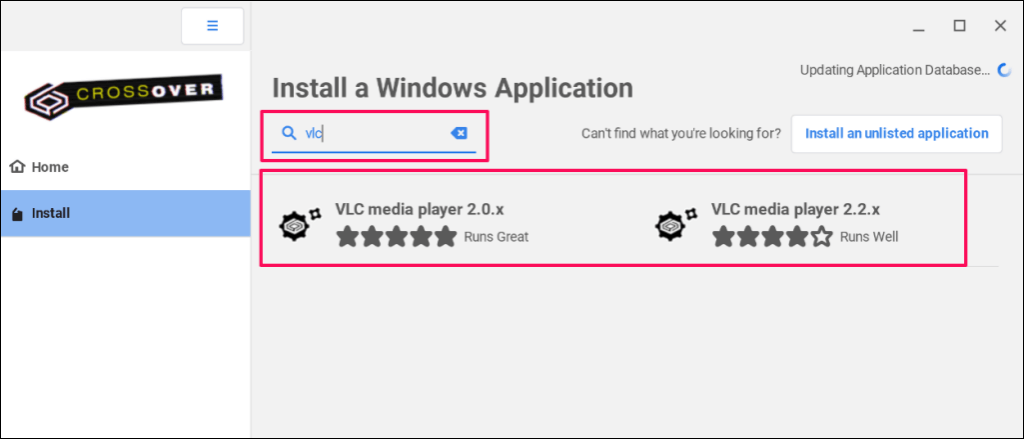
- Use the search button to find apps not listed on the screen and choose the app you want to install.
- Select Install in the top-right corner to proceed.
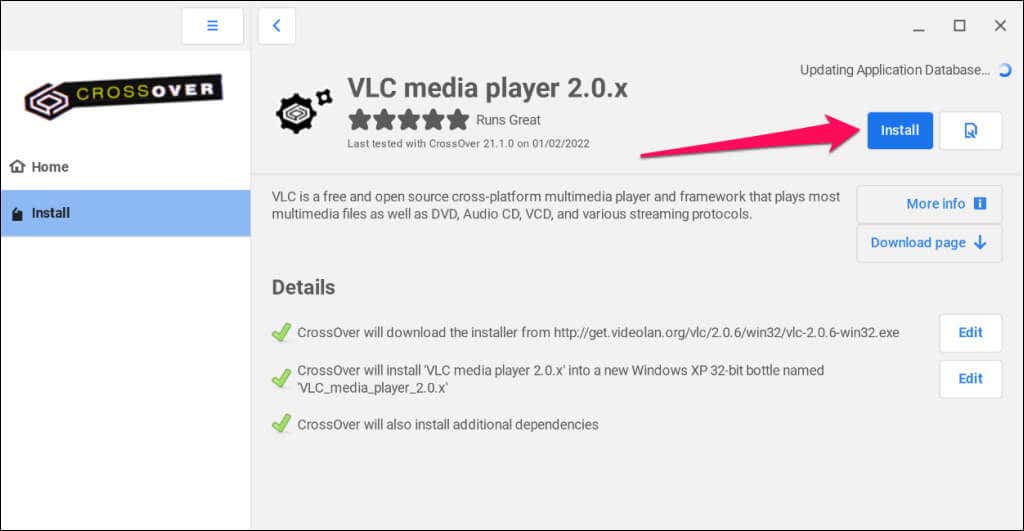
- You’ll get a notification to allow CrossOver to install some Linux Packages to run Windows apps. Select Yes to continue and wait for CrossOver to install the app.
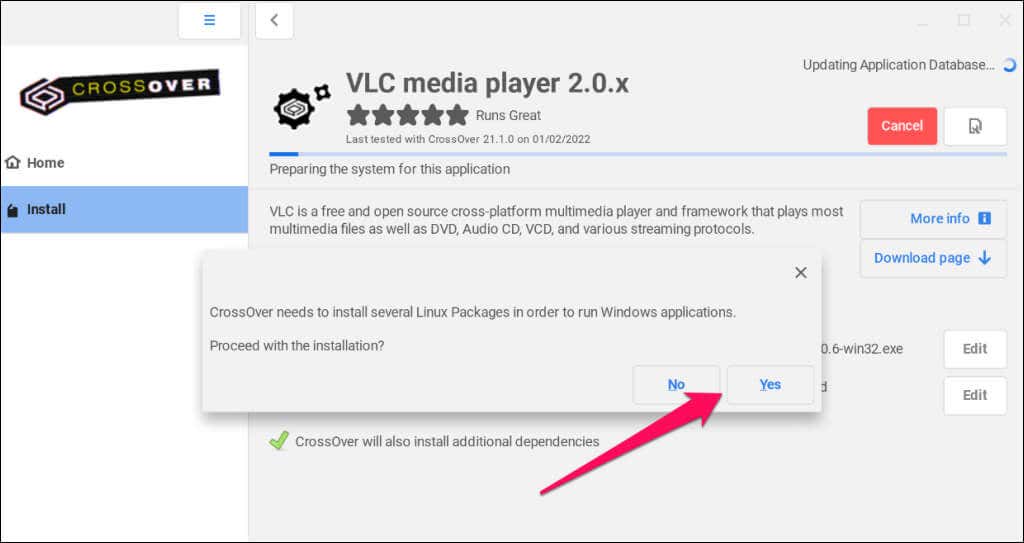
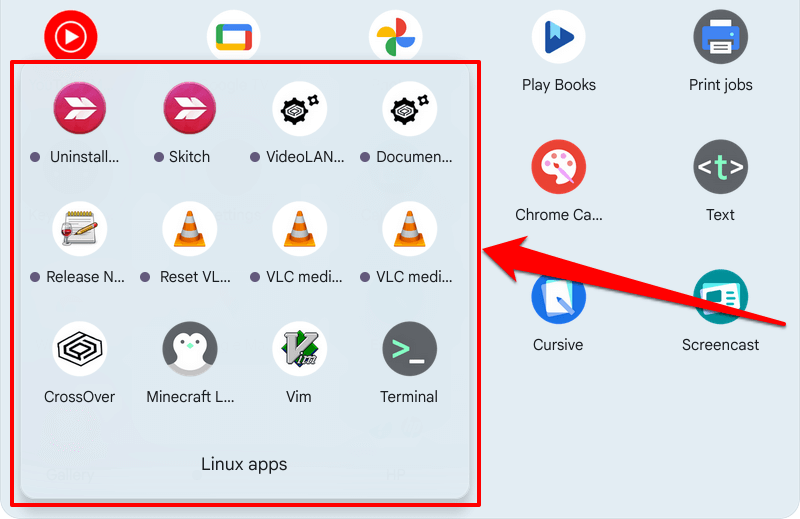
Open your Chromebook’s app library and check the “Linux apps” folder for the installed Windows application.
If an app isn’t in CrossOver’s library, download its executable file from third-party websites, and install it manually. Ensure you save the app’s EXE installation file in the “Linux files” folder in the Files app.
- Open the “Installed” tab in CrossOver and select Install an unlisted application in the top-right corner.
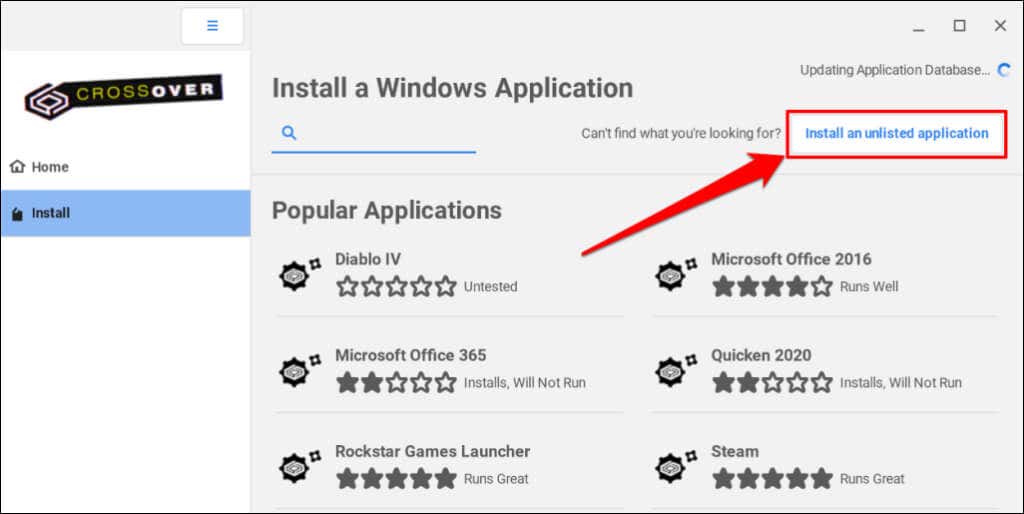
- Select the Install button to proceed.
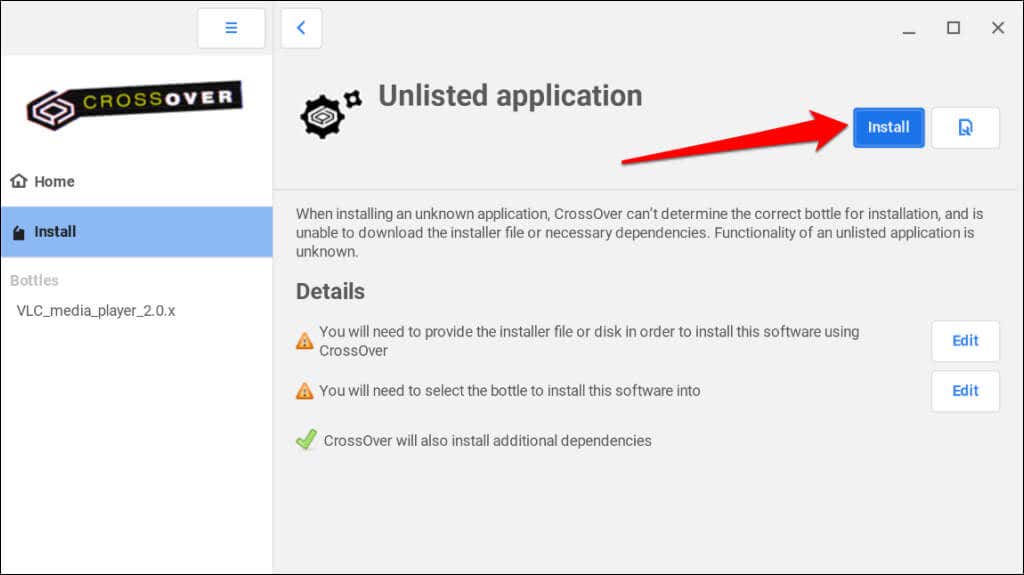
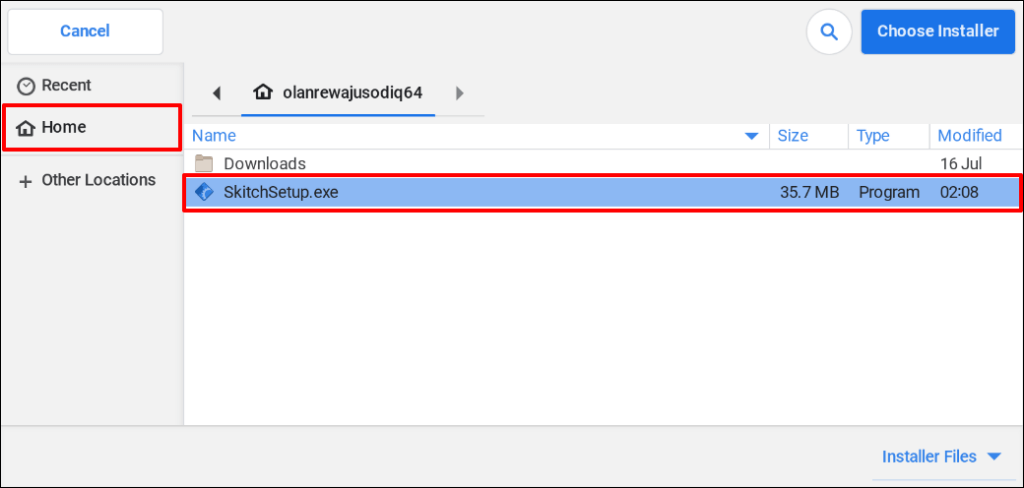
- Select Home on the sidebar and double-click the app’s executable file.
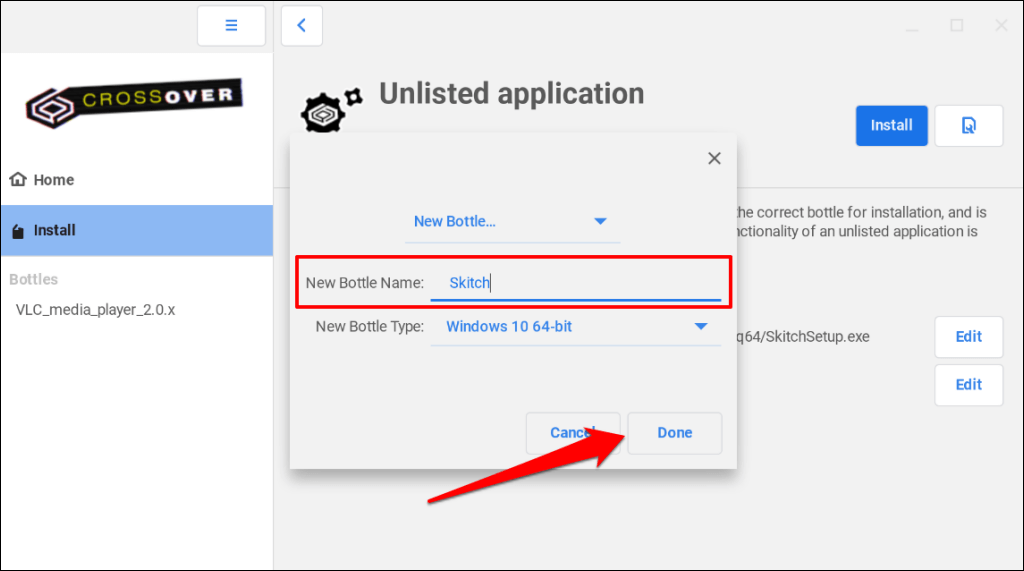
- Enter the app’s name in the “Bottle Name” dialog box and select Done to proceed.
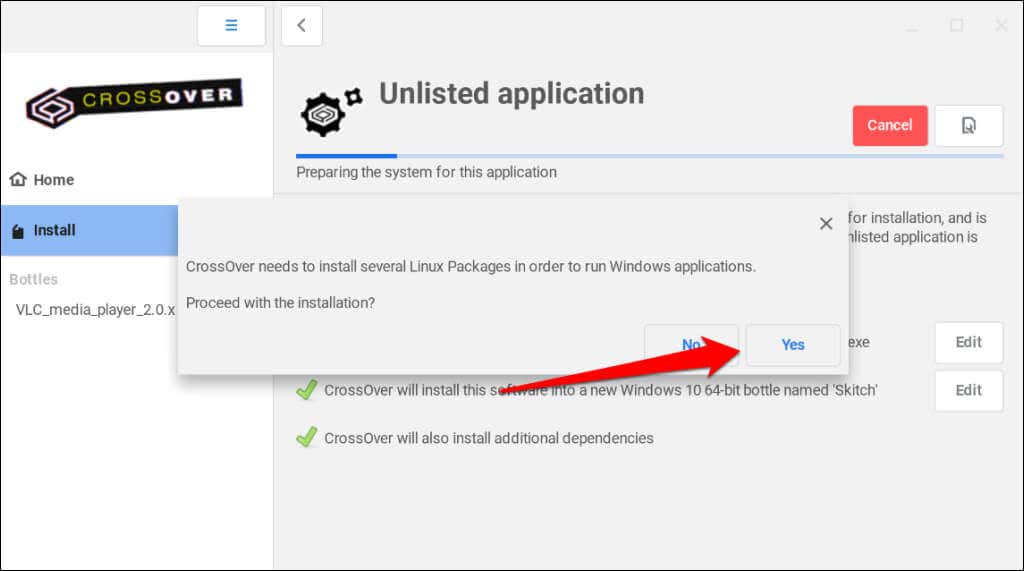
- Select Yes on the prompt to allow CrossOver to install Linux packages needed to install the Windows app.
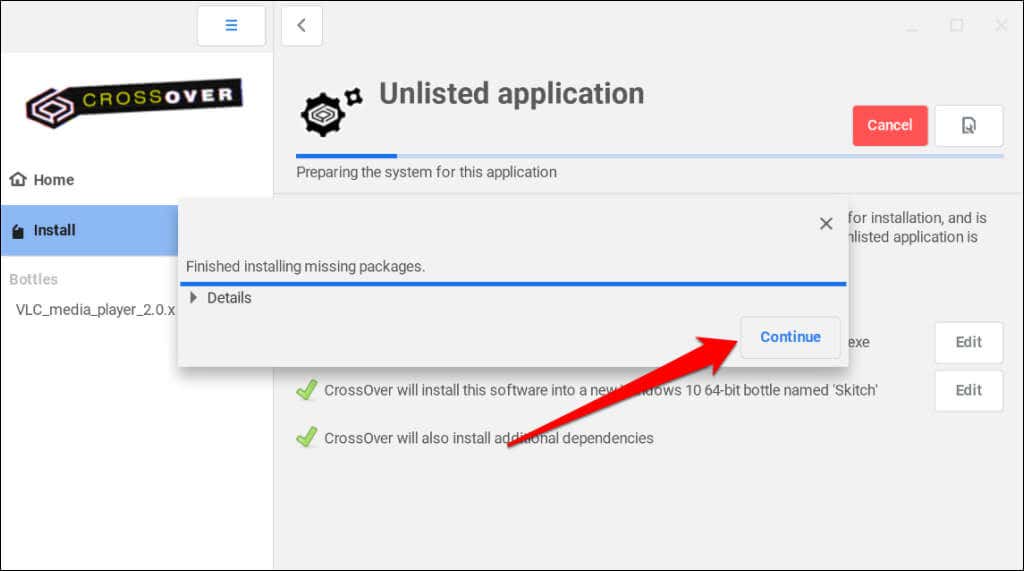
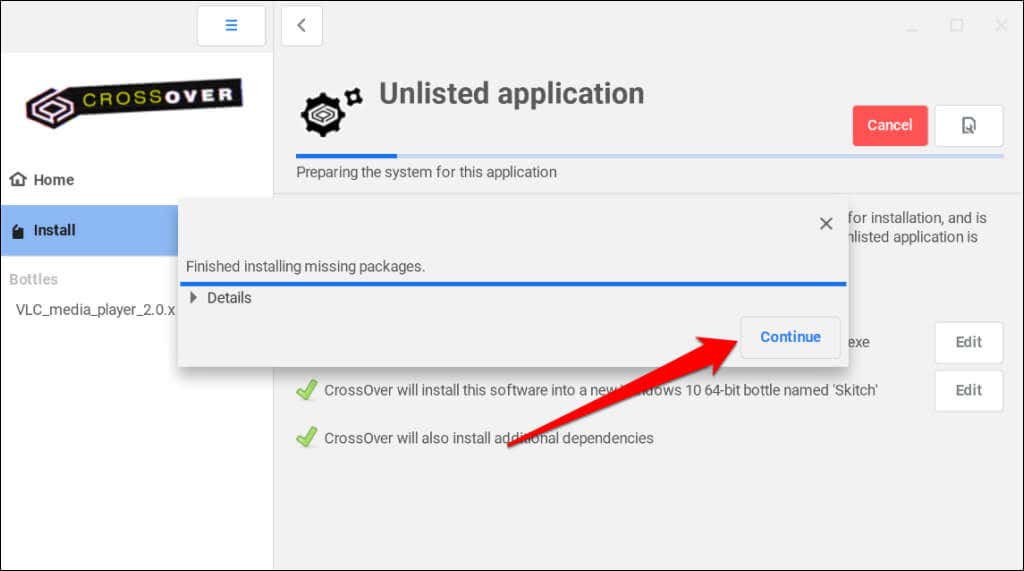
- Select Continue and wait while CrossOver loads the executable file.
- Follow the installation prompts to continue.
Run Windows Apps Using Wine
Both Wine and CrossOver are both developed by CodeWeavers. While CrossOver is a paid software, Wine is open-source and free. According to CodeWeavers, it uses purchases from CrossOver to fund developers working on Wine.
If you don’t have $14 for CrossOver, Wine is a free and equally efficient alternative. Installing Wine on Chromebooks requires running several commands in the Linux Terminal , but the process is straightforward.
Install Wine on Your Chromebook
Connect your Chromebook to the internet and follow the steps below.
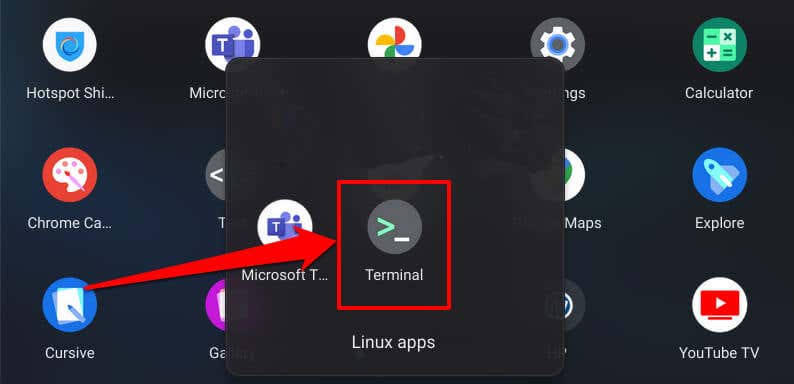
- Open your Chromebook’s app library and select the Terminal app in the “Linux app” folder.
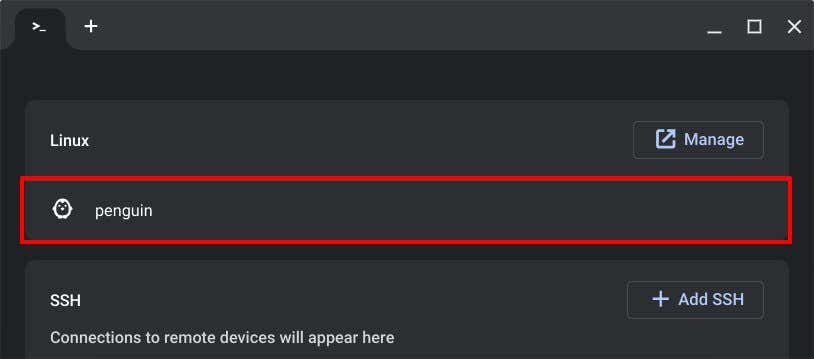
- Select Penguin to open the Terminal command-line interface.
- Paste sudo apt-get install wine in the console and press Enter .
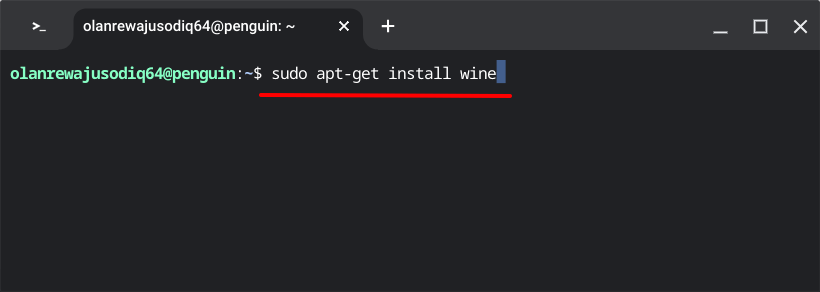
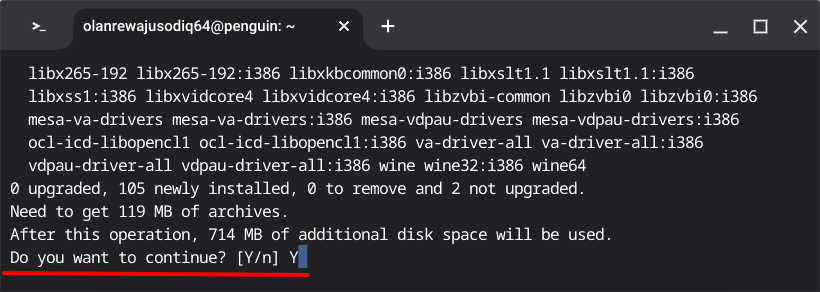
- The command will install the Wine application in your Chromebook’s Linux environment. Type Y in the “Do you want to continue?” line and press Enter to proceed.
- Next, paste sudo dpkg –add-architecture i386 and press Enter .
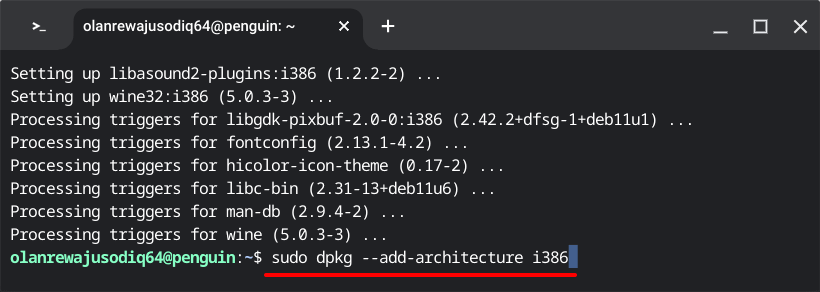
The command enables the 32-bit architecture for Wine to run on your Chromebook. Proceed to the next step when your Linux username appears on the subsequent line.
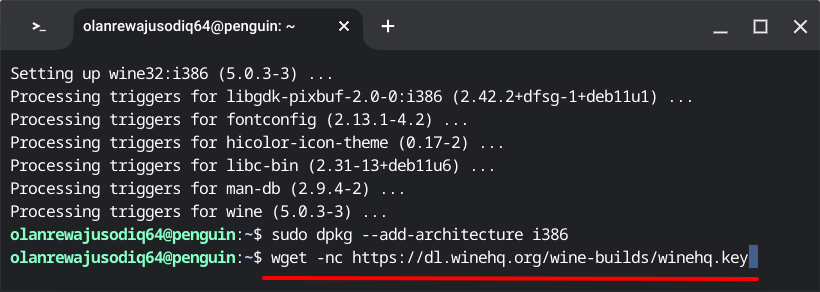
- Paste wget -nc https://dl.winehq.org/wine-builds/winehq.key and press Enter . Running this command downloads Wine’s repository key.
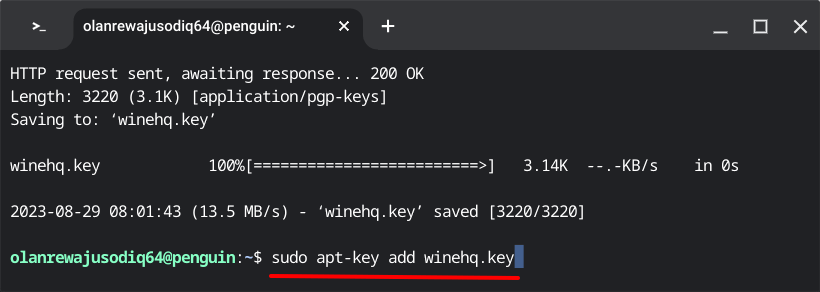
- Next, paste sudo apt-key add winehq.key and press Enter to add the downloaded repository key in the Linux environment.
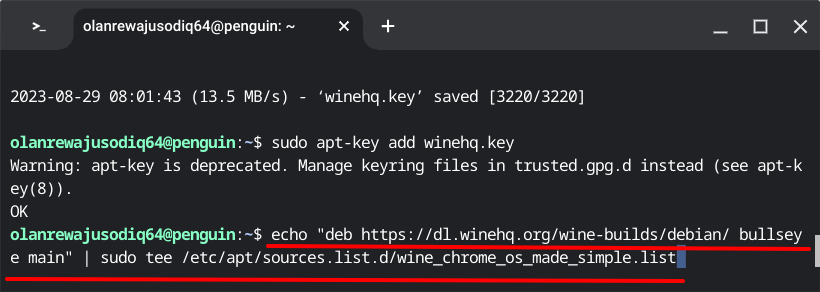
- Enter echo “deb https://dl.winehq.org/wine-builds/debian/ bullseye main” | sudo tee /etc/apt/sources.list.d/wine_chrome_os_made_simple.list in the subsequent line and press Enter .
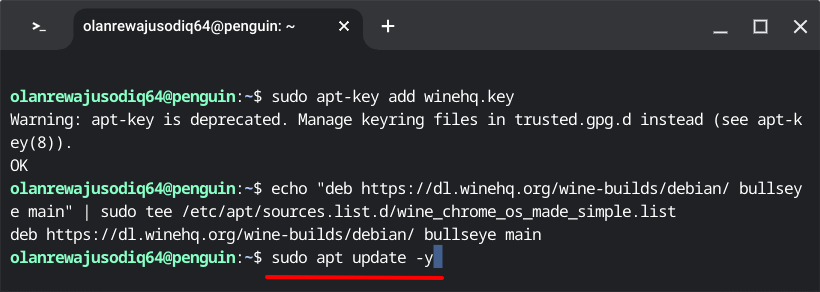
- We recommend updating your Linux environment’s data (packages, resources, etc.) before installing Wine. Paste sudo apt update -y in the console and press Enter .
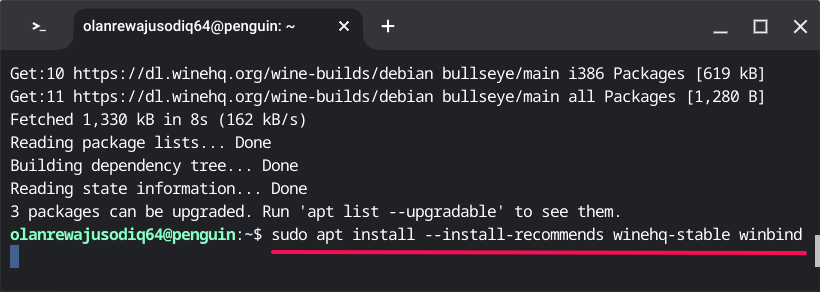
- Paste sudo apt install –install-recommends winehq-stable winbind and press Enter to install Wine.
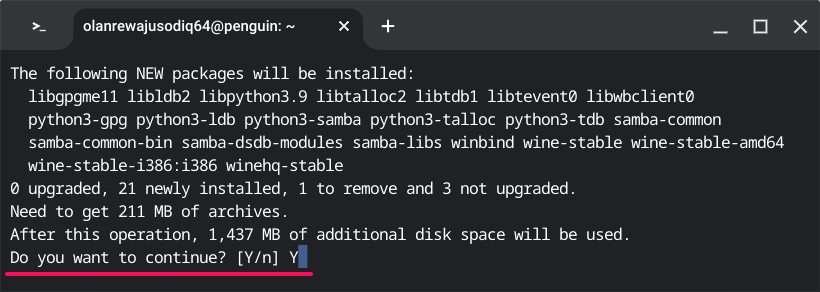
- Type Y when prompted to confirm the installation and press Enter .
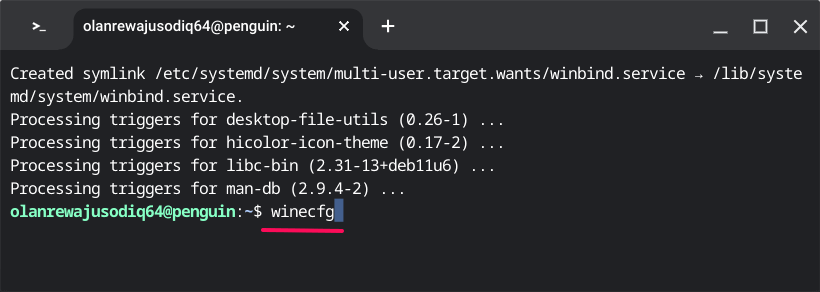
- Next, paste winecfg and press Enter .
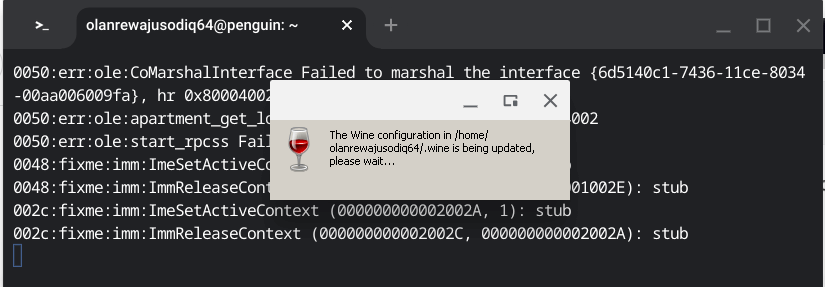
You should see a pop-up telling you the Wine configuration is being updated.
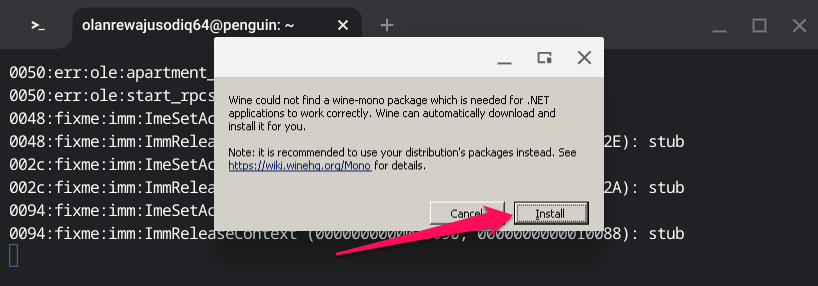
- Select Install on the subsequent pop-up screen to continue.
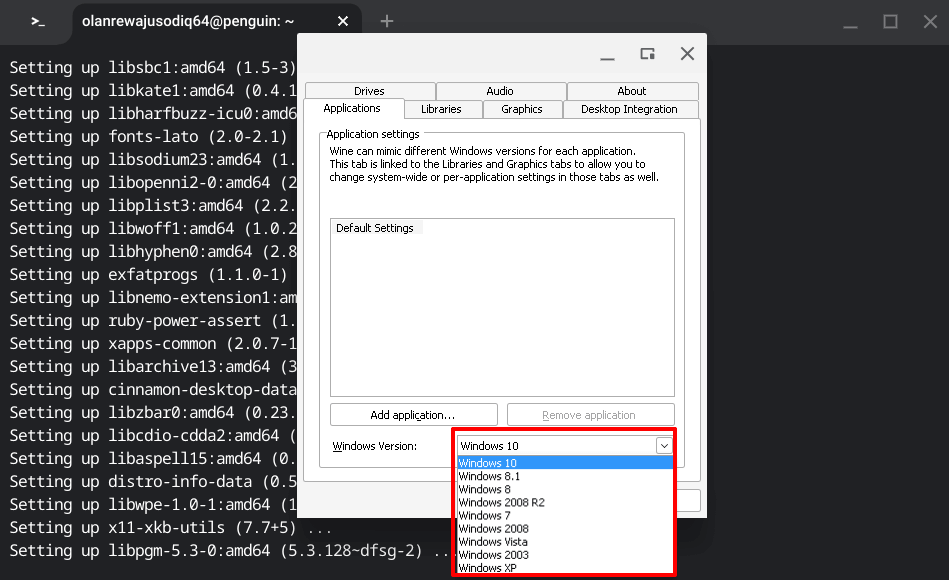
- Open the Windows version drop-down menu and choose the Windows operating system you want Wine to run.
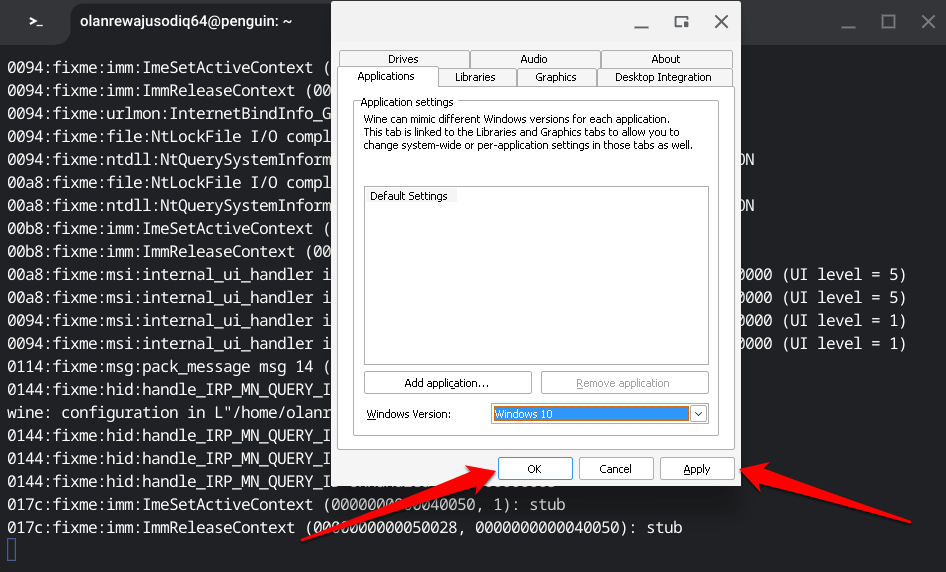
- Select Apply and then OK to proceed.
You’ve successfully installed Wine in your Chromebook’s Linux environment. Check the next section to see how to use Wine to install and run Windows apps on your Chromebook.
Install Windows App Using Wine
- Download and save the app’s executable file in the “Linux files” in the Files app.
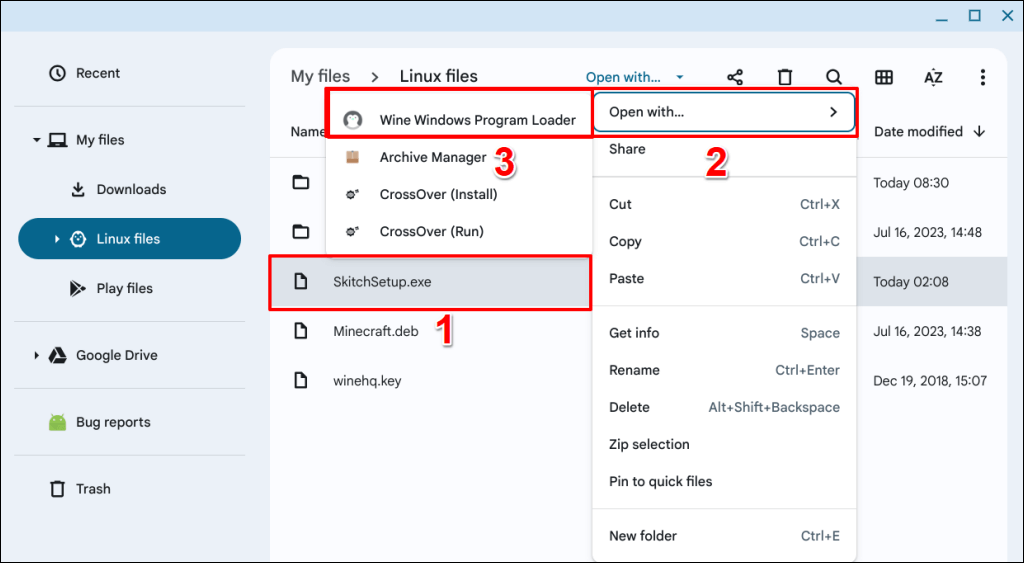
- Right-click the .exe file and select Open with… > Wine Windows Program Loader .
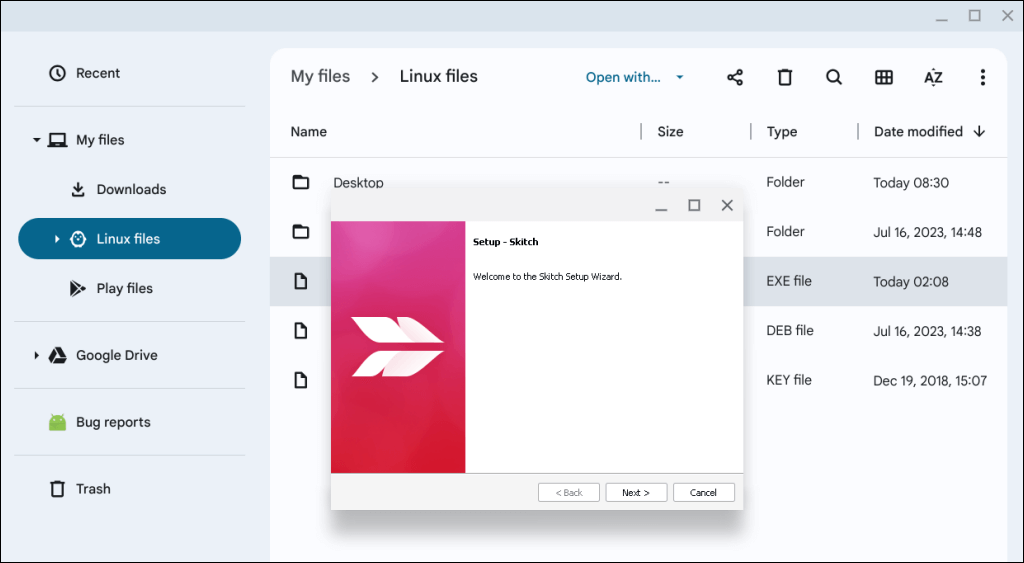
- Follow the instructions on the setup screen to install the Windows app on your Chromebook.
Run Windows Apps on Chromebooks
Applications installed using CrossOver or Wine will run on your Chromebook as smoothly as on Windows computers. However, an app’s performance may vary depending on your Chromebook’s hardware configuration. Update and reboot your Chromebook if you run into trouble using Windows apps installed via Wine or CrossOver.
- Top 4 Ways to Fix Chromebook White Screen Issues
- Chromebook Keeps Turning Off? 9 Fixes to Try
- How to Install and Use VirtualBox on Your Chromebook
- How to Play Videos on Chromebooks (And the Best Video Players to Use)
- How to Lock a Chromebook Screen
Sodiq has written thousands of tutorials, guides, and explainers over the past 4 years to help people solve problems with Android, iOS, Mac, and Windows devices. He also enjoys reviewing consumer tech products (smartphones, smart home devices, accessories, etc.) and binge-watching comedy series in his spare time. Read Sodiq’s Full Bio
