Apple Music is the default music streaming app on Apple Watch devices. Spotify also works on Apple Watch, but you must manually install and set it up. This tutorial will show you how to get Spotify on your Apple Watch and stream music on the fly.

Spotify for Apple Watch: Requirements
Here’s a list of things you need to install and play Spotify directly from your Apple Watch.
- A Spotify Premium account or premium subscription.
- Apple Watch Series 3 or newer.
- watchOS 7.0 or newer.
- Bluetooth headphone/speaker connected to your Apple Watch.
- Wi-Fi or cellular connection.
For the best music streaming experience, ensure your devices (Apple Watch and iPhone) are up-to-date. See our tutorial on updating an Apple Watch to check if your devices are up-to-date.
How to Install Spotify on Your Apple Watch
You can install Spotify through the watchOS App Store or remotely from your paired iPhone.
Install Spotify via the iPhone Watch App
You must have the Spotify app installed on your iPhone to install Spotify through the Watch app. Install Spotify from the iOS App Store, sign in to your account, and follow the steps below.
- Launch the Watch app on your iPhone and open the My Watch tab.
- Scroll to the Available Apps section and tap the Install button next to Spotify.
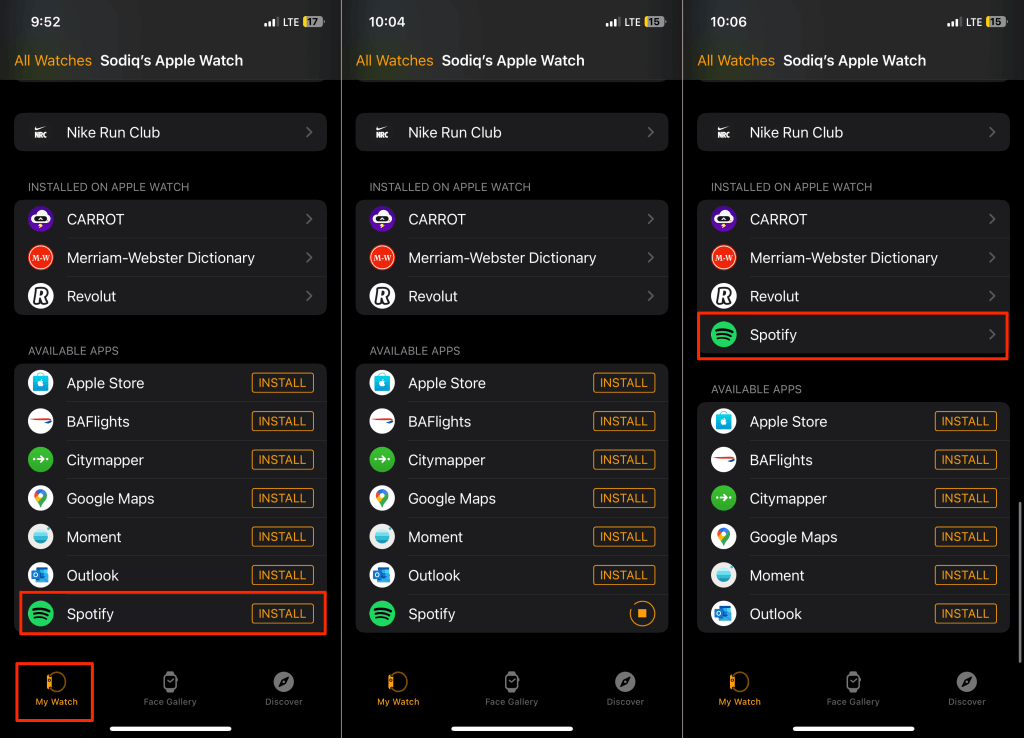
When the installation is complete, you’ll find Spotify in the “Installed on Apple Watch” section.
Ensure your iPhone and Apple Watch are connected . Otherwise, the Spotify app won’t install on your Apple Watch.
Install Spotify on the App Store
Download Spotify from the watchOS App Store if you can’t remotely install Spotify through your iPhone.
- Open the App Store on your Apple Watch and tap the Search bar.
- Enter/type spotify in the search box and tap Search in the top-right corner.
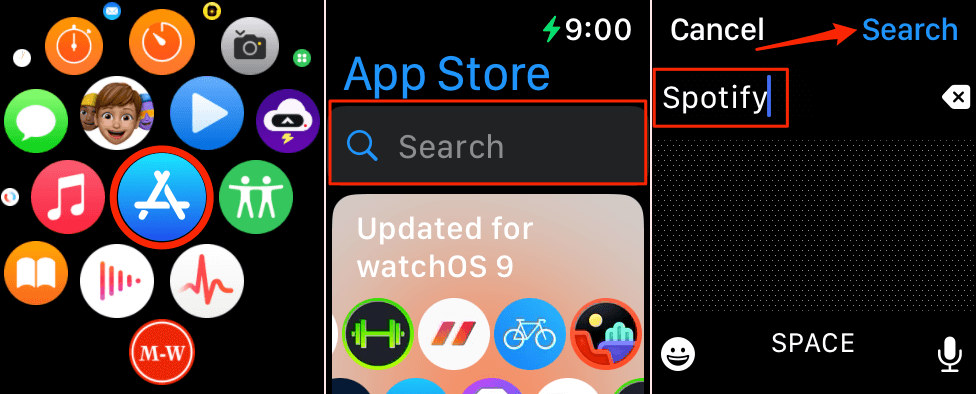
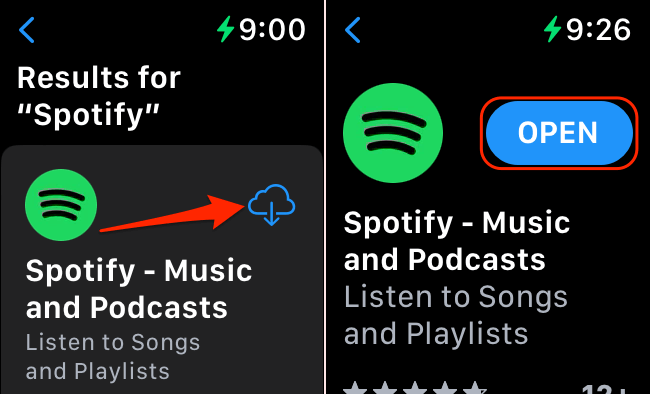
- Select Spotify and tap Get or the Install icon.
- Wait while Spotify downloads and tap Open when the installation is complete.
Using Spotify on Apple Watch
The Spotify Apple Watch app is as easy to use as the mobile version. If you use Spotify on your iPhone, navigating the Spotify app on your Apple Watch should be a breeze.
View Your Library
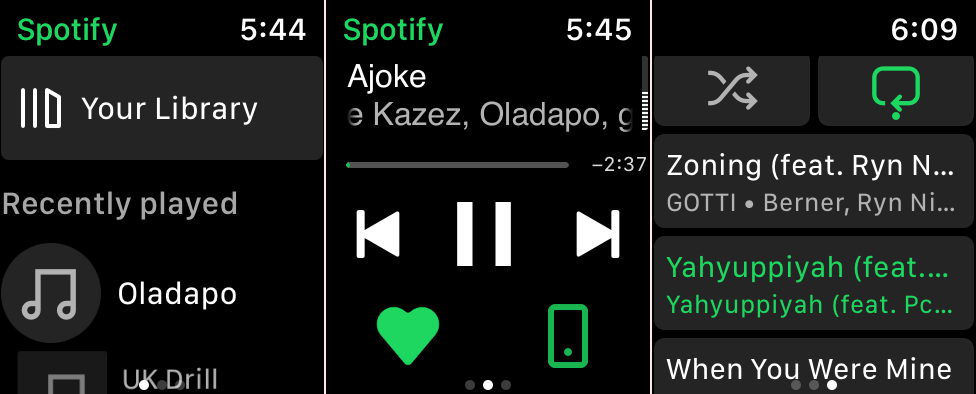
Opening the Spotify app on your Apple Watch displays the media control screen by default. Swipe to the right to access your Spotify library, recently played songs, playlists, podcasts, etc.
Swipe left (from the media player screen) to see the current playlist or album you’re playing.
Control Spotify Media Playback
Tap the Pause icon to stop media playback temporarily. Tap the Love / Heart icon to like a song and add it to your “Liked Songs” library. Deselect the same icon to remove the song from your library.

Tap the Next button to skip to the next song in an album or playlist, or tap the Previous button to start the song over.
Double-tap the Previous button to play the previous song in a playlist or album.

Swipe right to the third screen and tap the Shuffle icon to play songs in a playlist or album in random order.
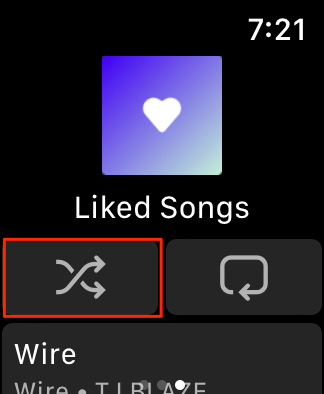
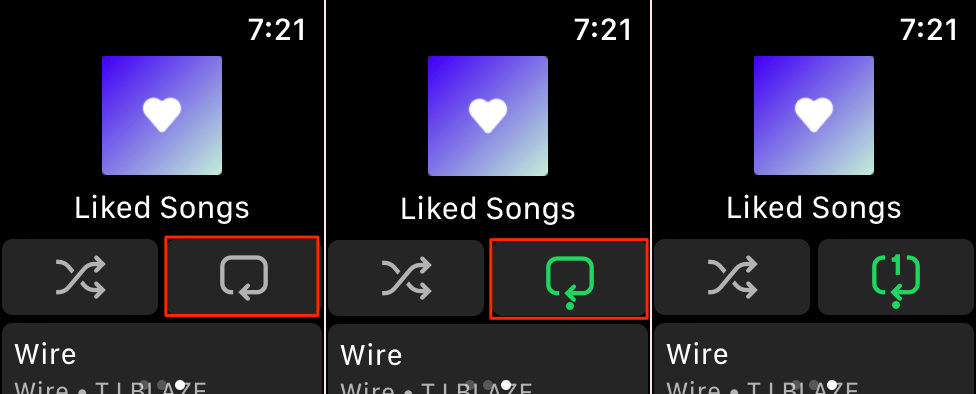
Tap the Repeat icon to repeat an album/playlist or double-tap to repeat an individual song.
Adjust Playback Volume
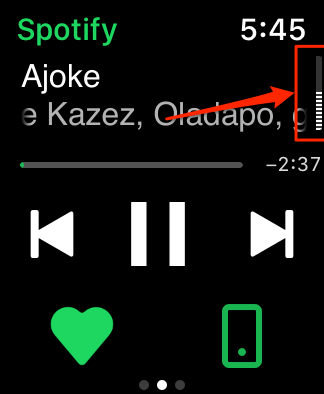
When playing a song in the Spotify app, scroll your watch’s Digital Crown up or down to increase or decrease playback volume. You’ll see the volume level in the top corner as you spin the Digital Crown.
Use Spotify Connect
The Spotify Connect feature allows you to stream songs (and remotely control playback) from your Apple Watch to Bluetooth headphones, speakers, or other devices linked to your Spotify account.
Tap the Connect device icon in the bottom-right corner of the playback screen and select the device you want to play on.
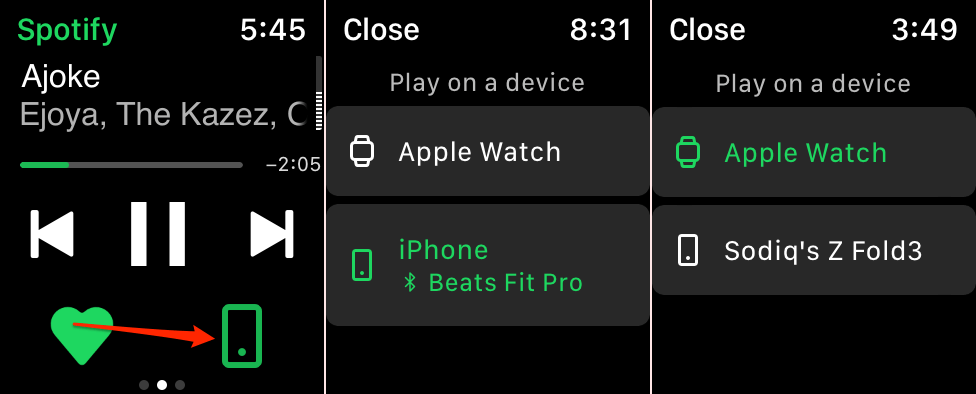
It’s best to have devices on the same Wi-Fi network when using Spotify Connect, especially when connecting to a device for the first time.
Download Spotify Songs/Playlists for Offline Listening
You can stream Spotify on your Apple Watch offline (without an internet connection) by downloading playlists. Spotify currently allows a maximum of 100 downloads per playlist on watchOS devices.
The number of songs you can download will vary depending on your Apple Watch series/model and its storage size.
Note: You can’t download an individual song to your Apple Watch. The Spotify app only lets you download playlists for offline listening.
Open Spotify, swipe right to access the app’s home screen, and select the playlist/album you want to download. Tap the Download icon to download songs in the album/playlist to your Apple Watch.
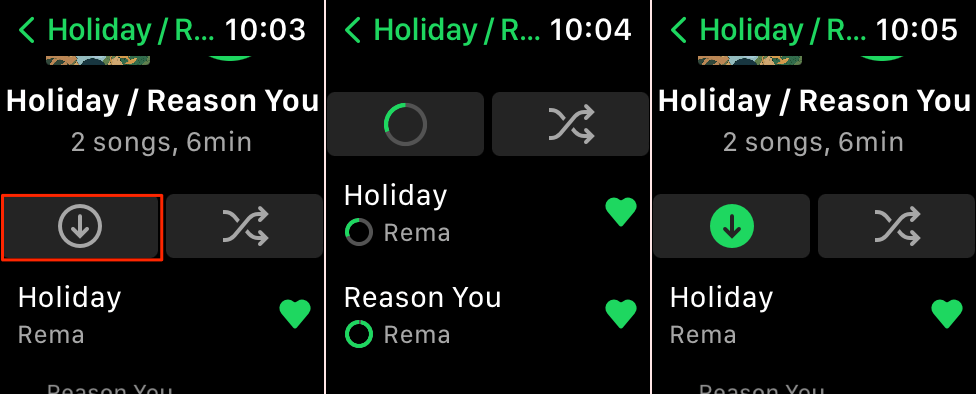
The Download icon changes to a green arrow when Spotify successfully downloads the songs. You can also download tracks or podcast episodes to your Apple Watch from your iPhone.
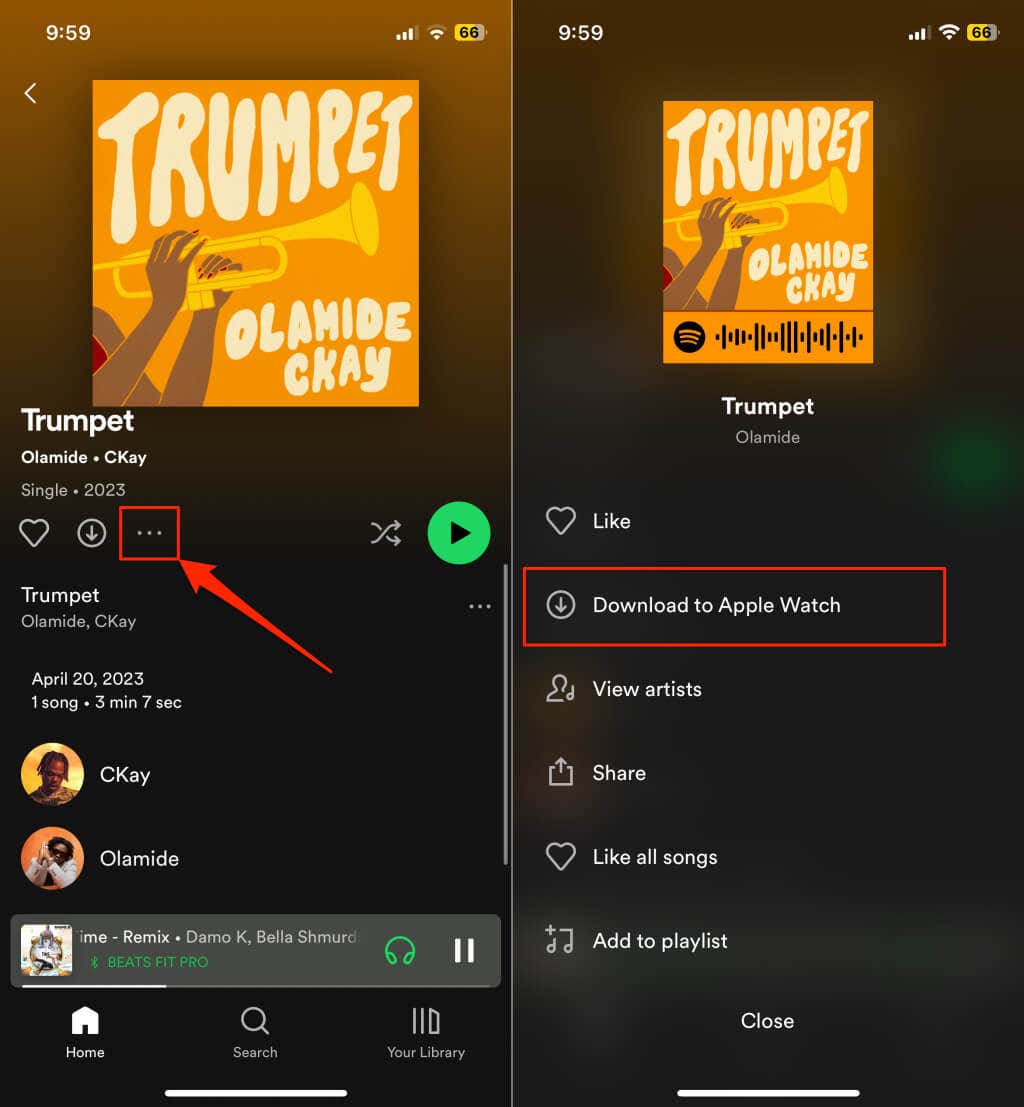
Open the Spotify playlist/album/podcast you want to download. Tap the three-dot menu icon and select Download to Apple Watch .
How to Uninstall Spotify on Apple Watch
No longer want Spotify on your Apple Watch? Here’s how to remove the app:
- Press your Apple Watch’s Digital Crown to open the Home Screen.
- Tap and hold the display until the “View Options” screen appears on the screen.
- Tap Edit Apps .
- Tap the Delete (x) icon on the Spotify logo and select Delete App on the confirmation pop-up.
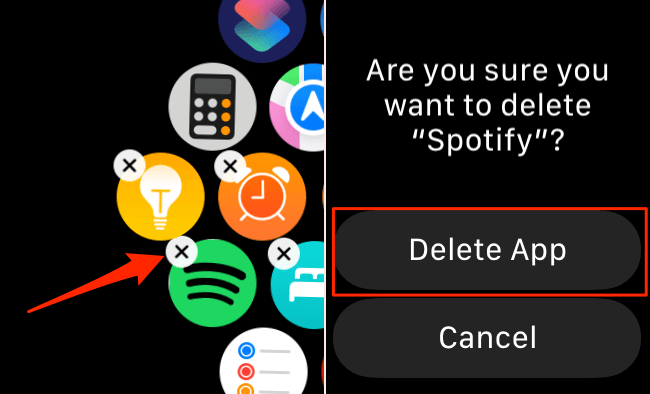
- Press the Digital Crown again to return to your Apple Watch Home Screen.
Stream Spotify on Your Wrist
Spotify app for Apple Watch is easy to install, use, and navigate. Restart your Apple Watch and iPhone if you have trouble installing or using the app. Update your devices to the latest version if the issue persists.
- Fix Apple Watch Charging Problems (All Models)
- How to Set Your Apple Watch to Vibrate Only
- How to Delete a Workout on Apple Watch
- How to Delete Messages on Apple Watch
- Why Your Apple Watch Keeps Locking When on Wrist (And How to Fix It)
