Note: This process is for Microsoft Windows 11 users. It will not work on Apple macOS systems.

- Operating System : Windows 11
- RAM : 8 GB (minimum)
- Processor : Intel Core i3 (8th Gen), AMD Ryzen 3000, or Qualcomm Snapdragon 8c
- CPU : x64 or ARM64
- Windows Virtualization : Must be enabled
- Hard Drive : SSD
- Country & Region : United States
In addition to these minimum requirements, you’ll also need to be signed up for the Windows Insider Beta Channel.
Join Windows Insider Program
Access your Windows Update settings to join the Windows Insider Program, or to change your registration to beta.
- Select the Start menu, type “Windows Updates”, and select Windows Update settings .
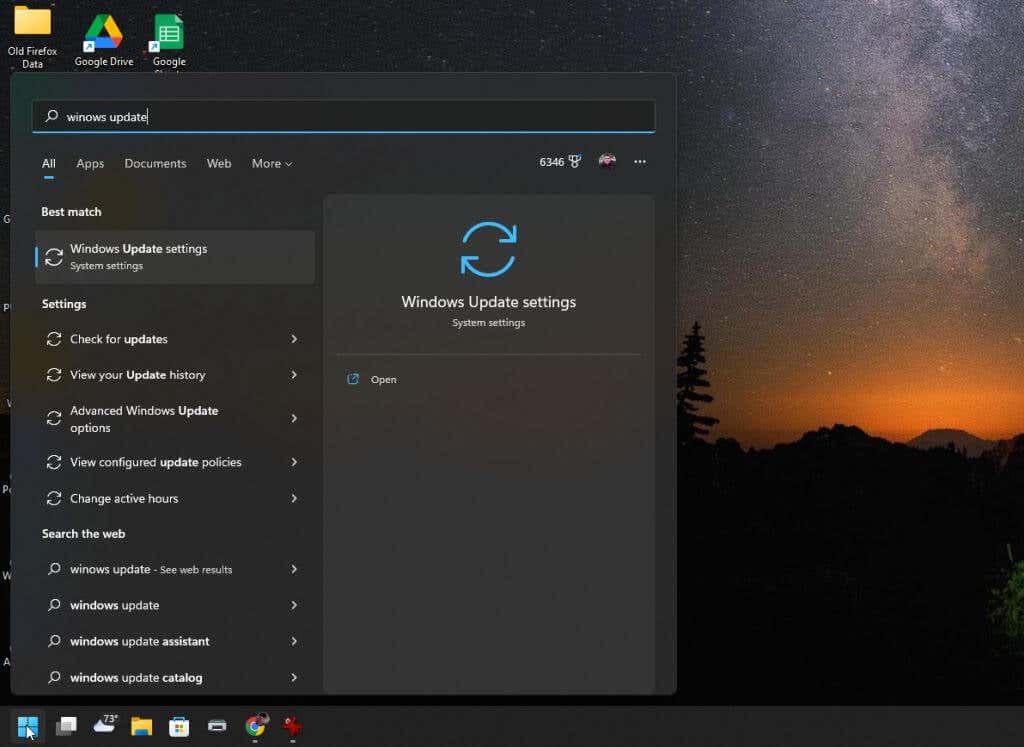
- In the Windows Updates window, select Windows Insider Program from the right pane.
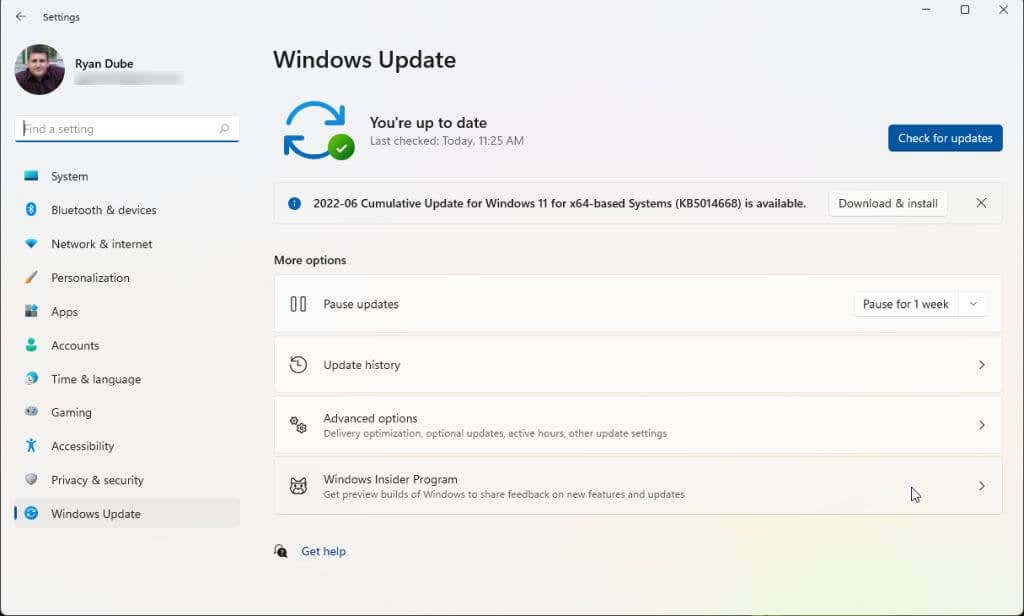
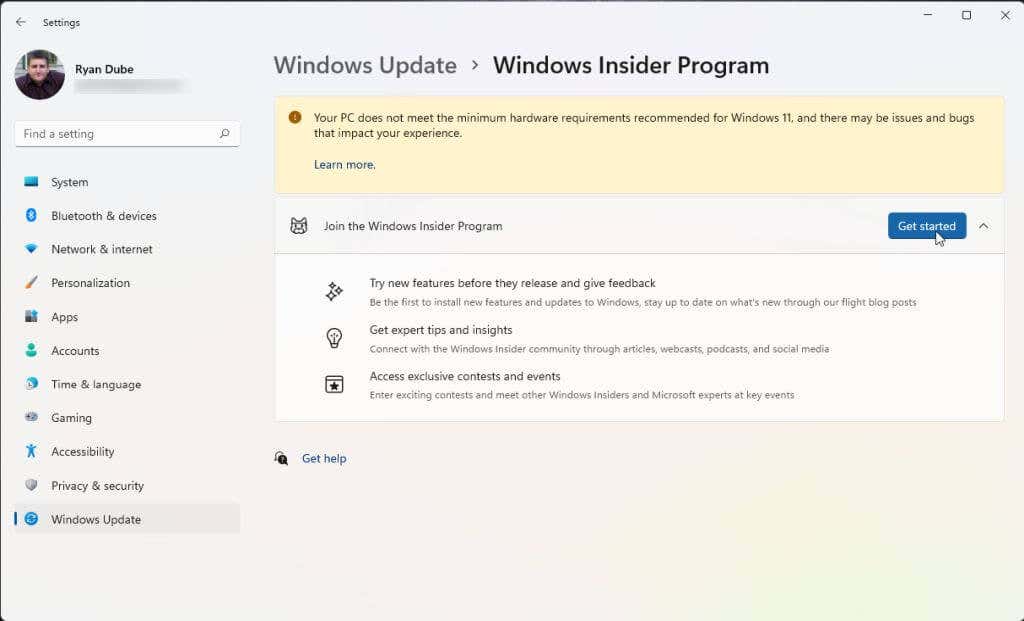
- In the Windows Insider Program window, select the Get started button to launch the process of signing up for the program.
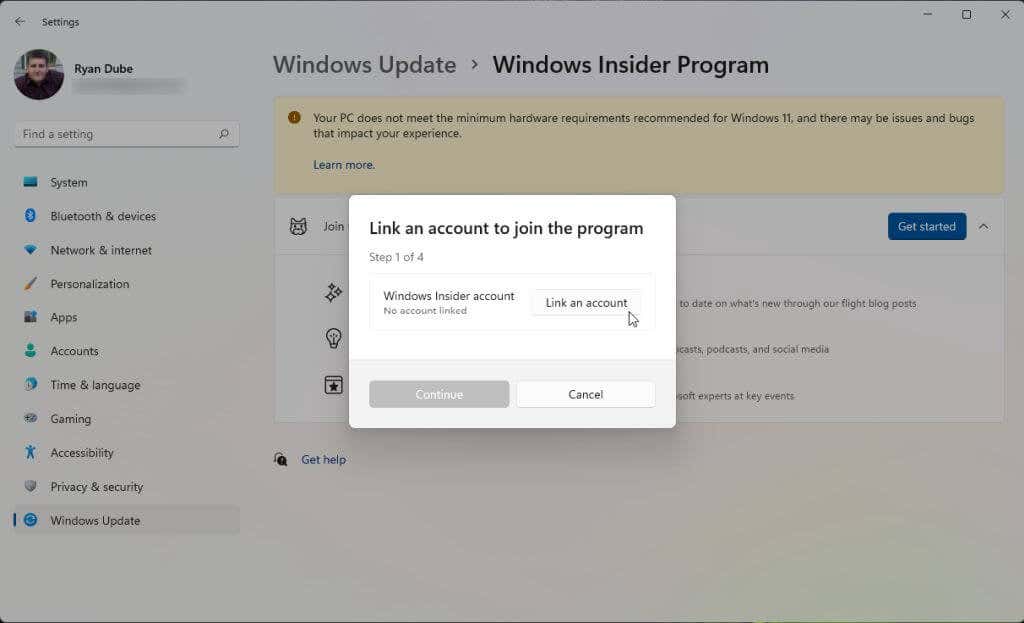
- In the pop-up window, select Link an account . Choose which Microsoft account you want to use to join the program. If you sign in to Windows 11 with your Microsoft account , then this is the account you should use.
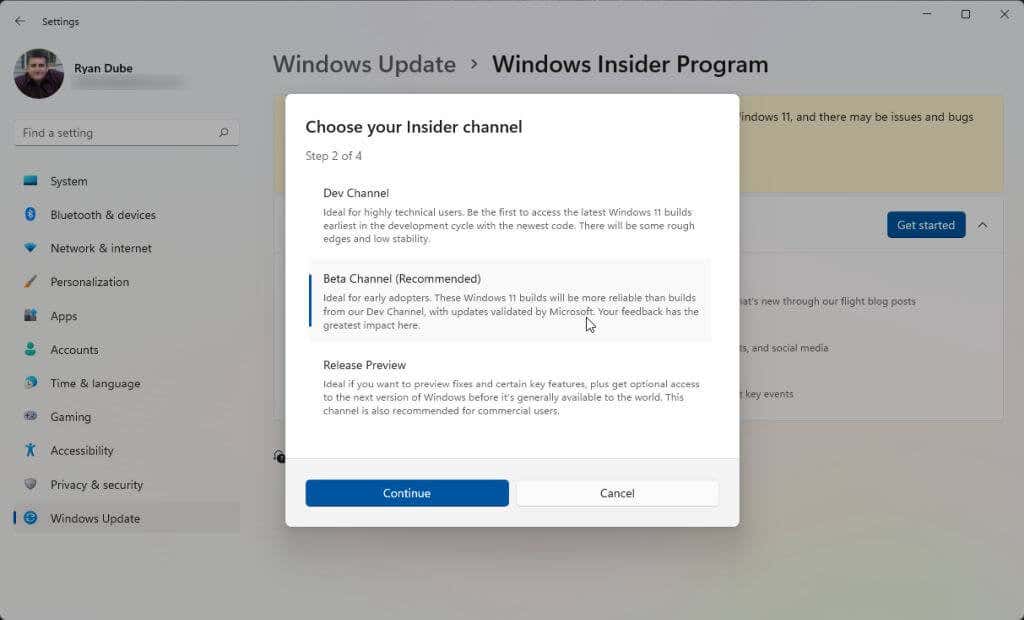
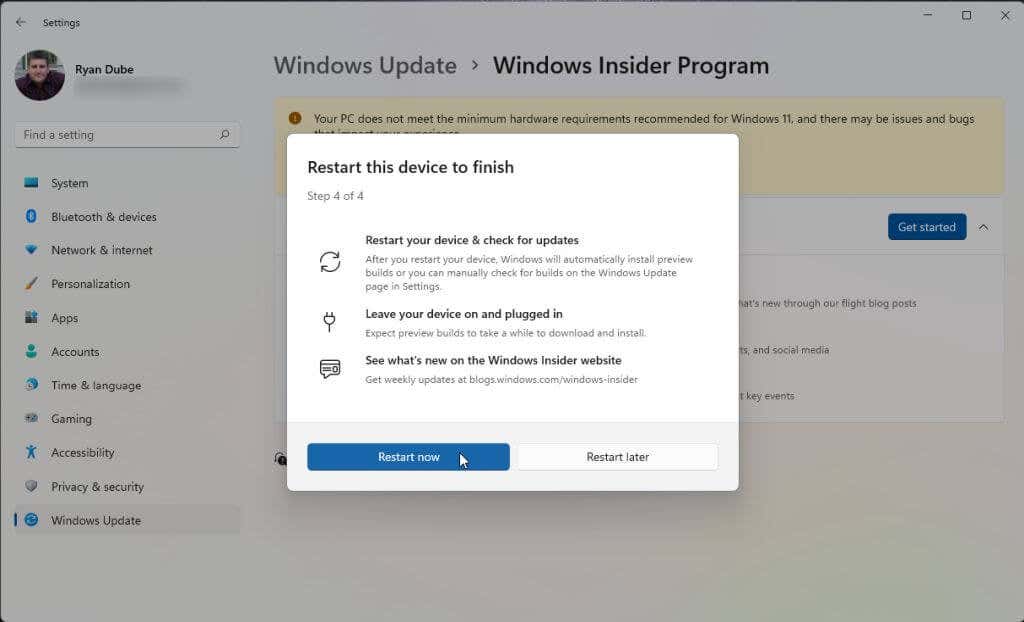
- Finally, you’ll need to restart your computer for the changes to take effect. Just select Restart now and wait for your computer to restart.
Enable Virtualization (Virtual Machine Platform)
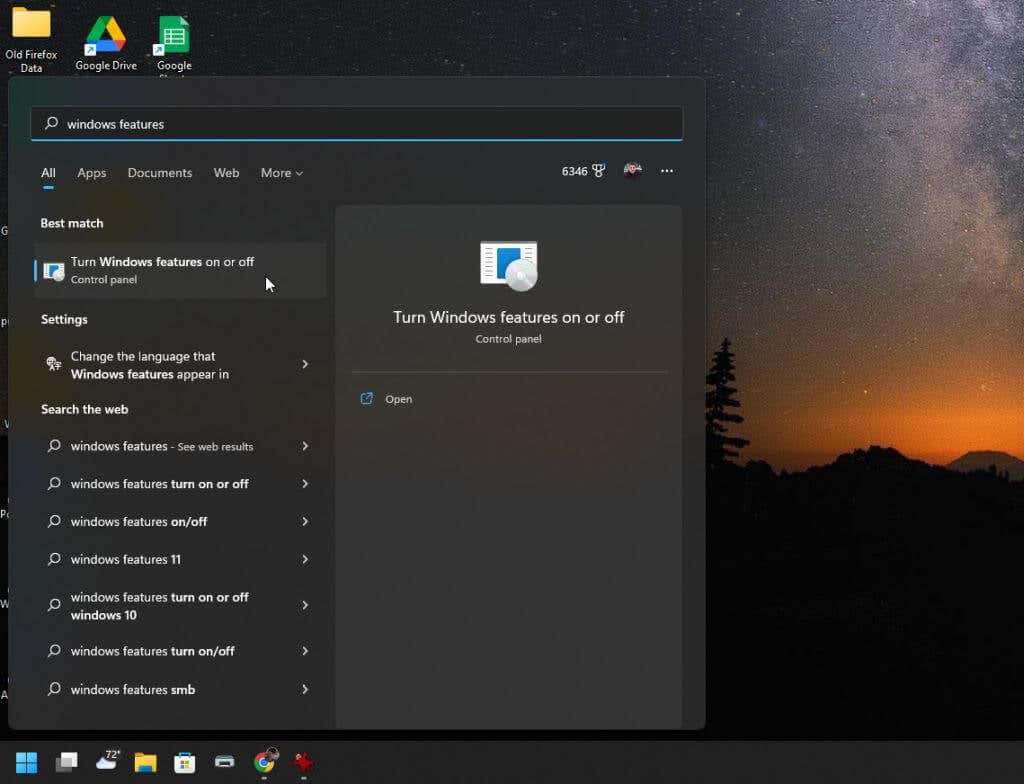
- Select the Start menu, type “Windows Features” and select Turn Windows features on or off .
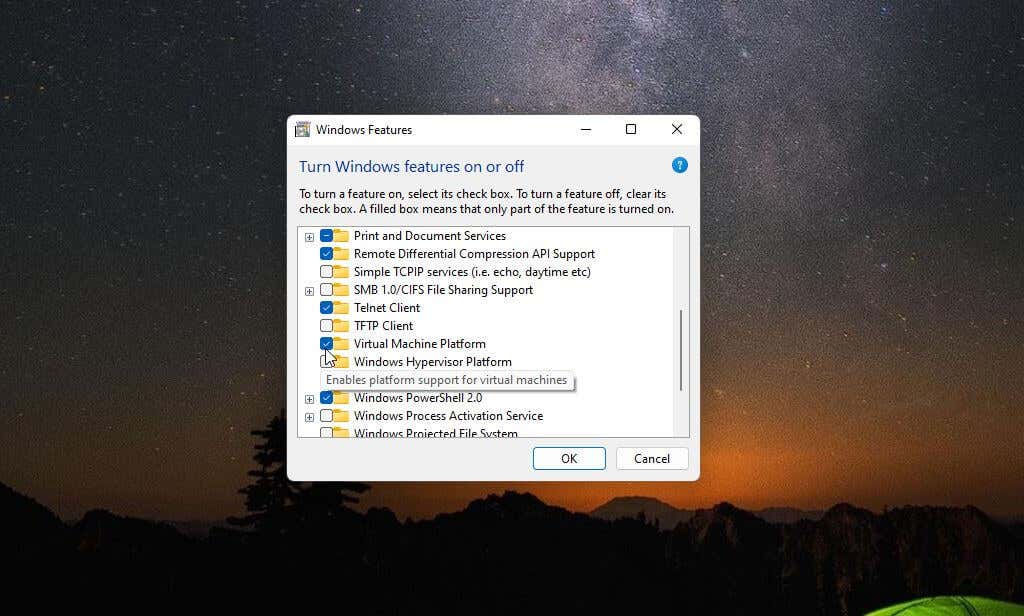
- Scroll down to and enable Virtual Machine Platform then select OK .
- Restart your computer to make these changes take effect.
Set Region to the United States (If Outside U.S.)
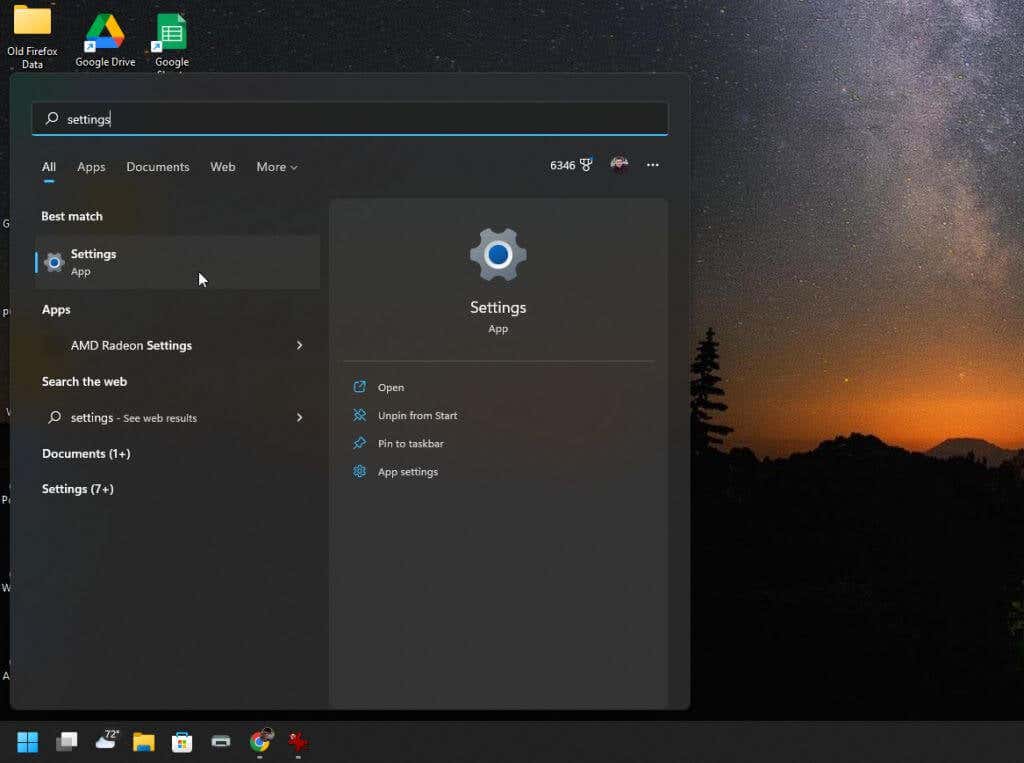
- Select the Start menu, type “Settings”, and select the Settings app.
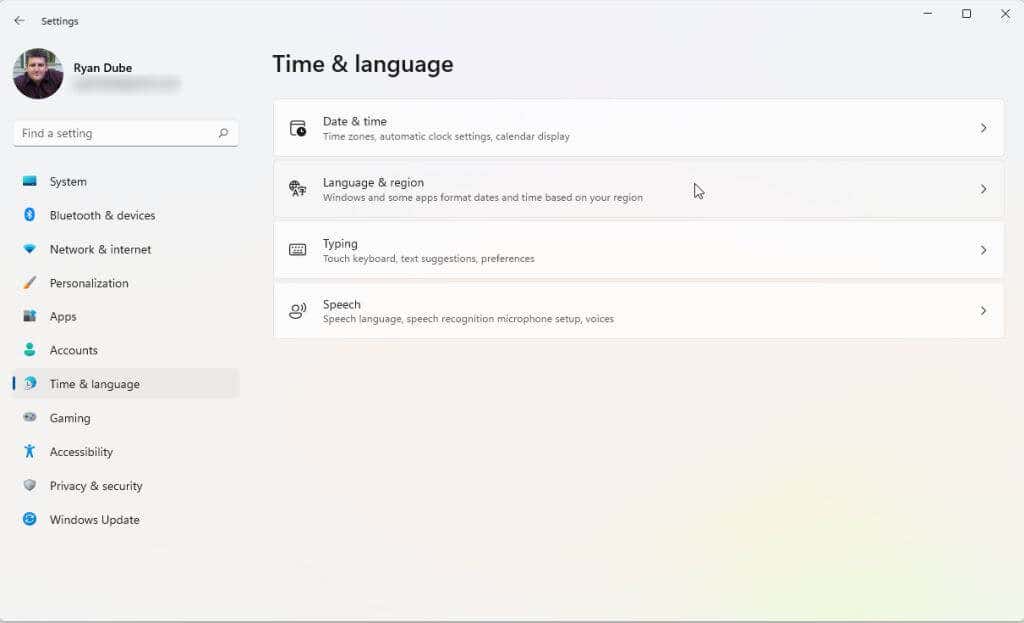
- Select Time & language from the left menu, and then select Language & region from the right pane.
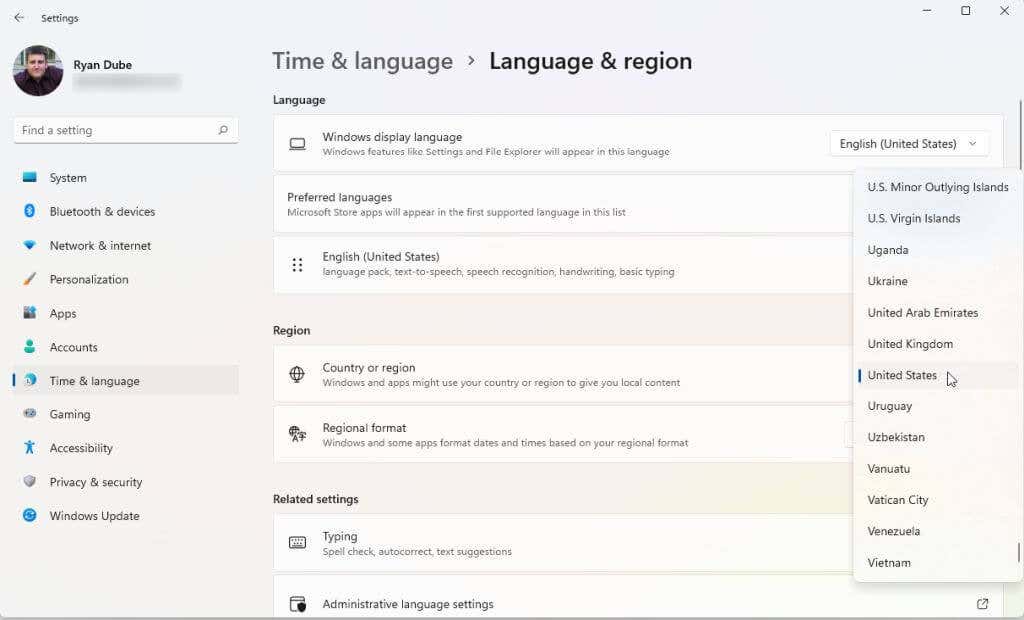
- On the Language & region window, set the dropdown menu in the Country or region section to United States .
- Finally, restart your computer to apply these changes.
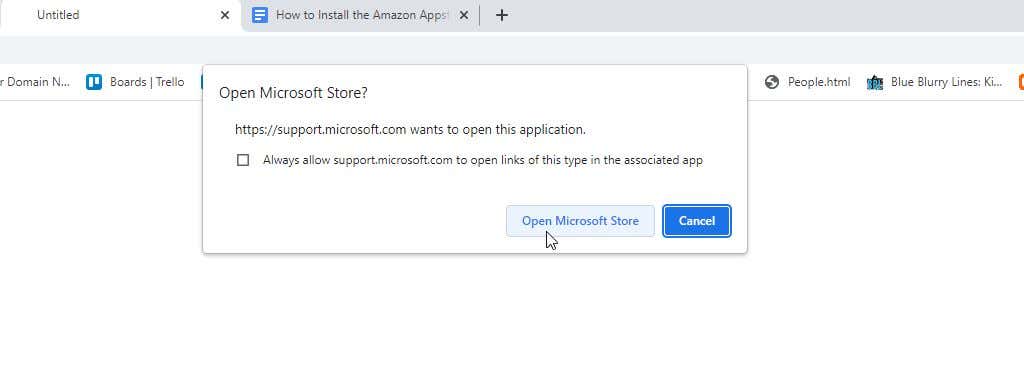
- You’ll see a pop-up to visit the Microsoft Store. Select the Open Microsoft Store button.
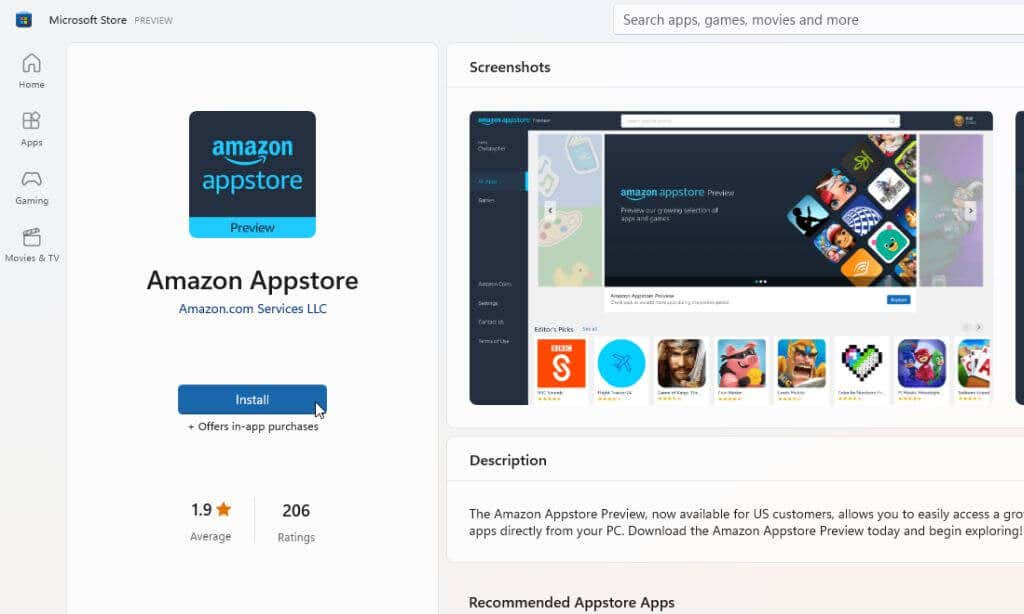
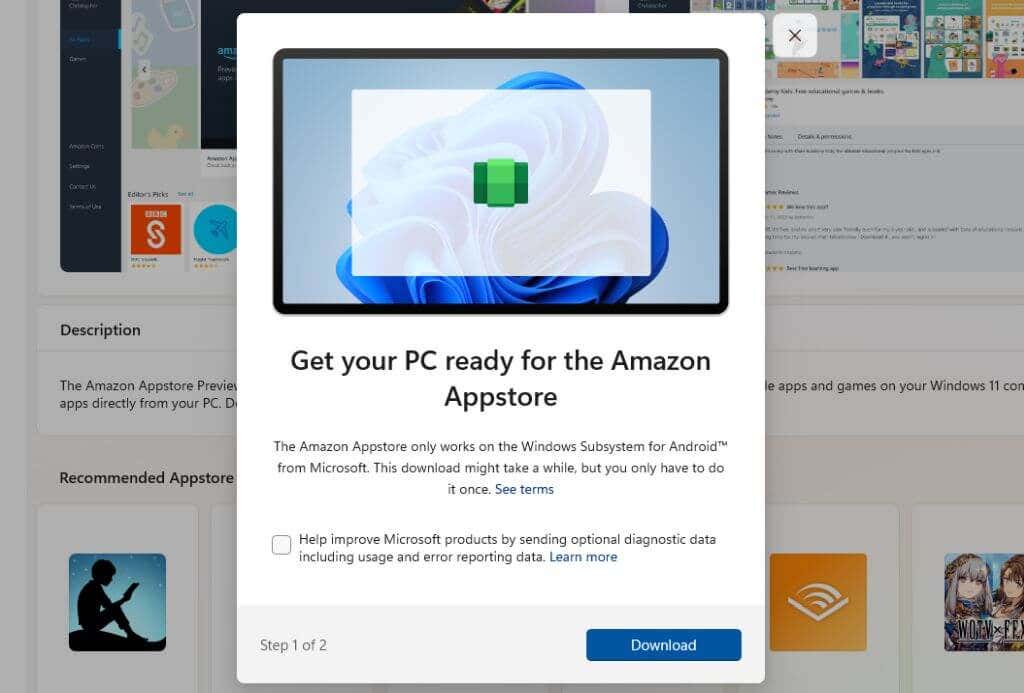
- In the next pop-up window, select the Download button.
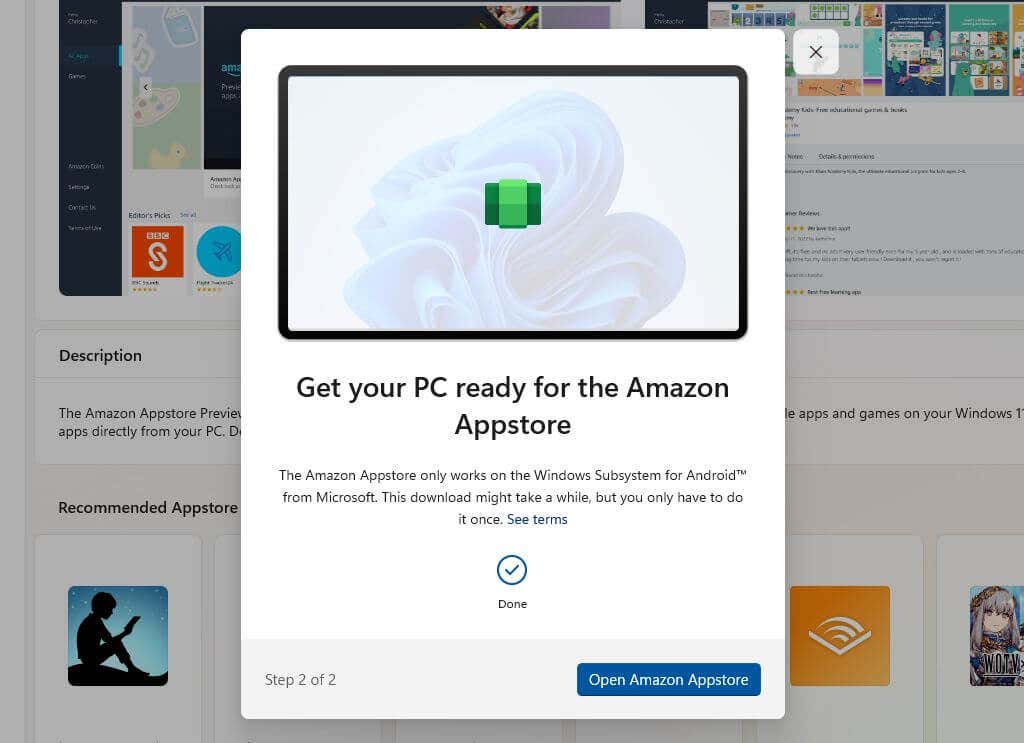
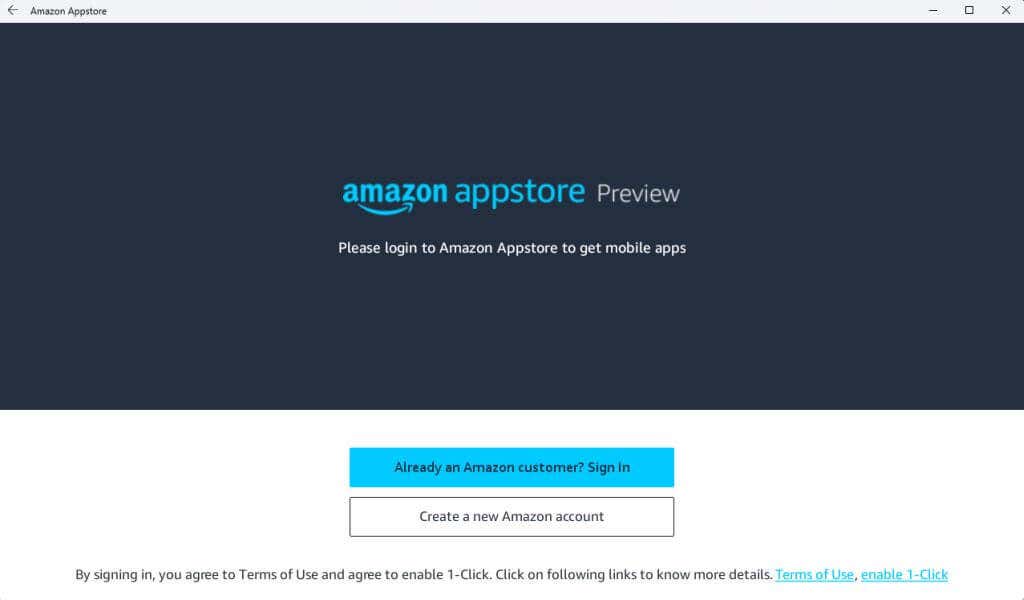
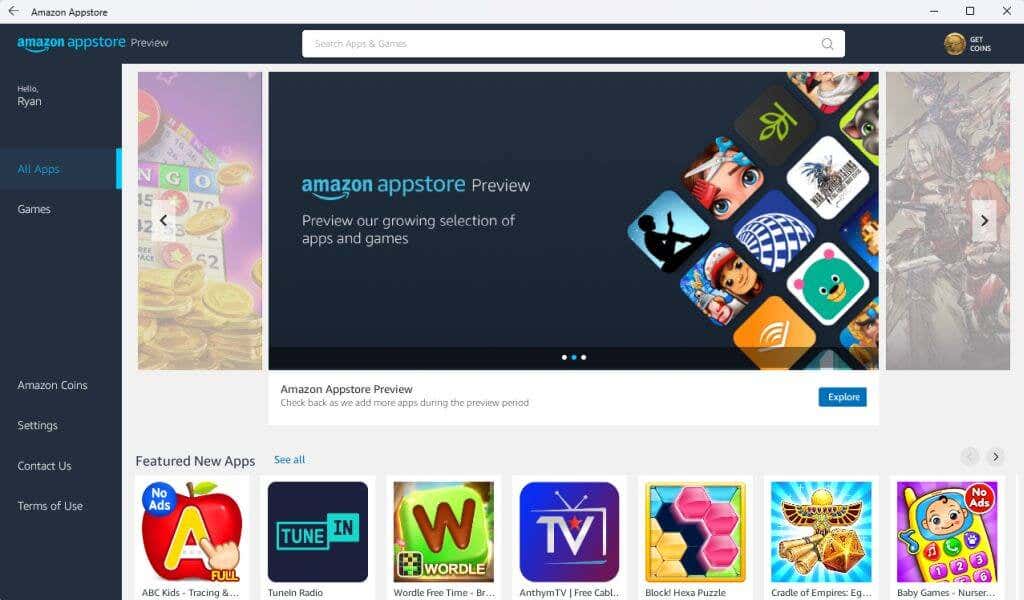
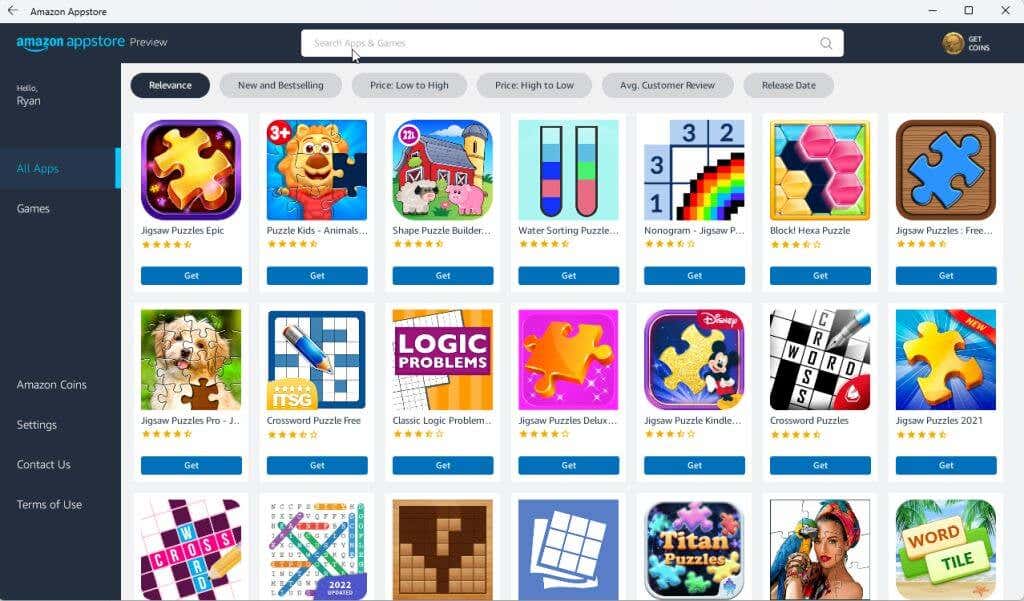
- Select the Get button under any app to install it.
- Finally, the app will launch on your PC just like it would if you were playing it on an Android device.
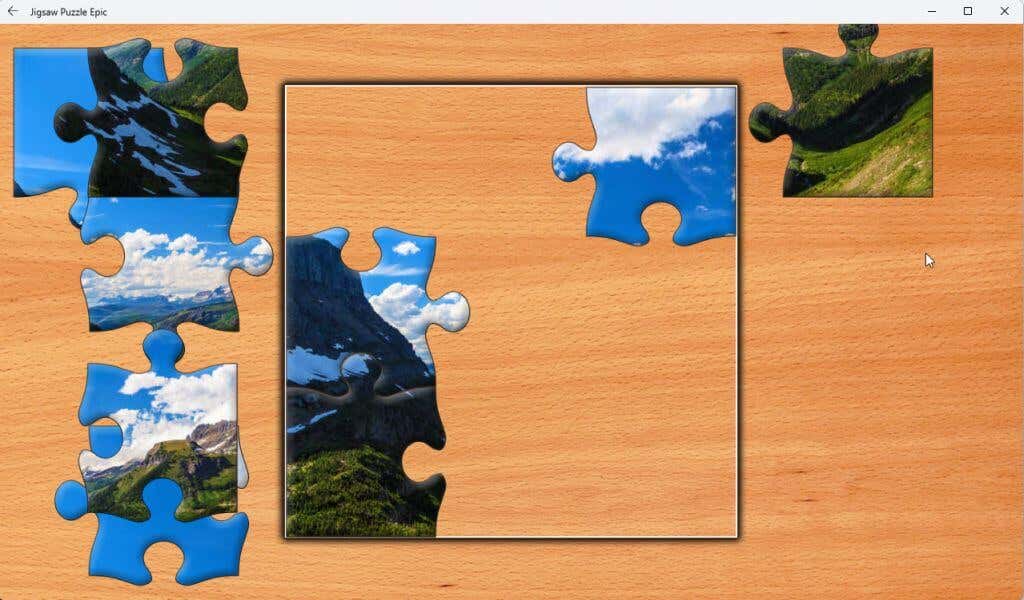
Note : These apps work best on a Windows 11 computer that has a touch screen display, which most modern Windows 11 laptops have.
You can even install the Kindle app for android and turn your Windows 11 computer into a virtual Kindle device. How cool is that?
- Sluggish Windows 11 PC? Try These 5 Windows 11 Tricks to Free up Virtual Memory
- How To Turn Off Notifications On Windows 11?
- How to Fix Windows 11 Boot Loops After Jan 2026 Update
- How to Remove Copilot AI in Window 11? New Update Available in Beta
- January 2026 Patch Tuesday: 7 Things Windows Users Should Do Before and After Updating
Ryan has been writing how-to and other technology-based articles online since 2007. He has a BSc degree in Electrical Engineering and he’s worked 13 years in automation engineering, 5 years in IT, and now is an Apps Engineer. Read Ryan’s Full Bio
