If you’re a Linux user or administrator, you need to know how to manage services on your system. Services are programs that run in the background and provide essential functionality, such as networking, printing, logging, and more.
But how do you list, start, stop, enable, disable, or restart services on Linux? The answer is the systemctl command. This command is part of systemd , a modern system and service manager for Linux distributions like Ubuntu and Debian.
If you’re a Linux beginner and you want to manage these services using systemctel , follow the steps below.
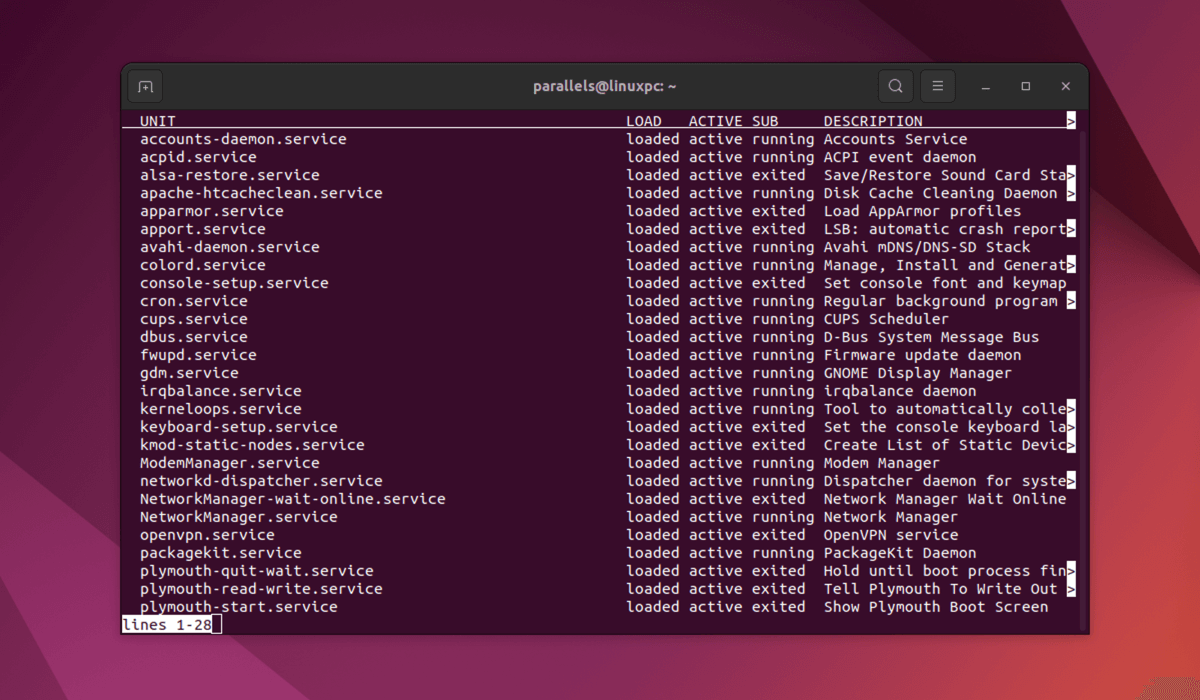
List All Services with systemctl
To list all the services on your Linux system, run this command in the terminal:
sudo systemctl list-units –type service
This will show you a table with five columns: UNIT , LOAD , ACTIVE , SUB , and DESCRIPTION .
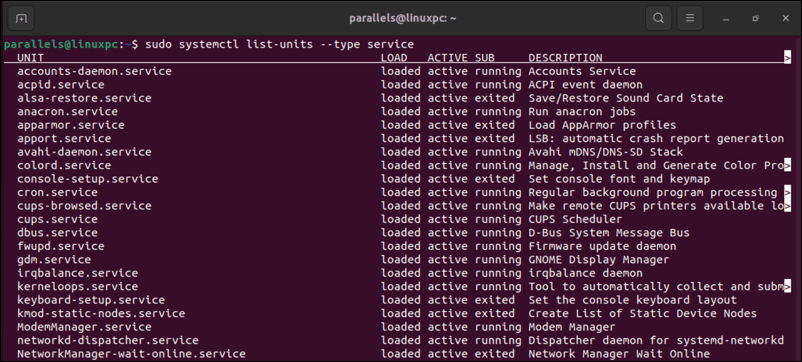
The UNIT column shows the name of the service unit file, which is the service’s configuration and definition file. This file contains information on what the service does and how to manage it. You can also view a quick descriptor for the service in the DESCRIPTION column.
The LOAD column shows whether the service unit file is loaded into memory. The ACTIVE column shows if it’s a running service or not. Finally, the SUB column shows the sub-state of the service, such as running, exited, or failed.
You can also use the -a or –all option instead of –type service to list all types of units, not just services.
List Active Services With systemctl
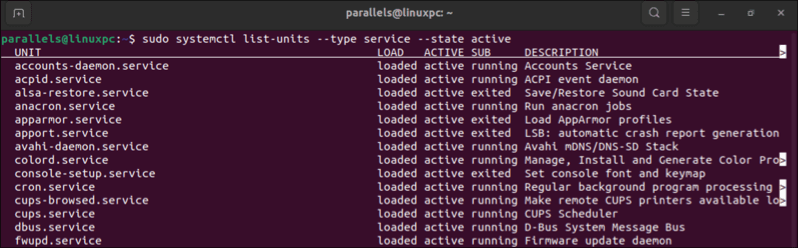
If you only want to see the services that are currently active (running) on your system, run this command in the Linux terminal:
sudo systemctl list-units –type service –state active
This will filter out the services that are inactive (stopped) or failed.
List Inactive Services With systemctl
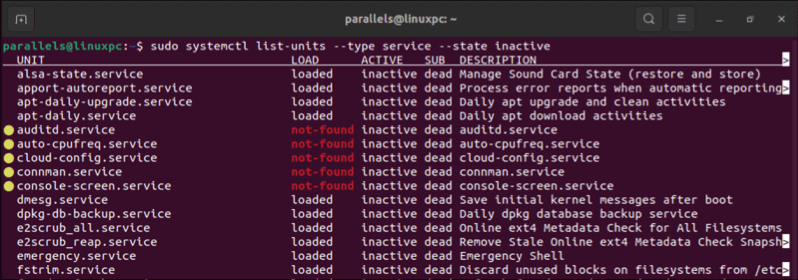
Similarly, if you only want to see the services that are currently inactive (stopped) on your system, run this command in the terminal:
sudo systemctl list-units –type service –state inactive
This will filter out the services that are active (running) or failed.
List Failed Services With systemctl
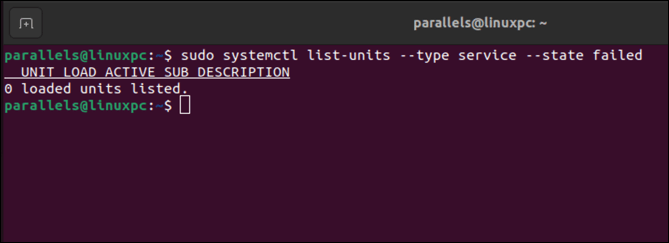
If you want to see the services that have failed to start or stop on your system, open the terminal and run this command:
sudo systemctl list-units –type service –state failed
This will filter out any currently active (running) or inactive (stopped) services.
List Enabled Services With systemctl
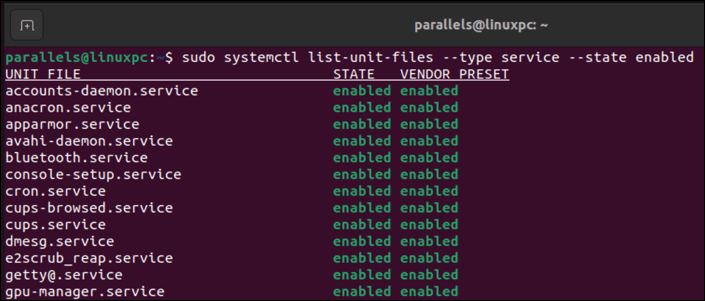
To see which services are enabled to start automatically at boot time on your system, run this command in the terminal:
sudo systemctl list-unit-files –type service –state enabled
This will show you a table with two columns: UNIT FILE and STATE . The UNIT FILE column shows the name of the service unit file. The STATE column shows whether the service is enabled or not.
List Disabled Services With systemctl
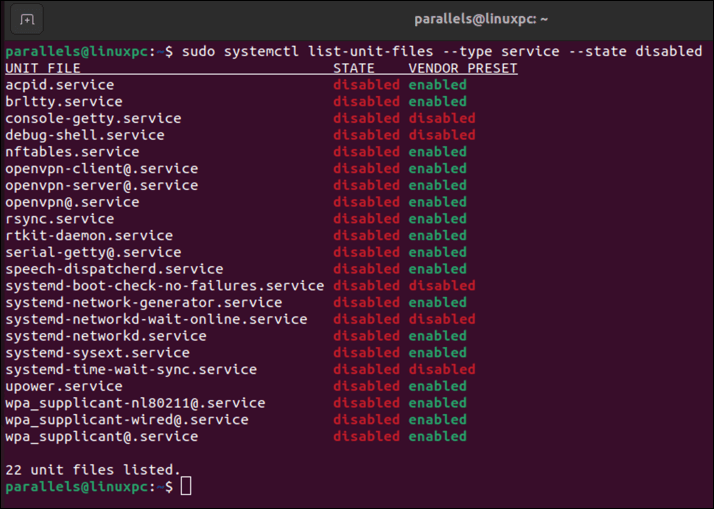
To see which services are disabled and won’t start automatically at boot time on your system, open up your Linux terminal and run this command:
sudo systemctl list-unit-files –type service –state disabled
This will filter out the services that are enabled or masked.
Show Details of a Service With systemctl
To show more details about a specific service on your system, run this command in the terminal:
sudo systemctl status
Replace
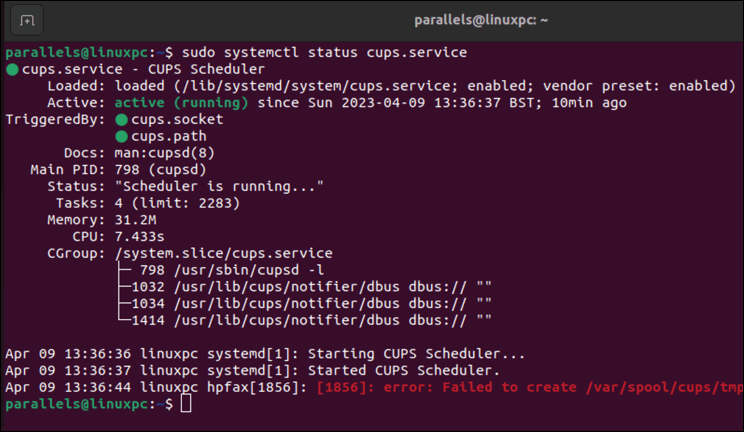
This will show you information such as the description, load state, active state, sub-state, process ID (PID), memory usage, CPU usage, and recent service logs.
You can also use the show subcommand instead of status to display all service properties in a name=value format.
Start a Service With systemctl
To start a service that is stopped on your system, run this command in your Linux terminal:
sudo systemctl start
Replace
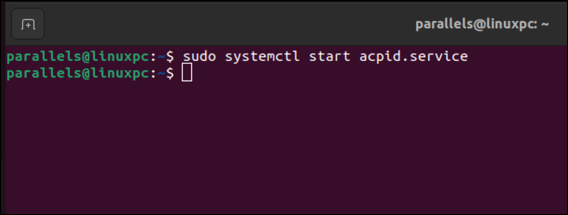
This will start the service in the background and return to the prompt. You can use the status subcommand to verify that the service is running.
Stop a Service With systemctl
To stop a service that is running on your system, run this command in the terminal:
sudo systemctl stop
Replace
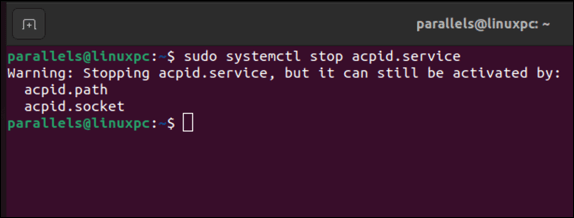
This will stop the service in the background and return to the prompt. You can use the status subcommand to verify that the service is stopped.
Restart a Service With systemctl
Want to edit and reload a service’s configuration file and apply the changes? If you do, you’ll need to restart the service afterward.
To restart a service that is running on your system, open up your terminal and run this command:
sudo systemctl restart
Replace
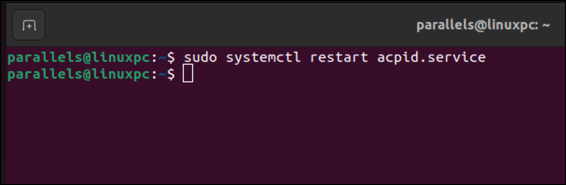
This will stop and start the service in the background and return to the prompt. You can use the status subcommand to verify that the service is running.
Reload a Service with systemctl
Some services support reloading their configuration without stopping and starting. Reloading a service allows you to make minor changes to those service’s configuration files without restarting them. This is faster and less disruptive than restarting.
To reload a service that supports this feature, use the following systemctl command in the terminal:
sudo systemctl reload
Replace
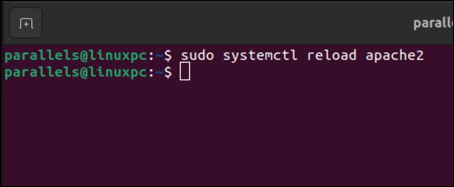
This will reload the service in the background and return to the prompt. You can use the status subcommand to verify that the service is running.
Enable a Service With systemctl
To enable a service to start automatically at boot time on your system, run this command in the terminal:
sudo systemctl enable
Replace
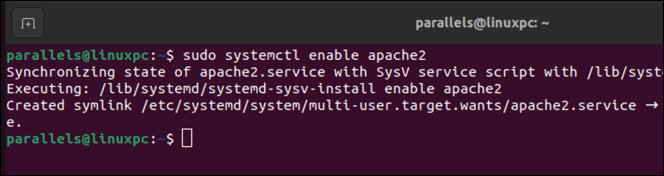
This will create a symbolic link from the service unit file to a location under /etc/systemd/system , which tells systemd to start it at boot time.
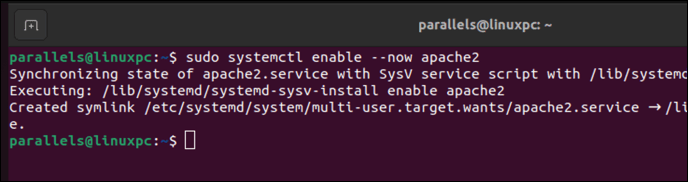
You can also use the –now option to enable and start a service simultaneously. For instance:
sudo systemctl enable –now
Disable a Service With systemctl
To disable a service from starting automatically at boot time on your system, run this command in the Linux terminal:
sudo systemctl disable
Replace
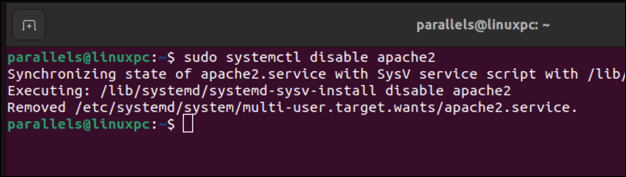
This will remove the symbolic link from /etc/systemd/system, which tells systemd not to start it at boot time.
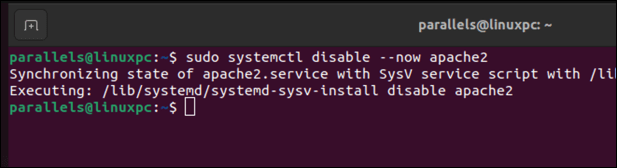
You can also use the –now option to disable and stop a service at the same time:
sudo systemctl disable –now
List Masked Services With systemctl
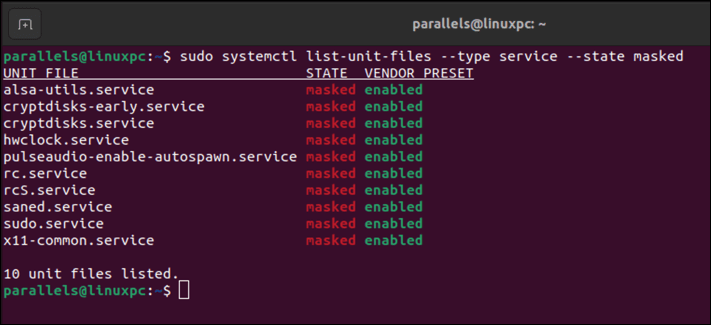
Masking a service means linking its unit file to /dev/null , which prevents it from being loaded or manipulated by systemd. This adds an additional layer of protection.
To see which services are masked and can’t be started or stopped manually or automatically on your system, run this command in your Linux PC’s terminal:
sudo systemctl list-unit-files –type service –state masked
The list of masked services will appear in a list (with masked listed under the STATE column)
Mask a Service With systemctl
Run this command in the terminal to mask a service from being started, stopped manually, or automatically on your system,:
sudo systemctl mask
Replace
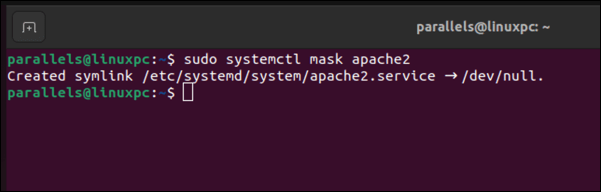
This will create the symbolic link from the service unit file to /dev/null to prevent it from being loaded or manipulated by systemd.
Unmask a Service With systemctl
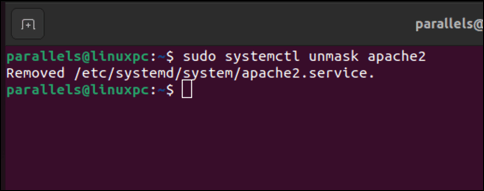
You can unmask a service that’s previously been masked. This’ll remove the symbolic link to /dev/null and allow it to be used and loaded elsewhere.
To unmask a service that was previously masked on your system, run this command:
sudo systemctl unmask
Replace
Controlling Your Linux PC
If your Linux PC is using systemd to manage system services, you can use the systemctl command to manage them. You can start, stop, reload, disable, and control your services, giving you greater control over your Linux PC.
Another way you can manage your PC is to limit access to certain files. You can use the chmod command on your Linux PC to allow (or disallow) access.
Unsure if your Linux distro is a good fit? You should try out another top Linux distribution instead, or even give a portable Linux distro a try. Using a portable distro will let you switch between them with ease.
- How to Remove Linux from Your Chromebook
- How to Run a Virtual Machine in Linux
- 6 Best Linux Emulators for Windows
- How to Install KDE Plasma Desktop on Linux Mint
- How to Access and Use OneDrive on Linux
Ben Stockton is a freelance technology writer based in the United Kingdom. In a past life, Ben was a college lecturer in the UK, training teens and adults. Since leaving the classroom, Ben has taken his teaching experience and applied it to writing tech how-to guides and tutorials, specialising in Linux, Windows, and Android. He has a degree in History and a postgraduate qualification in Computing. Read Ben’s Full Bio
