Microsoft’s Windows 11 and Windows 10 allow you to create a unique environment by customizing the looks of the operating system. You can personalize the OS , whether you use your PC for entertainment or work.
One such customization is the transparent taskbar . In fact, you can choose between solid, translucent, or completely transparent. The choice will influence the start menu too. This article will show you how to make your taskbar more appealing, using both native Microsoft Windows methods and some non-native ones.
Make Taskbar Transparent from the Windows Settings
Changing the transparency of your taskbar from the Settings app is as easy as toggling it on or off. Moreover, the steps are very similar for Windows 10 and 11. However, the difference can be subtle so let’s learn about controlling transparency for each OS separately.
Taskbar Customization in Windows 10
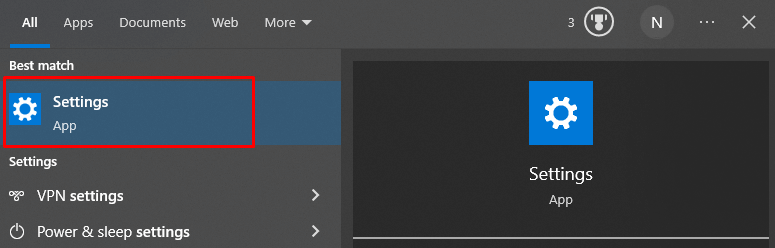
- Navigate to the Settings app. You can use the search feature to find it and open it quickly.
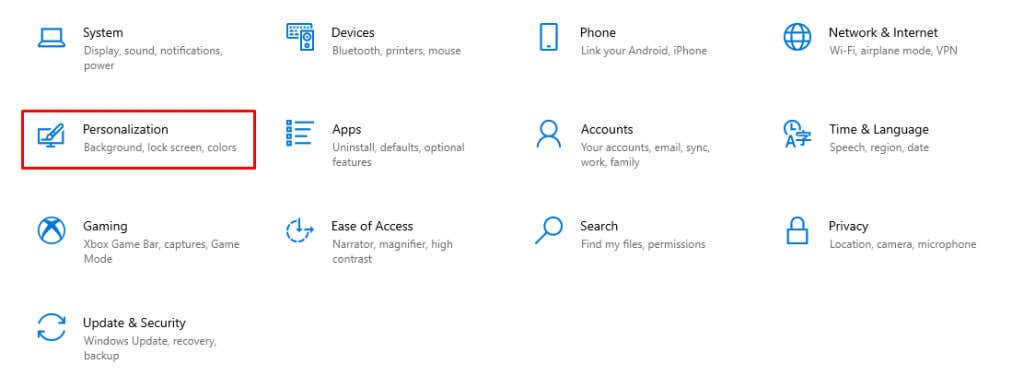
- Select the Personalization option.
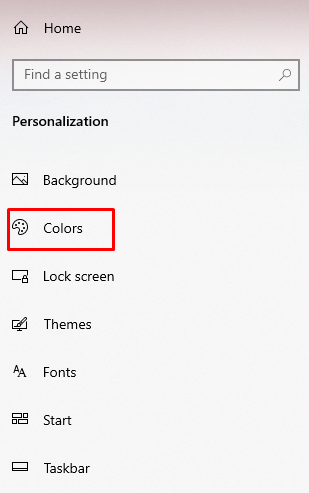
- Choose Colors from the left side menu.
- In the main window find the Transparency effect, and toggle it on.
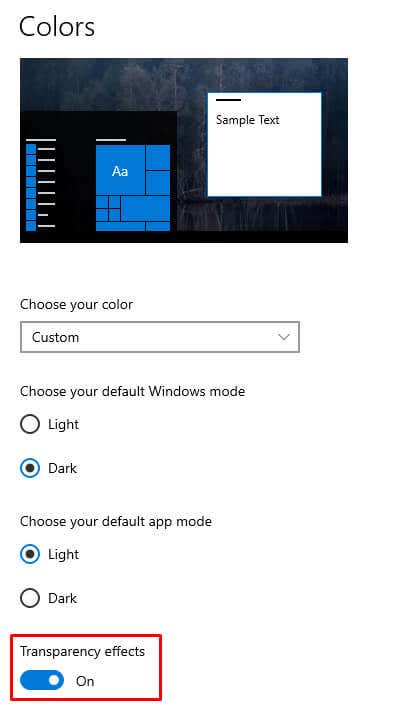
That’s it! Your taskbar should be transparent. Now, let’s take a look at Windows 11.
Taskbar Customization in Windows 11
- Navigate to Settings , then Personalization .
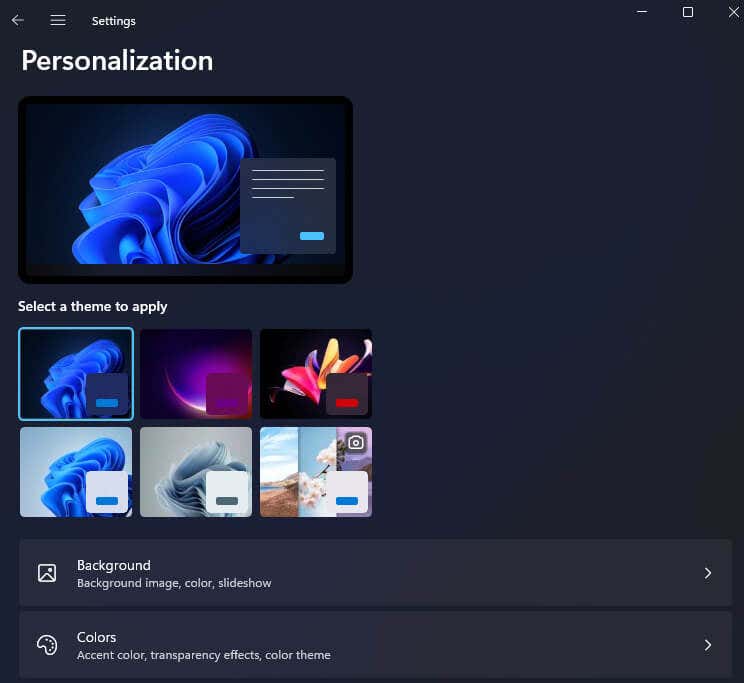
- Select the Colors option.
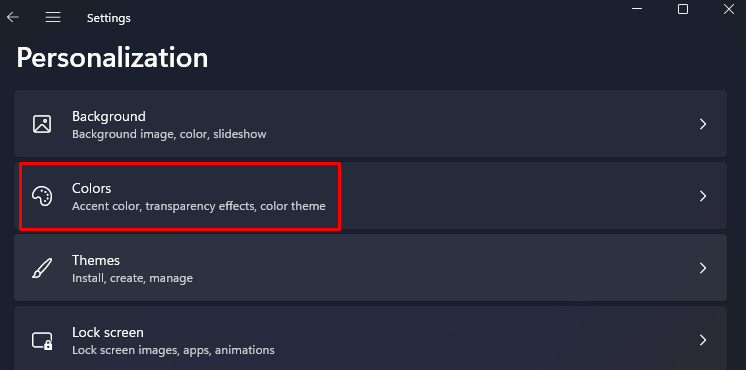
- Find Transparency Effects and toggle the switch on.
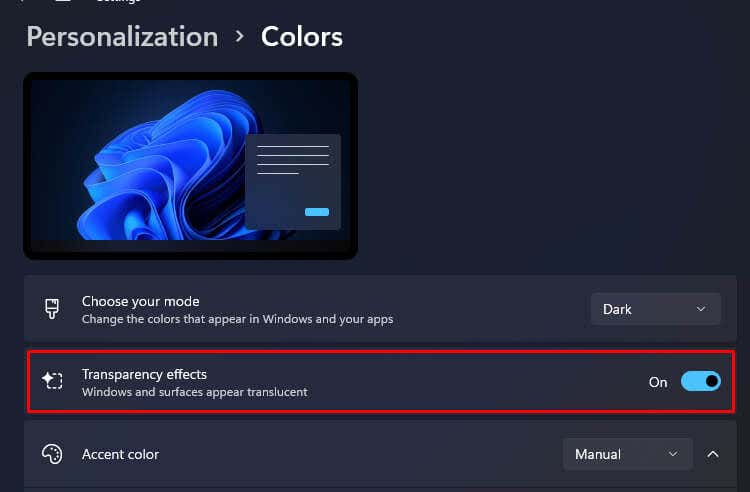
And that’s it. If you want to return the taskbar to a solid state, simply toggle this same option off.
If you want to continue customizing your taskbar, you can add a color overlay to it. This will give the Taskbar a slight shade of a color of your choosing, and you can make some interesting-looking setups with it.
Adding a Color Overlay in Windows 10
- Go to Settings , and select Personalize .
- Go to Colors on the left side menu.
- Scroll down to Choose your accent color section . Pick a color by clicking on the one you like, and check the box in front of Start, taskbar, and action center .
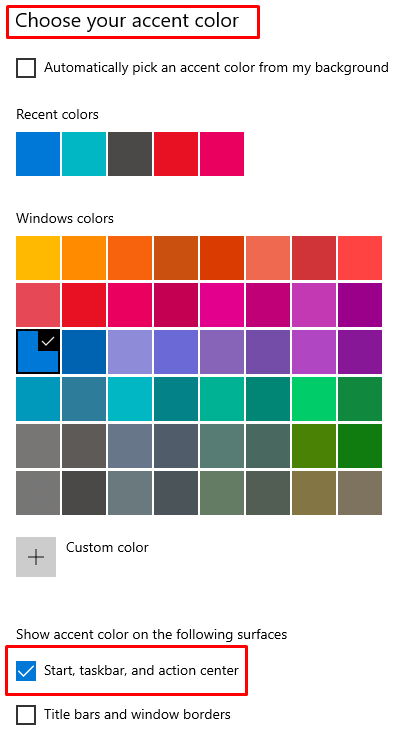
You’ll notice the color is immediately added to the taskbar.
Adding a Color Overlay in Windows 11
- Navigate to Settings , Personalization , and finally Colors , just as in the previous step.
- Select the color you want to add to the taskbar, from the offered color grid.
- Scroll down until you find Show accent colors on Start and taskbar . Toggle the switch next to it on.

Manage the Transparency of the Taskbar from Accessibility
Microsoft also allows you to control the transparency of your taskbar from the Accessibility menu in the Settings app. In Windows 10, this section is called “Ease of Access.” Let’s see the steps you’ll need to follow for both Windows 10 and Windows 11.
Transparency Management in Windows 10
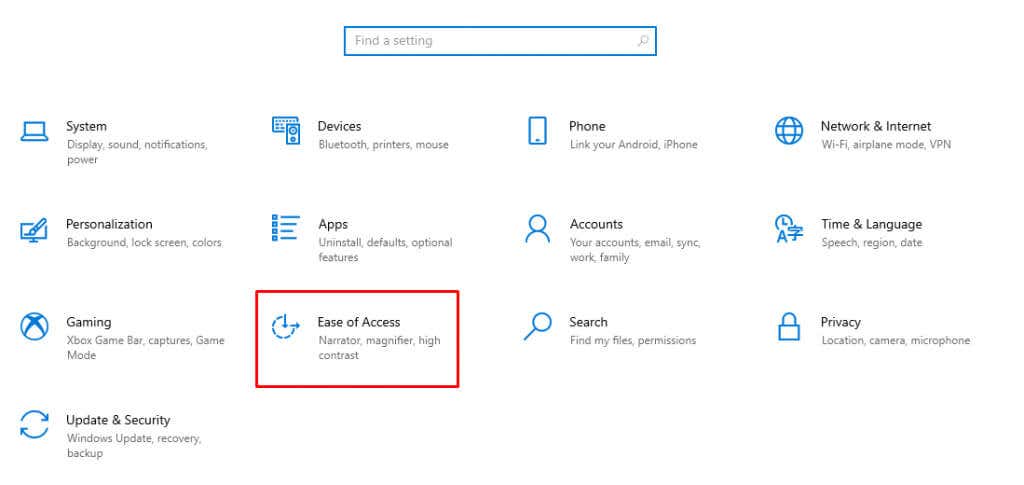
- Go to the Settings app, and select the Ease of Access option.
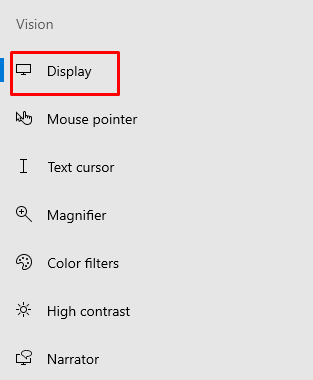
- From the left side menu select Display , under the Vision section.
- In the main window, scroll down until you see Simplify and Personalize Windows section. Toggle on the S how transparency in Windows option.

And here’s what these steps look like in Windows 11.
Transparency Management in Windows 11
- Navigate to the Settings app, and then select Accessibility .
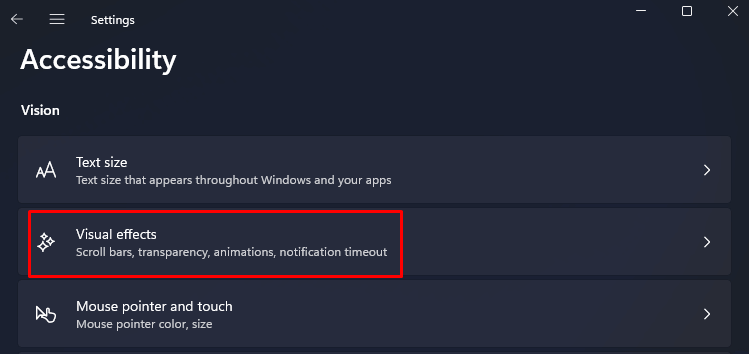
- Select the Visual Effects section.
- Find Transparency effects , and toggle the slider next to it.

Manage the Transparency of the Taskbar through Windows Registry
Although it’s possible to turn on the transparency of the taskbar through Windows Registry , it’s important that you know that any misconfiguration in the system’s registry can be fatal to your operating system. That’s why it would be wise to create a system restore point , and only then try the steps described below.
Back up all the important data you value if you already didn’t. You should be doing this periodically anyway. Changing taskbar transparency with the Windows registry is the same for Windows 10 and 11.
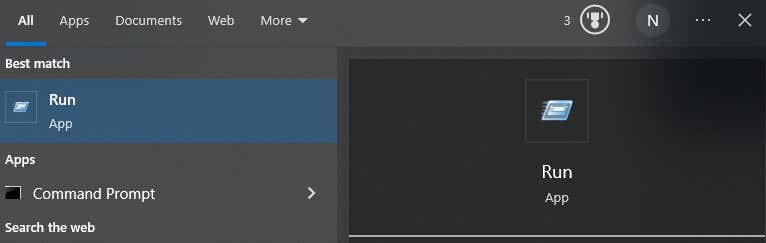
- Type run in the search bar and open the Run app. Alternatively, press the Windows key + R on your keyboard.
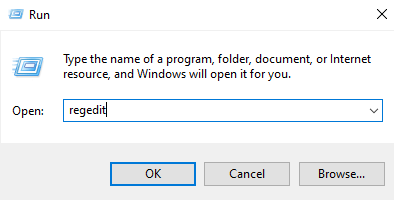
- Type regedit in the command box. This will open the registry editor.
- In the address bar at the top of the quick navigation of the registry editor type: Computer\HKEY_CURRENT_USER\Software\Microsoft\Windows\CurrentVersion\Themes\Personalize

- Double-click on Enable Transparency in the main window.

- When a pop-up window appears, if the Value data is set to 0 (zero), you’ll need to change it to 1 and press OK to continue. This will immediately change the taskbar transparency and you won’t need to reboot your system.
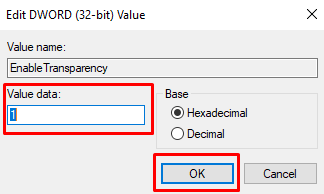
- If you want to return the taskbar to solid, just change the value back to 0.
The transparency added with this method is very light. But there is a way to add a bit more transparency, although there is no built-in way of making your taskbar completely transparent. For that, you’ll need to use a third-party app.
UsingTransculentTB
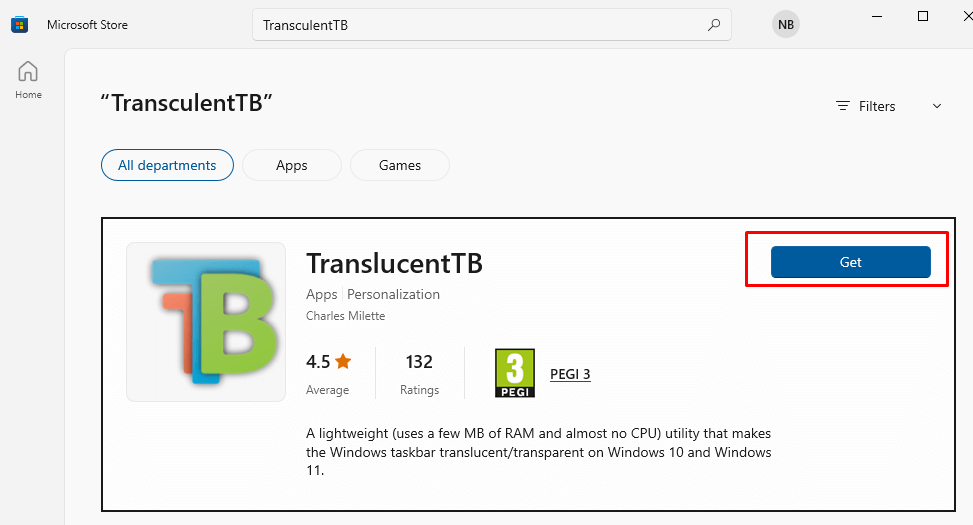
The TransculentTB App is available in the Microsoft Store, and it’ll work on both Windows 10 and 11. This UWP app will help you personalize and manage your taskbar opacity. Here’s how it works:
- Go to the Microsoft Store page and type TransculentTB in the search bar. When the app shows up, click Get it , and it will be installed on your device.
- Once the app is downloaded, open it. You’ll notice your taskbar will immediately become transparent.
- The app will run in the system tray. To change its settings, right-click on it. This will give you access to its menu.
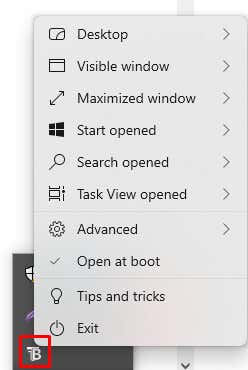
- Select the desktop option and there you’ll find different customization options for your taskbar. Choose whichever appeals the most to you.

As you can see there are many different customization options in the TranslucentTB app. It’ll allow you not only to personalize your Taskbar, but also the search menu, start menu, and other options. This app also offers tips and tricks on how to best customize your taskbar. Go ahead and try it.
UsingTaskbarTools
TaskbarTools is another third-party app that you can use to customize the taskbar. It’s also free to use, and you can install it on as many Windows devices as you want. It’ll allow you to manage the opacity of the taskbar by simply using a slider.
- Go to the app’s Github page and download the latest version of the app.
- Extract the content from the .zip file and run the application.

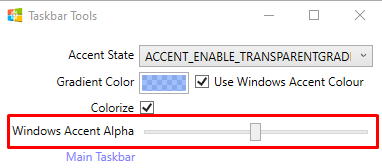
- When the app opens, select ACCENT_ENABLE_TRANSPARENTGRADIENT from the Accent State drop-down menu.

- Go to Options, and check Start Minimized , Apply Settings when Started , and Start With Windows boxes.
- Close the app, and re-run it.
- Use the Windows Accent Alpha slider to change the opacity of your Taskbar.
Now that you know how to make the Windows Taskbar transparent and customize it according to your preference, you can enjoy a sleek and modern look for your screen. Not only will it have an appealing aesthetic, but the transparency provides better visibility so you can focus on getting work done.
Just watch out for any potential compatibility problems when customizing, and be careful not to delete important system files.
- Preparing for Windows 10 End of Support: Upgrading to Windows 11
- How to Fix a “This file does not have an app associated with it” Error on Windows
- How to Fix an Update Error 0x800705b4 on Windows
- How to Resolve “A JavaScript error occured in the main process” Error on Windows
- How to Fix the Network Discovery Is Turned Off Error on Windows
Nicolae is a Jack of all trades technology writer with a focus on hardware, programming languages, and AI image-processing software. Over the last five years, he has ghostwritten numerous tech how-to guides and books on a variety of topics ranging from Linux to C# programming and game development. Nicolae loves everything that has to do with technology and his goal is to share his knowledge and experience with others. Read Nicolae’s Full Bio
