If you have an important or exciting Facebook post you want to remain visible for several days or weeks, pinning it ensures that visitors see it when they land on your profile, page, or group.
Pinning a post also ensures it gets more traction – engagement, likes, clicks, or shares.

No matter your reason for pinning a particular post, this guide explains how to pin a post on a Facebook profile, page, or group, and give it the extra attention it needs.
How to Pin a Post on a Facebook Profile
If you want to pin a particular post on your Facebook profile , so it’s visible to your friends or anyone who lands on your profile, you can do that in a few easy steps.
Pin a Post on a Facebook Profile on a Computer (Windows PC/Mac)
- Launch Facebook on your web browser, go to your Facebook profile and find the post you want to pin to the top.
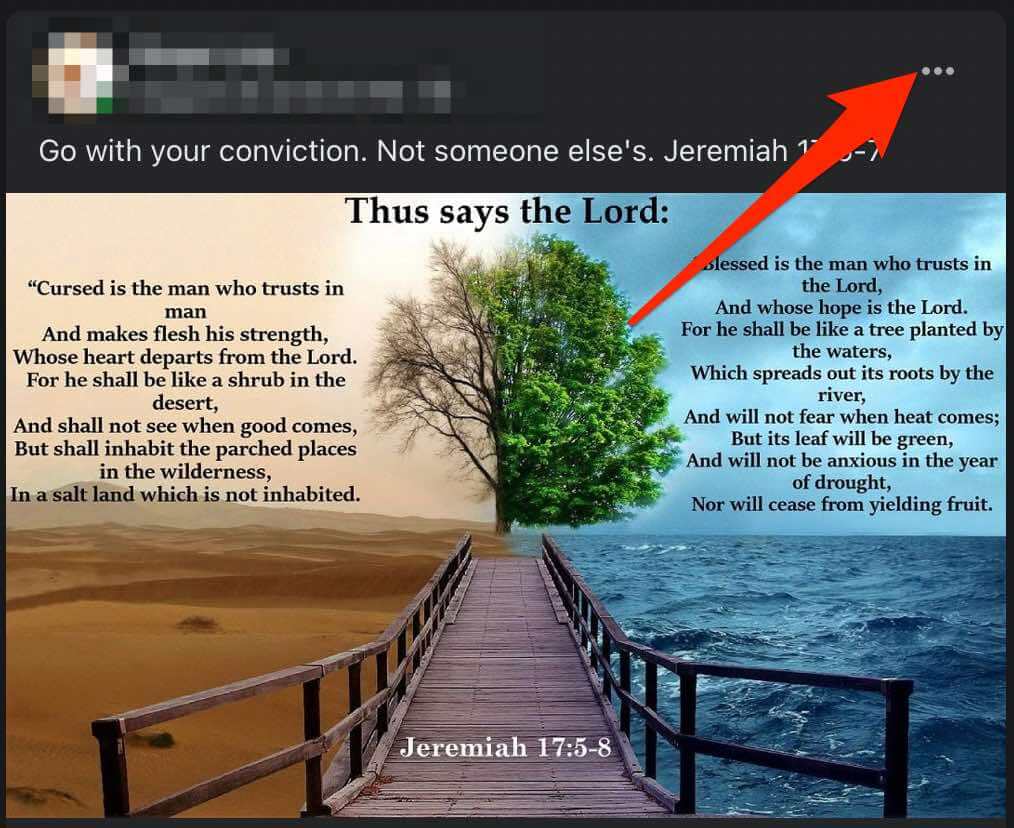
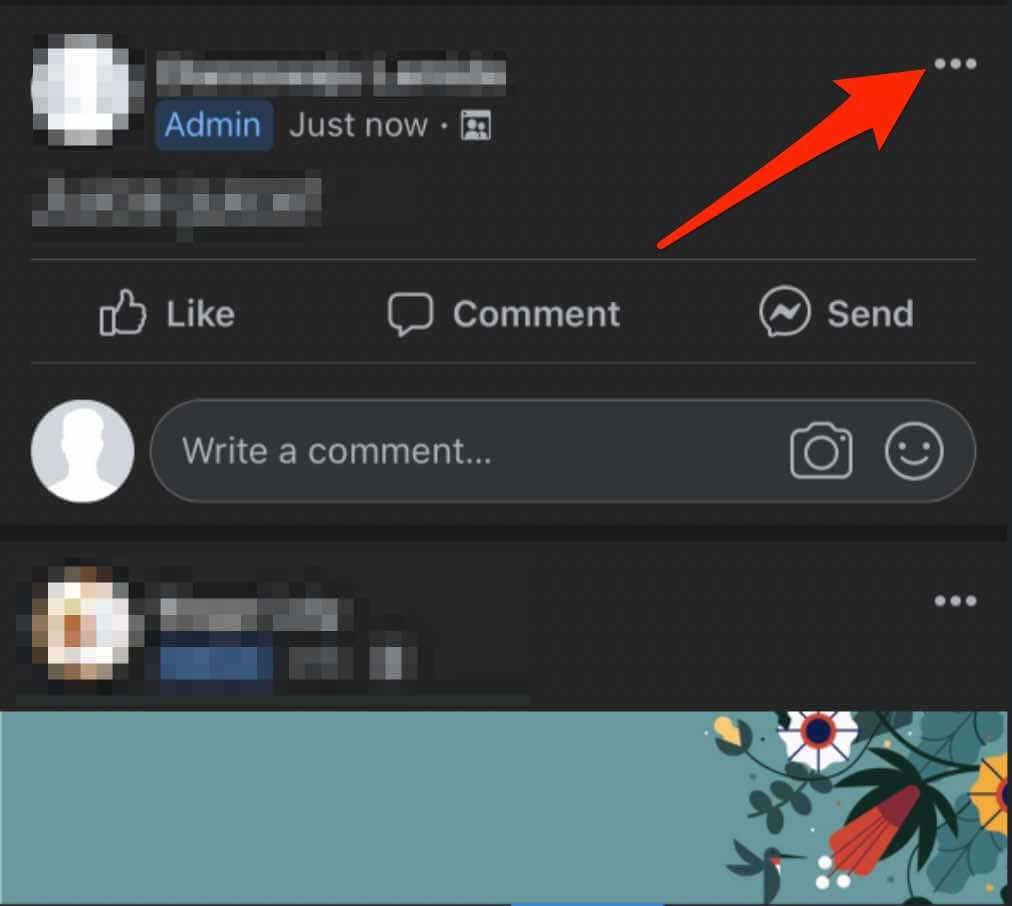
- Select More (three dots) next to the post.
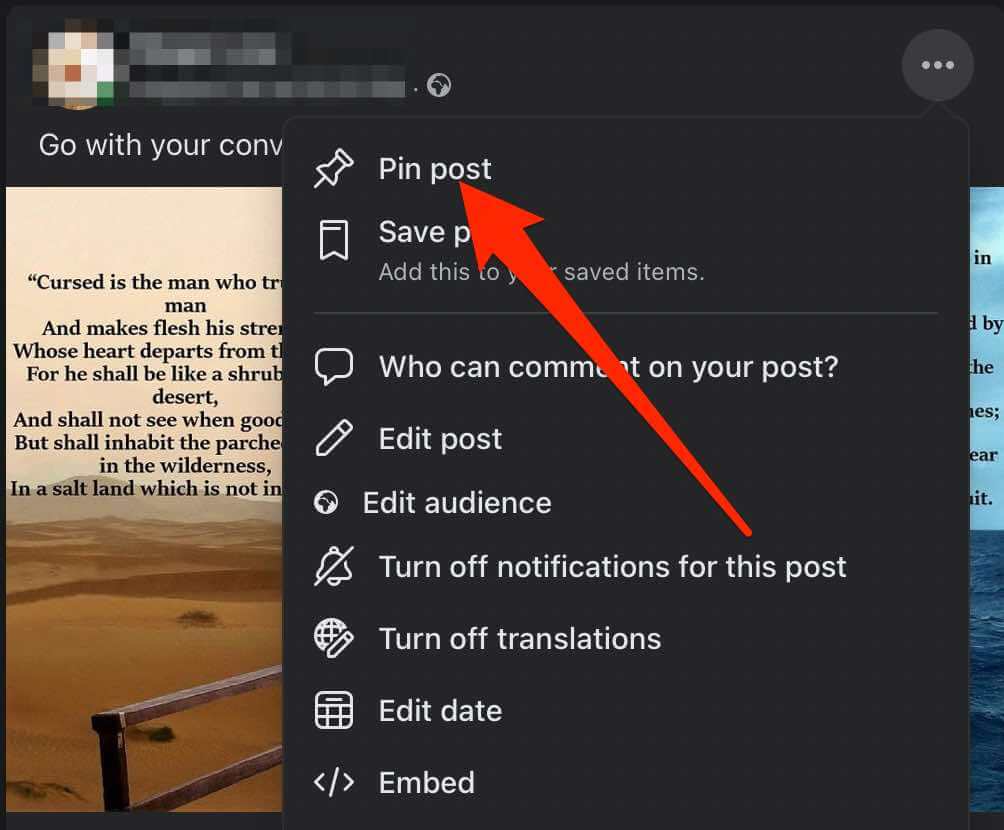
- Next, select Pin post .
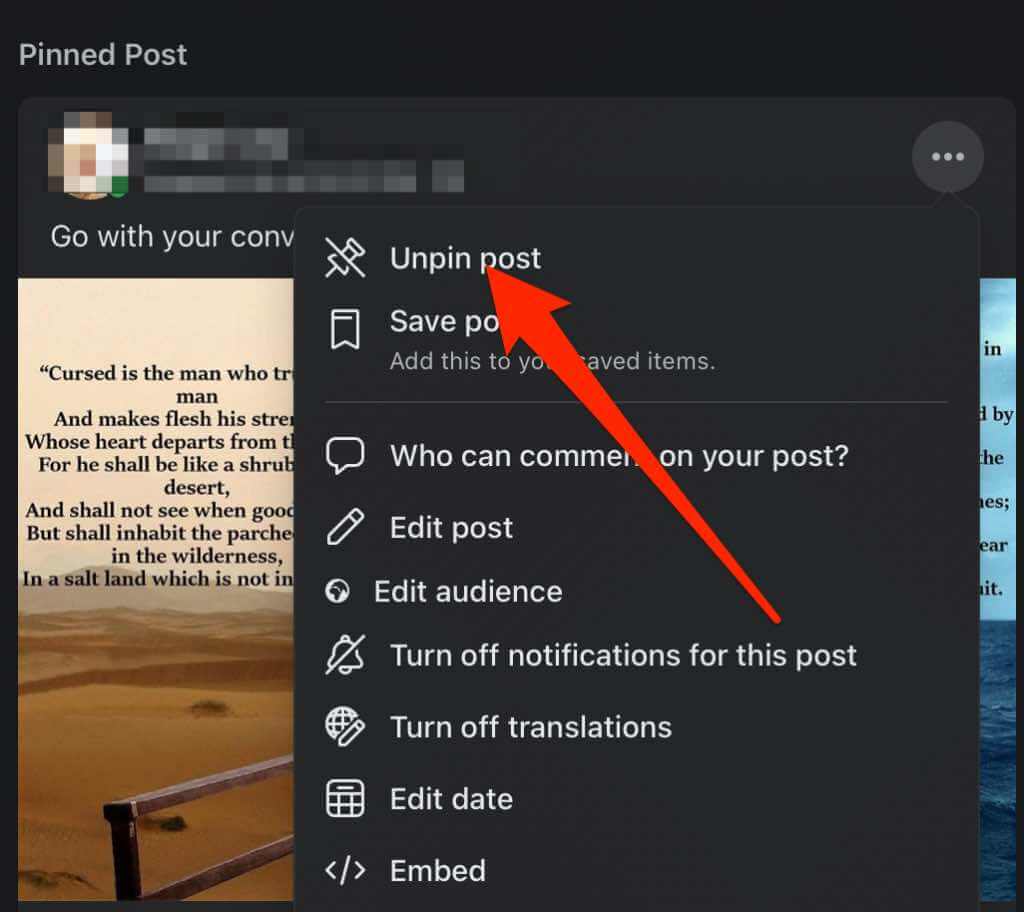
- To unpin the post, tap More next to the post, and then tap Unpin post.
Pin a Post on a Facebook Profile on an Android Device
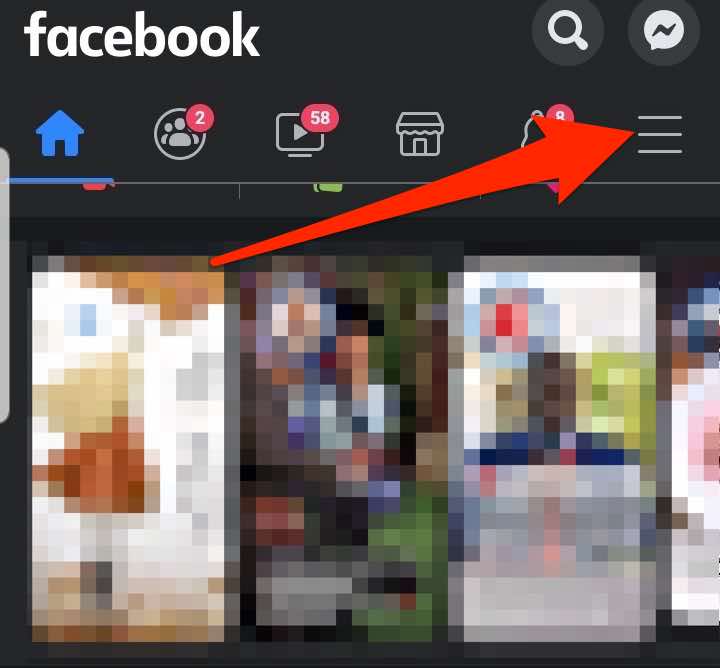
- Open the Facebook app, sign in, and then select the menu (three horizontal lines) at the top right side of the screen.
- Tap on your profile name .
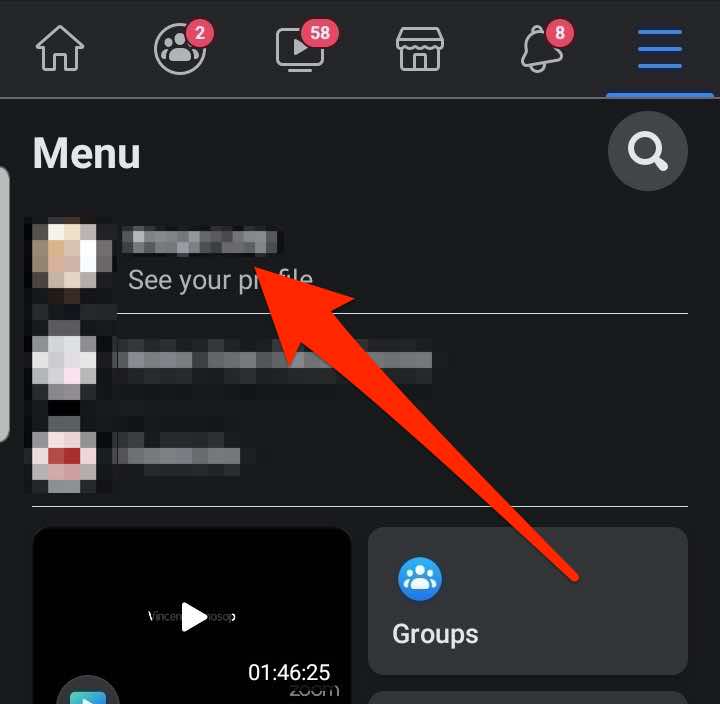
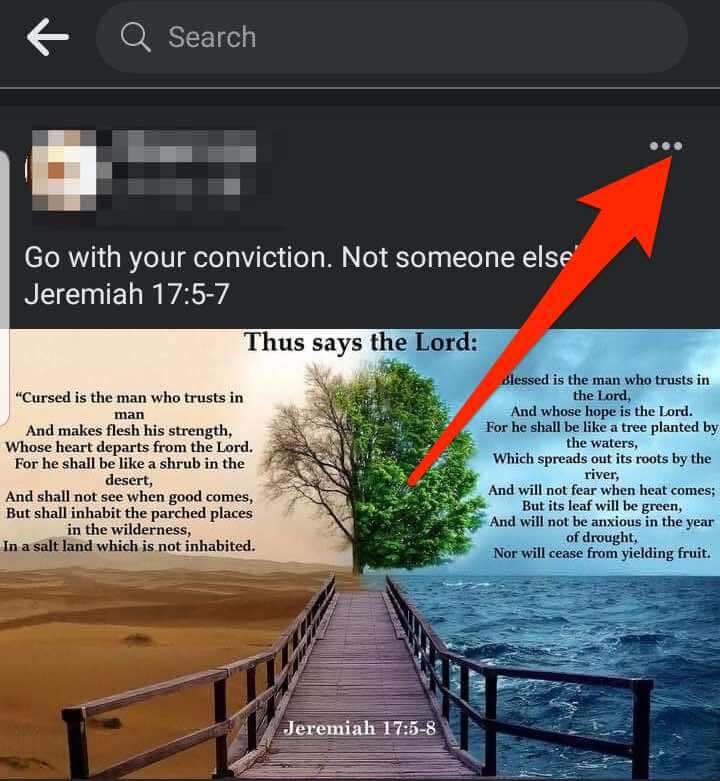
- Find the post you want to pin to the top or create one and tap More (three dots).
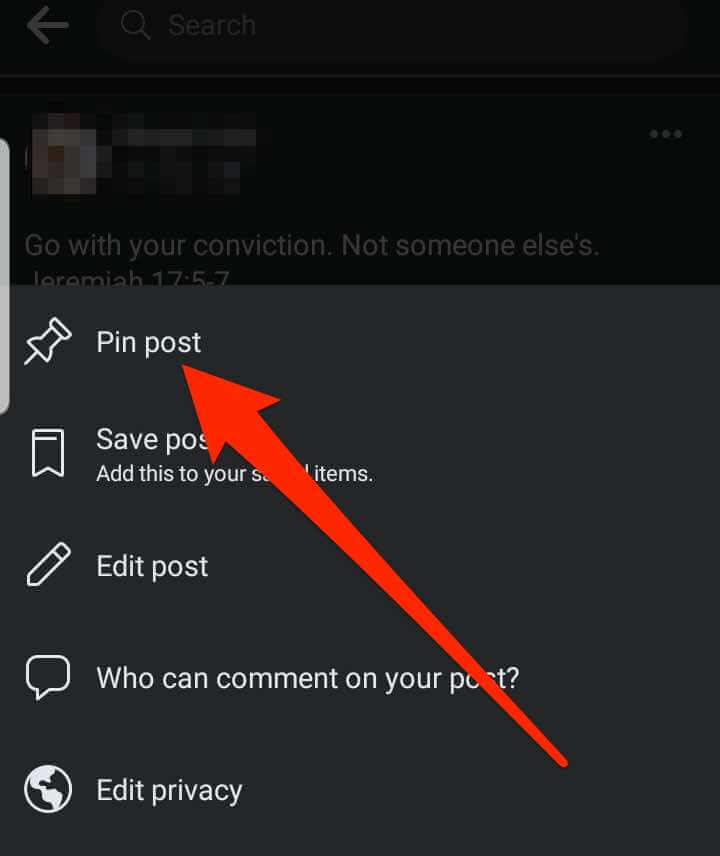
- Tap Pin post .
- To unpin the post, tap More next to the post, and then tap Unpin post.

Pin a Post on a Facebook Profile on an iPhone/iPad
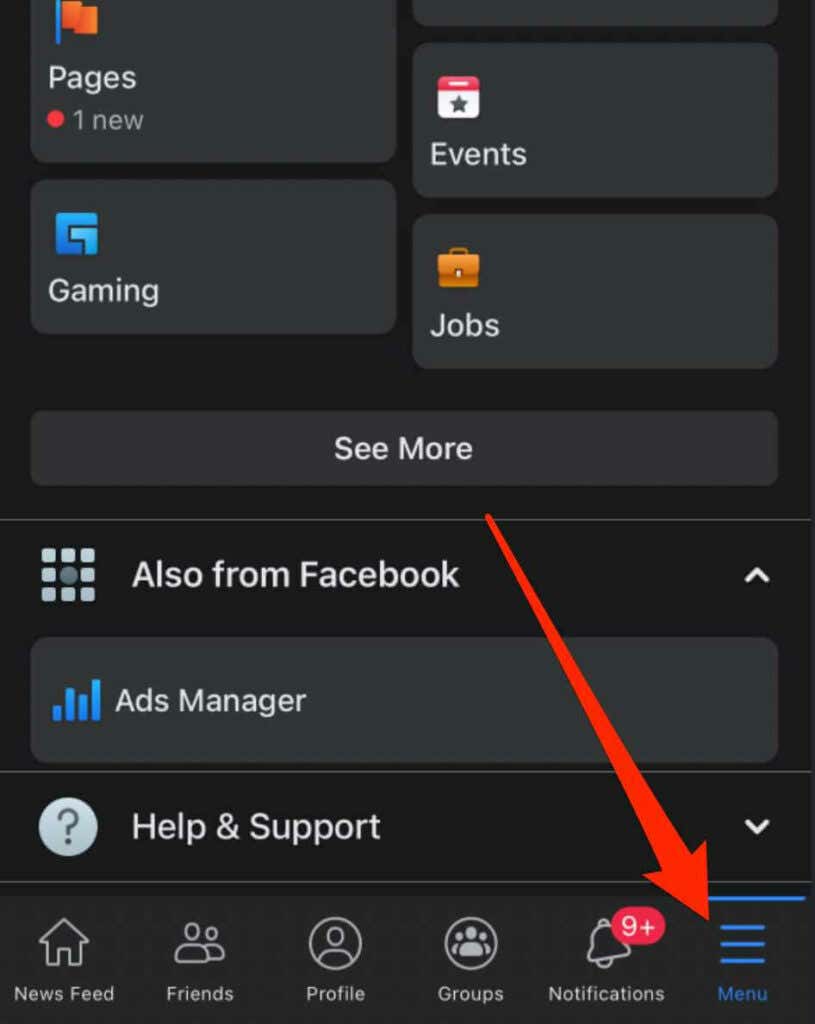
- Launch the Facebook app on your iOS device, tap Menu (three horizontal lines) to open your Facebook profile, and tap on your profile name.
- Find the post you’d like to pin to the top or create and publish a new post and then select More .
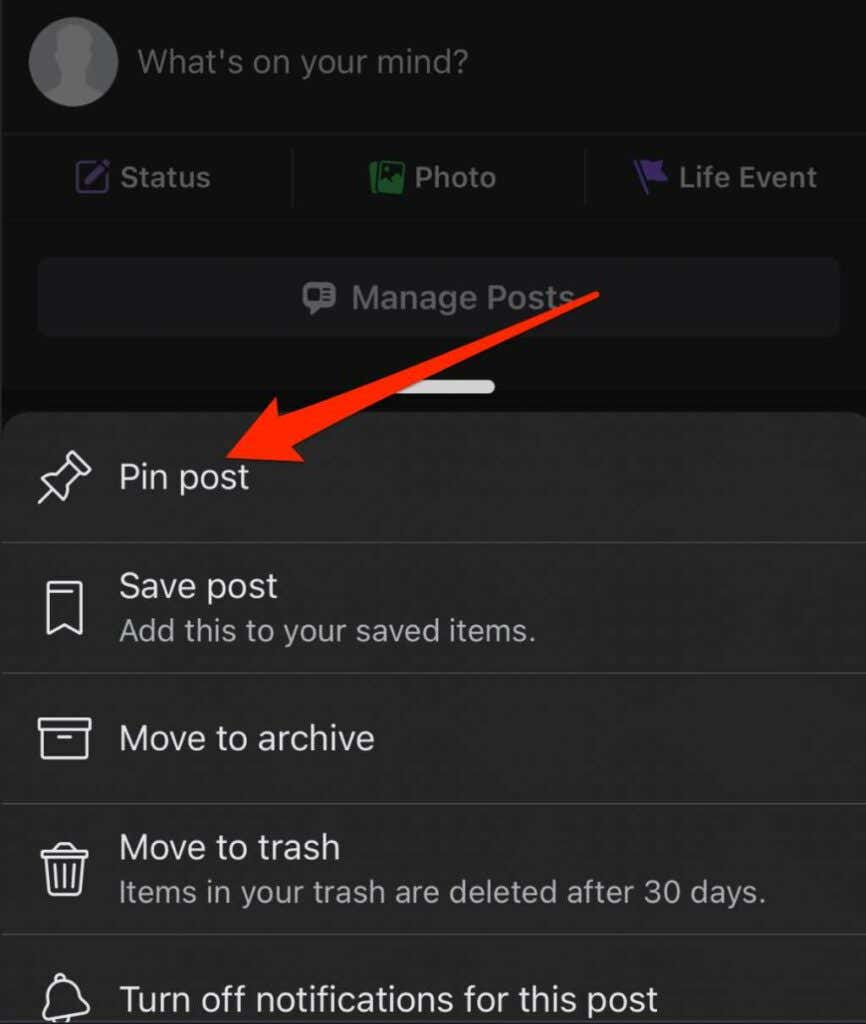
- Tap Pin post .
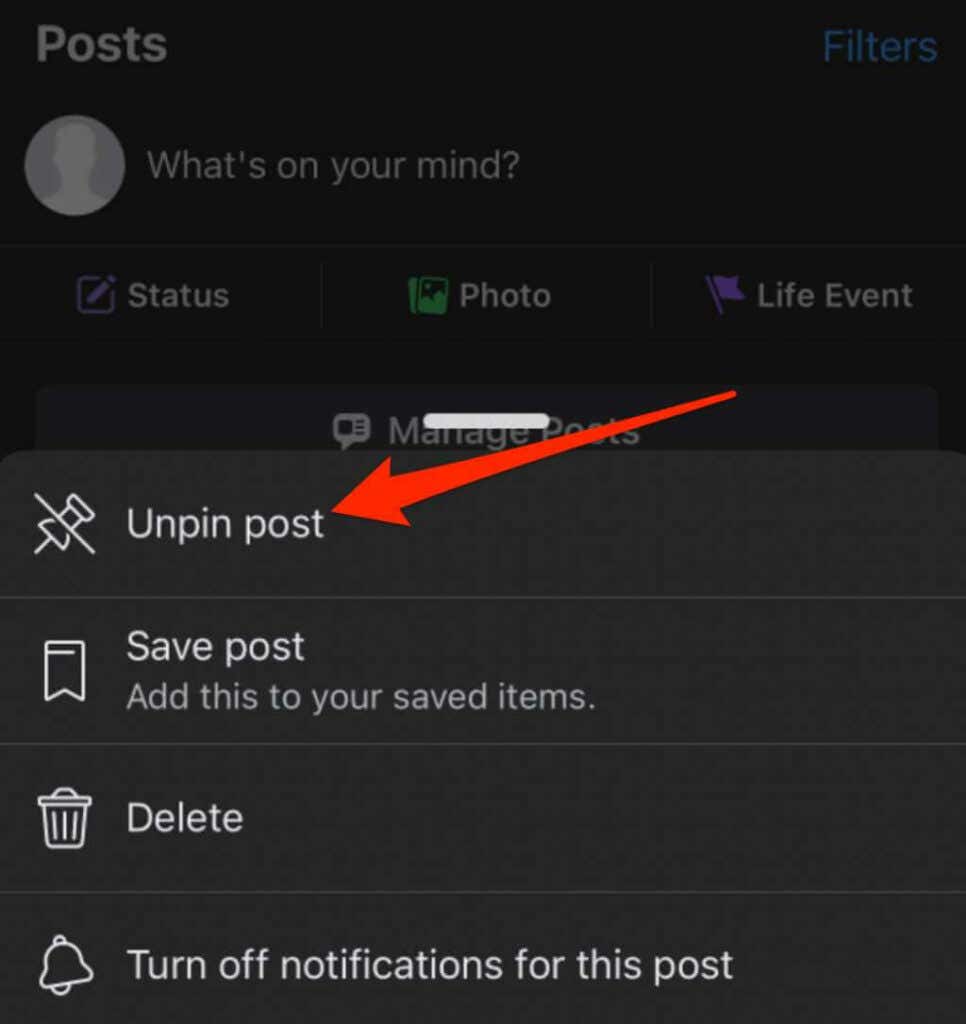
- To unpin the post, tap More next to the post, and then tap Unpin post.
How to Pin a Post on a Facebook Page
Note : You must have page admin or editor permissions to pin posts on a Facebook page.
Pin a Post on a Facebook Page on a Computer (PC/Mac)
You can access your Facebook page from a web browser and select the post you want to pin to the top.
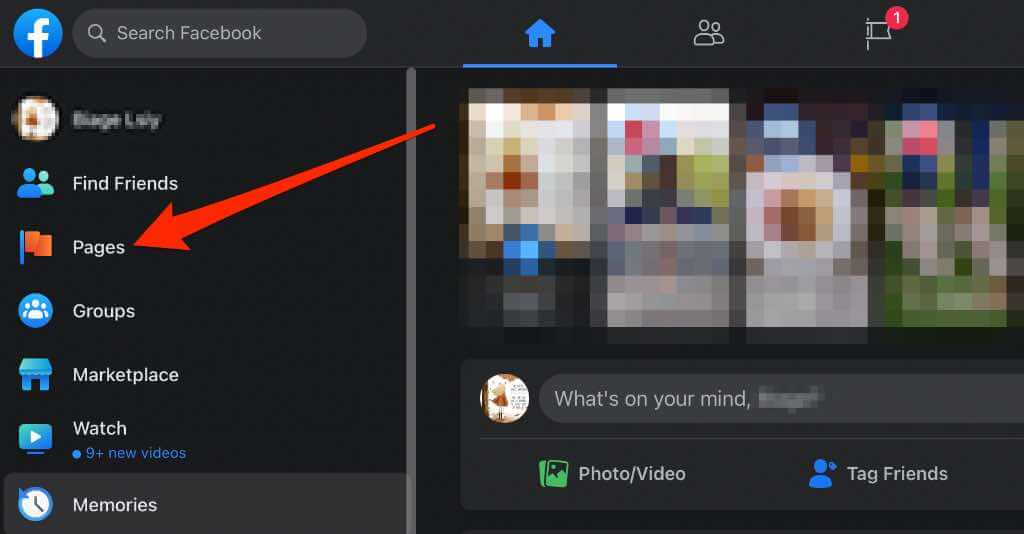
- Open Facebook and select Pages in the left pane.
- Select the page with the post you want to pin, and then find the post or create and publish a post to pin to the top.
- Select More at the top right side of the post.
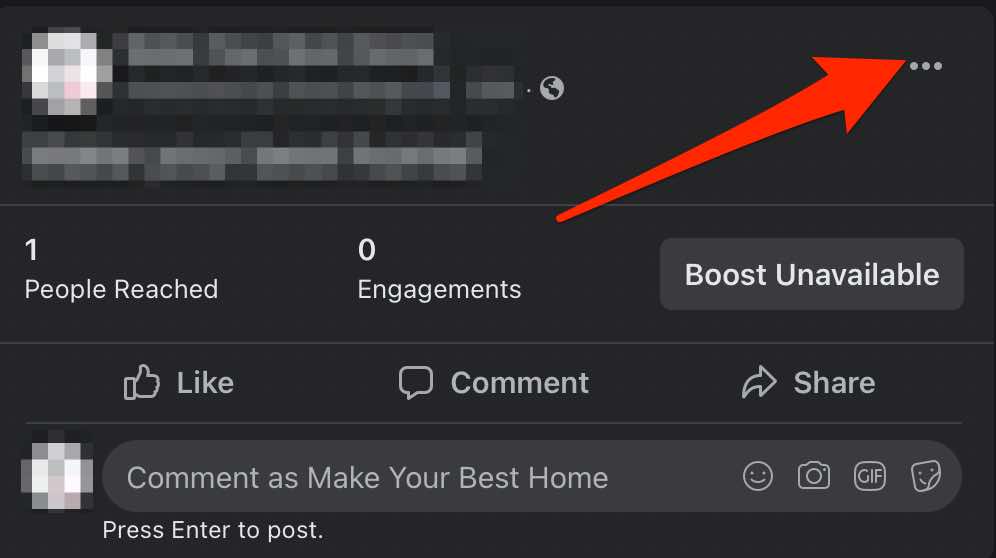
- Next, select Pin to top of page .
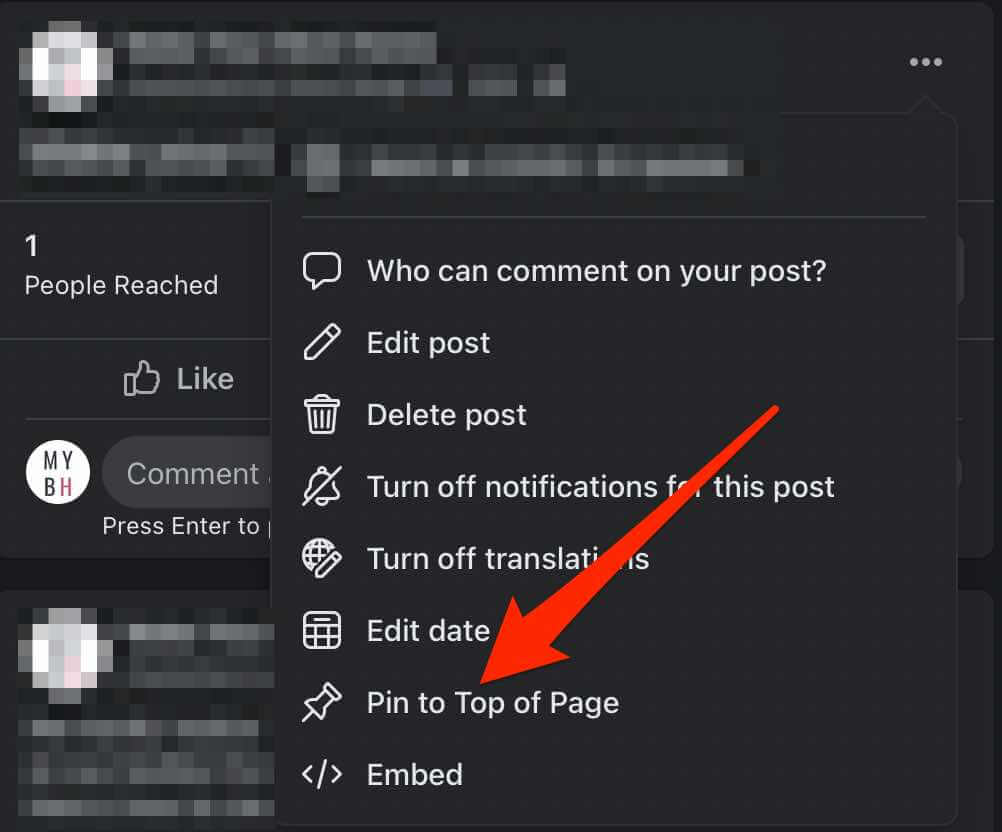
The post will move to the top of the timeline on your Facebook Page, and a pin icon will appear next to the post, so people know it’s a pinned post.
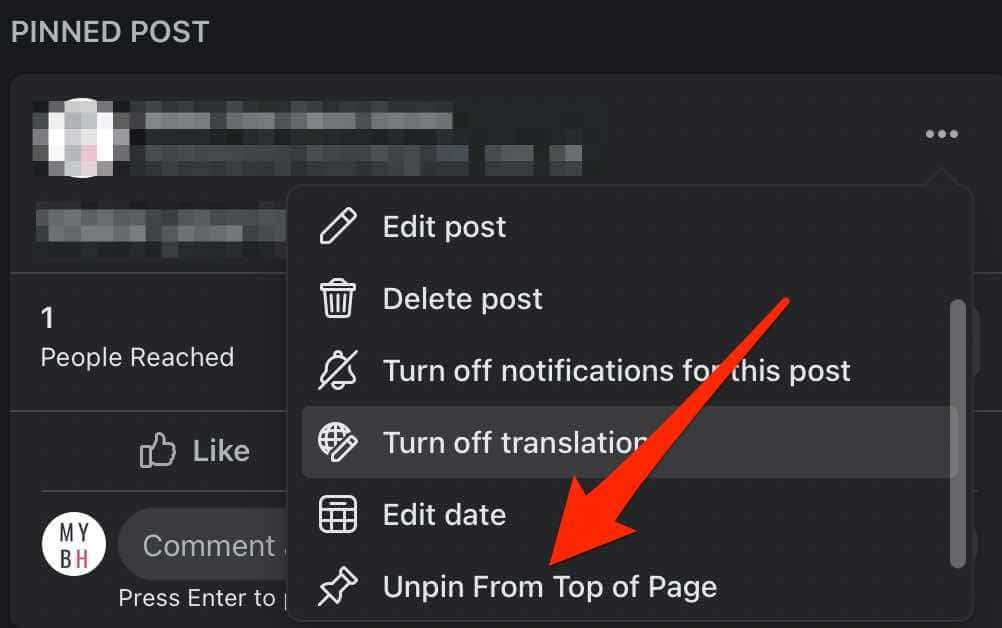
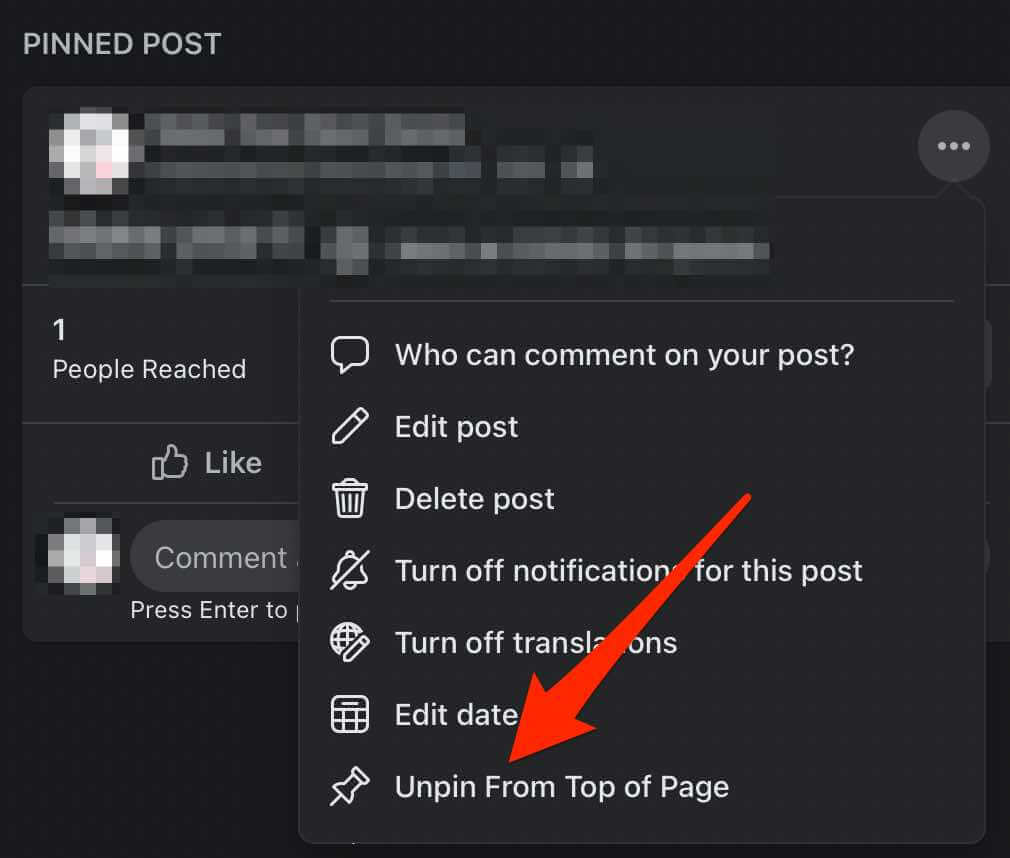
- To unpin the post, tap More (three dots) next to the post, and then tap Unpin from top of page .
Pin a Post on a Facebook Page on an iPhone/iPad
Before pinning a post on your Facebook Page, check whether you have editor or admin permissions and then follow the steps below.
- Launch the Facebook app and tap the Menu (three lines) in the bottom right of the screen.
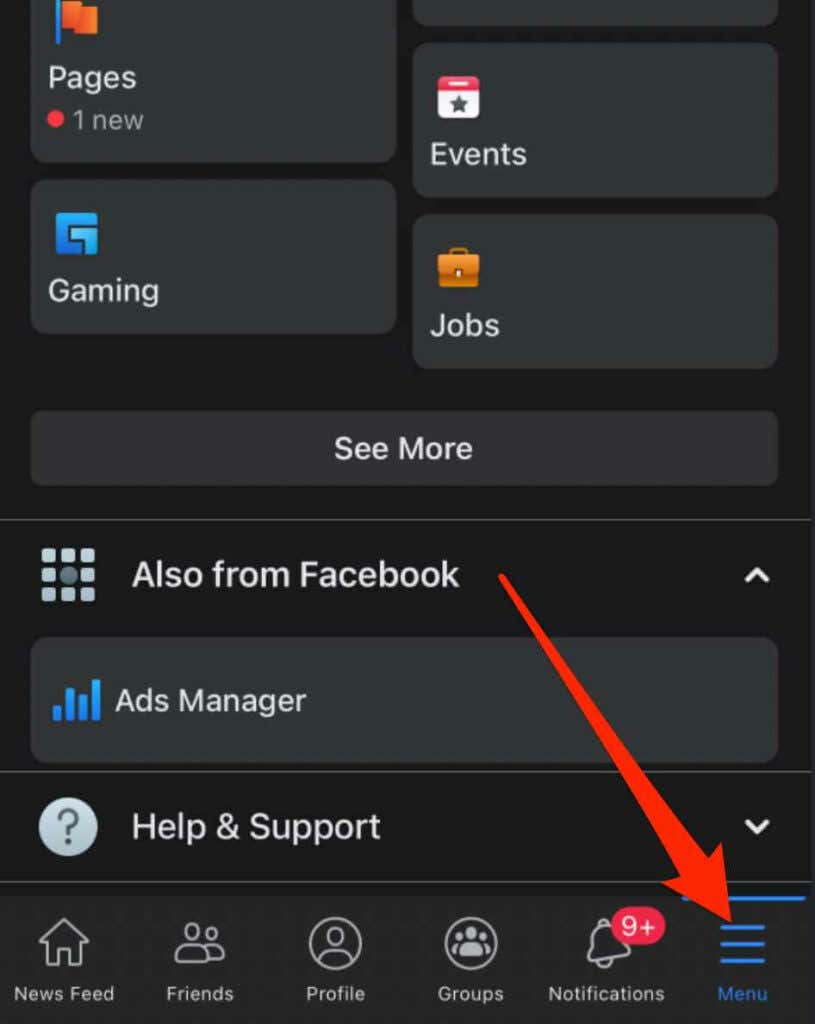
- Tap Pages .
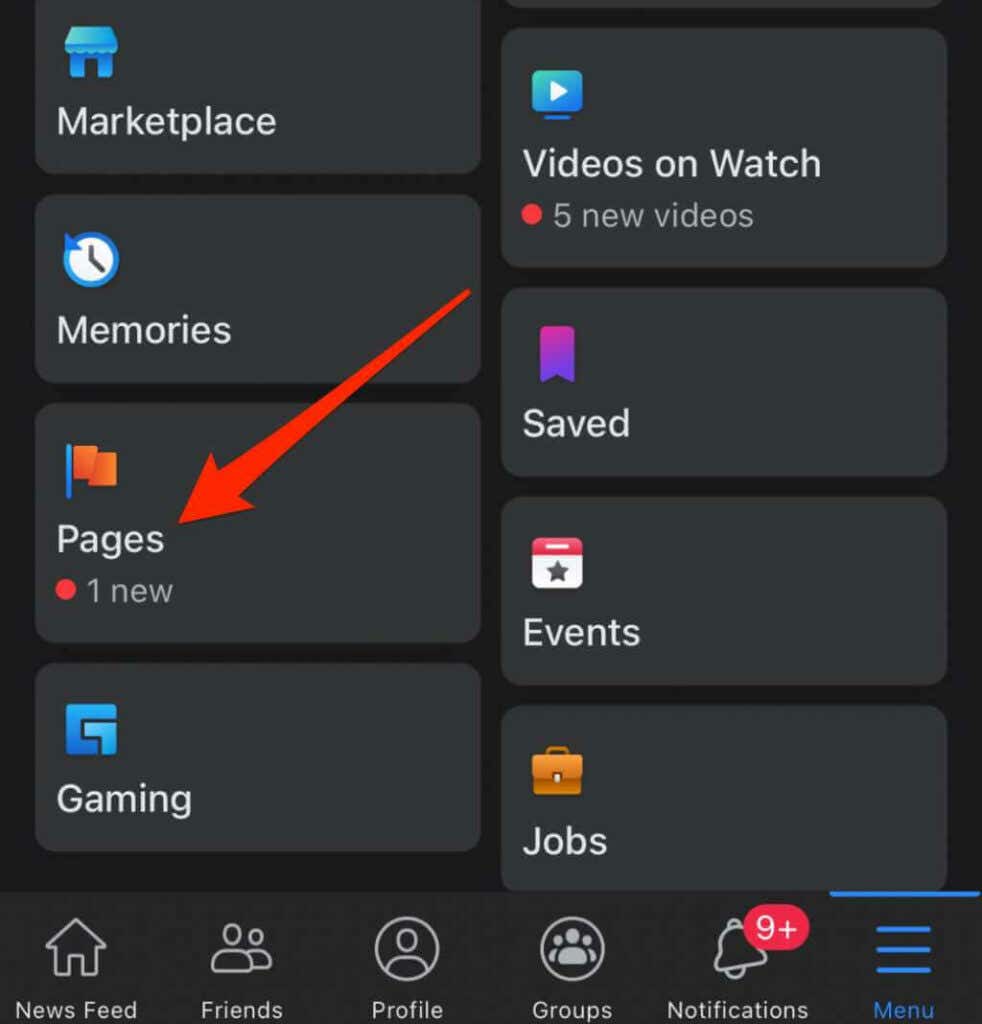
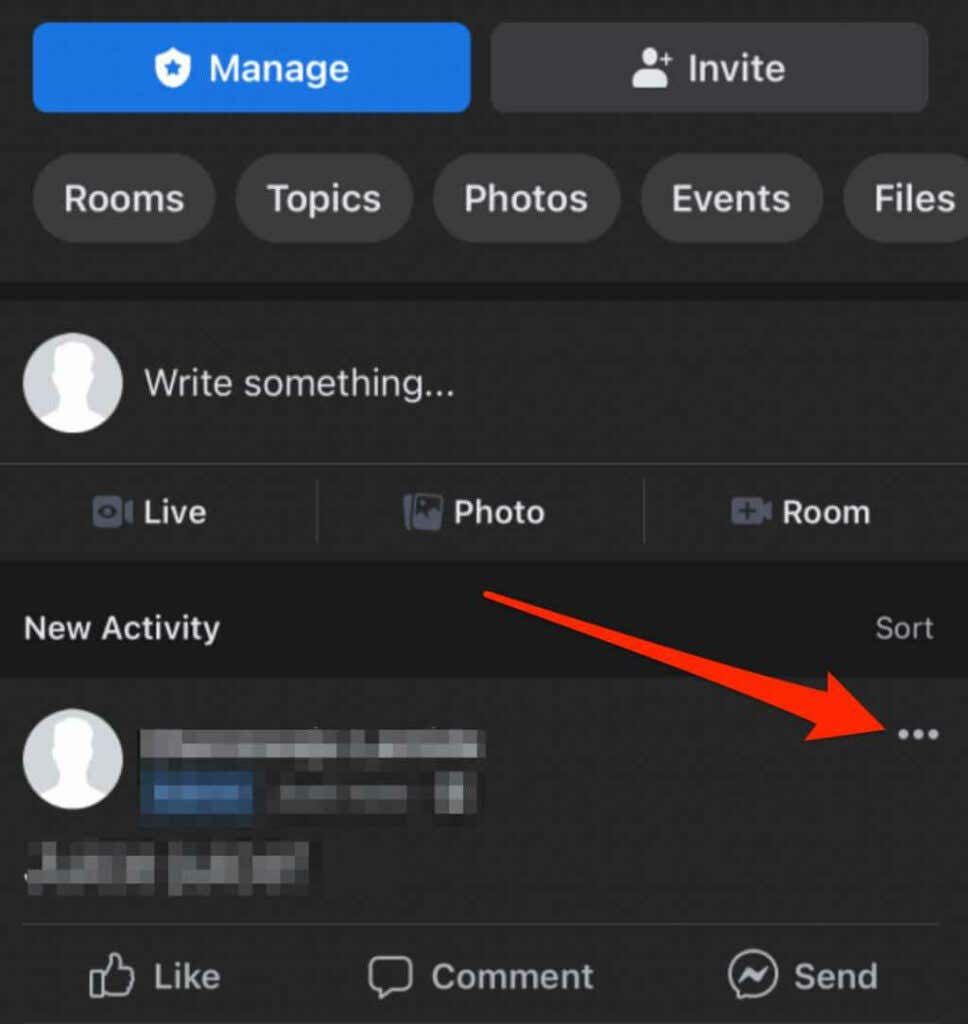
- Go to the Facebook Page and find the post you want to pin to the top of the Page’s timeline. Tap More (three dots) at the top right side of the post.
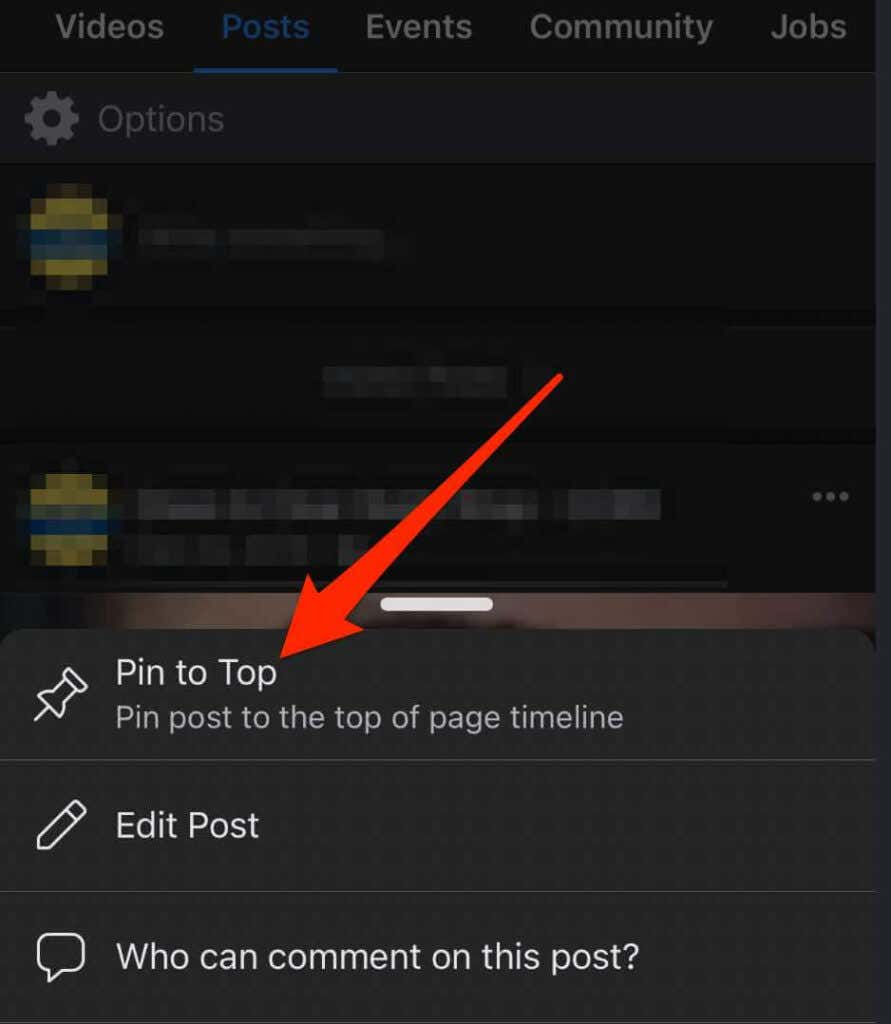
- Next, tap Pin to Top .
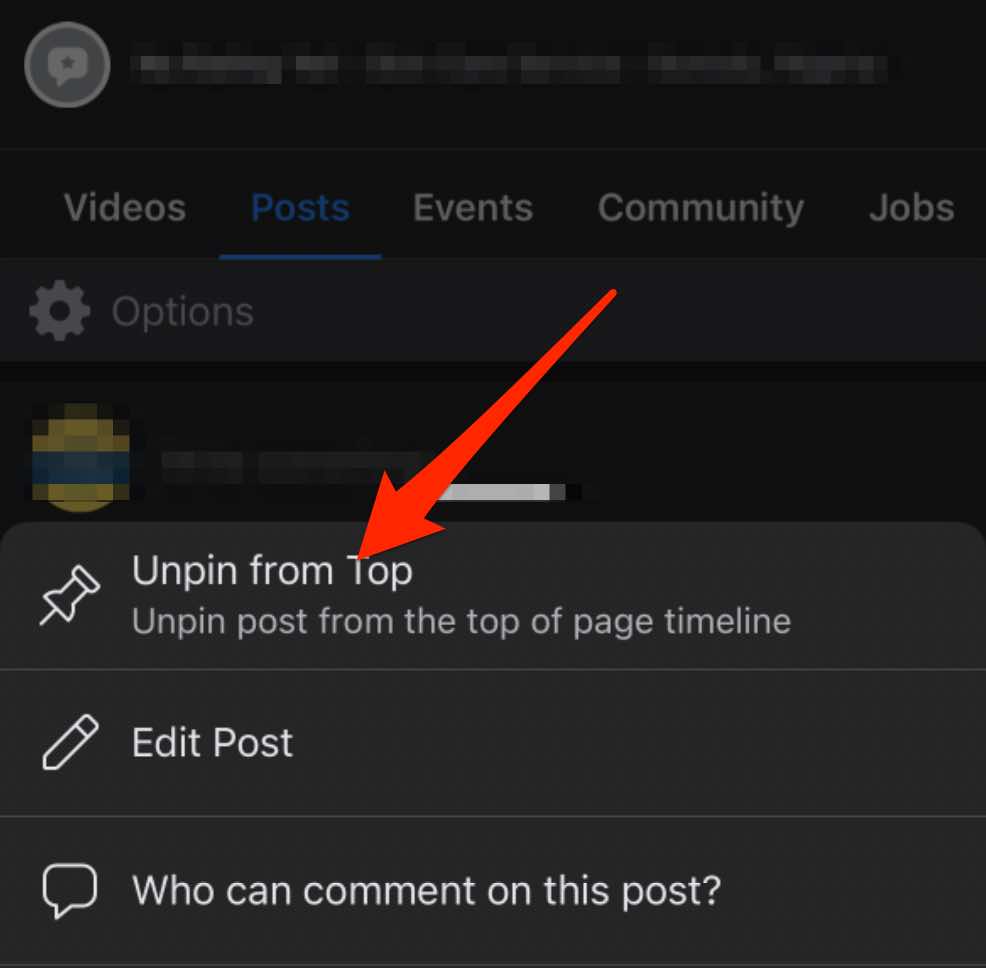
- The post will appear at the top of the Page’s timeline with a pin icon that indicates to your Page followers that it’s a pinned post.
- To unpin the post, tap More next to the post, and then tap Unpin from top .
Pin a Post on a Facebook Page on an Android Device
- Launch the Facebook app and tap the Menu (three lines) at the top right side of the screen.
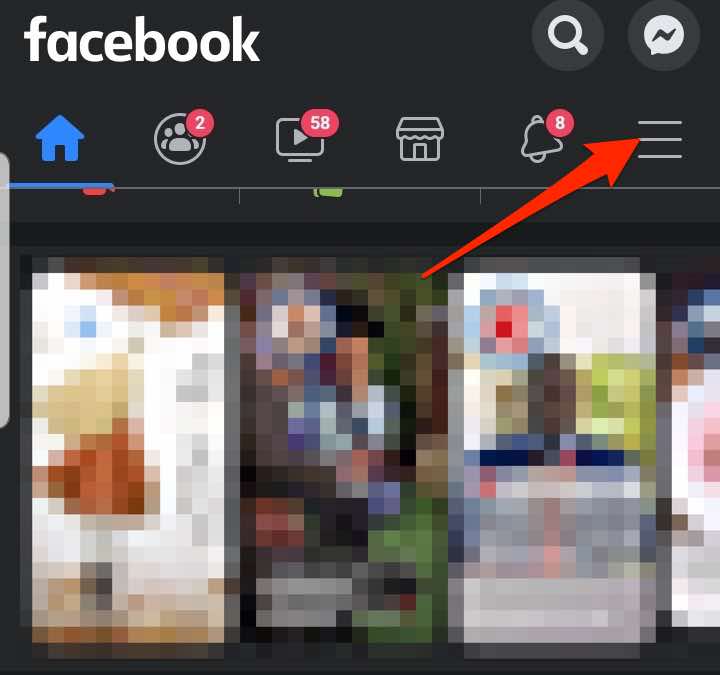
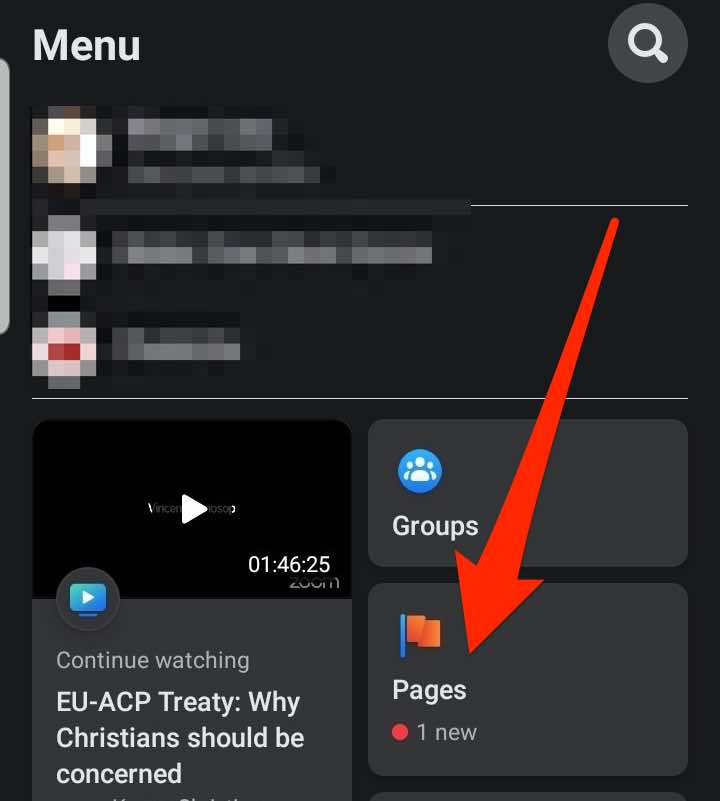
- Tap Pages .
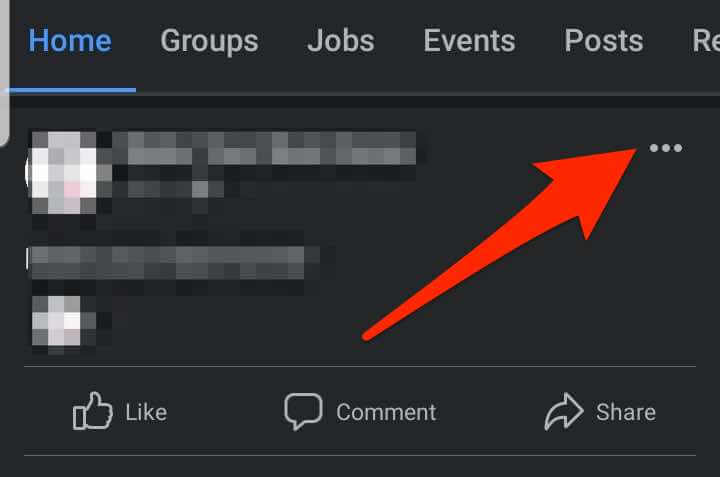
- Go to the Facebook Page and find the post you want to pin to the top of the timeline. Tap More (three dots) at the top right side of the post.
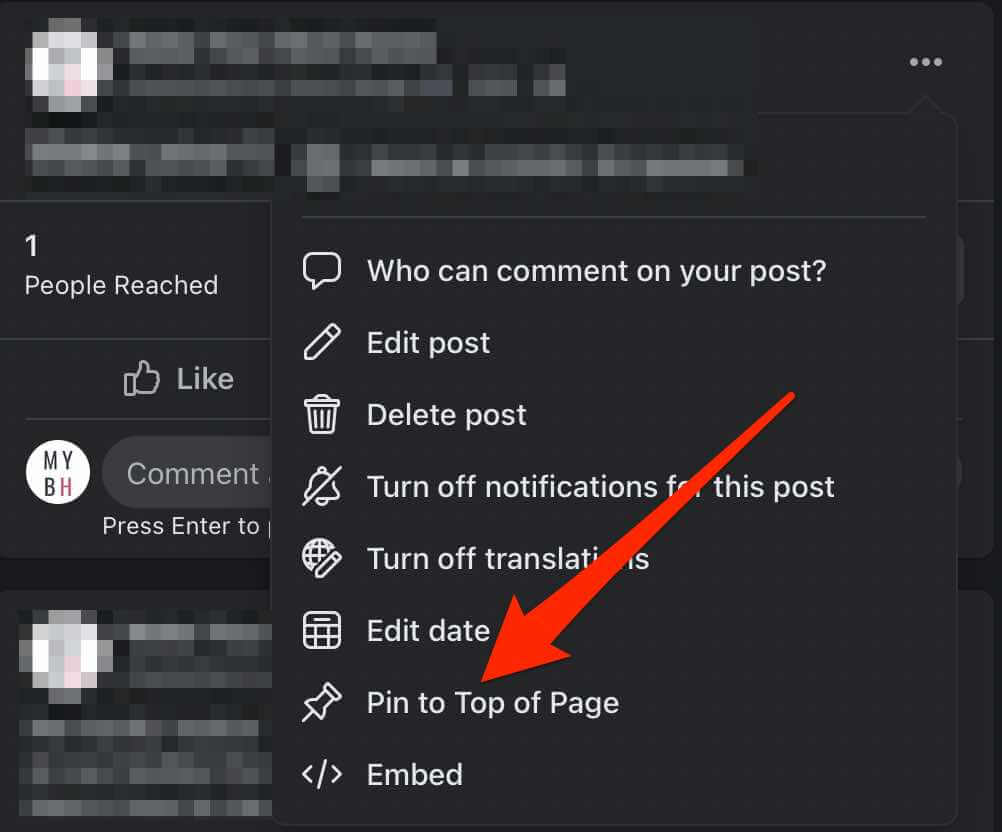
- Next, tap Pin to Top .
- The post will be pinned to the top of your Page’s timeline, and a pin icon will appear to show your Page followers that it’s a pinned post.
- To unpin the post from, tap More next to the post, and then tap Unpin post .
How to Pin a Post on a Facebook Group
If you manage a Facebook group , you can pin a post to the top of the group page. However, in a group, it’s referred to as an Announcement – not a pinned post.
You’ll get different options in the group post menu, but the post will still appear at the top of your group under the Announcements section.
Note : You can pin up to 50 announcements at a time on a Facebook Group, but it’s recommended that you have one or two to avoid confusion. Plus, you have to be a group admin to pin a post on a Facebook Group.
Pin a Post on a Facebook Group on a Computer
You can easily pin a post to the top of your Facebook group on your PC or Mac in a few quick steps.
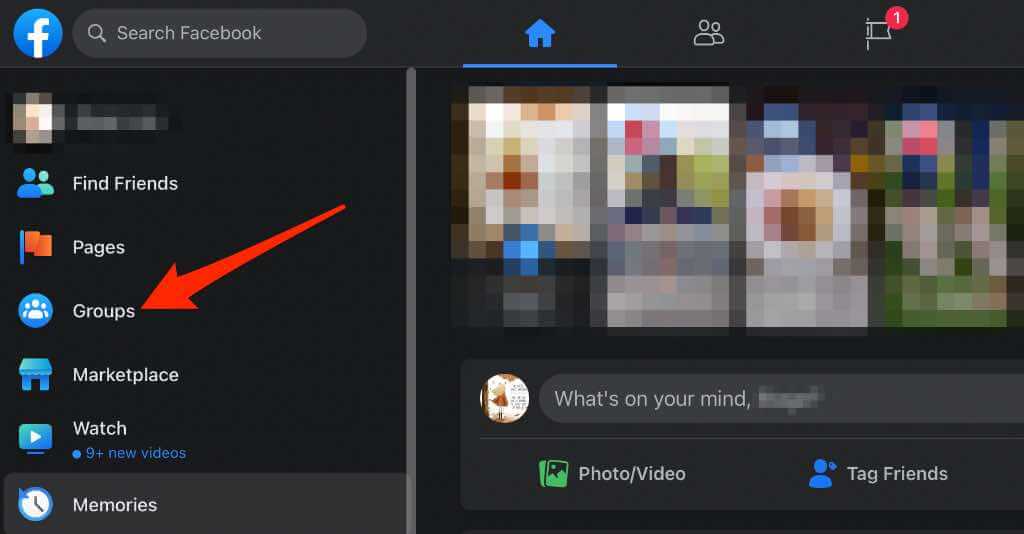
- Launch Facebook from your preferred web browser and select Groups in the left pane on the homepage.
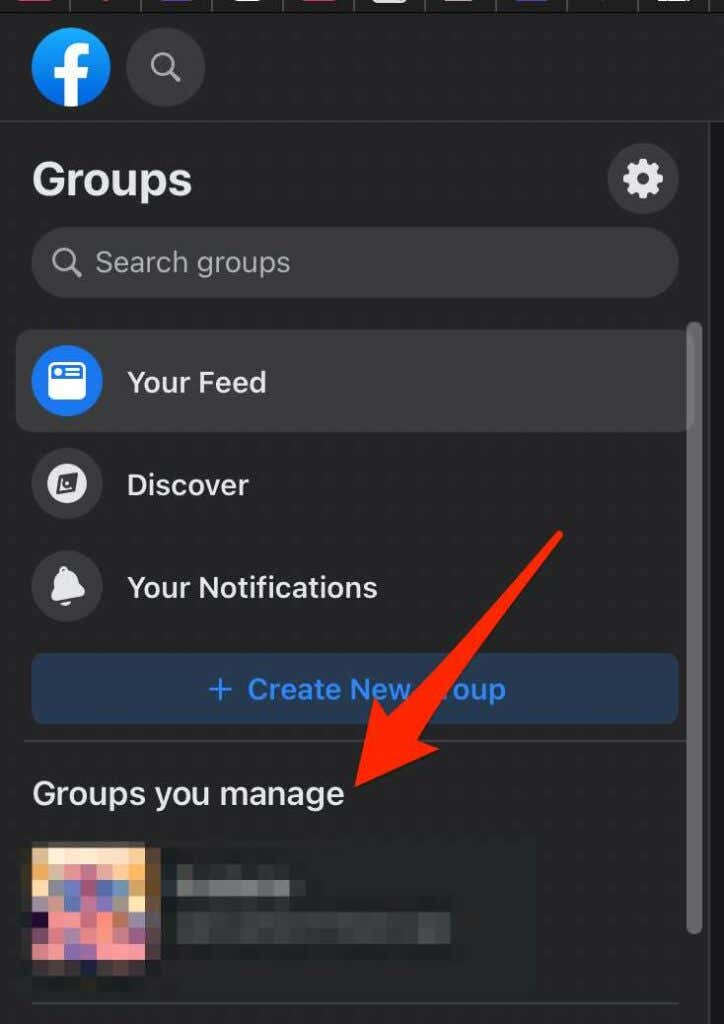
- Select the Group where you want to pin the post, and then find or create and publish the post.
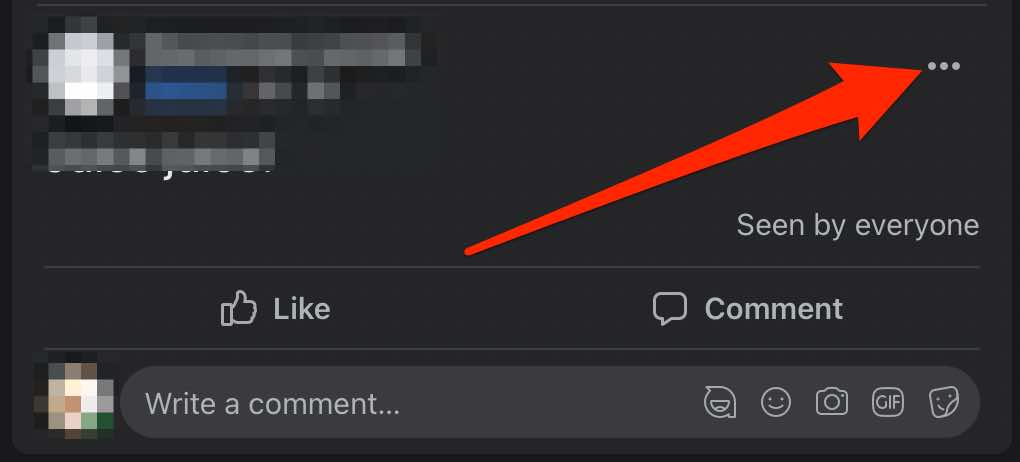
- Next, select More (three dots) next to the post.
- Select Mark as Announcement .
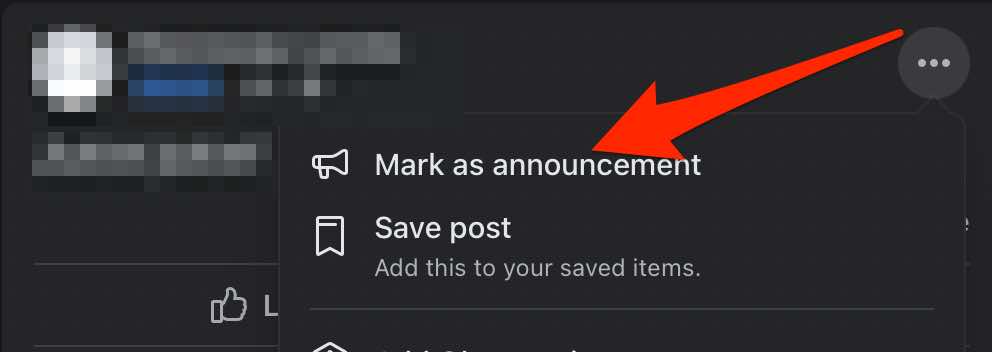
- The post will appear at the top of the Group page under Announcements .

- To unpin the post from the Announcements section, tap More next to the post, and then tap Remove Announcement .

Pin a Post on a Facebook Group on an Android Device
- Launch the Facebook app and tap Menu .
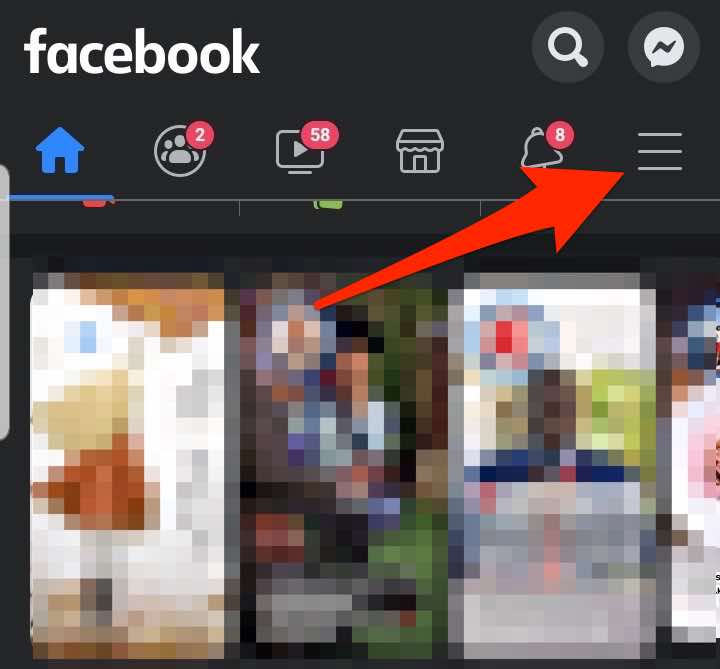
- Tap Groups .
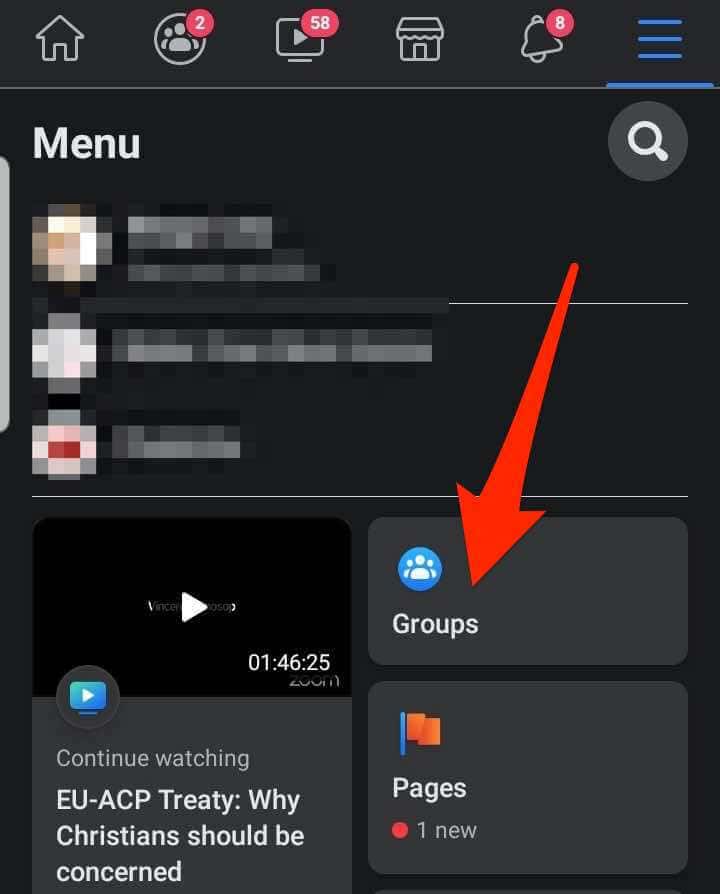
- Next, tap Your Groups .
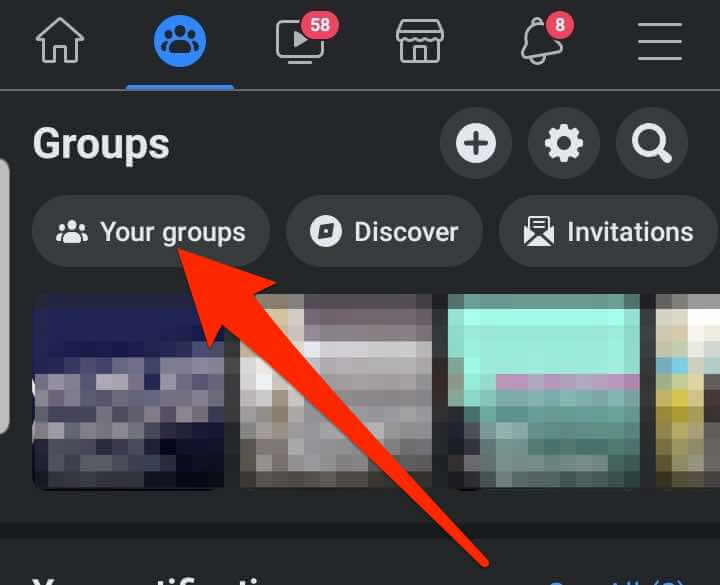
- Under Groups You Manage , tap on the Group where you want to pin the post.

- Tap More (three dots) on the right side of the post.
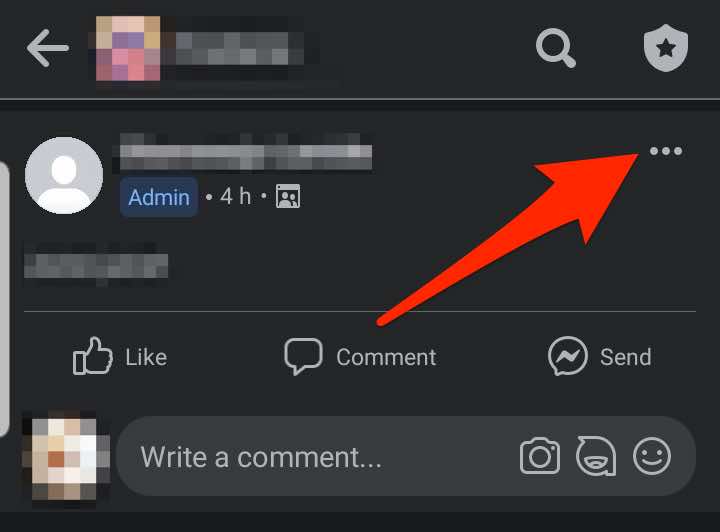
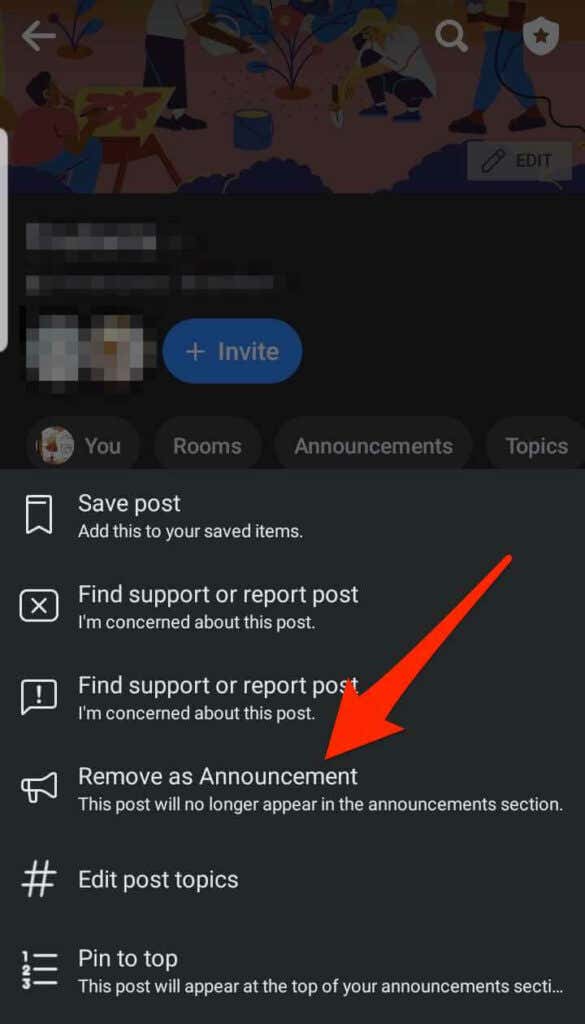
- Next, tap Mark as Announcement .

- The post will be pinned to the top of the Group page under the Announcements section.
- To unpin the post from the Announcements section, tap More next to the post, and then tap Remove Announcement .
Pin a Post on a Facebook Group on iPhone/iPad
You can also pin a post on a Facebook Group from your iPhone or iPad.
- Launch the Facebook app and navigate to the group where you want to pin your post.
- Find the post you want to pin to the top or create and publish a new post, and then tap More .
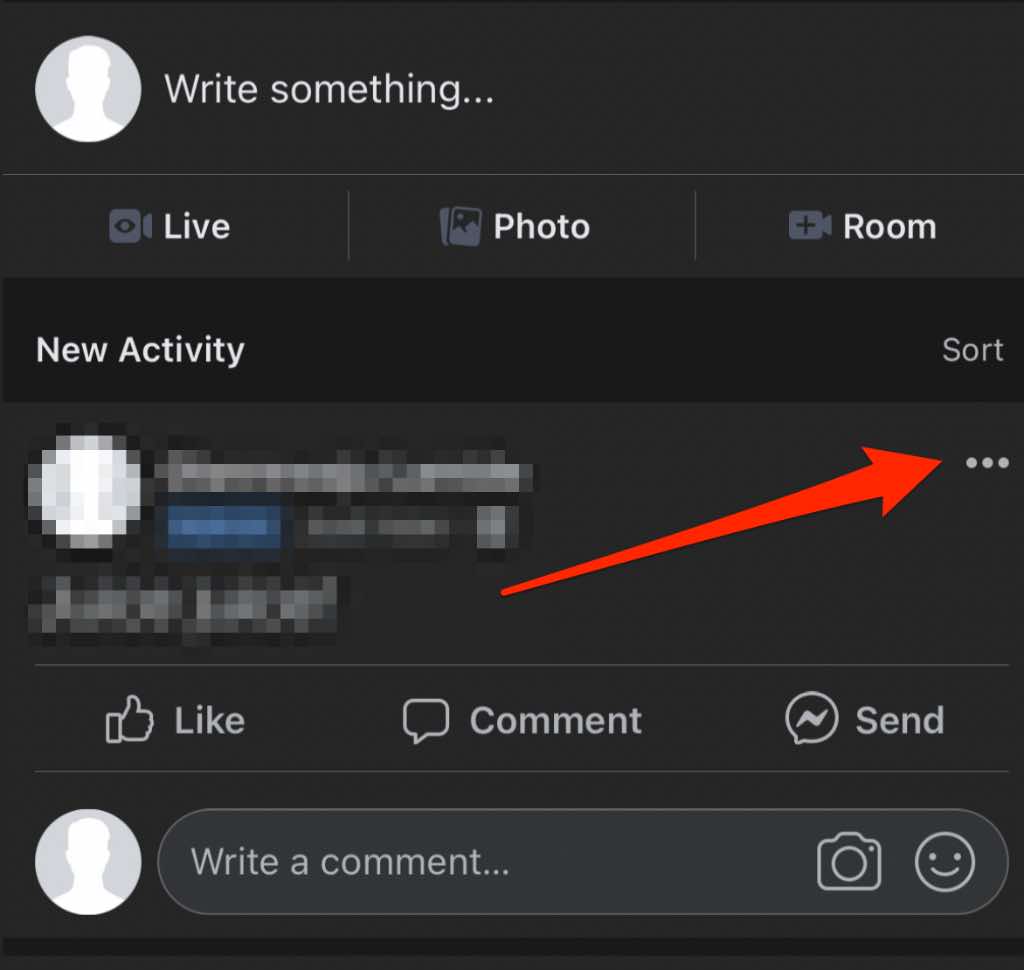
- Tap Mark as Announcement .
Note : You can also tap More again and select Pin to top to ensure the post stays at the top.
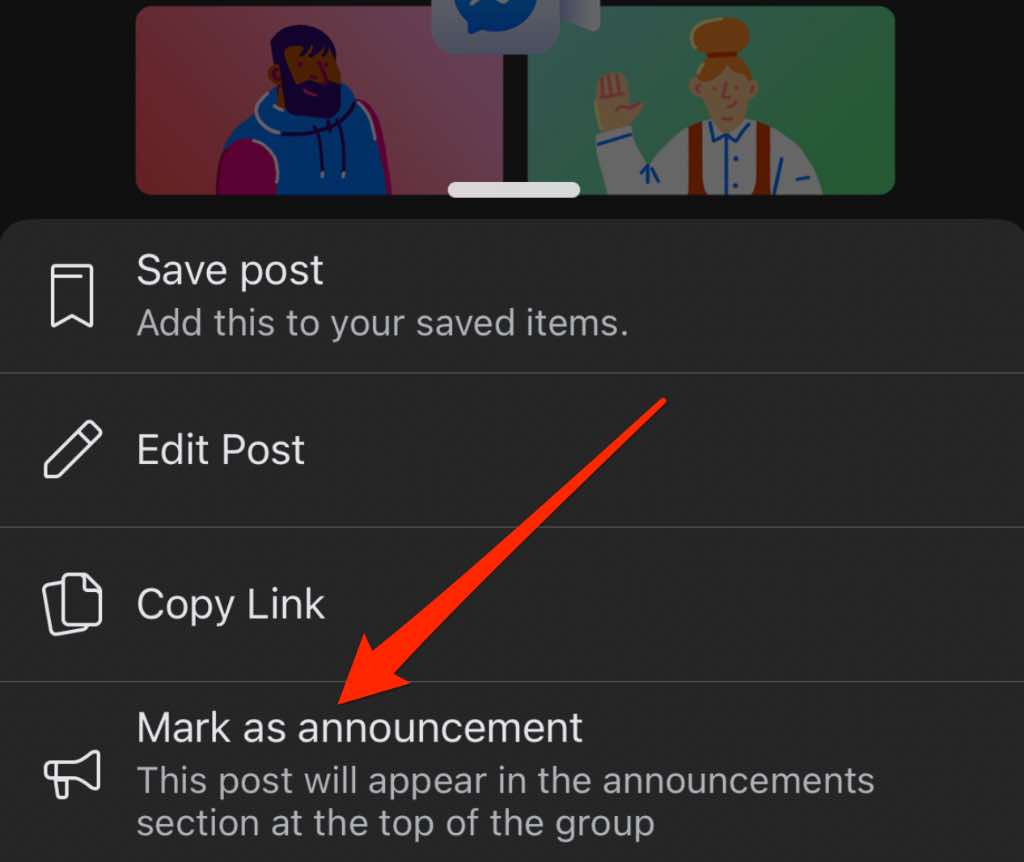
- To unpin the post from the Announcements section, tap More next to the post, and then tap Remove Announcement .
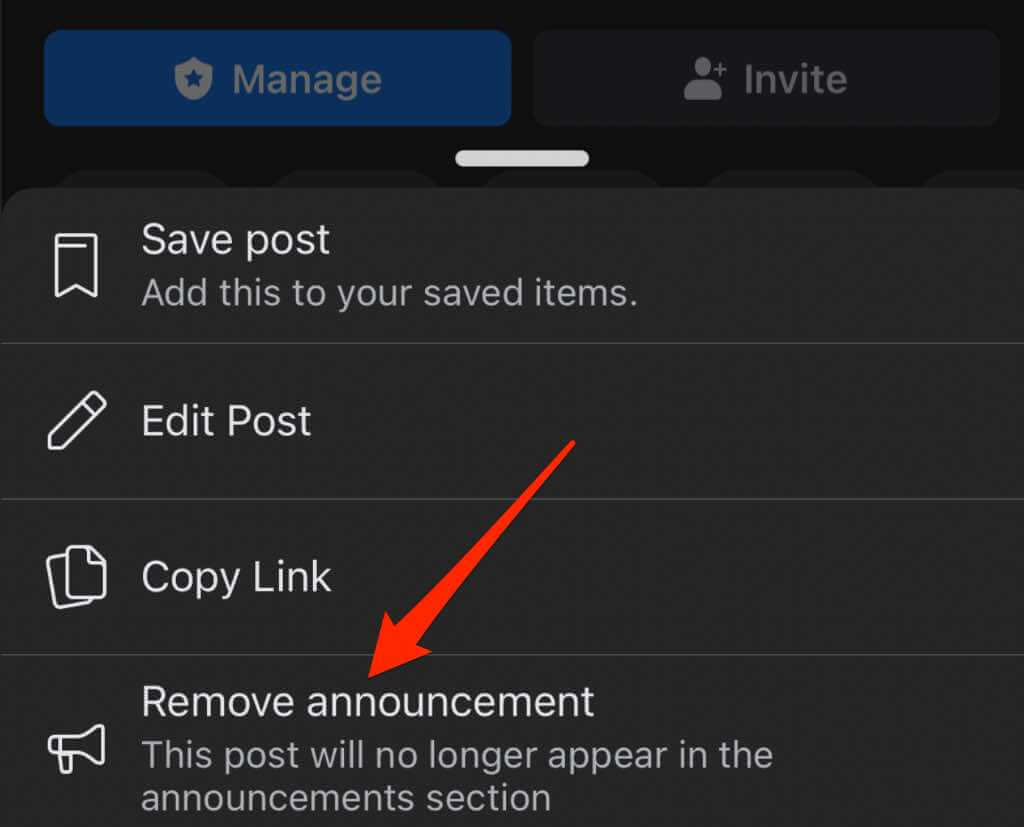
Note : When you unpin a post, Facebook will remove it from the top of your group announcements section and restore it to its original position.
Pinning Is Only a Few Clicks Away
Want to draw attention to a specific post on Facebook? Pinning that post will make it appear at the top every time, so it’s visible to your profile viewers, page followers, or group members.
- How to See Who Blocked You on Facebook
- How to Stop Friend Suggestions on Facebook
- Does Facebook Tell You if Someone Screenshots Your Story?
- How to Clear Facebook Cache on iPhone
- How to Stop Instagram and Facebook Tracking Online Activity
