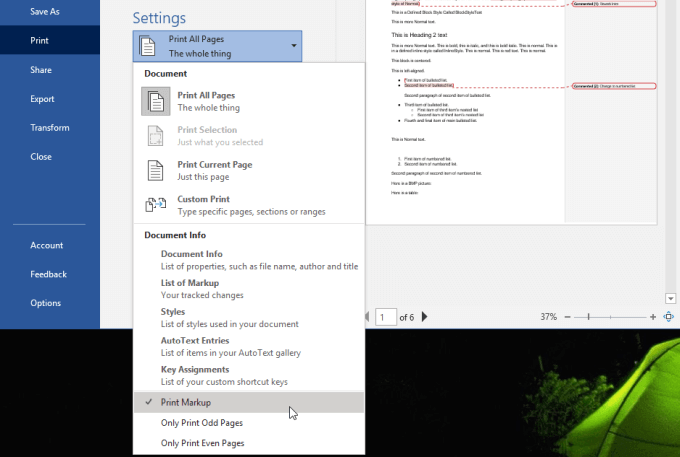
Export The Google Document To Microsoft Word
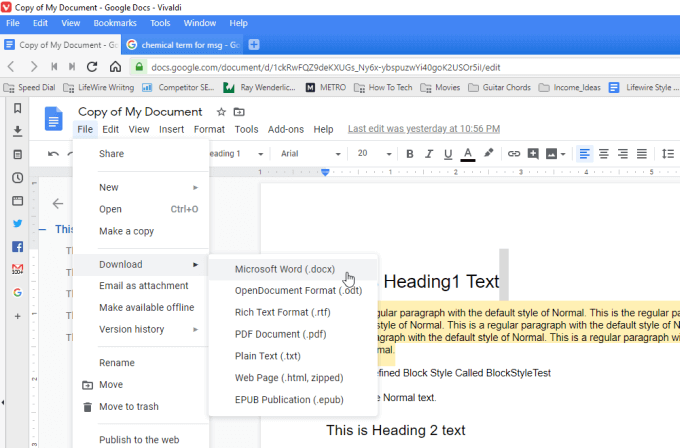
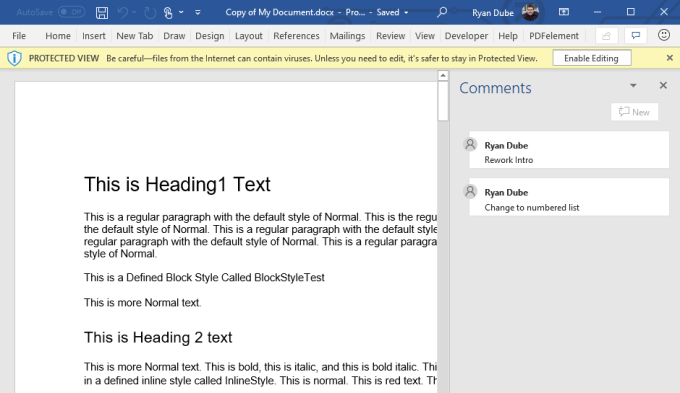
To do this, with your Google Docs document open, select File from the menu, select Download , and then select Microsoft Word (.docx) .
Export The Google Document To OpenOffice
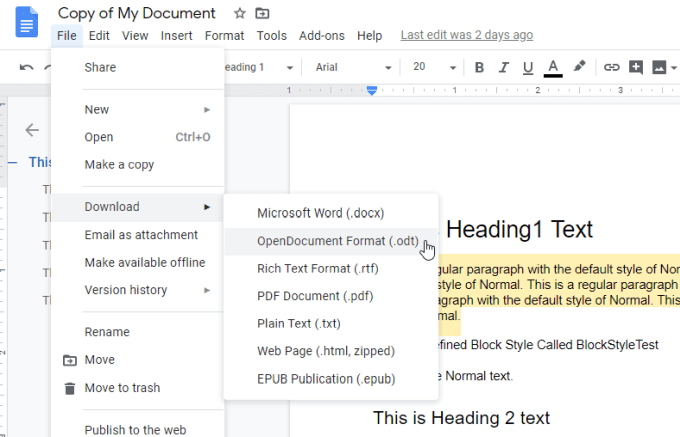
If you don’t have a licensed copy of Microsoft Word, another option is to export the document as an OpenDocument (.odt) file. You can open this file with a number of OpenDocument compatible programs like Apache OpenOffice, LibreOffice, and more.
To do this, inside of Google Docs you can export to ODT by selecting File from the menu, select Download , and select OpenDocument Format (.odt) .
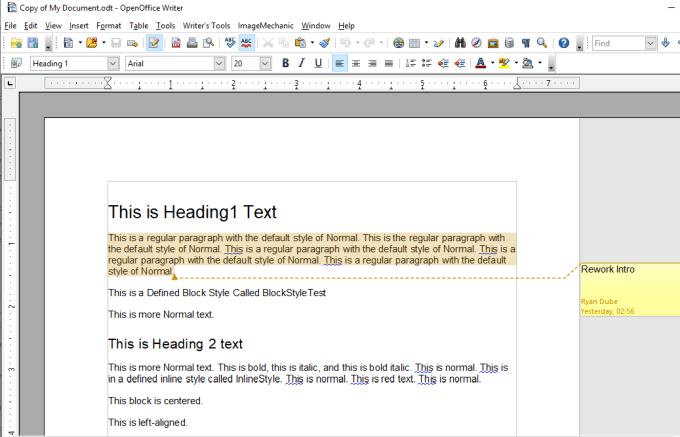
Save the ODT file to your computer.
Download The Google Document As a Web Page
To do this, select File from the menu, select Download , and select Web Page (.html, zipped) .
This will save a zipped file onto your computer. Unzip the file and then open the HTML file with Chrome.
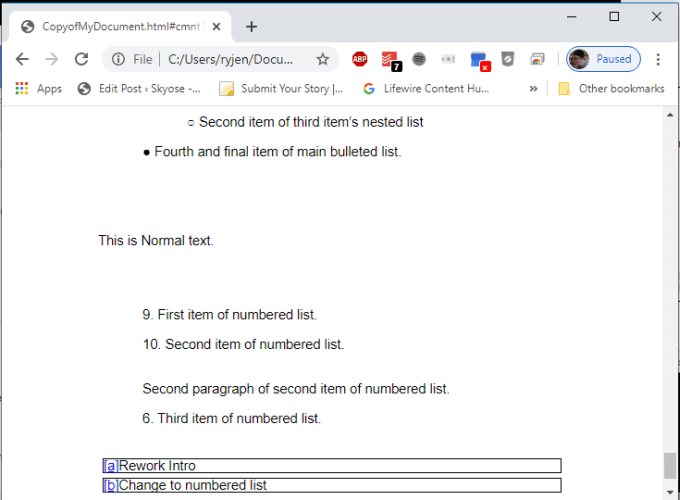
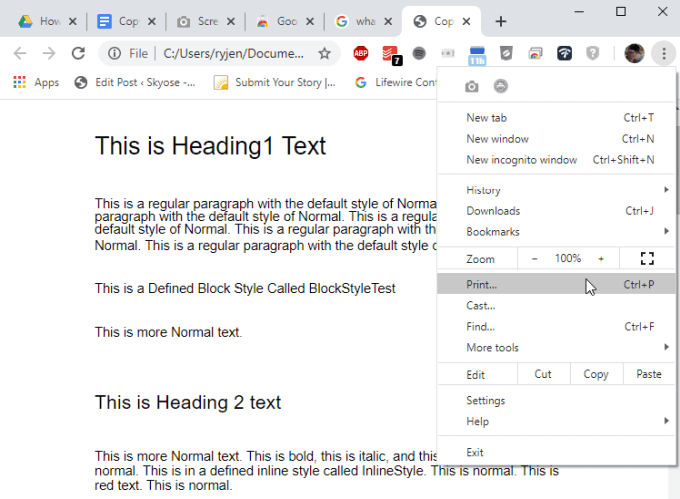
To print the document, just press the three dot menu icon at the upper right corner of the Chrome window, and select Print .
Use The Full Page Screen Capture Chrome Extension
If you prefer using your Chrome browser but don’t like the formatting of the export to HTML feature, you can instead install the Full Page Screen Capture Chrome extension .
This feature inserts a small camera icon at the top of your Chrome browser that you can click to capture a screenshot of your entire Google Docs document.
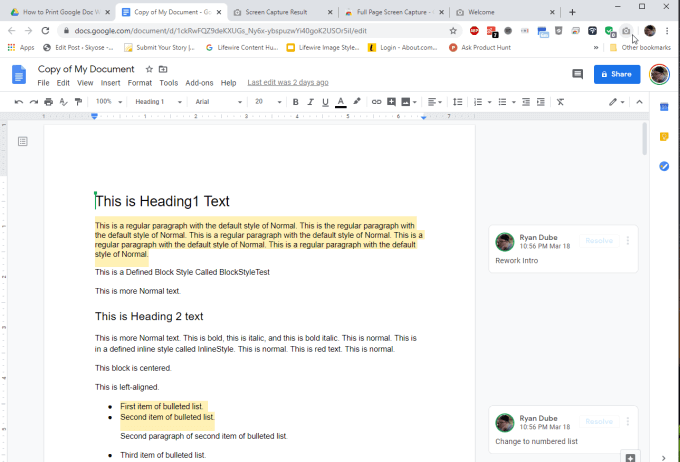
When you’ve installed the extension and you’re ready to capture your document, press the camera icon.
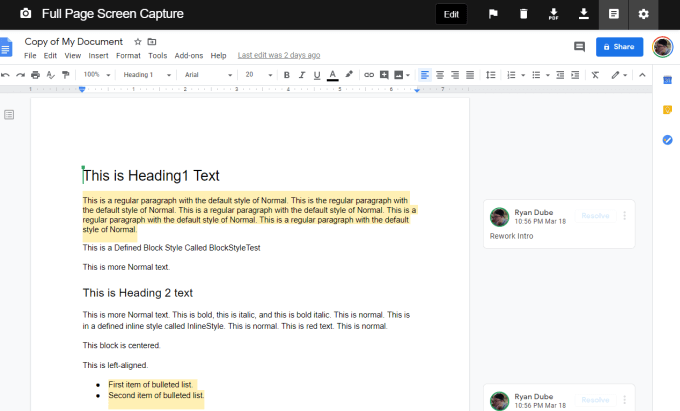
To print it, just select the PDF icon at the top to download the document in PDF format and print it from your computer.
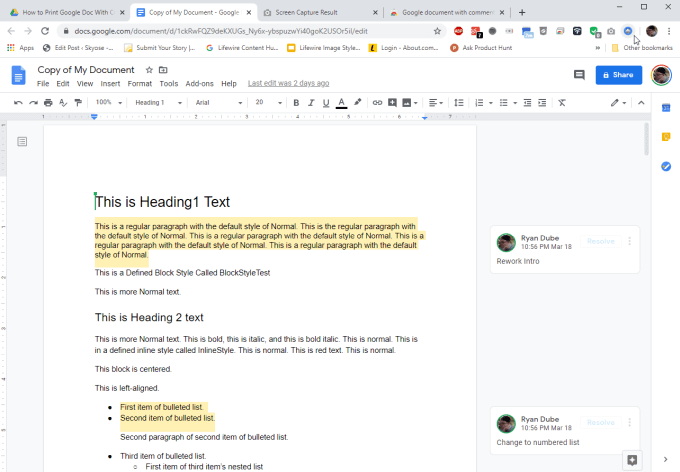
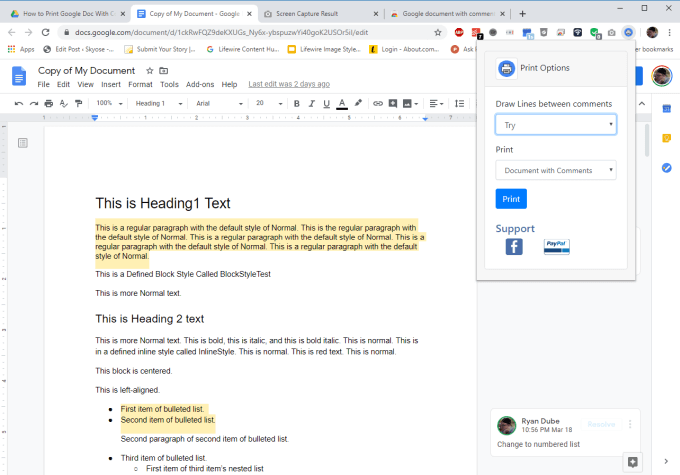
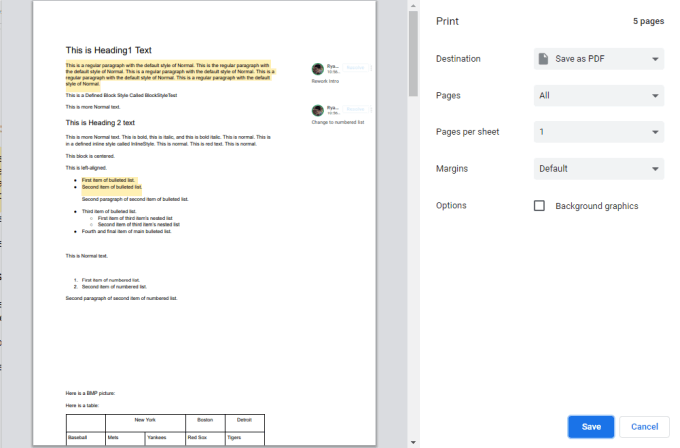
Whether you choose an outside application like Microsoft Word, an HTML printout, or one of the Chrome extensions, really comes down to personal preference. Each option is just as simple and easy as the next.
- How To Embed HTML Into a Google Doc
- How to Check for Plagiarism in Google Docs
- How to Fix Speech Services by Google Waiting for Network Connection Error
- Google Docs Voice Typing Not Working? 6 Fixes to Try
- How to Turn Off Google Assistant on Various Platforms
Ryan has been writing how-to and other technology-based articles online since 2007. He has a BSc degree in Electrical Engineering and he’s worked 13 years in automation engineering, 5 years in IT, and now is an Apps Engineer. Read Ryan’s Full Bio
