Technology has made it easy for you to wirelessly connect a computer or mobile device to a printer and print your file. Whether you’re using a computer, phone, or tablet, we’ll show you how to print an email from Gmail, Yahoo, Outlook, and other major email service providers.

How to Print an Email from Gmail
If you use Gmail on your computer or your mobile device via the Gmail app, you can print an email in a few quick steps.
Computer (Windows/Mac)
There’s no Gmail app for computers, but you can open Gmail on your web browser and print an individual email message or all messages in an email thread/conversation.
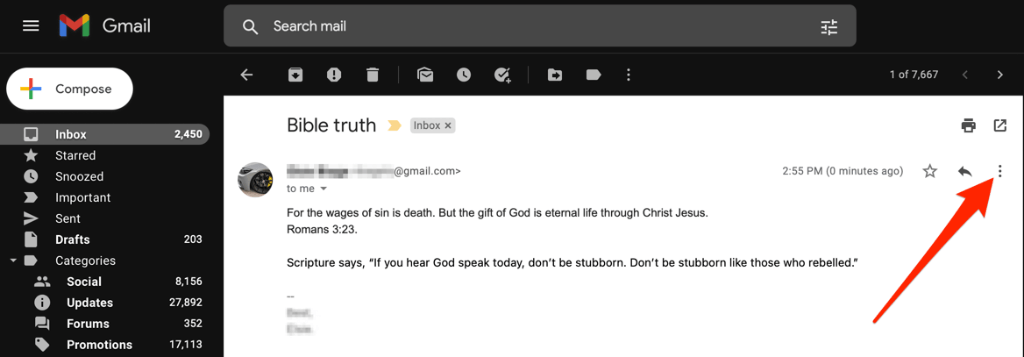
- Find and open the email message you want to print and then select More (three dots).
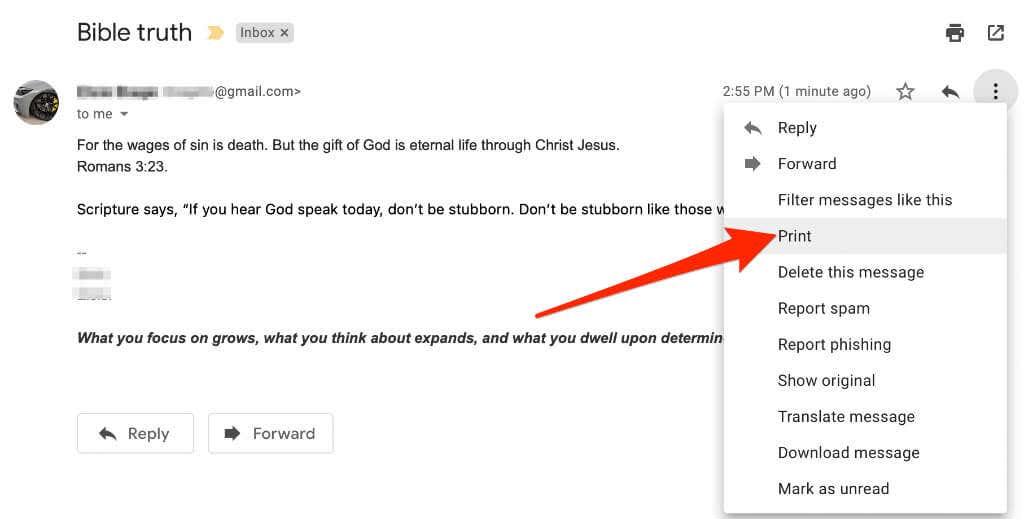
- Select Print .
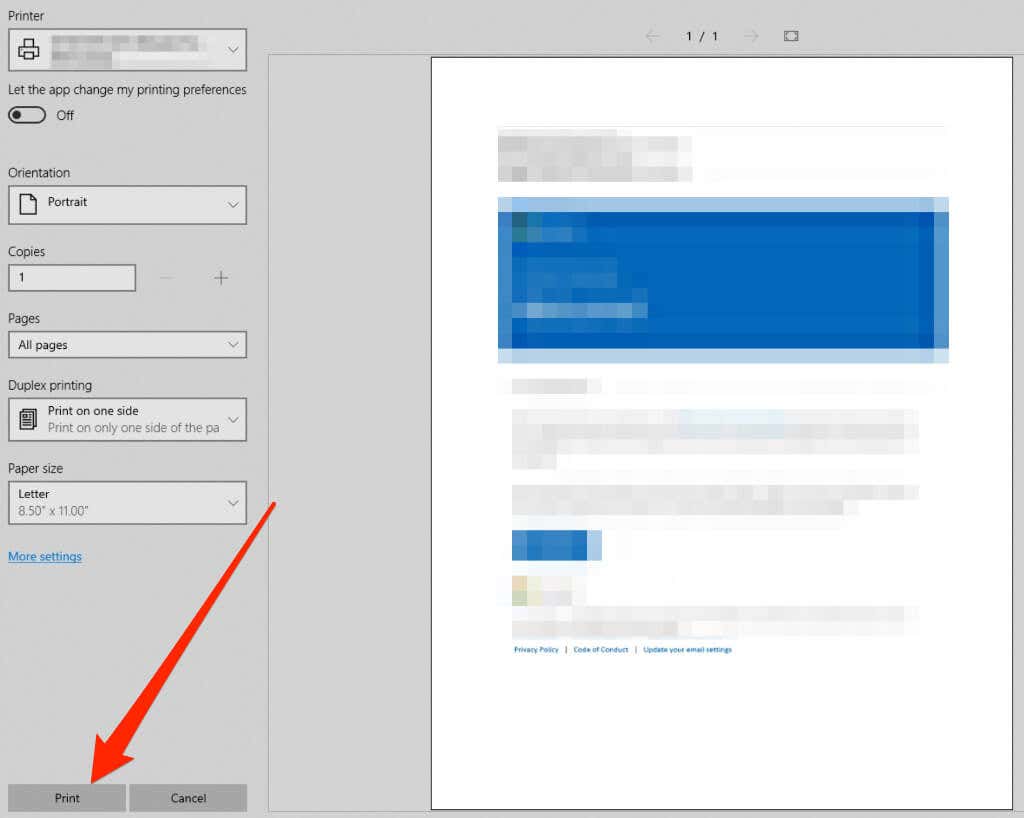
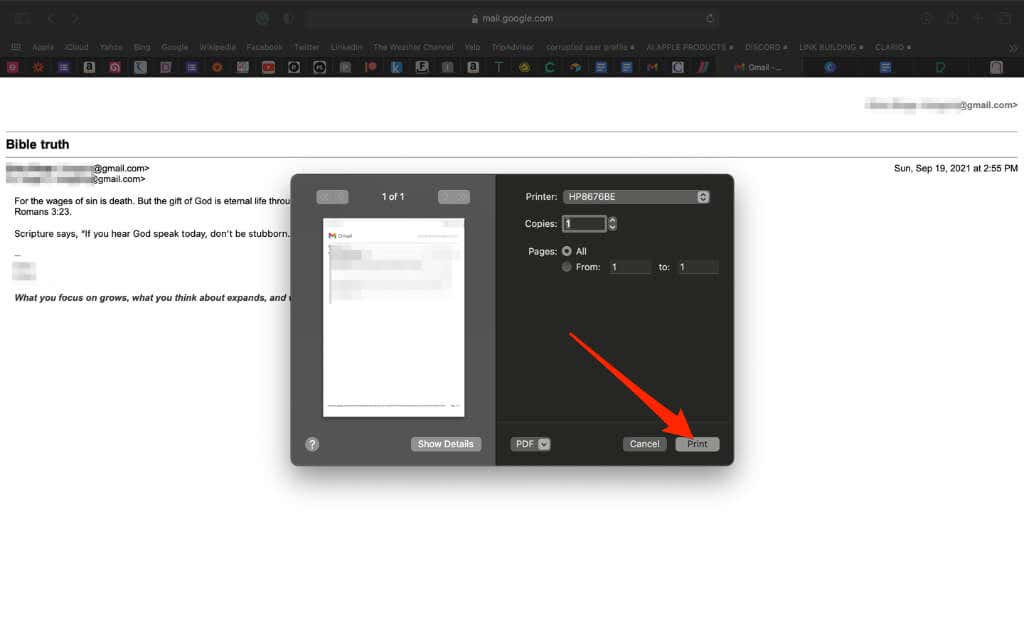
- You’ll see a preview of your email message appear in a new window. Select Print if you’re using a Windows PC.
- On a Mac, select the printer options in the Print dialog box and then select Print .
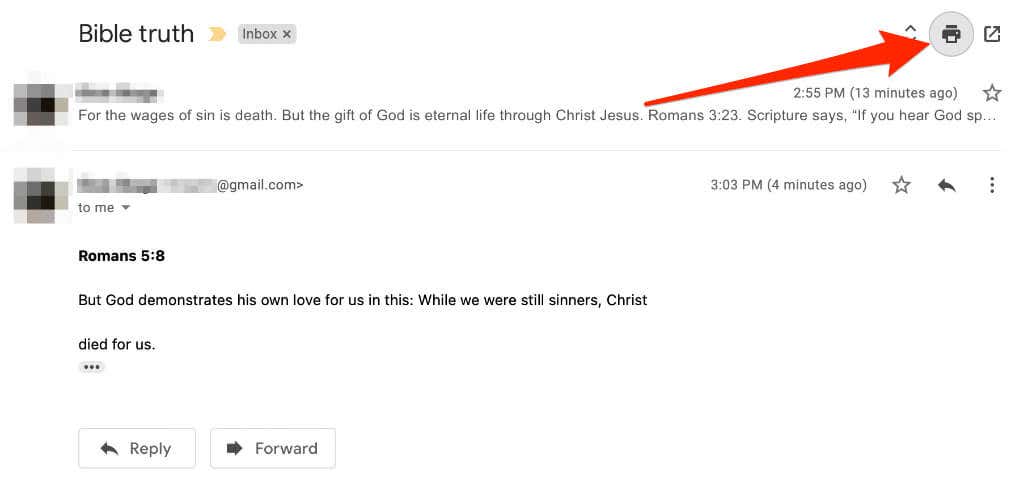
- If the email has replies within the same conversation, you can still print them all together. Open the email conversation and select the Print all icon at the top right side.
Android
On your Android phone or tablet, you can print an email from Gmail through the Gmail app or your web browser if the Gmail app is not working.
- Launch the Gmail app and tap on the email you want to print.
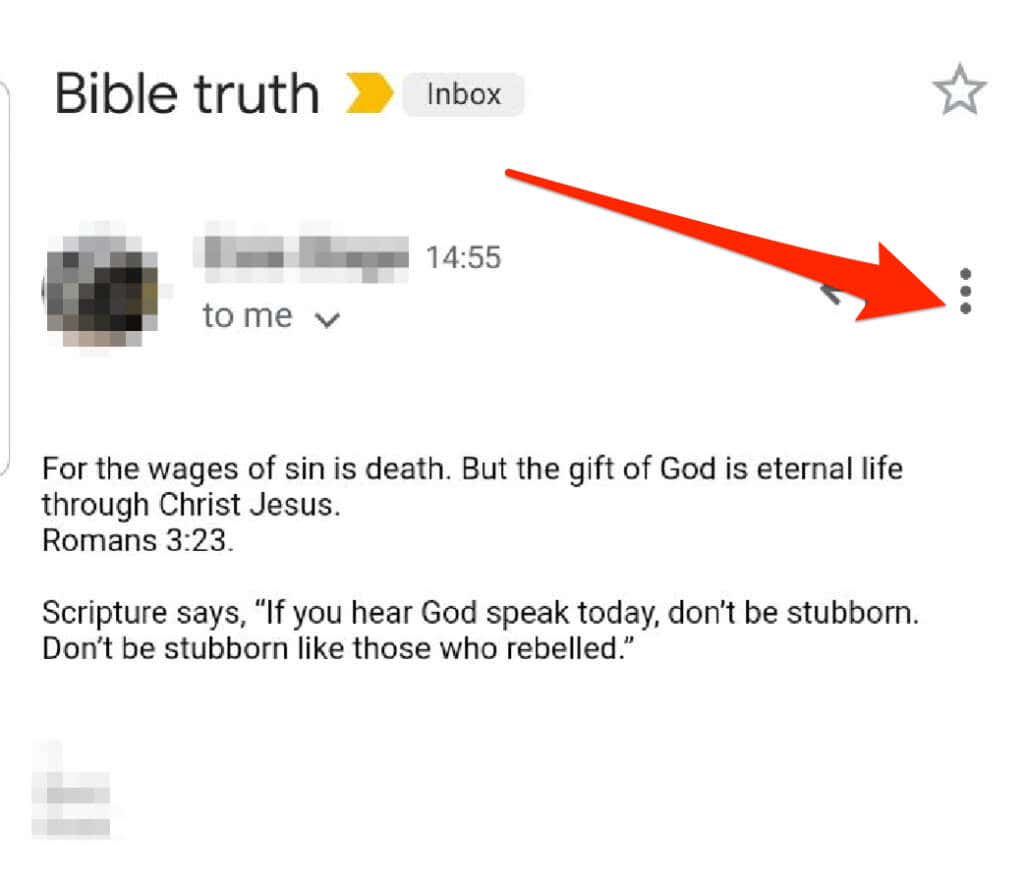
- Tap More (ellipsis) on the top right side of the email.
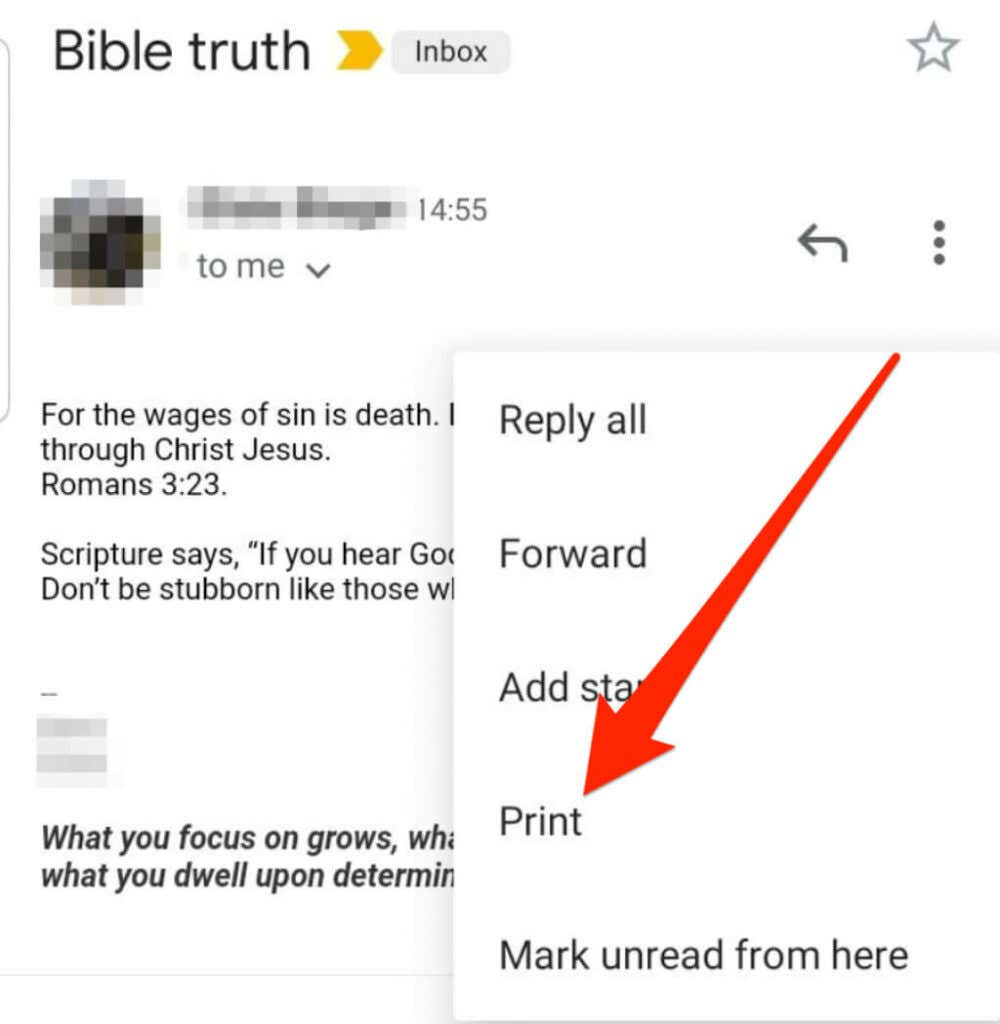
- Next tap Print .
- If you want to print an email conversation with multiple emails, tap and open the email conversation and then tap More (ellipsis at the upper right side) > Print all in the top right side of the email window.
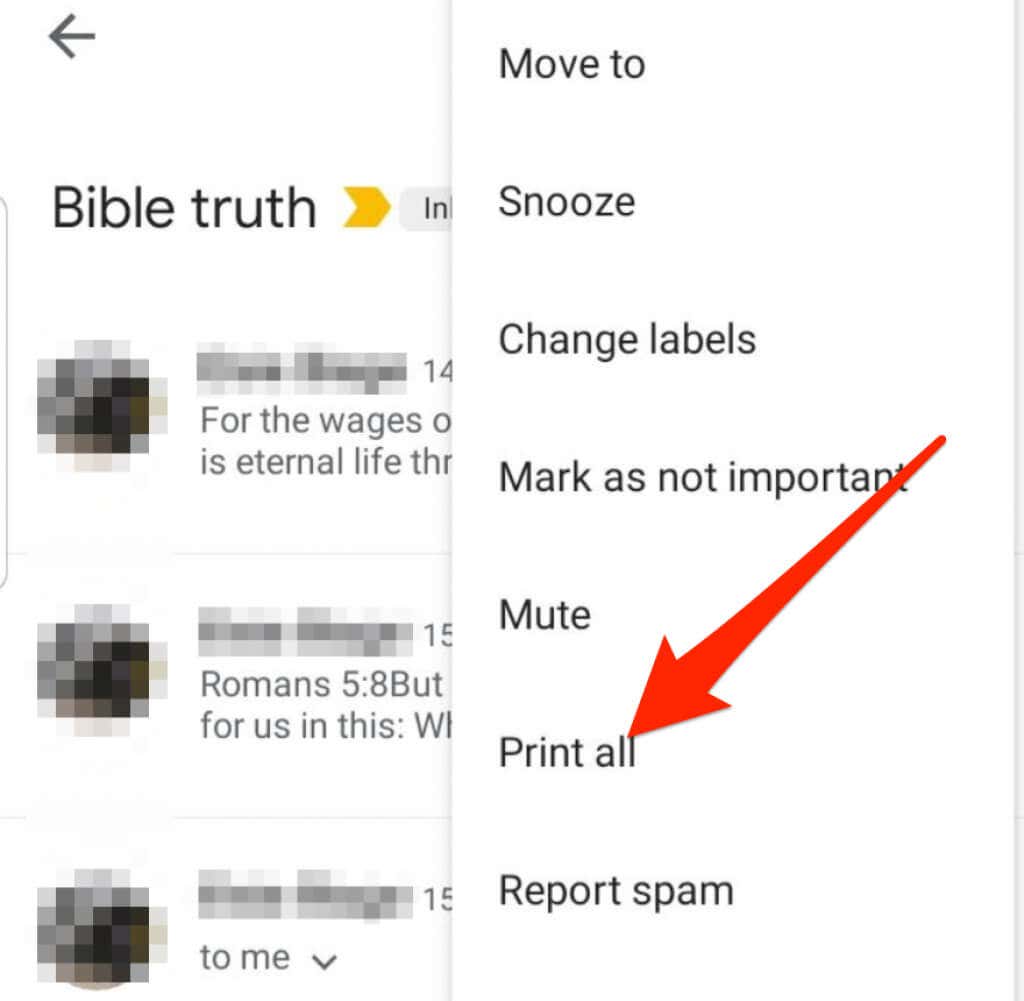
Note : If the Print option isn’t available, update the Gmail app and try again.
iOS
You can also print an email from Gmail on your iPhone/iPad via the Gmail app or on your web browser.
- Launch the Gmail app on your iPhone or iPad and tap on the email message you want to print.
- Tap More (ellipsis) on the top right side of the email.
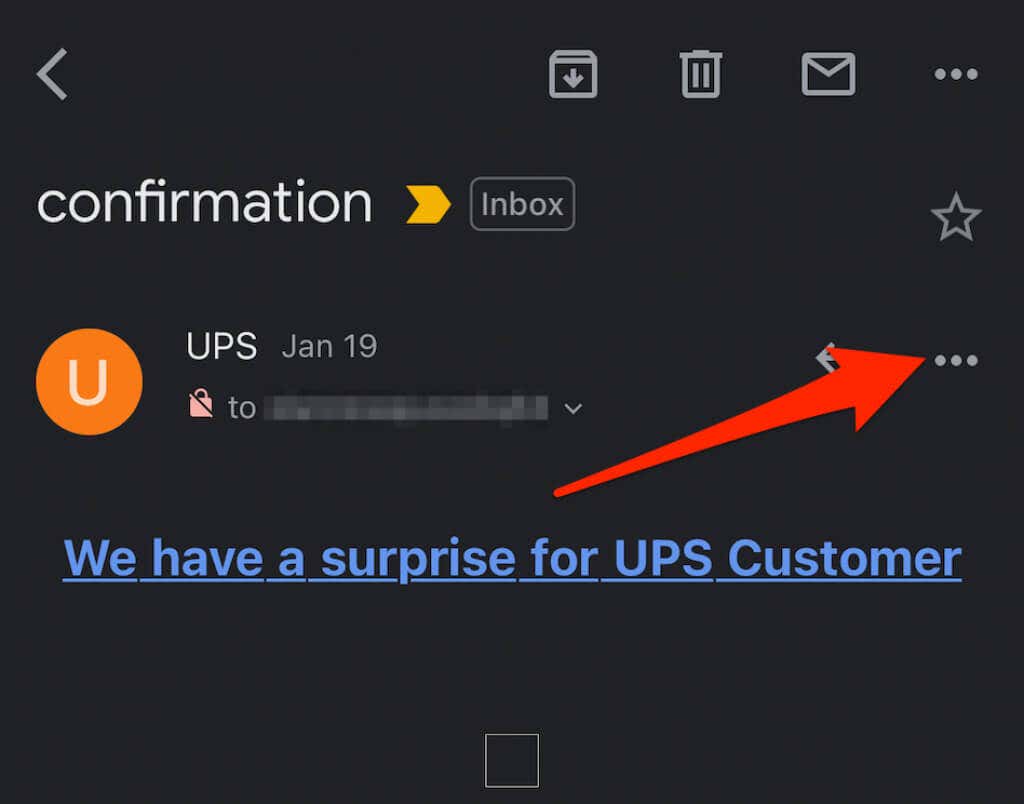
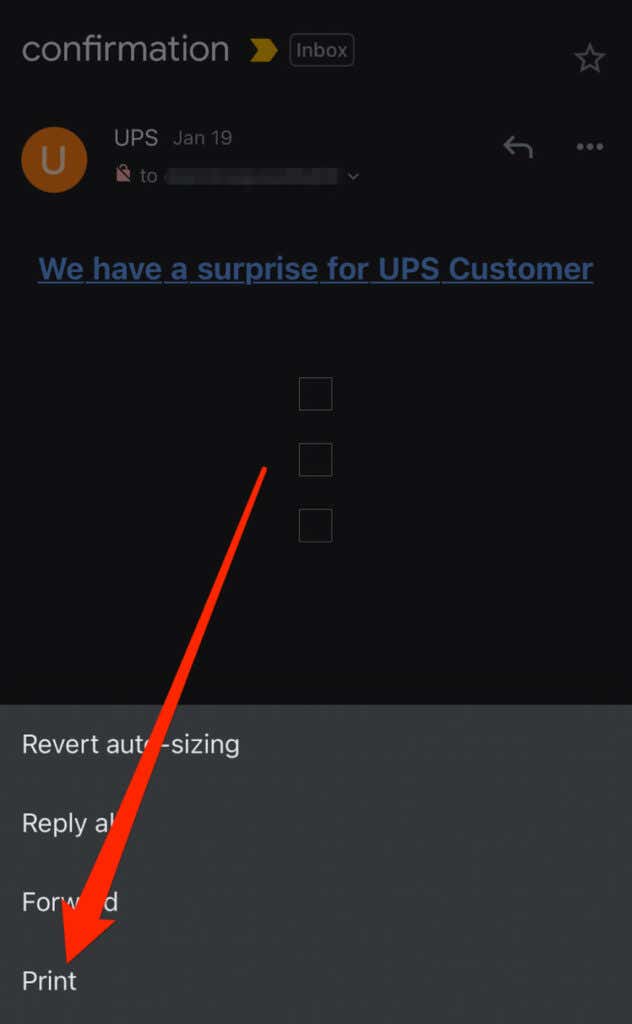
- Next, tap Print .
- You can also print an email conversation with multiple emails or replies. Just tap to open the conversation and then tap More > Print all .
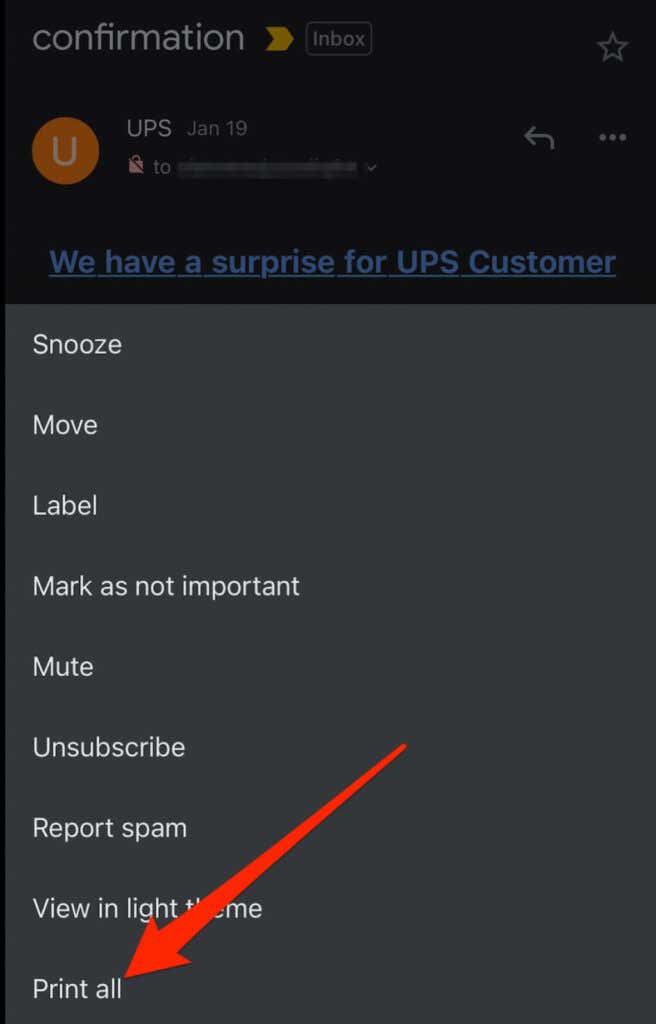
Note : If you can’t print an email from Gmail, the sender may have enabled Gmail Confidential . This is a Gmail feature that prevents other users from printing email messages and attachments.
If you want to print an attachment, you can download it to your local storage, open it with a suitable app or program, and then choose the Print option.
Yahoo
Yahoo Mail makes it easy for you to print email messages from your computer or mobile device and save the hard copy printout for offline use.
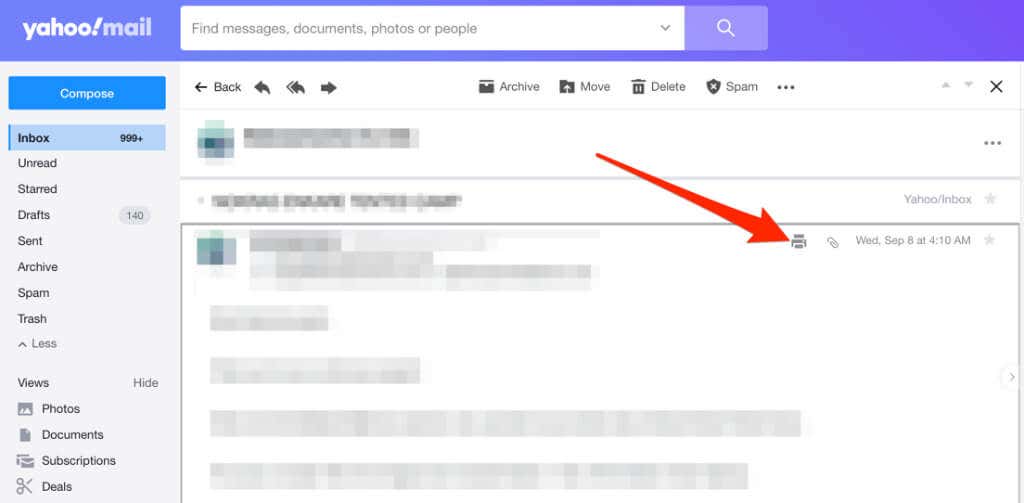
- Open Yahoo Mail in a new browser window or tab, sign in, and select the message you want to print.
- Select the Print in the email message. You can also select More > Print .
- Next, select the number of pages, copies, layout, paper size, and other options.
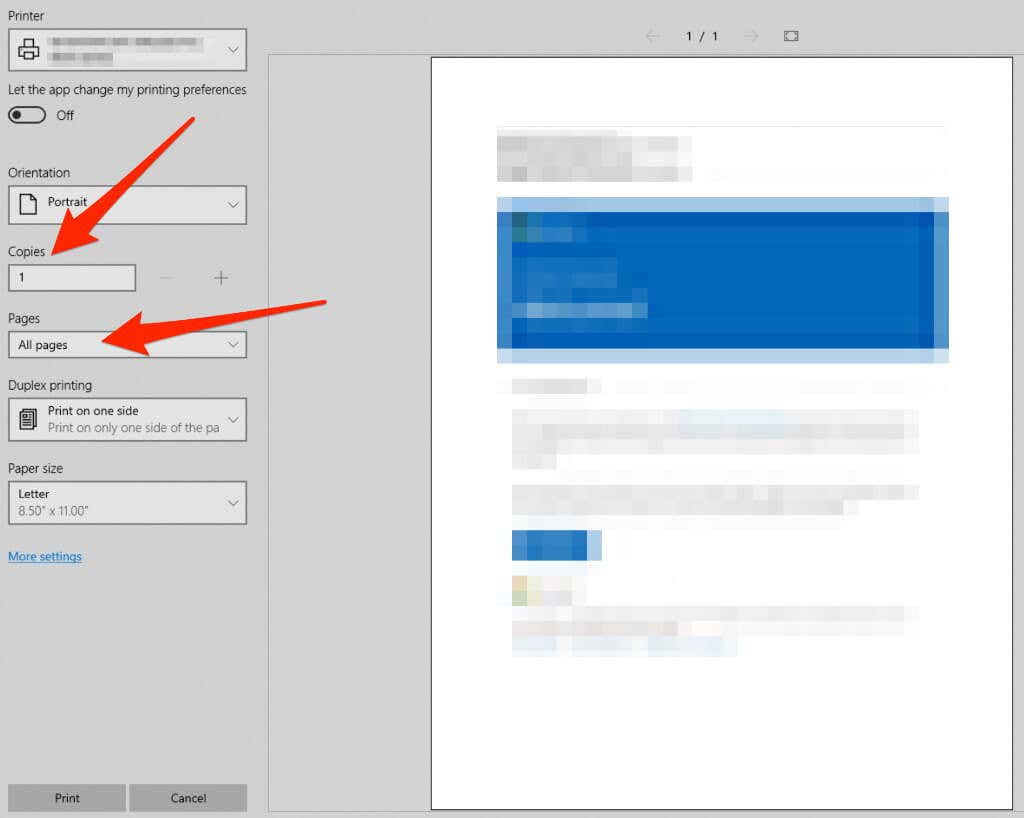
- Once you’ve set your printing options, select Print .

If there are any attachments to the email and you’d like to print those too, download them to your computer or mobile device. Open and print the files using your device’s printing interface.
Outlook
Outlook is the default email service for Microsoft Office users that comes with a desktop client, mobile app, and Outlook.com (formerly Hotmail) for the web.
Outlook Online
If you’re accessing your email messages from Outlook on the web, there’s a printer-friendly option for you to print an email message.
- Open the email message you’d like to print and select More (ellipsis) at the top.

- Select Print .
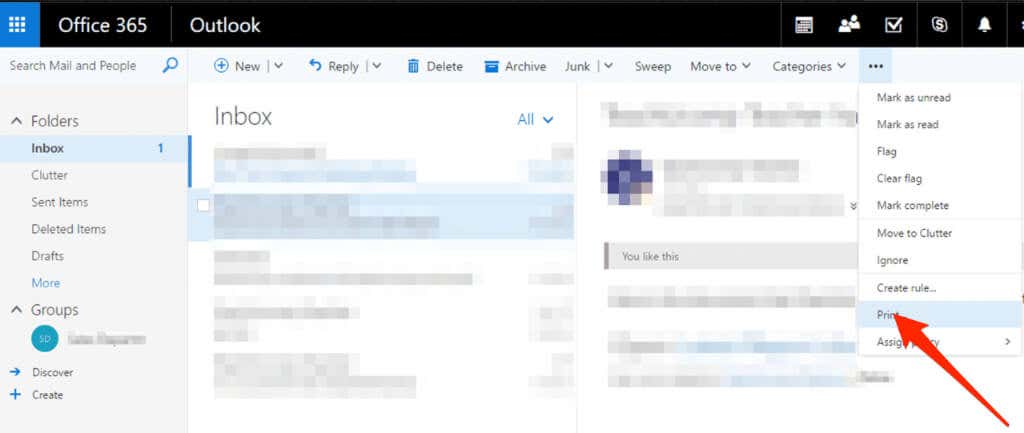
- If you’re using a PC, select Print in the new window.

- On a Mac, select the layout, orientation, pages to print, and the number of copies, and then select Print .

Note : You can’t print all email attachments from Outlook.com. Open each attachment and print them out individually.
Outlook App
The Outlook app offers an easy and convenient way to access your email messages on the go. You can also print email messages using the app on your Android or iOS device .
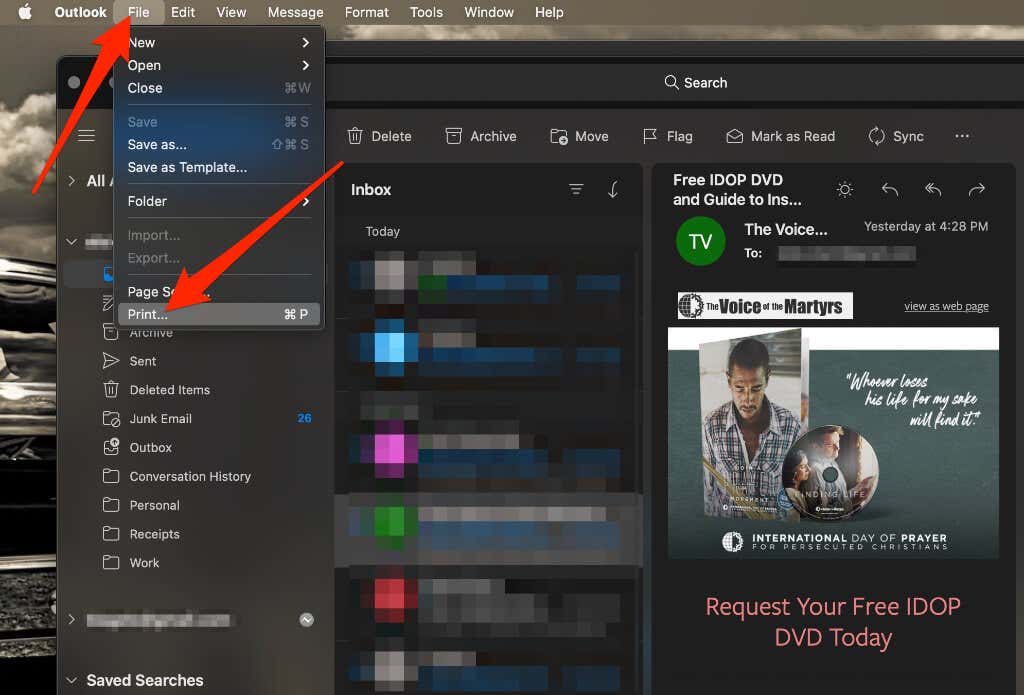
- Launch Outlook on your computer and open the email you want to print. Select File > Print . Alternatively, press Ctrl + P on a PC or Command + P on your Mac to open the Print menu.
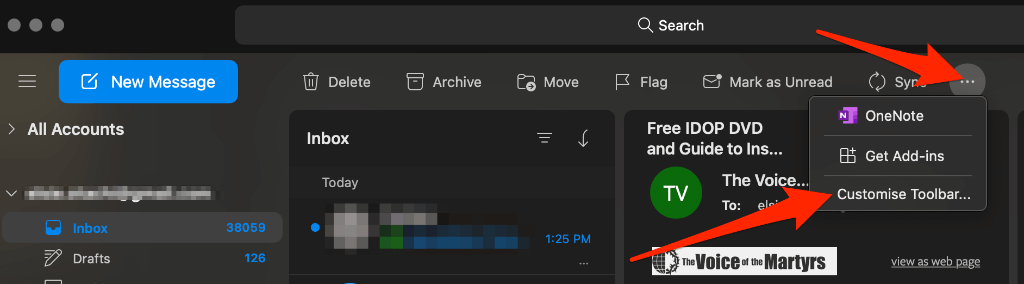
- If you want to print the email instantly, select More > Customize toolbar .
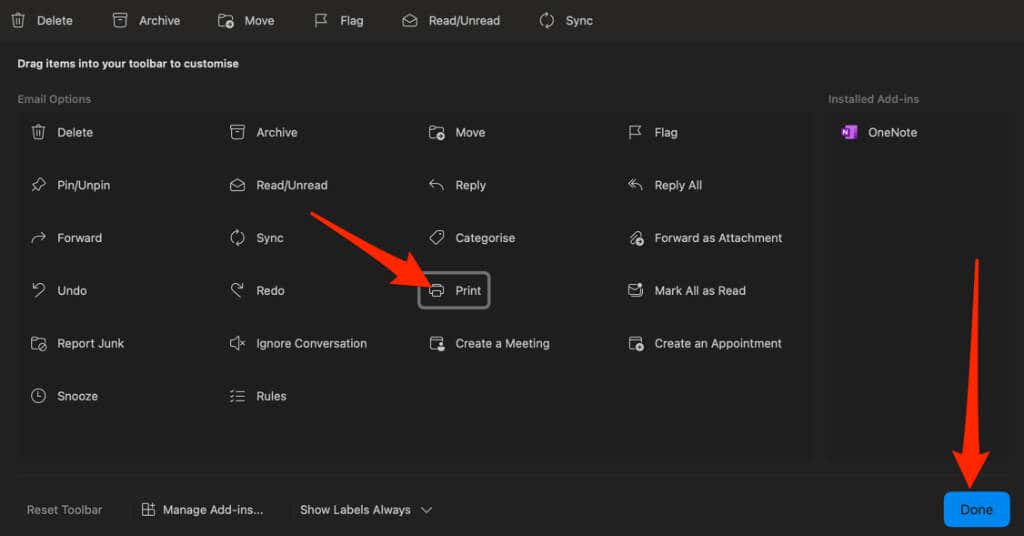
- Drag the Print button to the toolbar menu and then select Done to add the Print button to the Outlook toolbar. Select Print to print your email.
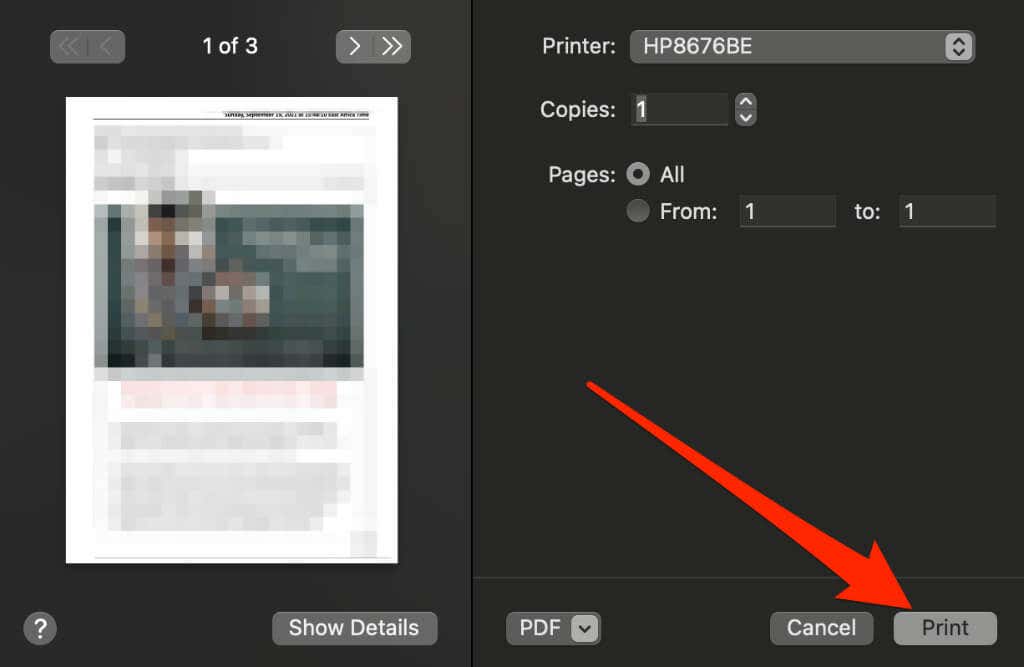
- Select Print .
Mail App
Mail app is the default email service provider for macOS and iOS users. Printing an email from the Mail app is just as straightforward as with other email clients.
Mac
You can use the Mail app on your Mac to print an email message.
- Launch Mail from the Launchpad in the dock and then select the email you want to print.
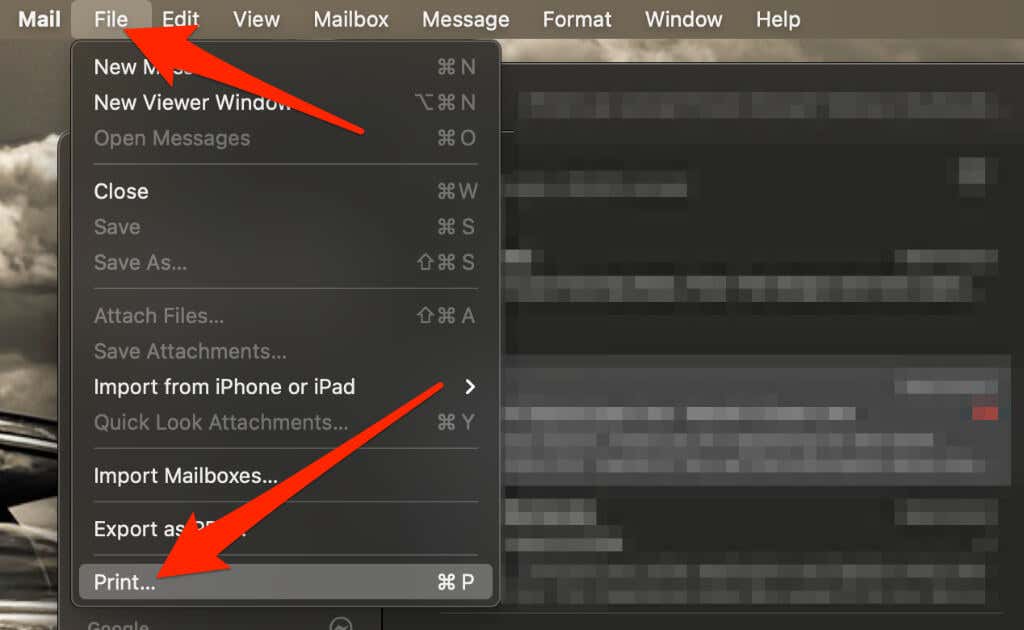
- Select File > Print from the menu options.
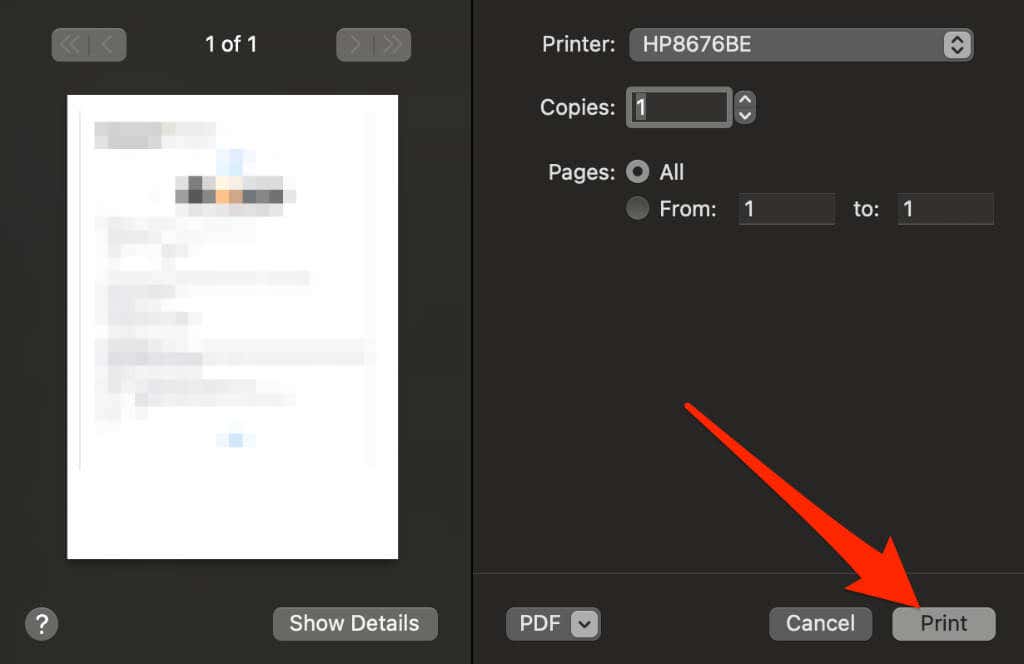
- Next, select the printer, number of pages, and print copies, and then select Print .
iOS
Printing from the Mail app on your iPhone or iPad is a bit different from a Mac.
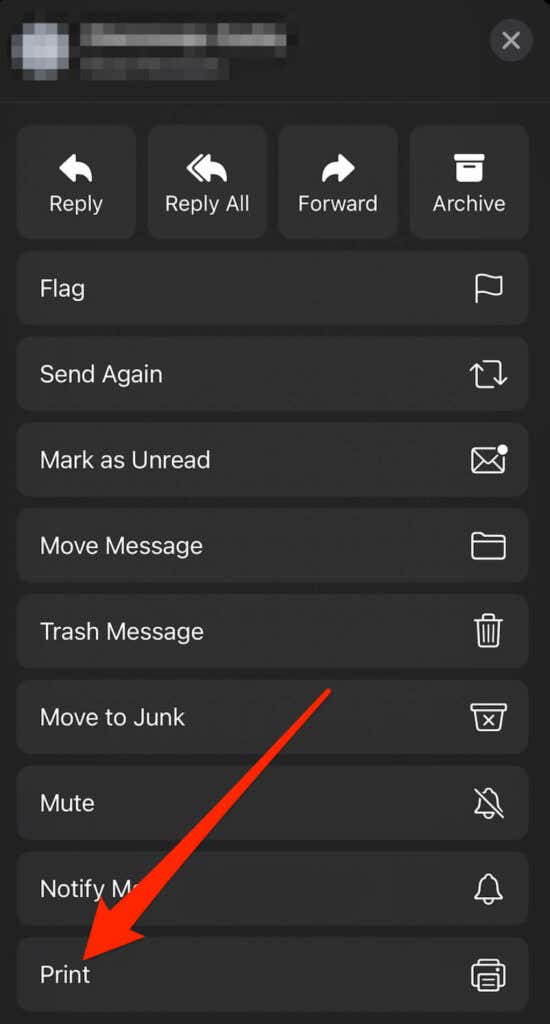
- Open the Mail app and tap on the email message you want to print.
- In the email window, tap the back arrow .
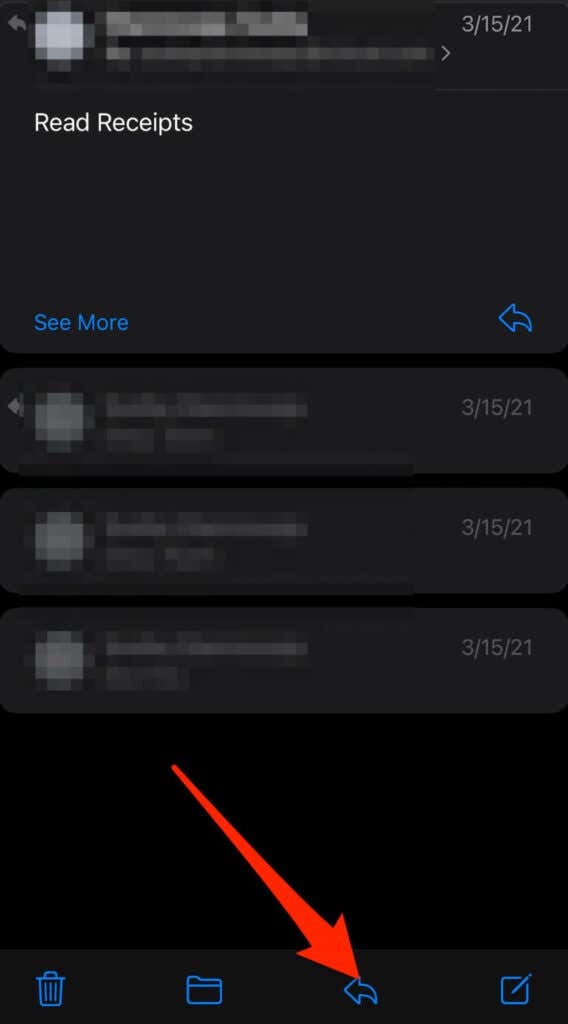
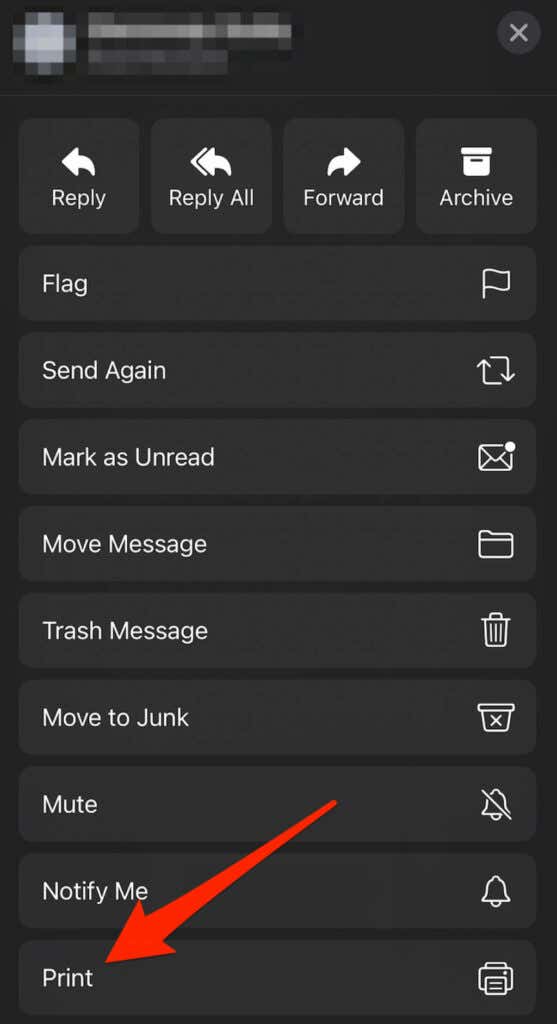
- Tap Print
- If there are any attachments, you can tap on them to view them, and then tap the Share button.
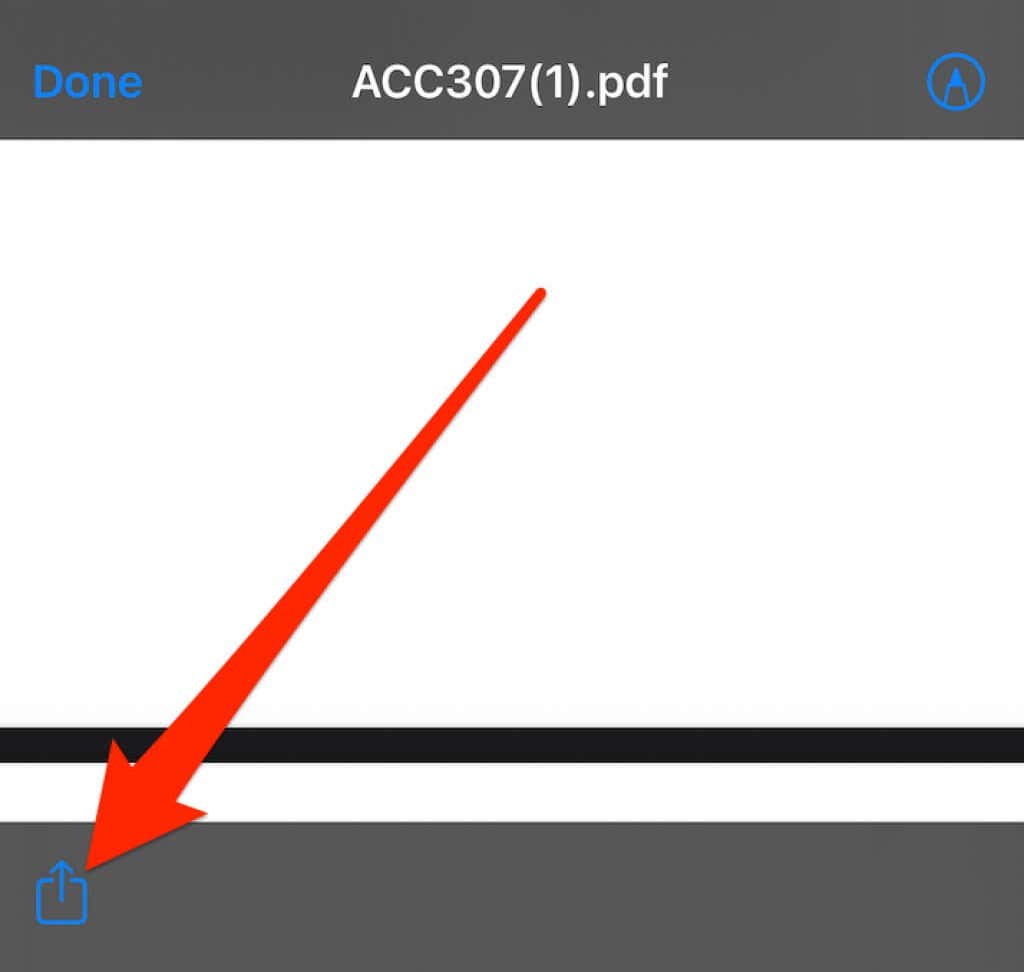
- Tap Print .
Print an Email from Anywhere
When you need a hard copy of a particular email message or conversation, you can print it out and keep it for future reference.
If you just want to print the email to read offline, you can save it on paper and opt to increase the font size in your browser or email app, or just save your email as a PDF file.
- Gmail Not Sending Emails? 10 Ways to Fix It
- Gmail Won’t Download Attachments in Android? 11 Fixes to Try
- 6 Best Gmail Alternatives for Different Types of Users
- How to Create a Google Calendar Event From Gmail
- How to Use Mail Merge in Gmail
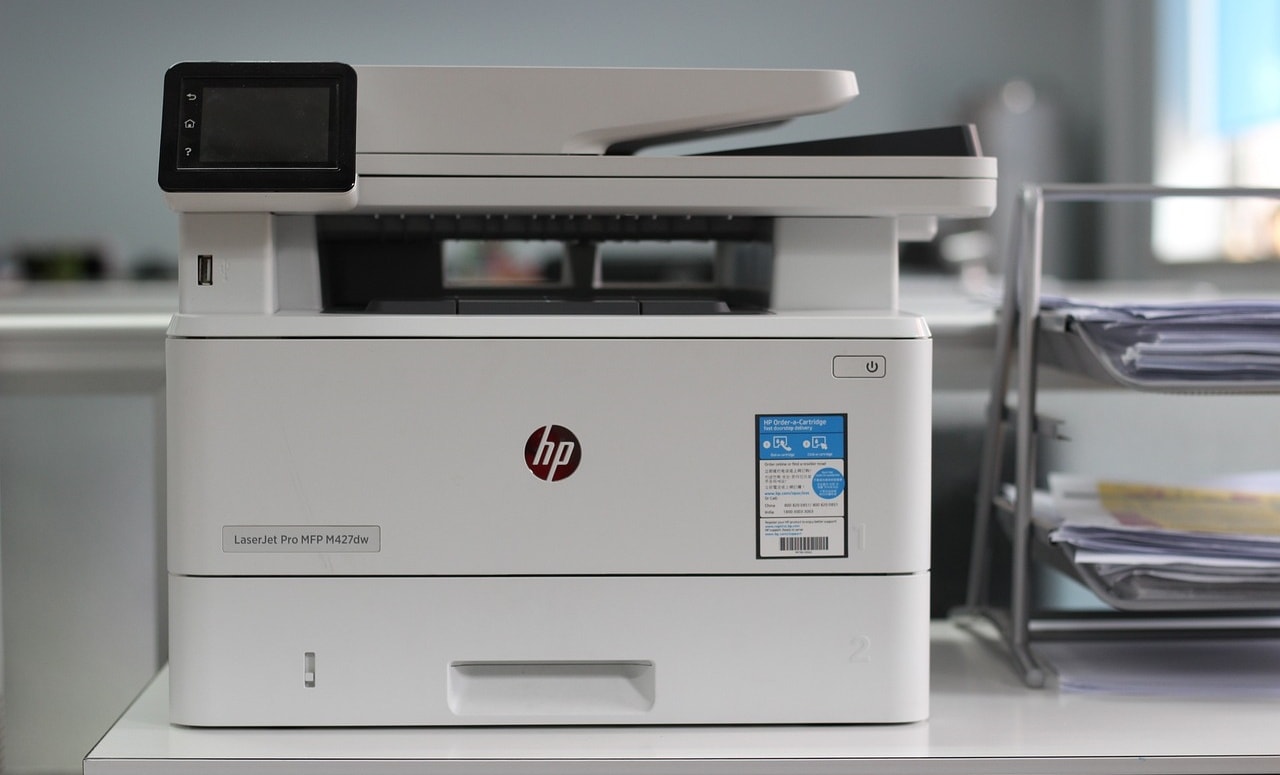
Wirelessly hooking multiple devices to one printer is now common practice in many homes and offices. Printing from a designated computer attached in this age and time is impractical and inconvenient. If your printer only supports wired/cable printing, there are ways to make it print wirelessly. This tutorial will show you how to convert a wired printer to a wireless one
How to Make Wired Printer to Wireless?
Many new-generation printers have Wi-Fi support or wireless capability for wireless printing. But what if you have a wired printer without Wi-Fi support? You don’t have to buy a whole new printer, and that’s because there’s a way to make virtually any wired printer wireless . Listed below are some ways to make wired printers print wirelessly without cable.
Get a Wireless Adapter for Supported Models
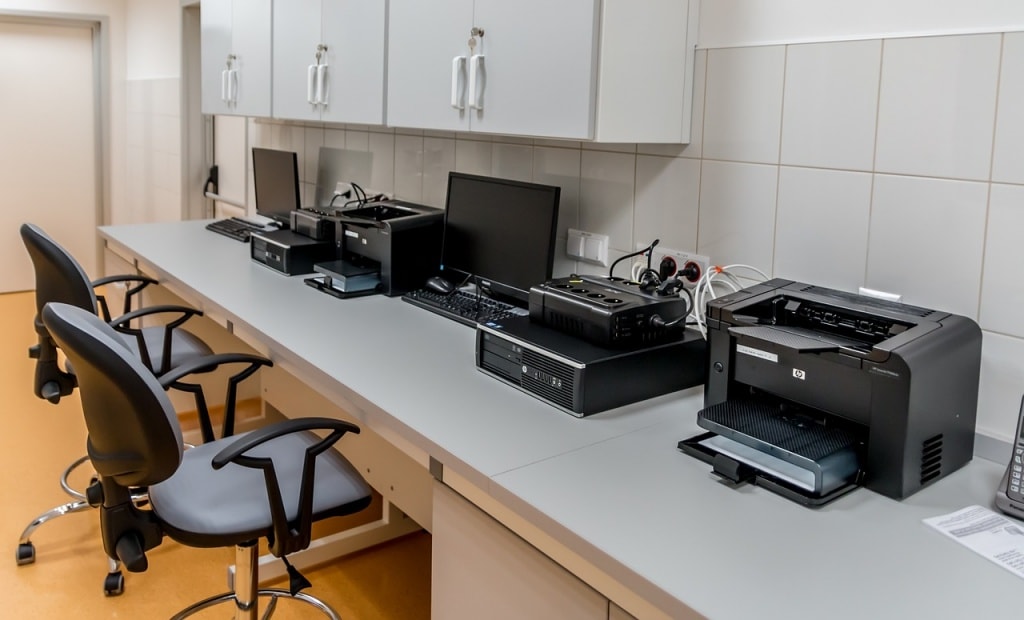
Converting a non-wireless printer into a wireless printer using an adapter is sometimes expensive. Many printer manufacturers sell a wireless adapter or module that can upgrade your current wired printer to one that can use Wi-Fi or Bluetooth.
First, check whether your printer has an official (or compatible third-party) wireless adapter. Then, verify that the adapter is compatible with your computer’s operating system version. You shouldn’t necessarily buy it immediately; read the product reviews while evaluating the other options.
Connect It to a Router via USB
Check the back of your internet router. Does it have a USB port? Many routers can now act as USB hosts. In most cases, that means you can connect an external USB drive, and the router will offer it as network-attached storage to devices on the network. Such routers can also work as wireless print servers.
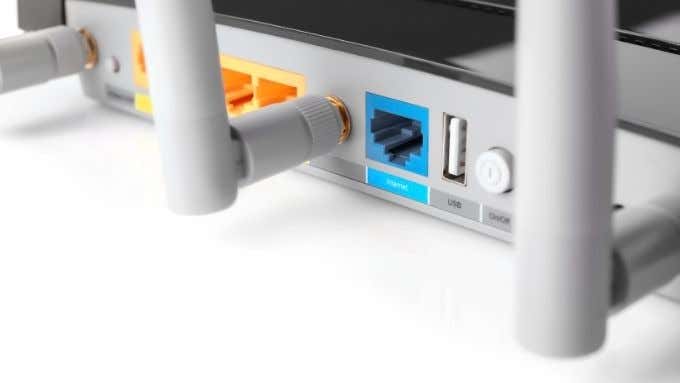
First, connect the wired printer to the router’s USB port using a USB-to-USB cable. Afterward, open the router’s settings and make the USB port function as a wireless print server. Refer to your router’s instruction manual for instructions on how to do this. If you want NAS mass storage functionality, one downside of this method could be that your router can’t do both simultaneously.
Connect It to a Router via Ethernet
Wired printers that don’t support Wi-Fi typically have an Ethernet port. If your wired printer has an Ethernet port, connect it to your router using an Ethernet cable. With a powerline Ethernet extender , you can connect the printer to your router from virtually anywhere in your home.
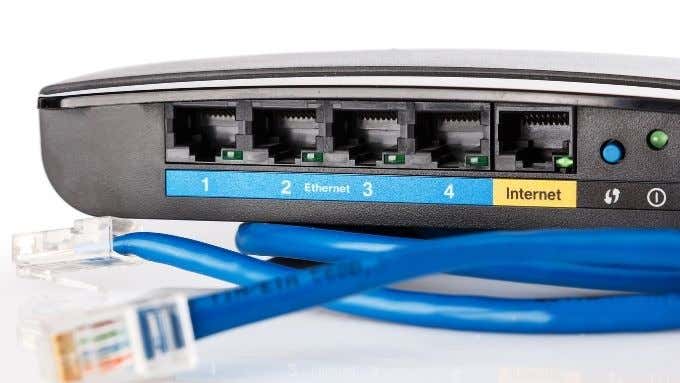
Remember that you’ll likely need to configure the printer to work correctly over Ethernet. You can do that on the printer itself using its screen and buttons. Alternatively, you may have to configure it using software on your PC and a USB cable or by logging into the printer over the network.
Share Your Printer Through a PC
Most operating systems, including Windows, let you share a printer connected to the computer with other devices on the network. In this situation, the PC connected to the printer acts as a print server.
Here’s how to share wired printers with other devices in Windows:
- Open the Control Panel and select Hardware and Sound .
<img loading=“lazy” src=“https://images.surferseo.art/30d9c608-cdb3-451f-93b7-59a8ad62a0cc.png" onerror=“this.onerror=null;this.src=‘https://blogger.googleusercontent.com/img/a/AVvXsEhe7F7TRXHtjiKvHb5vS7DmnxvpHiDyoYyYvm1nHB3Qp2_w3BnM6A2eq4v7FYxCC9bfZt3a9vIMtAYEKUiaDQbHMg-ViyGmRIj39MLp0bGFfgfYw1Dc9q_H-T0wiTm3l0Uq42dETrN9eC8aGJ9_IORZsxST1AcLR7np1koOfcc7tnHa4S8Mwz_xD9d0=s16000';" alt=““Hardware and Sound” highlighted in Control Panel - 34”>
- Next, select Advanced printer setup in the “Devices and Printers” section.

- Select the printer from the list of devices.

- Choose Printer properties on the next screen.

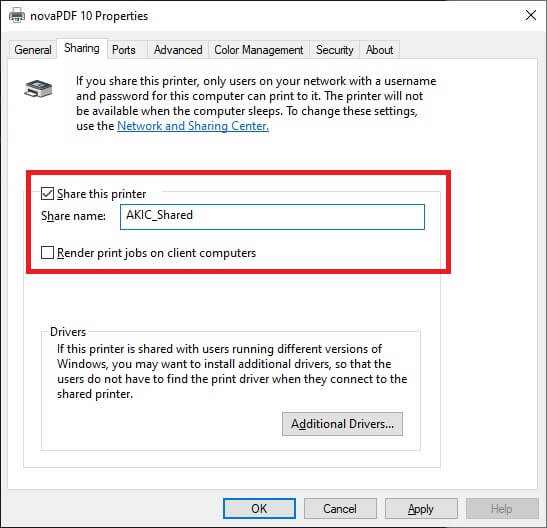
- Switch to the Sharing tab and select the Share this printer checkbox.
<img loading=“lazy” src=“https://www.online-tech-tips.com/wp-content/uploads/2021/04/9-Network-Share-5.jpg" onerror=“this.onerror=null;this.src=‘https://blogger.googleusercontent.com/img/a/AVvXsEhe7F7TRXHtjiKvHb5vS7DmnxvpHiDyoYyYvm1nHB3Qp2_w3BnM6A2eq4v7FYxCC9bfZt3a9vIMtAYEKUiaDQbHMg-ViyGmRIj39MLp0bGFfgfYw1Dc9q_H-T0wiTm3l0Uq42dETrN9eC8aGJ9_IORZsxST1AcLR7np1koOfcc7tnHa4S8Mwz_xD9d0=s16000';" alt=““Share this printer” highlighted in a printer properties window - 38”>
You can also change the printer’s share name at this point. This is the name that everyone else sees when looking for a network printer to use.
This is probably the fastest and cheapest method to make your wired printer a wireless one, but it has significant drawbacks. First, your computer has to stay on all the time; otherwise, the printer won’t be available . That isn’t the most energy-efficient or best solution if you’re energy-conscious.
With lower-end computers, handling print requests can also affect the performance of that computer, which might not be what you want to happen in the middle of something else.
Use an Ethernet to Wi-Fi Adapter
If you have a printer with an Ethernet port and don’t want to use the powerline adapter method, you can use an Ethernet to Wi-Fi adapter. The only catch is that you will have to connect the printer to a PC first to ensure that all the network settings are correct before using the Wi-Fi adapter.
Use a Dedicated Print Server Device
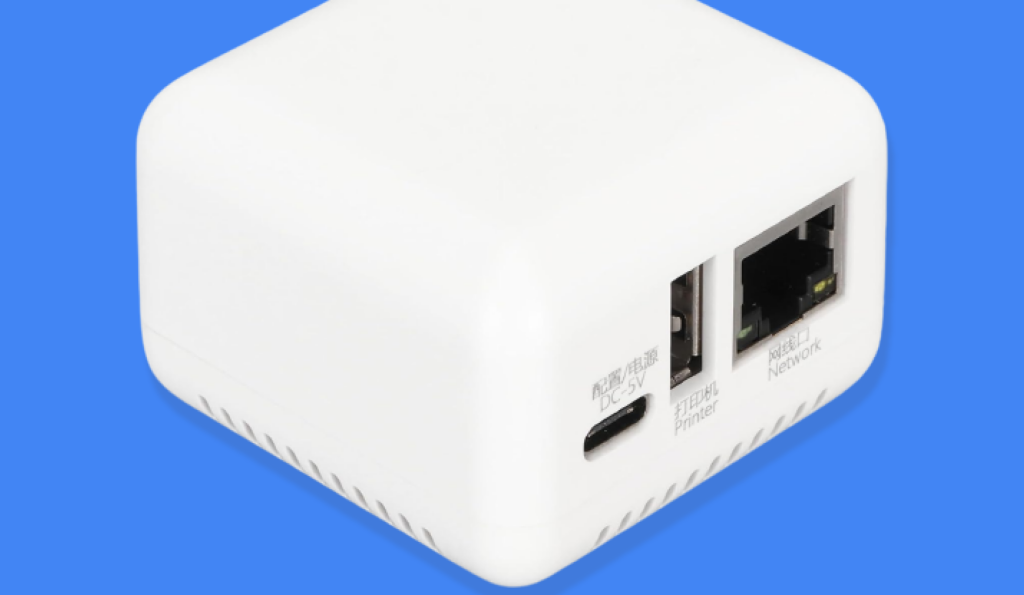
If none of the solutions above work or just don’t suit you, there’s a relatively affordable and reliable solution. You can buy/use a dedicated wireless print server box. This is a little box with a USB connection on one side and an Ethernet port on the other. Inside is a small dedicated computer that accepts network print jobs and then passes them to the printer.
While this does mean your printer has to be connected to the router via Ethernet, it instantly allows all network devices to share that printer. The dedicated print server uses very little electricity and is always available.
There are also wireless dedicated print server devices, which cost slightly more than the Ethernet-only variety. So you’ll have to decide if the extra few dollars are worth it.
Get Inked!
- How to Fix Slow Wi-Fi on Your Smartphone
- 7 Best Machine Translation Software (or AI) to Try in 2025
- What Does the Green Dot Mean on Facebook?
- How to Turn off Hardware Acceleration in Chrome
- How to Check VRAM in Windows 10, 11, and macOS?