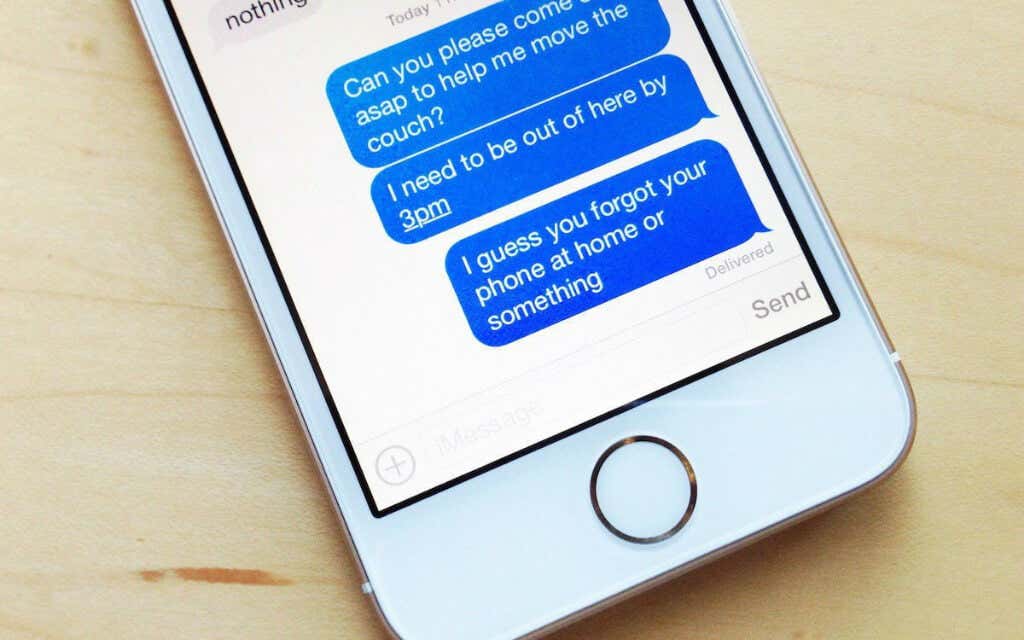
Do you want to create hard copies of SMS or iMessage texts on your iPhone? The Messages app for iOS doesn’t feature a built-in option to print individual texts or conversation threads, so you must rely on workarounds instead.
Read on to learn three ways to print iPhone text messages. They also apply to the iPod touch and the iPad version of Messages.
Take and Print Screenshots of Message Threads on iPhone
If you want to print your messages natively on an iPhone, the only way is to take screenshots and create printouts using an AirPrint-compatible printer . However, it is time-consuming and tedious, especially for lengthy conversations. Look into the other methods if that feels too much of a hassle.
Open the Messages app and open the iPhone SMS or iMessage text conversation you want to print.
Scroll to the top of the conversation thread. Repeatedly tap the top-most corners of the screen to scroll up faster.
Take a screenshot and save it to the Photos app. If you use an iPhone with Face ID, press the Volume Up button and the Side button together to take a screenshot. On devices with Touch ID, press the Home button and the Side button together instead.
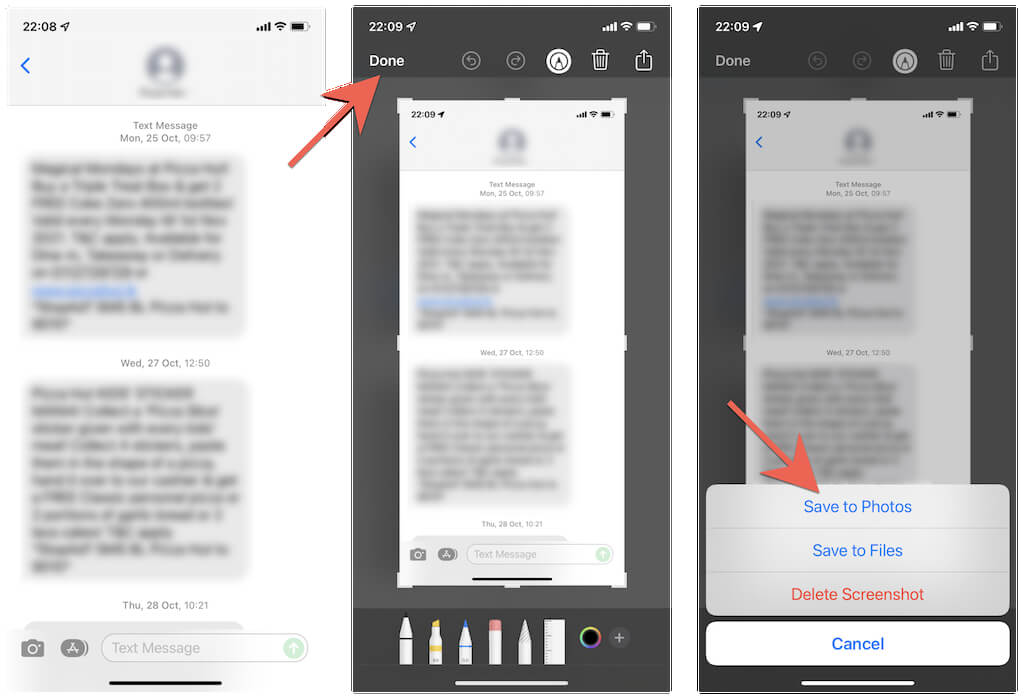
Scroll down the conversation thread and keep taking screenshots repeatedly.
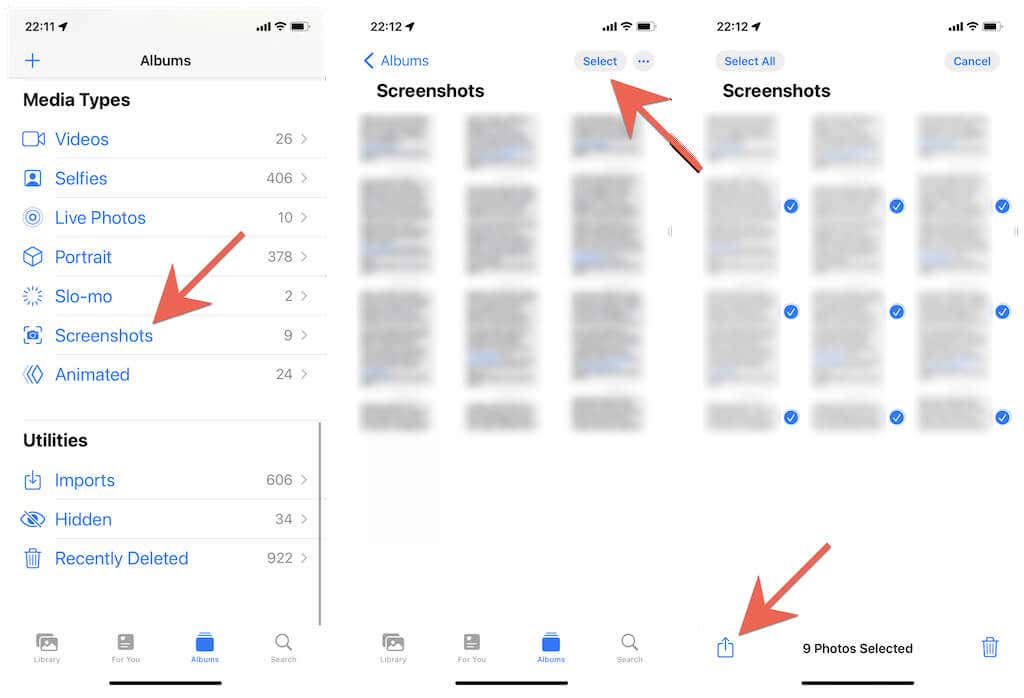
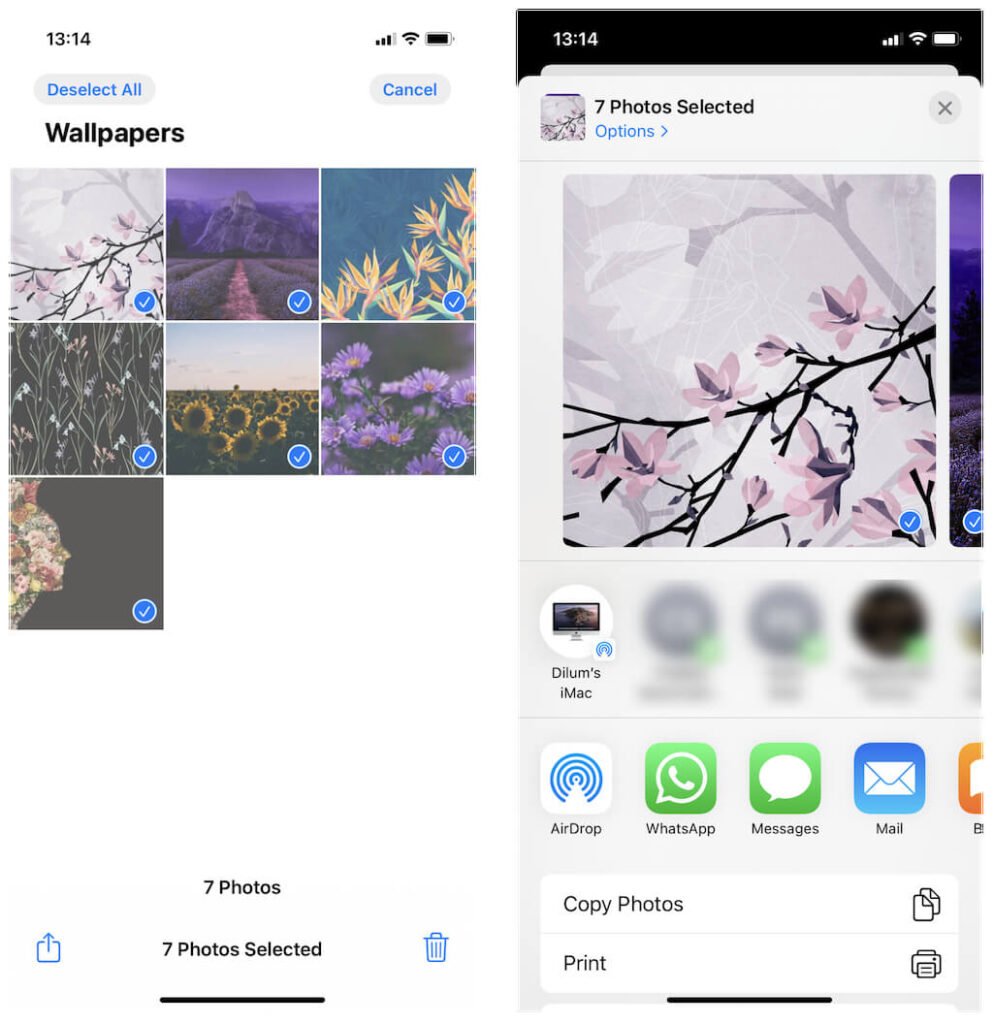
Open the Photos app, switch to the Albums tab, and tap Screenshots .
Tap the Select button at the top-right of the screen and select the screenshots in the order you took them.
Tap the Share button at the bottom-left of the screen.
Tap the option labeled Print on the Share Sheet.
Tap Printer .
Select your AirPrint printer.
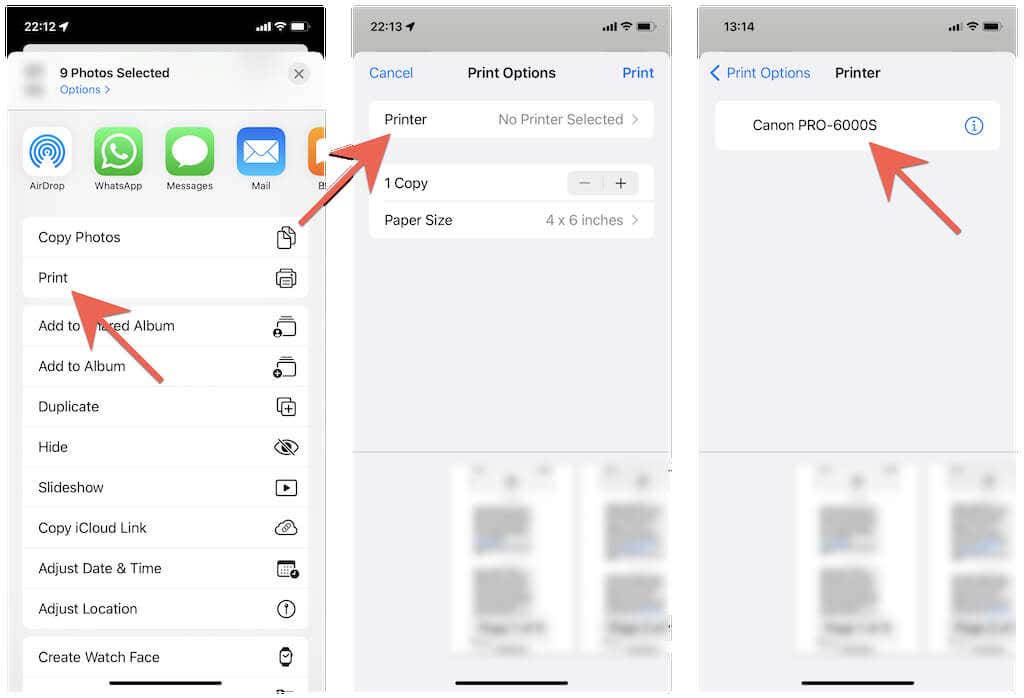
Set up the print job by specifying the number of copies, color, media quality, etc.
Tap Print .
Wait for the AirPrint printer to finish printing.
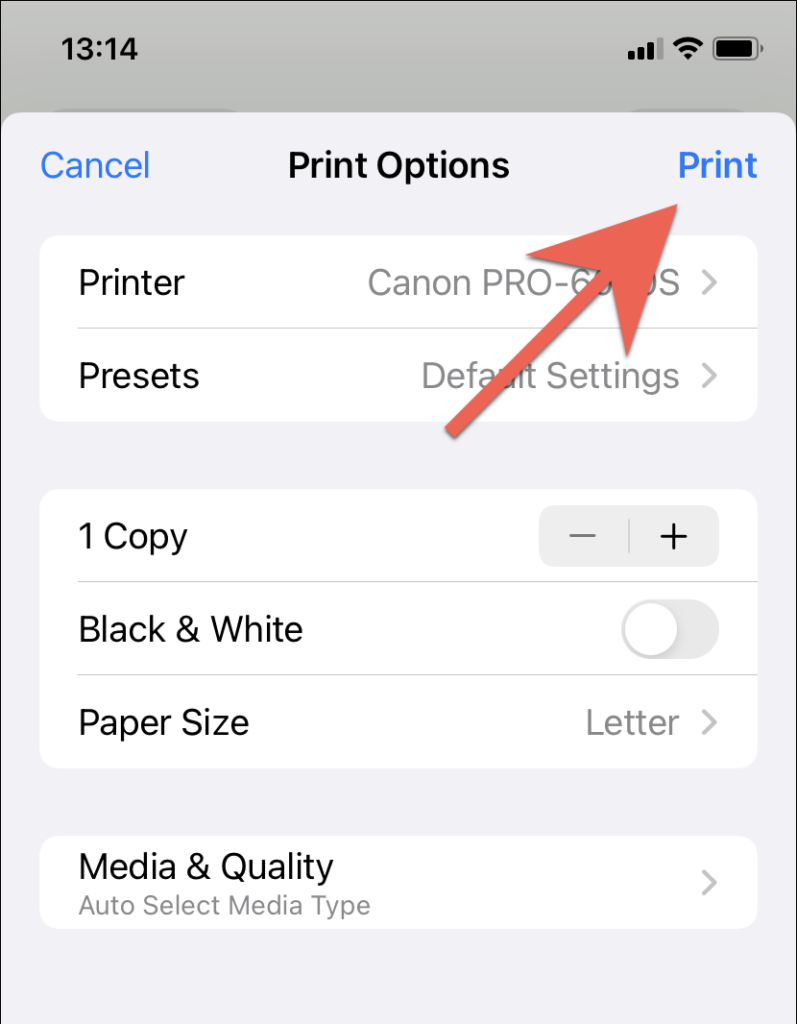
You can manage the print job by accessing the Print Center app via the App Switcher (swipe up from the bottom of the screen or double-click the Home button twice).
Alternatively, you can choose to save the screenshots as a PDF. Assuming that you use an iPhone with iOS 15 or later, simply tap the Print option in step 9 (without selecting a physical print), and you should be able to save it to the Files app. Or, share the images to a Windows PC or Mac (via Airdrop or the Mail app) and print them out.
Sync Text Messages via iCloud and Print Them on Mac
Unlike on iPhone, the macOS version of Messages is fully capable of printing both regular text and iMessage conversations. If you own a Mac, you just need to sign into the Messages app with the same Apple ID as your iPhone (if you aren’t already) and have Messages in iCloud active.
However, the printout will not display the contact’s name at the top of the pages. Check out the following method if that is a problem.
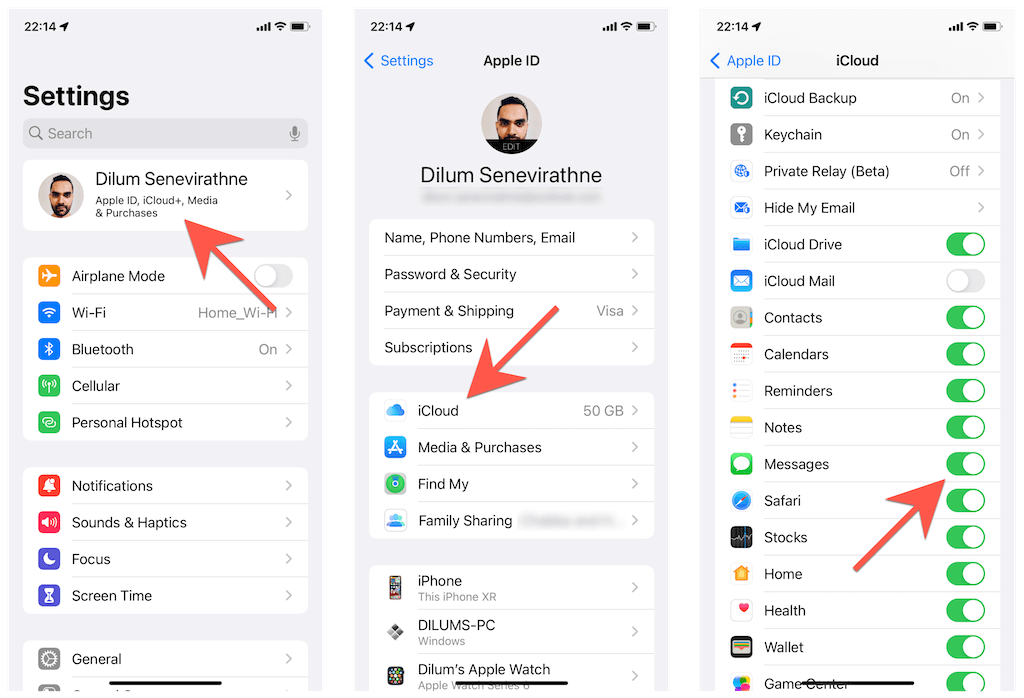
- Open the Settings app on your iPhone and tap Apple ID > iCloud . Then, make sure that the switch next to Messages is active.
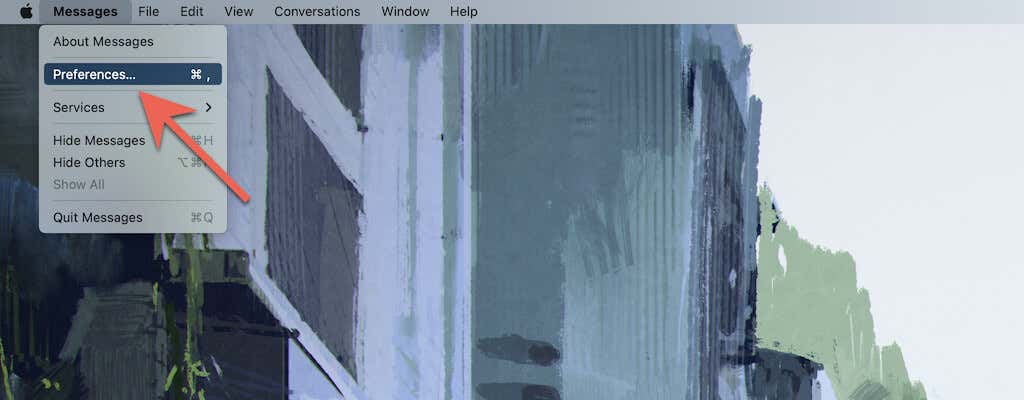
- Open the Messages app on your Mac and select Messages > Preferences on the menu bar.
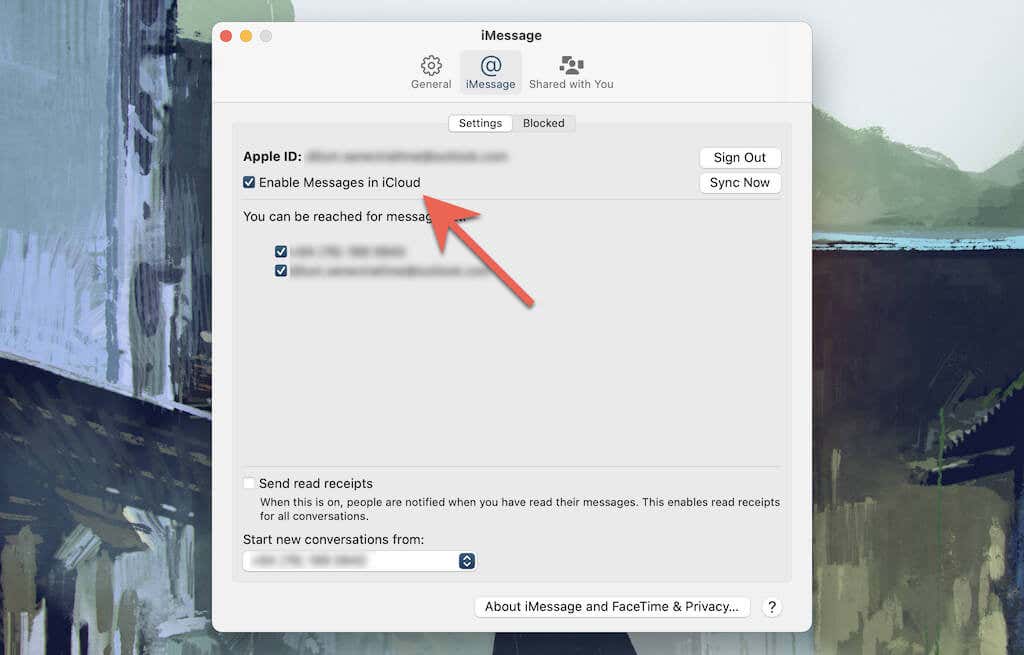
Switch to the iMessage tab.
Sign in to the Mac with the same Apple ID as your iPhone and activate the box next to Enable Messages in iCloud .
Wait until your messages sync from your iPhone to your Mac.
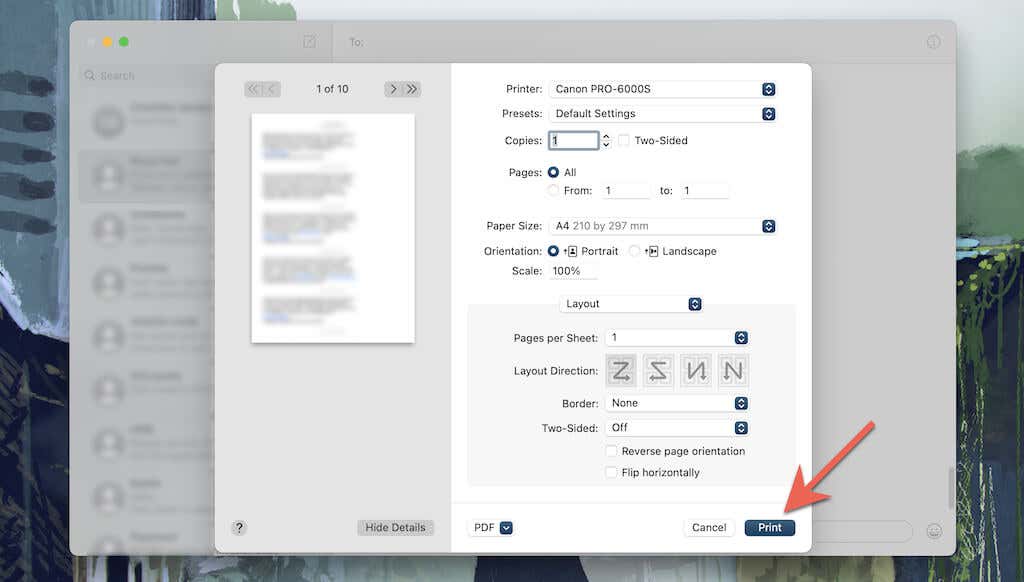
Select the conversation thread you want to print.
Scroll to the top to load the entire thread.
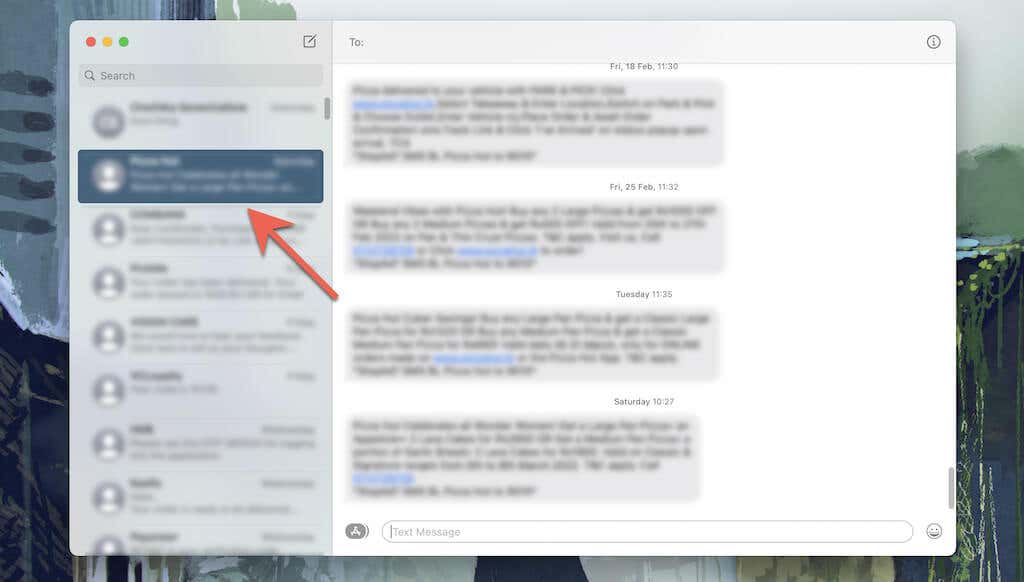
- Select File > Print on the menu bar.
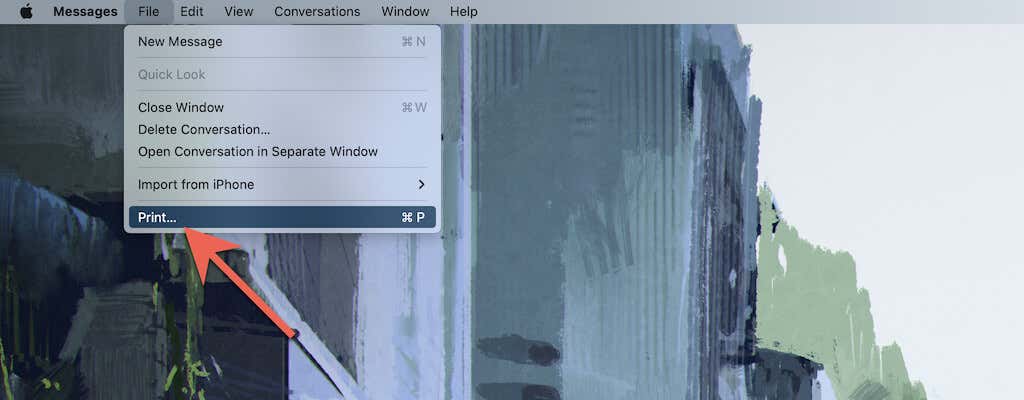
- Select your printer, specify your print preferences (number of copies, paper size, orientation, etc.), and select the Print button. Or, choose PDF on the bottom pull-down menu to save the conversation as a PDF.
Print Out Message Conversations on iPhone Using iMazing
If you plan on printing lots of conversations or want to prepare hard copies for legal proceedings in court cases, you can use an iTunes alternative called iMazing to help you out. However, it isn’t free and costs $34.99 per license.
iMazing is mainly known for its iPhone management and data recovery tools but also lets you take printouts of text messages and attachments quickly. You can print individual texts, messages between specific dates, and multiple conversations simultaneously. You get the option of adding contact details and time stamps for each message. iMazing also allows you to print WhatsApp chats.
Download and install iMazing on your PC or Mac.
Open iMazing and connect your iPhone via a USB cable. Then, unlock the iOS device and tap Allow or Trust .
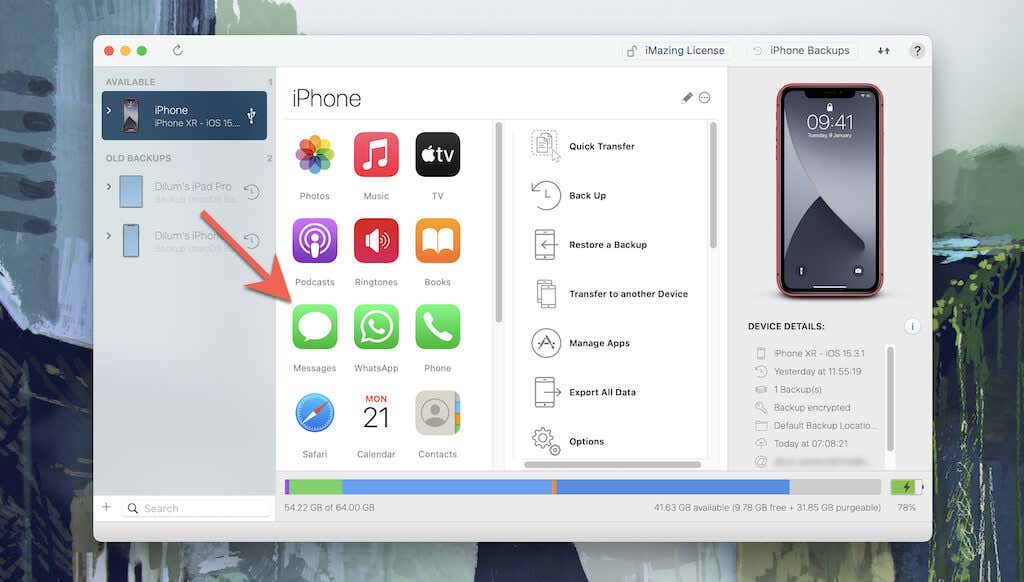
Select your iPhone on the sidebar and choose Messages . If you want to print WhatsApp messages, select WhatsApp instead. iMazing will begin creating a backup of the iPhone’s data to local storage. Wait until it completes before you proceed.
Select the conversation you want to print . You can also select multiple conversations while holding down the Control or the Command key. If you’re going to print specific iMessage or SMS messages only, hold down Control / Command and highlight them. Or, use the filters at the right corner of the screen to set a date range.
Select the Down arrow at the top of the sidebar and select Show contact details and Show time for all messages to show the contact details and time stamps for all messages within the conversation. You can also select Show original messages of replies to display the original messages to replies in the printouts.
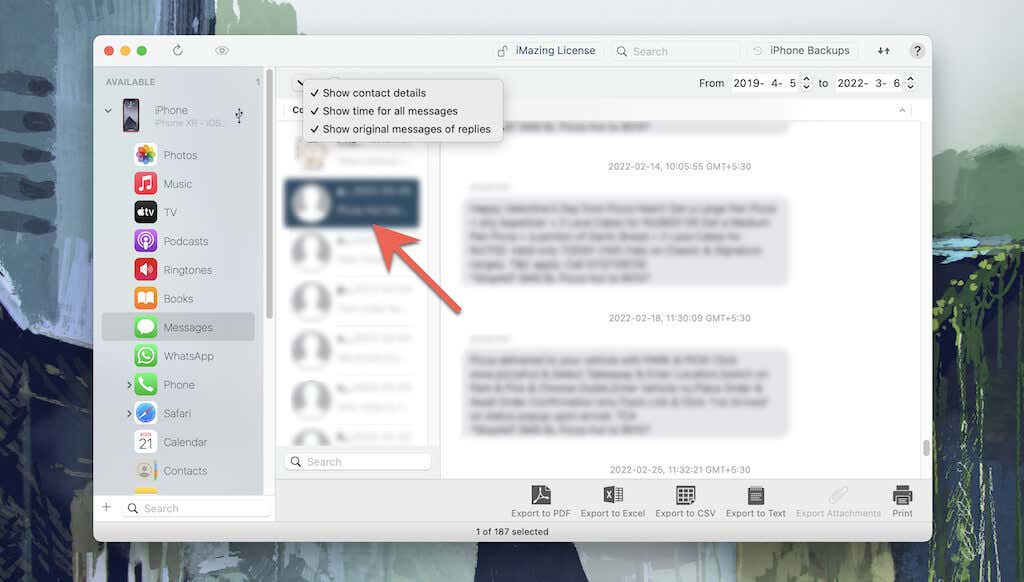
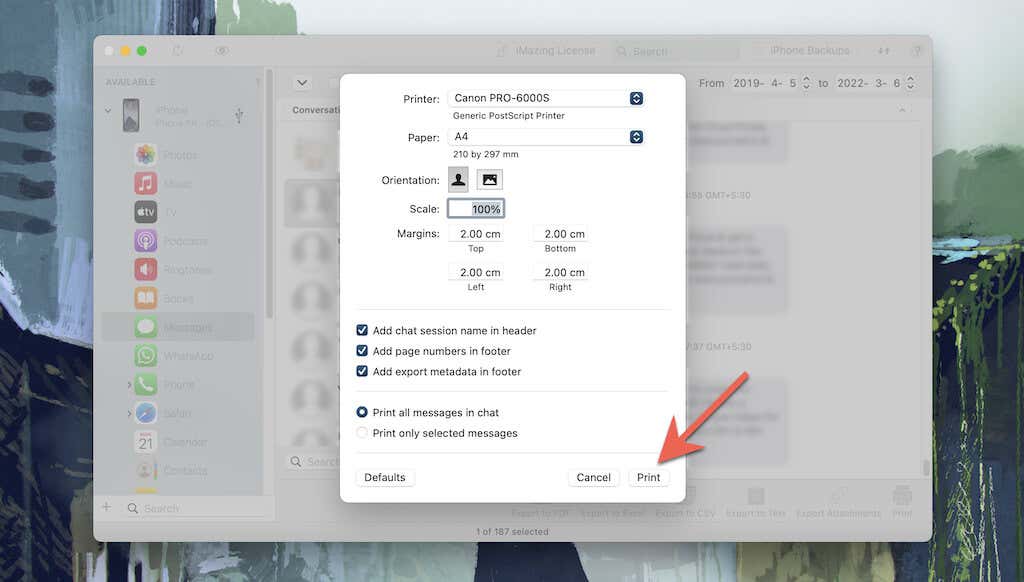
- Specify your print preferences (number of copies, paper size, orientation, etc.) and select Print .
Other third-party iPhone data management tools such as CopyTrans , iMobie , and Decipher Tools also provide the ability to print iPhone text messages. Feel free to try them out.
Pick Your Method and Start Printing
Hopefully, the methods in this tutorial helped you print text messages on your iPhone. Admittedly, they aren’t the most convenient. But until Apple includes a dedicated Print function in the Messages app for iPhone, you’ve got no option but to get your copies the hard way (no pun intended).
- How to Use Your iPhone as a USB Drive on Mac and PC
- How to Turn Off Password Suggestions on iPhone
- How to Accept Invite to Shared Album on iPhone
- How to Send Emails on iPhone
- iPhone Not Sending Emails? 10 Fixes to Try
Thanks to Apple’s AirPrint protocol, printing on iPhone, iPad, and iPod Touch is easier than you think. You only have to spend a little time setting up your printer before you can start using it with an iOS or iPadOS device.
But what if you have a printer that doesn’t support AirPrint? Don’t worry. You can still rely on your printer manufacturer’s support app to send print jobs wirelessly. Also, if you use a wired-only printer, you can opt for a third-party AirPrint activator to help you out.
Use AirPrint to Print on iPhone and iPad
AirPrint is a wireless protocol by Apple that allows the iPhone iPad to communicate wirelessly with printers. It requires zero drivers or support software. The only thing you must do is make sure that the printer and your iOS device are on the same Wi-Fi router. If they are, you can print right away!
If you use a recent printer with wireless capabilities, chances are that it’s AirPrint-compatible. Here’s a complete list of compatible printer models featuring AirPlay support . If your printer is not listed there, skip to the next section.
Start by connecting your printer to the same wireless network router as your iPhone or iPad. You must check your printer’s user manual or online documentation for specific instructions. For example, if you use an HP printer with a touchscreen , open the Network or Wireless settings menu and use the Wireless Setup Wizard to join the network.
Open (or select) the image, document, or web page you want to print and tap the Share icon. It’s shaped like an arrow coming out of the top of a box and is present on most apps (e.g., Files, Photos, and Safari) on the iPhone and iPad. Then, tap the Print option on the Share Sheet.
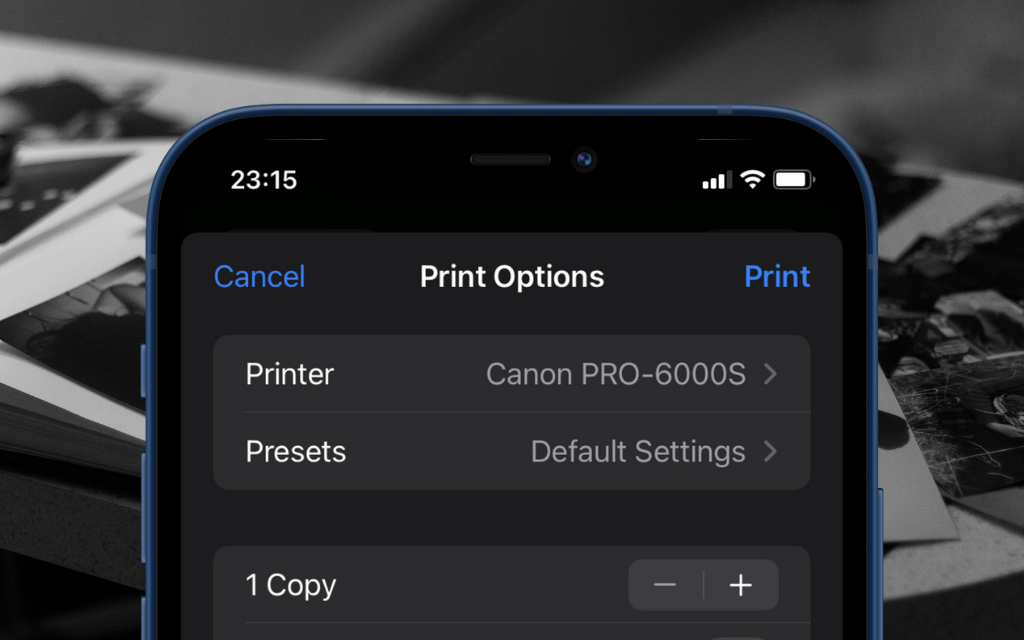
- Tap the Select Printer option at the top of the screen. If your printer supports AirPlay (and you’ve connected to the same wireless network as your iPhone or iPad), it will appear within the list. Tap to select it.
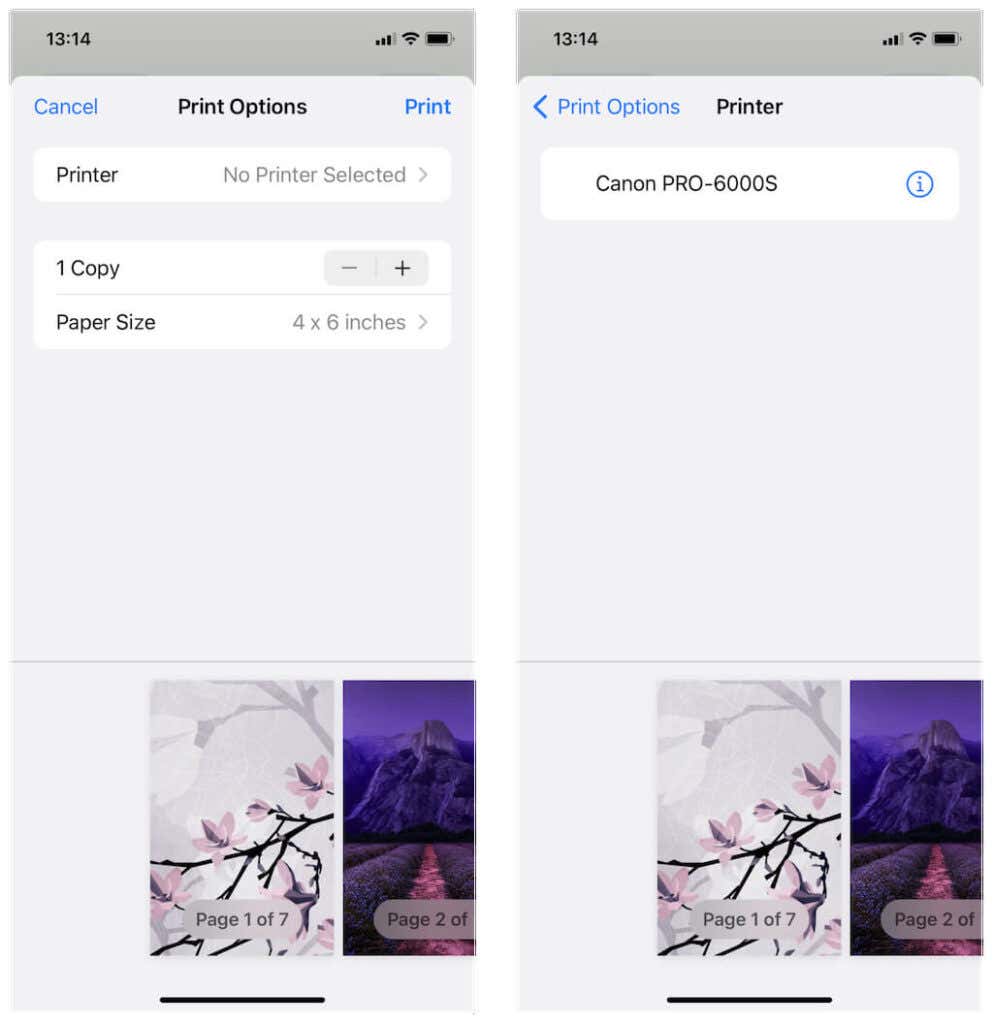
Learn what you can do to troubleshoot an AirPrint printer that fails to show up on your iPhone or iPad.
- Make any adjustments to the print job, such as the number of copies, media quality, paper size, etc. Then, tap Print on the right corner of the screen. Your AirPrint printer will start printing immediately.
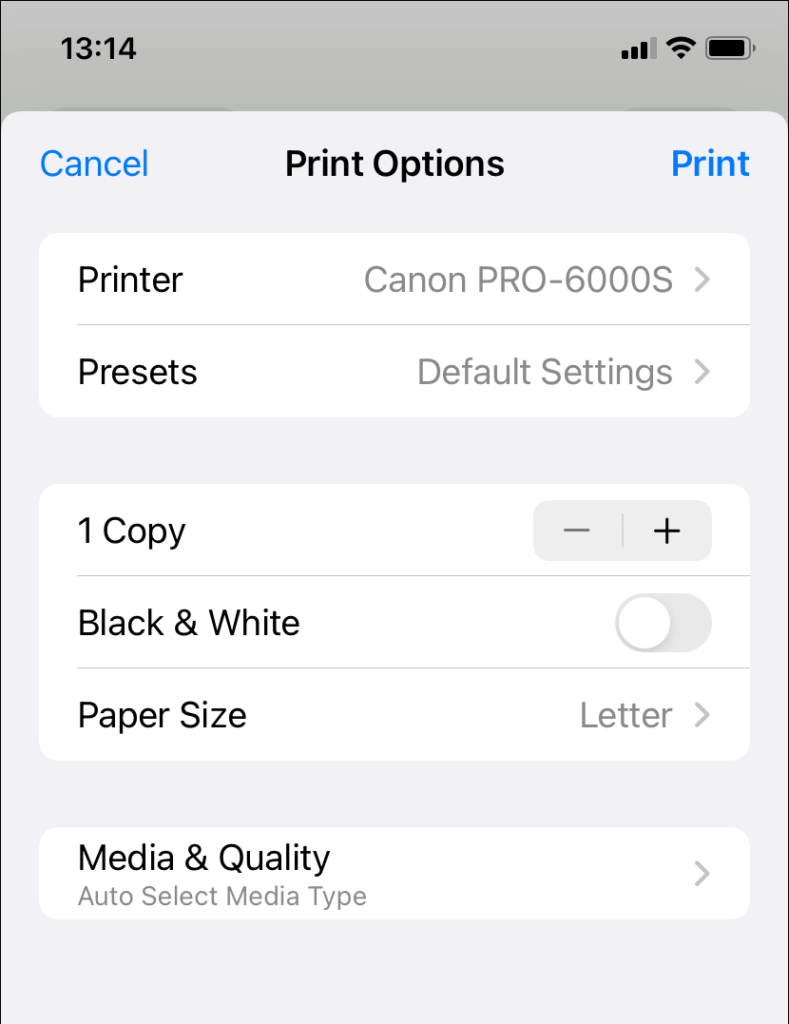
Note : Learn what you can do to troubleshoot an AirPrint printer that fails to show up on your iPhone or iPad.
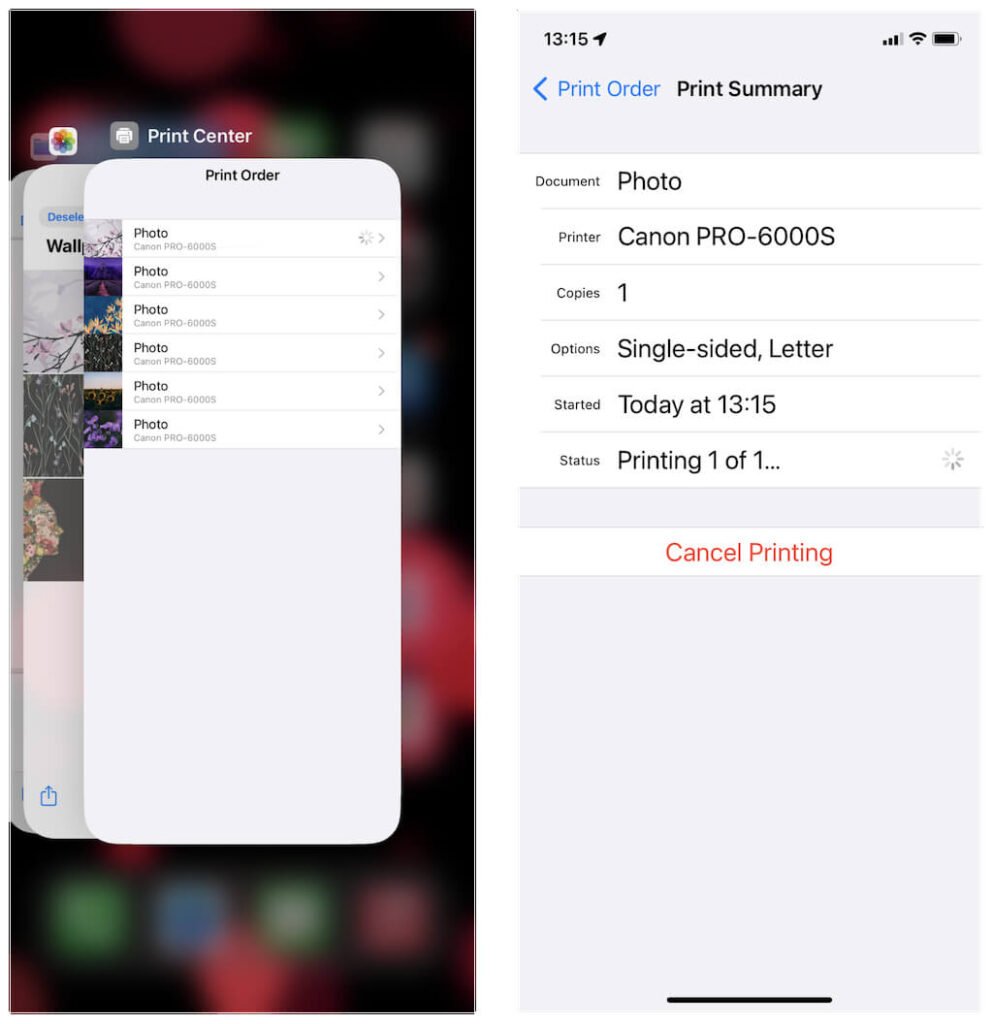
- You can keep queuing print jobs. If you want to view them, open the App Switcher on your Apple mobile device (swipe up from the bottom of the screen or double-click the Home button) and select Print Center . You can then tap on a print job and choose Cancel Printing if you want to cancel it.
Use Printer Support Software to Print on iPhone and iPad
If your wireless printer doesn’t support AirPrint, you must install any available support software from the App Store. For example, printing apps such as Canon PRINT Inkjet/SELPHY , Epson iPrint , and HP Smart let you print wirelessly from your iPhone or iPad. These apps also provide additional customization options for AirPrint-compatible printers, so you may still want to install them regardless.
Here’s a brief rundown of the HP Smart app in action.
Install HP Smart from the App Store.
Open HP Smart and create an HP account (or sign in if you already have one).
Tap the Add Your First Printer option to add an HP printer.
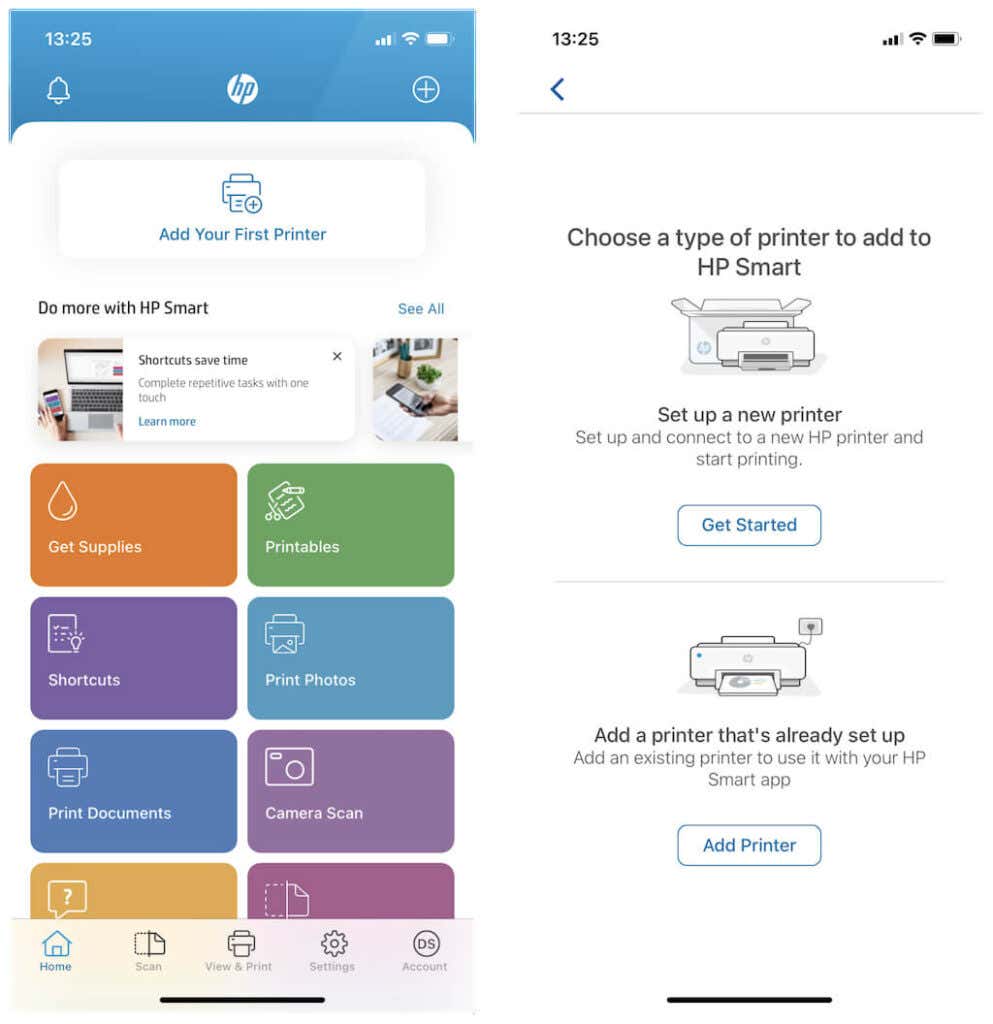
Note : If your wireless printer doesn’t show up, make sure that it’s connected to the same Wi-Fi network as your iPhone or iPad. Or enter its IP address. If the printer uses Bluetooth for connectivity, remember to activate the Bluetooth radio on iPhone and iPad.
Tap on a category (e.g., Print Photos or Print Documents ) to create a print job.
Tap Print to send the print job to your HP printer.
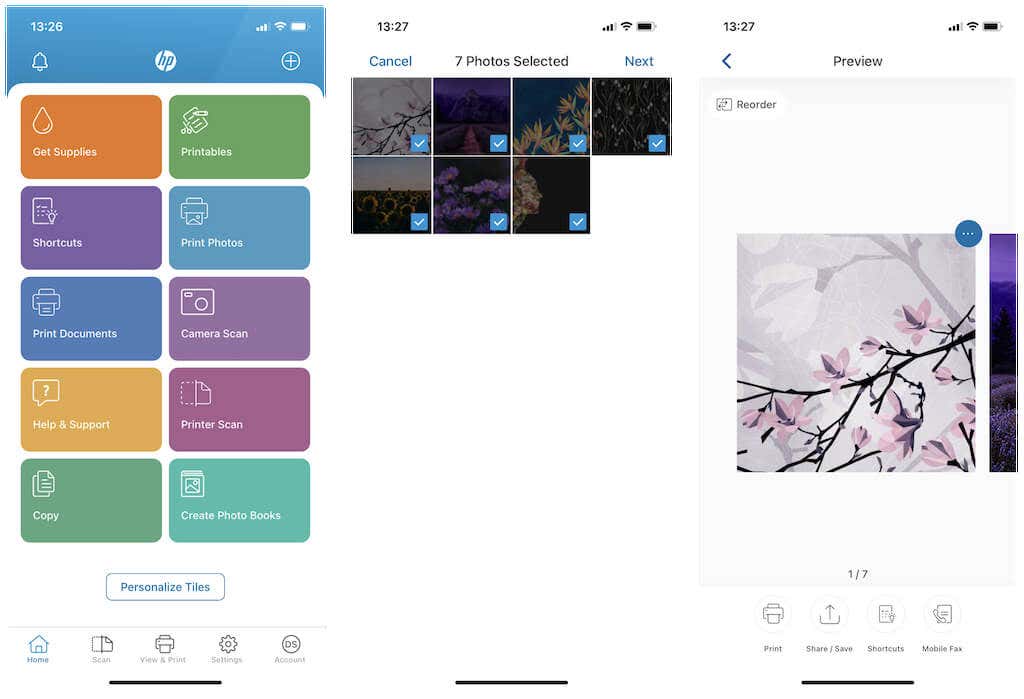
Note : If your print jobs fail to go through, work through these troubleshooting tips to fix your wireless printer.
Use Printopia or O’Print to Print on iPhone and iPad
Suppose you use a non-AirPrint wireless printer without support software or a wired-only printer. In that case, it’s possible to print from iPhone or iPad by sending print jobs wirelessly through desktop devices. For that, you need third-party apps for the Mac or PC that simulate AirPrint.
Printopia
Printopia is a paid app for the Mac that costs $19.99, but it comes with a free 7-day trial. It lets you add up to five printers for use with your iPhone or iPad. However, don’t expect it to work with Android smartphones.
After downloading and installing Printopia, open it and switch to the Printers tab. Then, select the Plus button to add a printer. If it doesn’t show up, make sure to connect the printer to your Mac first .
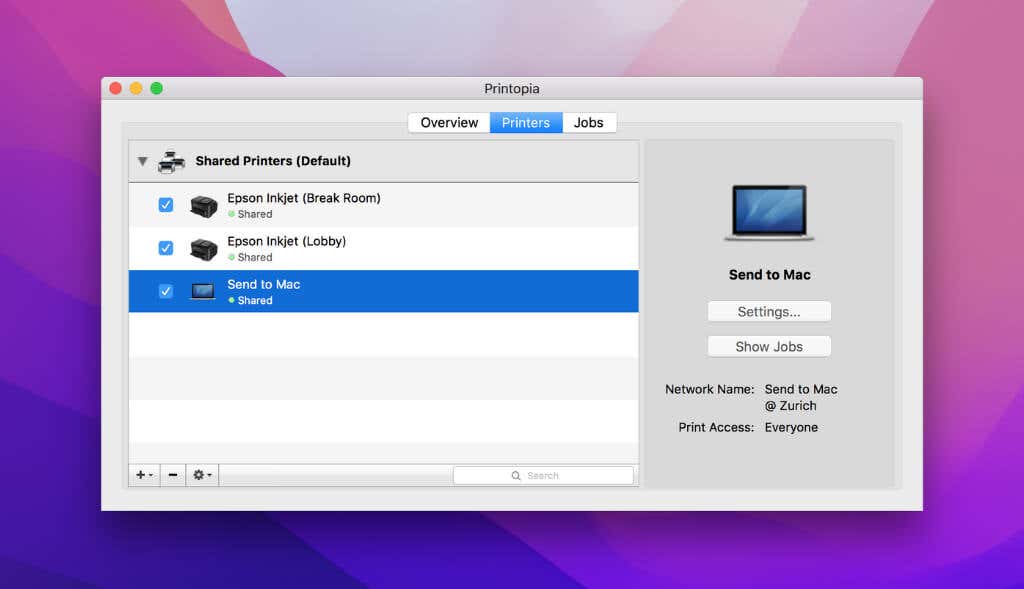
Then, assuming that your Apple devices are on the same Wi-Fi network, open the photo, document, or webpage you want to print on your iPhone or iPad and tap the Share button. Your printer will then appear within the printer selection pane. Select it, make the required adjustments for the print job, and tap Print .
O’Print
O’Print is an AirPrint activator for Windows PCs. It costs $19.80, but you can take advantage of a 30-day trial.
Download, install, and open O’Print. You should then see any printers you’ve already added to your PC.
By default, O’Print enables all printers (including PDF printers) for the iPhone and iPad. Simply select the green icon next to a printer to deactivate it.
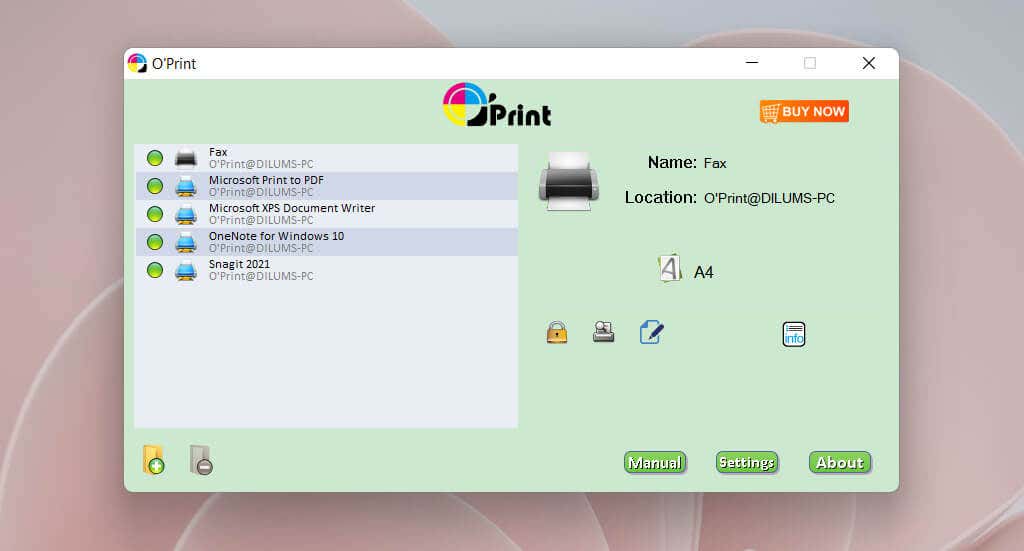
Following that, start a print job on your iPhone or iPad, and you should be able to select your printer. Then, modify the print job as needed and tap Print .
Print on Any Printer From iPhone and iPad
If your printer supports AirPrint, you can use it to print from an iPhone or iPad with minimal effort. If not, just use the support app from your printer manufacturer to get the job done. In the case of a wired USB printer, investing in Printopia or O’Print is a cost-effective solution compared to purchasing an AirPrint-compatible printer.
- How to Delete Multiple Apps (At Once) On Your iPhone/iPad
- How to Restore the Missing Phone Icon on iPhone/iPad
- How to Dismiss the “Update Apple ID Settings” Notification on iPhone and Mac
- How to Change Your Game Center Nickname (iPhone, iPad, and Mac)
- Guided Access Not Working on iPhone/iPad? Try These 9 Fixes Now
