If there’s one thing that stands the test of time with printing, it’s envelopes. Sure, you can write by hand the recipient’s name and address along with the return address. However, you may want a professional-looking envelope or have the addresses saved on your computer.
With Apple’s Pages app , you can copy and paste the address, automatically add the return address, and print envelopes in whatever size you need. If you’re ready, grab your Mac as we show you how to print on an envelope in Pages.
Open an Envelope Template in Pages
For a quick start on printing your envelope, Pages offers templates.
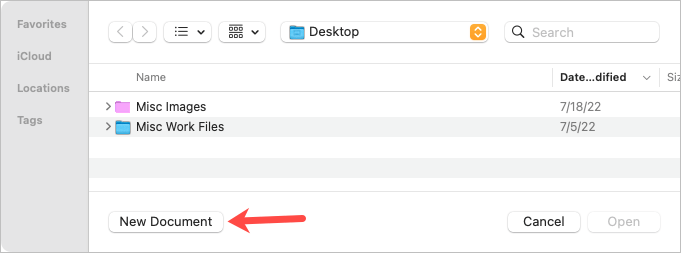
- Open Pages and select New Document .
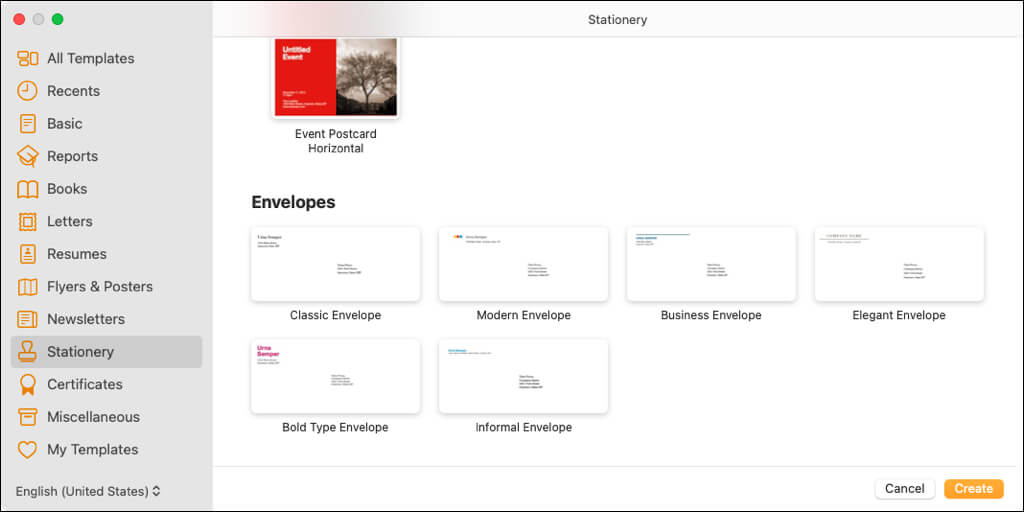
- Select either All Templates or Stationery on the left side and then scroll to the Envelopes section on the right.
- You can pick from size envelope styles including business, elegant, and informal. Choose the one you want to use and select Create .
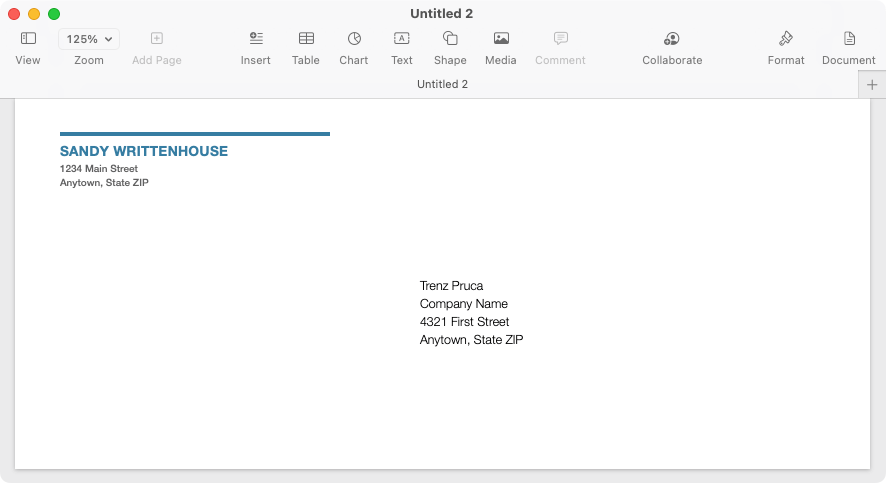
You’ll see the envelope template open with the recipient and return address fields filled with placeholder data. If you have your name attached to Pages, you may see it as the return address name.
Edit and Set Up the Envelope for Printing
With the envelope template open in Pages, you can edit the names and addresses, choose the printer, and select an envelope size.
To enter the names and addresses, simply select the current text and type your own. You can also copy it from another spot like the Contacts app and paste it.
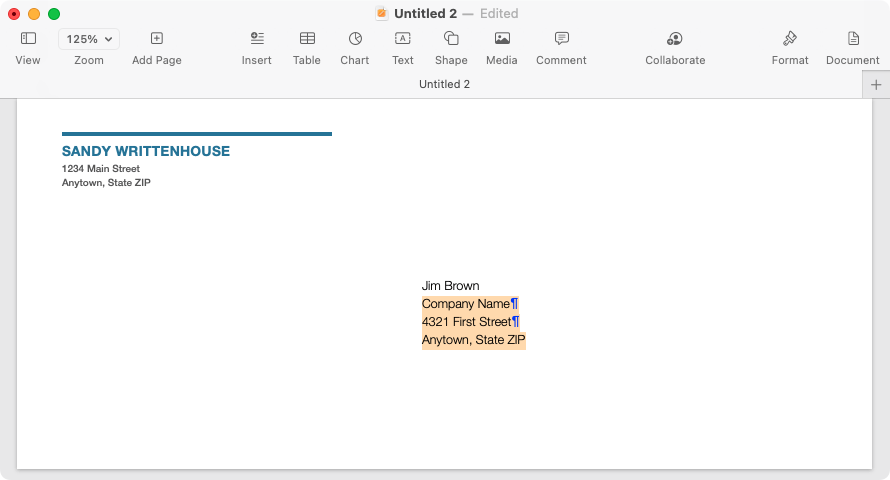
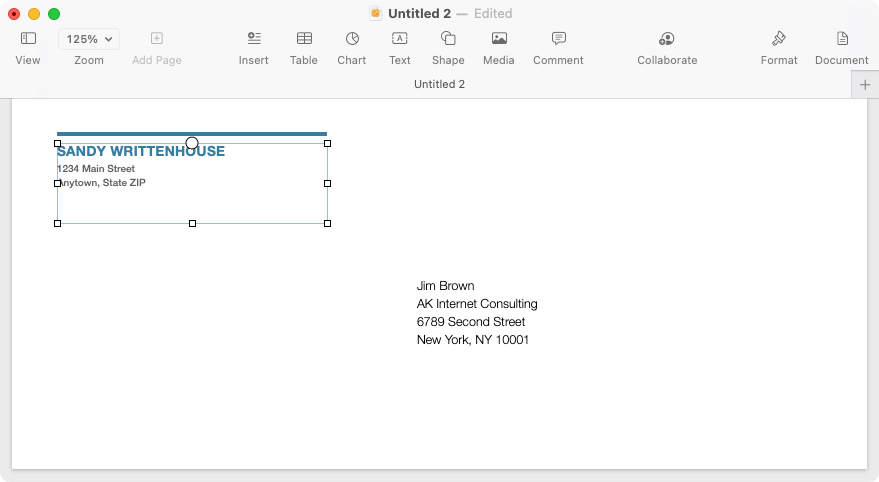
Note that the return address is in a text box. So you can also move it or resize it if you like.
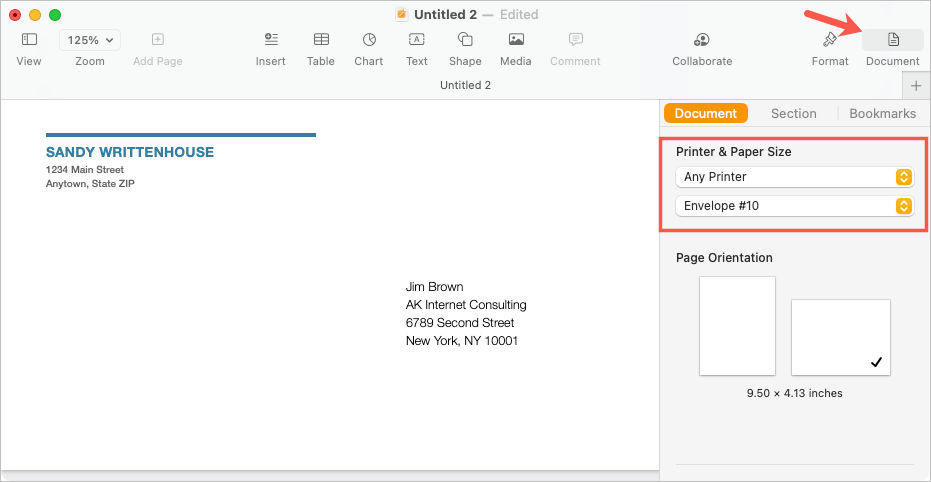
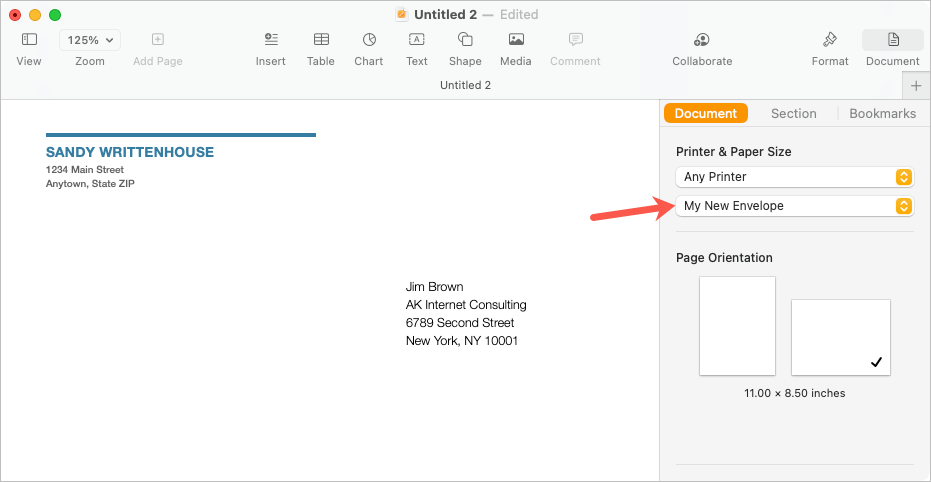
To select a printer and envelope size, choose the Document button on the top right of Pages to display the sidebar. Go to the Document tab in the sidebar and choose your printer using the drop-down box on the top. Then, use the next drop-down box to pick your envelope size.
Create a Custom Envelope Size
If you don’t see the envelope size you need, you can set up a custom size.
- With Pages still open, select File > Page Setup from the menu bar.
- In the pop-up window, use the Paper Size drop-down menu to pick Manage Custom Sizes .
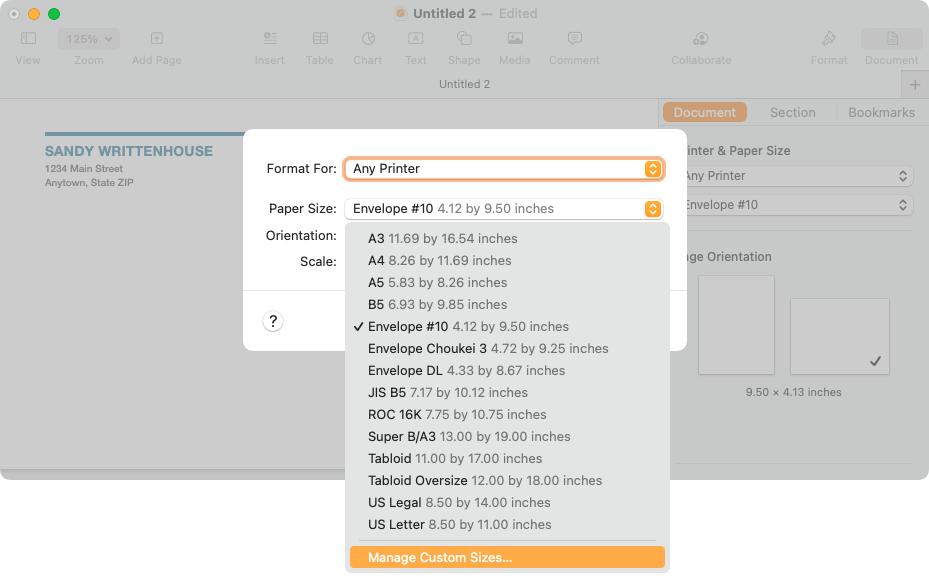
- In the subsequent window, select the plus sign on the left to add a new size.
- Enter the dimensions, margins, and other measurements necessary on the right.
- Double-click the default name “Untitled” in the list on the left and give it a name of your choice.
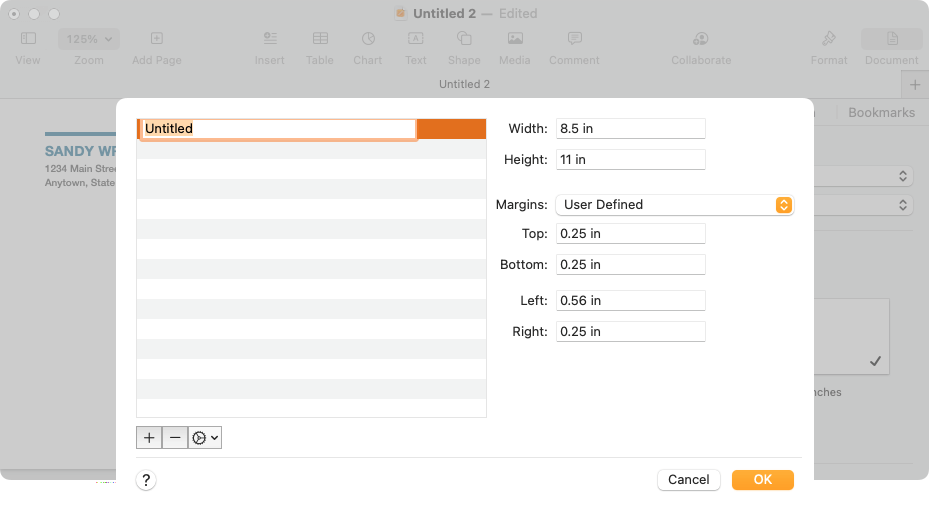
- Select OK when you finish and OK when you’re directed to the first pop-up window.
You can then choose that custom option in the Document sidebar for the envelope size.
Print Your Envelope
When you’re ready to print your envelope, start by placing the envelope in your printer according to the manufacturer’s instructions. Then, follow these steps to print.
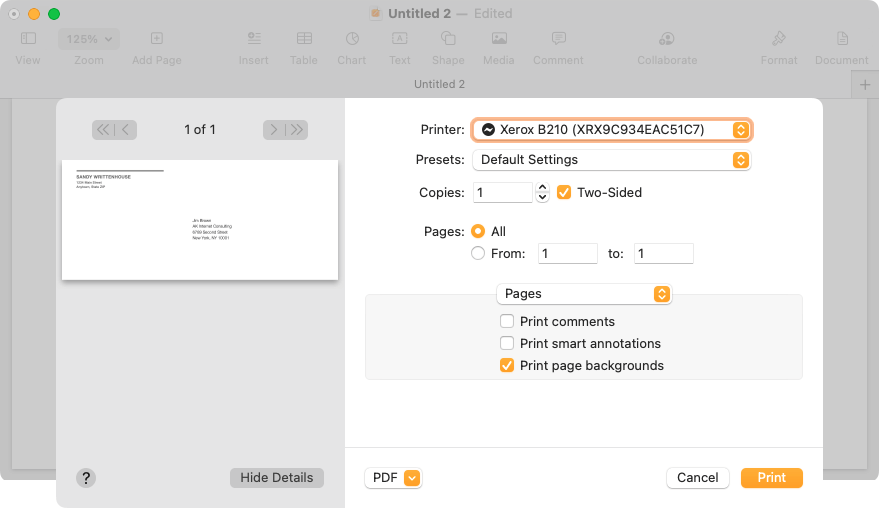
- Go to File > Print in the menu bar or use the keyboard shortcut Command + P .
- In the pop-up window, you can select a different printer , use any presets you have, or make any other adjustments you need to the print options. You’ll also see a preview of the envelope on the left.
- Select Print and head to your printer for the envelope.
Save the Envelope as a Template
If you set up your envelope in a way that you want to reuse it by making edits to the name and address, you can save it as a template of your own. This is a huge time-saver for printing envelopes moving forward.
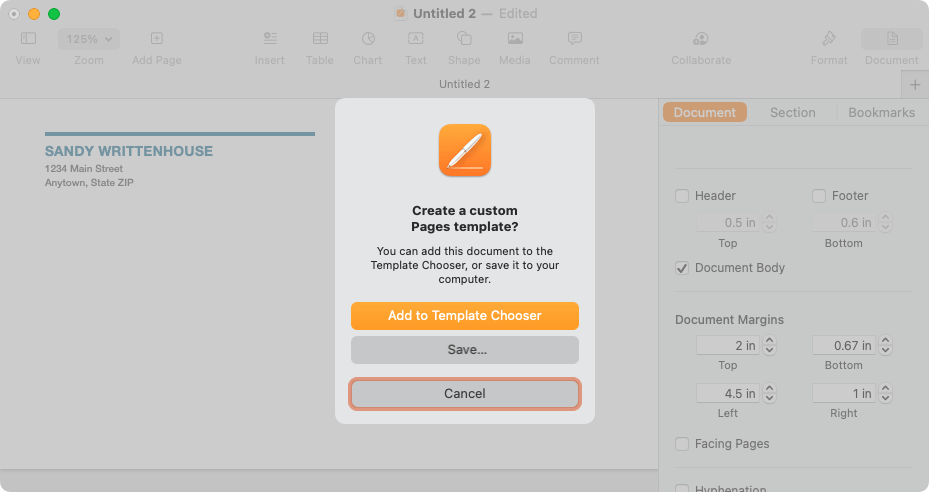
Select File > Save As Template from the menu bar . In the pop-up window, you can choose to add the template to the Template Chooser or simply save it to your computer.
Add to the Template Chooser
To add it to the Template Chooser, pick that option in the pop-up window. When the Template Chooser appears, name your template and press Return .
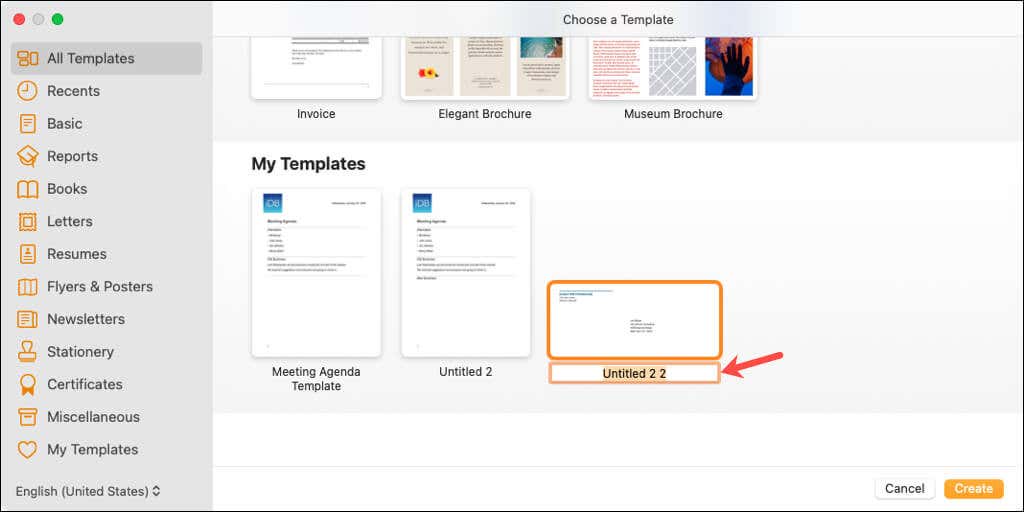
You’ll then see that template in the My Templates area of the Chooser when you open Pages next time.
Save the Template to Your Computer
To save the template to your computer, pick Save in the dialog box. Select the location to save the template, give it a name you’ll remember, and pick Save .
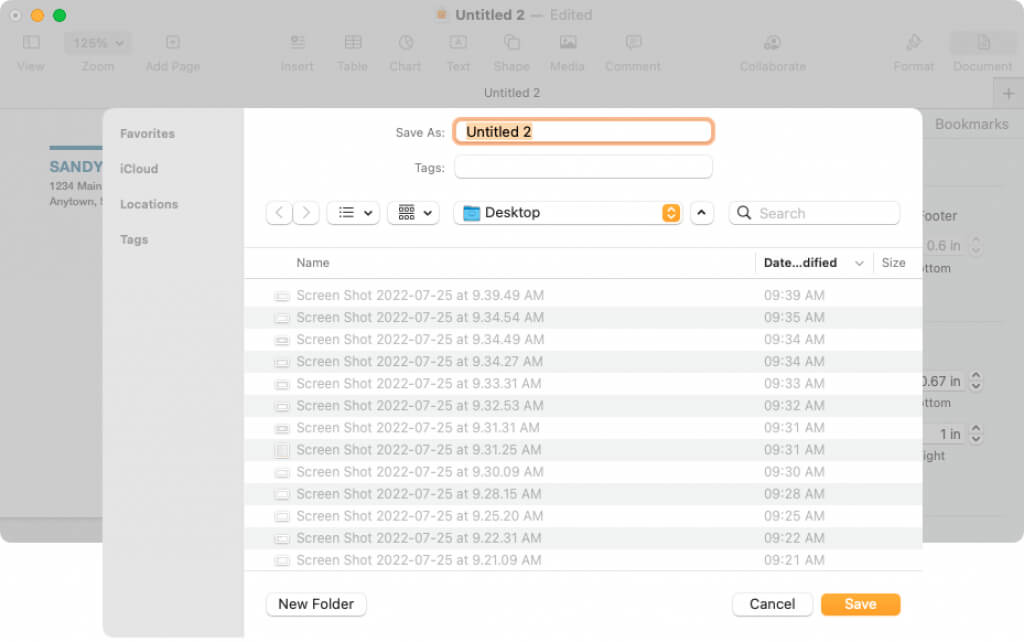
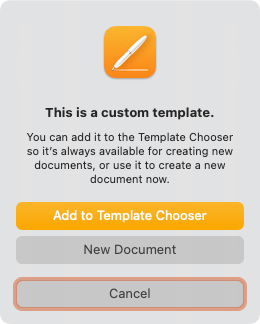
To use the template, double-click it. You’ll be asked if you want to open it in a New Document or add it to the Template Chooser (again). To simply open and use it, pick New Document .
Now that you know how to print on an envelope in Pages, check out how to print double-sided or how to print in black and white on Mac.
- How to Highlight Texts in Apple Pages
- Fix Apple Watch Charging Problems (All Models)
- How to Use Your iPhone as a USB Drive on Mac and PC
- Apple’s Big Week: Design Debates, AI Ambitions, and Regulatory Roadblocks
- How to Connect Xbox Controllers to Your Mac
Adding a printer to a Mac is straightforward, but the process is different for wireless and wired devices. If your printer is AirPrint-enabled, it’s easier to add it to your Mac because macOS uses AirPrint to connect to printers or to download the printer’s software.
For wired printers, you can plug a wired USB into your Mac and use a couple of extra steps to set the printer up, provided it’s compatible with your Mac.
If you have an older printer that isn’t AirPrint-enabled, your Mac may install the printer driver software automatically, thereby allowing you to use the printer with your Mac.
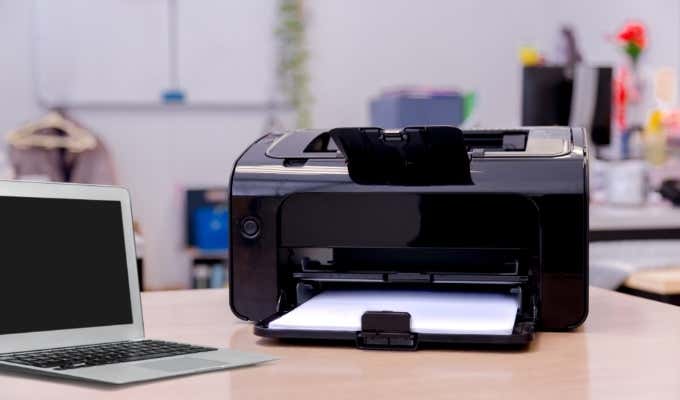
Here’s what you need to know to add a printer to a Mac. You can add a wired printer that doesn’t have networking capabilities or a wireless printer on a Mac in a few easy steps.
Note : We’re using a Mac running macOS Big Sur for this guide.
Add a USB Printer to a Mac
If you have a USB printer, update macOS before adding the printer to your Mac otherwise you may get an error message that the software isn’t available when connecting the printer.
Your Mac will automatically detect the printer and download the required software to use the device.
- Select the menu > System Preferences > Software Update on your Mac and install any pending updates listed. This way, macOS will have the latest information about the printer’s software and can download it from Apple.
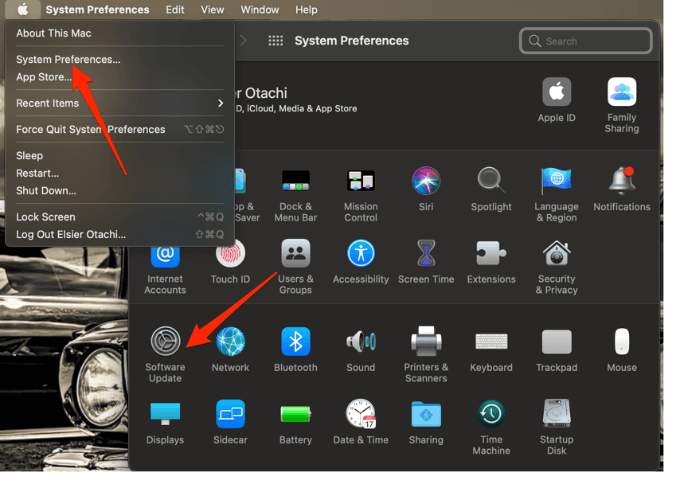
- Power on the printer to ensure that it’s not showing any errors and then connect the USB cable to your Mac. Download and install any new software if you’re prompted to.
- Your Mac should automatically detect the printer and begin the installation process. If nothing happens, your printer may not be compatible with your version of macOS.
Note : If your Mac has one USB-C port, use an adapter cable or docking station to connect your printer.
Add a Network or WiFi Printer on a Mac
If you have a wireless printer, you can quickly add it to your Mac without any setup as long as both devices are on the same WiFi network.
Note : You may need to connect your printer via USB cable to your Mac to set up and install your printer’s software. Use the printer’s setup assistant to connect the printer to your WiFi network and then unplug the USB cable from both devices.
- Select Menu > System Preferences > Printers & Scanners .
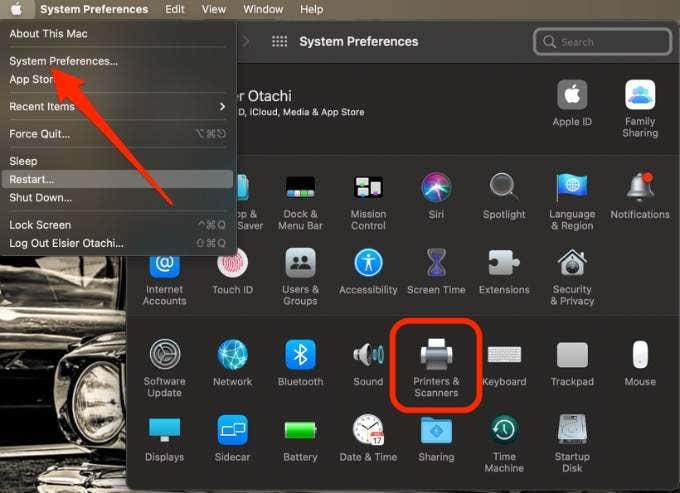
- Next, select the Add (plus) icon to set up your wireless printer.
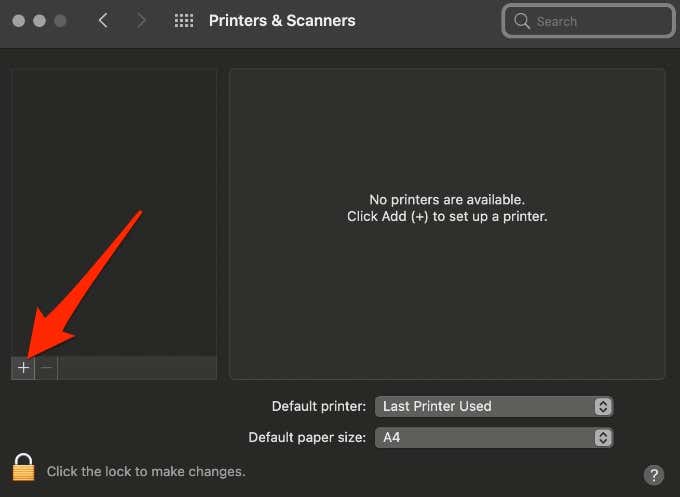
- Select the printer you want to add. macOS will automatically scan the network for any compatible wireless or network printers.
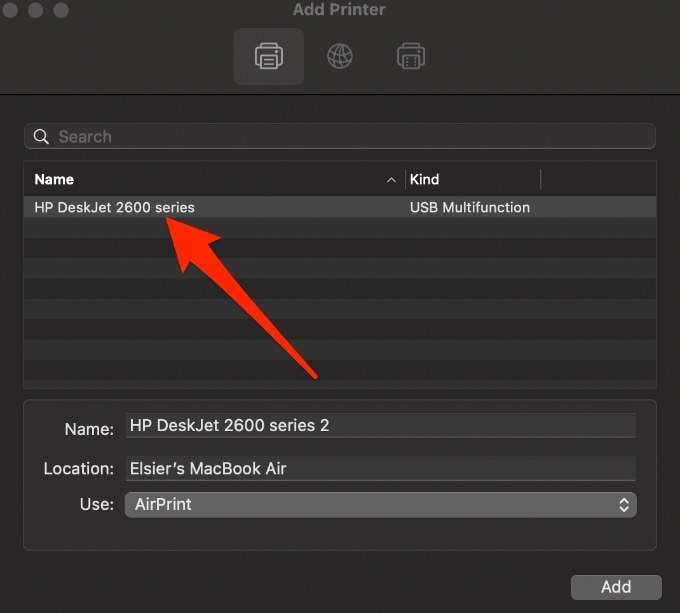
- In the Use field, select your printer’s software or driver. You can choose from AirPrint, your printer’s driver, or Auto Select for your Mac to download the correct driver once it updates.
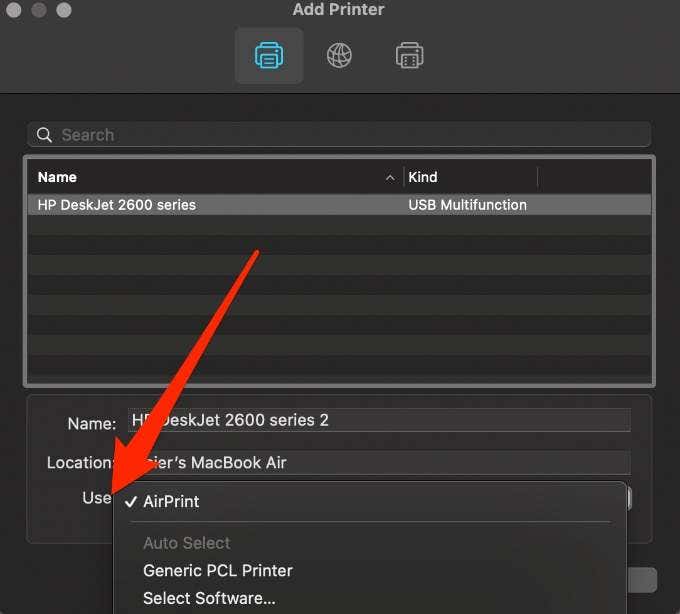
- Select Add and your wireless printer will be added to the list of printers.
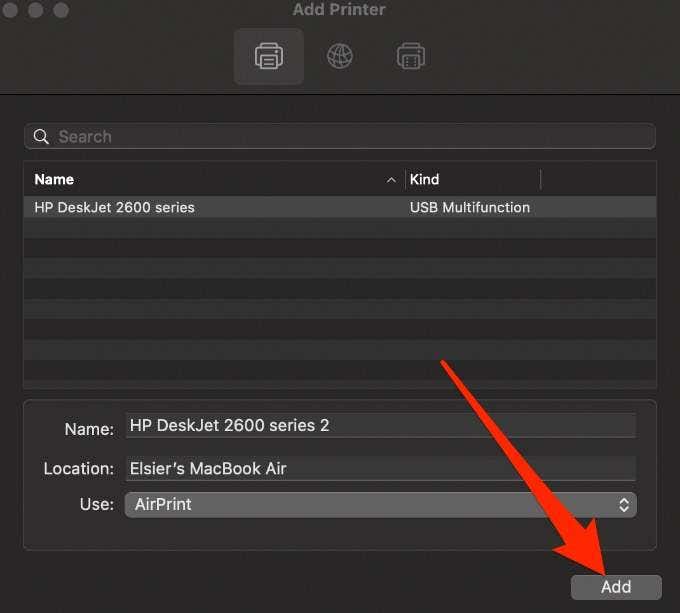
Note : If your printer isn’t listed, check if it’s connected to the WiFi network and then select the Add button. Wait a minute or two for the printer’s name to appear on the list and then choose Add again.
Add a Network Printer to a Mac Using an IP Address
Follow the steps below to add your printer by its IP address. For this to work, the printer must support AirPrint, Line Printer Daemon, HP Jetdirect (Socket), or Internet Printing Protocol.
Before adding your network printer by its IP address, find out its host name or IP address. You can find this information by going to your printer’s control panel and printing out the network configuration.
- Update the printer software on your Mac, turn on the printer, and then connect it to your network.
- Select Menu > System Preferences > Printers & Scanners > Add and then select the IP button .
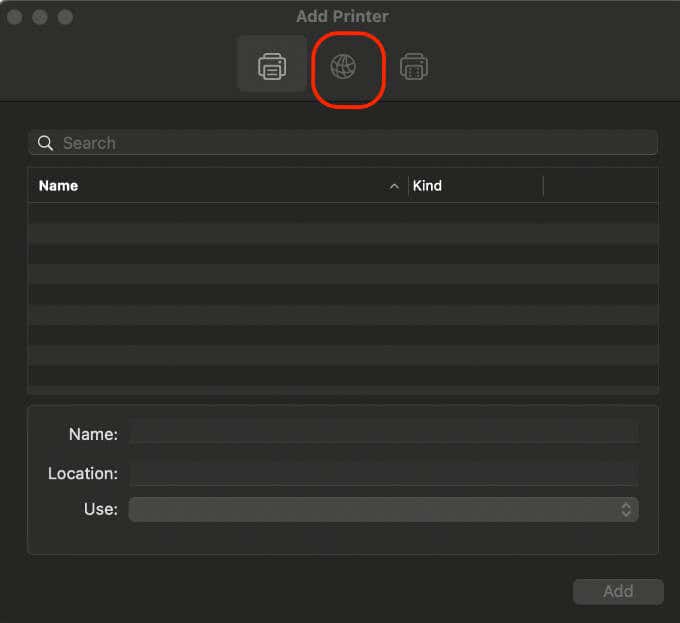
- Enter the printer information including the host name or IP address, which looks like 192.168.20.11.
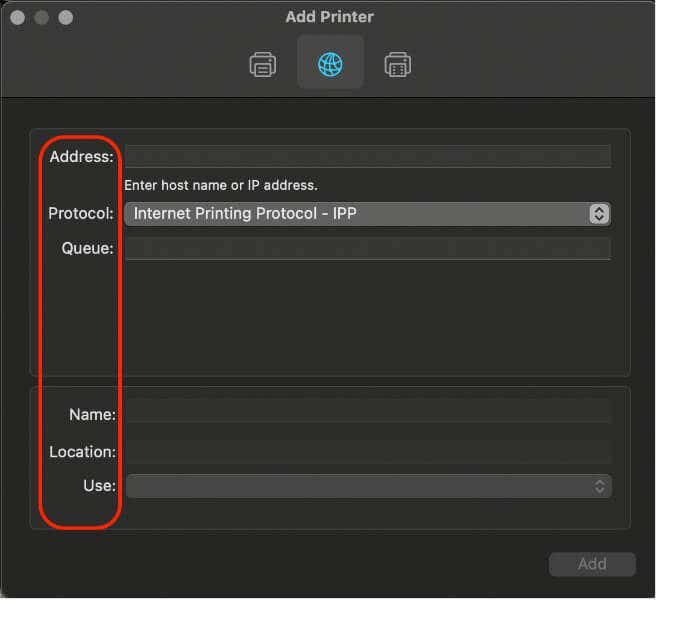
In the Use field, select the printer driver you would like to use.
Bonus Tips:
When you’re ready to print, check out our guides on how to print double-sided on Mac and how to print in black and white on Mac .
- How to Connect Xbox Controllers to Your Mac
- How to Chromecast From Mac to Your TV
- How to Install and Run Linux on Mac
- How to Turn Off or Delete Siri Suggestions (iPhone and Mac)
- How to Take Pictures on Mac
