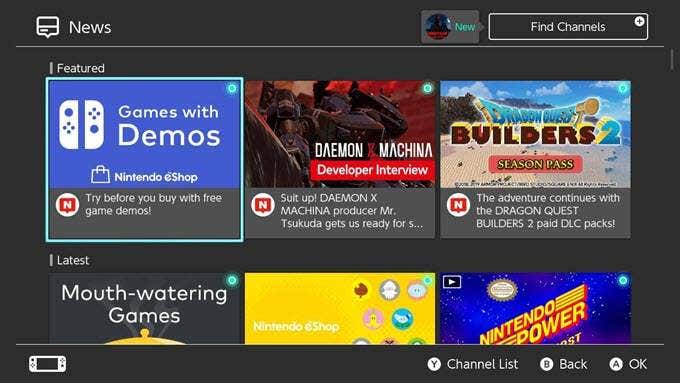
The Nintendo Switch “News” channel is a great tool for staying on top of the latest developments for your favorite games. If you open your Switch and select the News option at the bottom of the screen, you will see it is split into two sections Featured and Latest . You can also choose channels to follow by tapping Find Channels in the top right corner of the screen.
While there are multiple ways to unfollow channels, the common advice is to scroll through the extremely long list of all available channels. Here’s how to unfollow channels the quick and painless way.
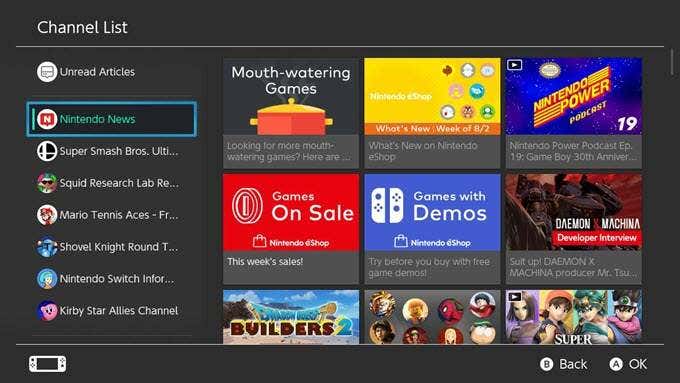
- First, open the News tab and press the Y button. This will open your Channel List where you will see all the channels you follow.
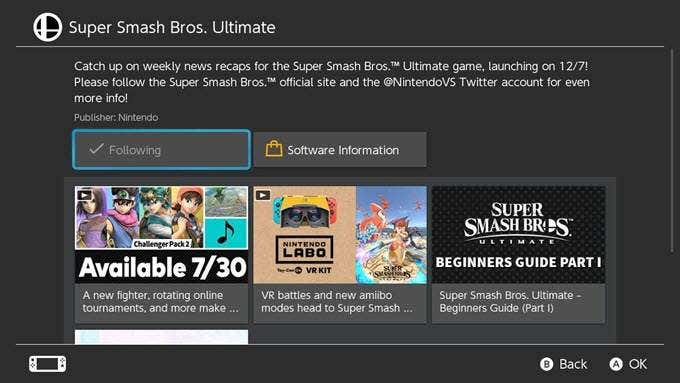
- Select the channel you would like to unfollow and tap View All Available News .
- Tap the Following button with the checkmark.
- Voila! You’ve unfollowed the channel, and you didn’t have to scroll through every possible channel in order to do so.
Unfollowing channels isn’t a complicated process, but it is a necessary one if you want to keep your Switch as clutter-free as possible.
If you use the Switch news channels to follow the latest updates about your favorite games, it’s even more important to be able to find relevant information quickly. Try out demos and new games all you want, but take the time to go through and clear out any unwanted news channels at least once a month.
- 6 Best Nintendo Switch Apps of 2025
- How to Cancel Your Nintendo Switch Online Subscription
- 8 Best Ways to Fix Nintendo Switch Error Code 2123-1502
- How to Play SNES, Gameboy, Nintendo 64, and More Retro Games on Your Nintendo Switch
- Best Ways to Track Nintendo Switch eShop Sales
