Recording a hosted Zoom meeting is useful for those who couldn’t attend the meeting live. It’s also helpful to be able to refer to a section of a video later or watch it again.
There are two types of Zoom meeting recordings: Cloud Recordings and Local Recordings.
Local Recording
Videos can also be uploaded to streaming services such as Vimeo and YouTube. iOS and Android devices can’t record local Zoom meetings.
Cloud Recording
This article will explain how to:
- Record a Zoom meeting using the desktop app as the host (local)
- Give participants the ability to record Zoom meetings from the web (local)
- Allow certain participants to record Zoom meetings from the app (local)
We will also discuss how to record a Zoom meeting:
- As a participant (local)
- On an Android mobile device (local)
- From an iOS device (local)
- To the cloud
Lastly, we will talk about how to:
- Change cloud recording settings
How To Record a Zoom Meeting Using The Desktop App As The Host
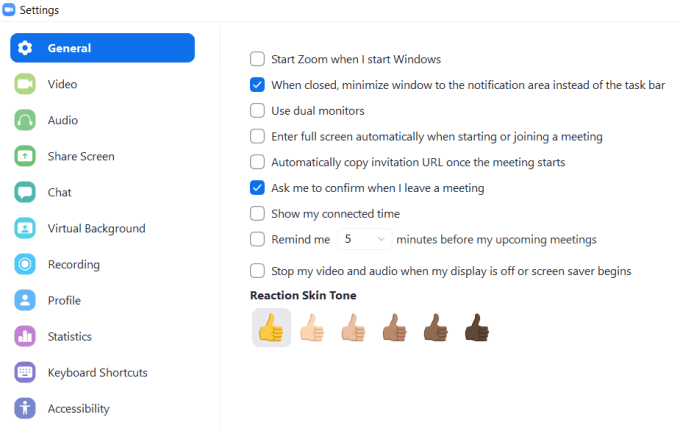
If you haven’t already downloaded the Zoom desktop app, do so now. Open the app and click on the gear icon on the home screen to open the settings.
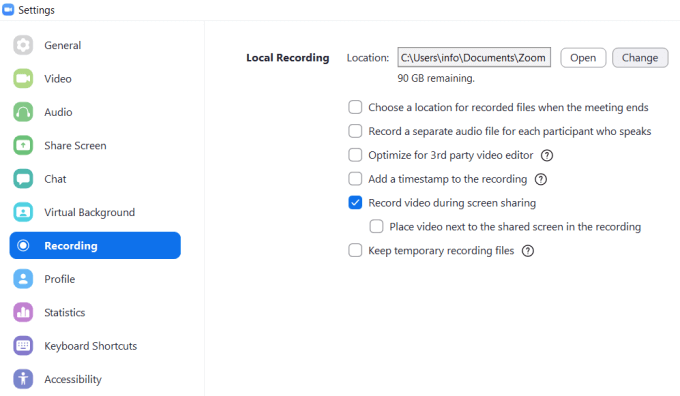
Zoom will automatically create a folder on your computer to store recordings. Click Change to select a different location.
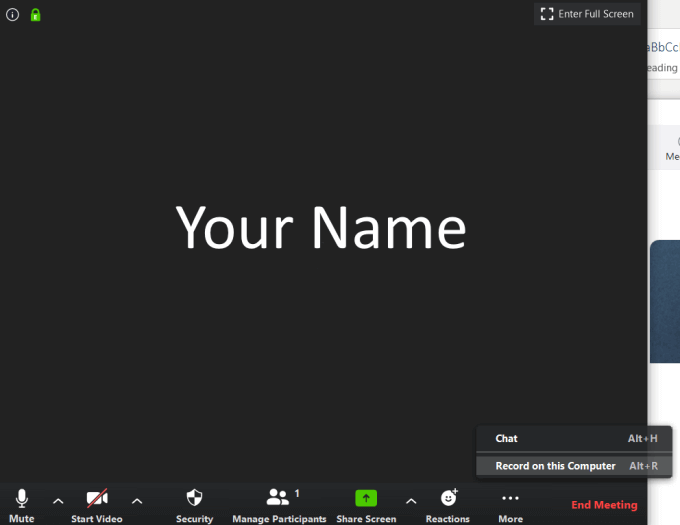
After you have started a call, click More under the three dots, and then select Record on this Computer . If you don’t see the button, move your cursor around until the menu appears.
Once you’ve started recording, look for the small label in the upper left-hand corner. You can pause, stop, and restart the recording.

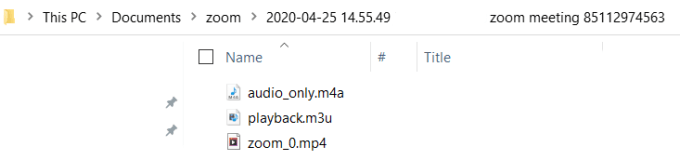
When the meeting is over and you’ve finished recording, the MP4 video file will automatically open to its location on your computer.
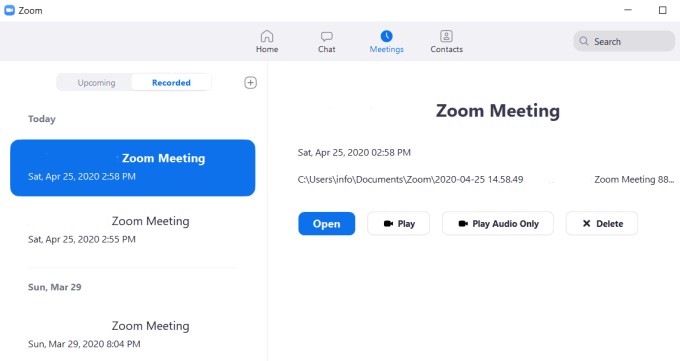
You can also find the video recording in the Recorded tab in the Meetings section of the app.
How To Give Participants The Ability To Record Zoom Meetings From The Web
To allow others to record a Zoom meeting you are hosting, you must change your settings.
- Log into your Zoom account from a web browser
- From the upper right-hand corner, click My Account
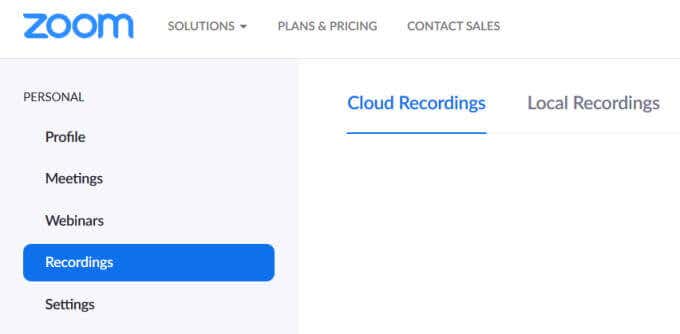
- On the left side, click on Recordings
- See the Cloud Recordings and Local Recordings tabs
- Click on Settings from the top-right hand corner to get to the Recording section.
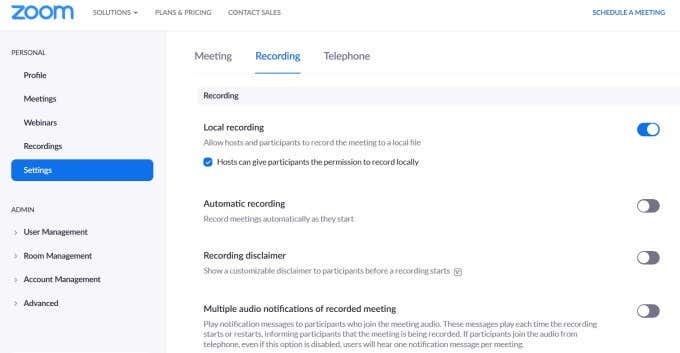
- Toggle the Local Recording switch to allow others to record your meeting.
How To Allow Certain Participants To Record Zoom Meetings From The App
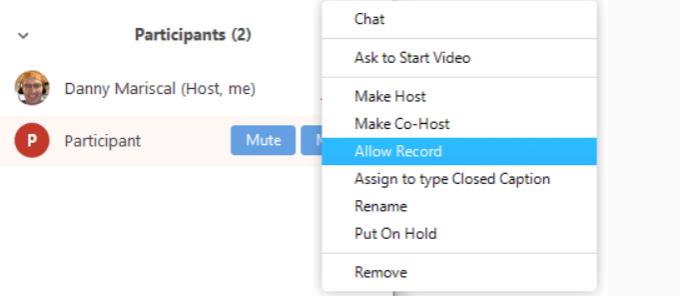
- Click on Manage Participants from the bottom bar in the Zoom App

- Locate a user’s name and click More

- Click Allow Record
How To Record A Zoom Meeting As A Participant
When the Zoom host permits you to record a meeting, you will see the notice below.

- Click Record at the bottom of your screen

Record a Zoom Meeting From An Android Mobile Device
You must have a paid version of Zoom.
- From a Zoom meeting, tap More

- Tap Record
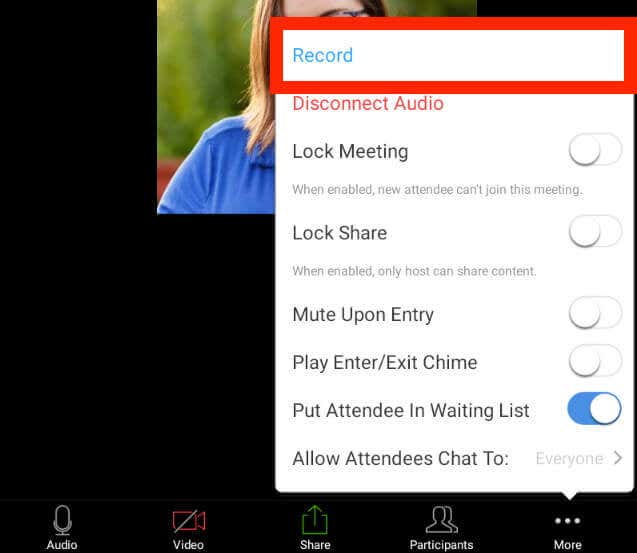
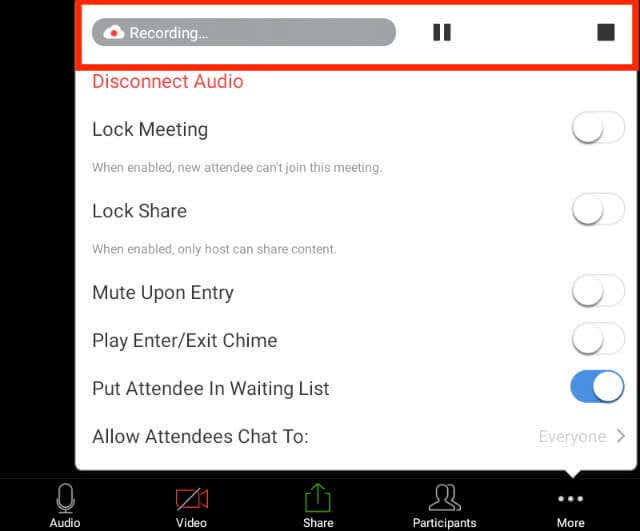
- You will see a notice that you’re Recording at the top right-hand of your screen
- Tap More again to pause or stop the recording
- Find your video under My Recordings after the meeting is over
Record A Zoom Meeting From An iOs Device
Recording a meeting from a mobile device requires a paid Zoom membership . The three versions are Pro, Business, and Enterprise.
Zoom saves mobile recordings to an online folder in the Zoom cloud. The amount of storage you have depends on your plan.
You can then download the files to your computer or stream them from your browser.
- Start by opening the Zoom app from your mobile device
- Tap More at the bottom right-hand corner of your screen
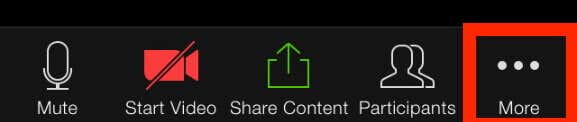
- Tap Record to the Cloud
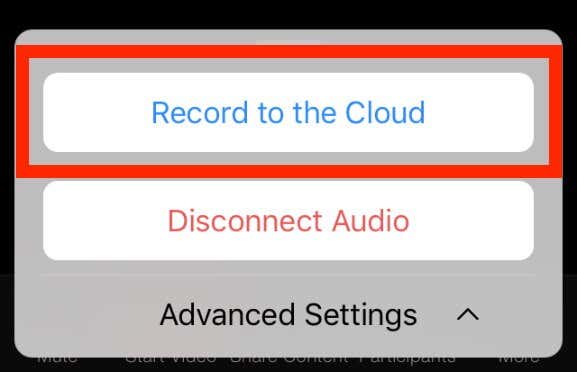
- See the Recording message at the top of your screen.

- You can pause or stop the recording by tapping More again
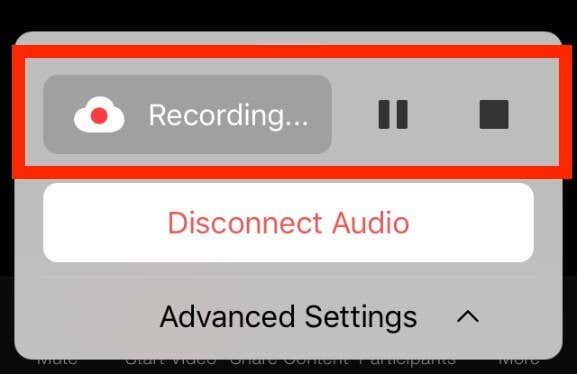
When your meeting is over, you can find the video under My Recordings on the web.
If a participant wants to record a meeting, the host must enable permissions just as they did with the desktop app.
How To Record a Zoom Meeting To The Cloud
- Start recording by signing into the Zoom web portal as an admin
- Click Account Management from the navigation panel and select Account Settings
- Verify that Cloud Recording is enabled from the Recording tab
- If it’s disabled, toggle the switch to enable it
- When the verification dialog displays, click Turn On

You can make this setting mandatory for all users in your account by clicking the lock icon. Confirm the setting by clicking Lock .

How To Change Cloud Recording Settings
Once you have enabled cloud recording, you can change the following settings:
Recording Layouts
- An active speaker and shared screen on one video
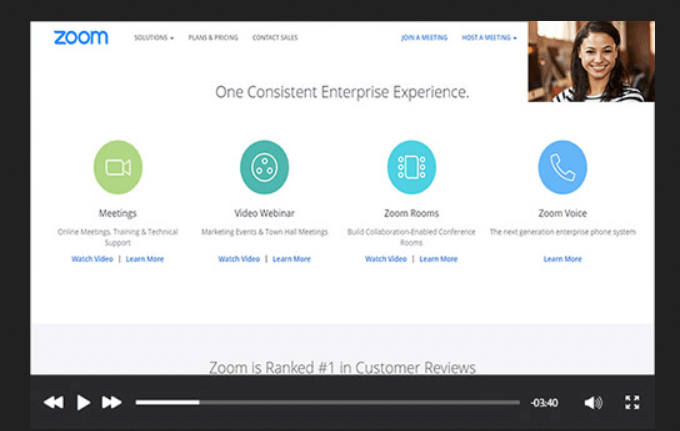
- Shared content and gallery view (thumbnail displays of participants) on the same video
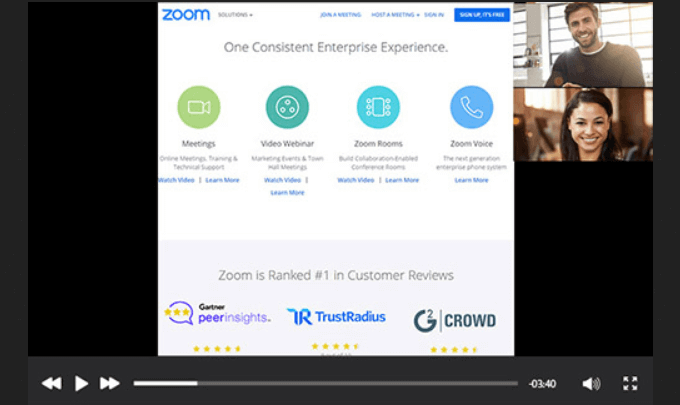
- Separate videos of the active speaker, shared screen, and gallery view
Audio and Chat
- Record audio only (M4A file)
- Chat messages transcript in a text file
Advanced Settings
- Display names of participants
- Add a timestamp (will be in host’s time zone)
- Record presenter’s thumbnail when screen sharing
- Generate recording files for third-party video editors (may increase file size)
- Automatically transcribe cloud recordings
- Save participants chat to the recording
- Control by IP address who has access to share cloud recordings
With the details above, learning how to record a Zoom meeting should be simple. Are you ready to start recording your meetings?
- How to Backup an iPhone Without iCloud?
- Sluggish Windows 11 PC? Try These 5 Windows 11 Tricks to Free up Virtual Memory
- macOS Tahoe Privacy Settings You Need to Secure Your Mac
- How To Turn Off Notifications On Windows 11?
- How to Recover Lost Files After Windows Update?
David has a background in small business and lives in Australia. He is a WordPress and Ubuntu Developer who enjoys design, CSS and tech tool integration. Read David’s Full Bio
