Redlining documents is the process of making changes to a document that allows other users, such as editors or reviewers, to see which changes were made . It’s an important feature when you have multiple people working on a single document.
As one of the most popular document editing tools in the market, it’s no surprise that Microsoft Word provides this feature. Here’s what you need to know.
What Does It Mean to Redline a Document?
Redlining is useful in a collaborative setting, clearly marking each participant’s input. This is important when multiple people need to review, edit, or approve a document .
How to Redline in Microsoft Word
Redlining in Word is a process that begins with the “Track Changes” feature. This function logs every edit made to the document. Here’s how to use it.
- Start by opening the Microsoft Word document you want to edit.
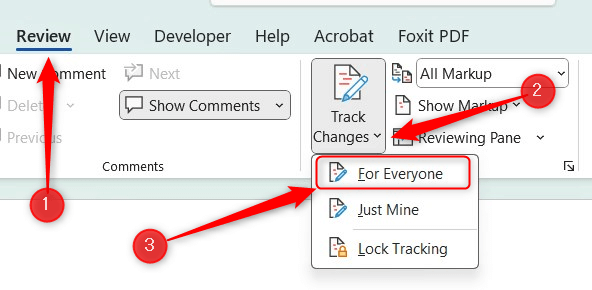
- Click the Review tab and then click the bottom half of the Track Changes button in the Tracking group. Select For Everyone from the drop-down menu. This process is the same across all operating systems. You can also use the Ctrl + Shift + E ( Command + Shift + E on Mac) keyboard shortcut.
Track Changes is now enabled. That means every alteration you make to the document will be recorded. Inserted text is underlined, and deleted text will appear as a strikethrough. Each change is red.
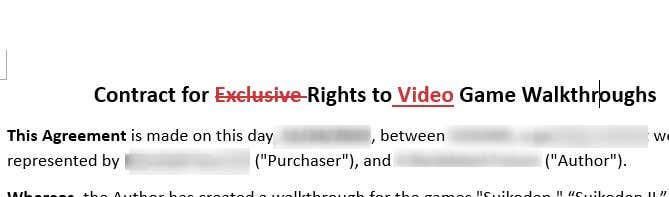
Now, when you send the document to another collaborator, they’ll see edits.
The Final Touches
Redlining a Microsoft Word document is about improving the clarity and efficiency of your document editing and collaboration . By understanding how to redline a document, you can feel confident that every project you work on is handled with precision across all revisions.
In addition to redlining, keep clear and open communication between the other collaborators. This further improves the workflow from start to finish.
- How to Remove Headers and Footers in Word Documents
- How to Clear Formatting in Word
- How to Remove Unwanted Lines in Word Documents
- How to Select All Text in Word Documents
- How to Insert Arrows in Microsoft Word Documents
Marshall is a technical writer based in Tokyo, Japan. His bylines are found on VGKAMI, How-To Geek, PCWorld, Zapier, and many other online magazines. Read Marshall’s Full Bio
