Keeping the Microsoft Store in top shape on your PC is crucial if you rely on it a lot to download apps, games, and movies. If the program malfunctions, removing and reinstalling it could help get it working correctly.
Go through the instructions in this troubleshooting tutorial to reset, repair, and reinstall the MS Store in Windows 10 and 11.
Before You Reinstall the Microsoft Store App
There are several reasons why you should reinstall the Microsoft Store on your computer. For example, it could be because you have trouble installing apps , encounter cryptic error codes , or find the store itself missing .
However, before you uninstall and reinstall the Microsoft Store, it’s best to clear the program’s cache, and then reset and repair the program. It’s also a good idea to update Windows.
These actions often clear minor technical glitches and could even allow you to avoid reinstalling the Microsoft Store altogether. Even better, they are quick and easy to perform.
Clear Windows Store Cache
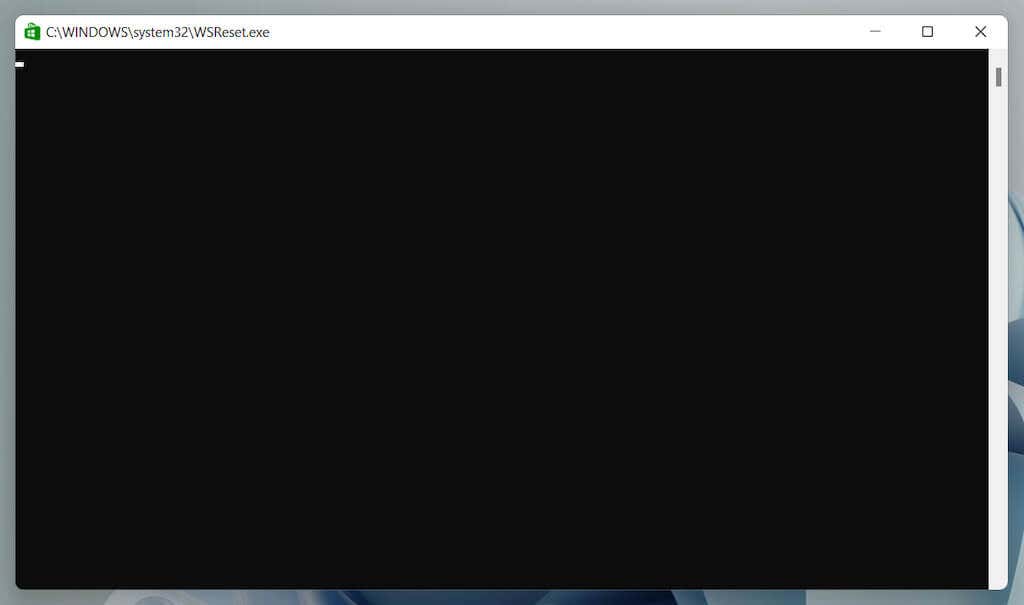
Windows 10 and 11 have a built-in Microsoft Store reset tool. It automatically clears the Microsoft Store cache and is the fastest way to fix unexpected problems.
- Press Windows + R to open a Run dialog.
- Type wsreset.exe and press Enter .
- A blank Command Prompt console window appears, and the Microsoft Store shows up immediately after.
Learn about other ways to clear the Microsoft Store cache .
Run Windows Store Apps Troubleshooter
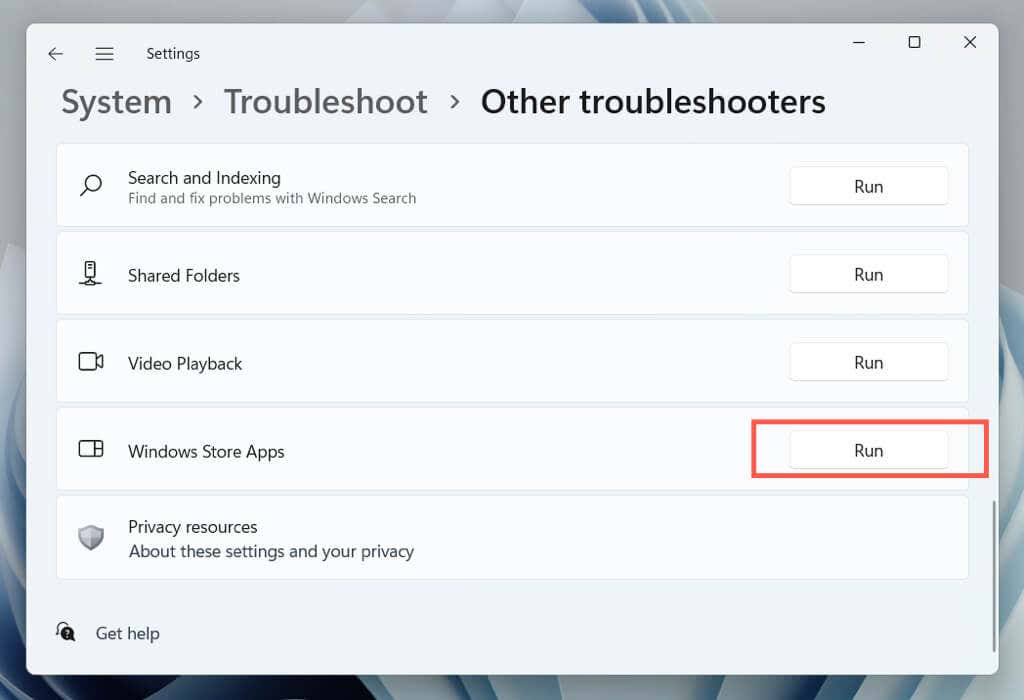
Use the Windows Store Apps troubleshooter to scan and fix the Microsoft Store for problems. Like the Microsoft Store reset tool, it’s built into the operating system, so you don’t have to download anything.
- Right-click the Start button and select Settings .
- Go to System > Troubleshoot > Other / Additional troubleshooters .
- Select Run next to Windows Store Apps .
Repair Microsoft Store
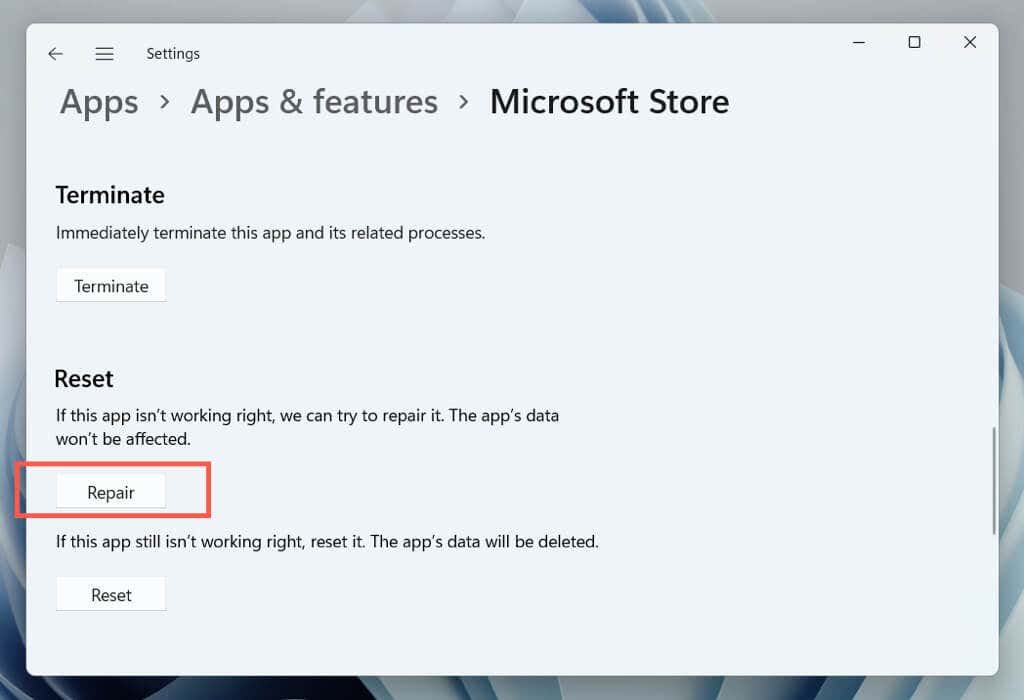
Repair the Microsoft Store via the Apps & Features console in Windows to eliminate file corruption issues with the application.
- Right-click the Start button and select Apps and Features .
- Scroll down and select Microsoft Store > Advanced options . In Windows 11, select More (three dots) to unveil Advanced options as a menu item.
- Select Repair .
Reset Microsoft Store
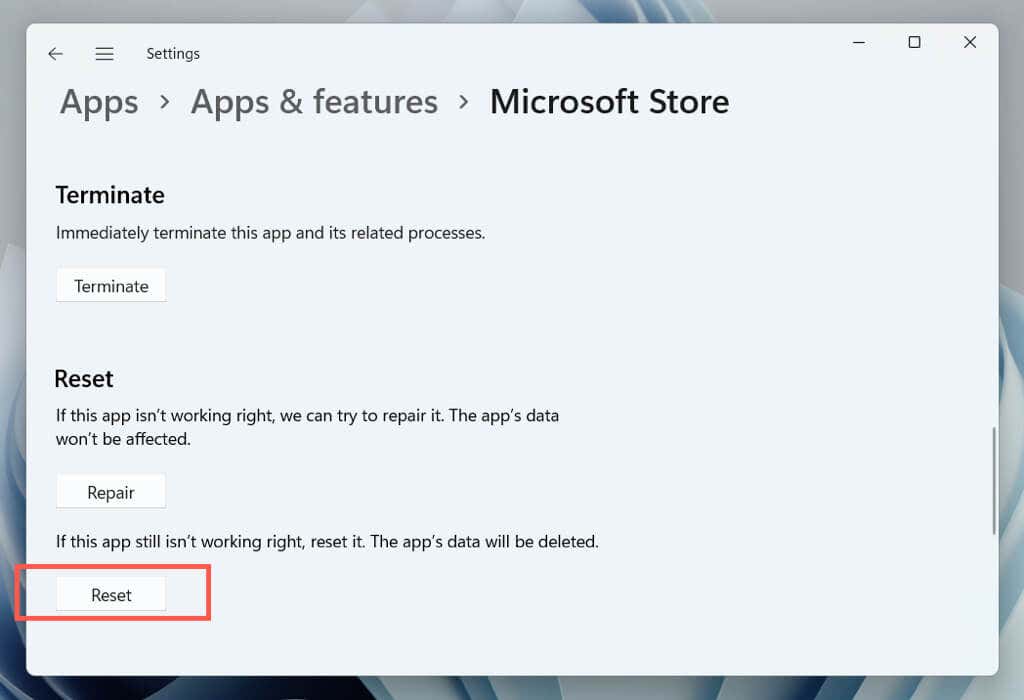
Reset the Microsoft Store to factory defaults to resolve problems that stem from a broken settings configuration. Prepare to sign back in with your Microsoft Account after you do that.
- Revisit the Apps & Features console.
- Scroll down and select Microsoft Stor e > Advanced options .
- Select the Reset button.
Update Microsoft Windows
Install the latest operating system updates through Windows Update to fix potential conflicts between Windows and the Microsoft Store. You can skip this and update Windows after reinstalling the Microsoft Store.
- Open Settings.
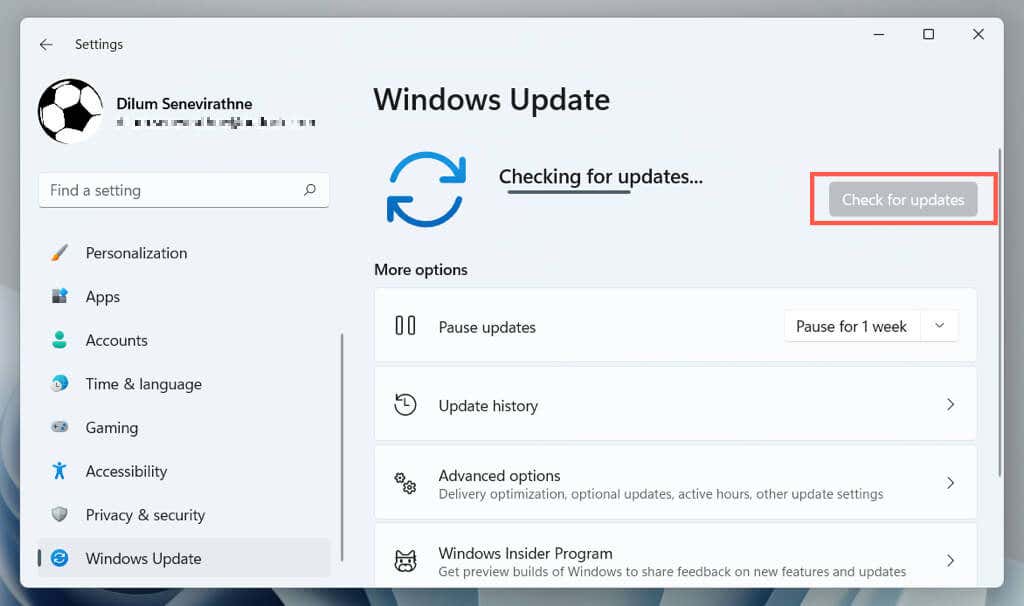
- Select Windows Update .
- Select Check for updates > Download and install .
Reinstall Microsoft Store App via PowerShell
If repairing or resetting the Microsoft Store did not help, it’s time to delete the program and install it from scratch. Unlike other applications, you can’t remove it via the Apps & Features console in Windows. Instead, you must use an elevated Windows PowerShell console for uninstallation and reinstallation.
Note : If you have a standard Windows account, ask a user with administrative privileges to reinstall the Microsoft Store.
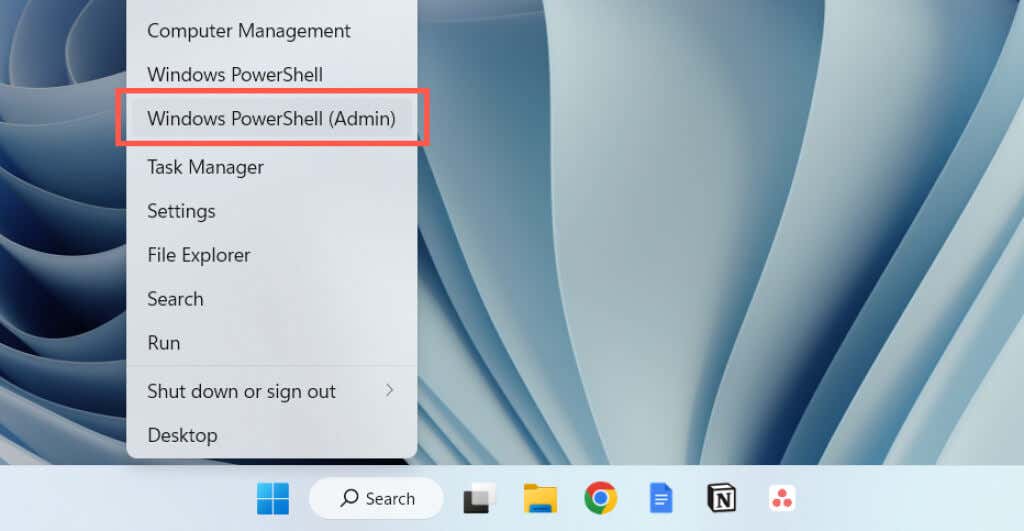
- Right-click the Start button and select Windows PowerShell / Terminal ( Admin ) . Or type powershell into the Start menu and select Run as administrator .
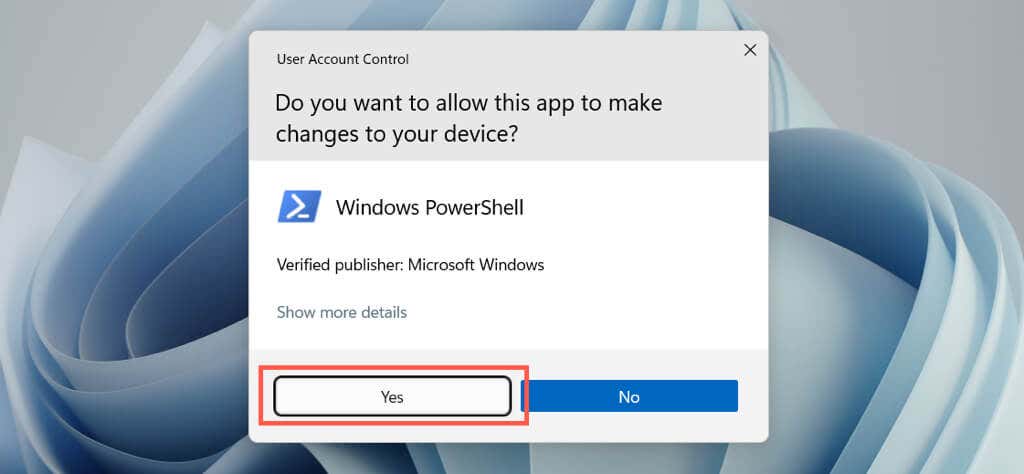
- Select Yes on the User Account Control dialog.
- Copy and paste the following into the command line interpreter:
Get-AppxPackage -allusers WindowsStore | Remove-AppxPackage
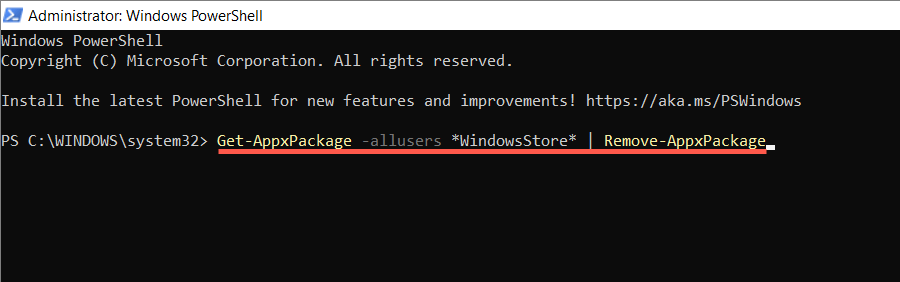
- Press Enter and wait until Windows PowerShell removes the Microsoft Store.
- Shut down and reboot your computer.
- Relaunch an elevated Windows PowerShell console and execute the command to reinstall the Microsoft Store.
Get-AppxPackage -allusers Microsoft.WindowsStore | Foreach {Add-AppxPackage -DisableDevelopmentMode -Register “$($_.InstallLocation)AppXManifest.xml”}

Alternatively, reinstall the Microsoft Store and all Store apps bundled with Windows. Only do that if the problem is severe and affects multiple applications. Execute the PowerShell commands below:
- Get-AppXPackage | Remove-AppxPackage
- Get-AppXPackage -allusers | Foreach {Add-AppxPackage -DisableDevelopmentMode -Register “$($_.InstallLocation)AppXManifest.xml”}
Alternative Method to Reinstall Windows Store
Another way to reinstall the Microsoft Store is to remove it via Windows PowerShell, but add the program back using the latest application package files from the Microsoft servers. However, the only way to generate the download links is through a third-party download portal.
Note : If you’re concerned about the safety of the application packages you download, use a third-party antivirus utility for Windows to check the files for security threats.
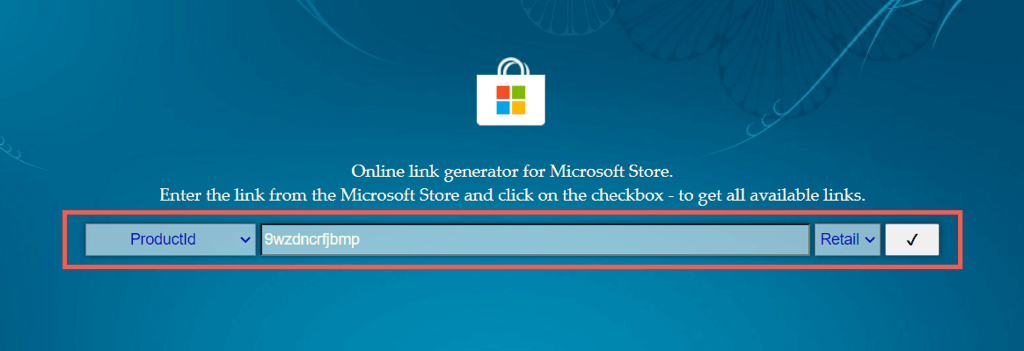
- Copy and paste the following link into your browser’s address bar and press Enter :
store.rg- adguard .net

- On the page that shows up, switch to ProductID on the first drop-down.
- Type 9wzdncrfjbmp into the search box.
- Select Retail on the second drop-down.
- Select the Checkmark icon and wait until the portal fetches the relevant links from Microsoft.
- Download the most recent versions of the following AppX and MSIXBundle installers. You may see up to two versions of the same package, so use the version numbers within the file name for guidance.
- Microsoft.NET.Native.Framework.2.2_2.2.29512.0_x64__8wekyb3d8bbwe.appx
- Microsoft.NET.Native.Runtime.2.2_2.2.28604.0_x64__8wekyb3d8bbwe.appx
- Microsoft.UI.Xaml.2.7_7.2208.15002.0_x64__8wekyb3d8bbwe.appx
- Microsoft.VCLibs.140.00_14.0.30704.0_x64__8wekyb3d8bbwe.appx
- Microsoft.WindowsStore 22210.1401.6.0_neutral~_8wekyb3d8bbwe.msixbundle
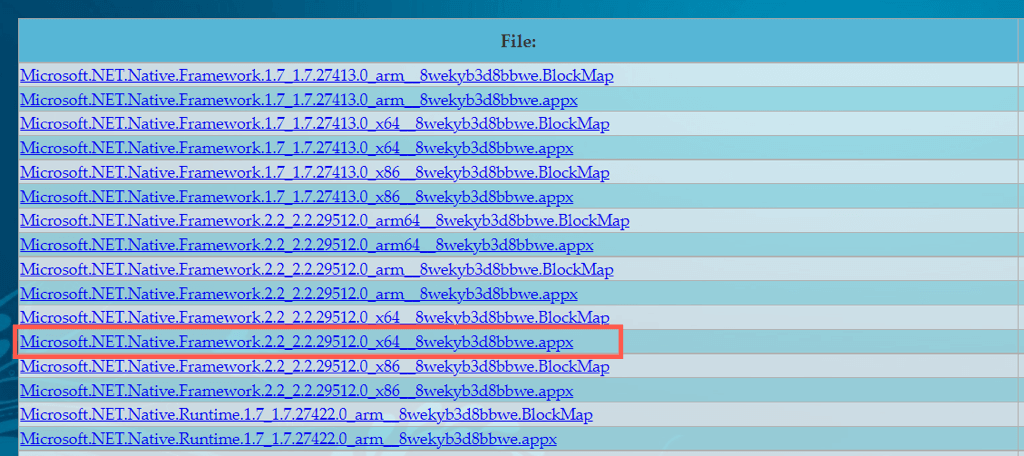
Note : If you use a 32-bit or the ARM version of Windows, make sure to download the AppX installers—the first four items on the list—that contain x86 or arm in the file name, respectively.
- Visit your computer’s Downloads folder, and run the four AppX installers one after the other, and select Install .
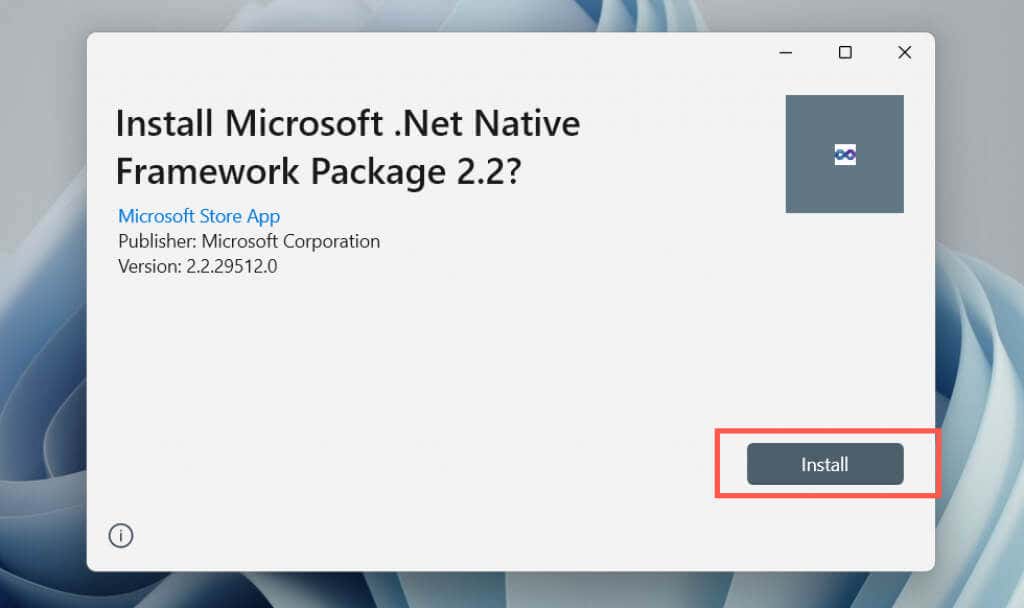
- Run the MSIXBundle installer and select Install .
If you have trouble installing any of the AppX installers, install them via Windows PowerShell using the following command:
Add-AppxPackage -Path “C:Users[Username]Downloadsfilename.Appx”
Replace C:Users[Username]Downloadsfilename.Appx with the folder path and filename of the AppX package. Finally, rerun the MSIXBundle.
You’ve Finished Reinstalling the Microsoft Store in Windows
Reinstalling the Microsoft Store is not the remedy to all complications that crop up with the program. So, you might need to continue troubleshooting to resolve whatever issues are plaguing it fully.
We have several troubleshooting articles that address various Microsoft Store errors. Select the Search button at the top of the screen to look up relevant guides for your specific problem.
- Sluggish Windows 11 PC? Try These 5 Windows 11 Tricks to Free up Virtual Memory
- How To Turn Off Notifications On Windows 11?
- How to Fix Windows 11 Boot Loops After Jan 2026 Update
- How to Remove Copilot AI in Window 11? New Update Available in Beta
- January 2026 Patch Tuesday: 7 Things Windows Users Should Do Before and After Updating
Dilum Senevirathne is a freelance tech writer and blogger with three years of experience writing for online technology publications. He specializes in topics related to iOS, iPadOS, macOS, and Google web apps. When he isn’t hammering away at his Magic Keyboard, you can catch him binge-watching productivity hacks on YouTube. Read Dilum’s Full Bio
