Speaker notes in Microsoft PowerPoint can be a lifeline since they provide crucial reminders and additional context when delivering presentations . But when you share your slides, you may prefer to remove these notes since they often contain informal language, personal cues, or strategies that aren’t meant for others.
This tutorial will show you how to easily remove notes from PowerPoint slides on a Windows or Mac computer.

How Delete Notes From a Single Slide in PowerPoint (Windows and macOS)
You can delete your notes manually if you have a PowerPoint presentation with just a few slides.
- Open the presentation in PowerPoint.
- Switch to the View tab and activate the Notes button.
- Double-click the text within the Notes pane at the bottom of the slide to highlight everything.
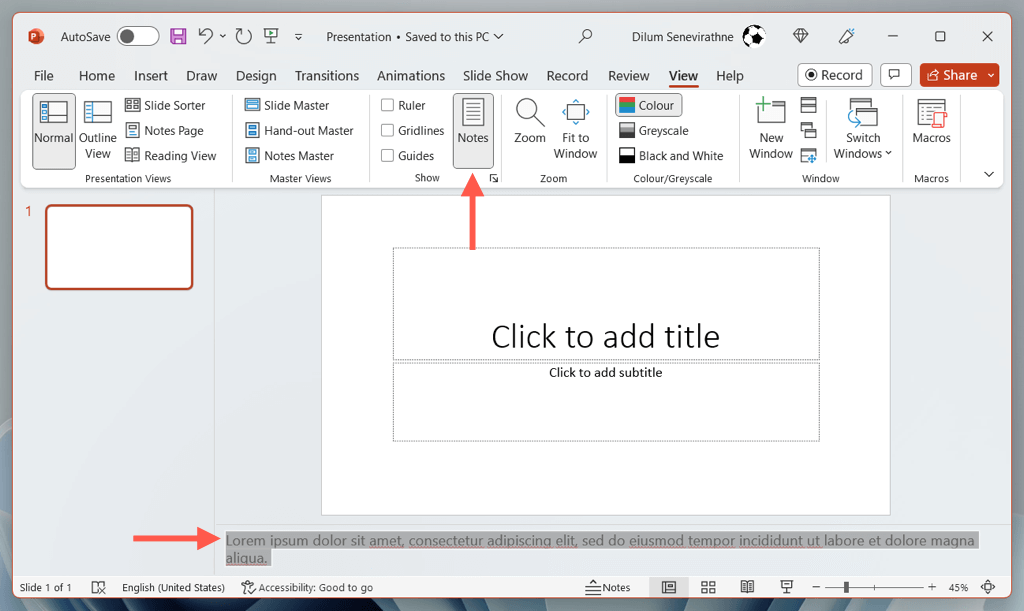
- Press the Delete button.
- Repeat for any other slides containing notes within the presentation.
- Save your changes.
How to Delete Notes From Multiple Slides in PowerPoint (Windows Only)
If your PowerPoint presentation contains many slides with notes, the fastest way to get rid of them is through the built-in Document Inspector tool. However, it’s only available on Windows.
To delete notes from multiple slides at once:
- Open the presentation in PowerPoint and select File > Info .
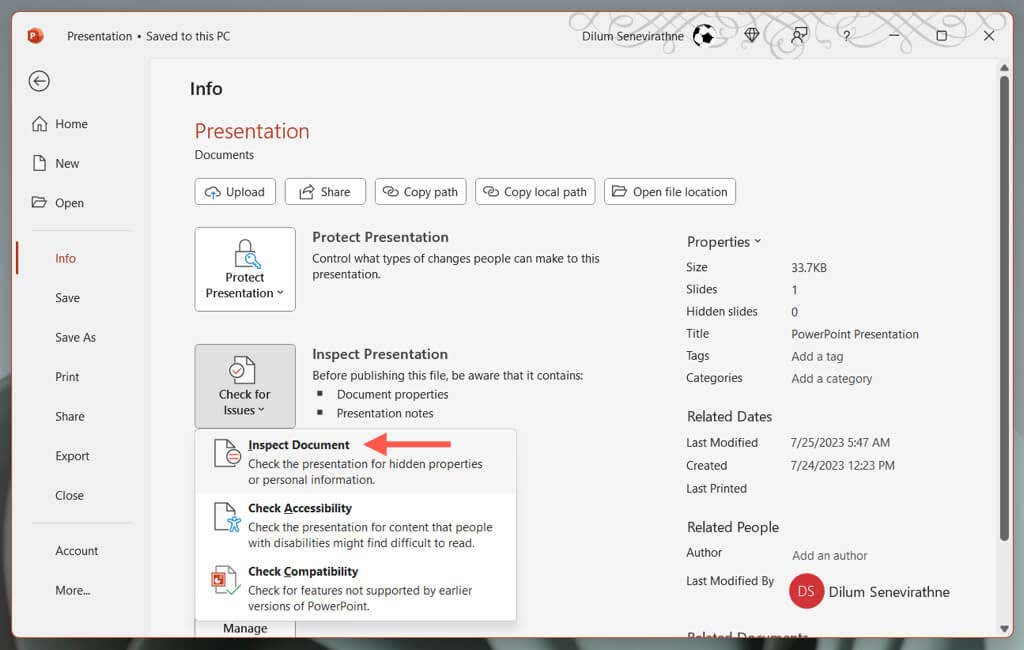
- Select the Check for Issues button and choose Inspect Document on the drop-down.
- Changes you make via the Document Inspector tools are impossible to undo, so make a copy of your presentation before you go ahead—select Yes .

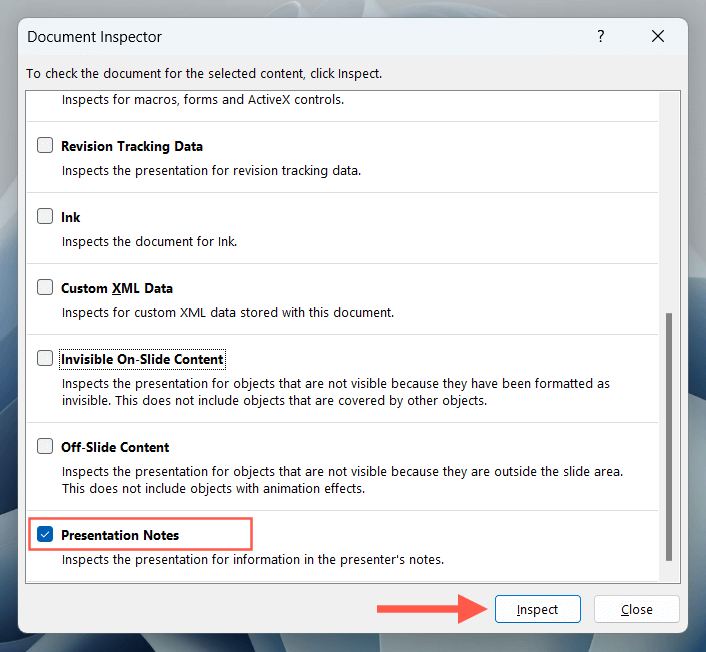
- Uncheck the boxes next to all forms of content except for Presentation Notes and select Inspect .
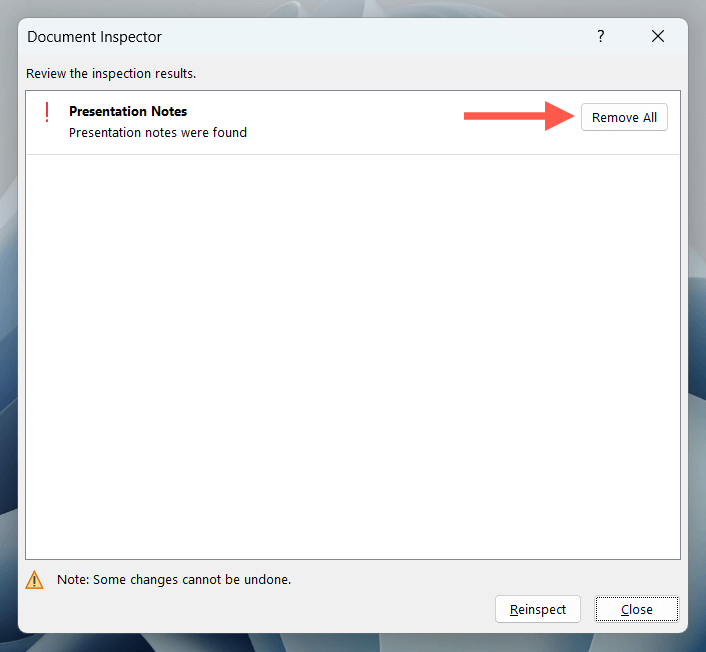
- Select the Remove All button.
How to Delete Notes From Multiple Slides in PowerPoint (Mac Only)
If you want to delete notes from multiple slides in PowerPoint for macOS, you can rely on an Office VBA (Visual Basic for Applications) script.
Note : Before you begin, make a copy of your presentation since you can’t reverse changes from VBA scripts—select File > Save As on the menu bar.
- Open the presentation in PowerPoint.
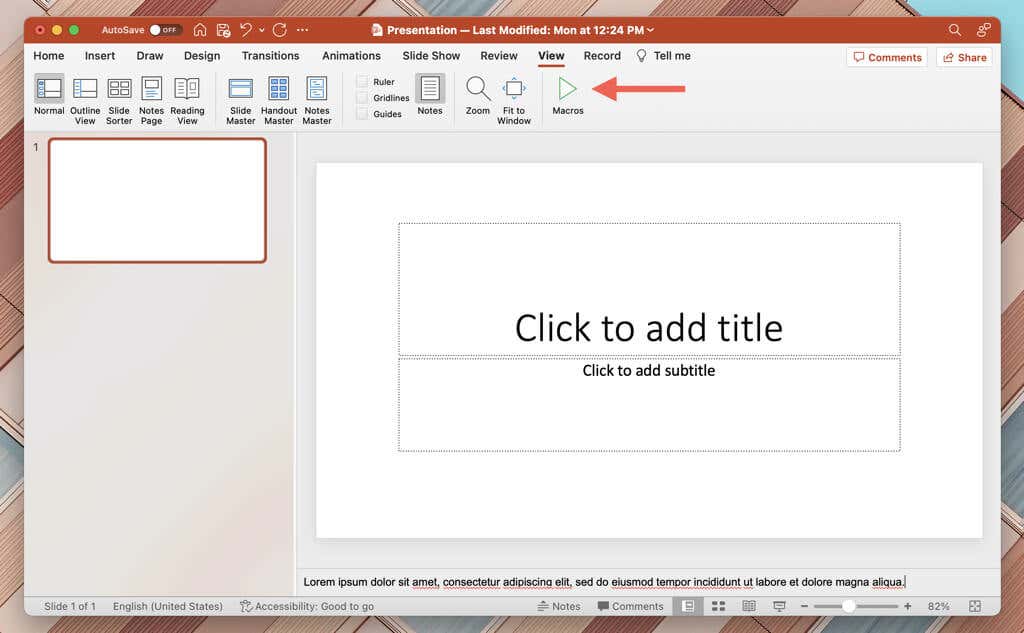
- Switch to the View tab and select Macros .
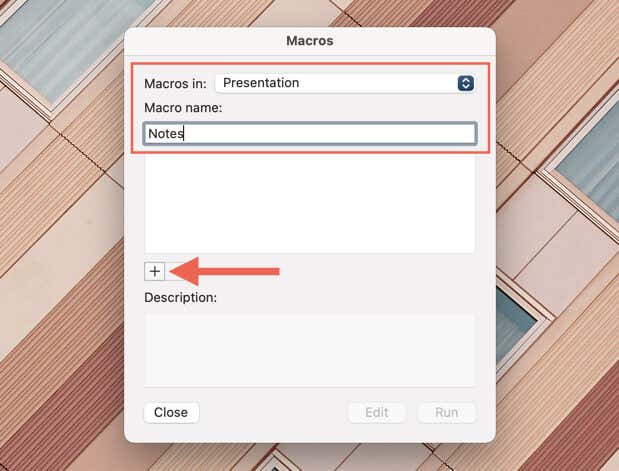
- Select the presentation name at the top of the Macros pop-up.
- Type Notes into the Macro name field.
- Select the Plus button.
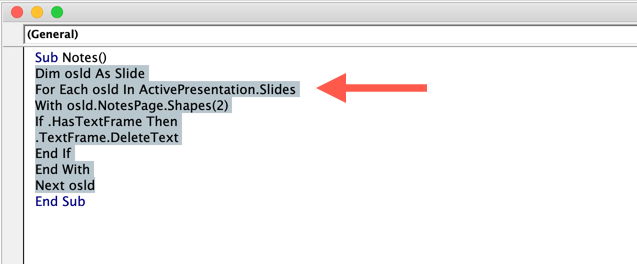
- On the Microsoft Visual Basic that shows up, copy and paste the following code between the Sub Notes() and End Sub lines:
Dim osld As Slide
For Each osld In ActivePresentation.Slides
With osld.NotesPage.Shapes(2)
If .HasTextFrame Then
.TextFrame.DeleteText
End If
End With
Next osld
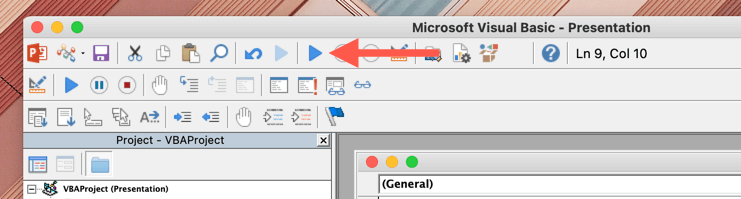
- Select the Run button. Your notes should disappear from the presentation.
Remove Notes From PowerPoint Slides Easily
You now know how to delete notes from Microsoft PowerPoint slides. If you’re dealing with a super-long presentation , remember to use the Document Inspector (Windows) or the VBA script (Mac) to remove notes from all slides quickly.
- How to Loop a PowerPoint Presentation
- How to Create a Table of Contents in PowerPoint
- How to Remove the Footer From PowerPoint Slides
- How to Curve Texts in Microsoft PowerPoint
- How to Change or Remove Animations From PowerPoint Slides
Dilum Senevirathne is a freelance tech writer and blogger with three years of experience writing for online technology publications. He specializes in topics related to iOS, iPadOS, macOS, and Google web apps. When he isn’t hammering away at his Magic Keyboard, you can catch him binge-watching productivity hacks on YouTube. Read Dilum’s Full Bio
