Microsoft lets you use multiple email accounts in the Outlook desktop and mobile apps. If you no longer want to receive emails from an account, you can either disable the account or remove it from Outlook.
This tutorial covers steps for disabling or deleting an email account in the Outlook app for Android , iOS, Windows, and macOS. You’ll also learn how to delete connected accounts from Outlook on the web.
Remove Email Account in Outlook for Windows
Open the Outlook application on your Windows computer and follow the steps below.
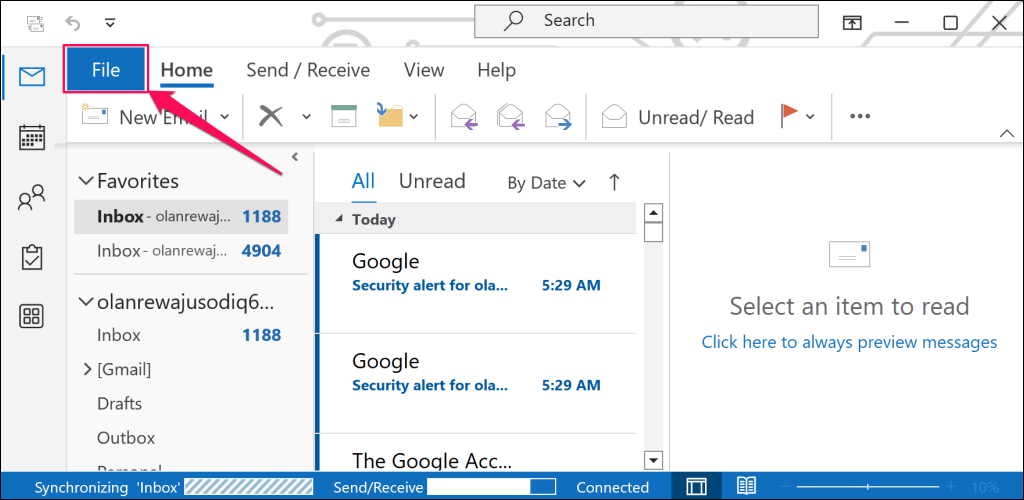
- Select the File tab in the top-left corner.
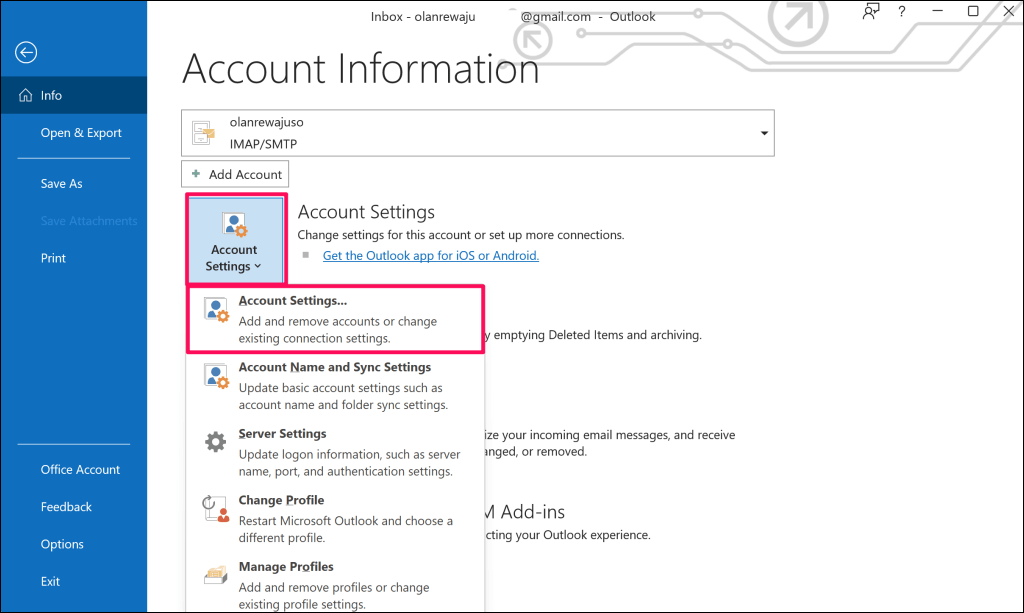
- Select the Account Settings drop-down button and select Account Settings .
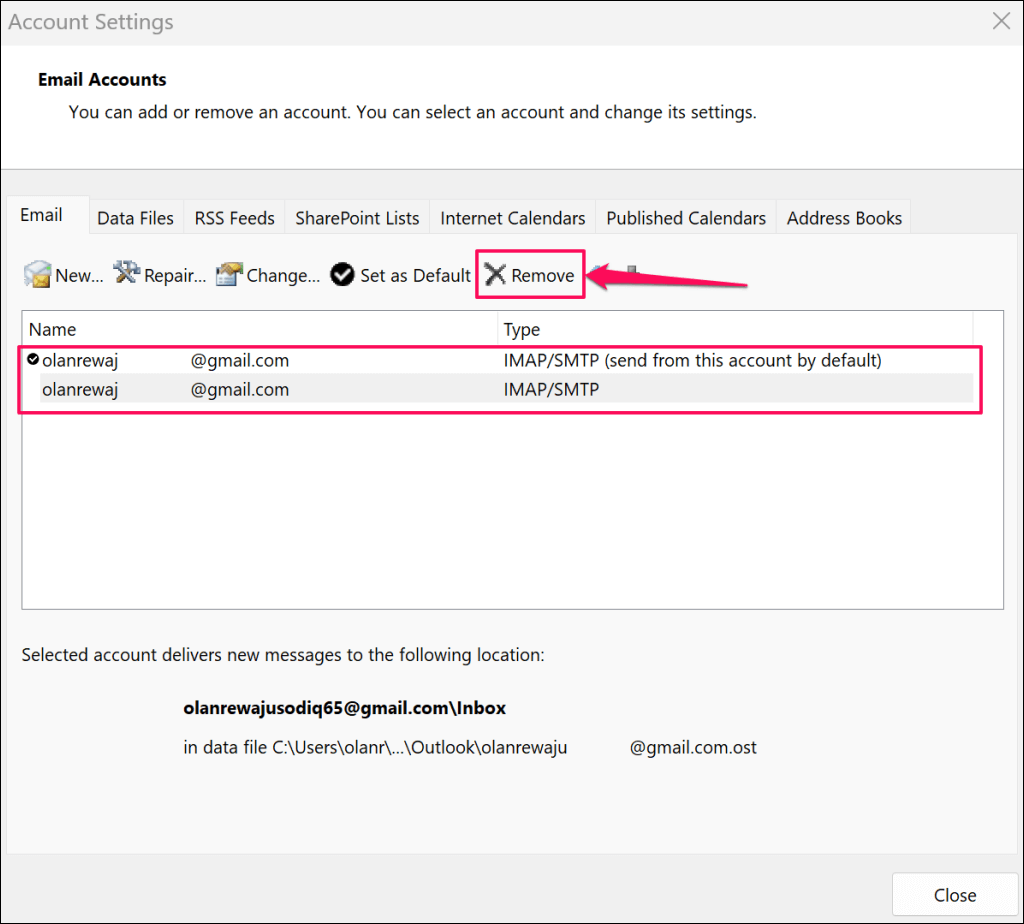
- Choose the email account you want to delete and select Remove .
- Select Yes on the pop-up to remove the selected account.
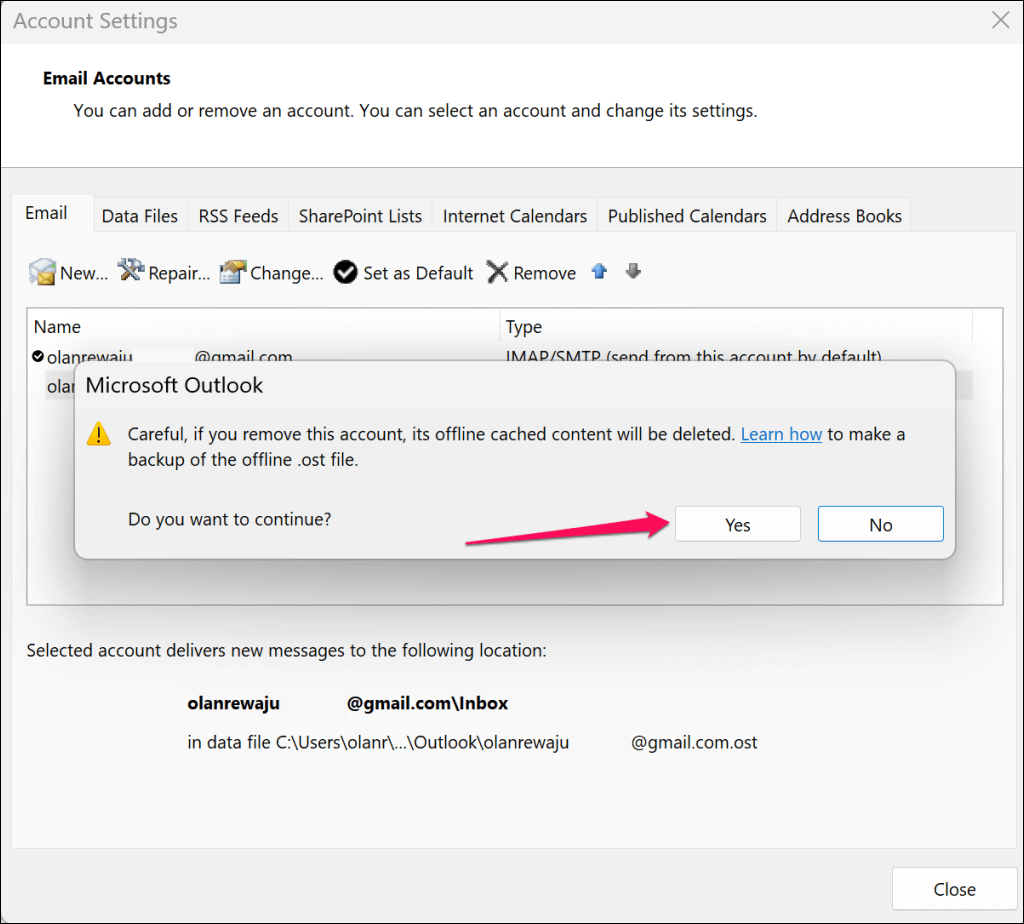
Outlook will remove the account and delete offline content stored on your computer. Messages in your inbox or outbox remain intact and accessible on other devices.
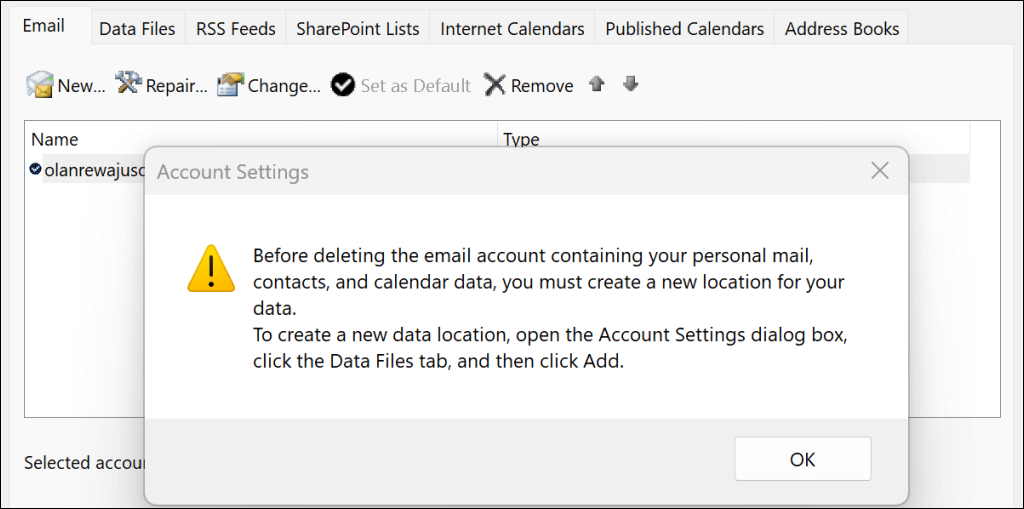
You’ll get a warning message to create an Outlook Data File (.PST) when attempting to delete the only email account in Outlook. Refer to our tutorial on exporting an Outlook PST backup file for step-by-step instructions.
Remove Email Account in Outlook for macOS
Open the Outlook application on your Mac computer and follow these steps.
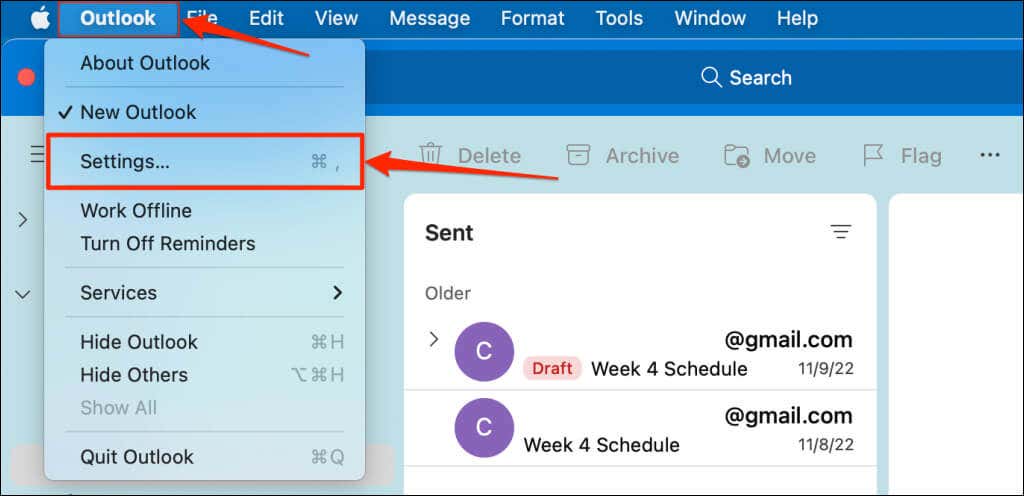
- Press Command + Comma ( , ) to open Outlook’s Preferences page. Alternatively, select Outlook on the menu bar and select Settings .
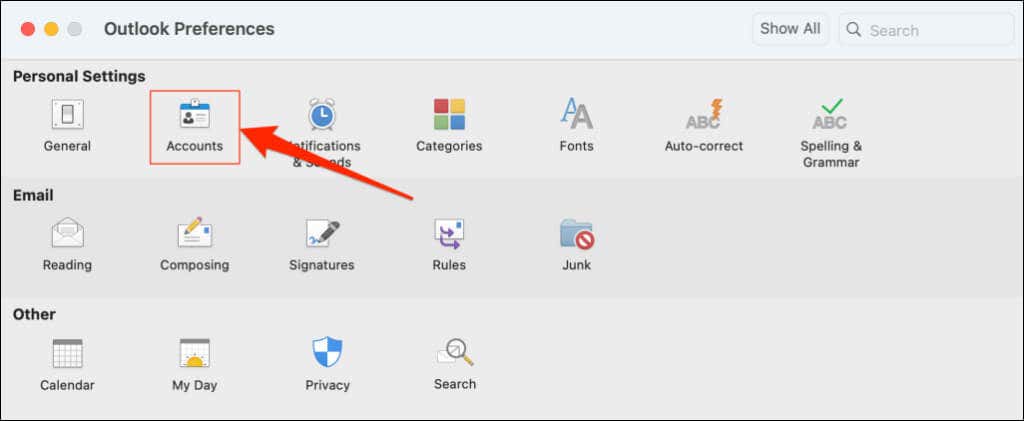
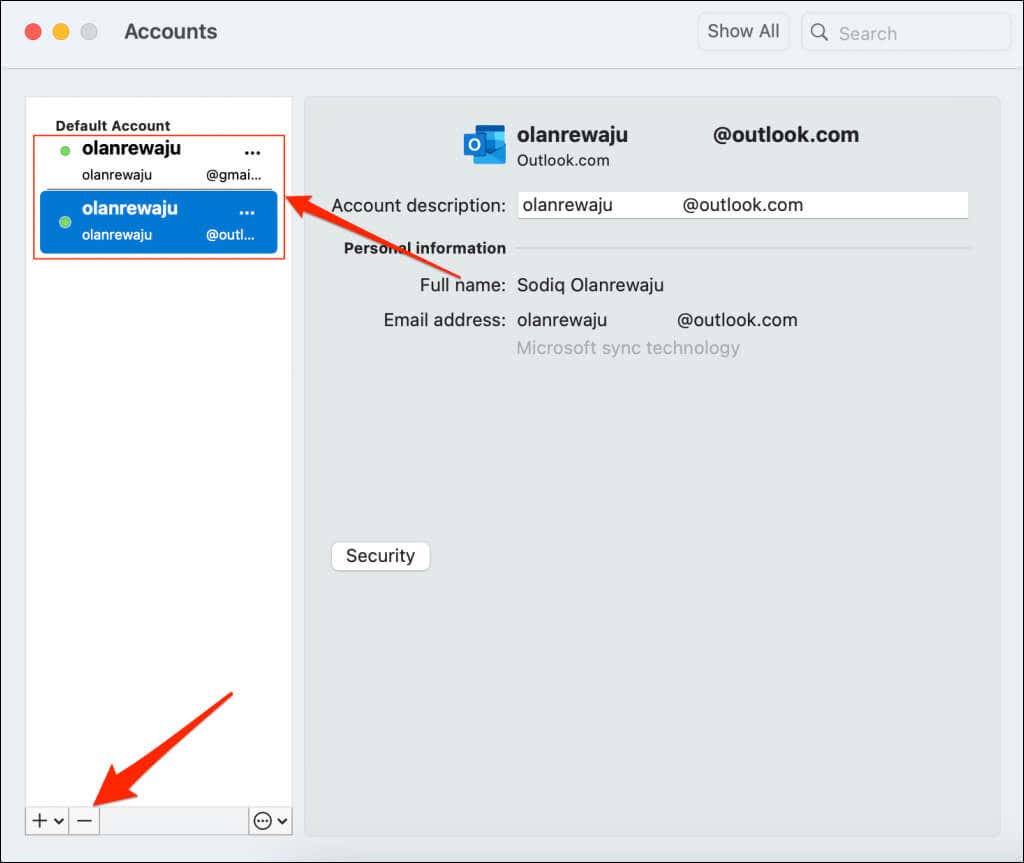
- Select Accounts .
- Select the email account you want to delete and select the minus icon in the bottom-left corner.
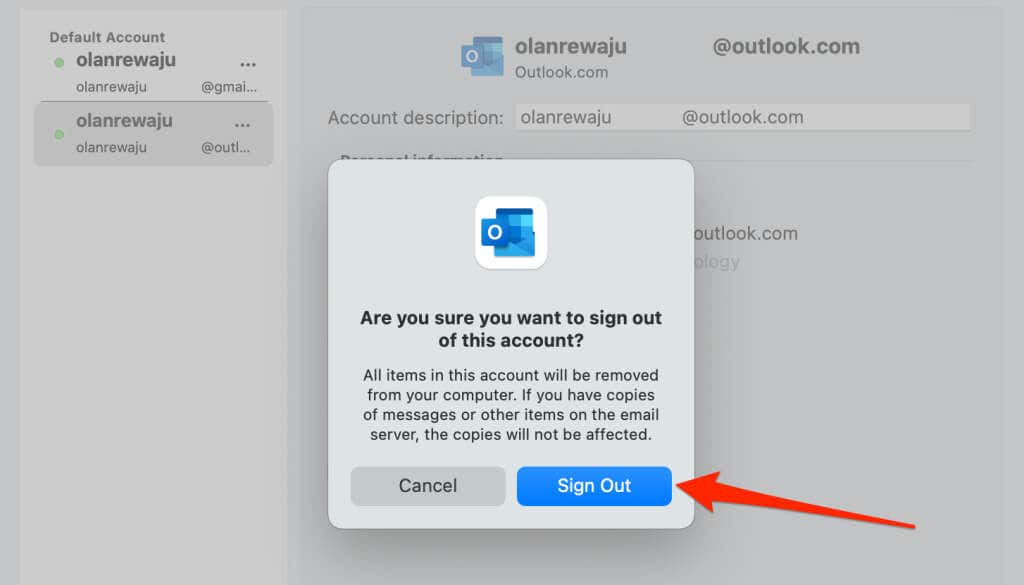
- For Outlook.com accounts, select Sign Out to remove the account from the Outlook app.
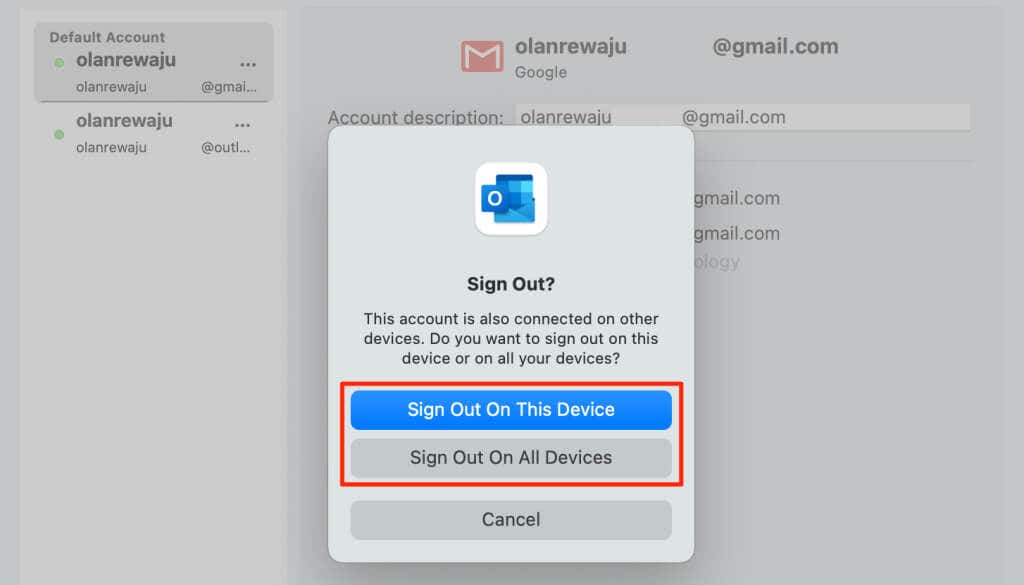
For third-party email services or accounts (Gmail, Yahoo! Mail, etc.), you can sign out on your Mac’s Outlook app or all your devices.
Remove Email Account in Outlook Web
Sign in to Outlook on any web browser and follow these steps to remove an email address from your account.
- Select the Settings icon on the toolbar and select View all Outlook settings .
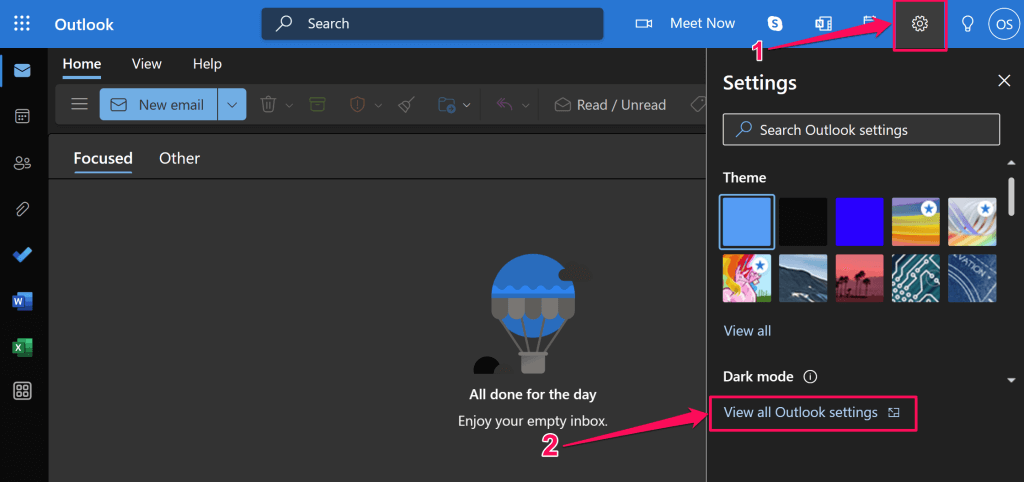
- Go to Email > Sync email and select Manage or choose a primary alias .
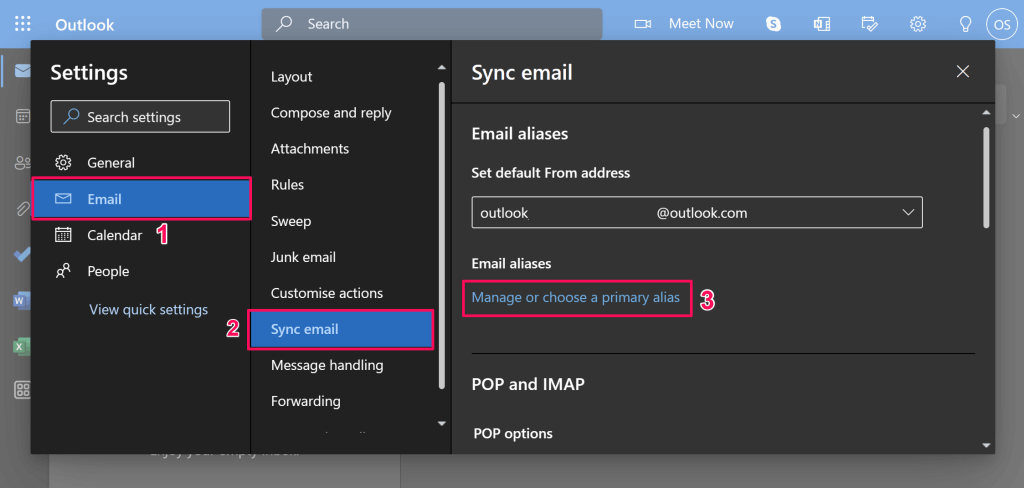
You might get a prompt to enter the password to your Microsoft account. Follow the instructions and proceed to the next step.
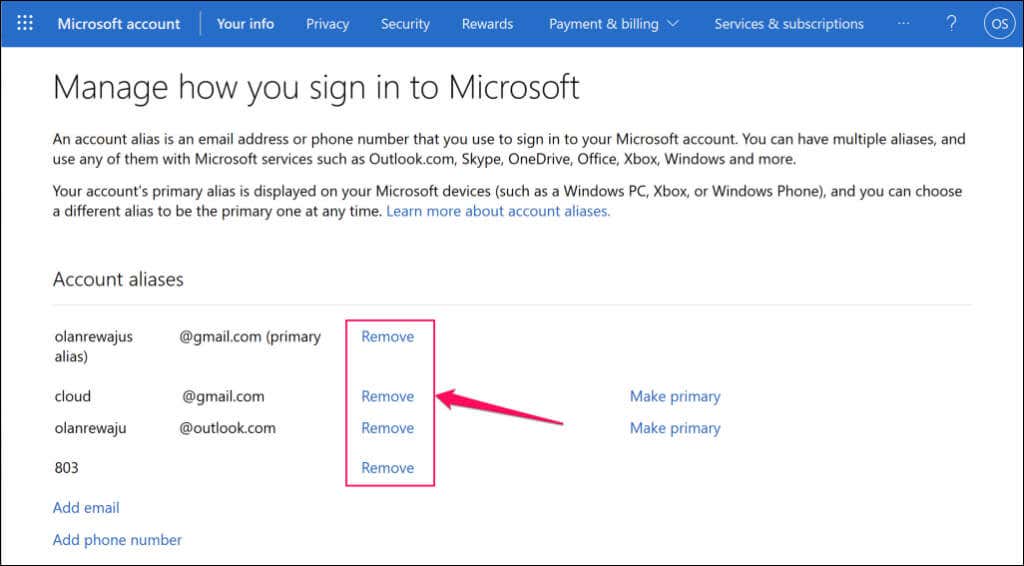
- Select Remove next to the account you want to disconnect or delete from Outlook.
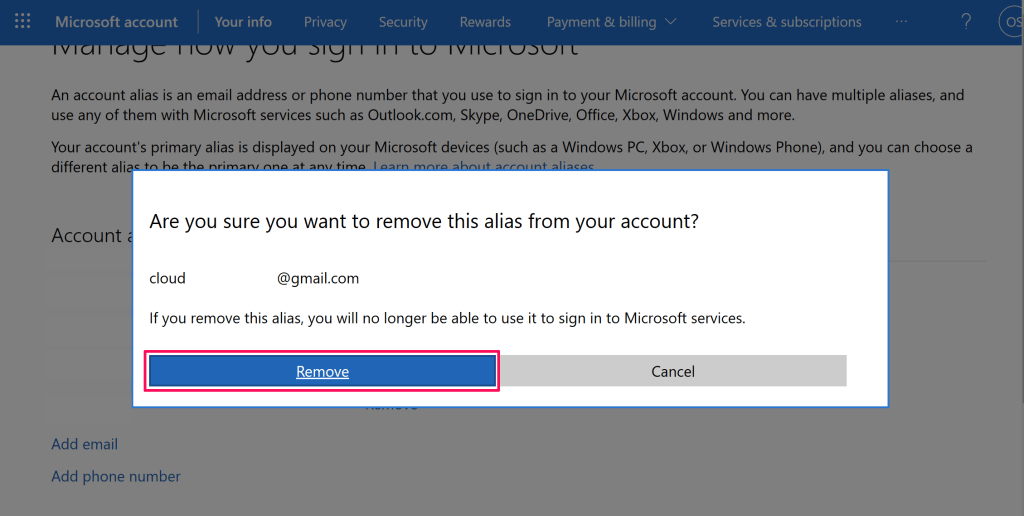
- Select Remove on the pop-up to delete the account.
Remove Email Account in Outlook for iOS
Open the Outlook application on your iPhone or iPad and follow these steps.
- Tap your profile picture or icon in the top-left corner and select the gear icon in the bottom-left corner.
- Tap the account you want to remove in the “Mail Accounts” section.
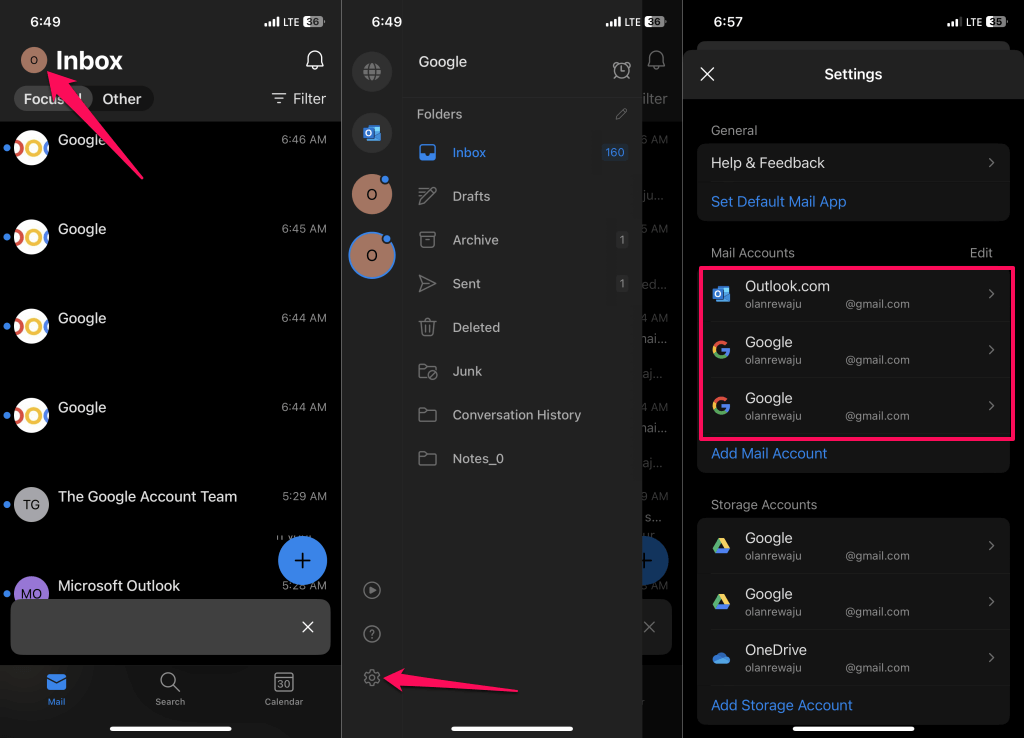
- Select Delete Account and tap Delete to remove a Microsoft Outlook account from the app. Outlook provides two account removal options for third-party emails— Delete From This Device or Delete From All Devices .
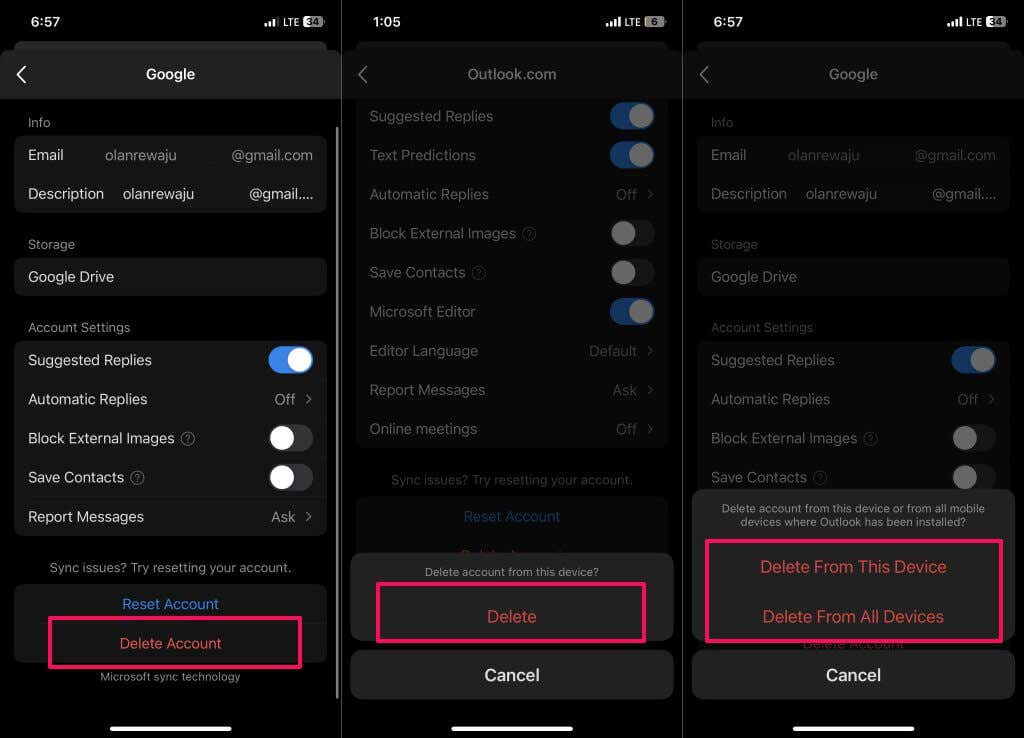
The first option deletes the account from your iPhone or iPad, while the latter unlinks the account from all devices connected to your Outlook account.
Remove Email Account in Outlook for Android
- Open Outlook, tap the profile icon/photo in the top-left corner, and select the Settings icon . Choose the account you want to remove in the “Mail accounts” section.
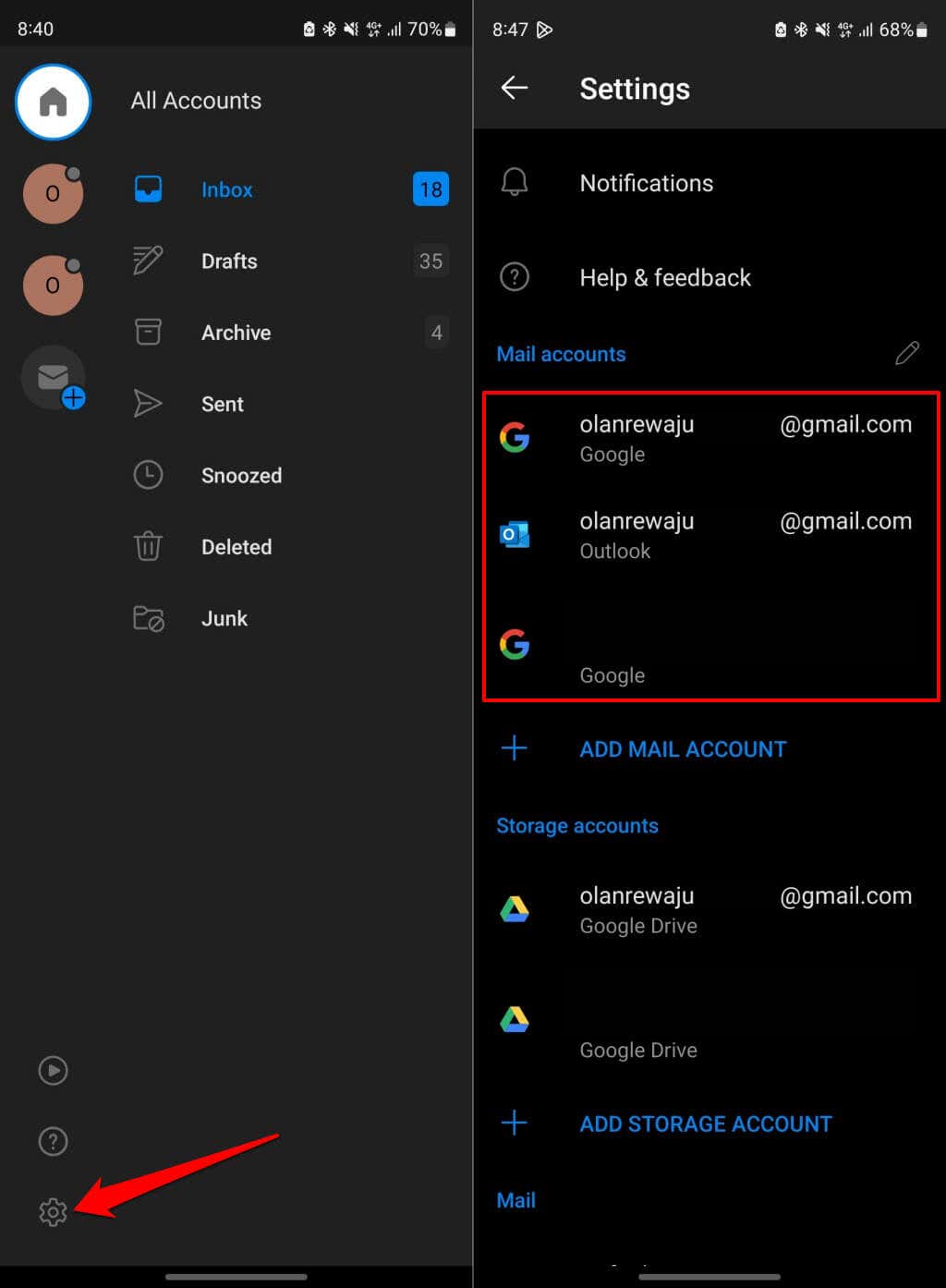
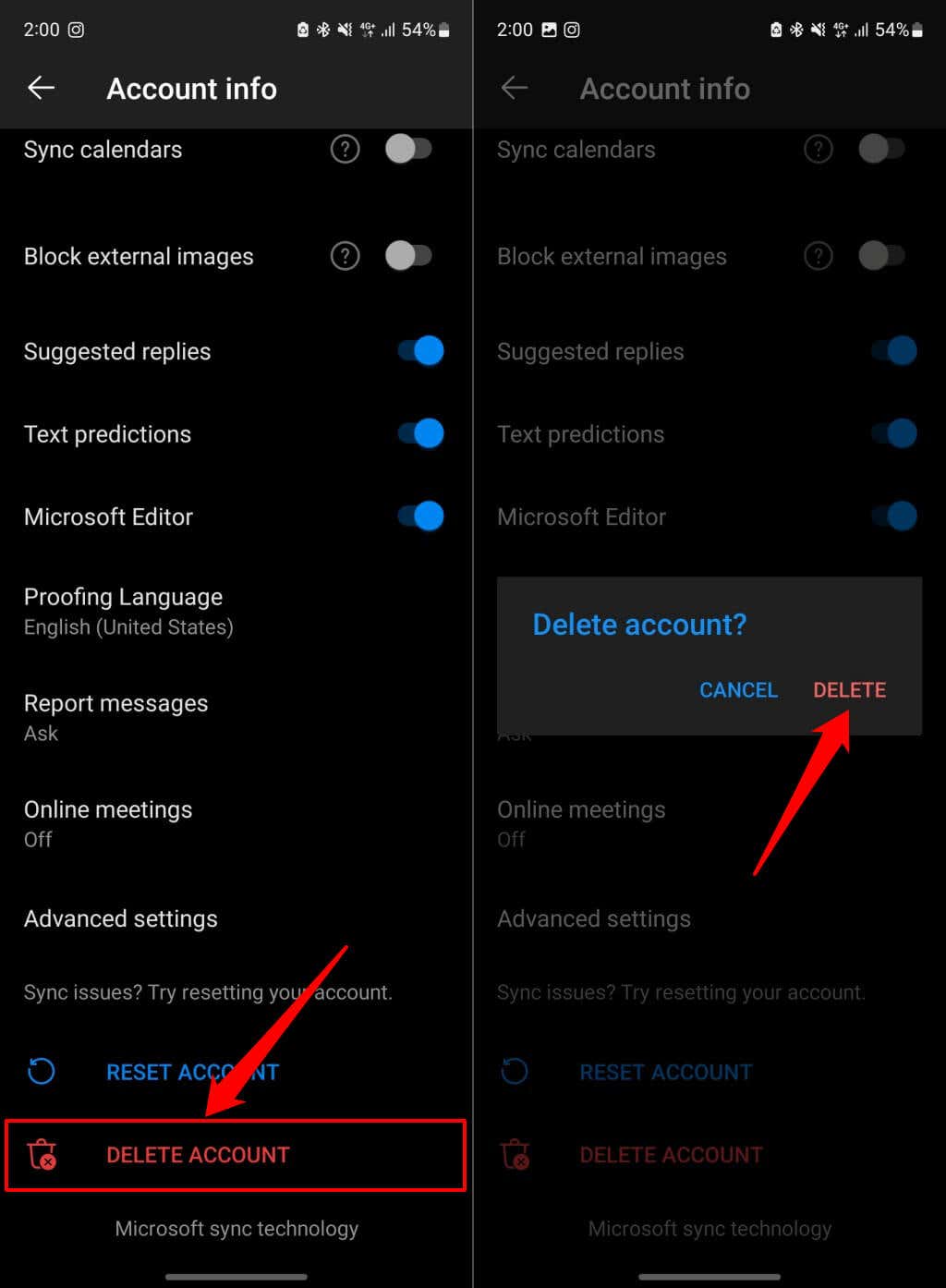
- If it’s an Outlook.com account, select Delete Account and tap Delete on the confirmation prompt.
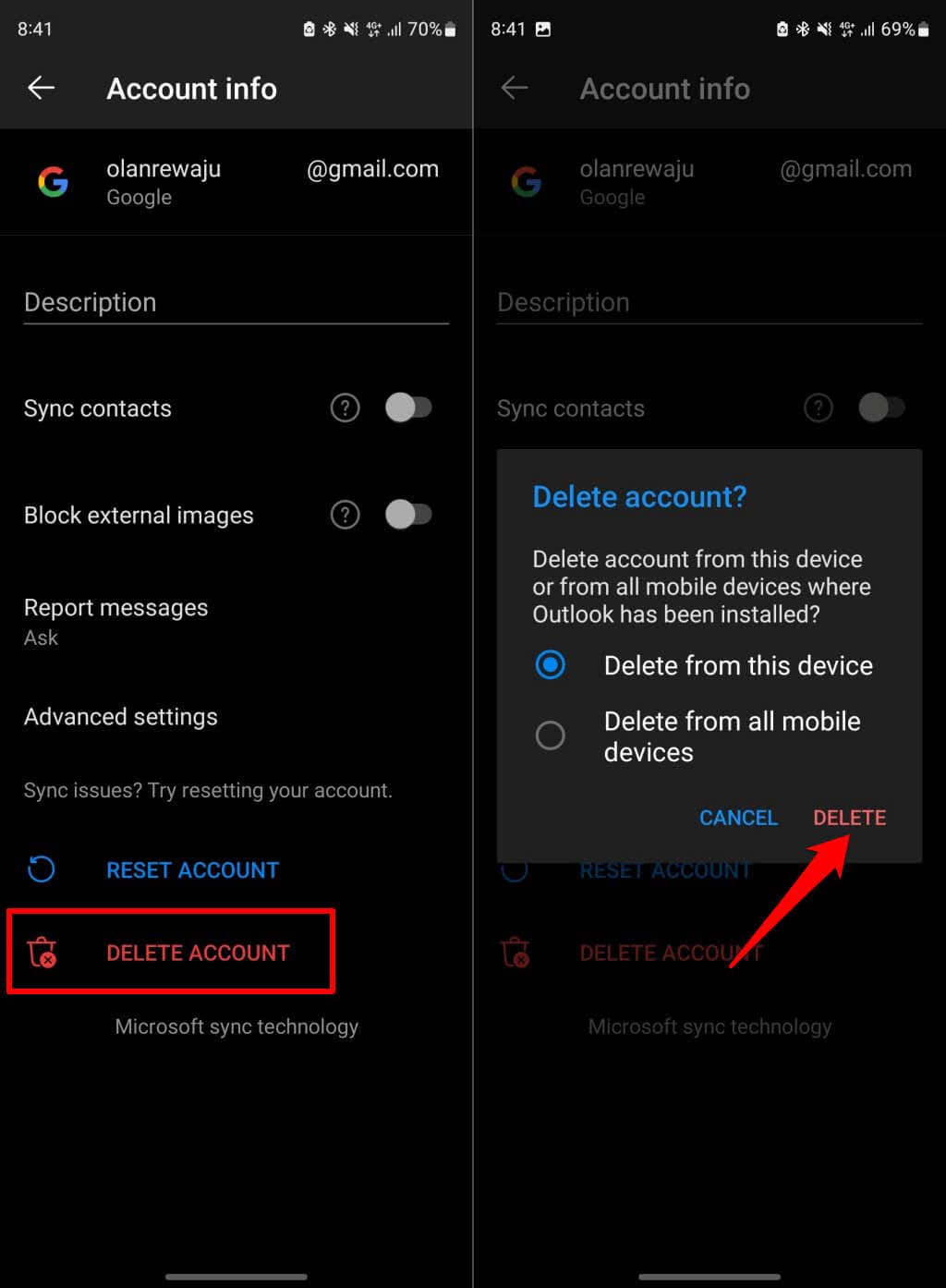
- To remove non-Outlook email addresses, tap Delete Account and choose if you want to delete the account on your phone or all devices where Outlook is installed.
How to Disable Email Accounts in Outlook (Windows)
If you don’t want to delete an account from Outlook, you can temporarily disable it. The option to disable accounts is only available in Outlook for Windows.
When you turn off an account in Outlook, the app stops syncing email messages from the account. You can still send emails from the account, but you’ll no longer receive new messages from the account in the app.
Follow the steps below to turn off an account in Outlook on your Windows device.
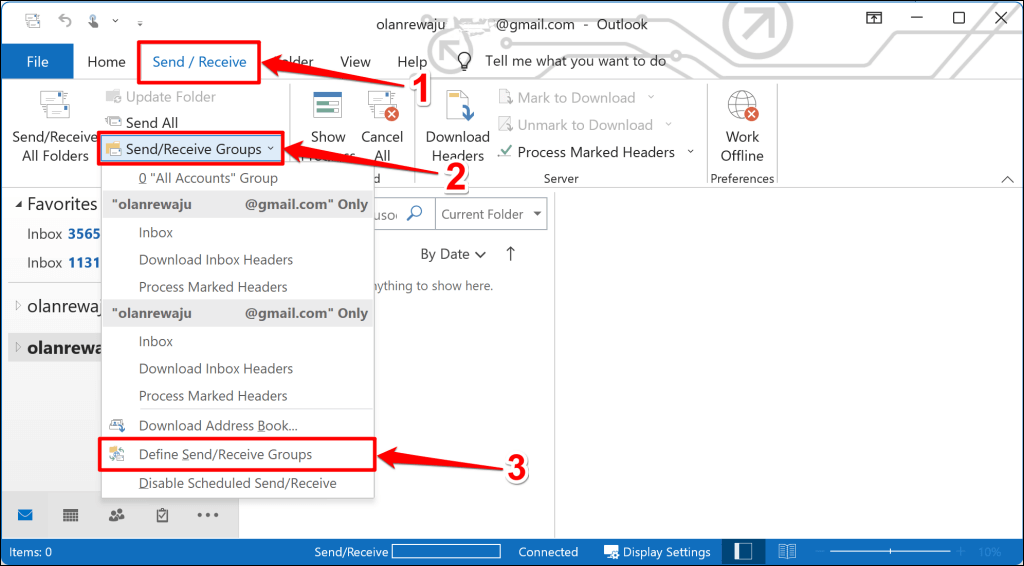
- Open the Send / Receive tab in the Outlook app.
- Open the Send/Receive Groups drop-down menu and select Define Send/Receive Groups .
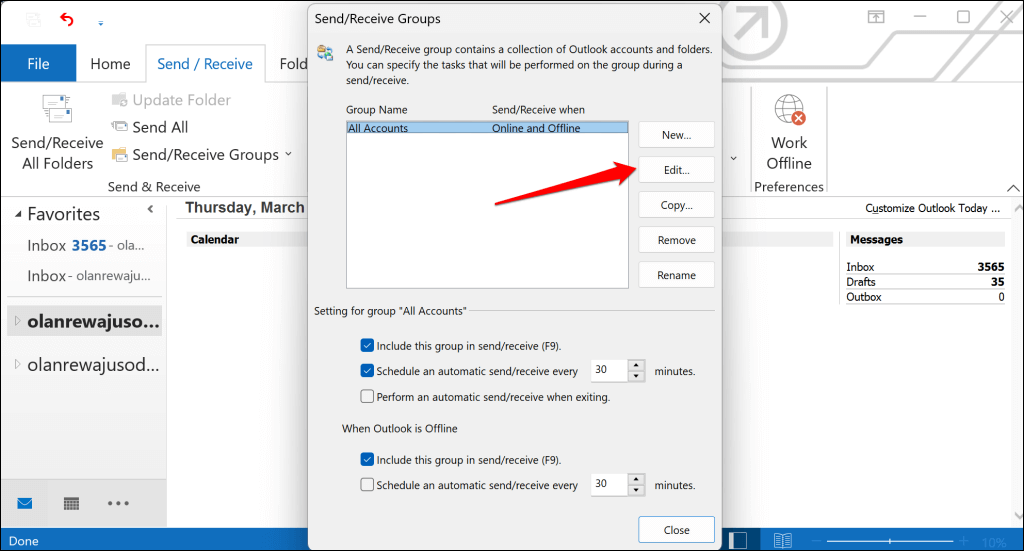
- Select the Edit button.
- Select the account you want to turn off on the sidebar and deselect the Include the select account in this group checkbox.
- Select OK to save the changes.
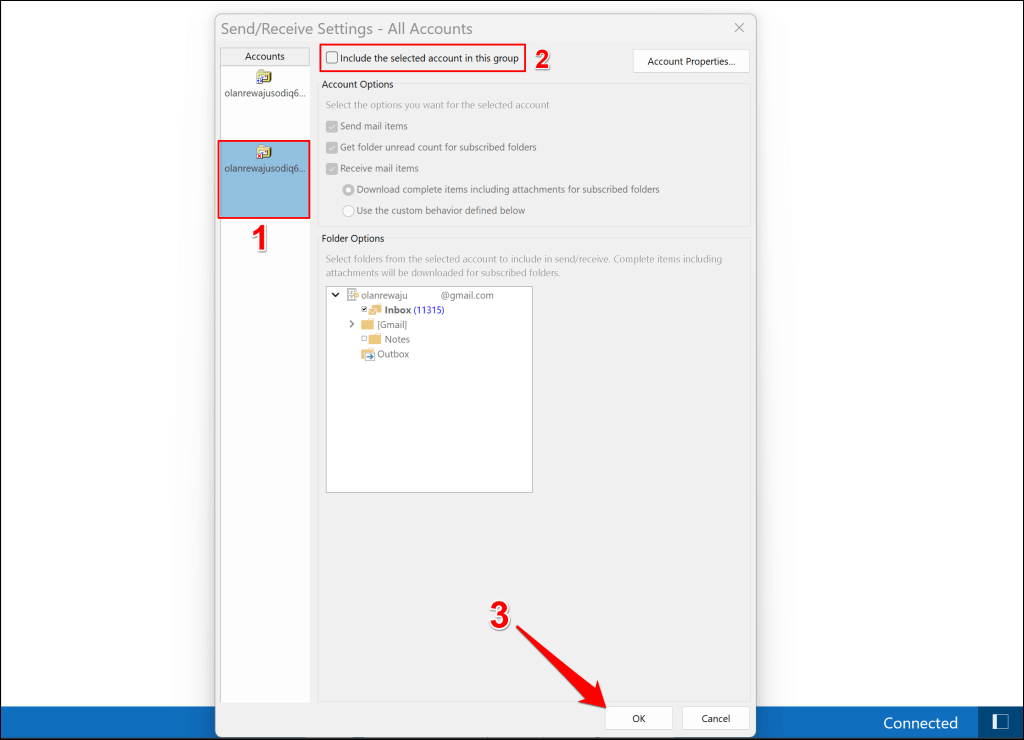
To re-enable the account, follow the same steps and check the Include the select account in this group box.
Manage Emails in Outlook
Deleting an account in Outlook doesn’t delete email messages or data in your inbox. The operation only deletes cached data saved on your device. You can access messages in a deleted account in other email clients or applications.
Restart or update the Outlook application on your device if you run into roadblocks deleting an email account. Reboot your device if the issue persists.
- How to Report Phishing Emails in Outlook
- Top 6 Ways to Fix Outlook Error 0x8004010f
- How to Make an Email Group in Outlook
- How to Change the Default Browser in Outlook
- How to Pin Emails in Outlook
Sodiq has written thousands of tutorials, guides, and explainers over the past 4 years to help people solve problems with Android, iOS, Mac, and Windows devices. He also enjoys reviewing consumer tech products (smartphones, smart home devices, accessories, etc.) and binge-watching comedy series in his spare time. Read Sodiq’s Full Bio
