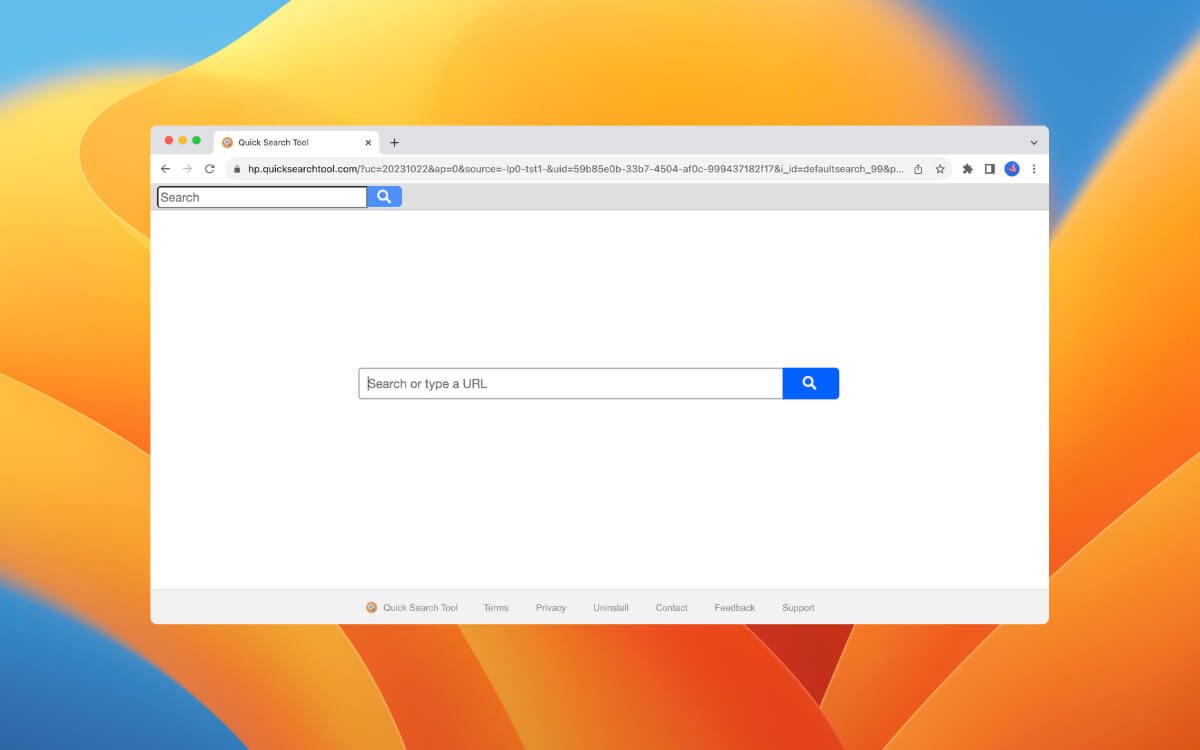
Quick Search is a privacy-invasive Google Chrome extension that hijacks the browser’s search engine and startup page settings. Despite attempting to present itself as legitimate by using Yahoo! Search to generate search results, it collects usage data, including IP addresses, GPS coordinates, and keystrokes.
If you’re on a Mac, this Quick Search removal guide will walk you through the steps to delete the add-on from Google Chrome and undo its modifications to your web browsing preferences.
Uninstall the Quick Search Browser Extension
You must begin by removing the Quick Search Tool extension from Google Chrome. To do that:
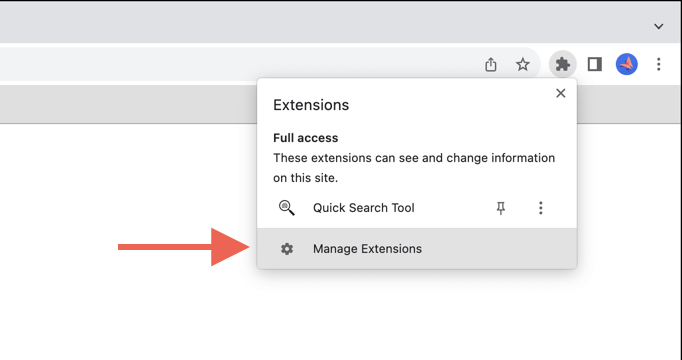
- Open Chrome, select the Extensions icon to the right of the address bar, and select Manage Extensions .
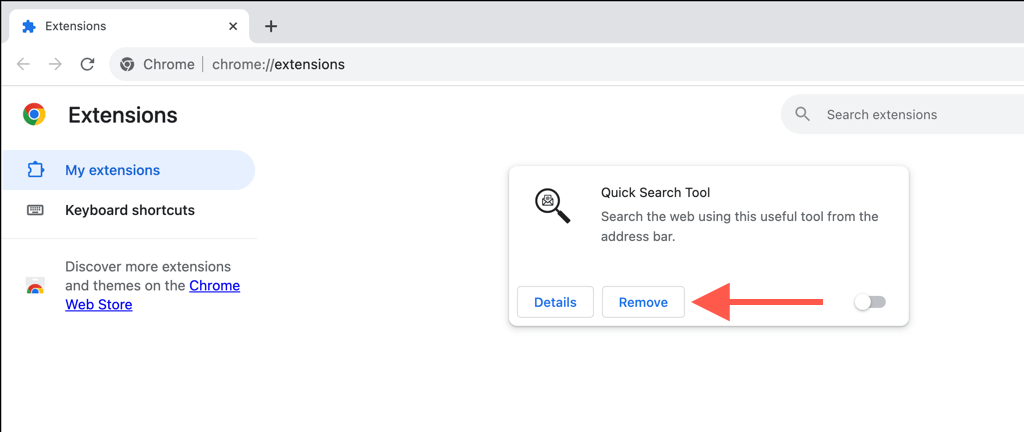
- Disable the switch next to Quick Search Tool and select Remove .
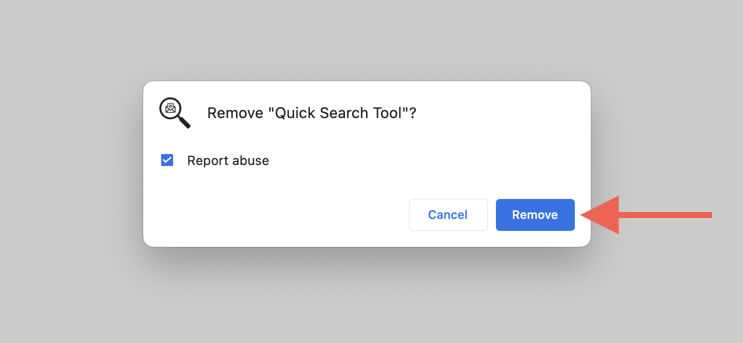
- Select Remove again on the confirmation pop-up.
Remove the Quick Search Engine
After removing the Quick Search Tool extension, visit your settings console to delete Quick Search as the default search engine. Here’s how:
- Open the Chrome menu (select the icon with three dots on the top right) and select Settings .
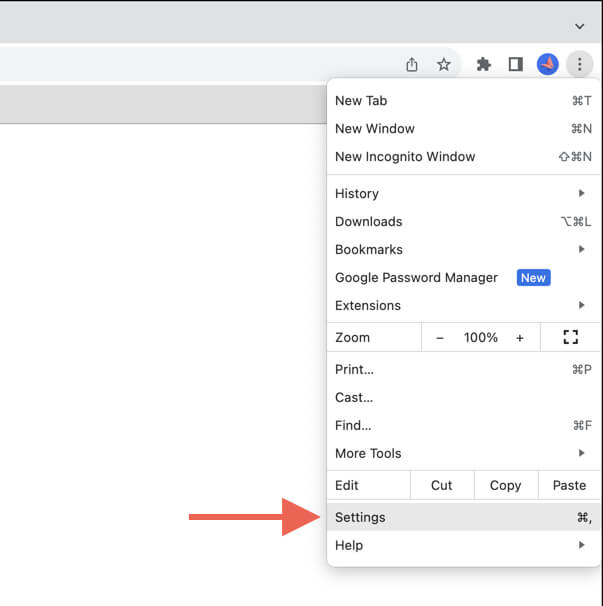
- Select Search engine on the sidebar.
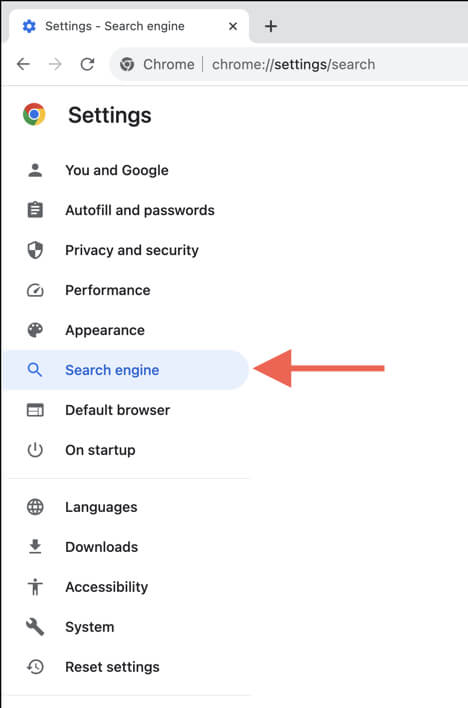
- Select Manage search engine and site search .
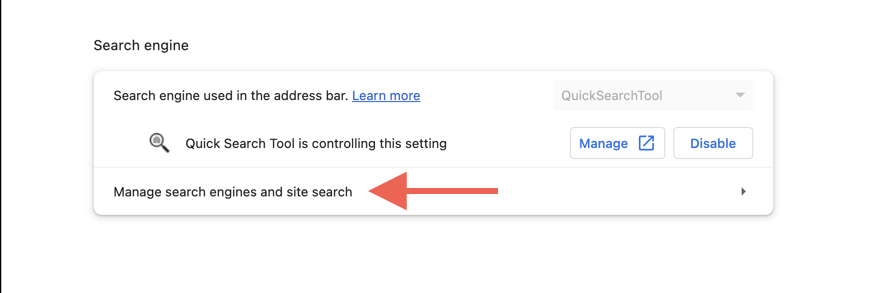
- Under the Search engines section, select Disable next to Quick Search Tool is controlling this setting .
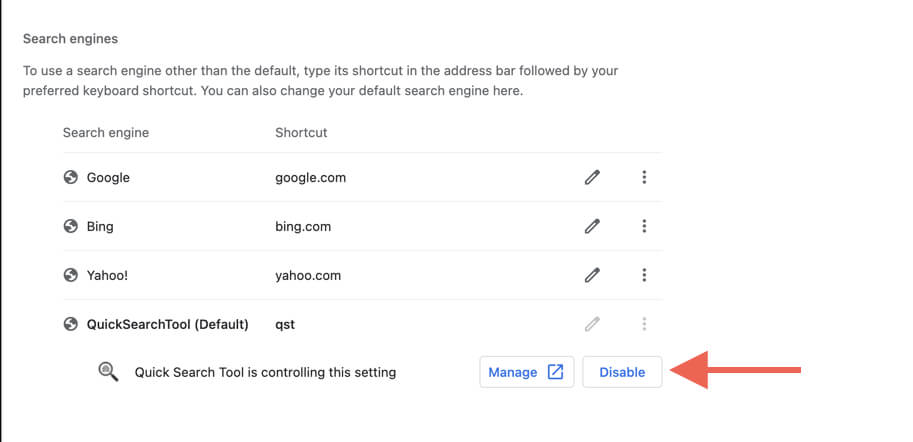
- Select the More icon (three dots) next to the search engine you want as your default and choose Make default .
Remove Quick Search From Startup Pages
Next, remove the Quick Search homepage from auto-launching alongside Chrome. Just:
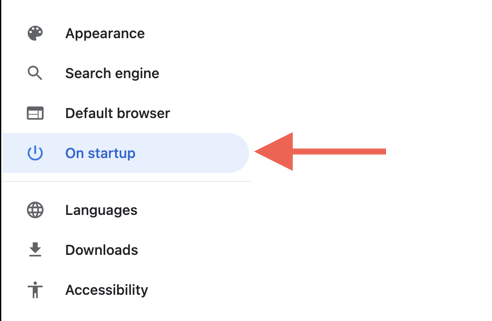
- Select On startup on Chrome’s Settings sidebar.
- Under Open a specific page or set of pages , select the More icon (three dots) next to quicksearchtool.com and choose Remove .
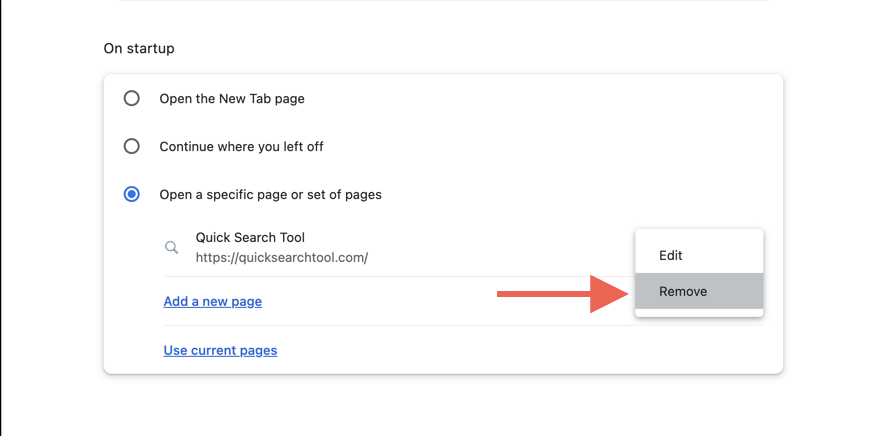
- Set up your custom startup pages or enable the Open the New Tab page option.
Perform a Safety Check in Chrome
Chrome has a built-in tool to check for harmful software and compromised settings. If you have trouble removing the Quick Search Tool extension or modifying your browser’s search engine and startup page options:
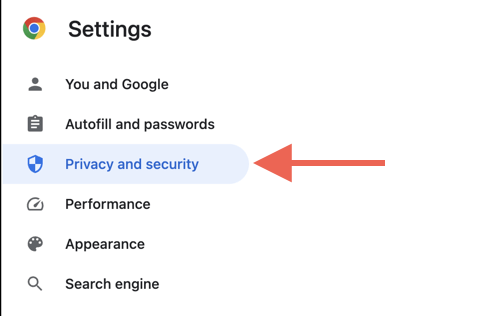
- Select Privacy and security on Chrome’s Settings sidebar.
- Select Check now .
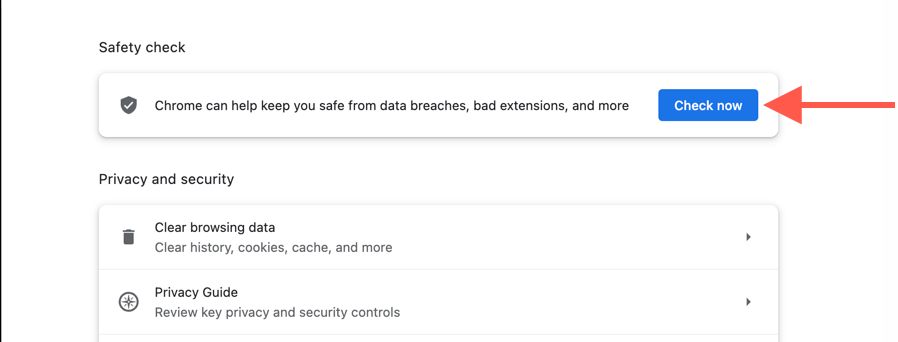
- Allow Chrome to scan the browser and follow any recommended actions.
Reset the Chrome Browser to Factory Defaults
If running a Safety Check doesn’t help, it’s time to factory reset Google Chrome. This process will forcefully disable all extensions, including Quick Search, and revert all browser settings to their defaults.
Ensure you’re signed into your Google Account to avoid losing locally stored browsing data like your passwords. Once you’ve done that:
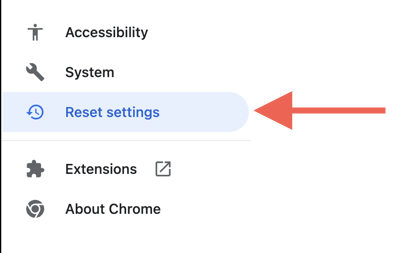
- Visit Chrome’s Settings console and select Reset settings on the sidebar.
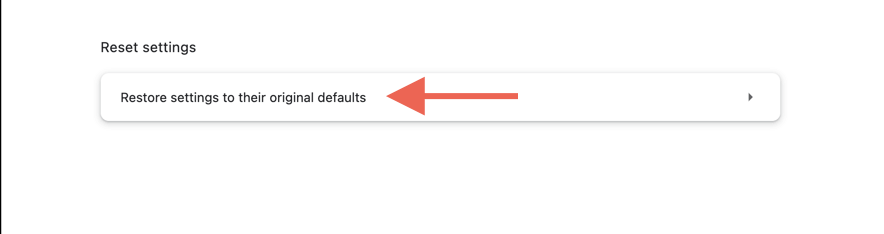
- Select the Reset settings to their original defaults option.
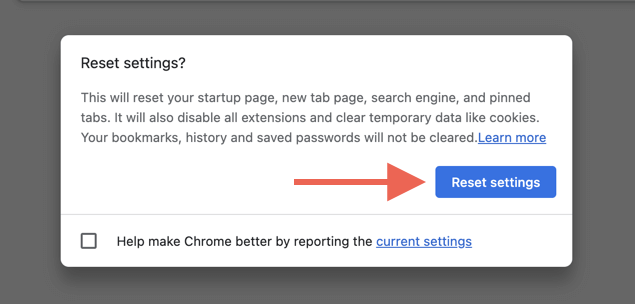
- Select Reset settings to confirm.
Scan Your Mac for Viruses
Suppose Quick Search continues to reappear and hijack Chrome or any other browsers on your Mac, such as Safari, Firefox, Edge, etc. In that case, it’s a good idea to ensure that the operating system—macOS—isn’t infected with malicious software. Perform an anti-malware scan using a reputable malware removal tool like Malwarebytes as soon as possible.
- How to Connect Xbox Controllers to Your Mac
- How to Chromecast From Mac to Your TV
- How to Install and Run Linux on Mac
- How to Turn Off or Delete Siri Suggestions (iPhone and Mac)
- How to Take Pictures on Mac
