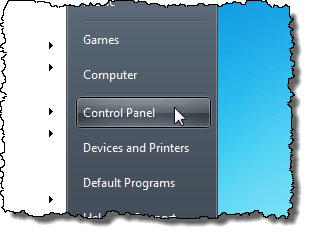
All versions of Office can be repaired in the same way using the Programs and Features tool in the Control Panel . To do this, click Control Panel on the Start menu.
How to Repair Office
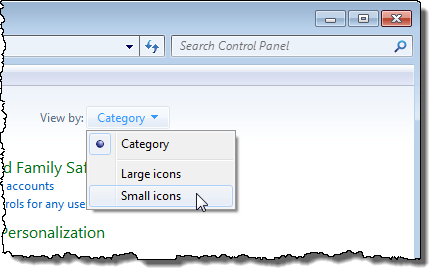
The Programs and Features link is easier to find in the Control Panel if you choose to display all the tools and not the categories. To do this, select Large icons or Small icons from the View by drop-down list.
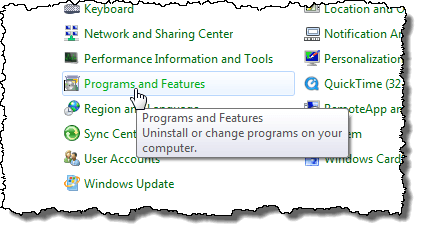
Click the Programs and Features link.
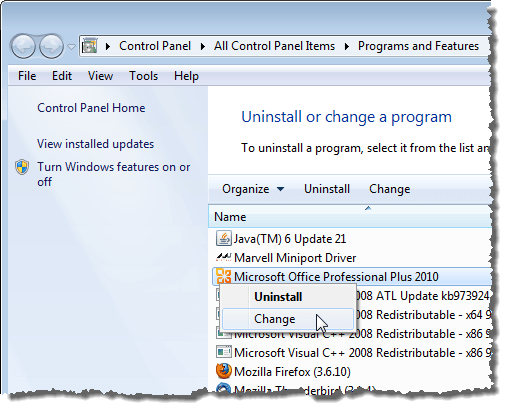
Find your version of Microsoft Office in the list of programs installed on your computer. Right-click on the name and select Change .
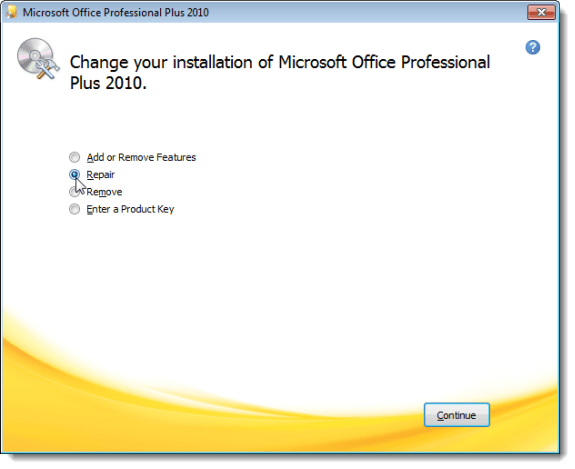
A dialog box displays allowing you to change your installation of Microsoft Office. You can Add or Remove Features , Repair the installation, Remove Office, or Enter a Product Key . Select Repair and click Continue .
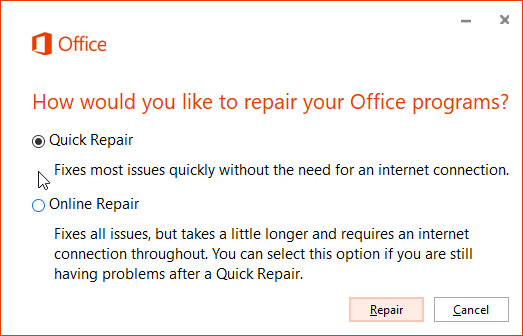
In Office 2016, the first screen that appears when you click Change is the repair Office dialog. Here you have the option to try a quick repair or an online repair. The online repair is handy because it will download all the latest fixes to solve the problem.
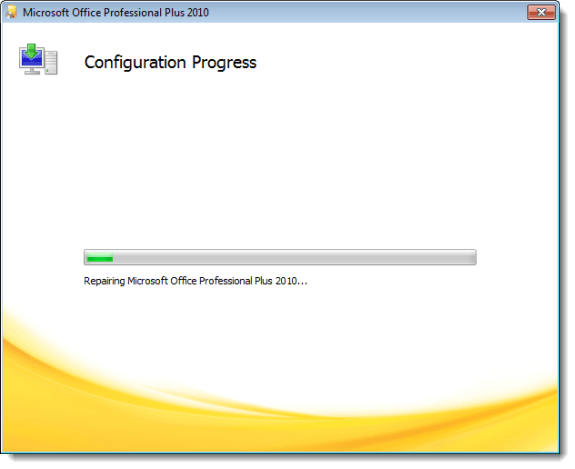
The progress of the repair, or the Configuration Progress , displays. This may take a while.
When the configuration is complete, click Close .
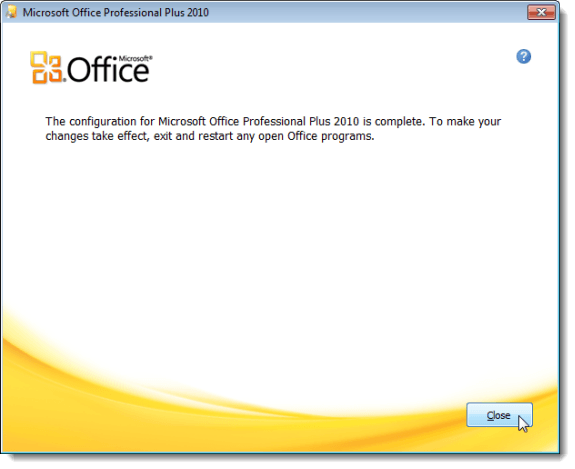
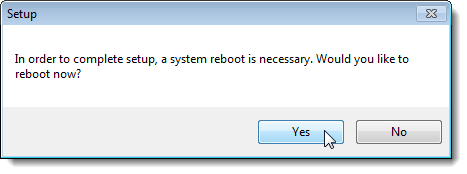
The final screen of the configuration process recommends that you exit and restart any open Office programs. However, you may need to reboot your computer. If you the following dialog box displays, and you still have some programs open, click No and proceed to close all open programs. Then, reboot your computer manually.
If you do not have any programs open, you may click Yes to reboot your computer immediately.
This method of repairing Office is the easiest and works 99% of the time. Hopefully, it fixed the issue you were having with Office. Enjoy!
- Protect Office from Actively Exploited Zero-Day (CVE-2026-21509): Step-by-step Guide
- How to Find Circular References in Microsoft Excel
- How to Remove Headers and Footers in Word Documents
- How to Report Phishing Emails in Outlook
- Name Box in Excel: All You Need to Know
Founder of Help Desk Geek and managing editor. He began blogging in 2007 and quit his job in 2010 to blog full-time. He has over 15 years of industry experience in IT and holds several technical certifications. Read Aseem’s Full Bio
