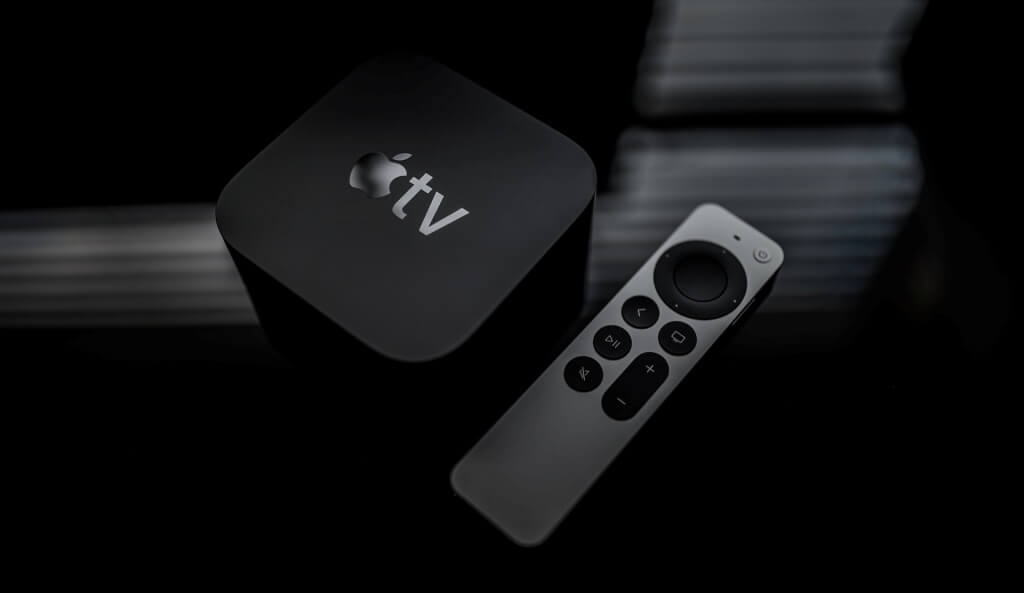
Is your Apple TV or Siri Remote unresponsive ? Do some buttons occasionally malfunction , or has your remote stopped working entirely? Resetting the remote might resolve these issues.
There’s no option to reset your Apple TV Remote in the tvOS settings menu. However, there are two workarounds: restart the remote or reconnect it to your Apple TV from scratch. Both methods are straightforward and involve pressing specific key combinations.
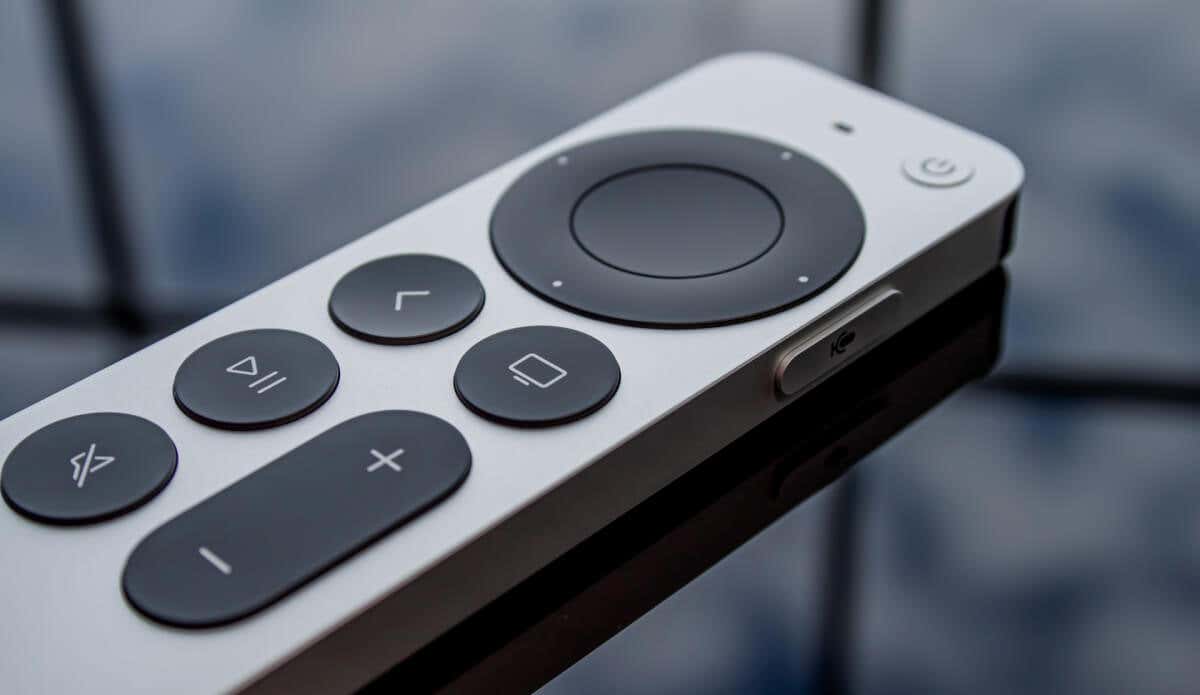
How to Restart Your Apple TV Remote
Rebooting your Apple TV Remote is one way to soft reset the remote controller. Turn on your Apple TV and follow the steps below to restart your Apple TV or Siri Remote.
- Press and hold the Volume Down and Control Center buttons on your Apple TV remote for at least 5-10 seconds. This key combination turns off your remote and unpairs it from the Apple TV box.
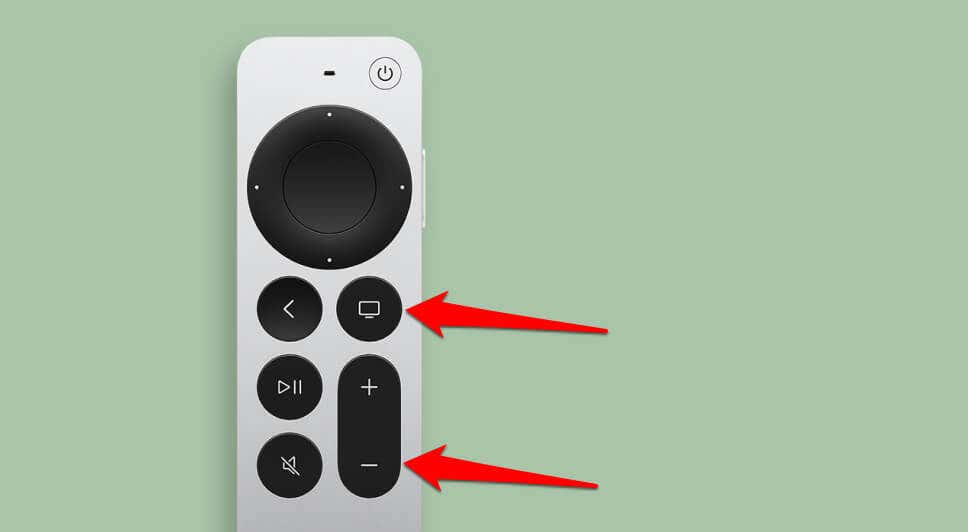
- Release both buttons when your Apple TV’s status light goes off and comes back on.
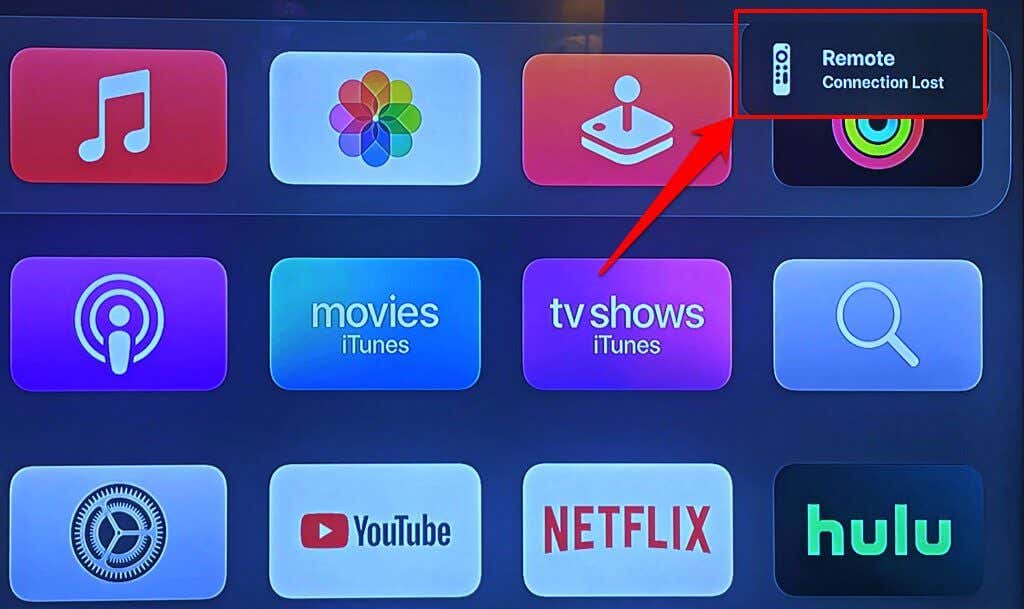
You should see a “Remote Connection Lost” message in the top-right corner of your Apple TV screen.
- The remote should automatically restart in another 5-10 seconds—check your TV for a Remote Connected notification.
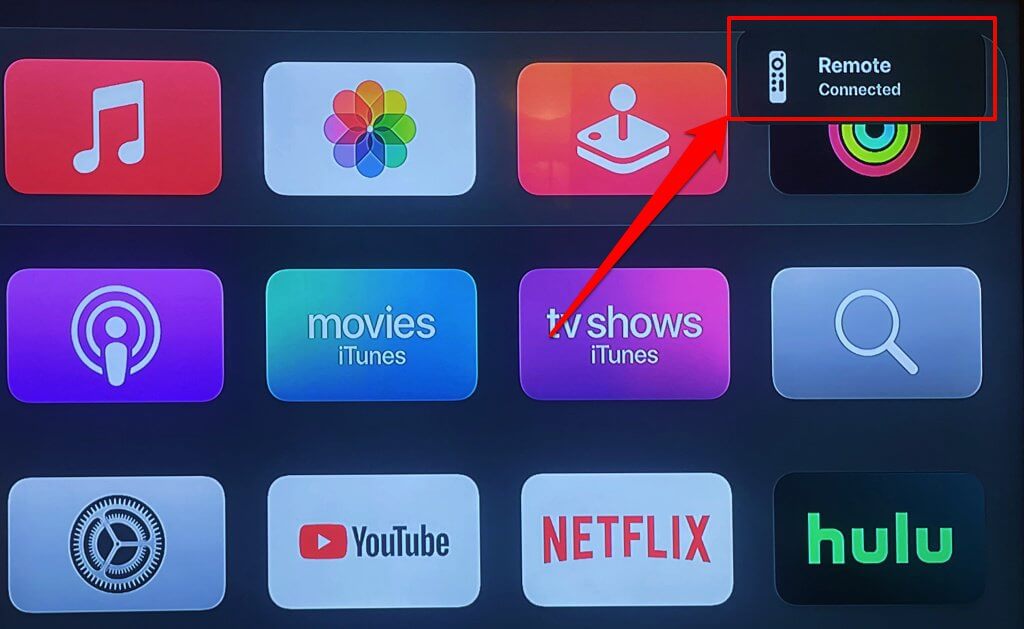
Press the Power button (or any button) to turn on the remote if it doesn’t restart automatically.
How to Reconnect Apple TV or Siri Remote
Another way to reset your remote is to put it in pairing mode and reconnect it to your Apple TV device.
- Position the remote close to your Apple TV (8-10 centimeters) or on the streaming box.
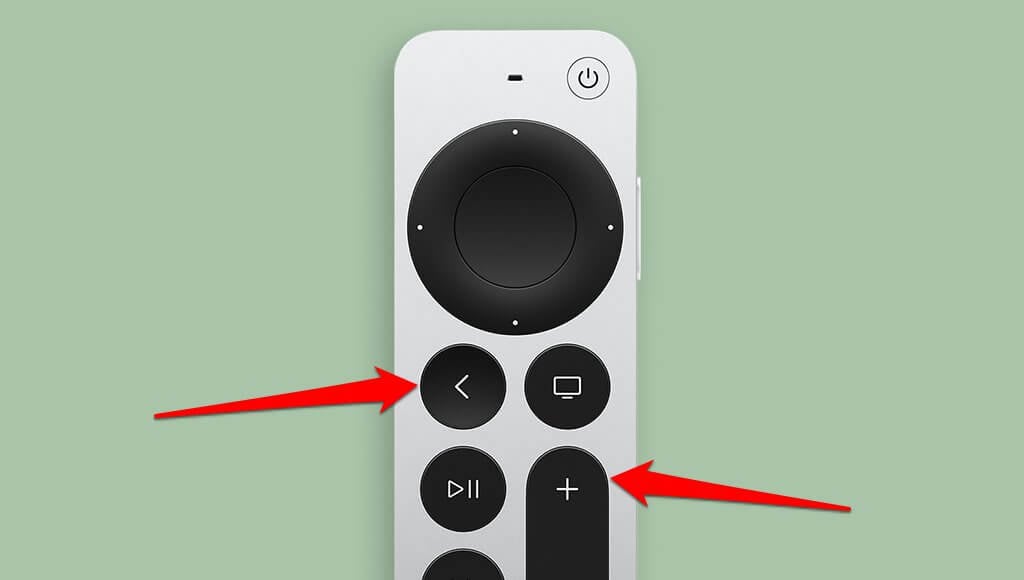
- If you have the Siri Remote (2nd generation or later), press and hold the Back and Volume Up buttons for two seconds. That’ll put the remote in pairing mode.
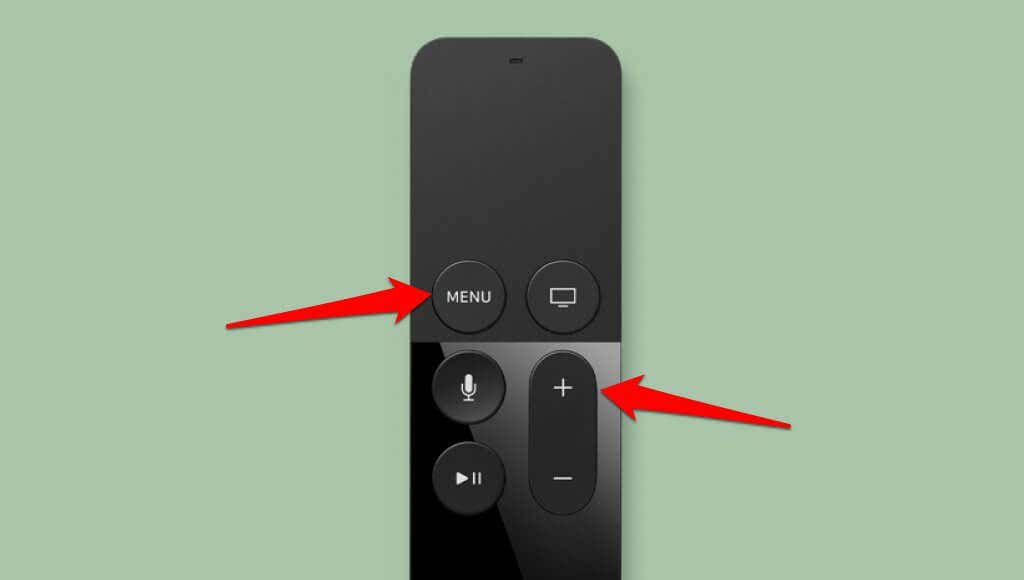
On the 1st generation Siri Remote, press and hold the Menu and Volume Up buttons for 2-5 seconds to initiate remote pairing mode.
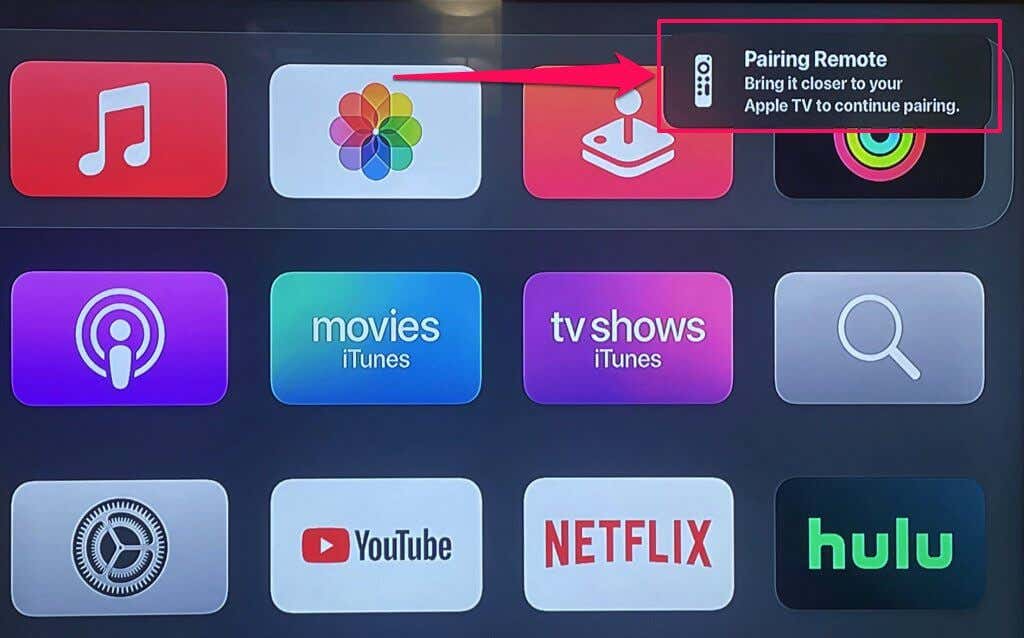
The pairing process typically takes about 5-10 seconds. The “Pairing Remote” notification disappears when your Apple TV Remote pairs successfully.
How to Reconnect Apple Remote
Follow the steps below to unlink and reconnect the white or aluminum Apple Remote from your Apple TV.
- Press and hold Left Arrow and Menu buttons for 5-10 seconds.
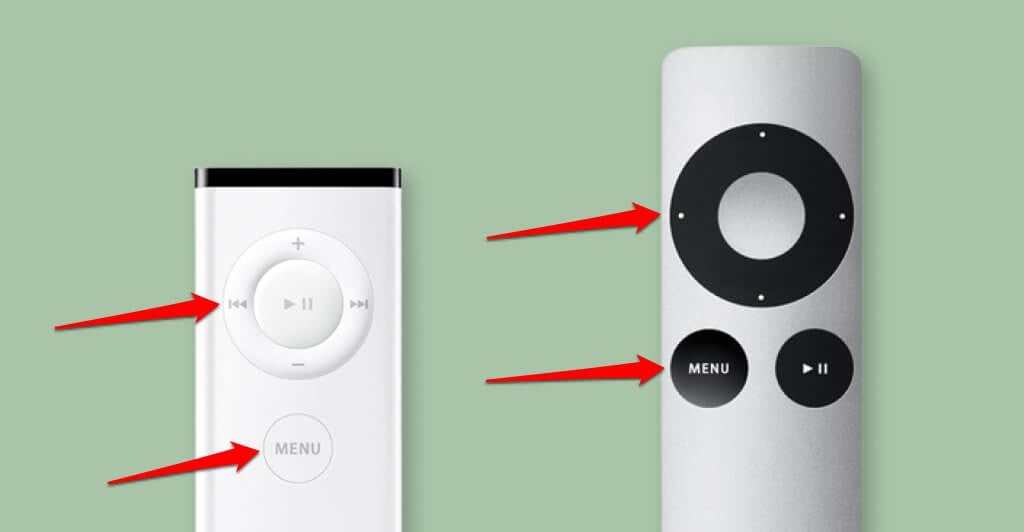
- Release the buttons when you see a broken chain icon on your TV screen.
- Press and hold the Right Arrow and Menu buttons for 5-10 seconds to pair the remote.
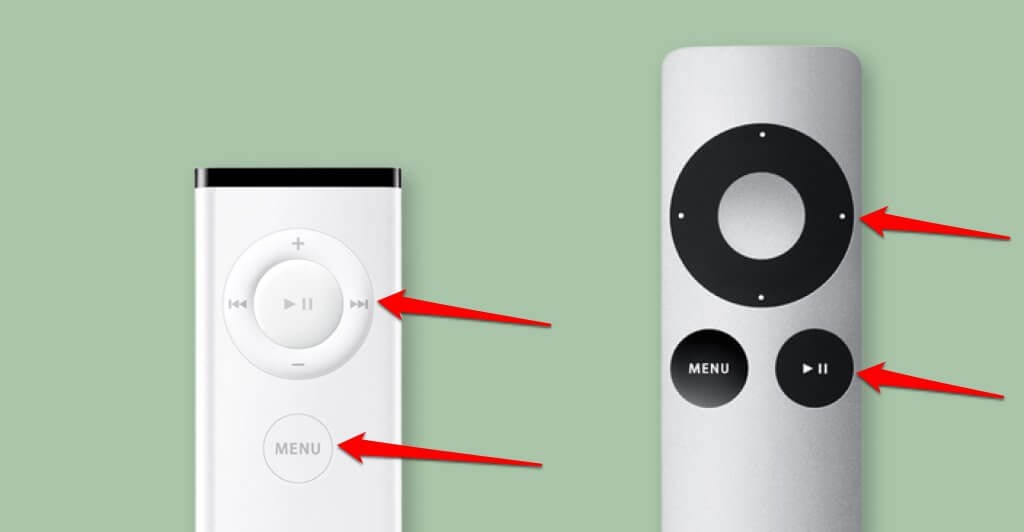
- Release both buttons when a chain link icon appears on your TV screen.
Can’t Restart or Reset Your Apple TV Remote? Try These Fixes
Try the troubleshooting steps below if you can’t reset your Apple TV Remote and it isn’t working as expected.
1. Power-cycle Your Apple TV
Unplug your Apple TV from its power outlet and wait 5-10 seconds. Reconnect the streaming device to its power source and try resetting your Apple TV remote.
2. Update Your Apple TV
We recommend updating your Apple TV’s operating system if you can’t pair or reset your remote. Use the Apple TV Remote app to control your Apple TV if your remote isn’t working.
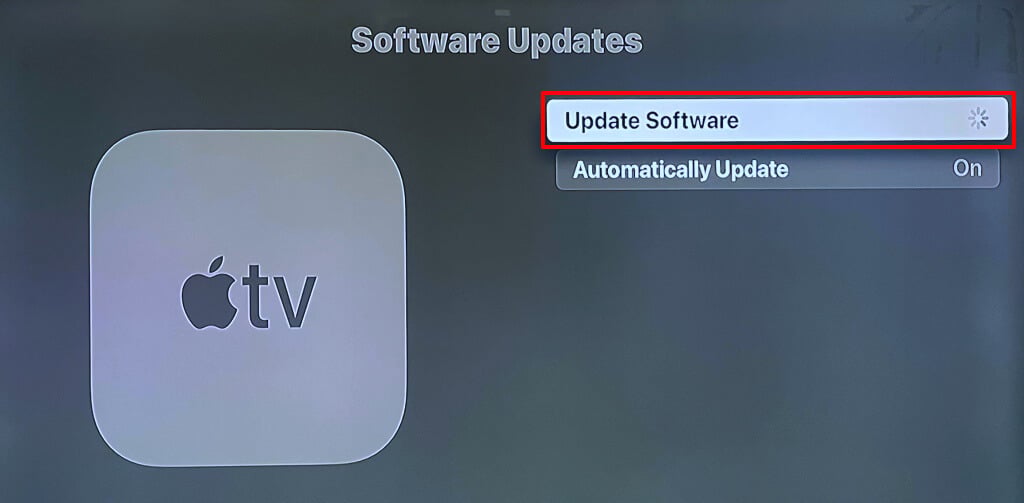
Go to Settings > System > Software Updates and select Update Software to install the latest tvOS version .
Seek Professional Assistance
Contact Apple Support if you can’t use or reset your Apple TV or Siri Remote. There’s a chance that the remote is defective or damaged.
- How to Charge Your Apple TV Remote
- Apple TV Not Working on Roku? Try These 8 Fixes Right Now
- How to Authorize Your Macbook for Apple TV
- tvOS 17: All the New Features
- How to Fix Apple TV Sound/Audio Delay
