If the Windows Start menu or taskbar starts acting up or you have trouble using File Explorer or Windows Search , you don’t have to perform a complete system reboot to resolve the issue.
Instead, restart the Windows Explorer process, and the problem will likely disappear. Troubleshooting aside, that’s also a quick way to apply changes to the graphical user interface and the system registry.
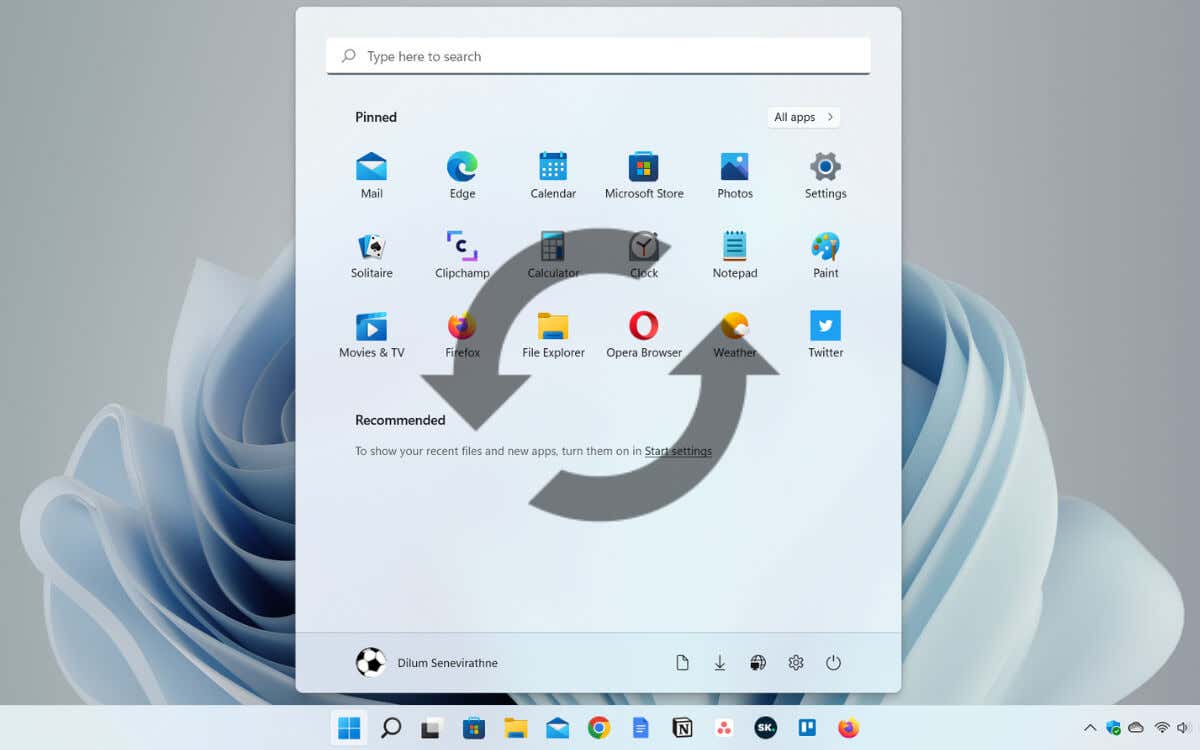
There are several methods to restart Windows File Explorer in Microsoft Windows 10 and 11. We’ll take turns going through each of them below.
Restart the Windows Explorer Process via Task Manager
The most straightforward way to restart Windows Explorer is to use the Task Manager app in Windows 11 and 10. Just:
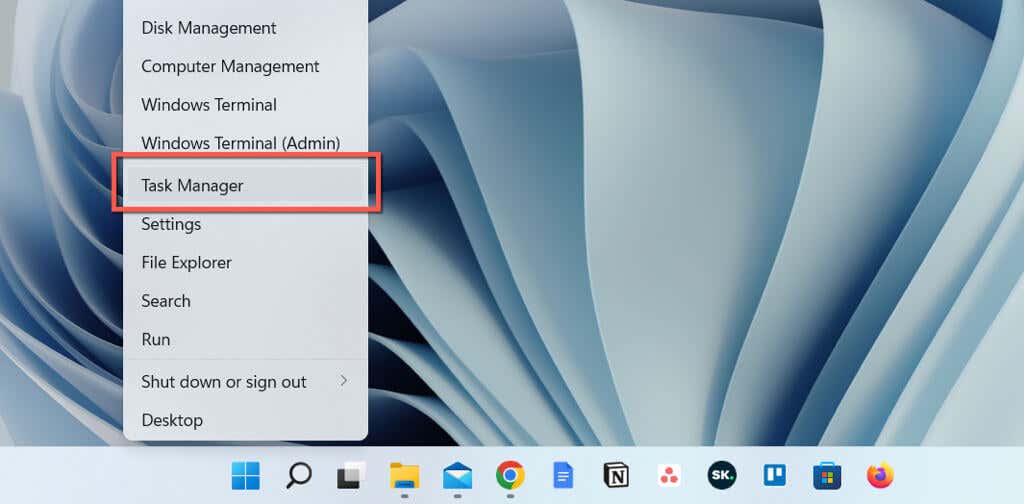
- Right-click the Start button and select Task Manager . If the Start button is unresponsive, use the Ctrl + Shift + Esc keyboard shortcut to instantly open Task Manager.
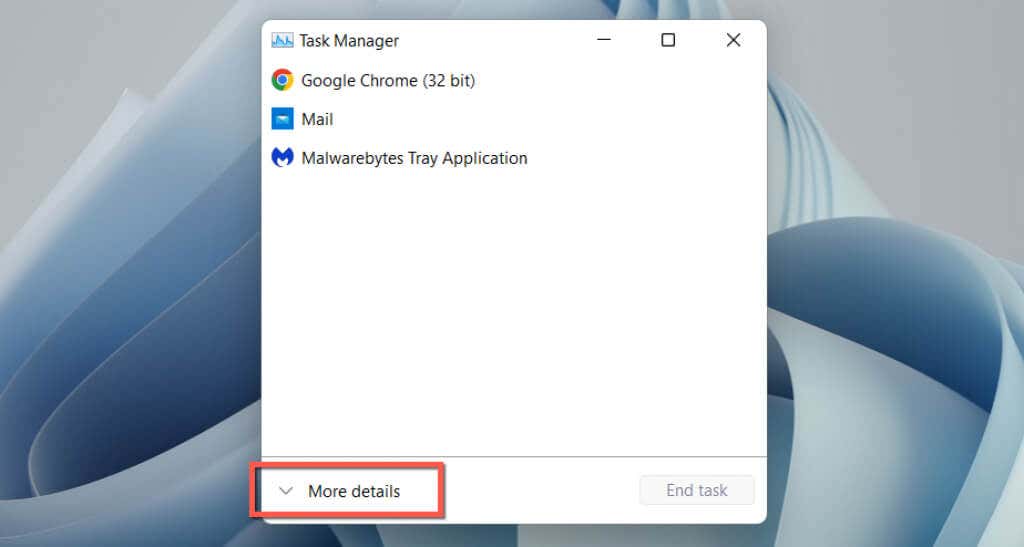
- Select More details to expand the default Task Manager view.
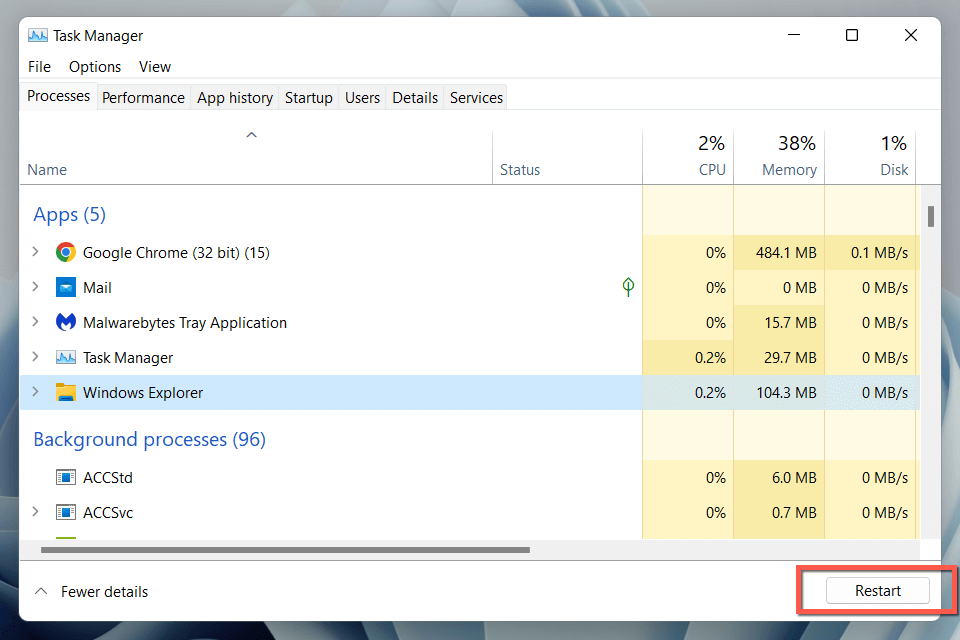
- Select Windows Explorer under the Processes tab. If a File Explorer window is open, you’ll find it at the top of the list. If not, scroll to the bottom to get to it.
- Select the Restart button in the bottom right corner. Expect the Windows user interface to disappear and reappear.
- Exit the Task Manager.
Alternatively, you can quit Windows Explorer manually before relaunching it. To do that:
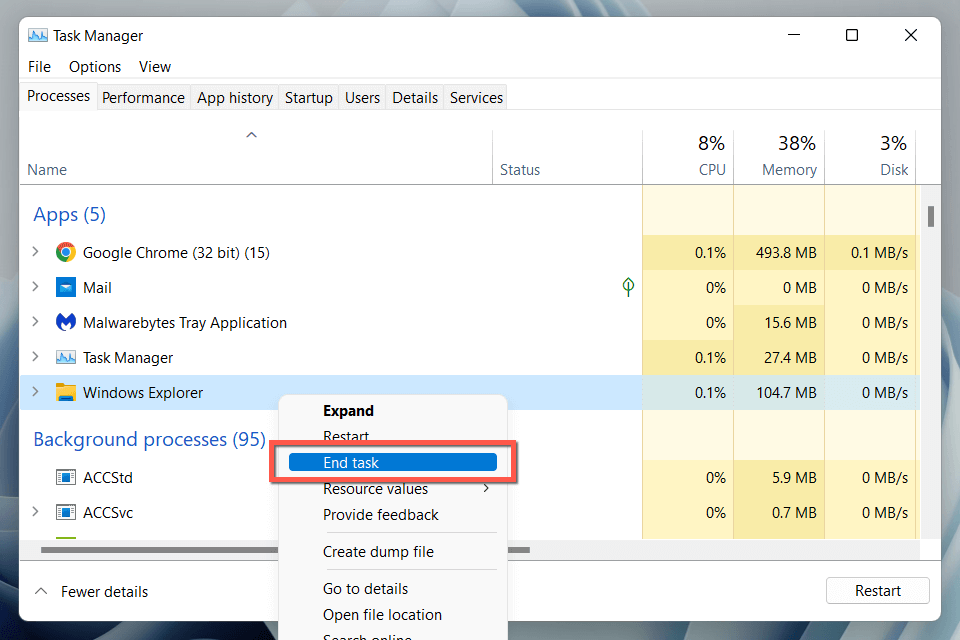
- Right-click the Windows Explorer process within the Task Manager and select End task .
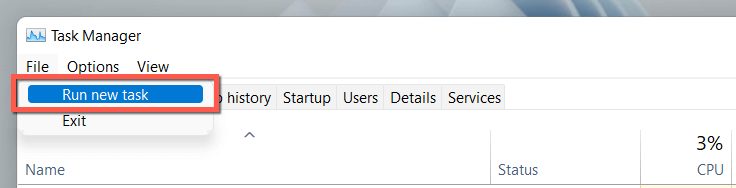
- Select File > Run new task on the menu bar.
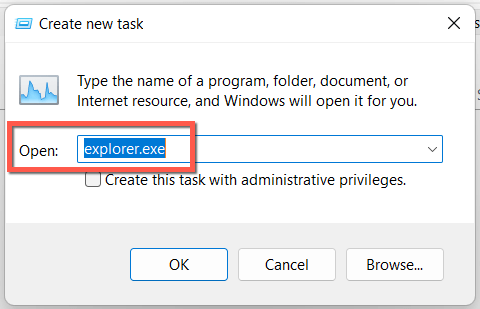
- Type explorer.exe and press Enter .
Tip : In Windows 10, it’s possible to shut down Windows Explorer without the Task Manager (although you still need it to restart the explorer.exe process). Press Ctrl + Shift , right-click a vacant area within the taskbar, and select Exit Explorer .
Use the Command Prompt or Create a BAT File
If you’re a command line geek, use the Command Prompt console or Windows PowerShell to restart File Explorer. Just:
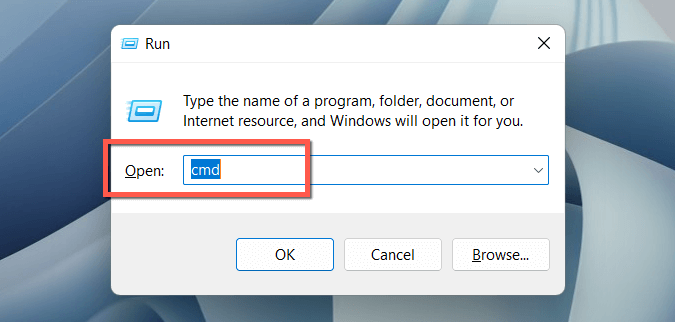
- Press Windows Key + R , type cmd into the Run dialog, and press Enter . Or, right-click the Start button and select Windows PowerShell / Terminal .
- Execute the following commands one after the other:
taskkill /f / im explorer.exe
start explorer.exe
exit
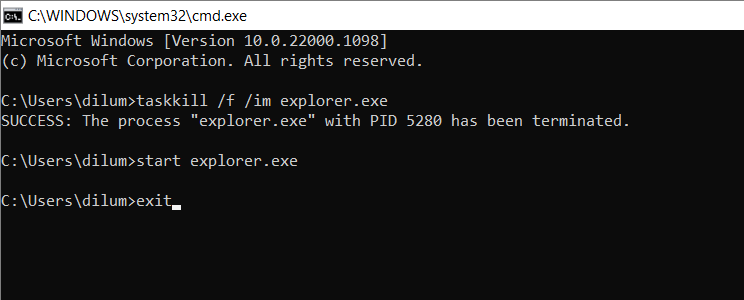
Or, add the commands into a batch file (BAT) if you want a nifty desktop shortcut that you can double-click to restart explorer.exe. To do that:
- Right-click a vacant desktop area and select New > Text Document on the context menu.
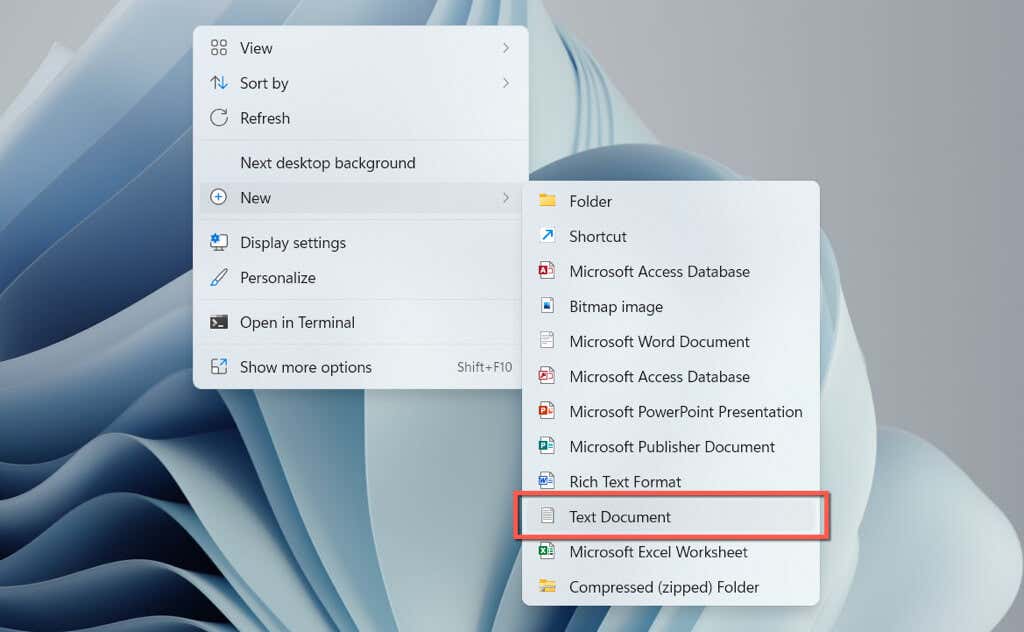
- Double-click the New Text Document file on your desktop.
- Copy the three commands above into the Notepad document.
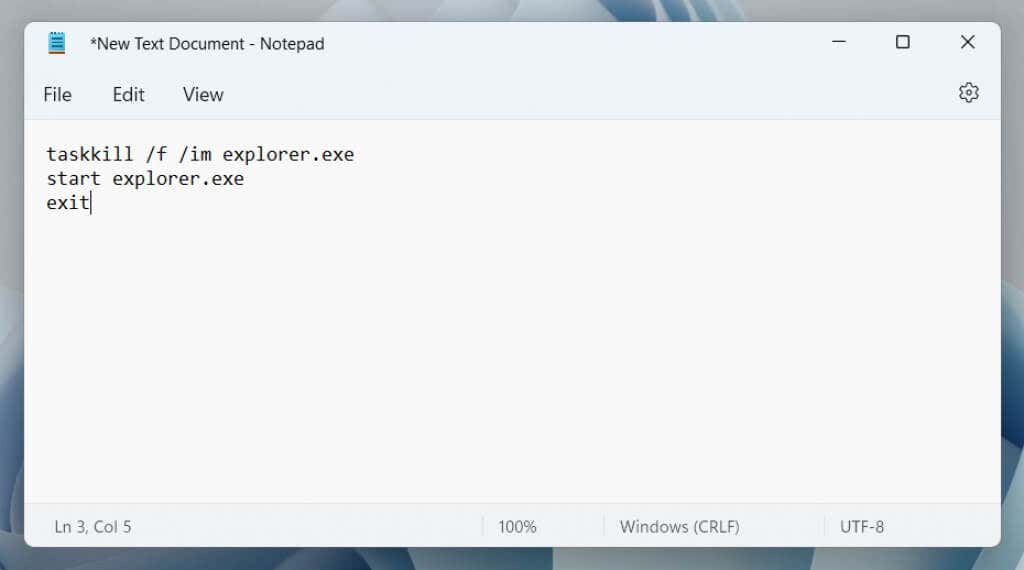
- Press Ctrl + Shift + S, or select File > Save as on the menu bar.
- Change Save as type to All File s, name the file (e.g., Restart Windows Explorer ), and add the .bat extension to the end of the file name.
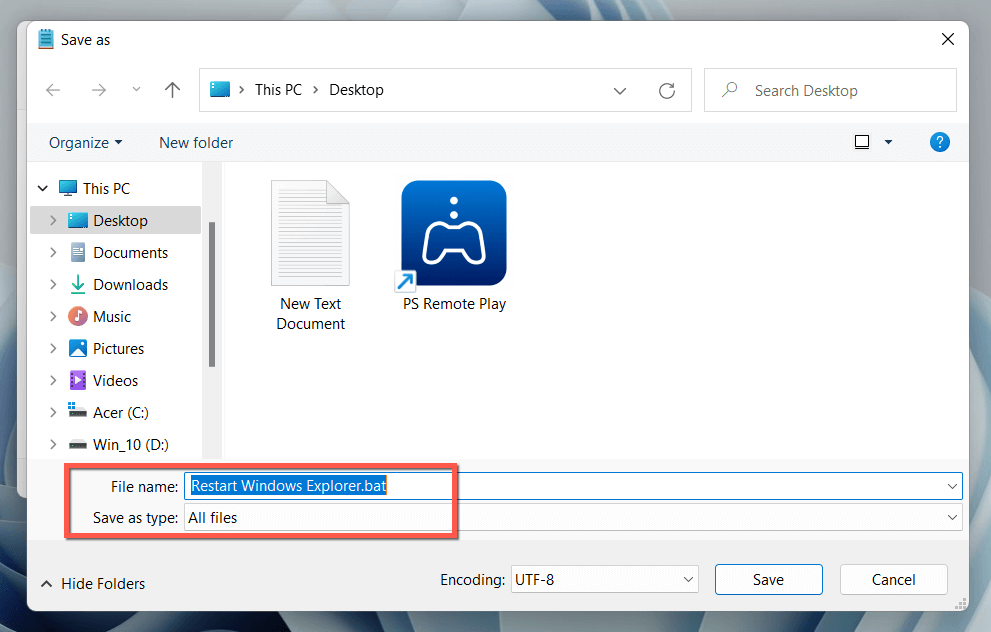
- Select Save .
Restarting Windows File Explorer
Knowing how to reboot the File Explorer process in Windows 10 and 11 helps you save precious seconds—or even minutes—compared to a total operating system reboot. Don’t forget to create a BAT file if you want to speed things up.
- Preparing for Windows 10 End of Support: Upgrading to Windows 11
- How to Fix a “This file does not have an app associated with it” Error on Windows
- How to Fix an Update Error 0x800705b4 on Windows
- How to Resolve “A JavaScript error occured in the main process” Error on Windows
- How to Fix the Network Discovery Is Turned Off Error on Windows
Dilum Senevirathne is a freelance tech writer and blogger with three years of experience writing for online technology publications. He specializes in topics related to iOS, iPadOS, macOS, and Google web apps. When he isn’t hammering away at his Magic Keyboard, you can catch him binge-watching productivity hacks on YouTube. Read Dilum’s Full Bio
