If you’ve factory reset your phone or accidentally deleted your important contacts and need them back, you may be in luck. Most newer Android models automatically feature one or two backup services that will allow you to retrieve your contacts with little fuss.
Here’s how you can restore contacts on an Android device and how to set up an automatic backup so that you never have to worry about losing them again.
Restore Contacts Using Google Contacts
If you use Google Contacts (or have turned on Google’s automatic backup service), you’re in luck. The app or website will allow you to revert any accidental deletions and restore your contacts immediately. This method can be used for your phone’s contact list as well as your Gmail contacts list.
Restore Google Contacts with App
To restore your contacts using the app:
- Open the Google Contacts app.
- Tap the three horizontal lines .
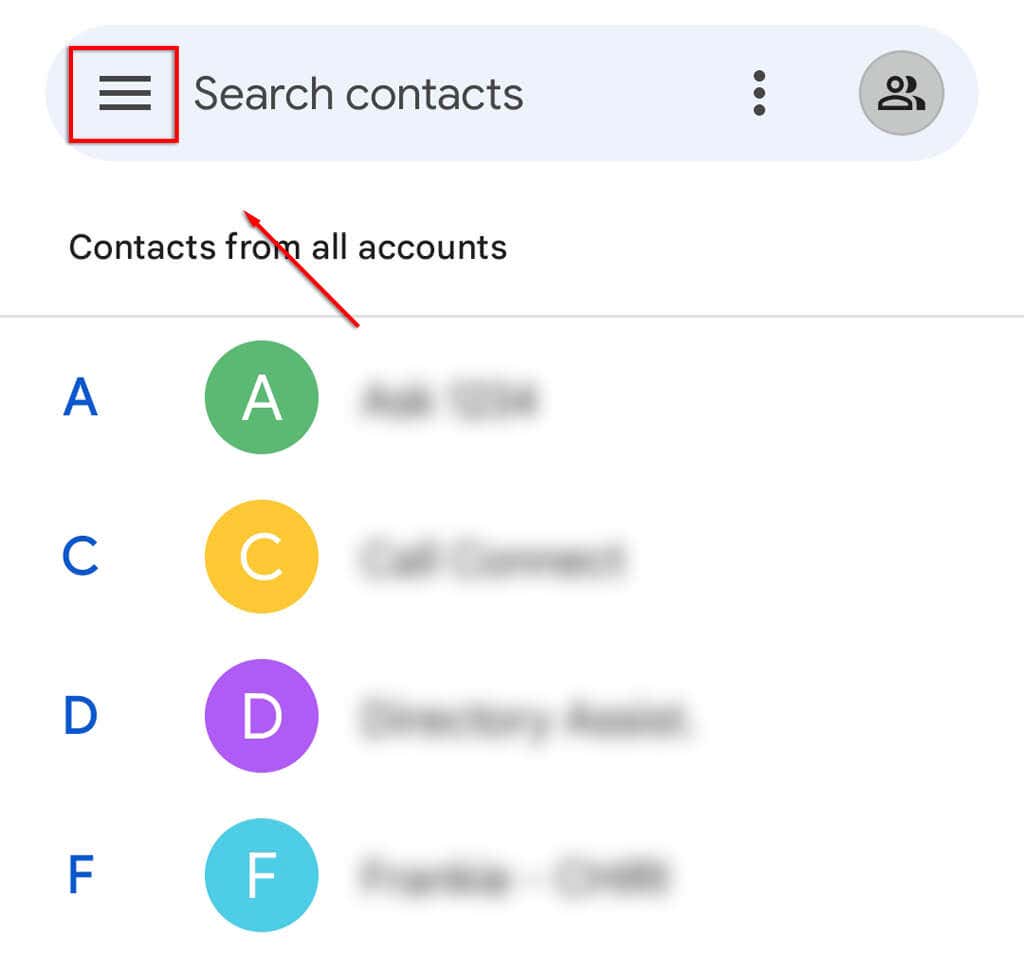
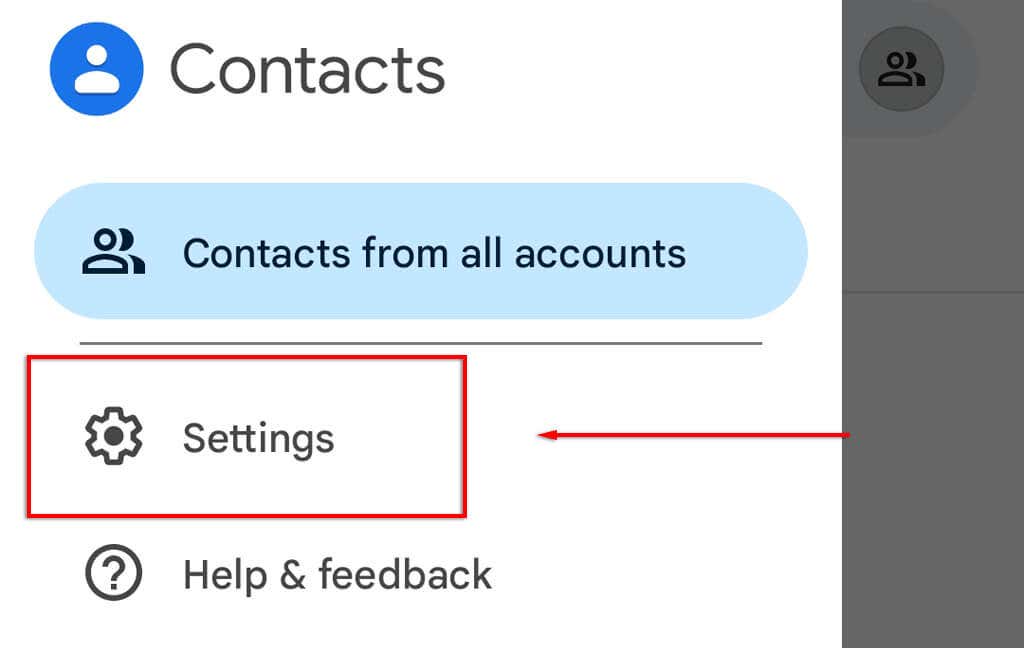
- Select Settings .
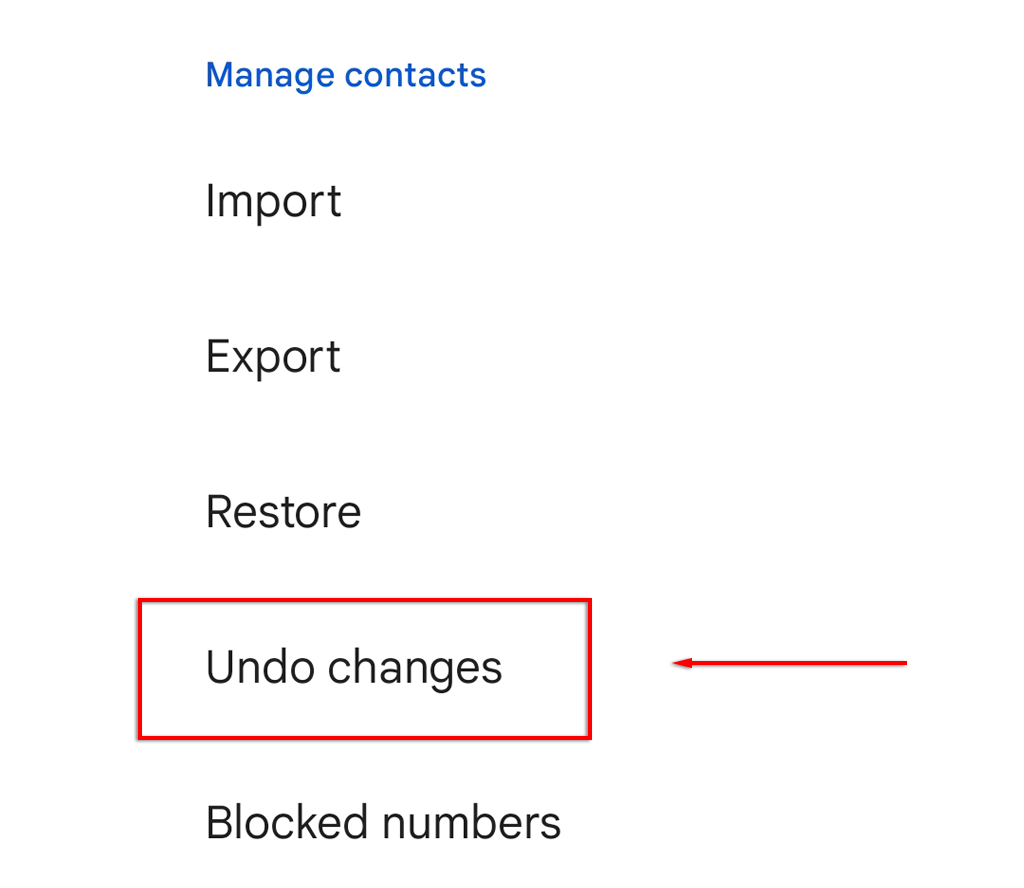
- Scroll down and tap Undo Changes .
- Select your Google Account .
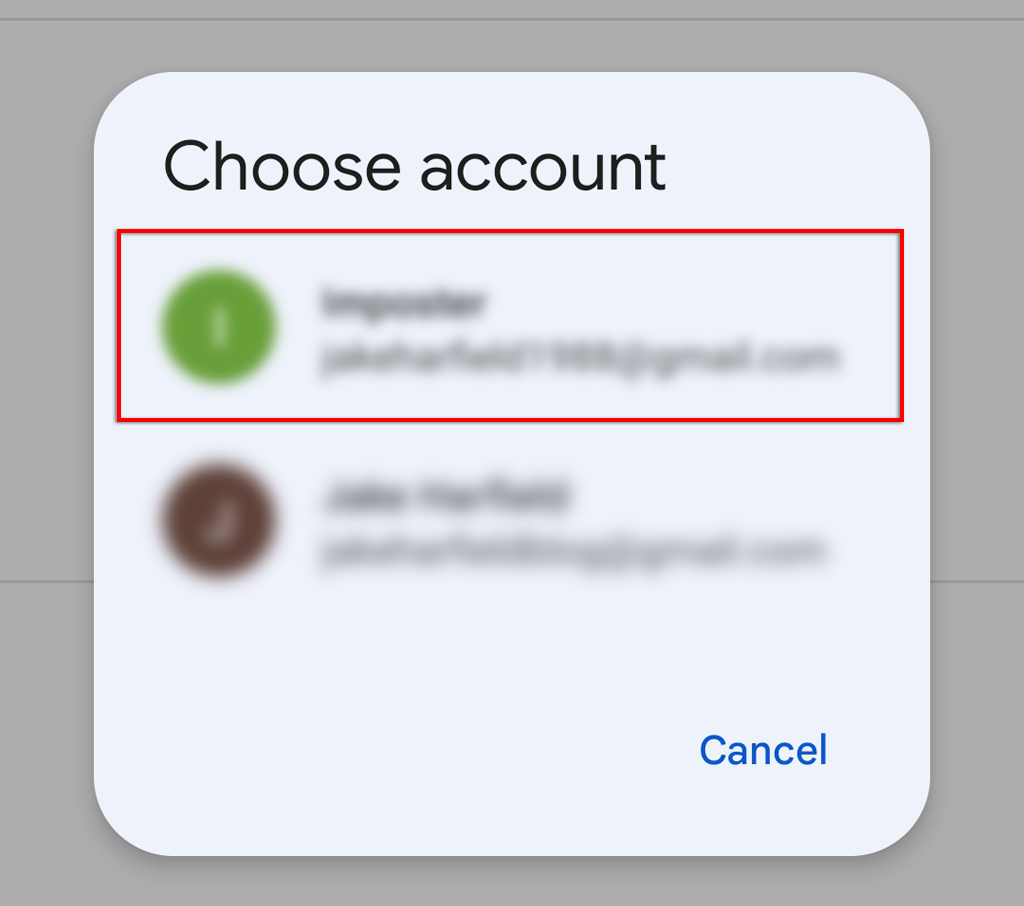
- Select how far back you’d like to undo changes. The options are 10 minutes, one hour, one week, or a custom amount of time.
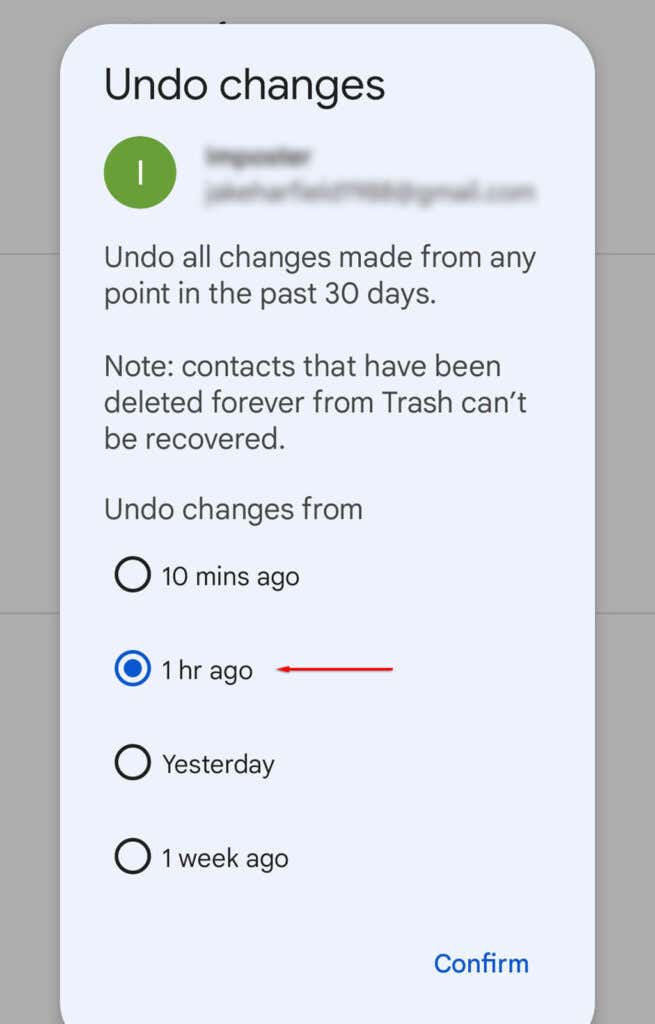
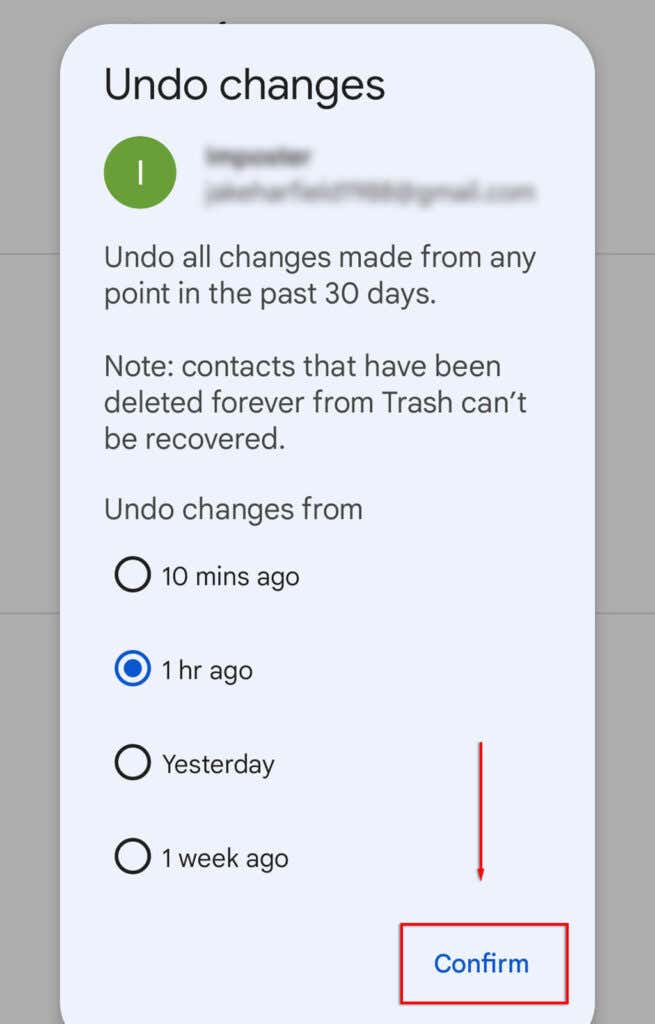
- Tap Confirm .
Restore Google Contacts with Website
To restore your contacts using the website:
- Load the Google Contacts website.
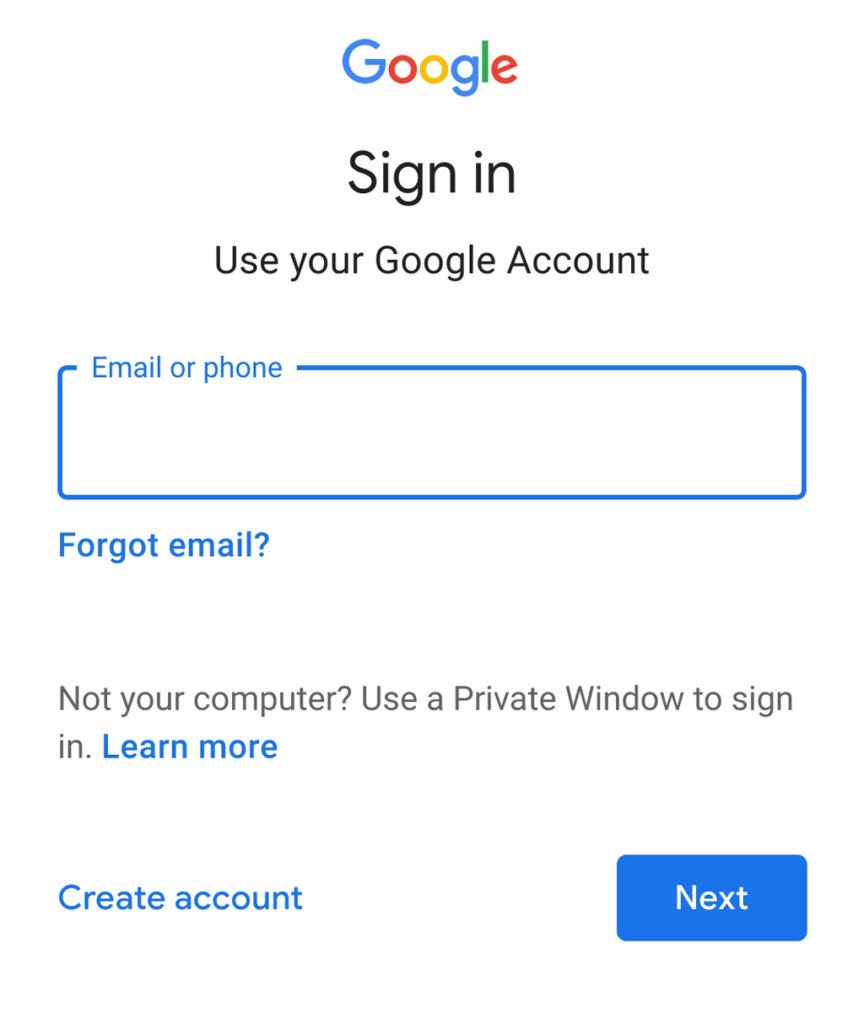
- Log in using your Google Account.
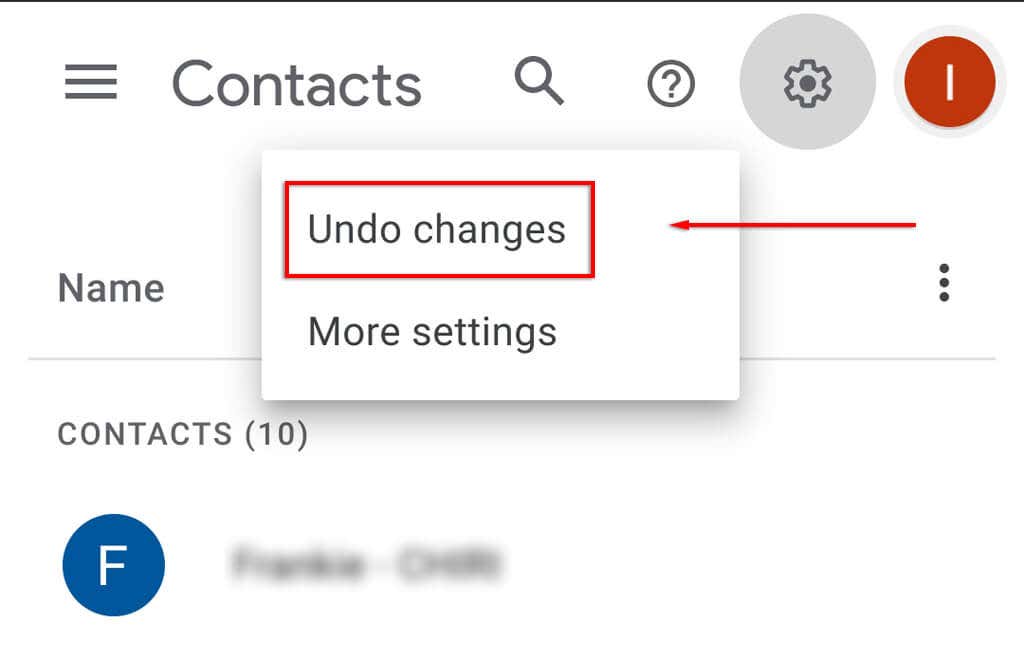
- Tap the cog icon at the top-right corner of the screen and tap Undo Changes .
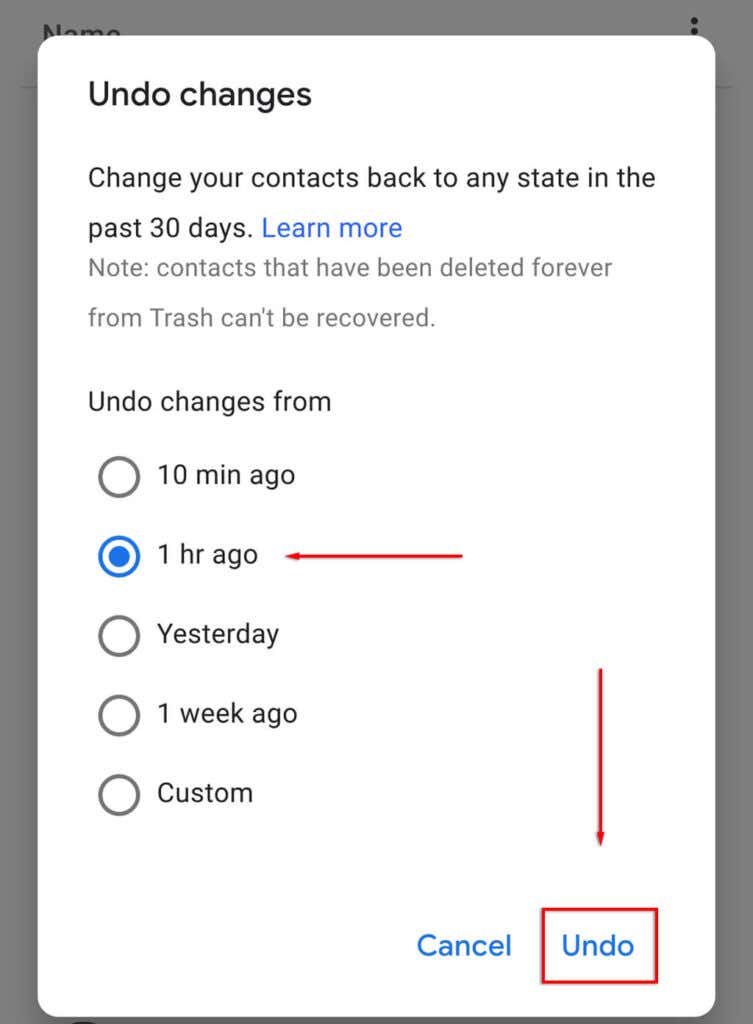
- In the pop-up, select how far back you’d like to undo changes and tap Undo .
Note: This method will only work if you have activated Google’s backup service. However, if you have, it should work for iPhone, Mac, iPad, and Android users alike – though iOS users will probably have better luck accessing their iCloud backup.
Restore Contacts Using Backups
If you’ve created a backup of your contacts, you can use this backup to restore your lost contacts list to your phone. To do so:
- Open Settings .
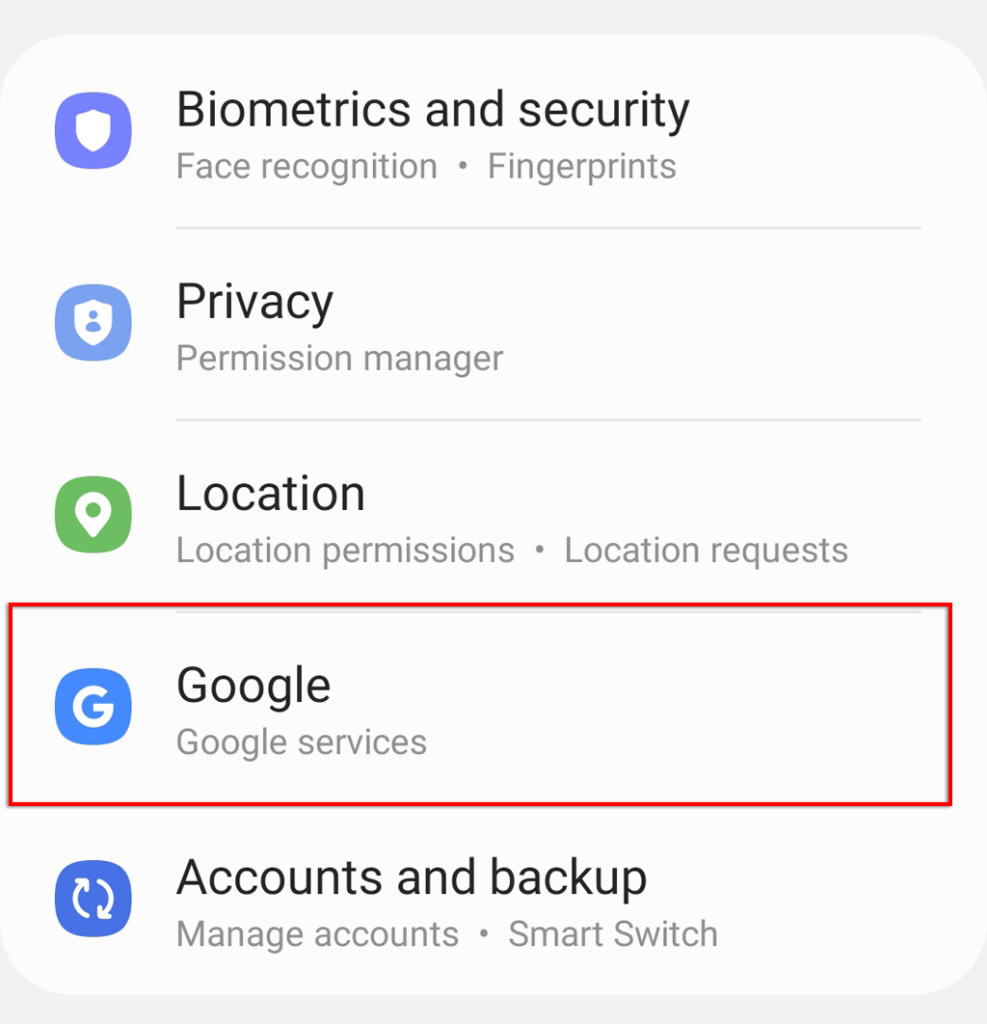
- Tap Google .
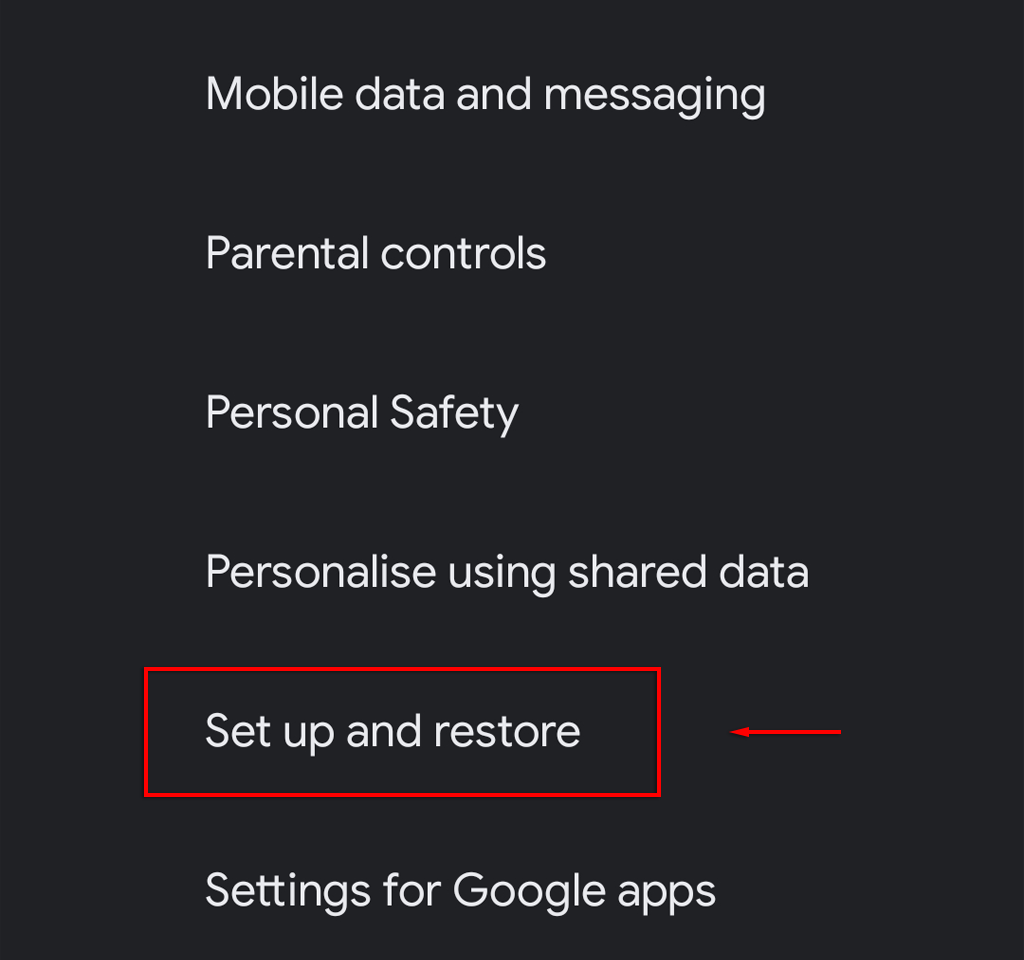
- Select Set up & Restore .
- Tap Restore contacts .
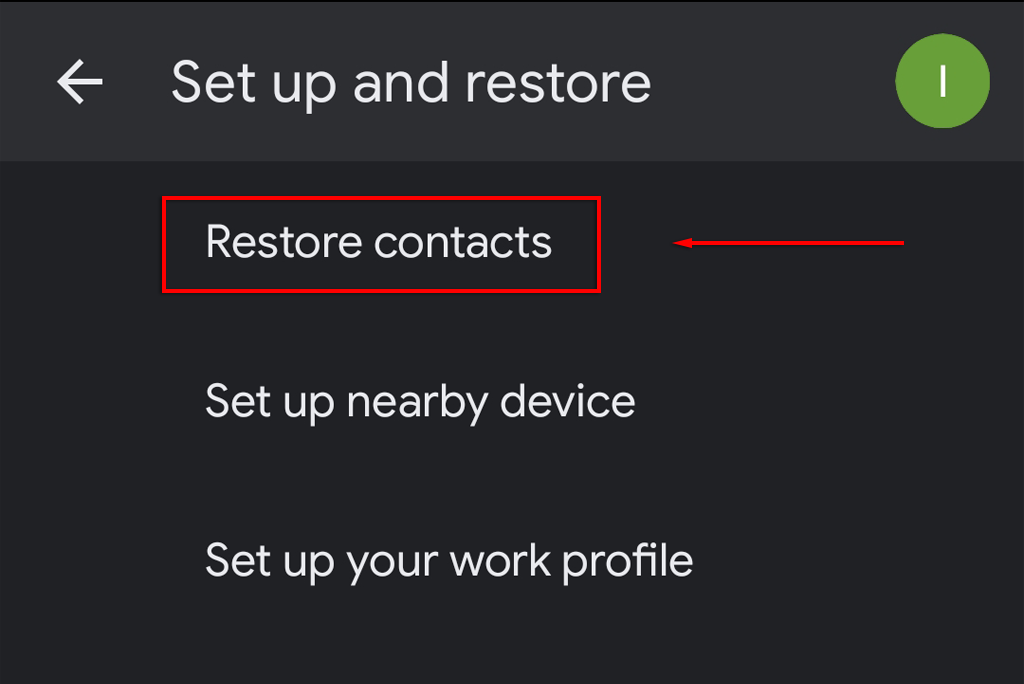
- You may need to choose your Google Account by tapping From account .
- Select the phone which contains the contacts you’d like to copy and tap Restore .
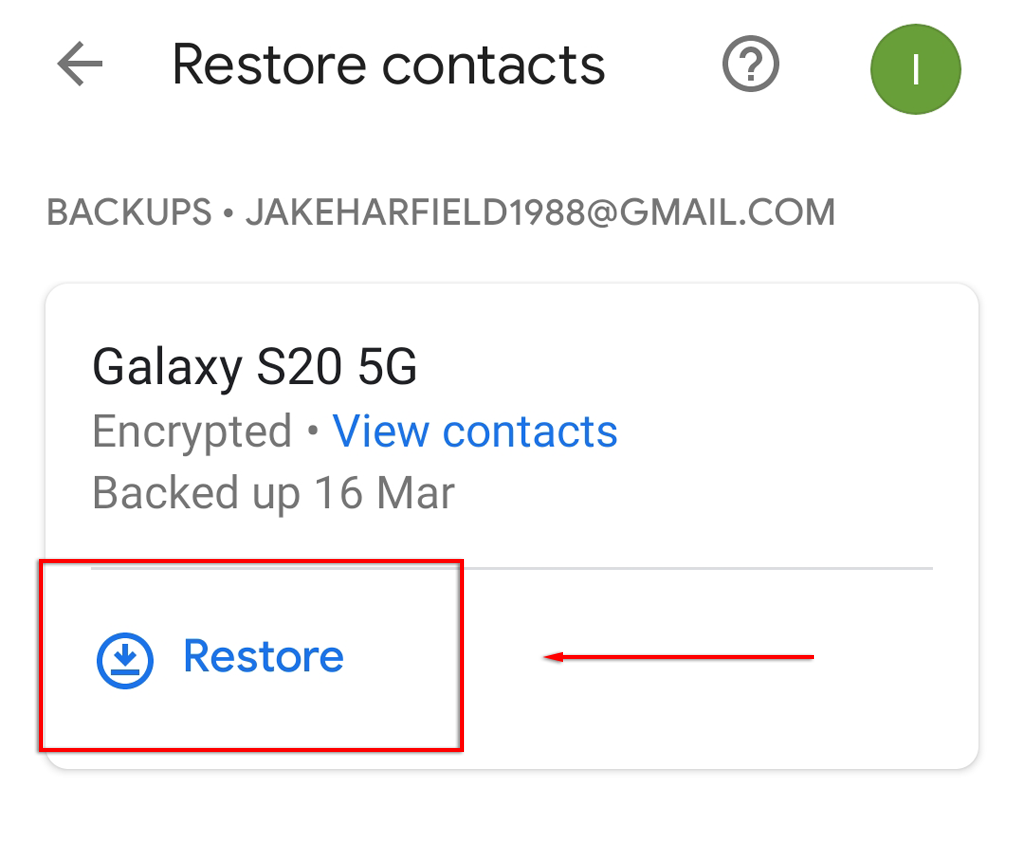
- When your phone displays the message “Contacts restored”, the process is completed.
Restore Contacts Using Samsung Cloud
If you’re a Samsung user and have enabled Samsung Cloud to create backups of your data, you will be able to restore your deleted contacts via the service. Here’s how:
- Open Settings .
- Tap Accounts and backup .
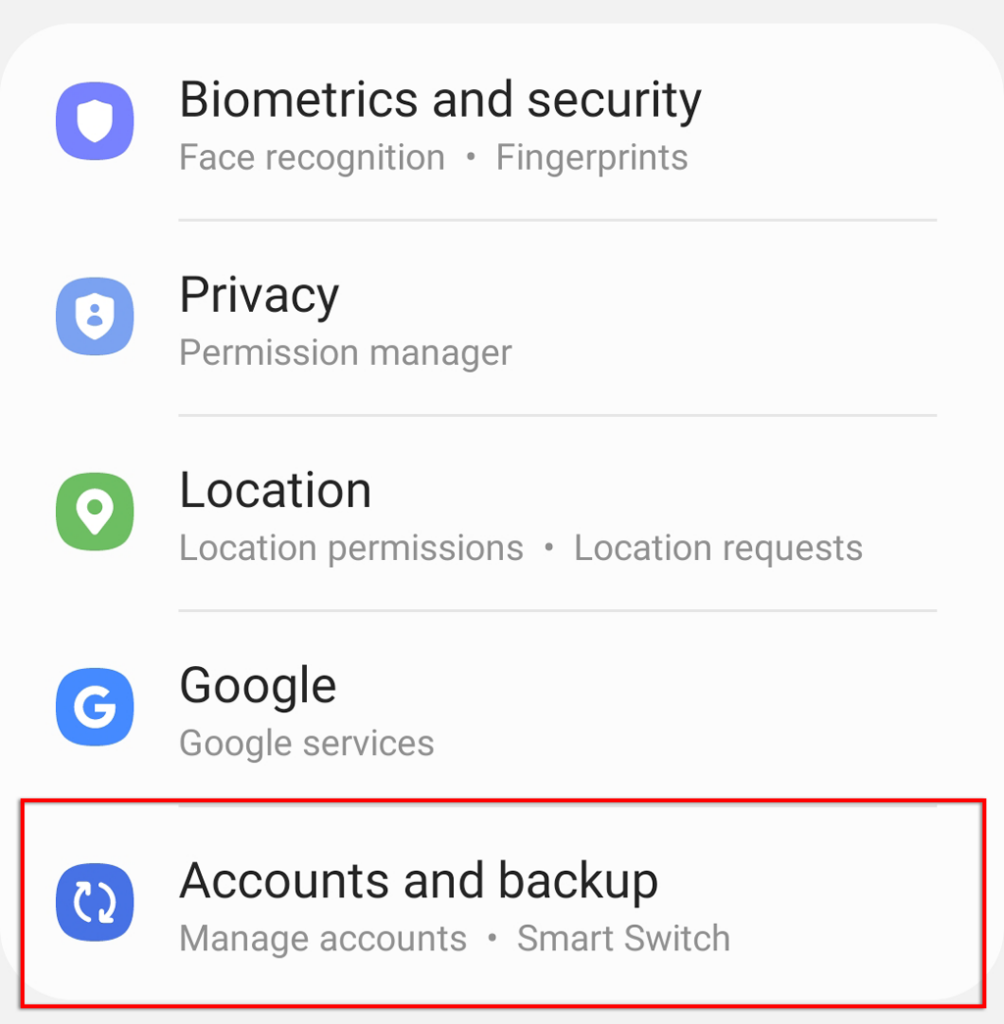
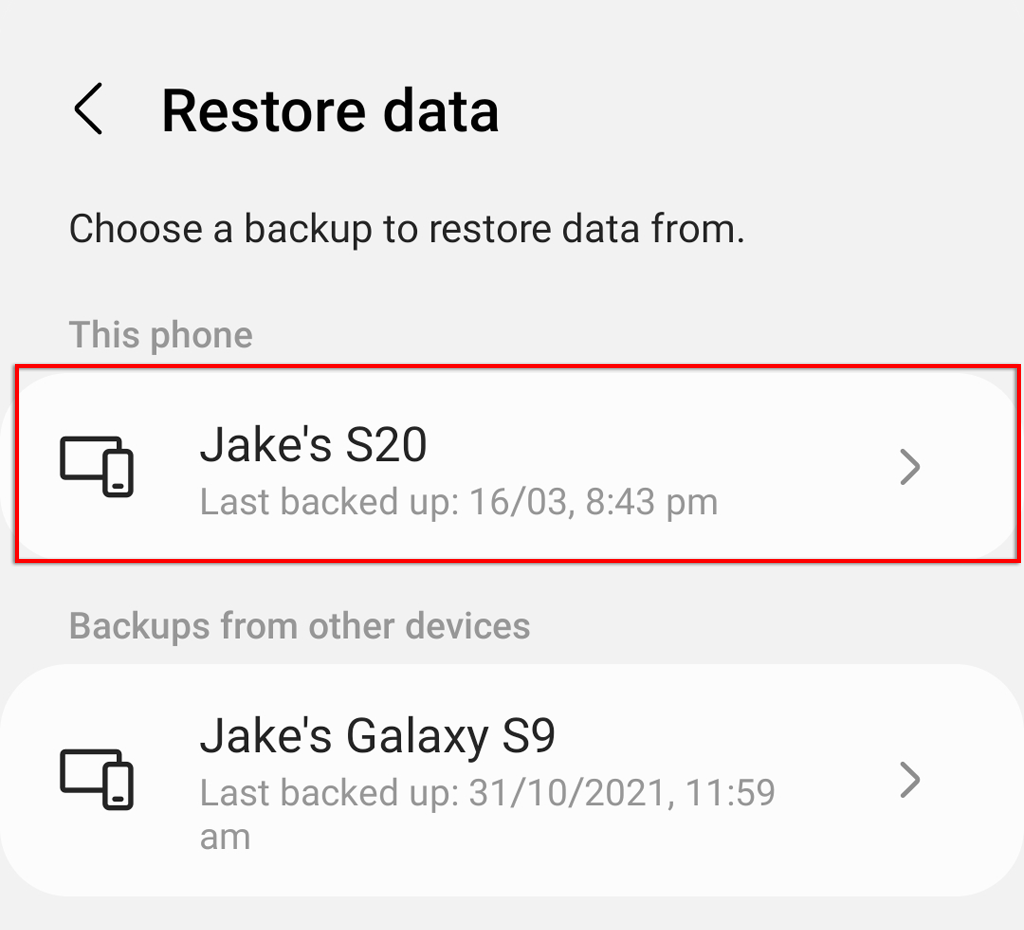
- Tap Restore data .
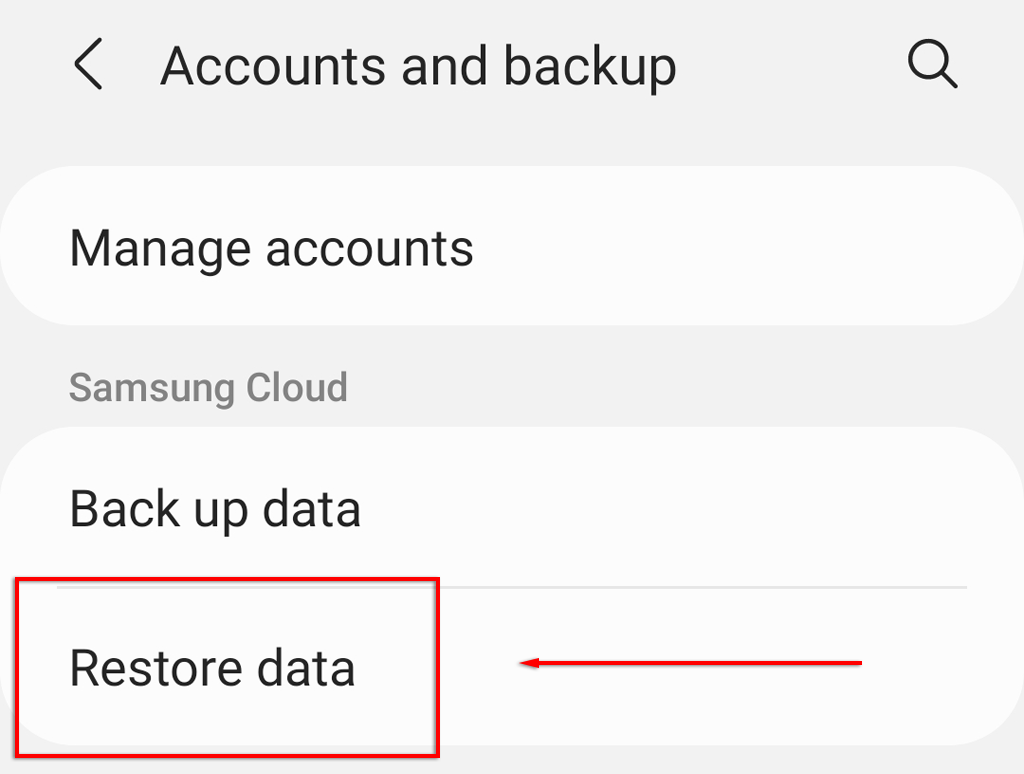
- Tap the phone you wish to restore contacts from.
- Make sure Contacts is ticked, then tap Restore .
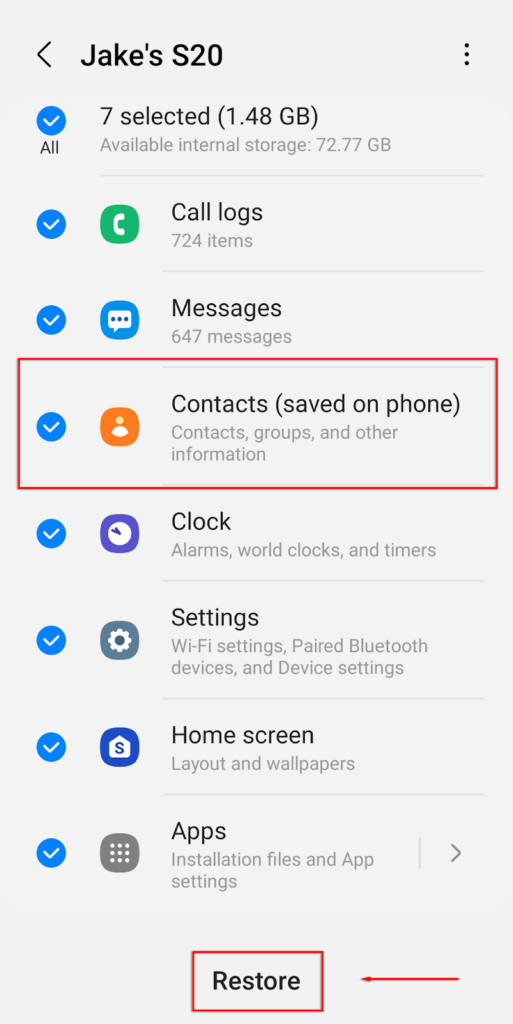
Note: This method will work even after a factory reset.
Restore Contacts With Smart Switch
If you’ve purchased a new Android phone and need to transfer your contacts from an old phone, you can use Android’s Smart Switch function. This will transfer all of your data, including contacts, text messages, and call logs. Take a look at our tutorial on how to use Smart Switch .
Note: You cannot restore contacts to an Android phone using a lower version as the file will be incompatible.
How to Recover Contacts With a Broken Screen
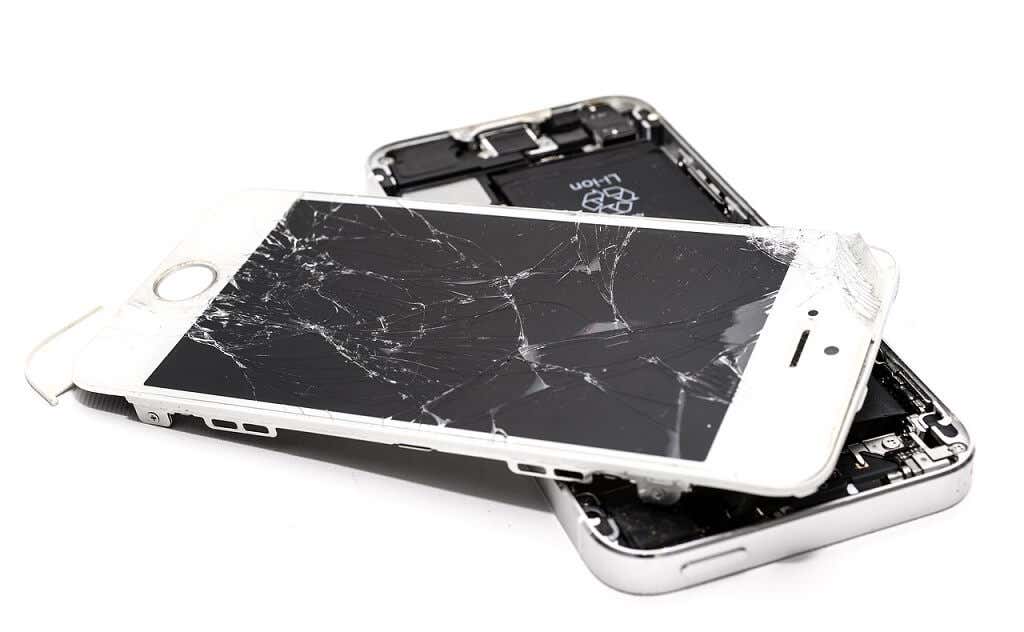
If you have a broken screen and haven’t backed up your lost data, recovering data from your device storage is going to be a challenge. In fact, you may be better off replacing the screen before attempting any Android contacts recovery apps.
First, consider where you have saved the contacts. If the contacts are stored on your SD card or SIM card (rather than the phone’s memory), try removing these and installing them into a new phone. Also double-check all of the accounts where your contacts could be saved such as your Gmail account, Google Contacts, Outlook, etc.
Your next best option is to attempt to access your phone’s data via an On The Go (OTG) cable and mouse. If your phone supports the function, you can connect it to a TV/computer . Depending on your firmware, this will generally require USB debugging to be enabled (which may make it impossible if your screen isn’t working).
Once connected to a screen, you can connect a mouse via a USB cable and use it to navigate your phone’s menus, allow file transfer, and transfer your contacts via the method above.

Backup Your Contacts
There are several ways to back up your contacts list to ensure that it isn’t accidentally deleted for good.
Note: Many websites will recommend using Android data recovery tools to recover contacts that have been deleted. Unfortunately, this is unlikely to work and a large proportion ofAndroid recovery software should not be trusted.
Method 1: Manually Export Your Contacts
The first method is to manually back up your contacts list. To do so:
- Open the Contacts app.
- Select the three vertical dots .
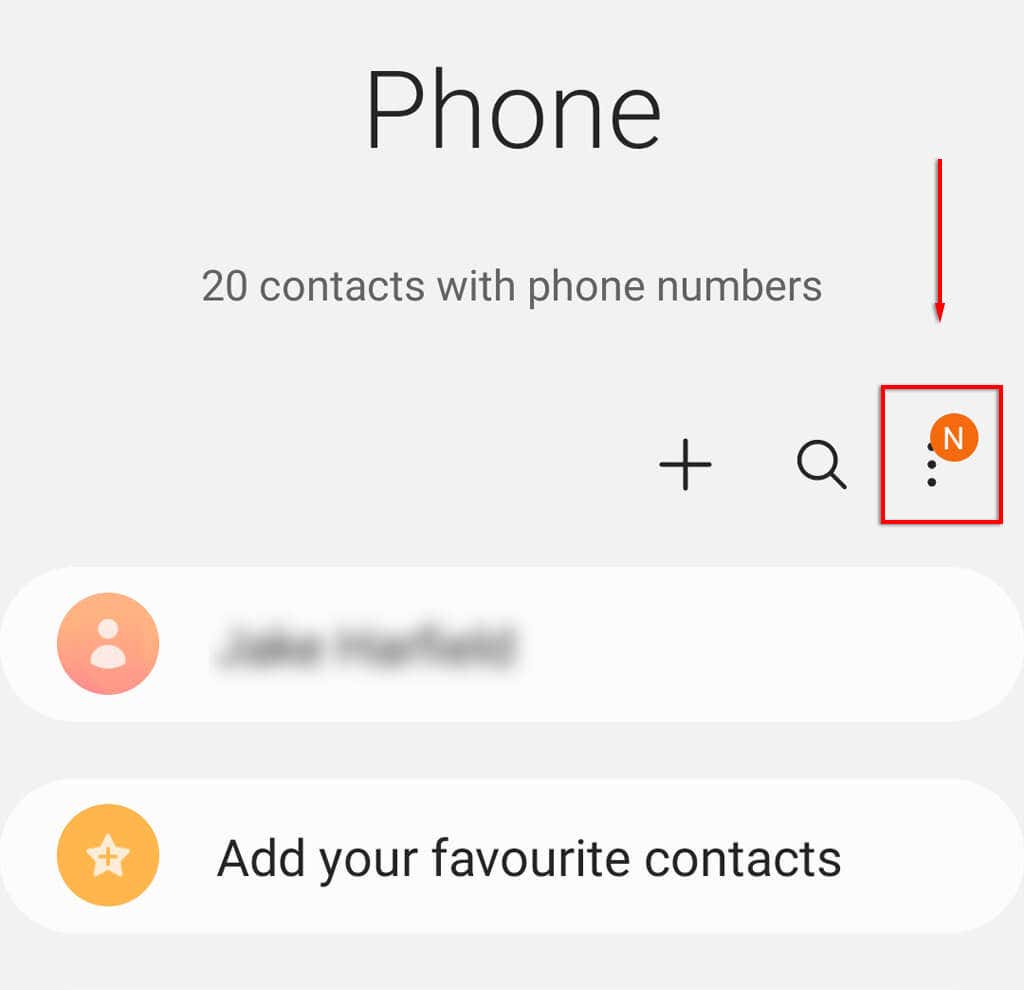
- Tap Manage contacts .
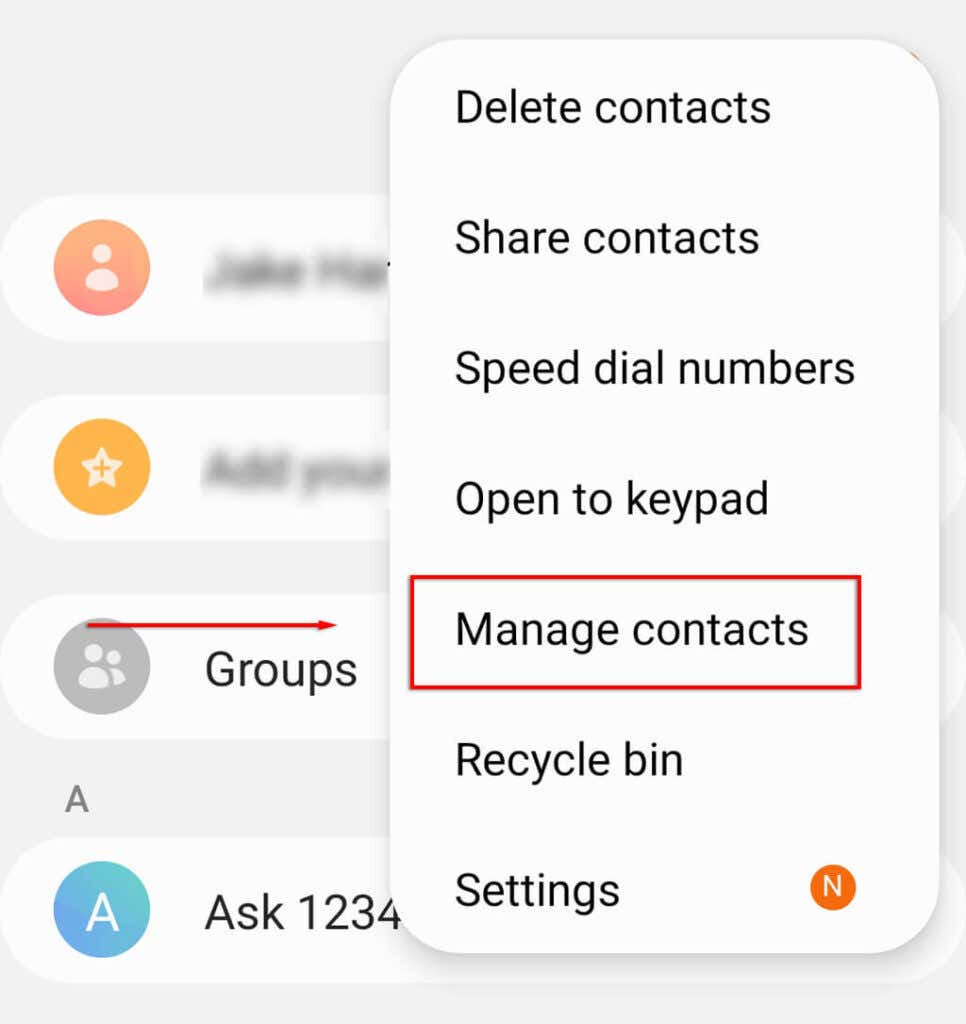
- Tap Import or export contacts .
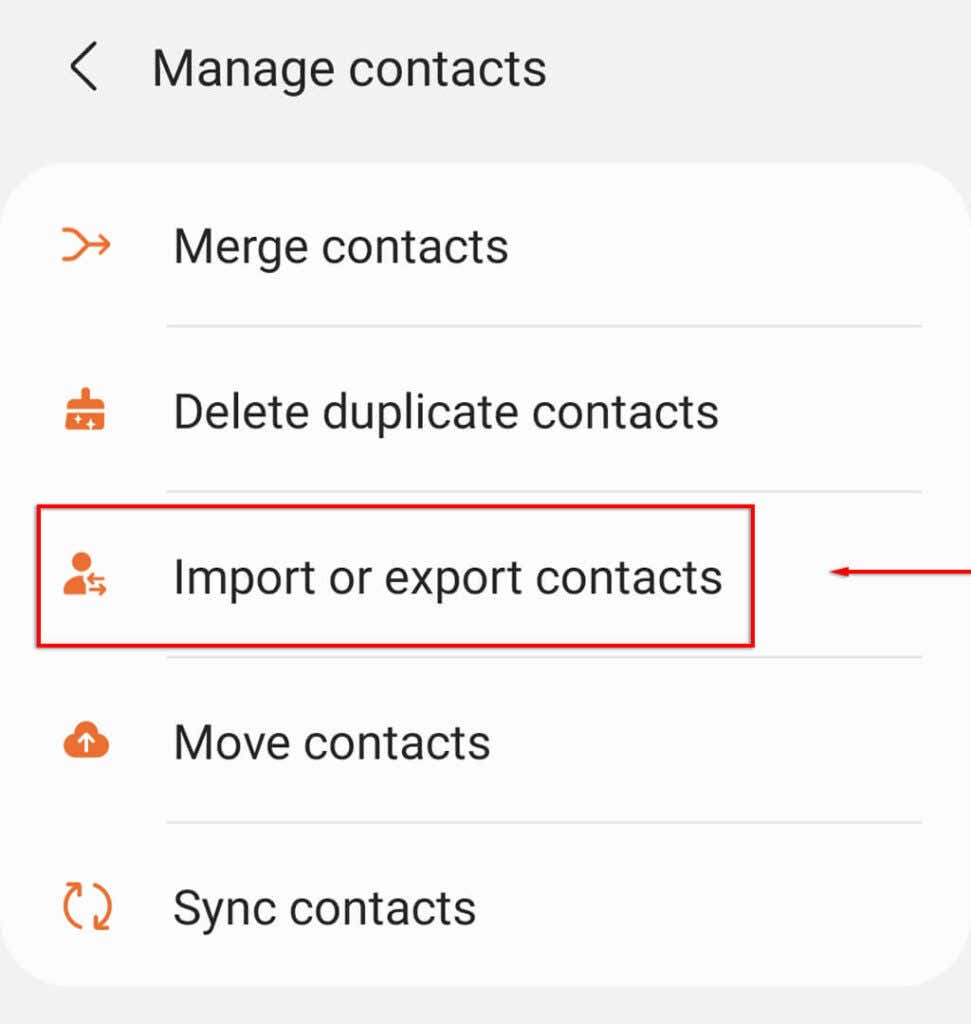
- Tap Export .
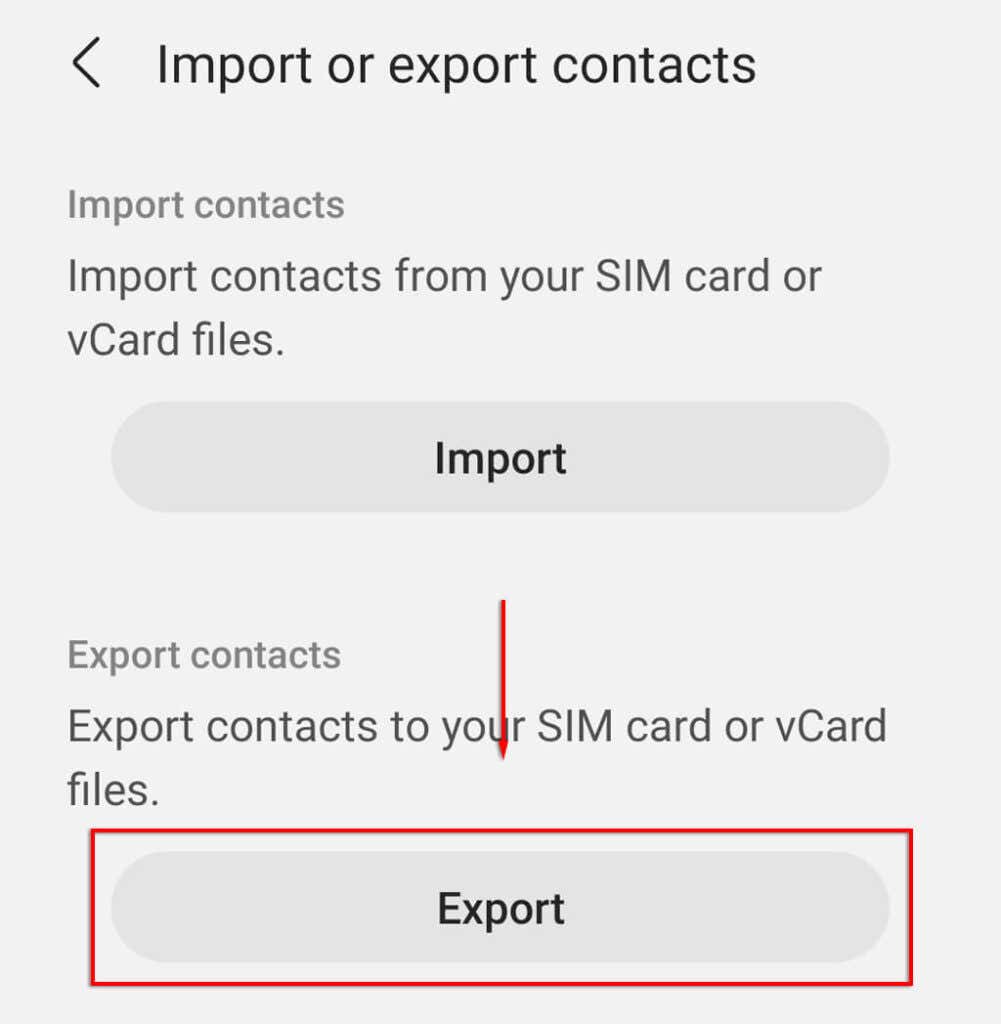
- Select the storage device you’d like to export contacts from and tap Export .
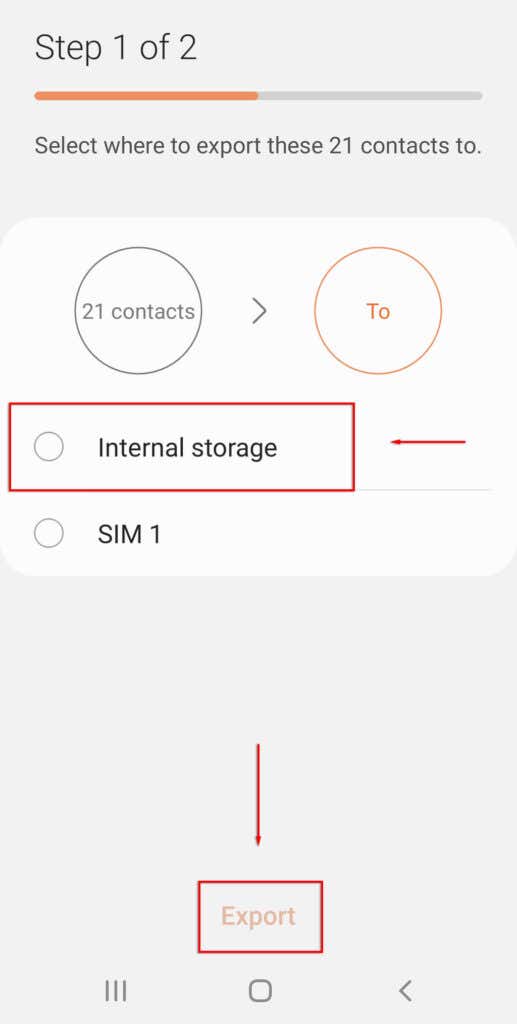
- This will export the contacts list to your internal storage as a .VCF file. Finally, you want to transfer the .VCF file to a safe location, such as a cloud server or to your SD drive.
Method 2: Turn Automatic Backup On
When you first set up your phone, you will have been asked whether you’d like your Google Account to automatically back up your phone’s data. To activate this setting manually:
- Open the Settings app.
- Tap Accounts and backup .
- Tap Back up data .
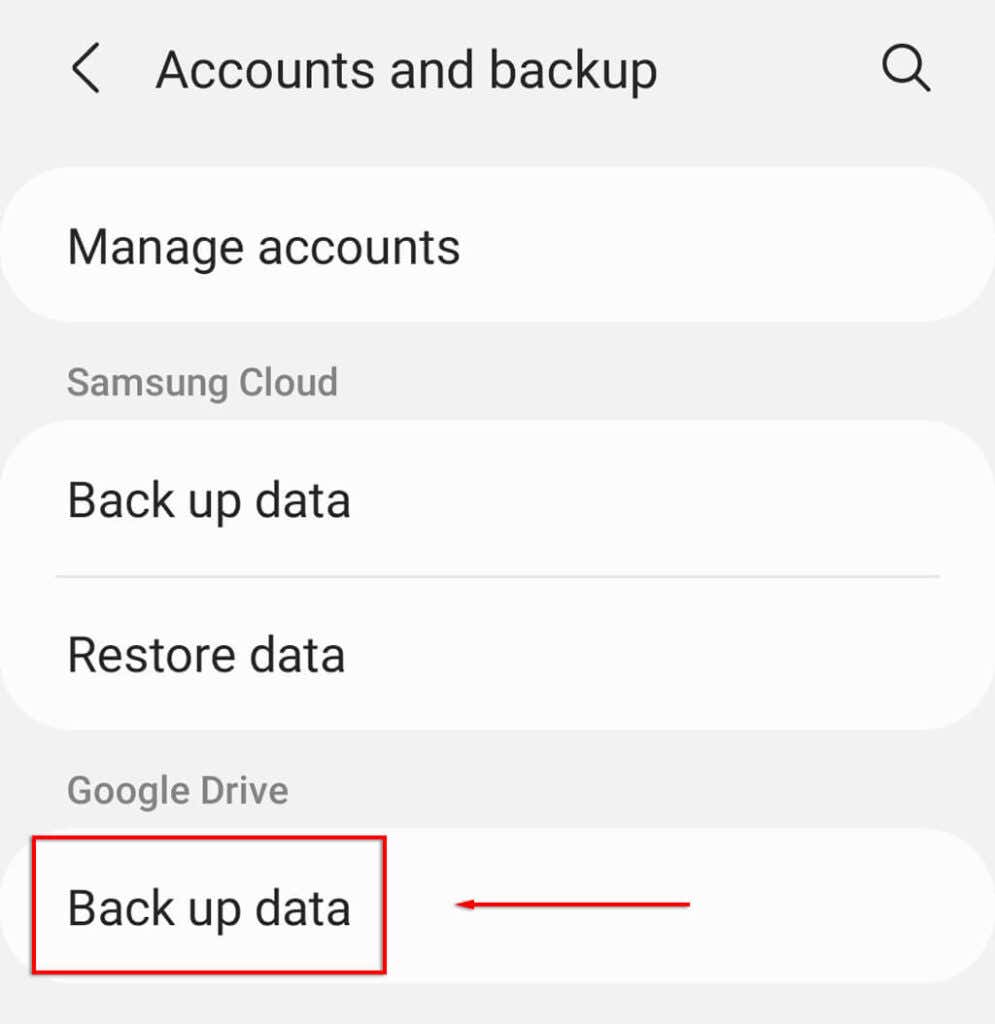
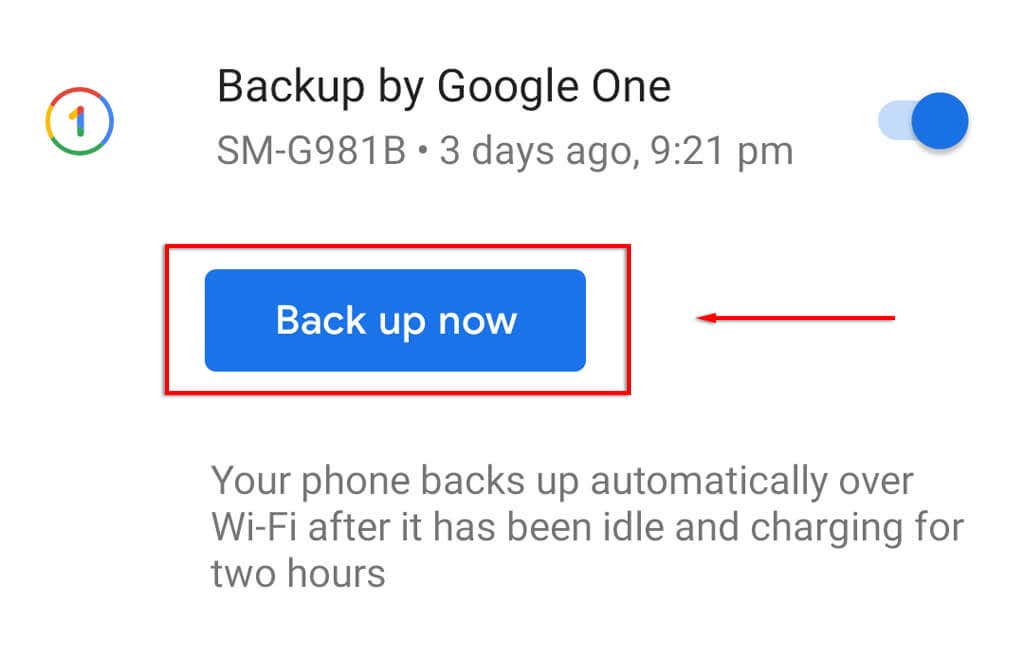
- Under Google, tap Back up now .
Our Advice: Back Up Your Data
There’s nothing worse than accidentally deleting your data whether it’s phone numbers, game saves, or important documents.
Hopefully, with this tutorial, you were able to restore lost contacts, but the simple solution is to always ensure that your data is backed up in one or two safe locations such as external hard drives or cloud services. This way, even if your data is deleted it can be easily restored.
- What Is Android System Intelligence?
- How to Rename Bluetooth Devices in Windows, Android, iOS, and Mac
- Facing a Synchronization Error in Google Drive for Android? Here’s How to Fix It
- 5G Not Showing Up on Android or iPhone? 12 Fixes to Try
- Why Does My Android Hotspot Keep Turning Off? 7 Fixes
Jake Harfield is an Australian freelance writer whose passion is finding out how different technologies work. He has written for several online publications, focusing on explaining what he has learned to help others with their tech problems. He’s an avid hiker and birder, and in his spare time you’ll find him in the Aussie bush listening to the birdsong. Read Jake’s Full Bio
