If you want to rip a YouTube video to your computer, you have lots of online options. Too many in fact to know which ones are better and more trustworthy than the others.
We have previously shown you a few sites which help you download videos and playlists , but that involves using other peoples servers, checking the page source, hunting for obscure download links, and dealing with endless NSFW pop-ups on other peoples domains.

Why bother with all that when you can quickly and effortlessly rip a YouTube video using a software app most people already have installed on their computer? I refer of course to VLC Player .
This example has been done on a MacOS laptop but the Windows method is very similar.
How To Rip a YouTube Video Using VLC Player
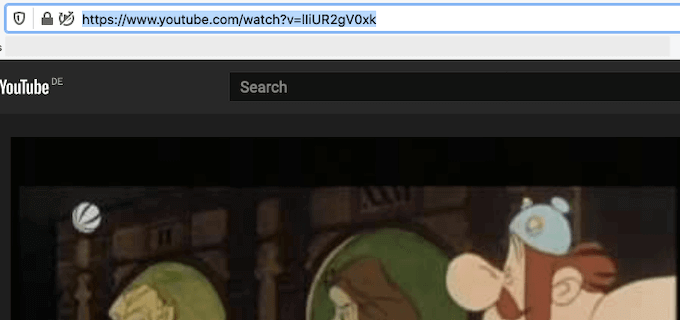
- Go to the YouTube page of the video you want to rip and copy the URL of the video.
- If you haven’t already installed VLC Player, grab it from the website and install it. It’s free.
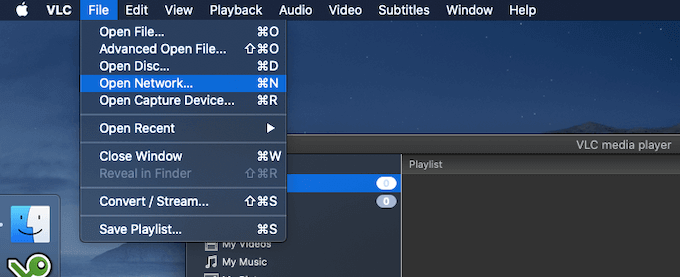
- When it’s installed, open it up and choose File – Open Network . On Windows, it’s Media – Open Network Stream .
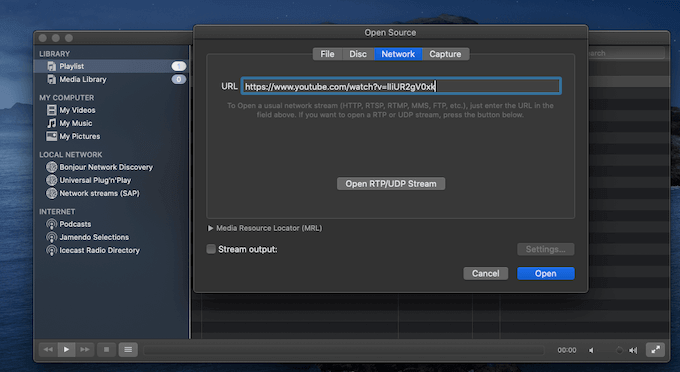
- In the box that pops up, paste the YouTube URL of the video you want to rip.
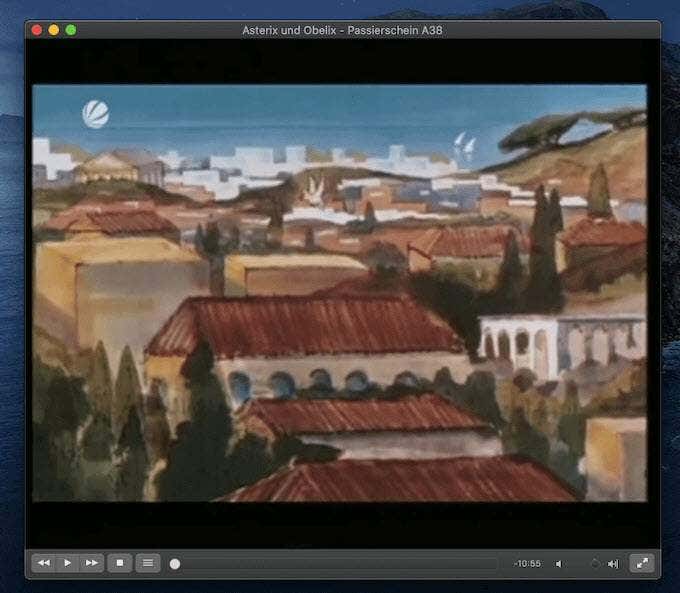
- The YouTube video will now proceed to stream inside VLC.
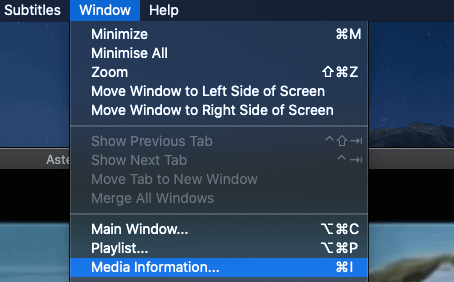
- If you are on a Mac, now click Window – Media Information . If on Windows, go to Tools – Codec Information .
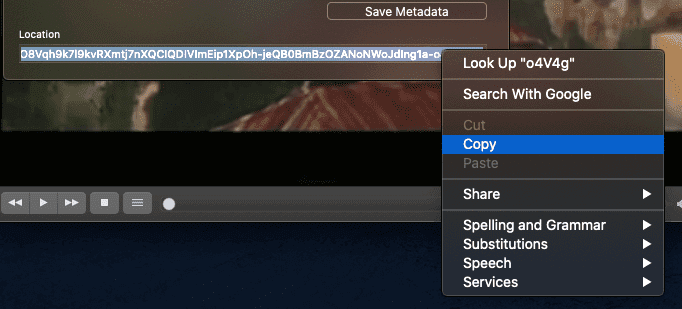
- At the very bottom of the screen is a very long link in the Location field. Highlight the entire link, right-click and select Copy .
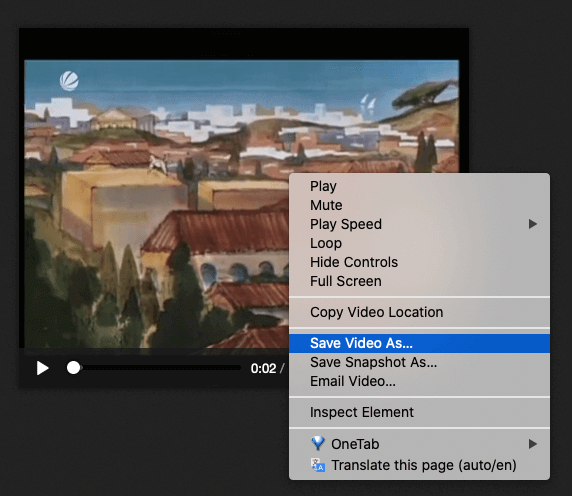
- Go to a browser and in the URL address bar, paste that long link from the Location field in VLC. The YouTube video should now start playing automatically in the browser. Right-click on the video and choose Save Video As .
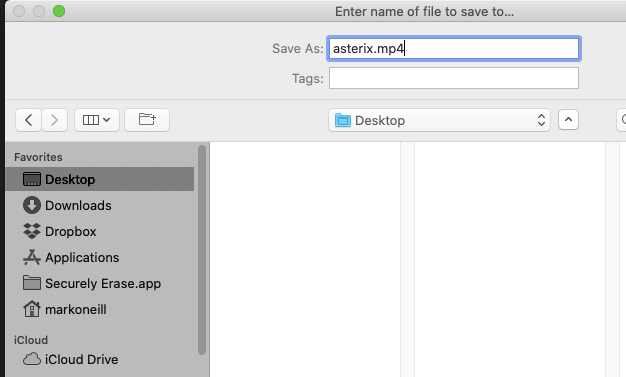
- By default, the video will be saved as videoplayback (without a format). So give your file a name and try first with an mp4 format. If that doesn’t work, then try avi .
- Your file will now be downloaded to your computer in the quality that the original uploader provided it in. So picture and audio quality will vary.
Given how easy ripping a YouTube video was, who needs online converters and hunting through website page sources? I sure don’t.
- How to Remove Shorts From YouTube
- How to Fix It When YouTube Won’t Open in New Tab
- How to Fix YouTube’s “Something went wrong” Error
- How to See Dislikes on YouTube Videos
- A Guide to How YouTube Monetization Works
