Blocked numbers on your iPhone, iPad or Mac cannot contact you via cellular/Facetime calls, text messages, and iMessage. If a blocked contact has an email address, the Mail app flags emails from the attached address.
If a friend says they can’t reach you via phone calls, texts, or FaceTime, you may want to have a look at your blocked list. You know, to verify that you didn’t block them accidentally . Read on to learn how to see blocked numbers on iPhone, iPad, and Mac computers.
How to See Blocked Numbers on iPhone and iPad
Here are four ways to find blocked contacts in iOS and iPadOS.
View Blocked Numbers via the Phone Settings Menu
Open the Settings app on your iPhone or iPad and select Phone . Scroll down the menu and tap Blocked Contacts .
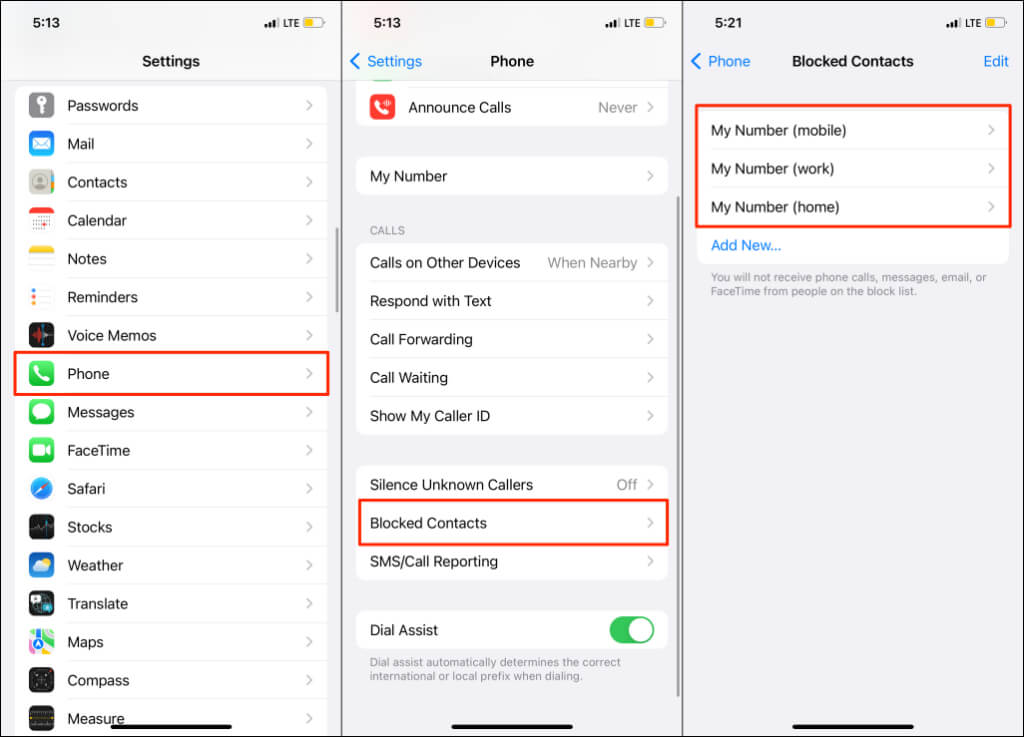
You’ll find a list of blocked contacts on the page—tap a contact to view its full details. You can also block a number from this page. Tap Add New and select the contact from your contact lists.
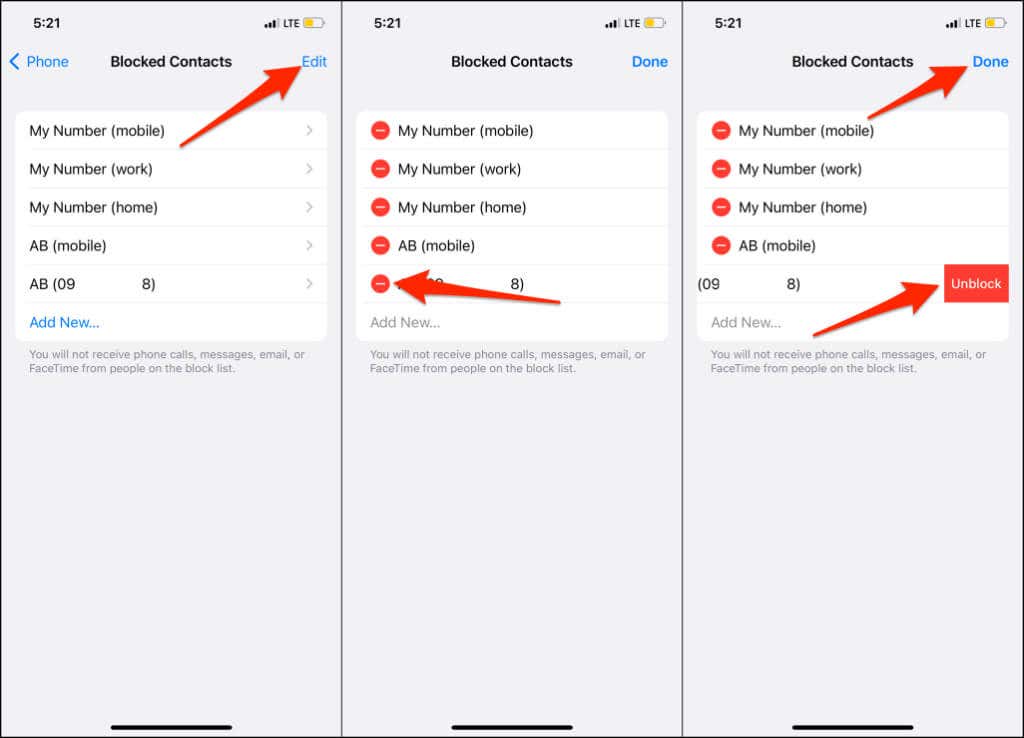
To remove a number from the list, tap Edit in the top-right corner, tap the red minus icon , and select Unblock . Tap Done to save the changes.
View Blocked Numbers via the Messages Settings Menu
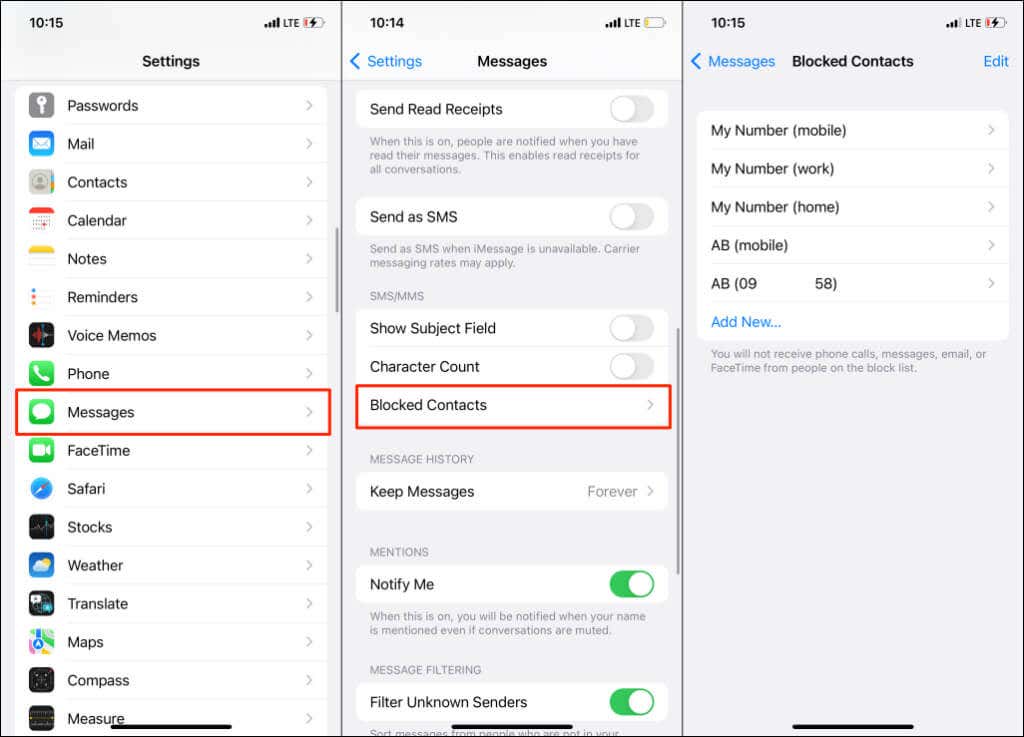
Open Settings , select Messages , and tap Blocked Contacts in the “SMS/MMS” section. That’ll open your iPhone’s “Blocked” list.
View Blocked Contacts via the Mail Settings Menu
Head to Settings > Mail and tap Blocked to view addresses whose email won’t arrive in your inbox.
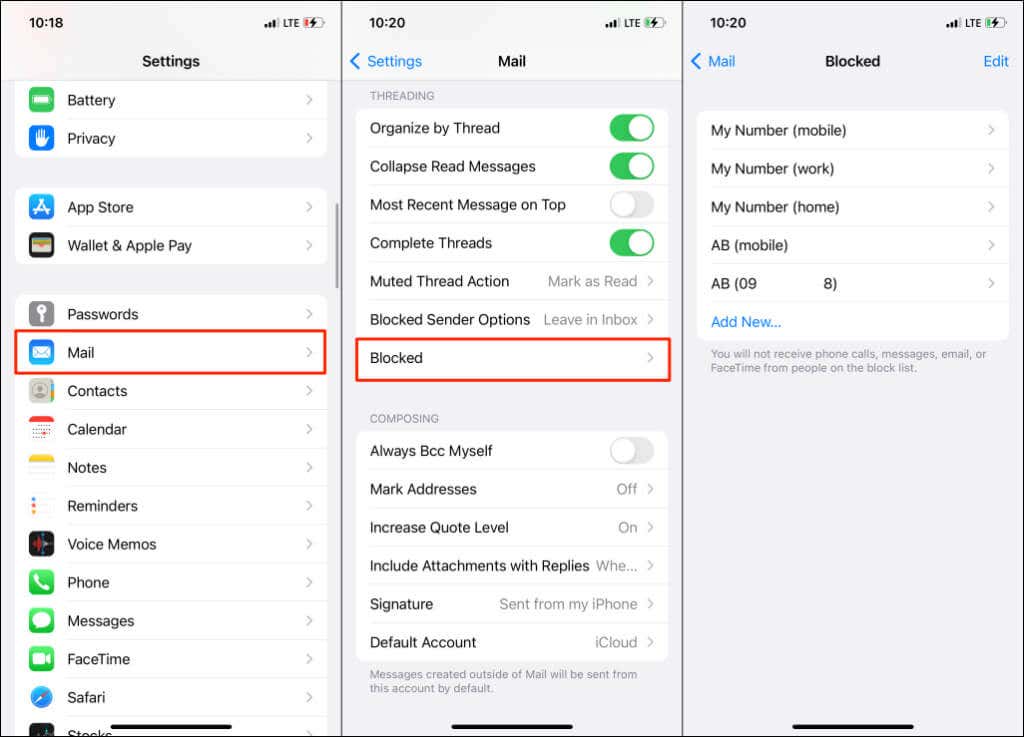
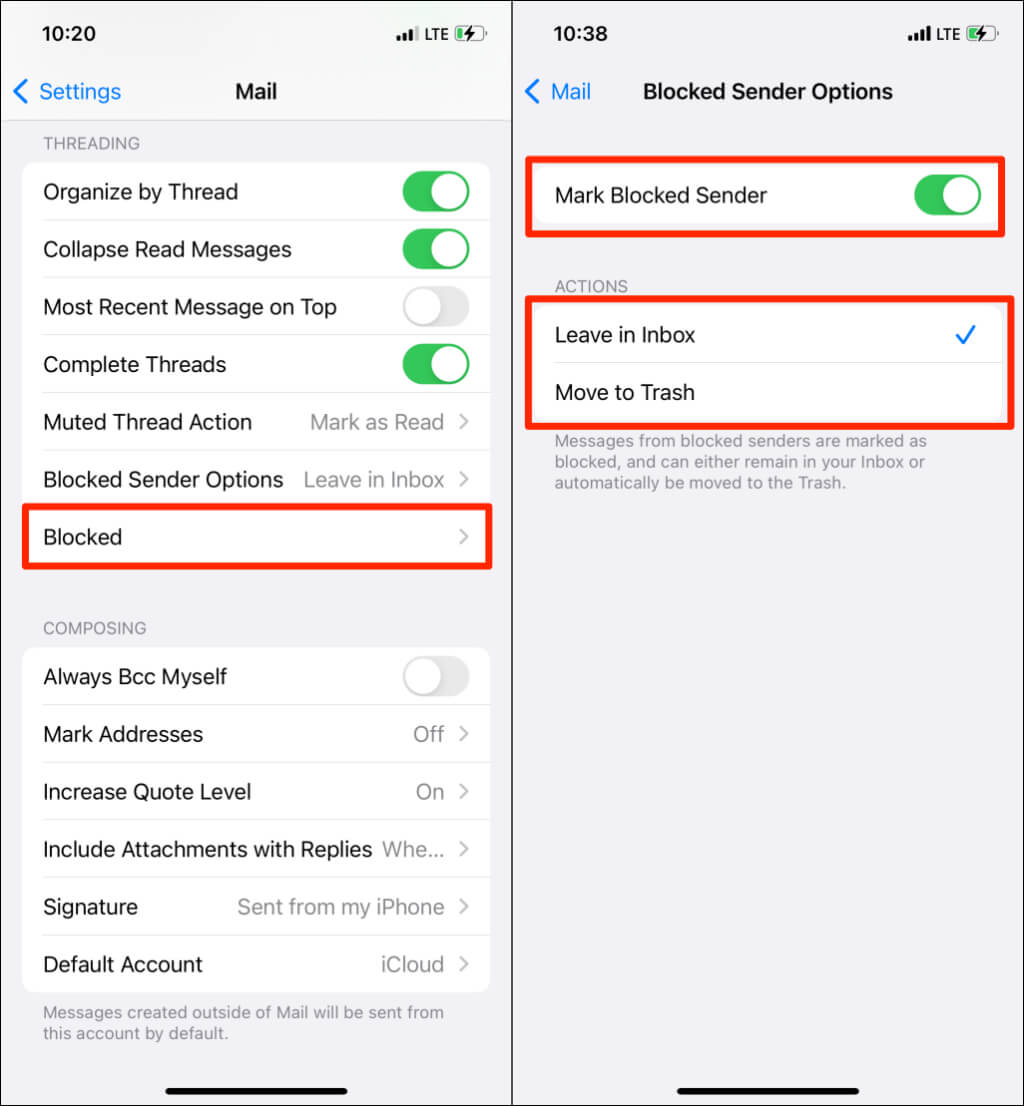
Return to the Mail settings menu and tap Blocked Sender Options to configure how the Mail app handles emails from blocked contacts. If you toggle on Mark Blocked Sender , the Mail app will mark/flag emails from blocked contact.
Choose if you want the Mail app to leave emails from blocked contacts in your inbox or automatically move them to Trash.
View Blocked Contacts via the FaceTime Settings
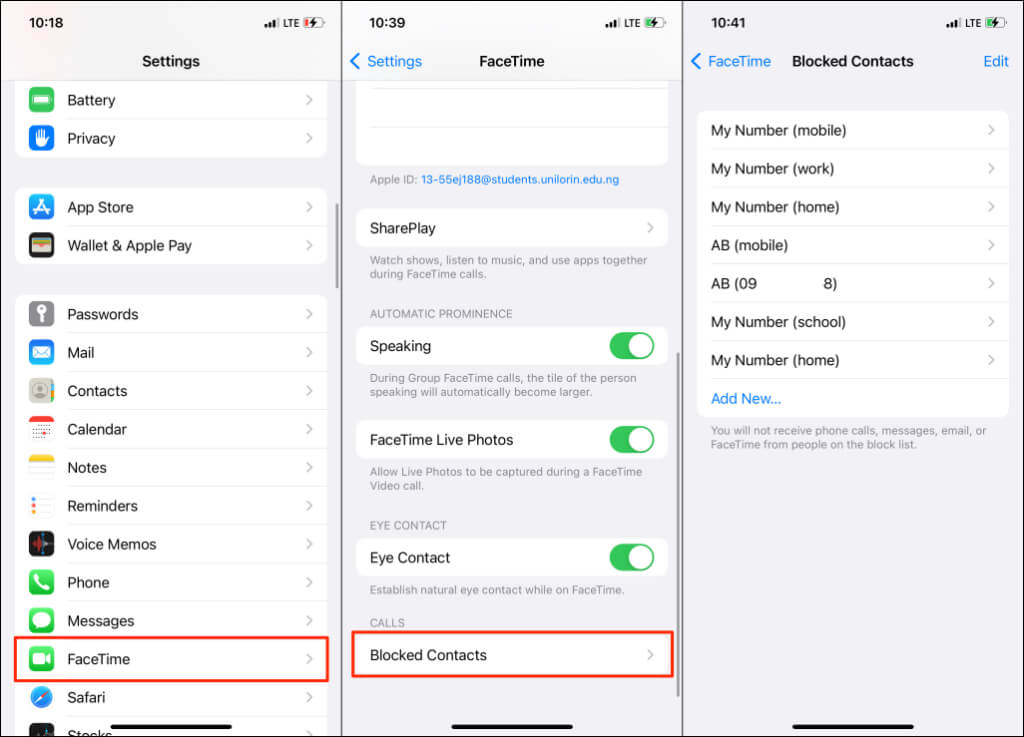
Your iPhone’s blocked contacts list is accessible through FaceTime’s settings menu. Open Settings , select FaceTime , scroll to the bottom, and tap Blocked Contacts in the “Calls” section. You’ll find all (blocked) contacts who can’t reach you through FaceTime audio and video calls.
How to See Blocked Numbers on Mac
Apple synchronizes your contacts to iCloud . If you block a number or email on your iPhone or iPad, Apple also blocks the number on your Mac—and vice versa.
Hence, you can access blocked contacts across your Apple devices if they use the same Apple ID.
View Blocked Contacts on Mac via FaceTime
Here’s how to check blocked contacts on a Mac laptop or desktop through the FaceTime menu.
- Launch the FaceTime app, select FaceTime on the menu bar, and select Preferences .
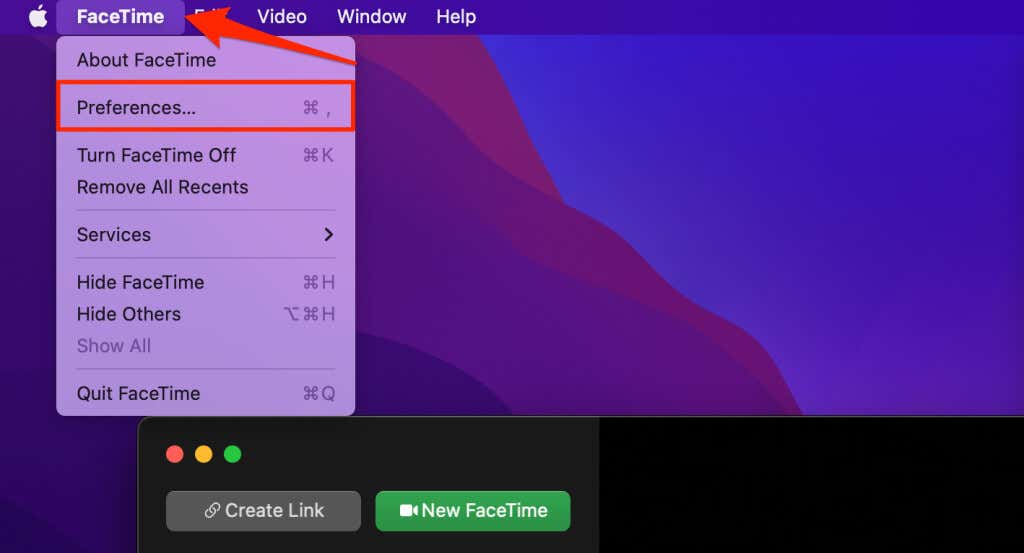
Quick Tip: Use the Command + Comma ( , ) shortcut to open an app’s preferences/settings menu in macOS.
- Head to the Blocked tab to view a list of blocked phone numbers and emails.
- To unblock a contact , select the number or email address, and select the minus icon in the bottom corner.
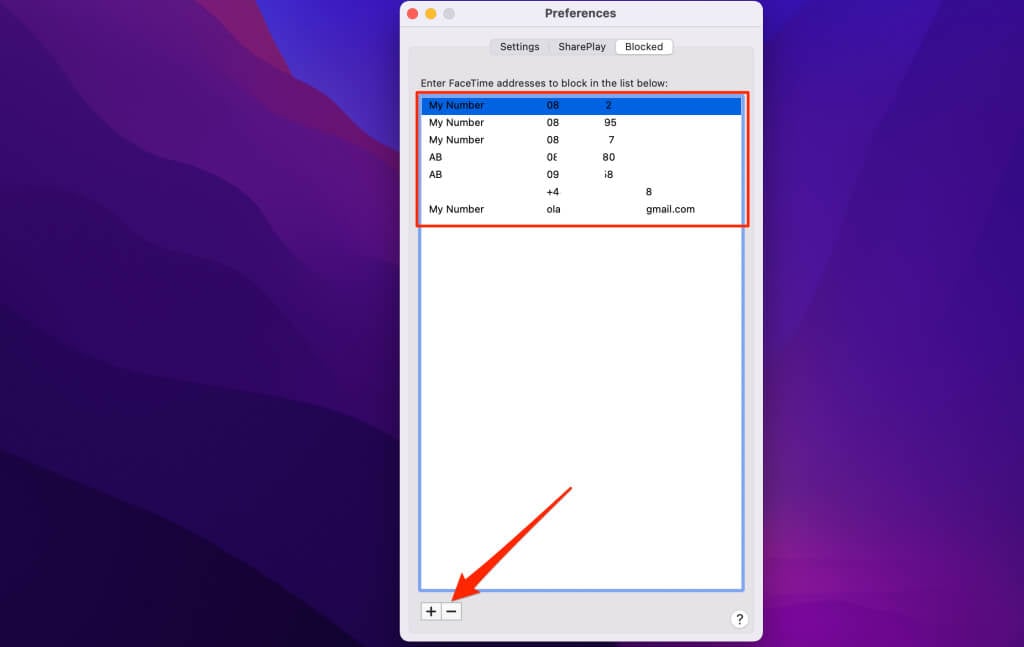
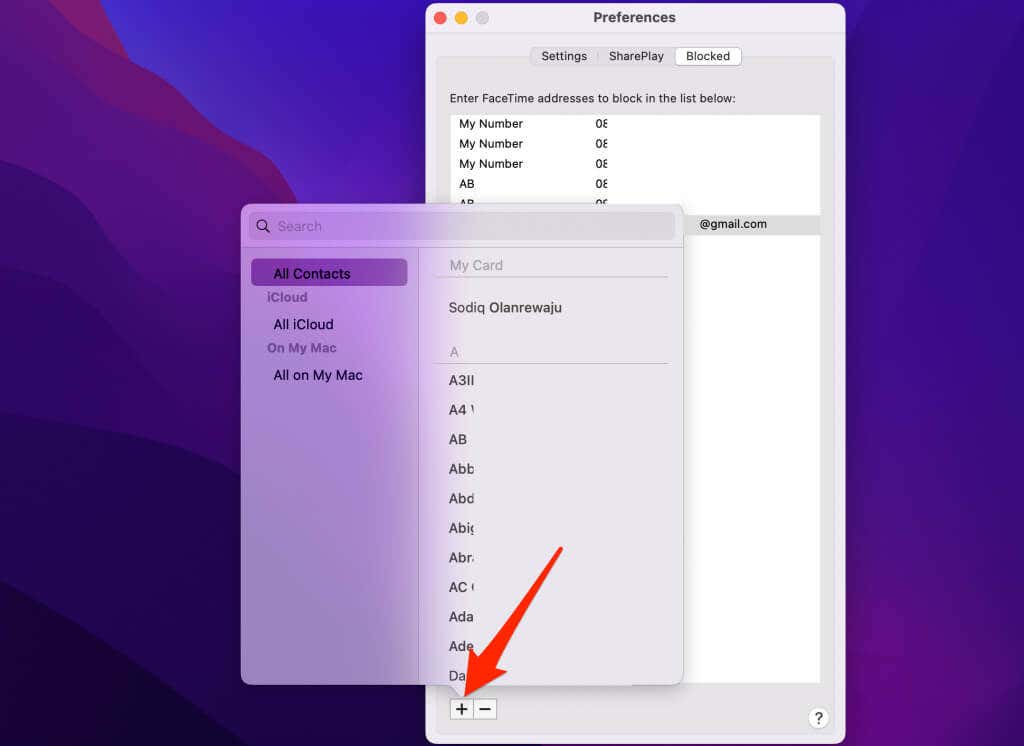
- Tap the plus icon to add a contact to the Blocked list.
View Blocked Contacts on Mac via Messages
The Messages app menu in macOS also has a repository of blocked contacts.
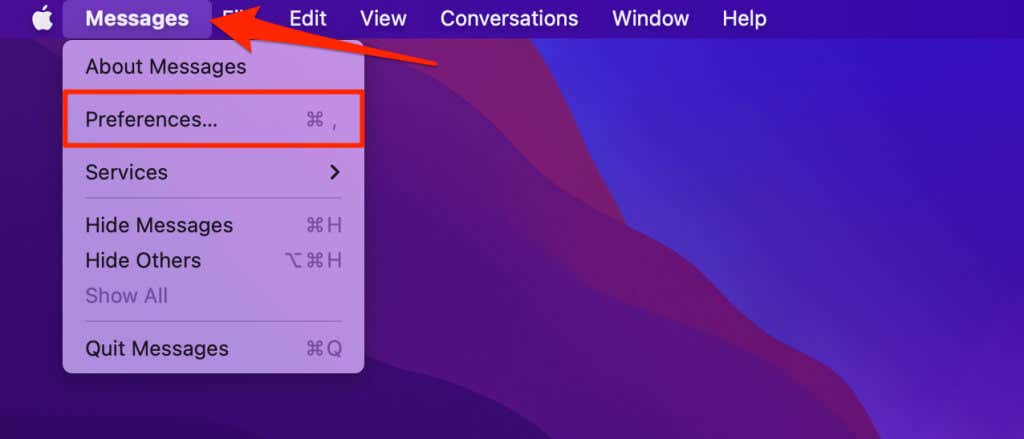
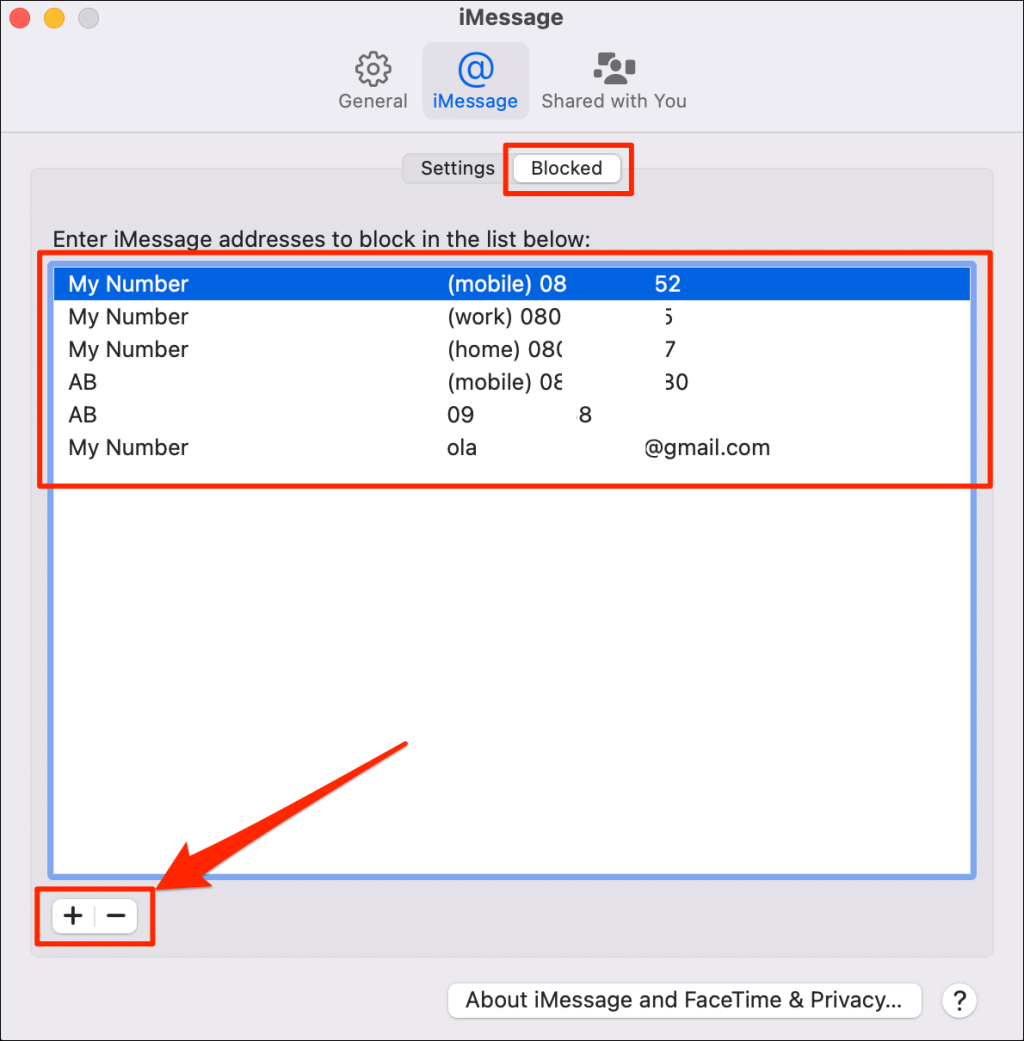
- Open the Messages app, select Messages on the menu bar, and select Preferences .
- Select iMessage .
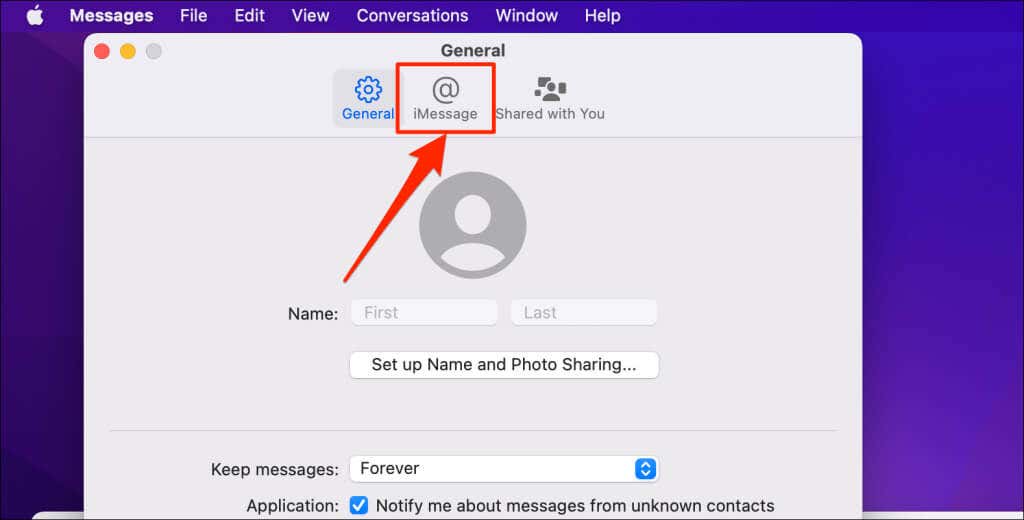
- Head to the Blocked tab to view phone numbers blocked from texting you on iMessage. Select the plus or minus icon below the list to add or remove a number from the list.
View Blocked Contacts on Mac via Mail
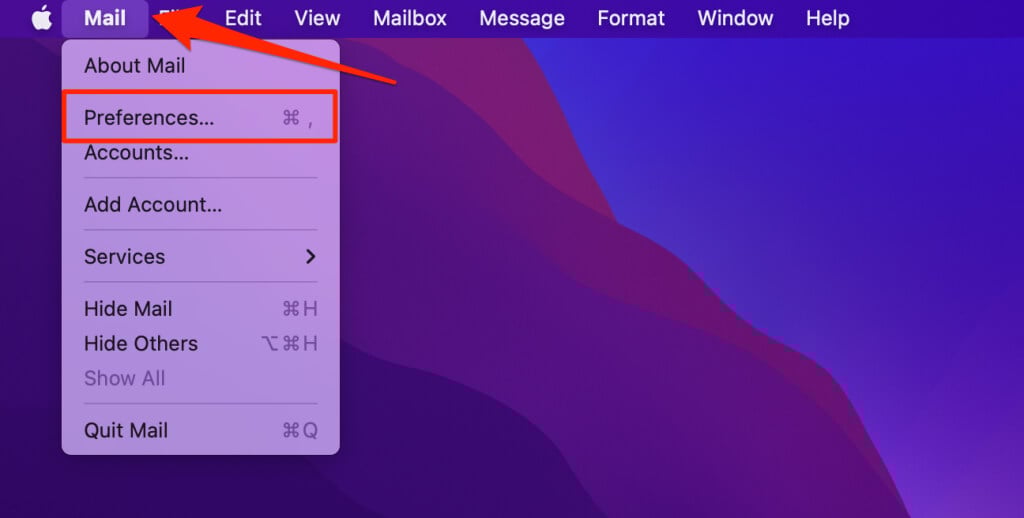
- Open the Mail app, select Mail on your Mac’s menu bar, and select Preferences .
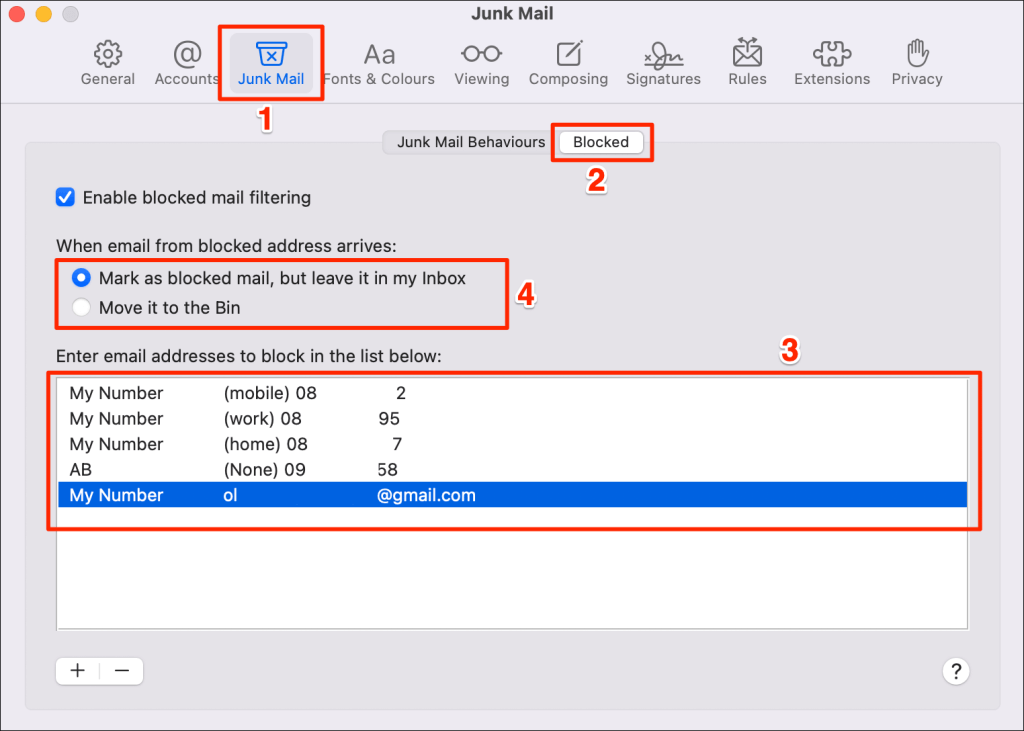
- Head to the Junk Mail section and select the Blocked tab to view blocked phone numbers and email addresses. You can also customize how the Mail app handles emails from blocked contacts.
Who’s Blocked, Who’s Not?
Note that blocked contacts will remain on your device’s contact list or phonebook, even after blocking them. But they can’t contact you via iMessage, FaceTime, phone calls, and SMS/SMS. Conversely, you can call blocked contacts and send them emails or text messages— unless they’ve also blocked you .
It’s worth mentioning that blocked phone numbers can reach you via third-party instant messaging apps like WhatsApp, Telegram, etc. Block contacts in these apps to prevent them from co
- How to Change Your Game Center Nickname (iPhone, iPad, and Mac)
- What Happens When You Reset End-to-End Encrypted Data on Apple Devices
- How to Update Apps on Your Apple Devices
- How to Turn On AirDrop on iPhone, iPad, and Mac
- How to Check FaceTime Call Duration on iPhone and Mac
