
If you want to format text, add a link to it, or delete it from the document, you have to start by selecting that text. We’ll show you how to select all text in Word as well as specific portions of text.
How to Select All Text in Word
You can easily select all the text in your Microsoft Word document using keyboard shortcuts, your mouse or trackpad, and menu options.
Use a Keyboard Shortcut
The quickest way to select all text in Word is with the keyboard shortcut Ctrl + A on Windows or Command + A on Mac.
Use Your Mouse or Trackpad
If you don’t like using keyboard shortcuts, you can also select all text in your document with your mouse or trackpad.
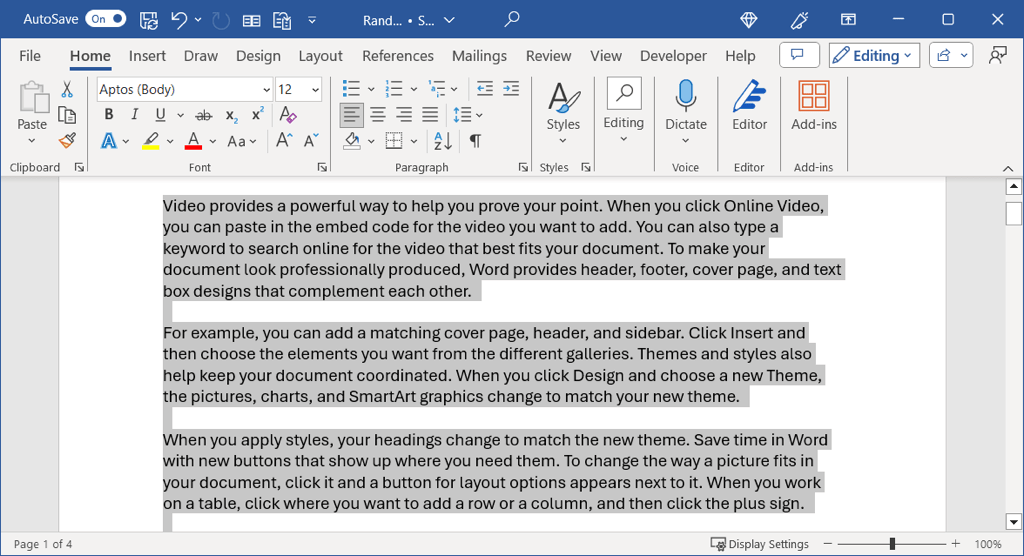
Place the cursor before the first word of the document, hold the mouse button or trackpad, and drag all the way through the last word. Release, and you’ll see all text highlighted , which means it’s selected.
Use the Menu Options
One final way to select all text is using these built-in menu options:
On Windows, go to the Home tab, open the Select menu in the Editing group, and pick Select All .
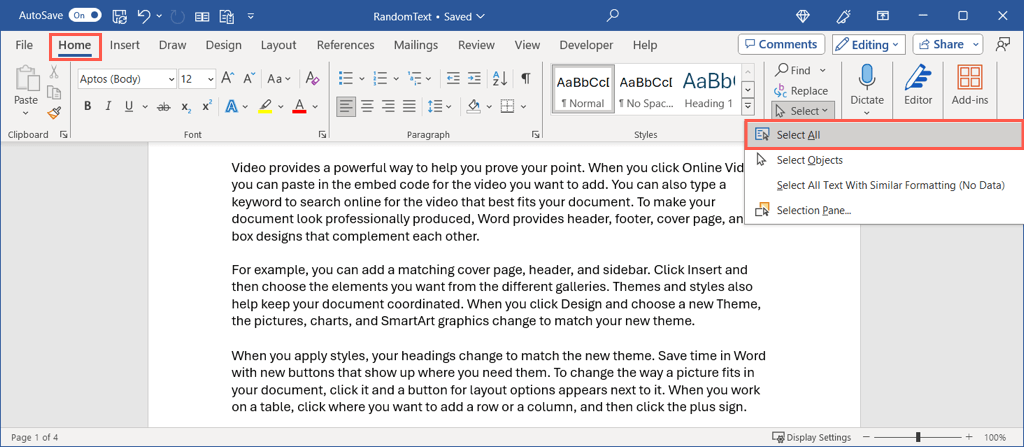
On Mac, go to Edit > Select All in the menu bar.

How to Select Specific Text in Word
If it’s not all the text in your Word document you want to select but only a certain portion, you have a handful of ways to do this as well. This is ideal when you want to apply small caps to a word or add a hyperlink to a line.
Select a Word
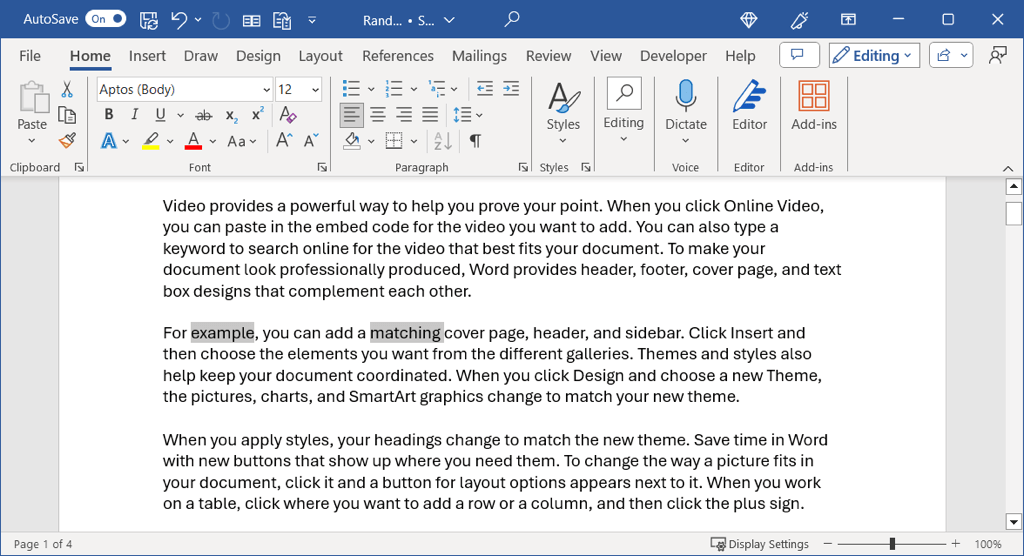
You can easily drag through a word with your cursor to select it. Place your cursor before the first letter, hold your mouse button or trackpad, drag through the last letter, and release.
For a quicker way, simply double-click the word.
Select Multiple Words
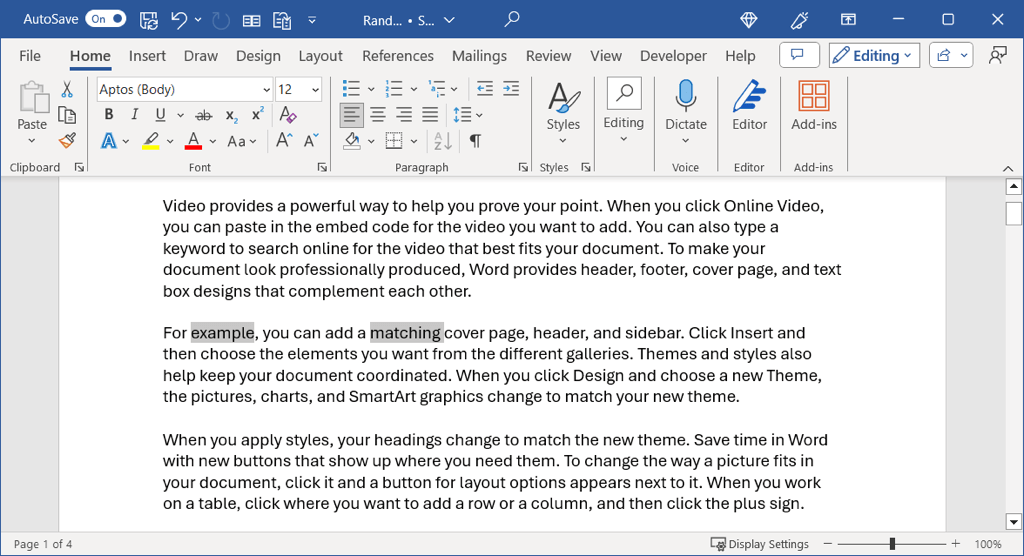
You can easily select more than one word if they’re next to each other by simply dragging through each one. However, you might want to select multiple words in different locations in the document.
Select the first word using the method above, hold Ctrl or Command , and select the second word.
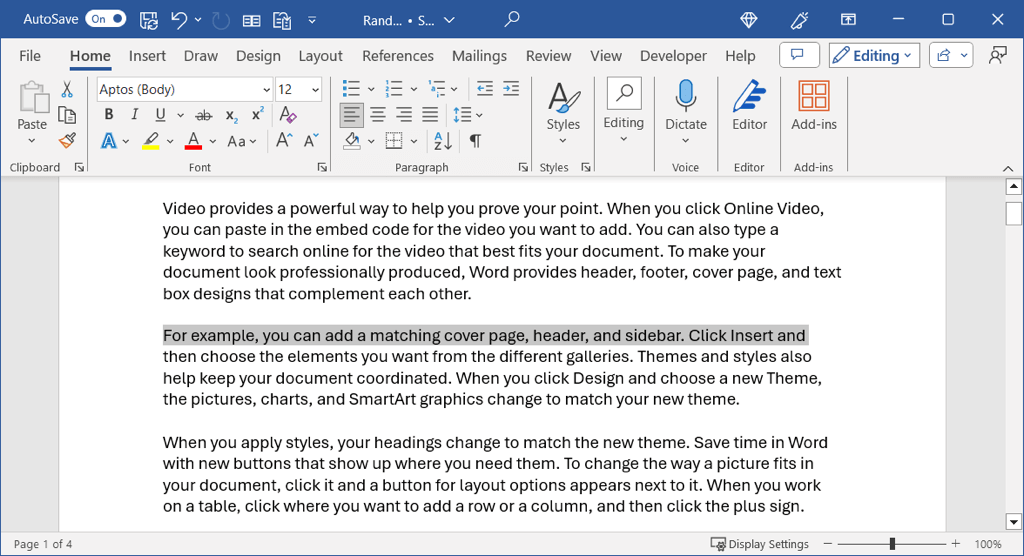
Select a Line of Text
Like a word, you can select a line of text by dragging from the first word through the last with your mouse or trackpad.
For a faster way, place your cursor at the start of the line and use Shift + Down arrow . This keyboard shortcut works on both Windows and Mac.
Select Multiple Lines
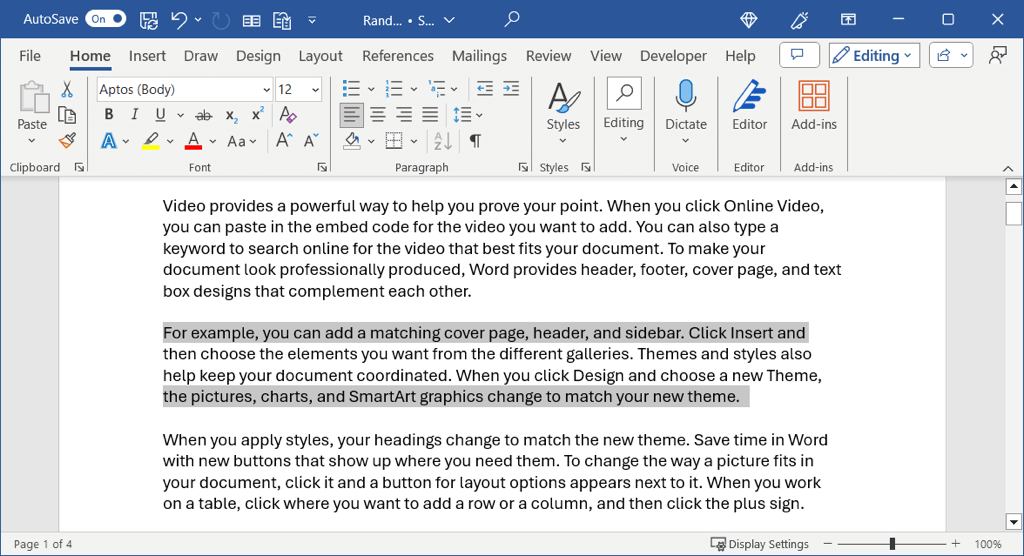
You can select multiple lines just like words by dragging through each one, but what if they’re not adjacent to each other?
In this case, select the first line using a method above, hold Ctrl or Command , and click at the start of the second line.
Select a Paragraph
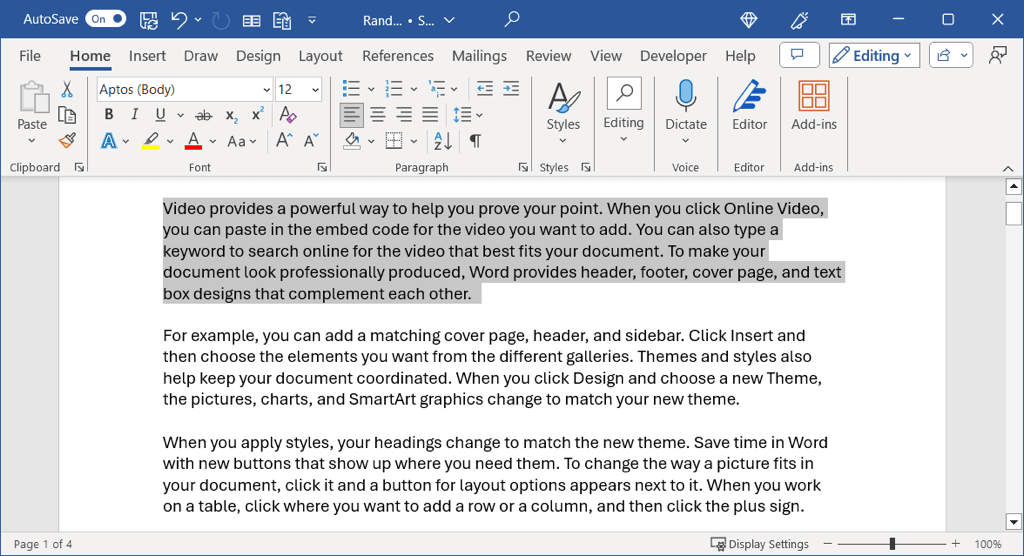
As you’ve probably guessed, you can select a paragraph by dragging through it as well. Drag from the first word through the last word in the paragraph and release.
For a much quicker way, place your cursor at the start of the paragraph and use Ctrl + Shift + Down arrow on Windows or Command + Shift + Down arrow on Mac.
Select Multiple Paragraphs
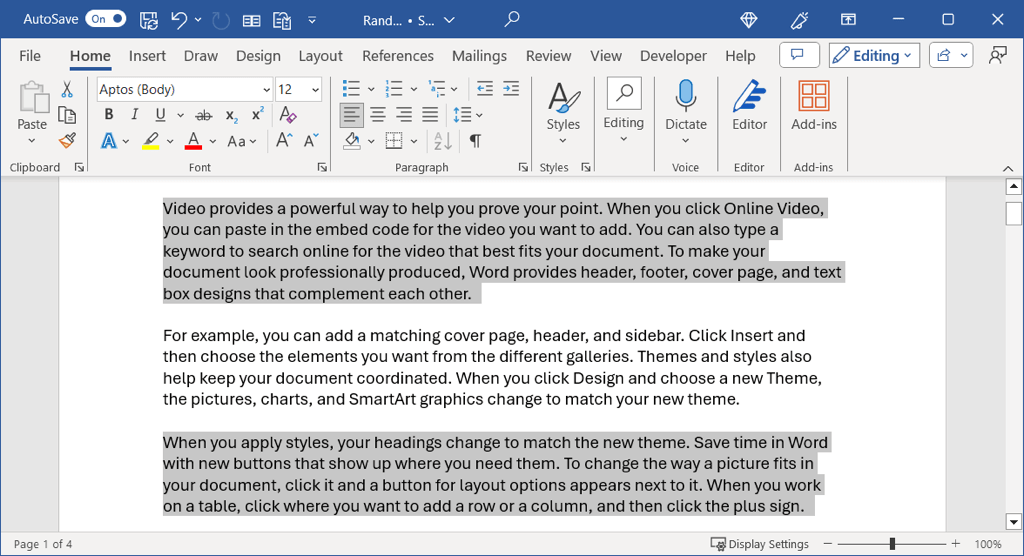
To select more than one paragraph, you can just drag through them like words and lines. However, for non-adjacent paragraphs, you’ll use a combination of actions.
Select the first paragraph using a method above, hold Ctrl or Command , and drag through the second paragraph.
Whether you want to select all text in Word, a portion of it, or a single word, you have various ways to do so. You can use whichever works best for you at the time.
For more, look at how to find and replace text in Word documents .
- How to Remove Headers and Footers in Word Documents
- How to Clear Formatting in Word
- How to Remove Unwanted Lines in Word Documents
- How to Insert Arrows in Microsoft Word Documents
- How to Redline Documents in Microsoft Word
Sandy Writtenhouse is a freelance technology writer and former Project, Department, and Program Manager. She turned her education, job experience, and love of technology into a full-time writing career. With all sorts of gadgets in her home and her hands, she seeks to help others make life easier through technology. Read Sandy’s Full Bio
