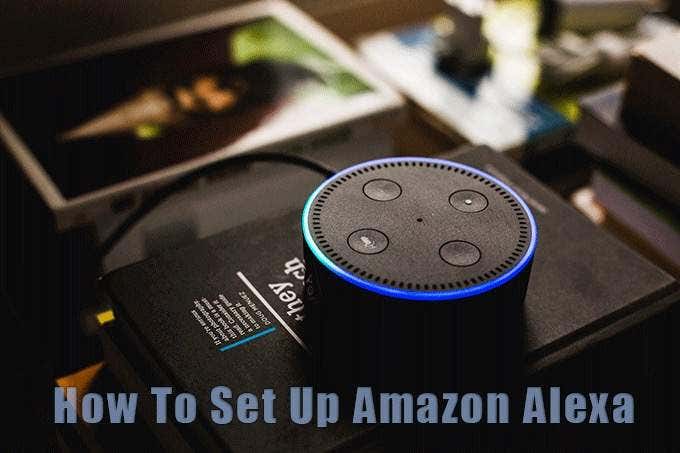
Install The Alexa App On Your Phone
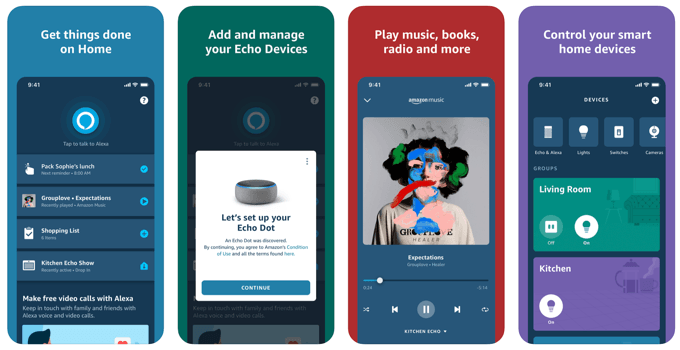
You can download the app on any smartphone that runs Android or iOS. You can also use the Alexa app on the Fire OS, of course.
The installation is straightforward:
- Open Google Play store or the Apple App Store on your mobile device.
- Search for the Amazon Alexa app.
- Click on Install .
Connect The Echo To a Power Outlet
- The Echo uses AC mains for power. Connect the Echo Dot to the nearest power outlet with the supplied power adapter.
The light ring around the speaker will light up with blue and a shade of turquoise. In an instant, the light will turn orange and a nice soft voice will greet you with:
“Hello, your device is ready for set up. Just download the Alexa app and follow the instructions.”
The Echo dot will stay a shade of orange to signal the setup mode. It will stay in this color till the configuration is complete.
Connect The Echo To The Wi-Fi Network
- Sign into your Alexa app with your Amazon credentials and give the app all the permissions it needs.
Note: The setup screens can differ slightly from the versions of the device you own. For instance, the Echo Second Generation and the Third Generation. But the differences are minor.
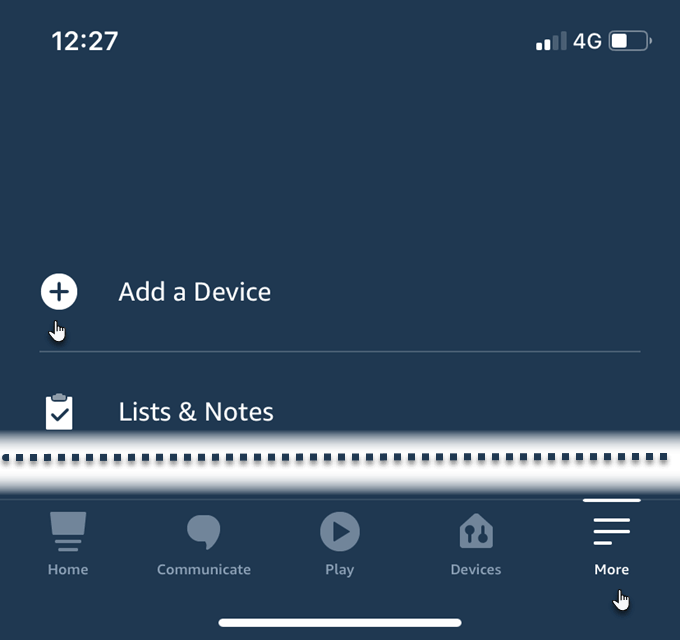
- Go to the More menu icon on the bottom right. Click on Add a Device .
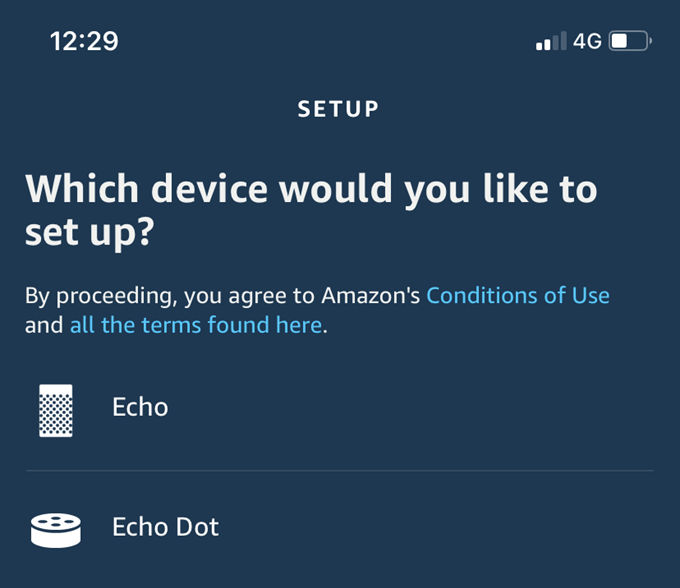
- Select the type of device from the Setup Screen. In this example, it is an Amazon Echo Dot. Amazon has a range of Echo devices, so make sure to tap on the one you own.
- Alexa checks if your device is on and displaying the orange light. Hit Yes to continue with the next steps that involve choosing your preferred language and turning on your phone’s Bluetooth.
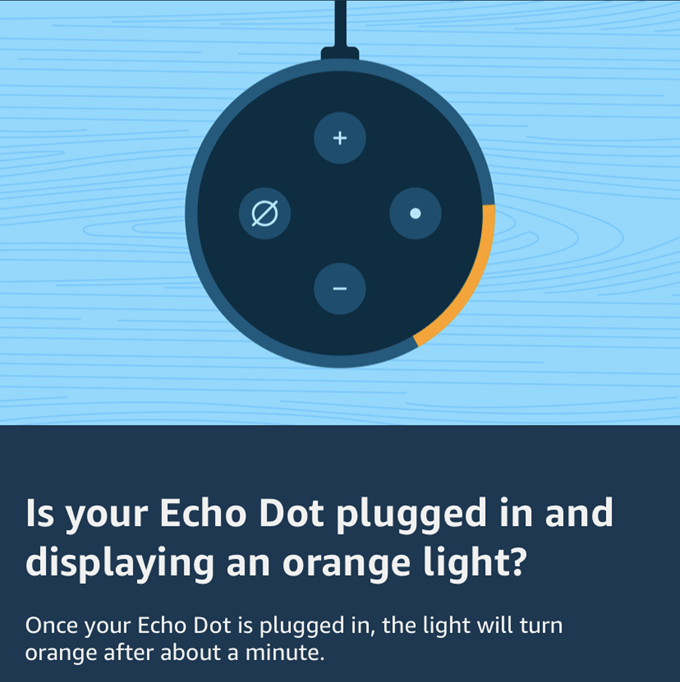
The app connects to the smart device via Bluetooth. It can take a bit of time so keep them within 10 feet of each other.
Once, the Bluetooth pairing is achieved, the Alexa app will prompt you to go to the phone’s Settings and connect to an ad-hoc Amazon Wi-Fi network with an address format that reads “Amazon-XXX”.
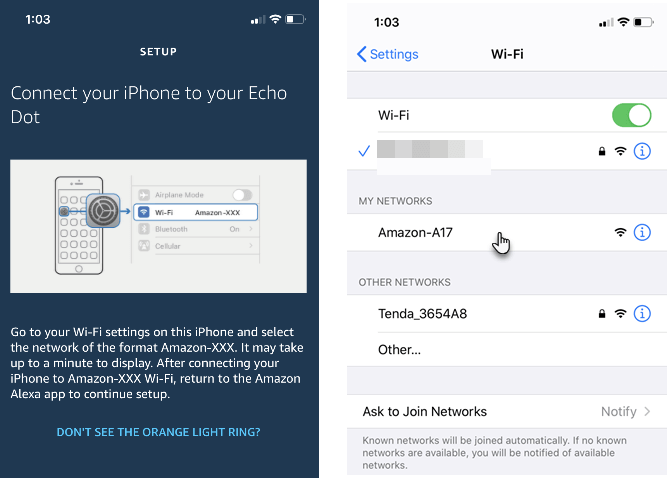
- Once connected, Alexa will prompt you again to switch over the Echo to your main Wi-Fi network. Select your network from the Wi-Fi networks list. Enter your Wi-Fi password and Echo is now linked to your own Wi-Fi.
Change The Wake Word
Alexa lights up ready to hear your commands when you use the default wake-up word, “Alexa.”
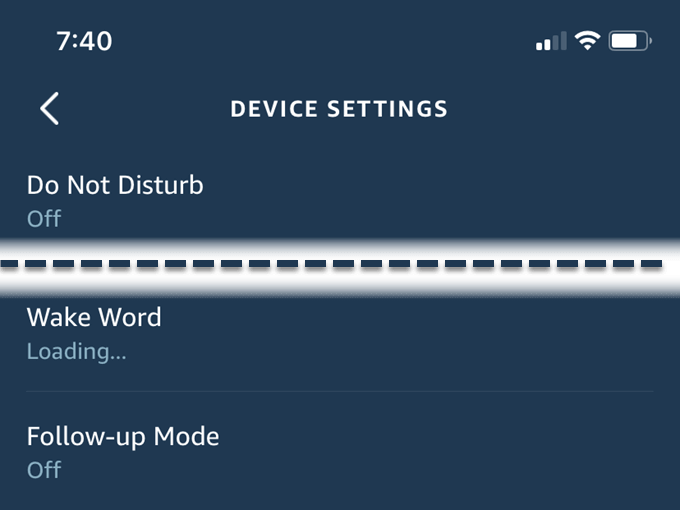
You can change the wake word to something else. This might be necessary if there’s someone else in the house with the same name. Just ask the Echo, “Alexa, change the wake word.”
Enable Alexa Skills
Alexa Skills are like tiny automated bots that do your bidding when you speak to the device. There are thousands of Alexa Skills you can choose from .
Here’s how you can enable the skills from the app.

Click on the Browse Skills button if you want to drill into them by categories, such as Business & Finance, Education & Reference, Food & Drink and Games & Trivia etc. Alternatively, use the search icon to find a skill.
The Discover tab is just what it says and is useful to find Editor picks and hidden gems.

- Once you have enabled a few Alexa Skills, you can find them all listed under Your Skills .

You can also just say “Alexa, open [skill name]”. If you want to know more about a skill, you can say, “[skill name] help”.
Once you get comfortable with single purpose Alexa skills, look into creating more powerful Alexa routines . Alexa Routines allow you to control multiple devices with a single command.
Work On Your Alexa Skills
Alexa understands conversational English (and other languages too). A smart speaker can do a lot more than play streaming music . Pick the right commands and you can automate some of your everyday tasks.
- How to Factory Reset Amazon Echo Devices
- How to Set Up an Amazon Echo Dot
- How to Install the Amazon Appstore in Windows 11
- How to Fix Amazon CS11 Error Code in Android and iOS
- How to Cancel Amazon Music
Saikat Basu is a seasoned freelance technology writer. He likes to forage for anything that makes our lives better… an app, a life hack, or a simple nugget of learning. Read Saikat’s Full Bio
