Home Sharing on Apple TV lets you access music and photos from other devices. For instance, you can play songs from your iPhone music library or view photos from your Windows computer.
We’ll start by showing you how to turn on Home Sharing on Apple TV. You’ll then learn how to enable the feature on your other devices so that you can use Home Sharing on the big screen.
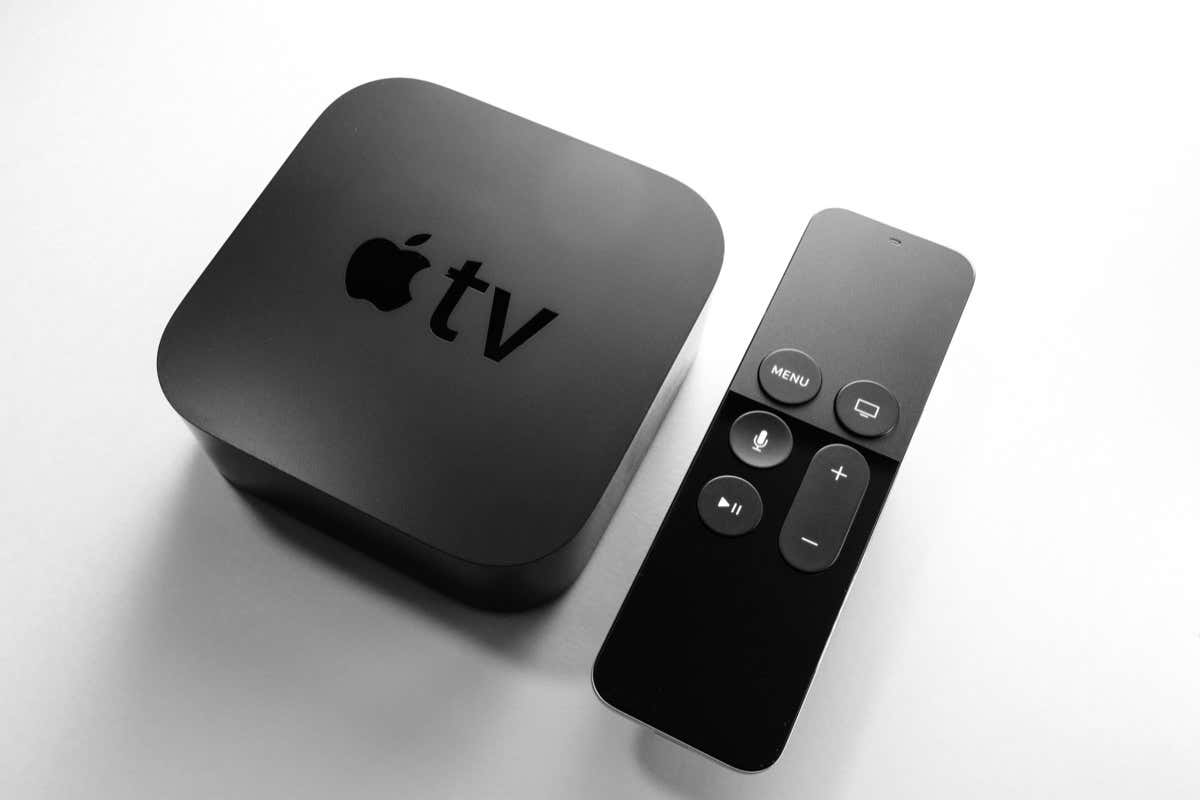
Turn on Home Sharing on Apple TV
Turning on Home Sharing on Apple TV takes only a few steps. Once you do so, you can move to the additional sections to set up the feature on your other devices.
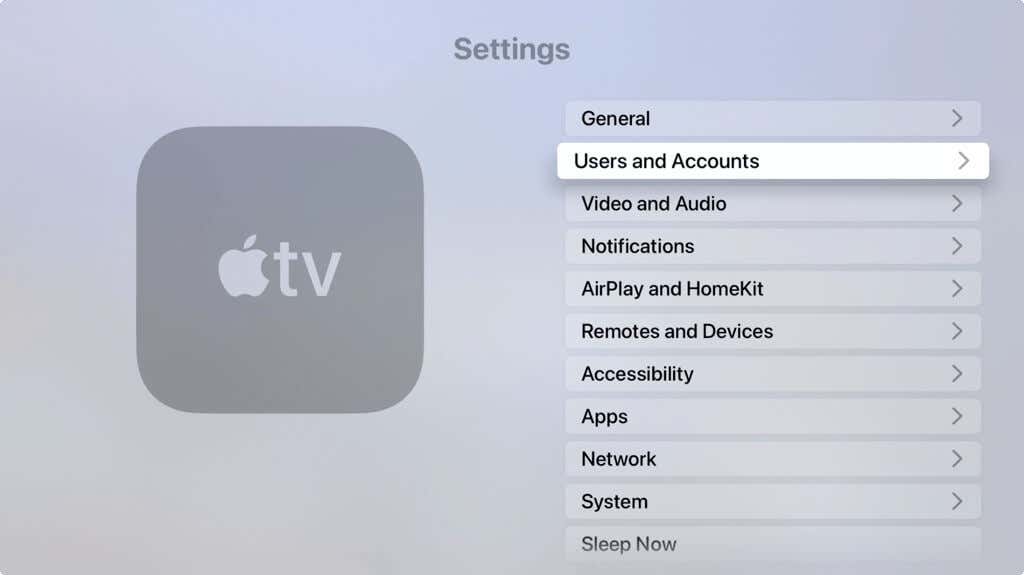
- Open the Settings app on your Apple TV Home screen.
- Select Users and Accounts .
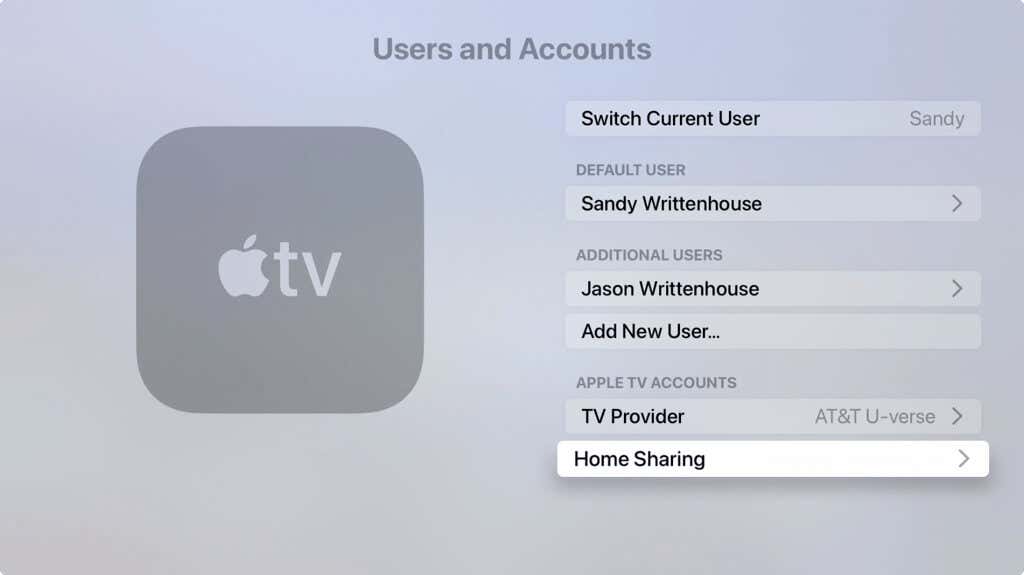
- Choose Home Sharing to turn it on, and enter your Apple ID and password. Be sure to use the same Apple ID as the device you’re sharing from.
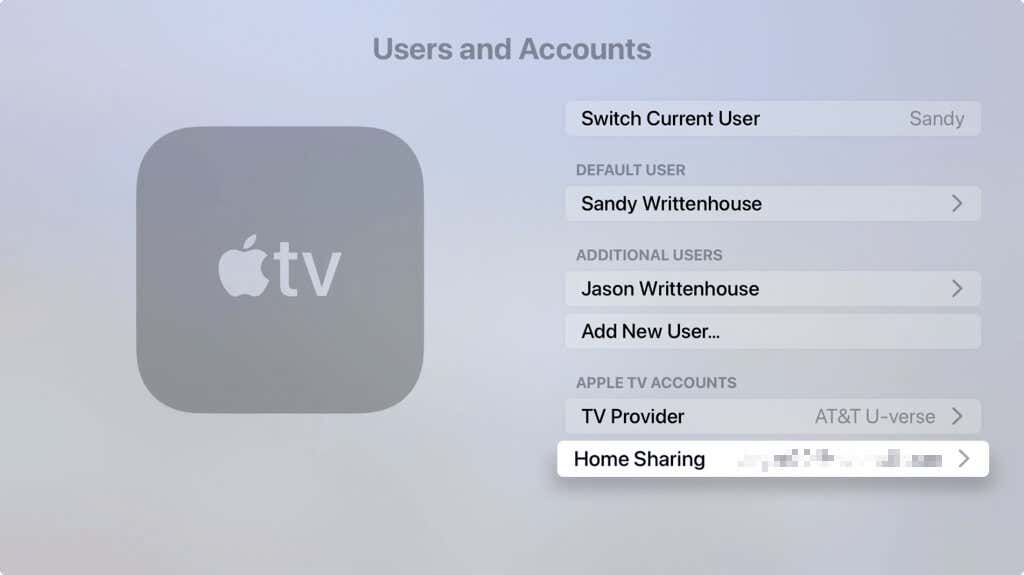
You’ll see your Apple ID next to the Home Sharing option in the Apple TV Settings.
Turn on Home Sharing on Other Devices
Enabling Home Sharing on Apple TV is fine, but you’ll want to set up Home Sharing on other devices too. Otherwise, there won’t be anything to share (wink).
Here’s how to enable the feature on your other Apple devices as well as sharing from Windows. Again, be sure to use the same Apple ID as that for your Apple TV.
Home Sharing on iPhone and iPad
If you plan to share items from your iPhone or iPad, you can turn on Home Sharing easily.
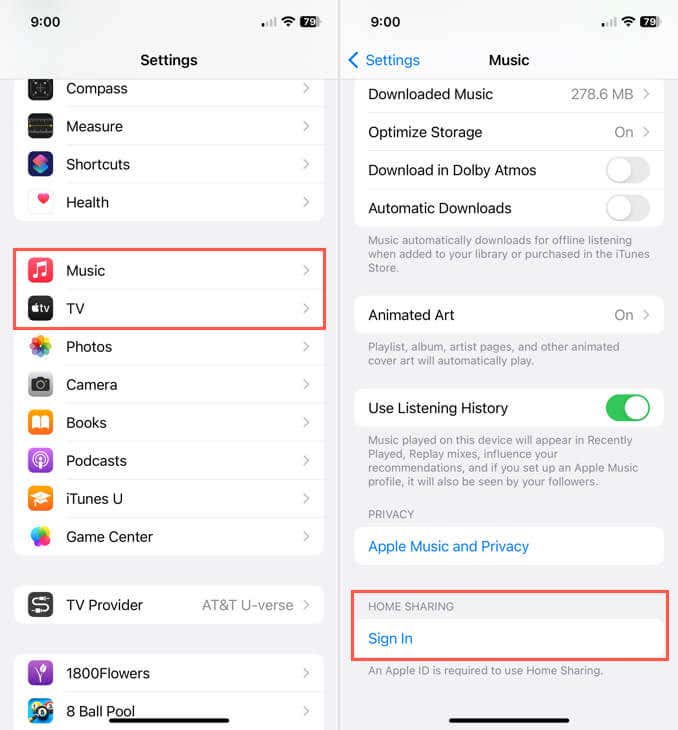
- Open Settings and select either Music or TV . Signing in on one app will sign you in on both.
- Tap Sign In below Home Sharing near the bottom.
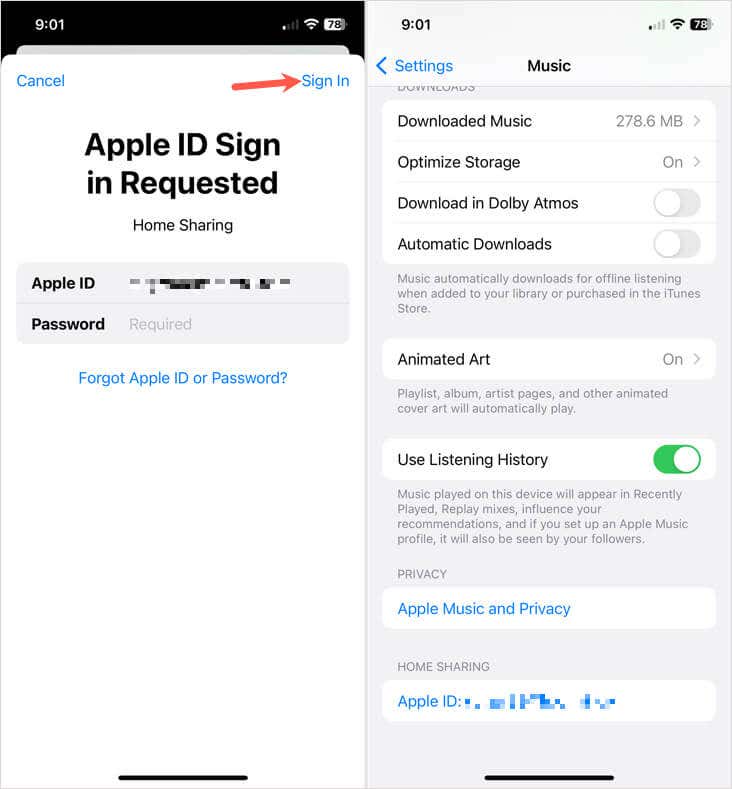
- Enter your Apple ID and password, and tap Sign In .
Like on Apple TV, you’ll see your Apple ID next to the Home Sharing option in the Settings.
Home Sharing on Mac
You can enable Home Sharing on Mac in just a handful of steps.
- Open System Settings using the Apple icon in the menu bar or icon in your Dock.
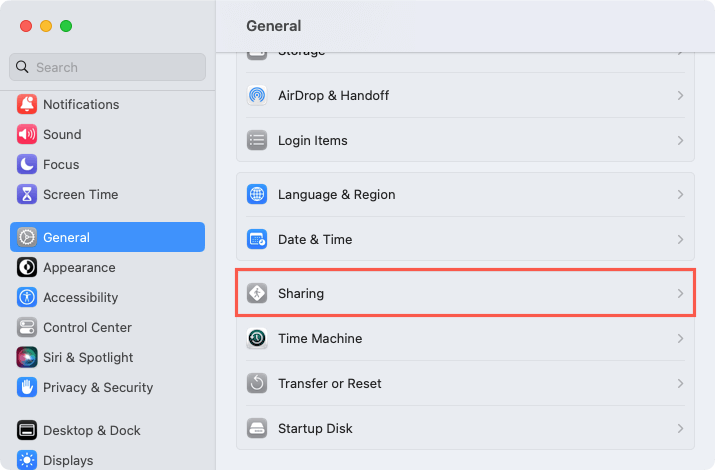
- Select General on the left and Sharing on the right.
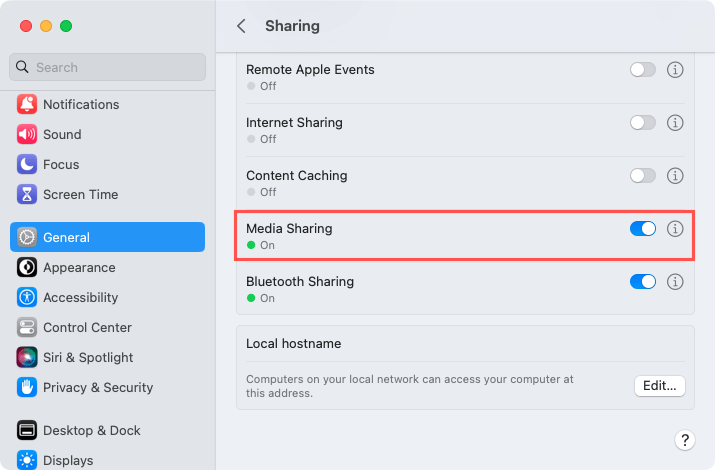
- Turn on the toggle for Media Sharing and select the Info icon (small letter “i”) on the right.
- Check the box for Home Sharing and enter your Apple ID and password.
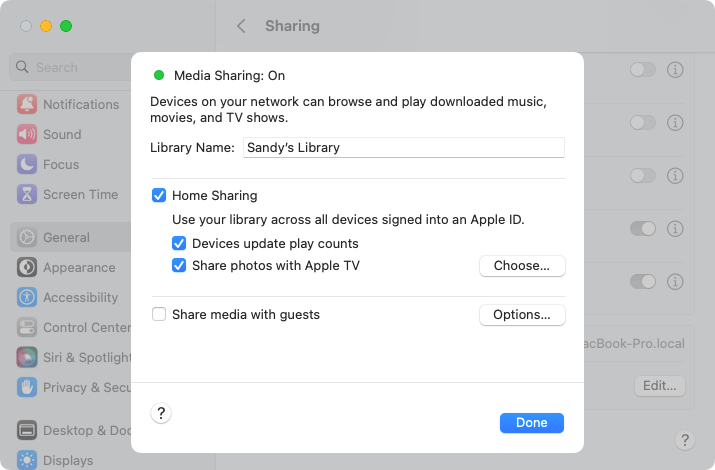
- Optionally, you can check the boxes for devices update and share photos. If you opt to share photos, you can select the Choose button to select the photos and albums.
- Pick Done and close the System Settings using the X on the top left.
Home Sharing on Older Versions of macOS
On other versions of macOS, earlier than Ventura, including Catalina, Big Sur, and Monterey, open System Preferences and pick Sharing .
Then, mark the checkbox for Media Sharing , select Home Sharing , and enter your Apple ID and password.
On macOS Mojave or earlier, you’ll need to use iTunes. Follow the steps below to enable the Home Sharing feature in that application, which is the same process as on Windows.
Home Sharing on Windows
You can turn on Home Sharing on your Windows PC using iTunes.
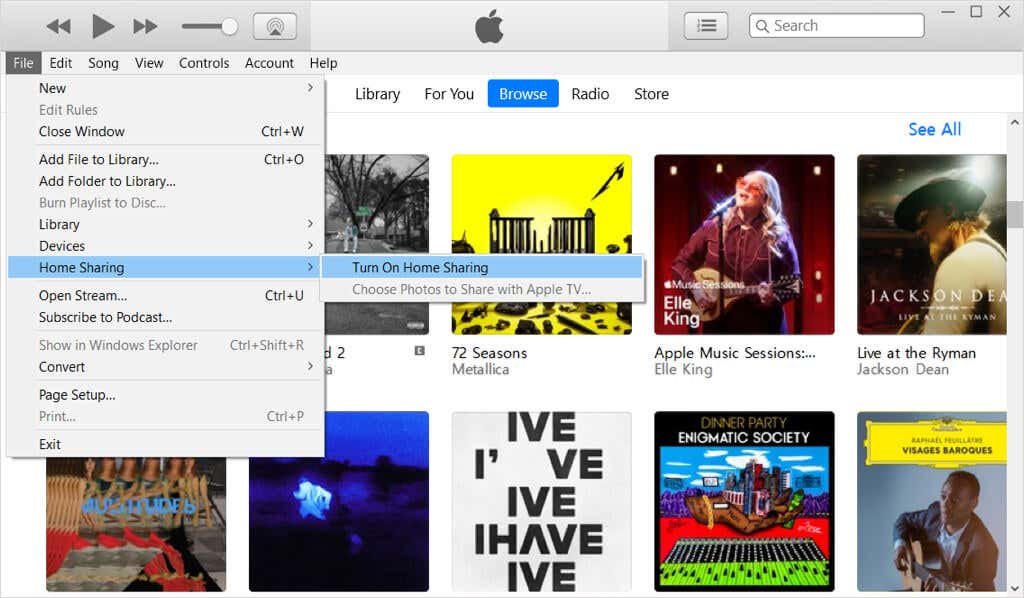
- Open iTunes and select File > Home Sharing .
- Choose Turn On Home Sharing .
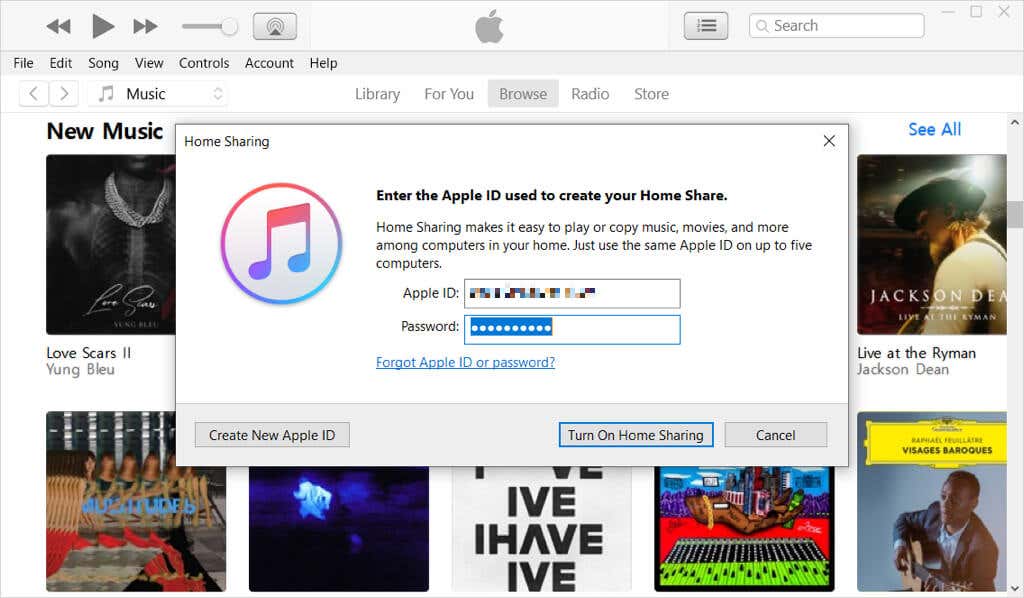
- When prompted, enter your Apple ID and password and select Turn On Home Sharing .
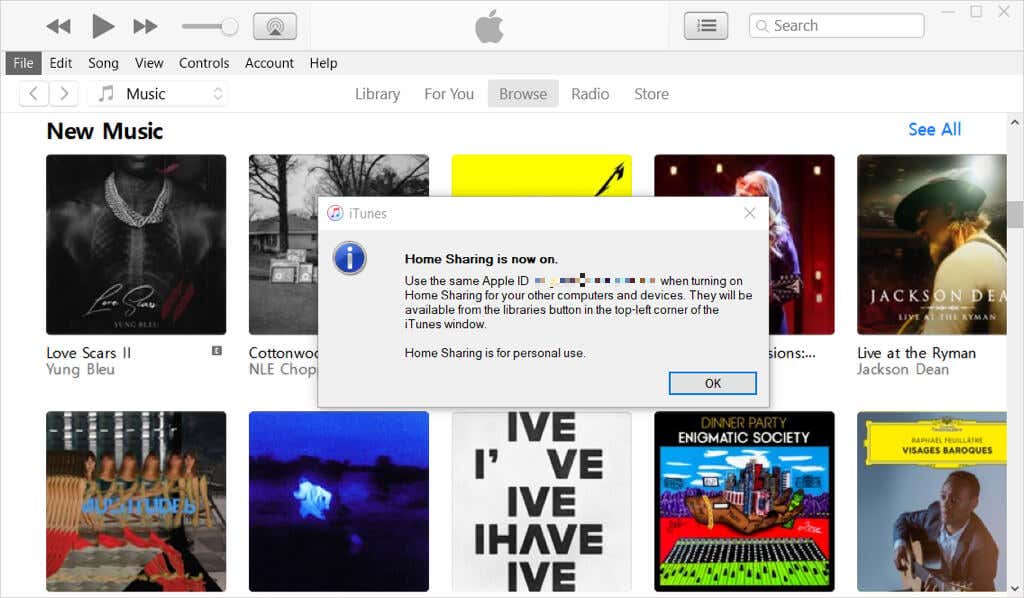
- You’ll see a confirmation message that you’ve enabled the feature. Select OK to acknowledge the message.
Use Home Sharing on Apple TV
Once you enable Home Sharing on Apple TV along with another device or two, you can use it easily.
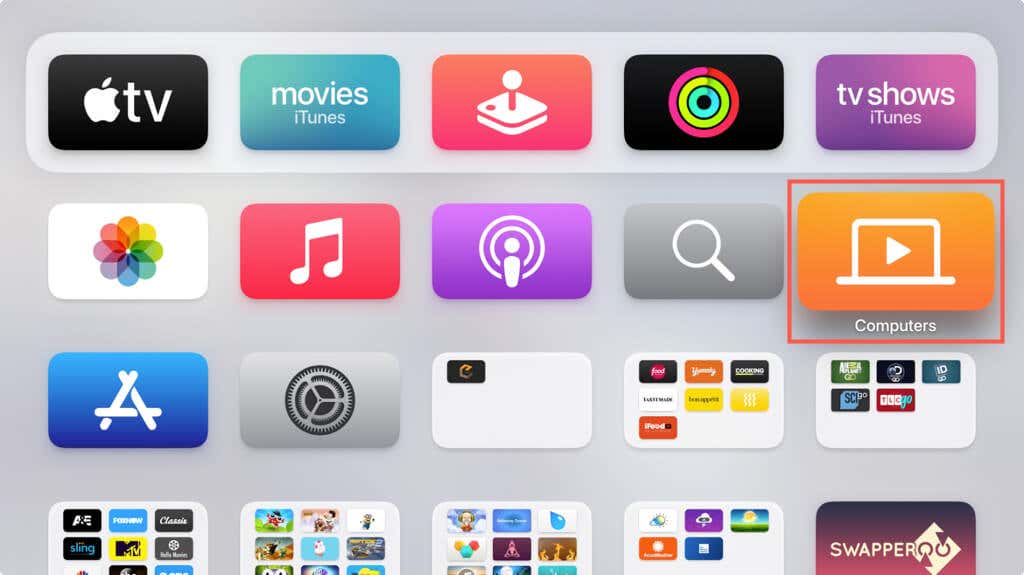
Open the Computers app on the Apple TV Home screen.
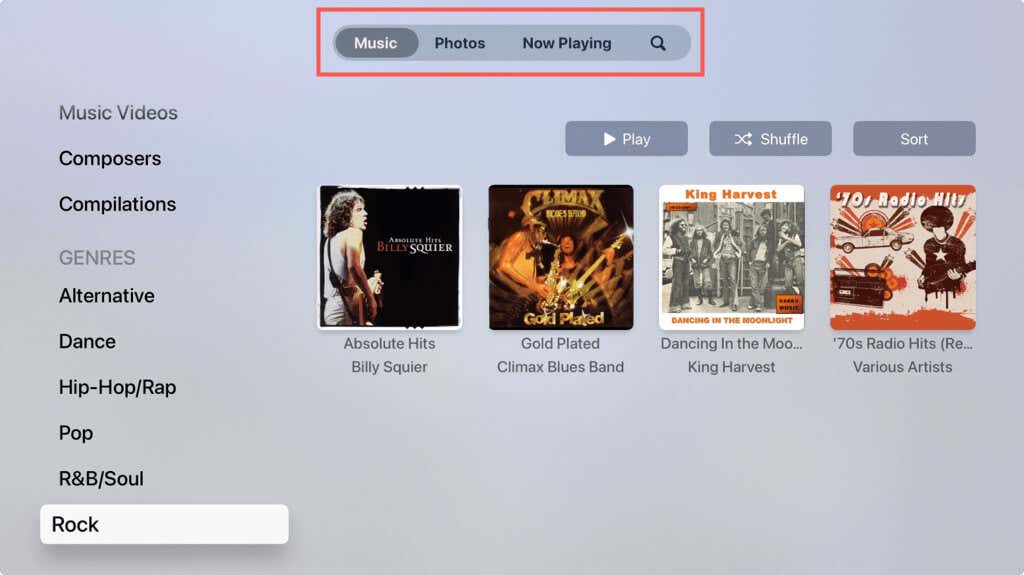
You’ll see the shared libraries for Music and Photos that you can pick from or use the Now Playing or Search features.
Sharing songs and pictures from your other devices on Apple TV gives you one more place to enjoy the music and photos you love. For more, look at how to use iCloud Family Sharing .
- How to Set Up and Use Apple Home Sharing on Your Mac or PC
- How to Charge Your Apple TV Remote
- Apple TV Not Working on Roku? Try These 8 Fixes Right Now
- How to Authorize Your Macbook for Apple TV
- tvOS 17: All the New Features
