Do you know who’s who in your company? Can’t figure out who’s at the bottom—or right at the top?
When you’re using Microsoft Teams , it’s important to send the right message to the right user. If you’re unsure, you can use the organization chart in Microsoft Teams. This feature shows you the hierarchy of your company, based on the information used in Azure Active Directory for your company’s organisation.
You can also search for other people and see where they fit in the chart. To set up and use the organizational chart in Microsoft Teams, follow the steps below.

How to Set Up the Organization Chart in Azure Active Directory
The only way to introduce an organizational chart into your Teams’ setup is to use the correct job information for users in Azure Active Directory. If you don’t have access to this, you’ll need to consult with the system administrator for your AD domain first to make the necessary changes.
You can’t edit the organization chart on mobile. Instead, you’ll need to visit the Azure Active Directory portal in a desktop web browser to do that.
To set up the organizational chart in Azure Active Directory, follow the steps below.
- Open the Azure Active Directory portal and sign in with your admin account.
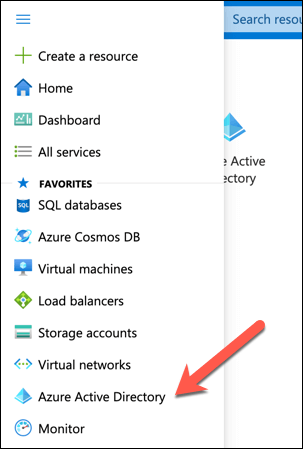
- From the menu on the left, click Azure Active Directory to configure your AD settings.
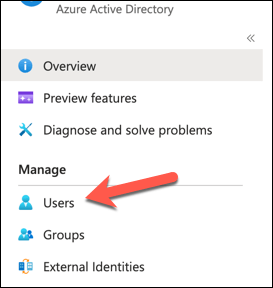
- On the left, under the Manage section, click Users .
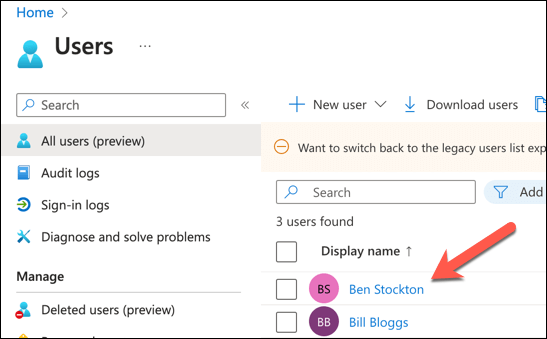
- On the right, select a user to edit their profile.
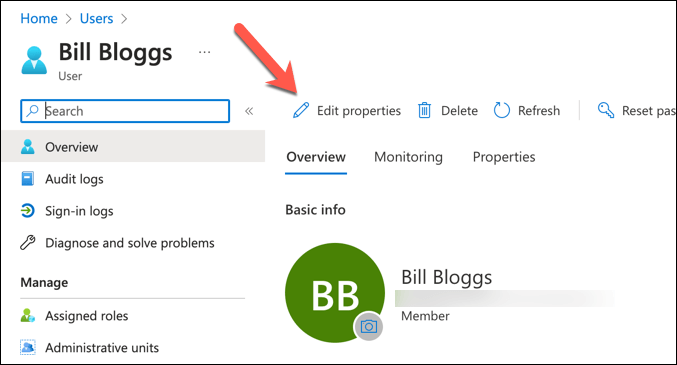
- At the top of the user profile, click Edit Properties .
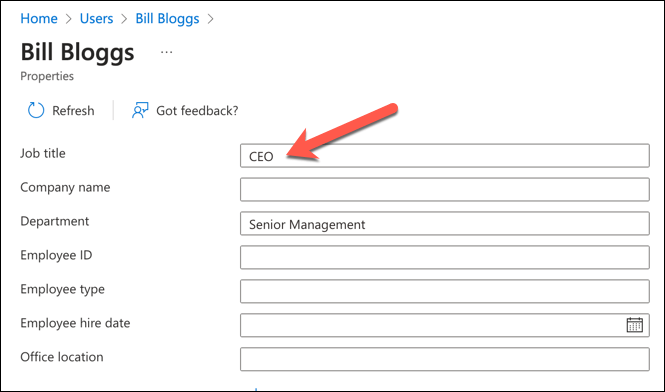
- Scroll down to the Job information section and fill out the fields, such as job title, department, and office location.
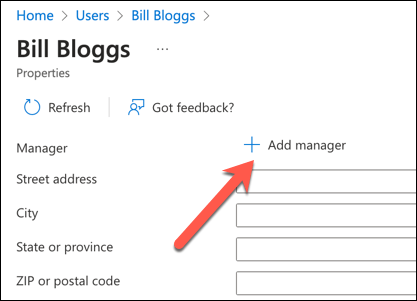
- In the Manager field, click Add Manager and select a user who is the manager of the selected user.
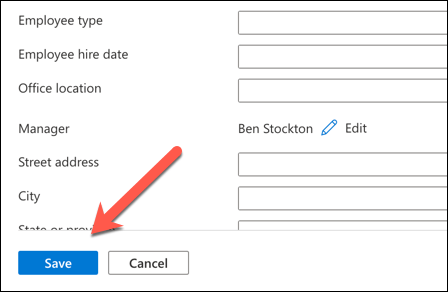
- Click Save at the bottom.
Repeat these steps for all Teams users who need to be included in the organization chart.
How to View the Organization Chart in Microsoft Teams on a PC or Mac
After you’ve set up the job info and managers for all Teams users in Azure Active Directory, you’ll be able to view the organization chart in Microsoft Teams itself. This feature is available for one-on-one chats with other users.
This will only work for accounts that are part of the same organization in the same Azure domain. These steps will work for desktop users on a PC or a Mac.
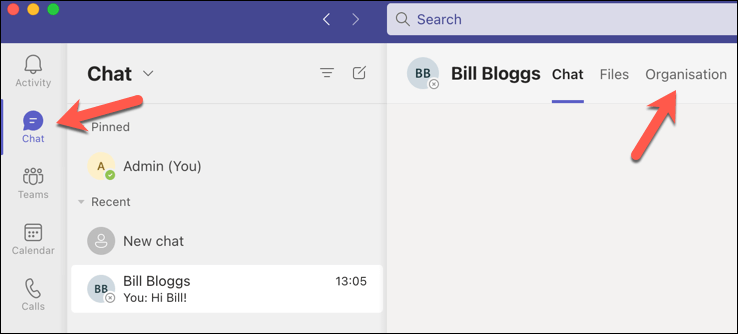
- To start, open Microsoft Teams and go to the Chat tab on the left sidebar.
- Select a chat thread with a user you want to see their organization chart.
- On the top right, click the Organization tab.
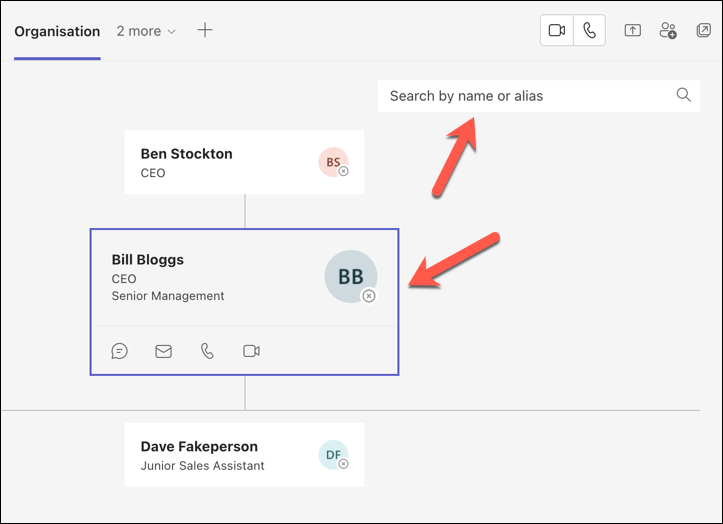
- You’ll see a diagram that shows who reports to the selected user, and who they report to. You can also see their job info below their name.
- You can click on any user in the diagram to see more information about their profile or search for other users by typing their name in the search box at the top.
How to View the Organization Chart in Microsoft Teams on Mobile Devices
Unfortunately, Microsoft Teams doesn’t include the functionality to view the organizational chart on your mobile device.
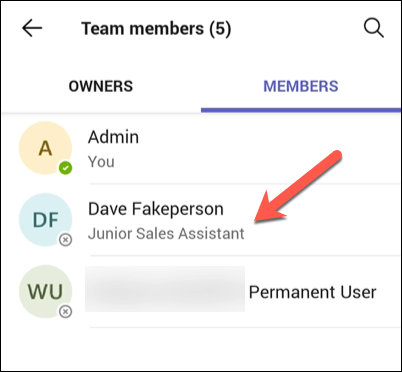
However, you can view a list of organization members using the Microsoft Teams app on Android or iPhone devices to do so. This list will display your team member’s names and user roles.
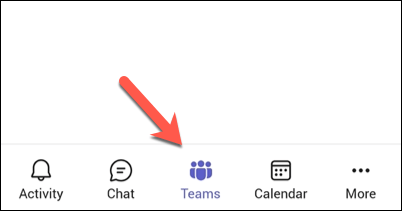
- To start, open the Microsoft Teams app on your mobile device and sign in with your account, then tap the Teams tab at the bottom.
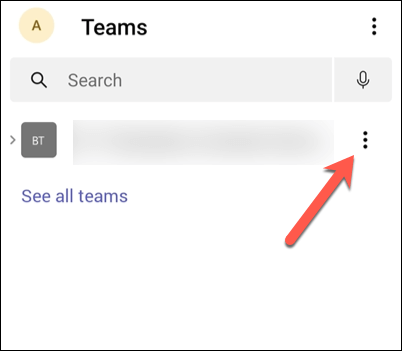
- Tap the three-dots menu icon next to your organization.
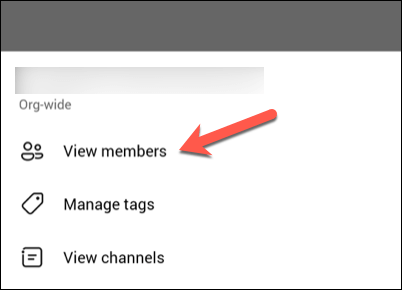
- From the menu, select View members .
- You’ll see a list of organization members in the Members tab. Their user roles will be listed under their name.
- To view more information about a colleague, tap the user’s name in the list to view their profile.
Managing Users in Microsoft Teams
If you want others to understand the structure of your company and find out who’s responsible for what, setting up and using the Microsoft Teams organization chart is a good way to do it. It’ll help you (and everyone else) communicate better at all levels, from the very top downward.
You should also check that your own account details are up to date. For instance, you can quickly update your name in Microsoft Teams .
Want to make Microsoft Teams’ work even better for your organization? There are plenty of Teams apps that you can try out next.
- Microsoft Teams Installation Failed? Here’s How to Fix It
- How to Refresh Microsoft Teams
- Microsoft Teams Chat Messages Not Showing? Try These 4 Fixes
- How to Schedule a Teams Meeting in Microsoft Outlook
- How to Test Audio in Microsoft Teams
Ben Stockton is a freelance technology writer based in the United Kingdom. In a past life, Ben was a college lecturer in the UK, training teens and adults. Since leaving the classroom, Ben has taken his teaching experience and applied it to writing tech how-to guides and tutorials, specialising in Linux, Windows, and Android. He has a degree in History and a postgraduate qualification in Computing. Read Ben’s Full Bio
