Apple’s Magic Keyboard is a remarkably sleek-looking device with scissor-switch keys that allow for an incredible typing experience. The best thing is that you can also use it with other devices.
Since the Magic Keyboard uses Bluetooth for connectivity, you should have no trouble pairing it with a PC or Mac running Windows via Boot Camp. However, slight differences in the Magic Keyboard can pose a challenge.

So below, you’ll figure out what you must do to set up and use the Magic Keyboard correctly on Windows. You’ll also learn how to install the latest drivers for the device should you run into any issues.
Pair Apple Magic Keyboard With Windows
You can pair your Apple Magic Keyboard with Windows similar to any other Bluetooth device. However, if you just installed Windows over Boot Camp and had the keyboard connected to macOS, it should be automatically paired with Windows. If not, the steps below should help you connect it with Windows on any PC or Mac.
Turn your Magic Keyboard on, and then off. You should find the power switch on the top-right edge of the device.
Open the Start menu and select Settings > Devices > Bluetooth & other devices .
Turn on the switch next to Bluetooth and select Add Bluetooth or other device .
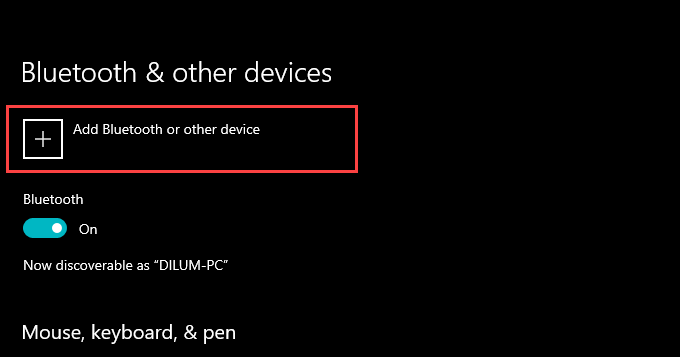
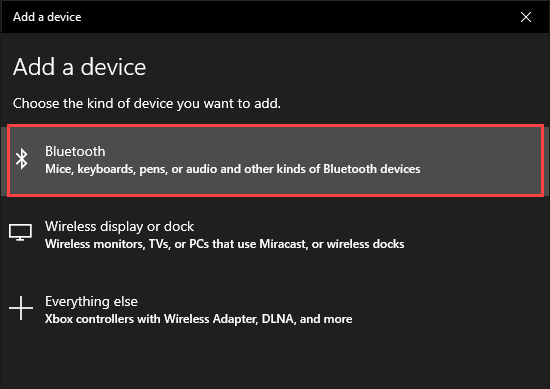
- Select Bluetooth .
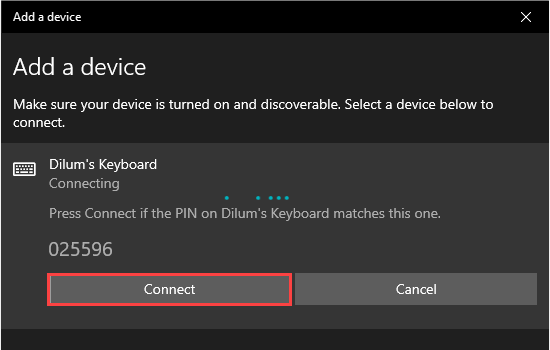
- Select your Magic Keyboard. If Windows displays a six-digit PIN and asks you to confirm if you see it on the Magic Keyboard (which is impossible since it has no display), simply select Connect .
- Select Done .
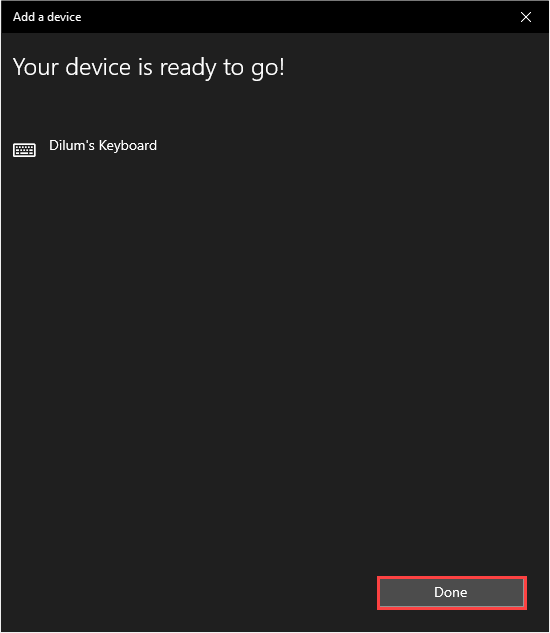
You’ve now finished pairing your Magic Keyboard, so you should be able to start using it with Windows immediately.
Replacement Magic Keyboard Keys on Windows
Apple designs the Magic Keyboard for macOS, so you’ll notice several differences (specifically with the modifier keys) compared to a typical PC keyboard. Thankfully, most keys work as substitutes, so here’s a list of the most important:
Alt —> Option
AltGR —> Option + Control
Windows —> Command
Backspace —> Delete
Enter —> Return
If you use an Apple Magic Keyboard without a numeric keypad, you’ll find various keys (such as Home , Page Up / Down , and End ) completely missing. The same applies to all Magic Keyboard models since they don’t include the Print Screen and Applications keys.
In that case, you’ll have to rely on the On-Screen Keyboard that comes built into Windows to perform the relevant actions. You can invoke it whenever you want using the Windows + Ctrl + O keyboard shortcut (or on the Magic Keyboard by pressing Command + Ctrl + O ).
Install Magic Keyboard Drivers on Windows
The Magic Keyboard should work without issues as soon as you finish pairing it with
Windows. But if you run into connectivity or other problems while using the Magic Keyboard, you must install the relevant drivers for the device.
Use Brigadier
Apple does not release the latest official Magic Keyboard drivers for use on Windows PCs, so you must use a Python script called Brigadier to download them as part of Boot Camp Support Software.
Download the Brigadier.exe file from Github and copy it to your desktop.
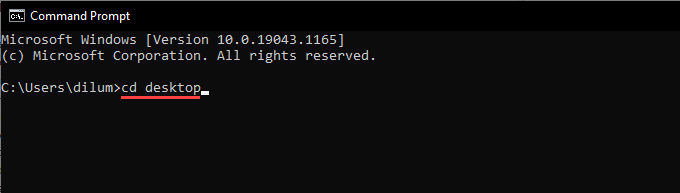
Search for and open the Command Prompt . Then, type cd desktop and press Enter .
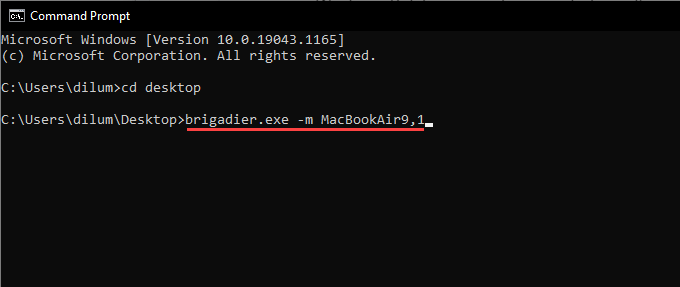
- Next, type brigadier.exe -m MacBookAir9,1 and press Enter .
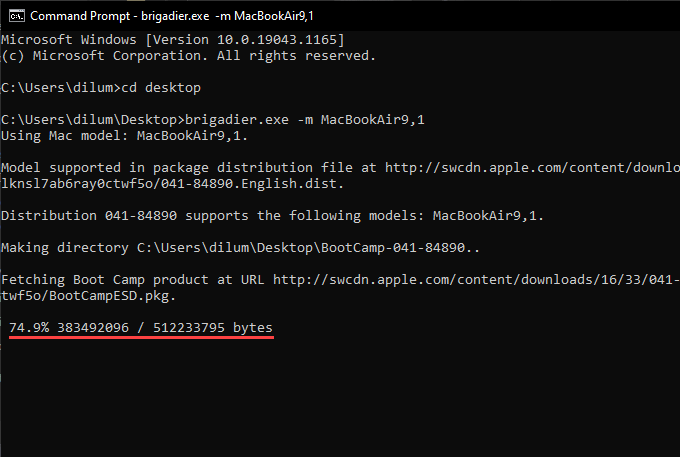
- Wait until Brigadier finishes downloading the Boot Camp Support Software. Then, exit the Command Prompt console.
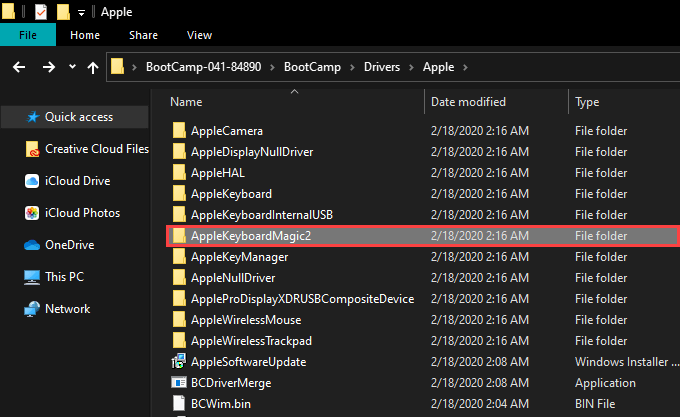
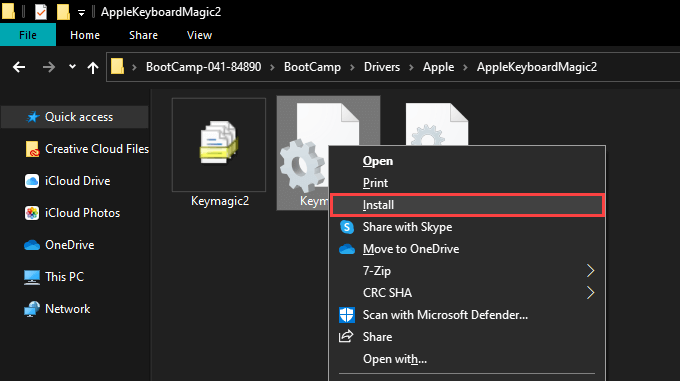
- Open the BootCamp folder on your desktop. Then, navigate through the subfolders labeled BootCamp > Drivers > Apple > AppleKeyboardMagic2 .
- Right-click the Keymagic2.inf file and select Install .
Use Apple Software Update
If you use Windows via Boot Camp on a Mac, you can install Magic Keyboard-related updates directly via the Apple Software Update applet.
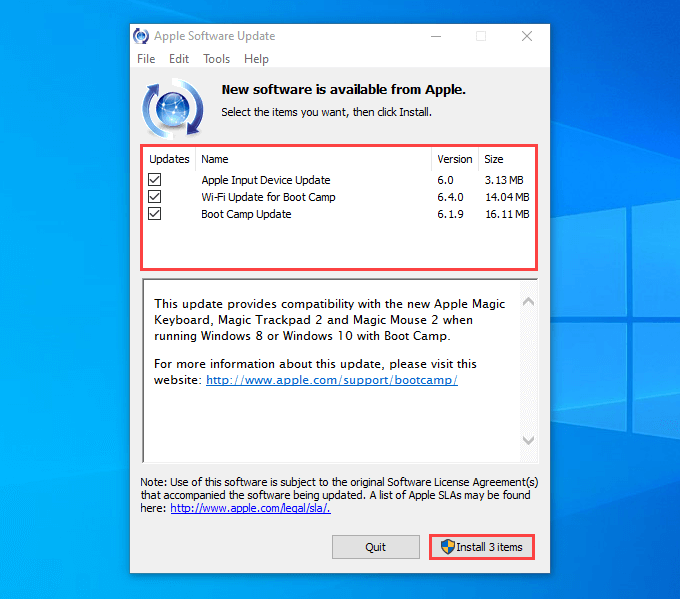
Open the Start menu and select Apple Software Update from the list of programs.
Check the box next to Apple Input Device Update . For your Boot Camp installation to work optimally, you must also select any other updates. Then, select Install Items .
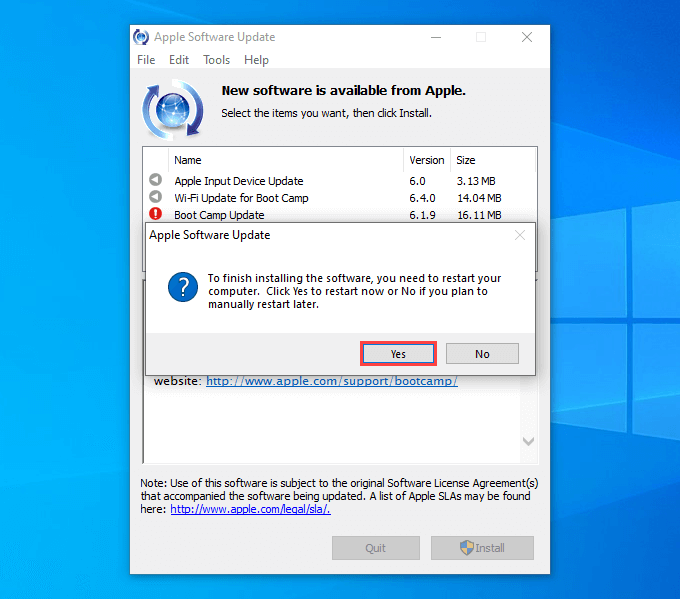
- Complete Yes to restart Windows and complete installing the selected items.
TryMagic Keyboard Utilities
If you need superior functionality while using your Magic Keyboard with Windows, it’s worth looking into third-party support software called Magic Keyboard Utilities.
Not only does Magic Keyboard Utilities install the drivers required to get your Apple Magic Keyboard running smoothly on Windows, but it can also change modifier keys, help you switch between different keyboard layouts, map useful actions to the function keys, and so on. It even lets you keep tabs on the keyboard’s battery life.
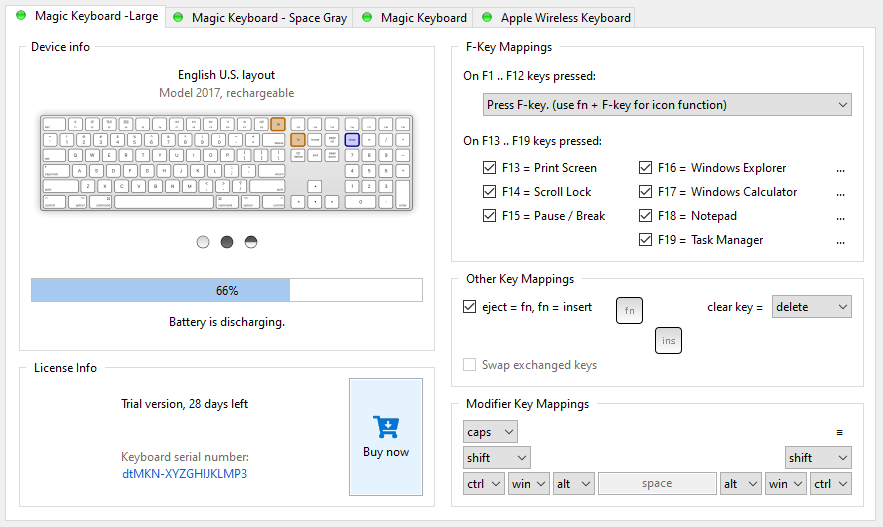
Magic Keyboard Utilities costs $14.90 a year, but you can thoroughly test out the application for 28 days with a free trial. It’s a steep price to pay, but if you plan on using your Magic Keyboard with your PC for the long haul, it should help improve the experience a lot.
Absolute Magic on Windows
The slight differences in the keyboard layout coupled with various missing keys might make the Magic Keyboard a tad challenging to deal with on the PC. However, use it for some time, and you should find it more manageable. Now that you’ve finished setting up your Apple Magic Keyboard, here’s what you must do to set up your Magic Mouse on Windows .
- How To Fix Magic Keyboard Caps Lock Not Working
- How to Fix Function Keys Not Working on Apple Magic Wireless Keyboard
- Fix Apple Watch Charging Problems (All Models)
- How to Use Your iPhone as a USB Drive on Mac and PC
- Apple’s Big Week: Design Debates, AI Ambitions, and Regulatory Roadblocks
