Remove Excel Formulas Using Paste Special
The “Values” paste option in Excel removes specific attributes from cells or data in your worksheet. You can use the paste option to create a formula-free duplicate of your worksheet.
Open the Excel workbook you want to share or save without formulas and follow the steps below.
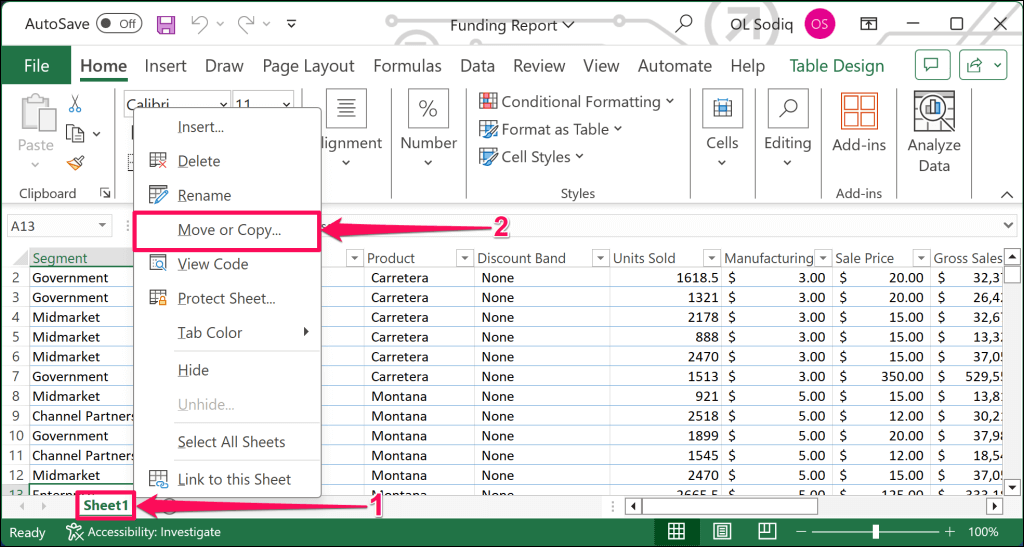
- First, duplicate the worksheet (to a new workbook) to avoid losing the data in the original workbook. Right-click the sheet in the worksheet tab and select Move or Copy on the action menu.
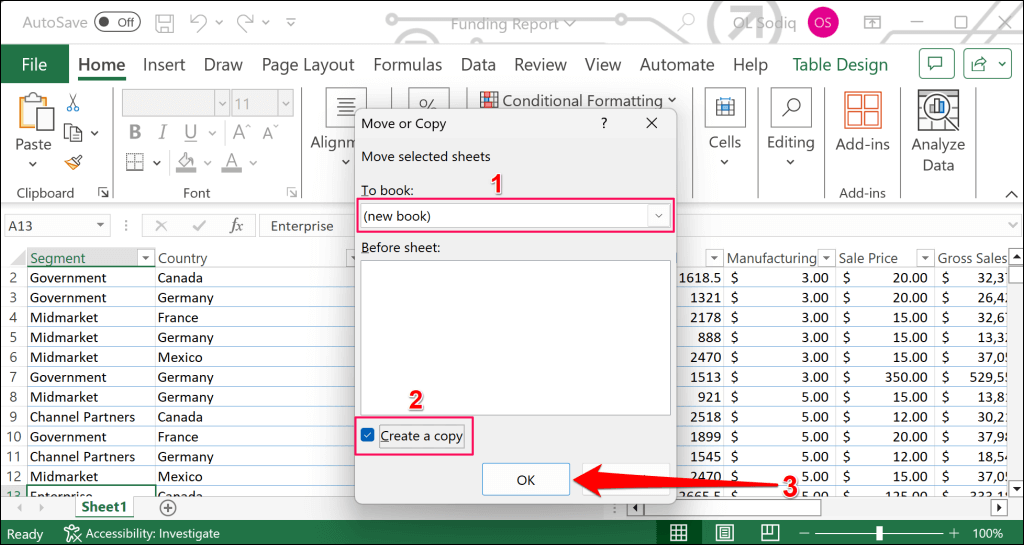
- Select (new book) in the “To book” drop-down menu and check the Create a copy tickbox. Select OK to close the dialog box.
Excel will duplicate the sheet into a new workbook. Proceed to the next step to remove the formulas in the duplicate worksheet/workbook.
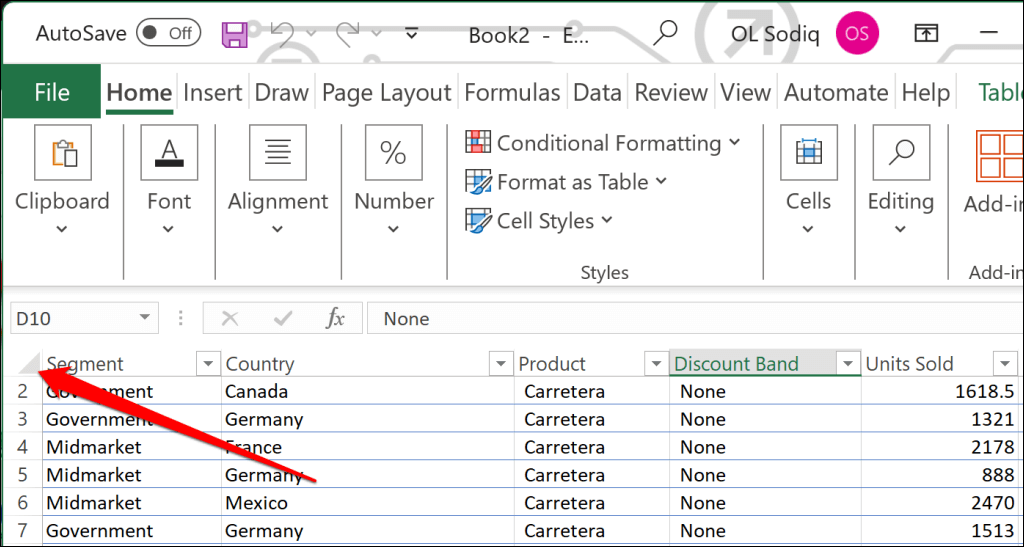
- Press Ctrl + A (Windows) or Command + C (Mac) to select all cells in the new (duplicate) worksheet. Alternatively, select the Triangle icon in the top-left corner of the first row and column.
- Press Ctrl + C (Windows) or Command + C (Mac) to copy the selected cells.
- Again, press Ctrl + A (Windows) or Command + A (Mac) to copy the entire worksheet.
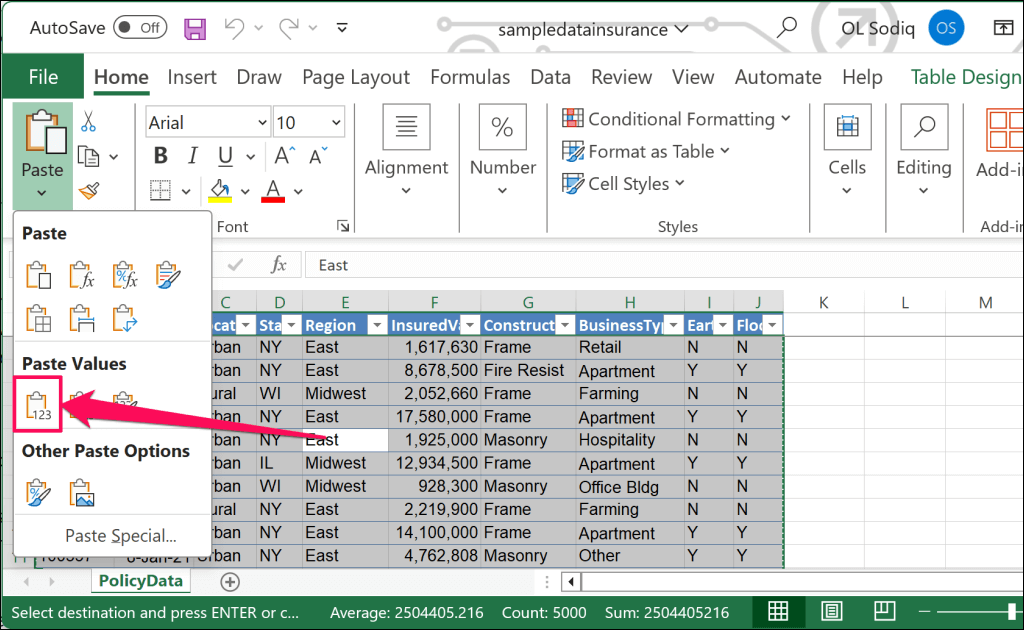
- Open the Home tab and select the down-arrow icon below the Paste icon in the “Clipboard” section.
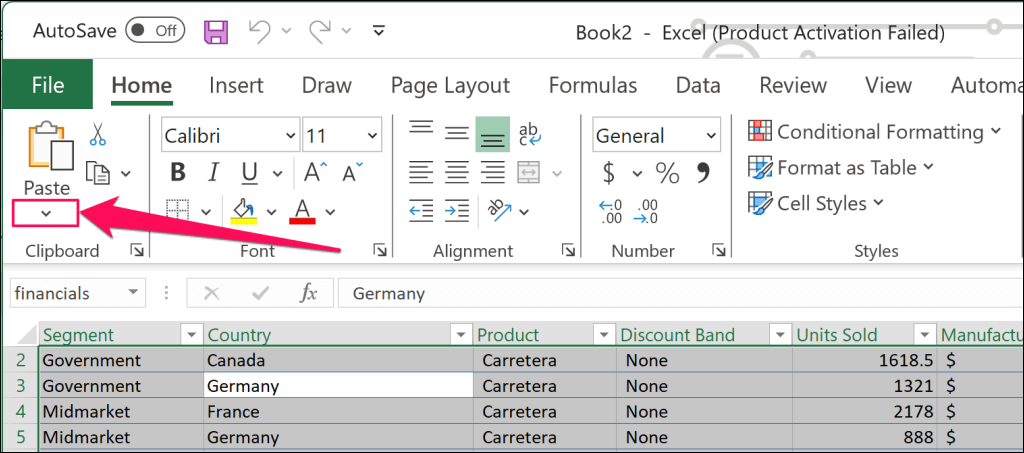
- Next, select the first icon ( Values ) in the “Paste Values” section.
Alternatively, select Paste Special , choose Values in the “Paste” section, and select OK .
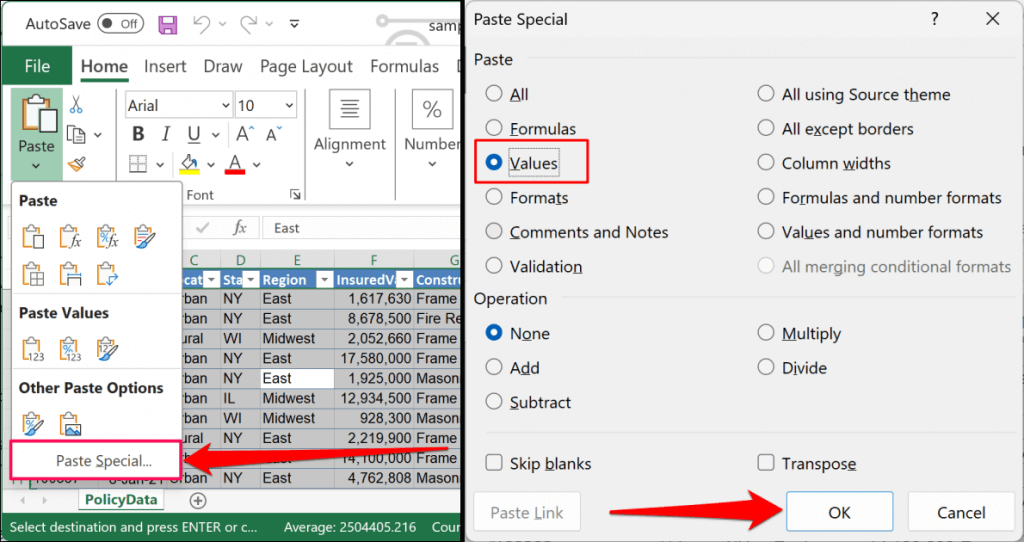
Pro Tip: You can also use the Ctrl + Alt + V keyboard shortcut to open the Paste Special window in Excel.
The paste value option prompts Excel to remove formulas, formatting, and data validation rules from all cells in the worksheets. Cells in the worksheet will display only their values and nothing more.
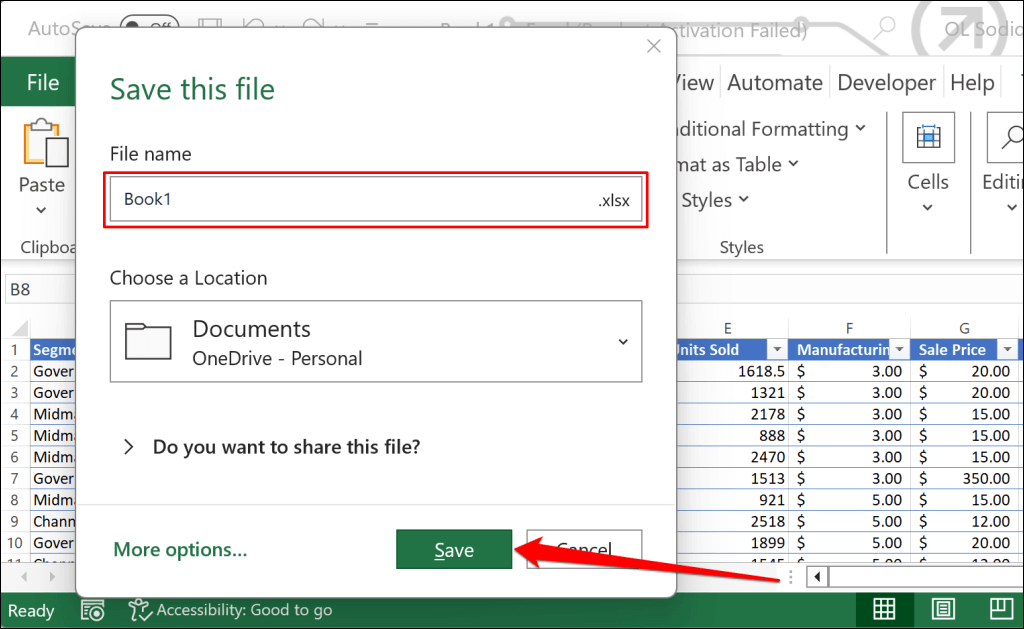
- Press Ctrl + S (Windows) or Command + S (Mac) to save the workbook as a new Excel file on your computer.
- Enter a file name and select Save . Ensure you save the workbook in “.xlsx” format so the recipients can view or edit the sheet in Excel.
Save Worksheets Without Formulas Using VBA Code

The Visual Basic for Application (VBA) tool can help convert cell content in an Excel worksheet to values only. If this is your first time running VBA in Excel, our VBA guide for beginners is a must-read.
We recommend running the VBA code below on a duplicate worksheet to avoid losing any information/data in the original document. Open the duplicate document and follow these steps:
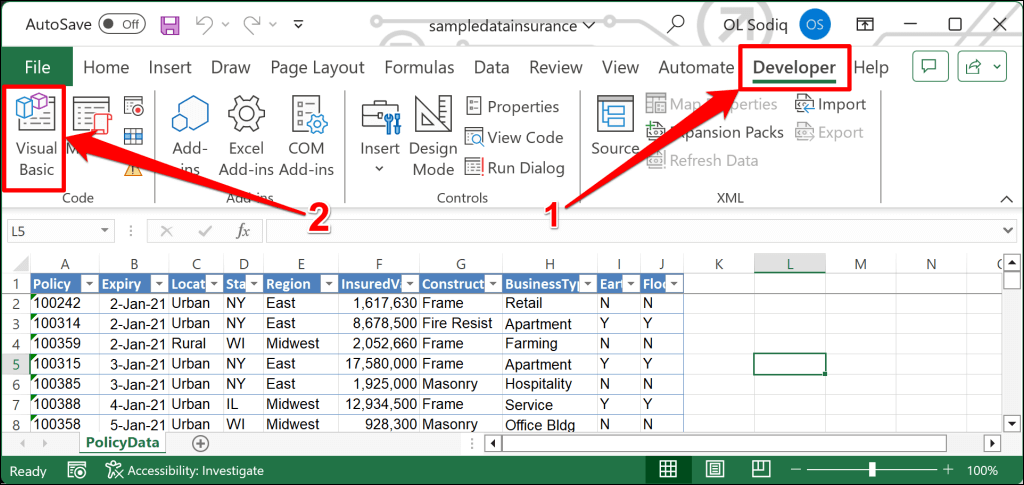
- Press Alt + F11 on your keyboard to launch the Microsoft Visual Basic for Applications (VBA) window. Alternatively, open the Developer tab, and select Visual Basic .
- Select Insert on the top menu and choose Module .
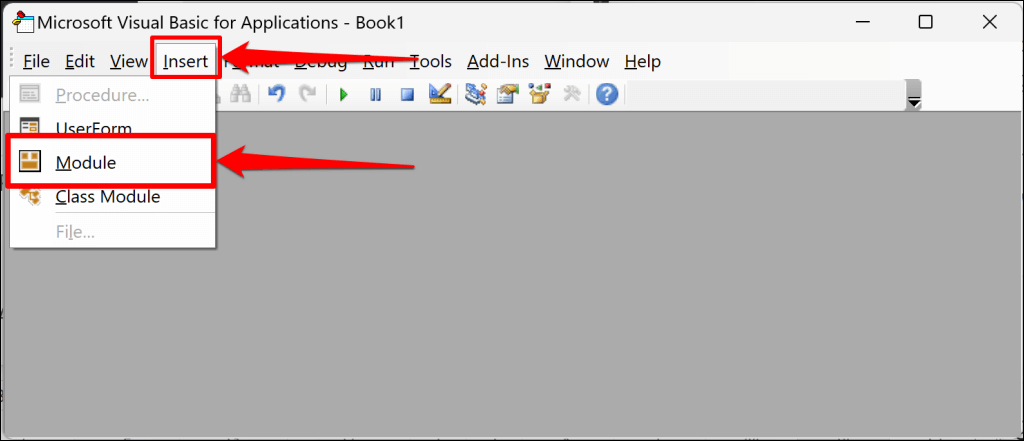
- Paste the following code in the Module and press F5 on your keyboard to run the code.
Sub Formulas_into_Values()
Dim ws As Worksheet
For Each ws In ThisWorkbook.Worksheets
Cells.Copy
Cells.PasteSpecial Paste:=xlPasteValues
Next ws
End Sub
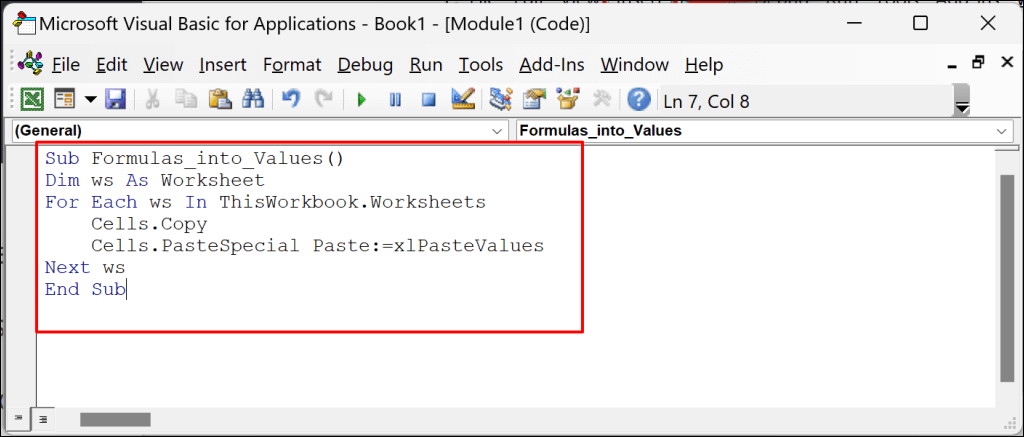
The VBA code removes formulas from all cells in the worksheet and converts their content to values only.
- Press Ctrl + S (Windows) or Command + S (Mac) to save the formula-free worksheet to your computer.
Create and Share Formula-Free Excel Sheets
- How to Find Circular References in Microsoft Excel
- Name Box in Excel: All You Need to Know
- How to Remove Unwanted Spaces from Excel Spreadsheets
- How to Unhide the First Column or Row in Excel Worksheets
- How to Use the Square Root (SQRT) Function in Excel
Sodiq has written thousands of tutorials, guides, and explainers over the past 4 years to help people solve problems with Android, iOS, Mac, and Windows devices. He also enjoys reviewing consumer tech products (smartphones, smart home devices, accessories, etc.) and binge-watching comedy series in his spare time. Read Sodiq’s Full Bio
