In this article, we’ll walk you through all the available options.

What Can You Buy With Alexa?


Buy Items with Alexa Voice Shopping
Making purchases is a great way to use Alexa , including adding items to your shopping cart and reordering things you buy regularly using 1-Click.
If you want to buy items directly with Alexa, you can enable Voice Purchasing. Open the Alexa app on your Android or iOS device and select More at the bottom.
- Pick Settings .
- Choose Account Settings .
- Open Voice Purchasing .
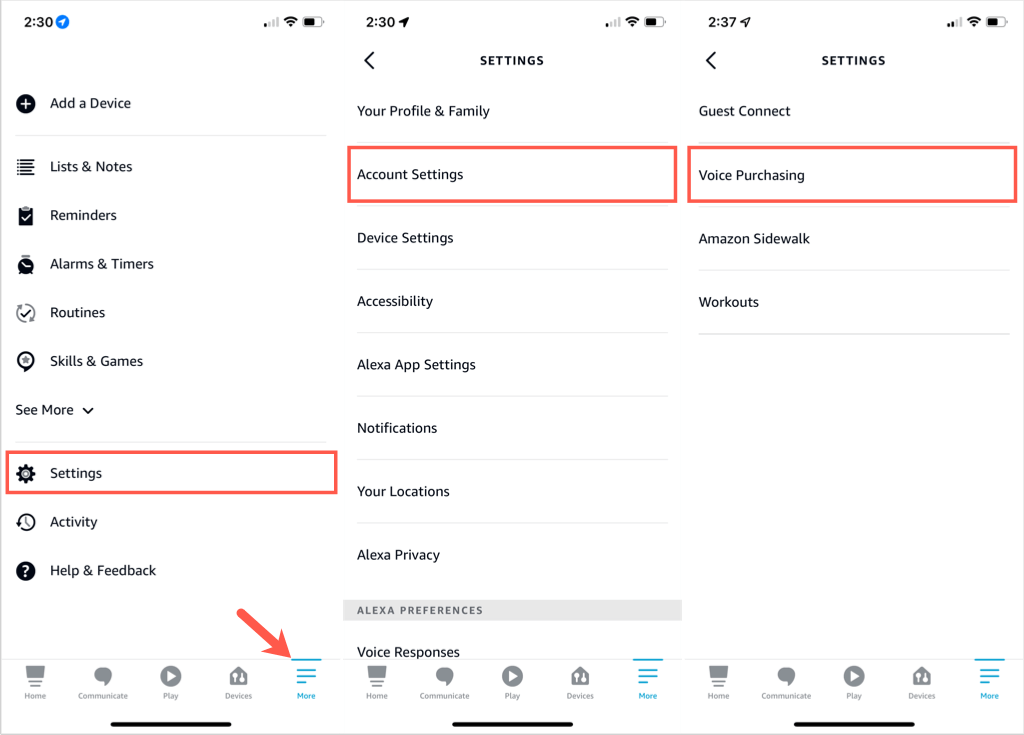
- Select Purchase Controls and choose an option. You can allow only recognized voices, set up a four-digit code, or allow anyone to buy items.
- Tap the arrow to go back and select Payment Settings . You’ll see that all transactions use the same 1-Click method offered on Amazon.com. Tap Edit Payment Method to choose a different card if necessary.
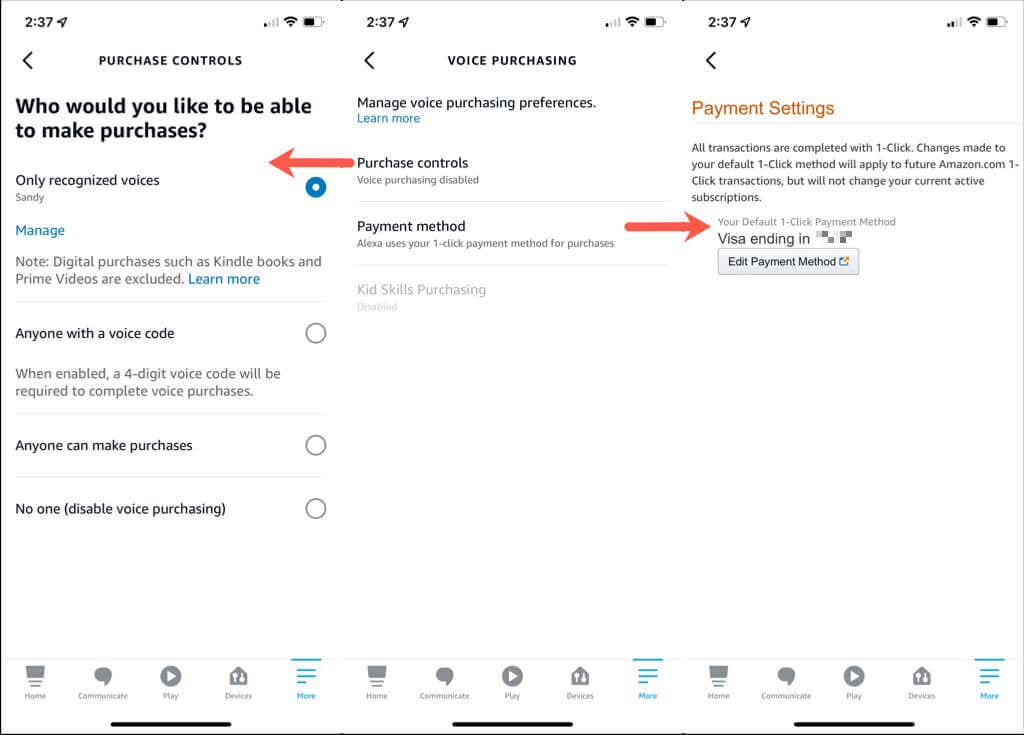
You can then continue to tap the arrow on the top left to exit the Account Settings.
Voice Commands
Once you set up Voice Purchasing, you can order items easily.
You can use simple commands like these:
- “Alexa, reorder coffee.”
- “Alexa, refill my prescriptions.”
- “Alexa, add vitamins to my cart.”
- “Alexa, order laundry detergent.”
- “Alexa, checkout my cart.”
If you change your mind about an order, just say, “Alexa, cancel my order.”
Manage Your Shopping Lists
Create a New Shopping List
To use your voice to create a list, say something like, “Alexa, create a Grocery list” or “Alexa, make a new Gift list”. The key is to give Alexa the name for your list.
Alexa will then ask what you’d like to add to your new list. You can answer with an item or say “nothing” to add to it later.
To use the Alexa app to create a list, start by selecting More at the bottom.
- Choose Lists & Notes near the top.
- Confirm you’re on the Lists tab and tap the plus sign next to Create List .
- Enter a List Name and press Return or Enter on the keyboard.
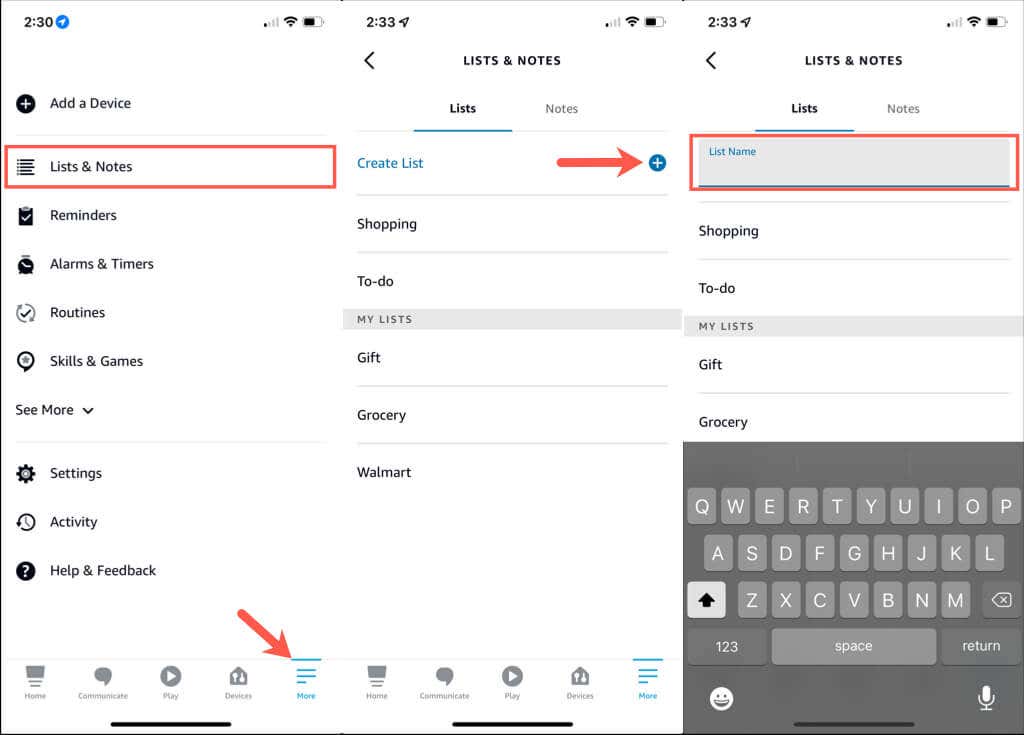
Similar to creating a list with your voice, you’ll be prompted to add an item to your list. Tap Add Item to enter one or the back arrow on the top left to return to the Lists screen and add one later.
Add or Remove List Items
To add items to a shopping list with your voice, use the name of the list and the item you want to add. For instance, “Alexa, add milk to my Grocery list” or “Alexa, add sneakers to my Gift list”.
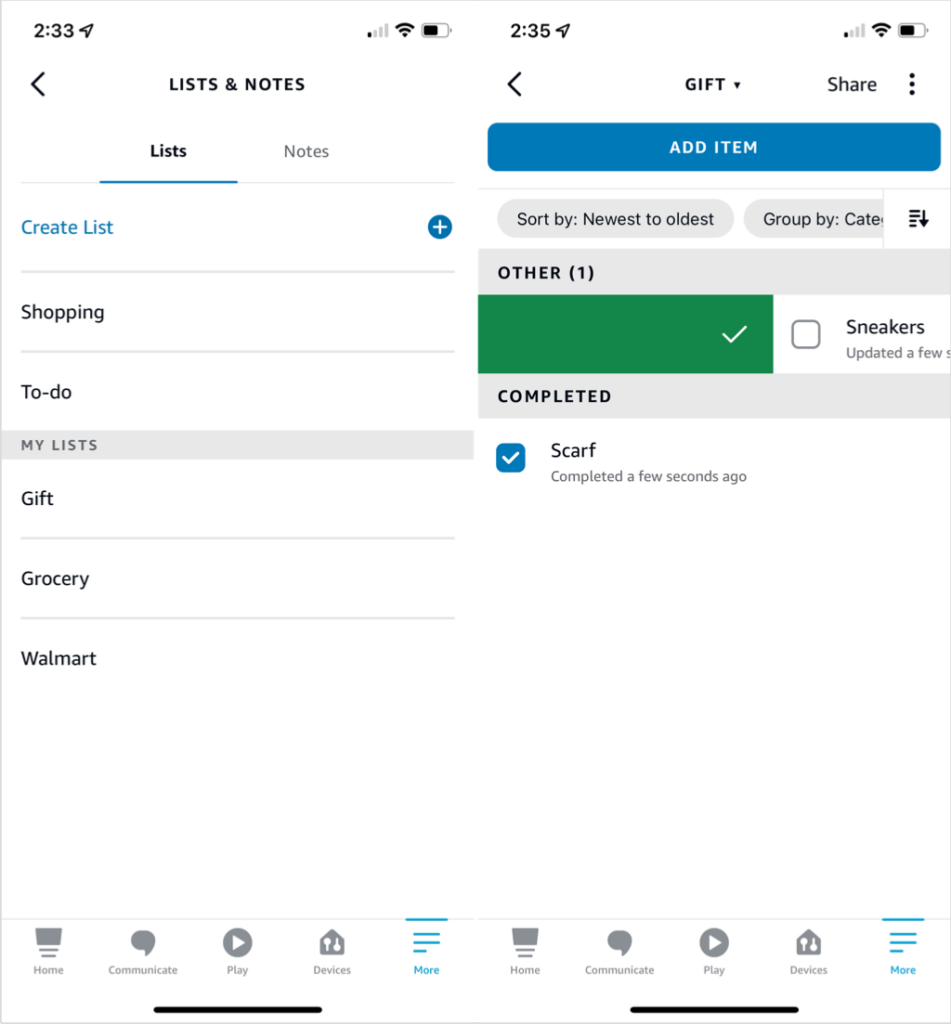
To remove items you’ve purchased, you can say “Alexa, remove bread from my Grocery List” or “Alexa, mark off scarf on my Gift list”.
To add items using the Alexa app, select More at the bottom.
- Choose Lists & Notes .
- Pick the list name on the Lists tab.
- Select Add Item .
- Enter the item and press Return or Enter on the keyboard.
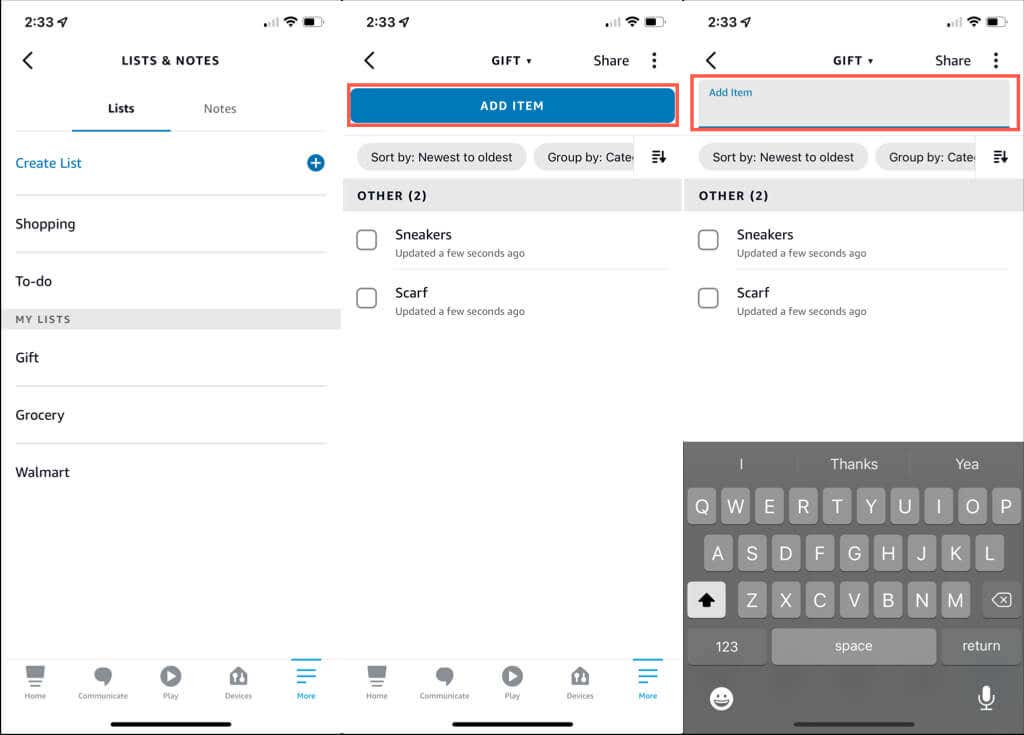
To remove items in the app, follow the same steps above to open the list. Then, tap the item’s checkbox or slide the item from left to right.
Delete a Shopping List
If you have a list you no longer need, you can remove it easily. Using your voice, say “Alexa, delete my Gift list”. Alexa will ask you to confirm.
In the Alexa app, open More > Lists & Notes .
On the Lists tab slide the list from right to left and pick Delete . Alternatively, select the list to open it, tap the three dots on the top right, and pick Delete List in the pop-up at the bottom.
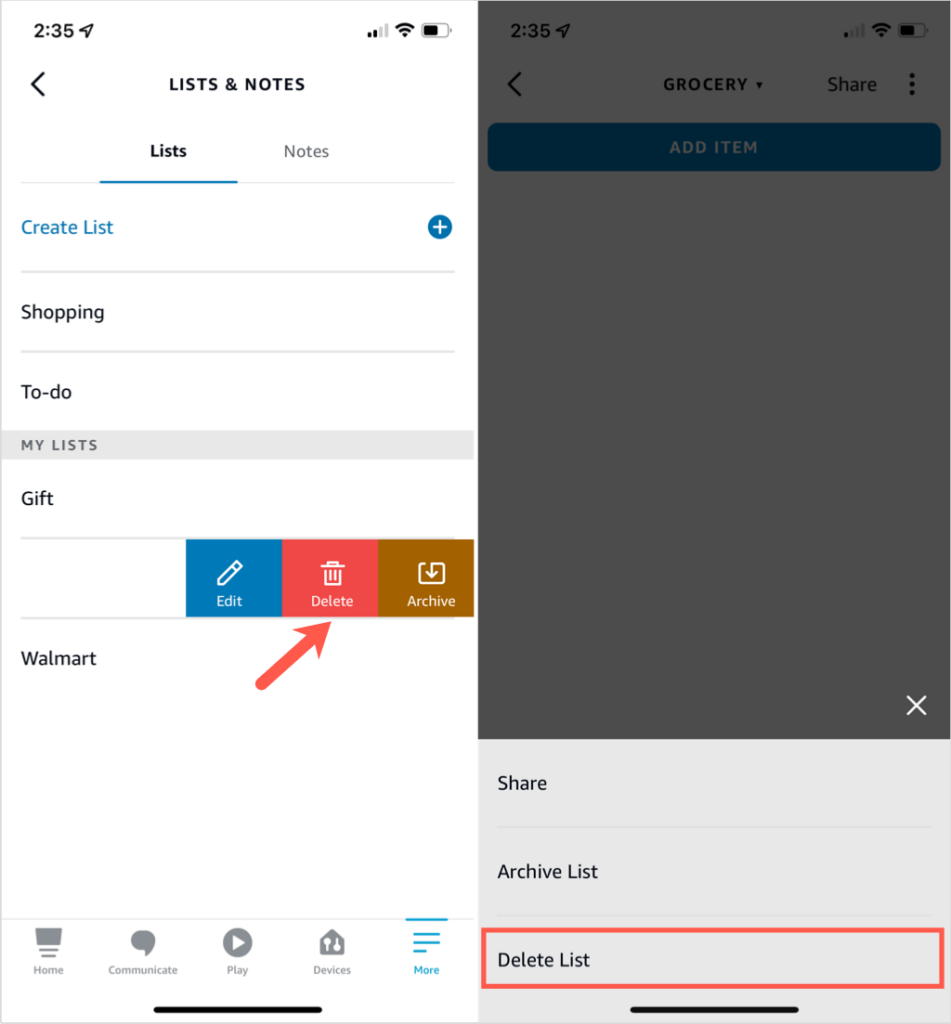
Notice, you can also Archive a list if you prefer not to Delete it.
Check on Your Orders, Returns, and Deliveries
Purchasing products is only one part of the shopping process. After you buy something, you want it to arrive , right? You can ask Alexa for updates on orders, returns, and deliveries.
To allow Alexa to provide this information or to keep Alexa from spoiling surprises, simply adjust the settings in the mobile app or online.
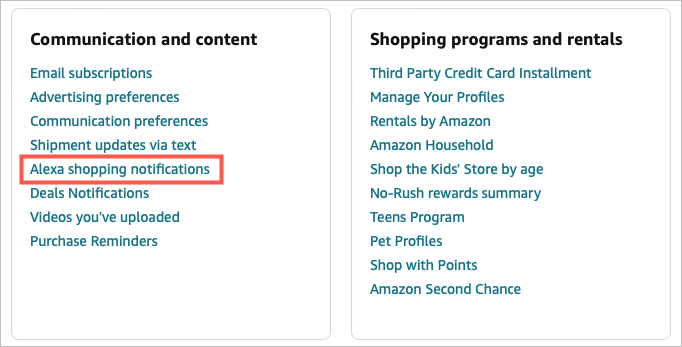
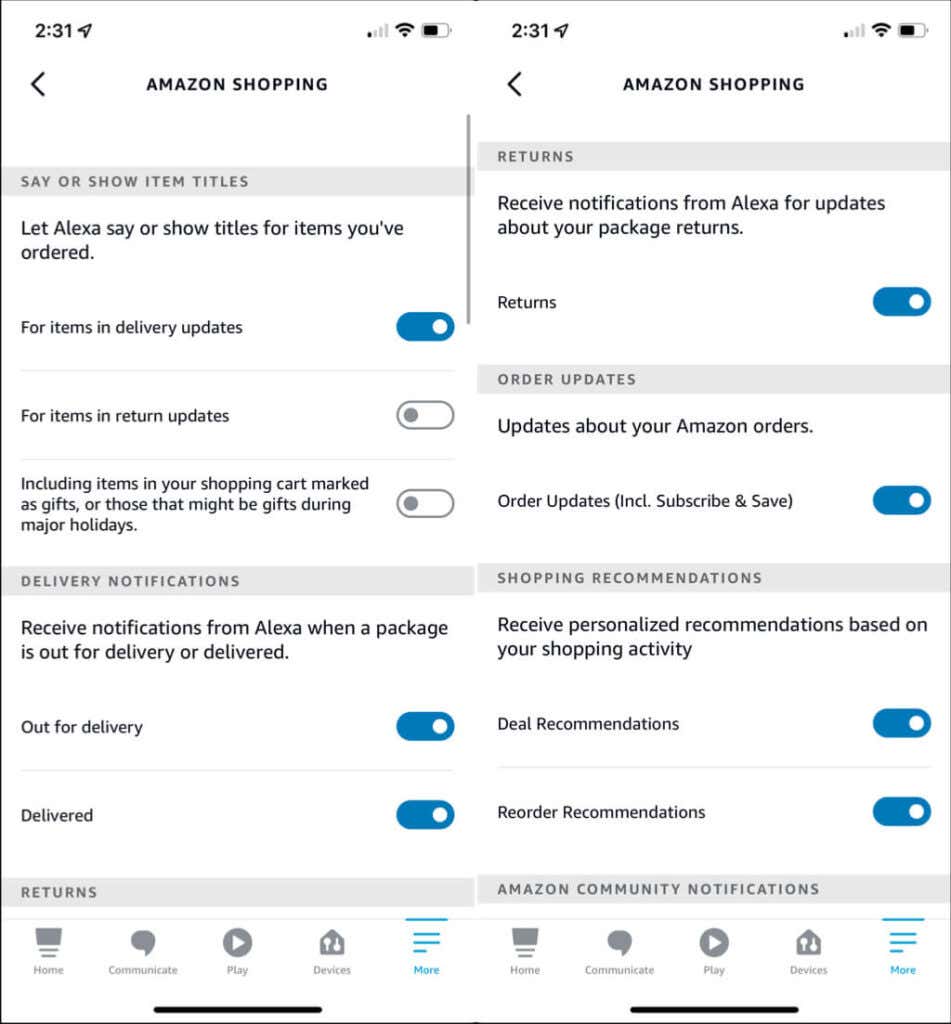
You’ll then see your notification options with toggles on the right to turn them on or off. For a description of each, see below.
Access Notifications in the Mobile App
If you want to adjust your notifications in the Alexa app, start by selecting More at the bottom.
- Choose Settings .
- Select Notifications .
- Pick Amazon Shopping .
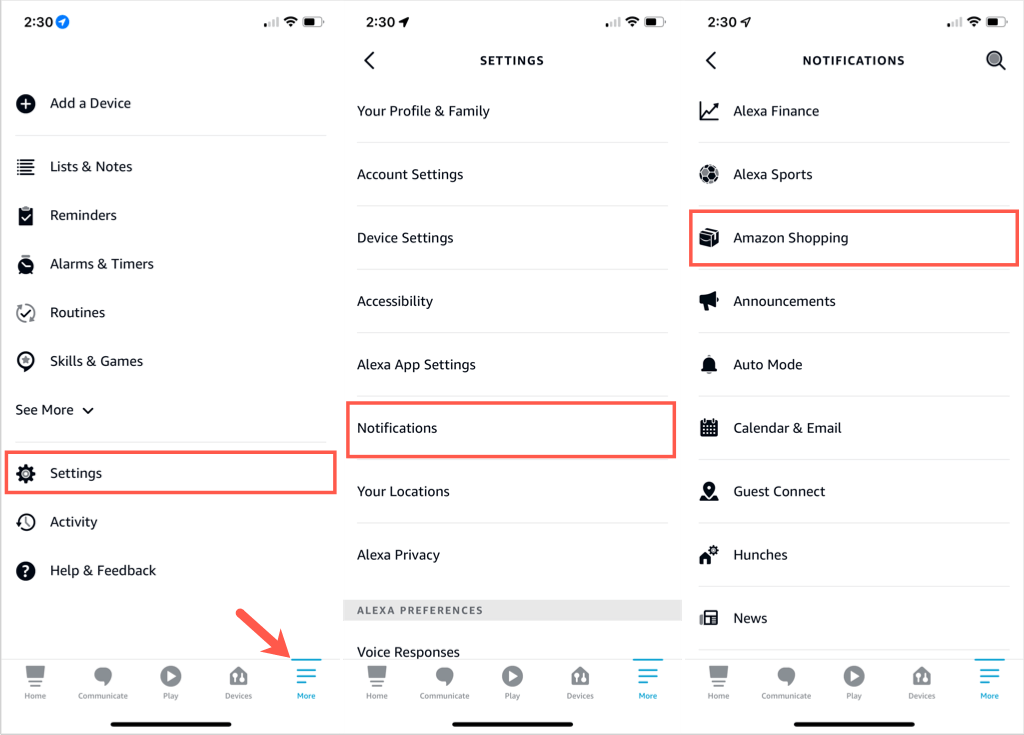
Then select the options you want by turning on the toggles.
Alexa Shopping Notifications
The five sections at the top of the notification list are specific to shopping.
- Say or Show Item Titles : To hear the titles or names of products you’ve ordered or returned, turn on the toggles to the right. If you are gift shopping and want to keep these private , turn them off.
- Delivery Notifications : Receive alerts when your items are out for delivery, delivered, or both.
- Returns : Receive notifications about items you’ve returned.
- Order Updates : Receive notifications about items you’ve ordered.
- Shopping Recommendations : Receive recommendations for deals, reorders, or both based on your shopping activity
Once you’ve updated your Alexa Shopping Notifications, you can ask Alexa about various things based on your choices. Try commands like these:
- “Alexa, what are my notifications?” for all notifications.
- “Alexa, where’s my order?” for order and delivery status.
- “Alexa, find gifts for Valentine’s Day.” for gift recommendations.
- “Alexa, are there any good deals today?” for today’s deals.
- “Alexa, are there deals on shoes?” for deals on product types.
For more, take a look at this list of over 50 useful Alexa skills and commands !
- How to Create Alexa Skills for Your Business or Employees
- How to Create Skills With Alexa Blueprints
- 10 Cool Alexa Tricks to Try With Your Amazon Echo
- How to Change Alexa Language to Spanish and Other Languages
- Why Alexa Is Flashing Yellow, Green, and What Does it Mean?
However, you may be looking for something in particular. Maybe you want a trivia game about your family, a fairy tale where your child is the star character or a guide to your home and neighborhood for a houseguest.

Well, guess what? You can make your own skill using Alexa blueprints. Here’s how!
Browse Alexa Skill Blueprints
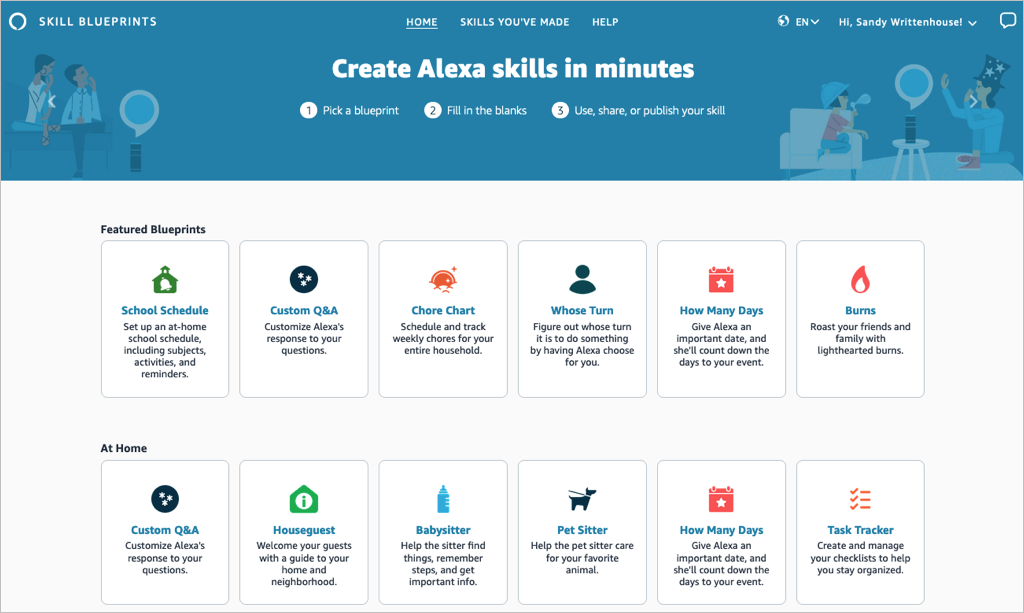
Select a blueprint to view more details and check out examples. This helps you see how the babysitter blueprint can help when you’re away, or the family jokes blueprint can liven up quality time.
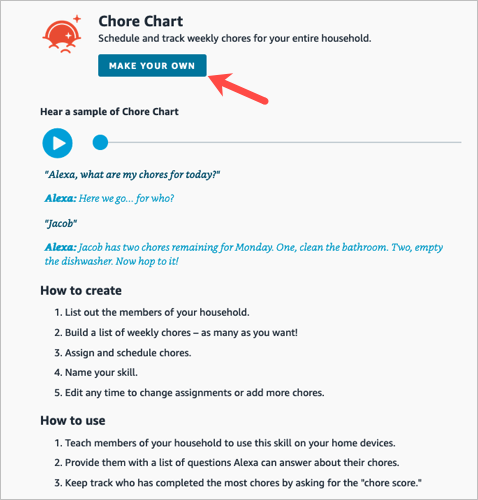
If you find one you want, pick Make Your Own on the skill information screen.
Create a Skill
The steps are the same whether you’re creating a skill with a blueprint on the web or on your mobile device. However, those steps may differ depending on the type of blueprint you select.
For instance, you’ll enter different information for a birthday trivia skill compared to one for flashcards, the pet sitter, or bedtime stories. You can see these steps when you select a blueprint to view its details.
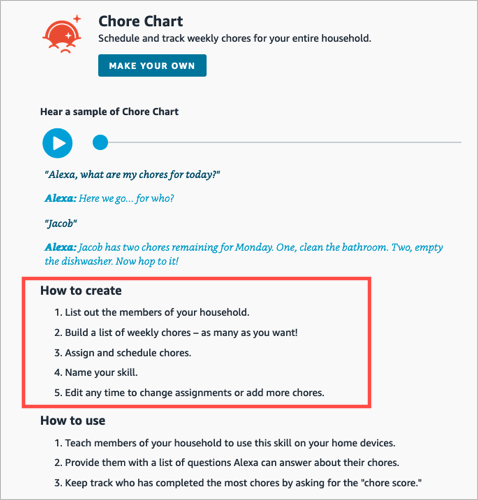
To show you just how easy it is, we’ll create one on each device.
Make a Chore Chart Skill on the Web
For this first example, we’ll use the Chore Chart blueprint to create a skill on the website. This skill helps keep track of household chores and who is responsible for each one.
- Visit the Alexa Blueprints website, sign into your Amazon account, and choose a blueprint.
- As described above, select Make Your Own directly below the skill name. If you see a short tutorial for building the skill, choose Start Now when you get to the end.
- Next, you’ll be prompted to replace the details for the skill with your own. For the Chore Chart, we’ll fill in the names of our household members and chores.
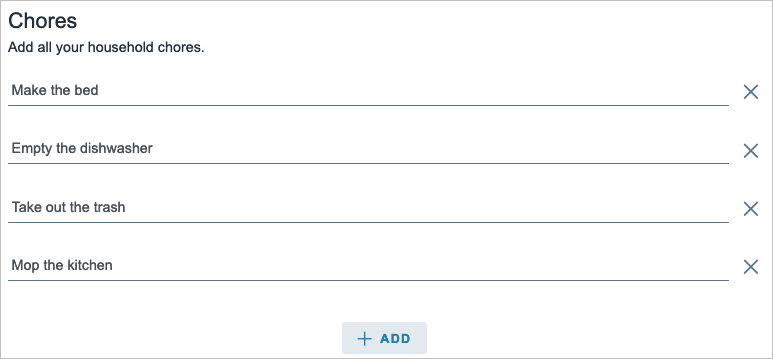
- Select Next on the top right to move to the next step.
- Here again, you may be asked to enter more details for the skill. For the Chore Chart blueprint, we assign the chores to the household members. Just keep in mind that the number of prompts and requested details depend on the exact skill and blueprint.
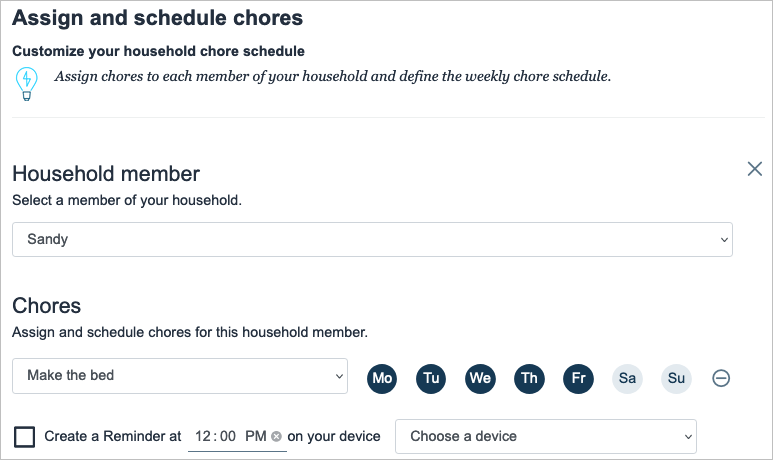
- Select Next to continue.
- One step that you’ll find in most blueprints is for customizing the experience. This refers to how you interact with Alexa for that particular skill. For instance, you can enter introduction phrases for when someone opens the skill and then other phrases for when someone completes a chore. These are the phrases Alexa uses for that specific skill.
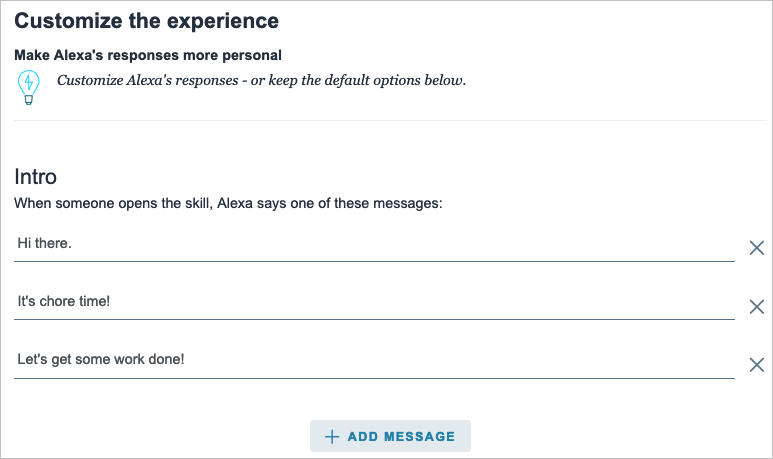
- Select Next to finish entering the details.
- The final step in creating a skill is to give it a name. Try to use something meaningful that you’ll remember but also something simple enough for Alexa to recognize.

- Select Next one last time to create the skill.
After a few moments to process all the information, your skill should be ready to use!

Make a Whose Turn Skill in the Mobile App
For this next example, we’ll use the Whose Turn blueprint to create a skill in the Alexa app. This skill prompts Alexa to choose whose turn it is to do something.
- Open the Alexa app on Android or iOS and select the More tab.
- Pick See More in the top section and choose Blueprints .
- Browse the options by category, just like on the website. Then, select the one you want to use and tap Make Your Own .
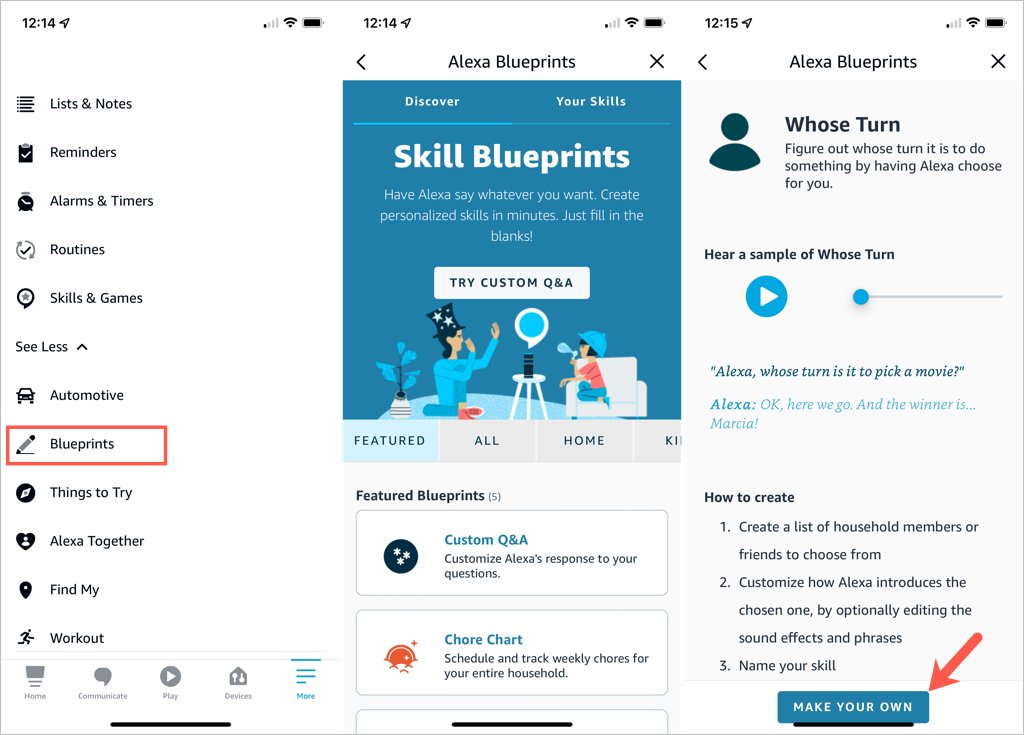
- Replace the details for the skill with your own. For the Whose Turn skill, we’ll add the names for Alexa’s choices.
- Tap Next on the top right to continue.
- The next step for the Whose Turn skill is to personalize the experience. This allows you to customize how Alexa picks a name. After you ask a question, Alexa uses the phrases and sound effects you select in this section. Optionally, you can scroll down for additional customization options.
- Tap Next to name your custom skill.
- Select the text on the name line to edit it or enter your own. Again, pick a meaningful name and one that’s easy for Alexa to recognize.
- Tap Next to create the skill.
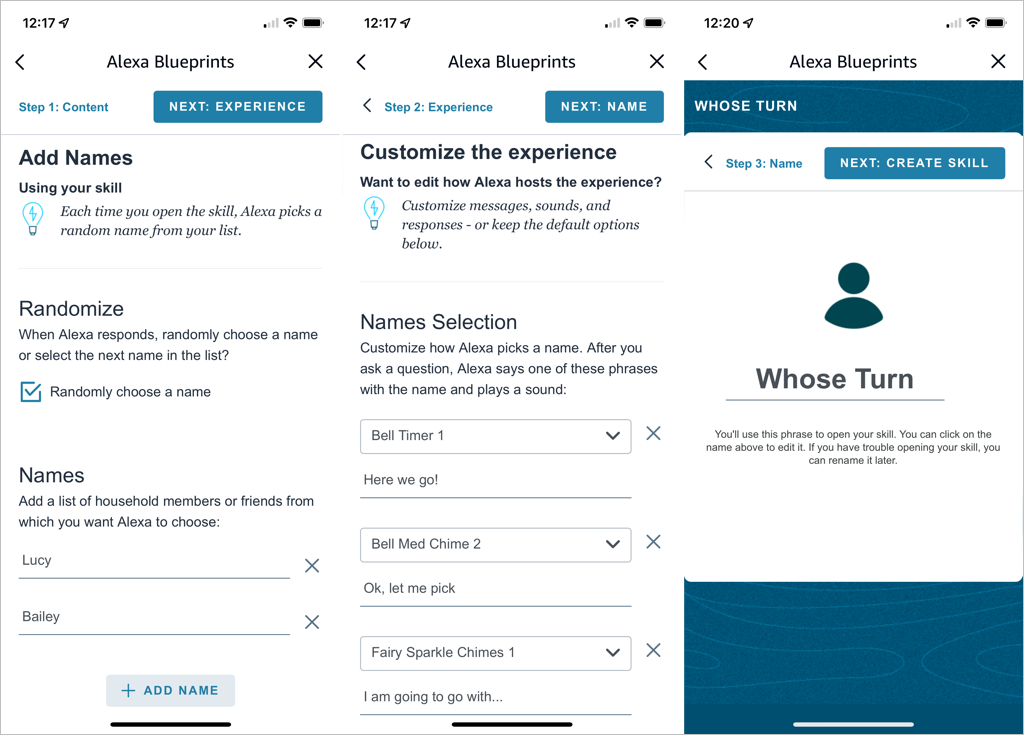
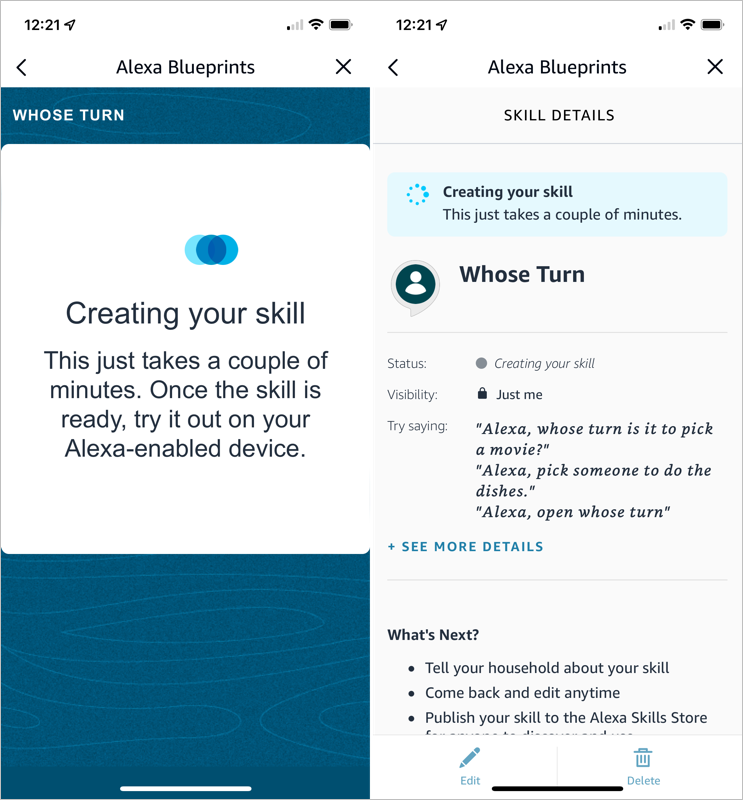
You’ll see the progress as your skill is created and a confirmation when the process completes. You can tap the X on the top right to exit when you finish reviewing your skill.
Edit Skills You Create
Once you create a skill using Alexa Blueprints, you may want to make adjustments to it. You can do this on the web and in the mobile app too.
Your Skills on the Web
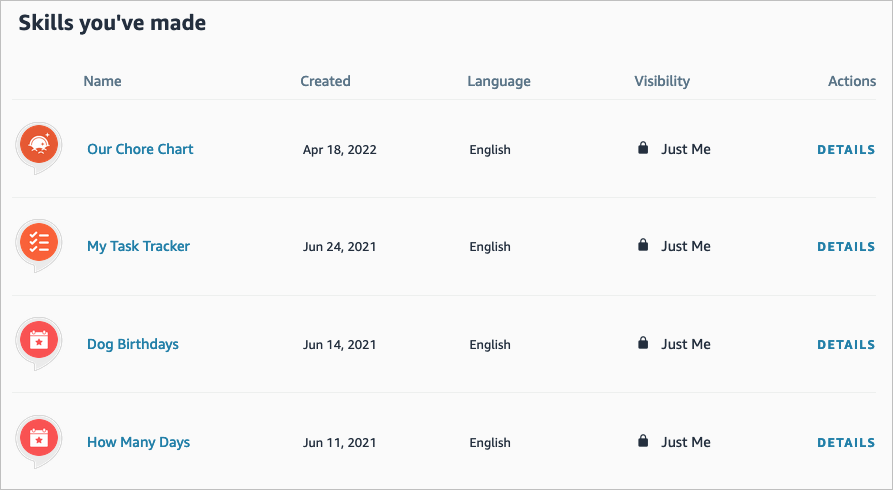
- Visit the Alexa Blueprints website and sign in. Select Skills You’ve Made at the top.
- You’ll see a list of your skills. Choose Details to the right to open the one you want to edit.
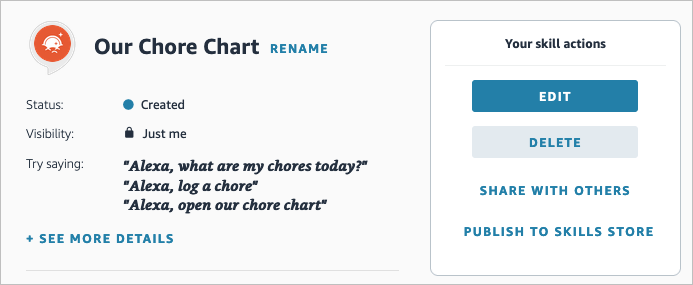
- On the right side, select Edit or Delete . You’ll notice you can also pick Share With Others to make it easy for your family or friends to access or Publish to Skills Store for other Alexa users.
Your Skills in the Mobile App
You can edit your custom skills easily in the Alexa mobile app as well.
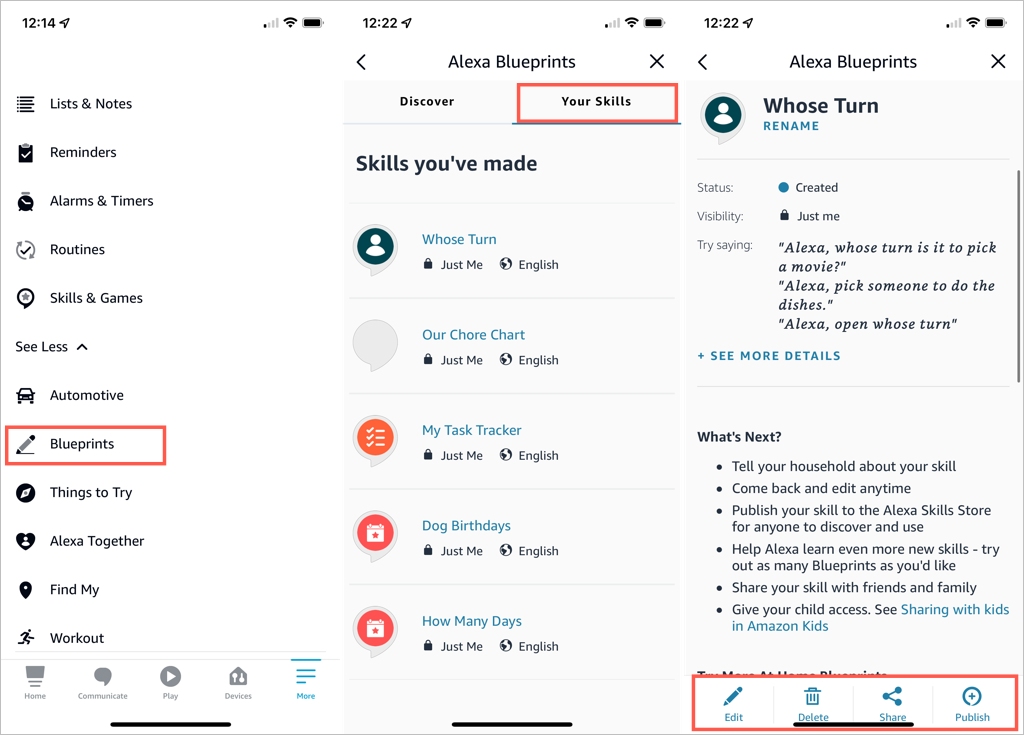
- Go to the Menu tab.
- Select See More > Blueprints .
- On the Your Skills tab, select the blueprint you want to edit.
- Use the buttons at the bottom to make your changes.
Take Advantage of Alexa Blueprints
Even though there are many premade skills you can pick from, creating your own Alexa skills gives you great ways to personalize the experience on your Alexa devices, get tasks done, or have a little fun !
- How to Create Alexa Skills for Your Business or Employees
- How to Shop With Alexa for All Your Shopping
- 10 Cool Alexa Tricks to Try With Your Amazon Echo
- How to Change Alexa Language to Spanish and Other Languages
- Why Alexa Is Flashing Yellow, Green, and What Does it Mean?
