To sideload apps, your PC must have Hardware Virtualization enabled. Additionally, your device’s region must be set to the United States. Refer to our tutorial on installing Android apps on Windows 11 for more details about these requirements.
You can sideload Android apps in Windows 11 either through Command Prompt or third-party Android installers. We’ll show you how to do both.
Sideload Android Apps in Windows Using Command Prompt
First, you’ll need to set up the Android Software Development Kit (SDK) and Android Debugging Bridge (ADB) on your computer.
Visit the SDK Platform Tools page on the Android developer website on your web browser and follow the steps below.
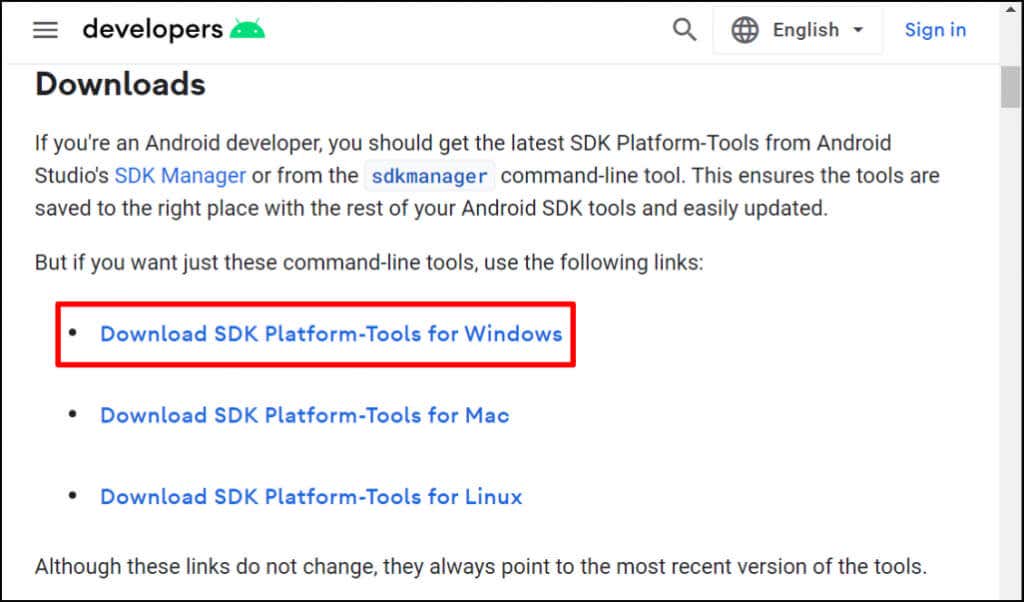
- Scroll to the “Downloads” section of the Android developer website and select Download SDK Platform-Tools for Windows .
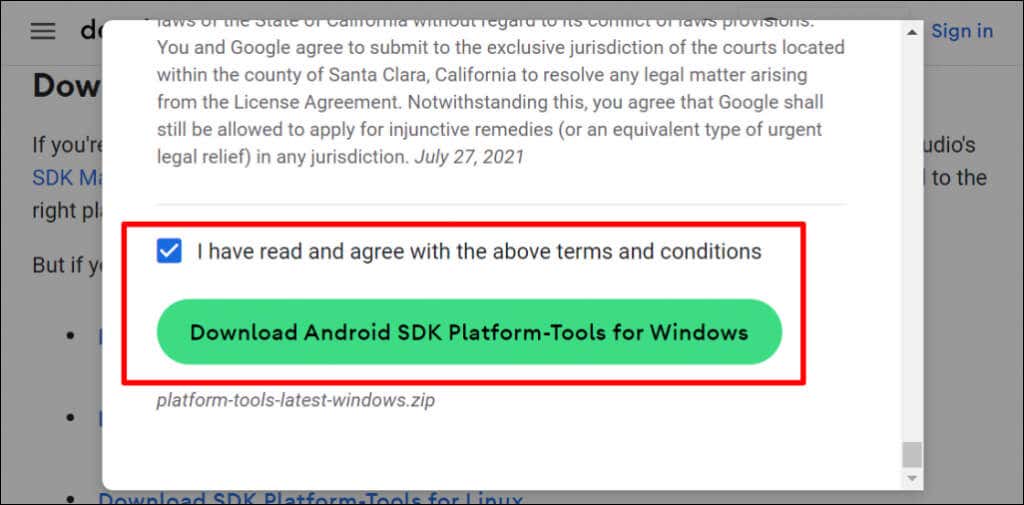
- Check I have read and agree with the above terms and conditions and select Download Android SDK Platform-Tools for Windows .
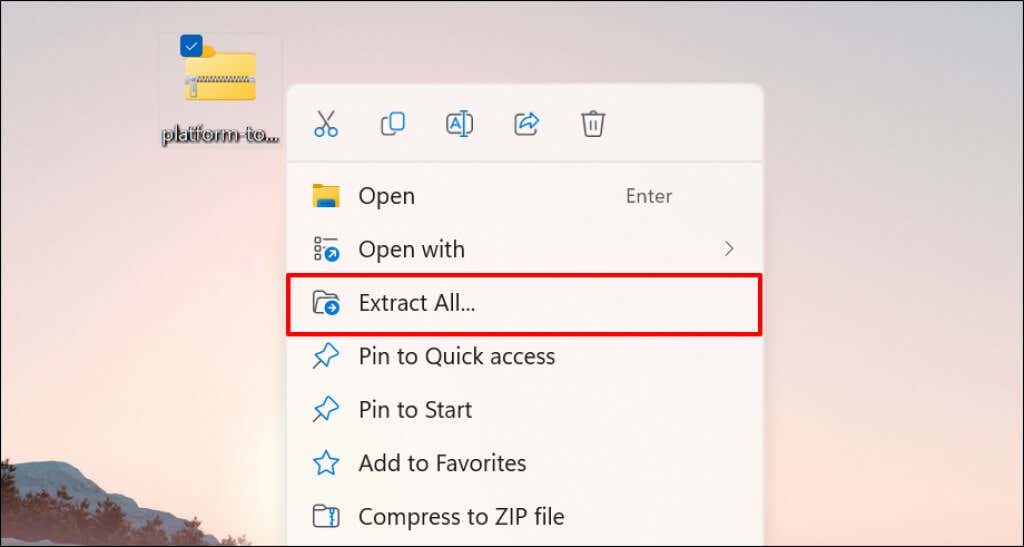
- Right-click the downloaded ZIP file and select Extract All .
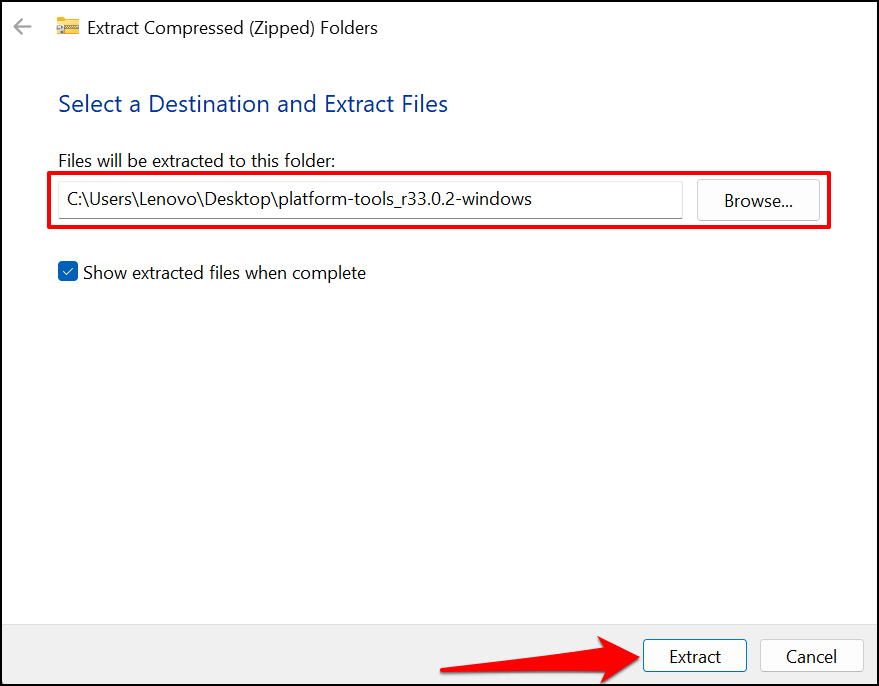
- Select the Extract button to extract the files to the folder displayed in the box. Select the Browse button to extract the files to a different folder.
- Open the platform-tools folder.
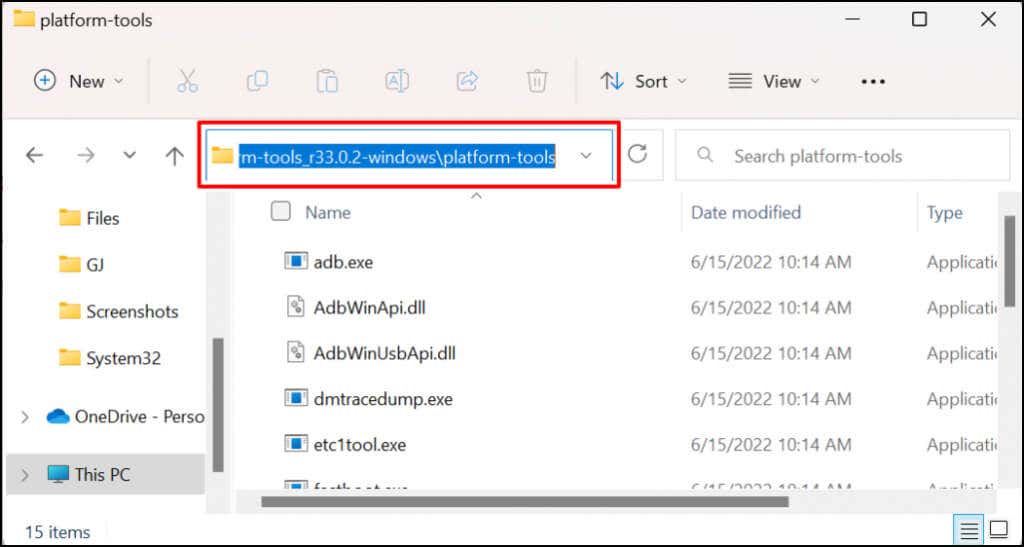
- Select the address bar and press Ctrl + C to copy the folder path.
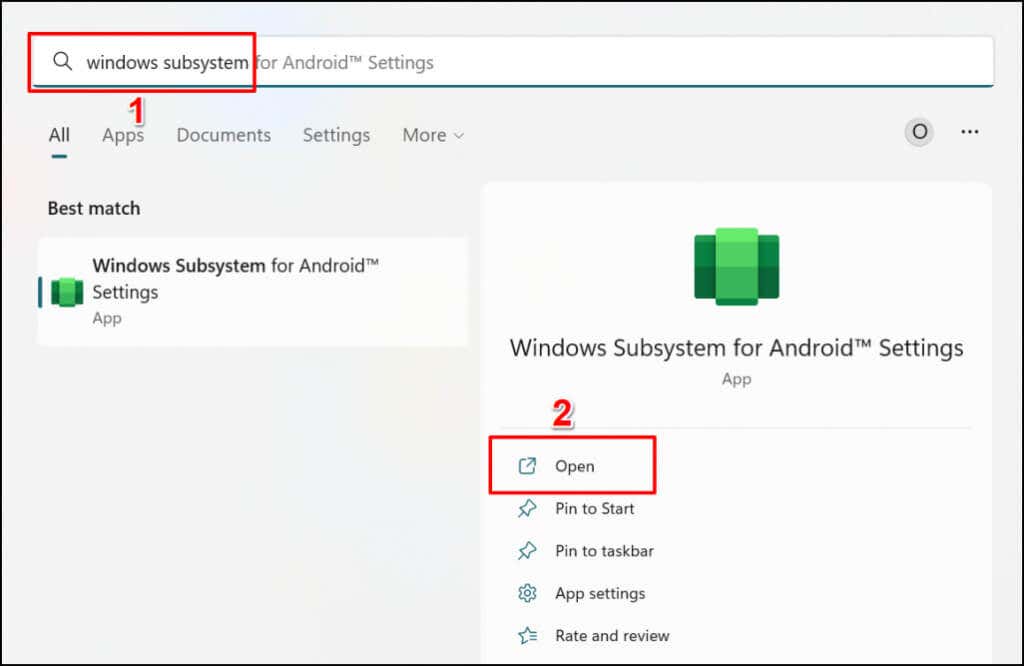
- Press the Windows key and type windows subsystem in the Windows Search bar. Select Open below the Windows Subsystem for Android Settings app.
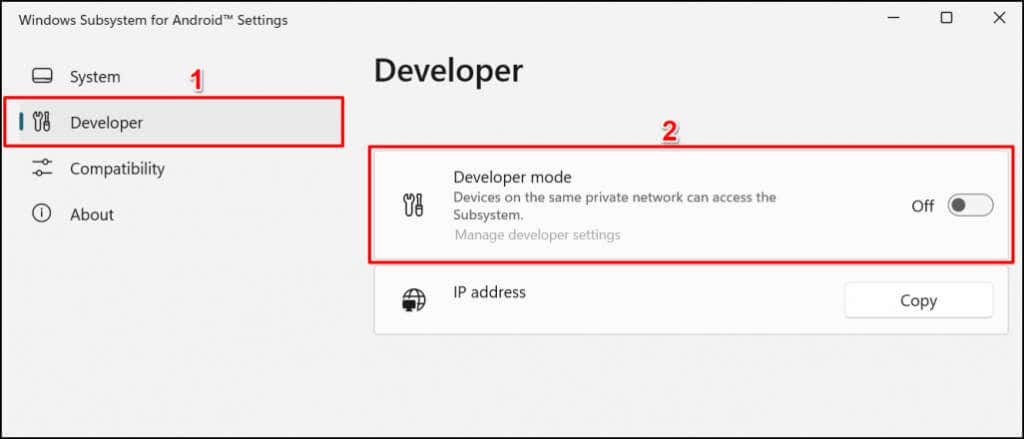
- Select Developer on the sidebar and toggle on Developer mode .
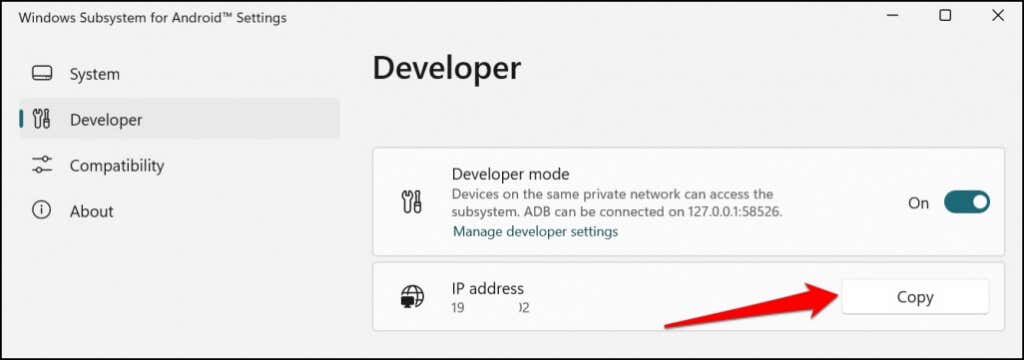
- Select the Copy button in the IP address row.
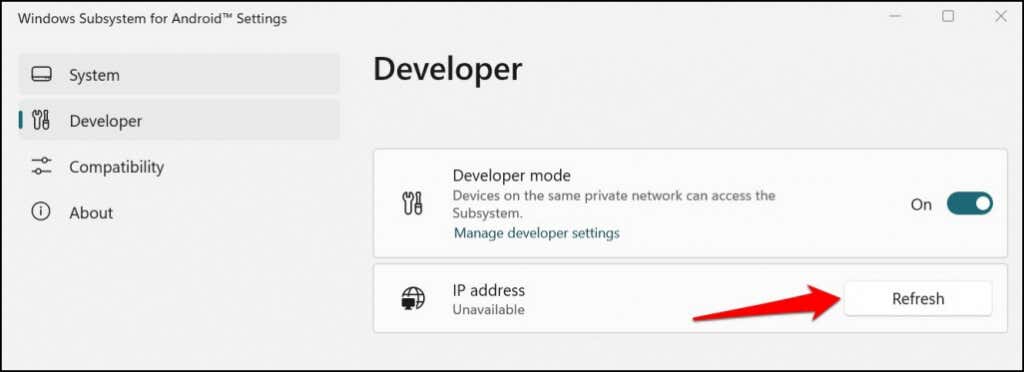
- Select the Refresh button if the IP address reads “Unavailable.”
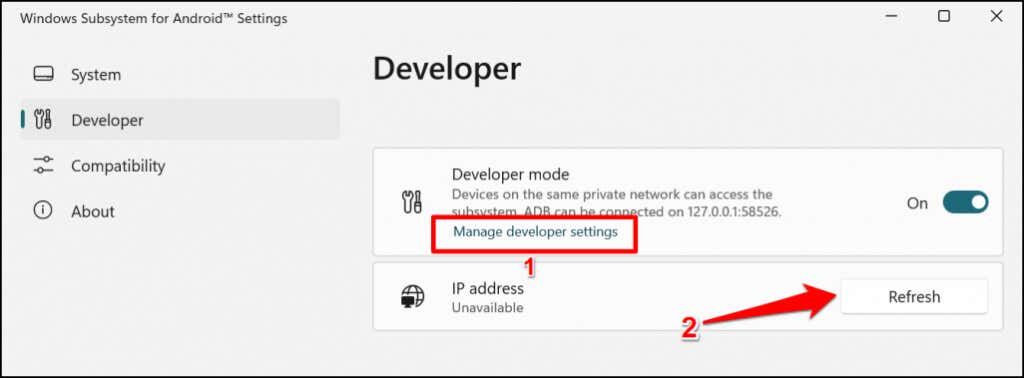
If the IP address remains unavailable, select Manage developer settings , wait for 10-20 seconds, and select the Refresh button again. That helped reveal our test computer’s Windows Subsystem for Android’s IP address.
Close and reopen Windows Subsystem for Android if the IP address remains unavailable after refreshing multiple times.
- Download the APK file of the Android app you want to install on your computer. APKMirror, APK4Fun, and APKPure are some of the safest platforms to download APK files for Android apps . Ensure you save the app’s APK file in the platform-tools folder (see step #6).
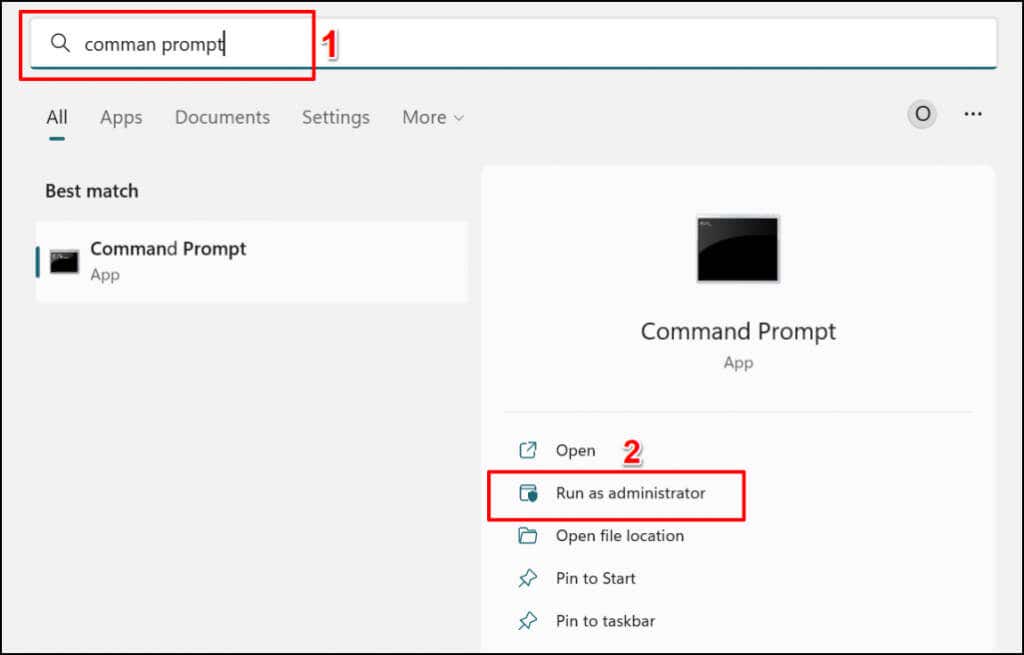
- Open the Start menu, search for command prompt , and select Run as administrator to open Command Prompt with admin privileges.
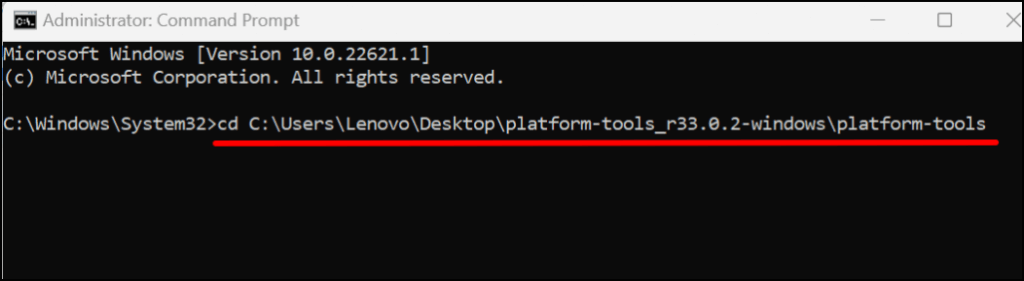
- Type cd , leave a space, paste the platform-tools folder path (see step #6), and press Enter . The command should look like this:
cd C:\Users\Lenovo\Desktop\platform-tools_r33.0.2-windows\platform-tools
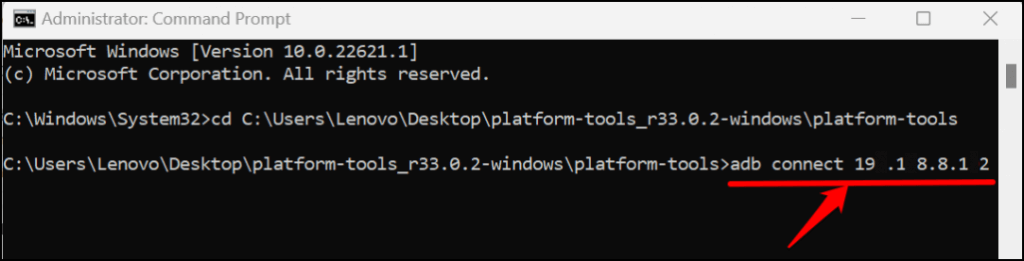
- Type adb connect IPAddress (replace IPAddress with the IP address copied in step #11) and press Enter . The command should look like this:
adb connect 192.163.6.172
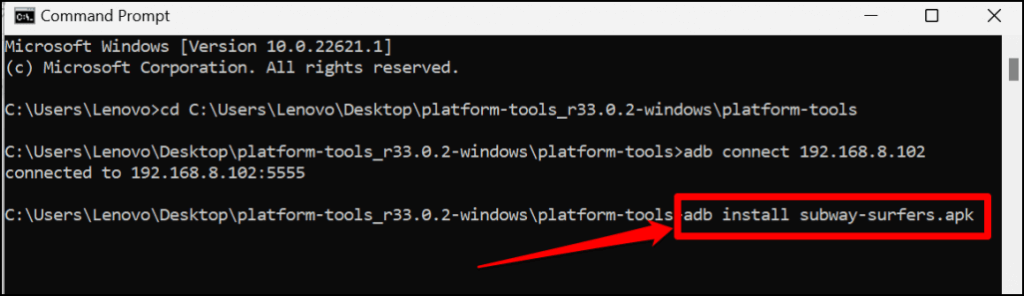
- Next, type adb install ApkName (replace ApkName with the name and extension of the APK file you want to sideload). Press Enter to run the command.
We’re sideloading the Subway Surfers app on our Windows 11 computer, so we’ll run this command: adb install subway-surfers.apk .
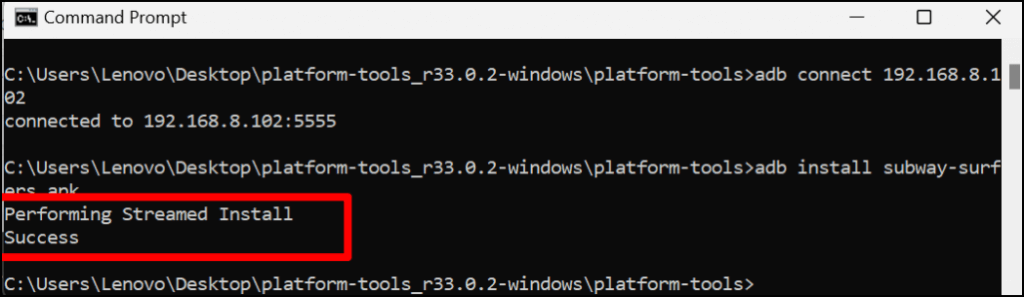
Command Prompt will display a “Performing Streamed Install” message when installing the app. Check your PC’s app list for the sideloaded app when you get a “Success” message.
The app should appear as a recently added item in the “Recommended” section of the Start Menu.
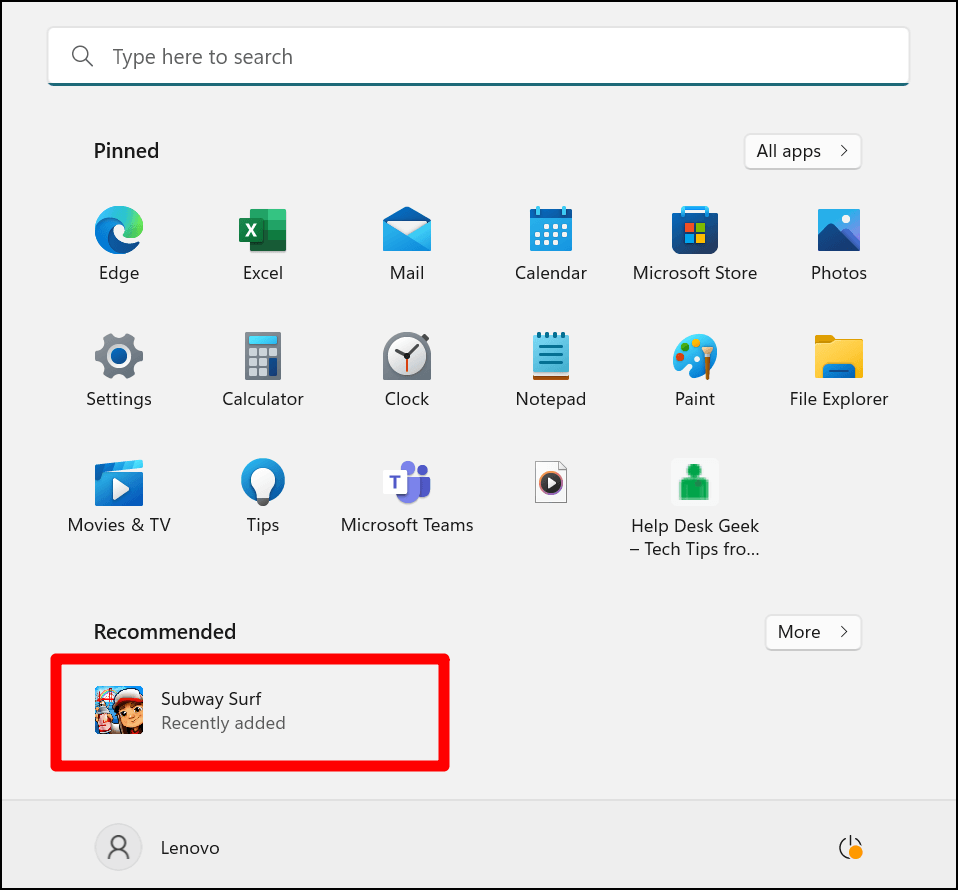
- Select the app to run it on your computer just as you open regular Windows apps. You can also pin the app to the Start Menu or Taskbar.
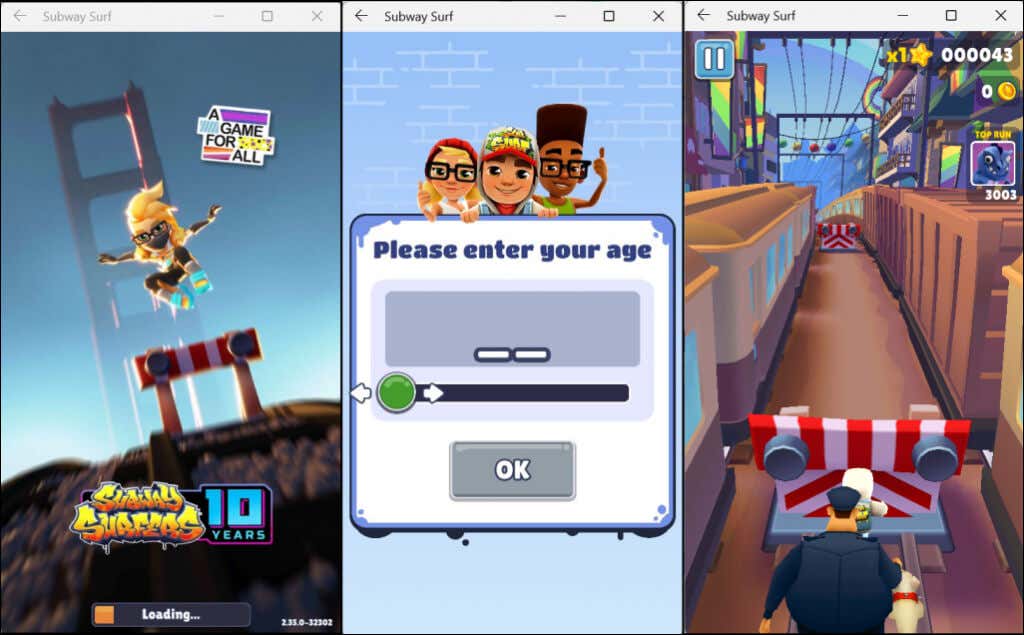
If you’re having difficulties sideloading APK files, close the Command Prompt and Android Subsystem, and restart the process from scratch. Remember to move the APK file you want to sideload to the platform-tools folder.
Sideload Android Apps on Windows 11 Using WSATools
WSATools is third-party software that lets you sideload Android apps in Windows 11 without running Command Prompt commands . Download the APK file of the Android file you want to sideload and follow the steps below.
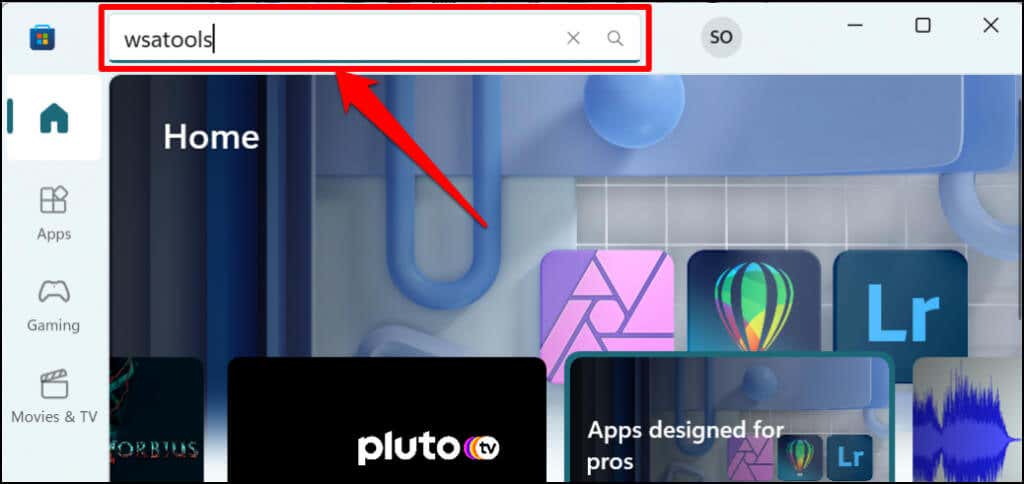
- Open the Microsoft Store app, type wsatools in the search bar, and press Enter .
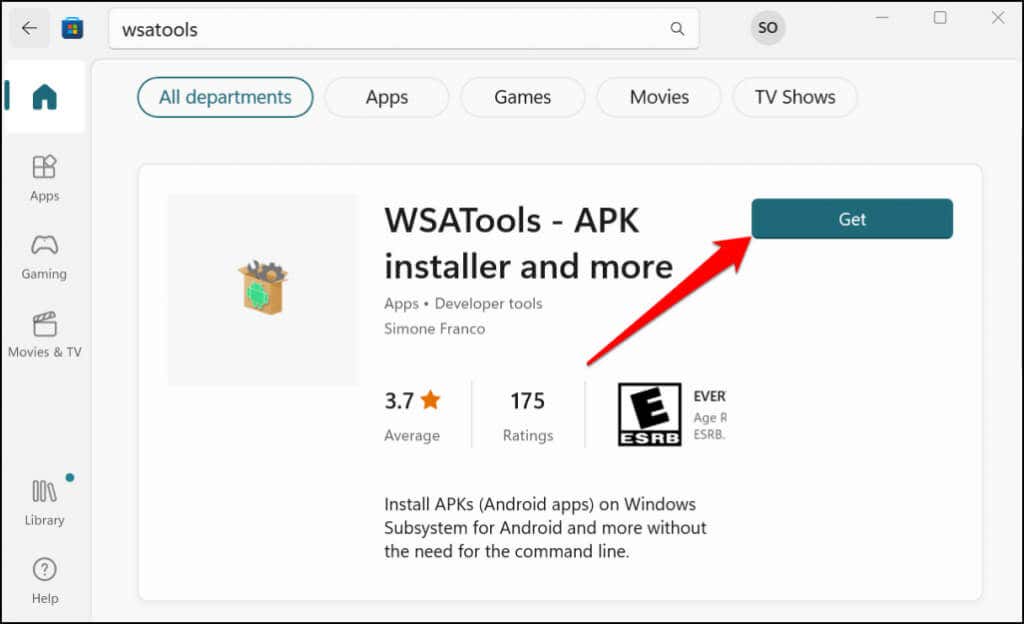
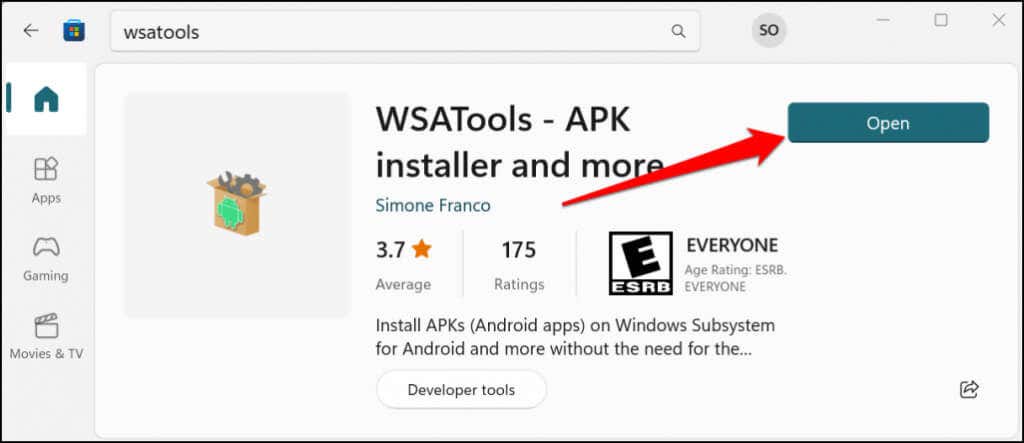
- Microsoft Store should open the WSATools app preview. Select the Get button to install the app on your PC.
- Open WSATools to proceed.
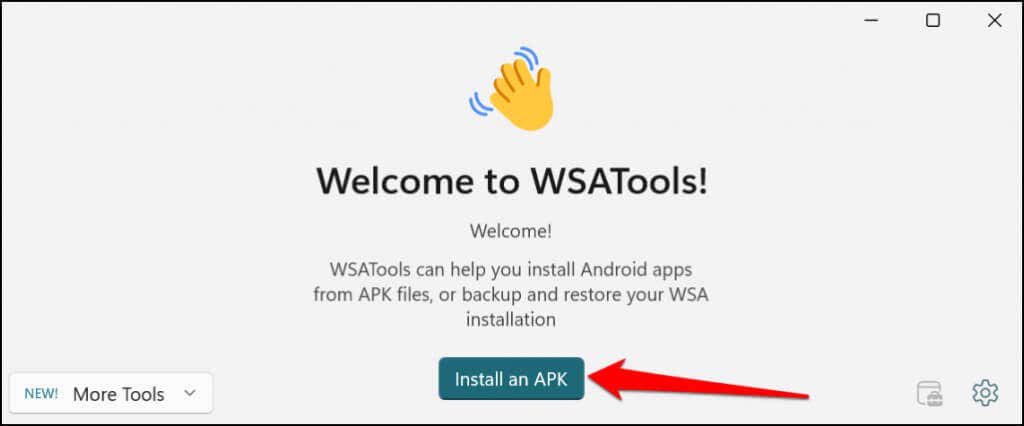
- Select the Install an APK button.
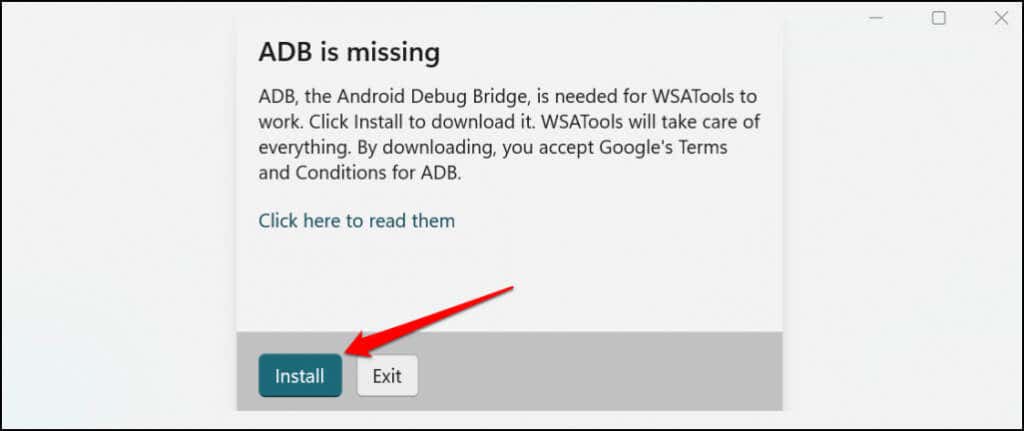
- You’ll get a prompt to download and install the Android Debug Bridge. Select the Install button to proceed.
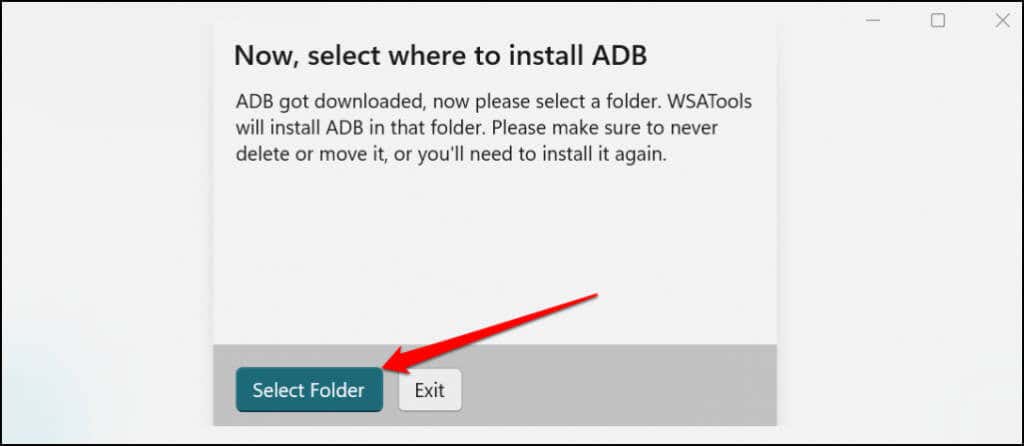
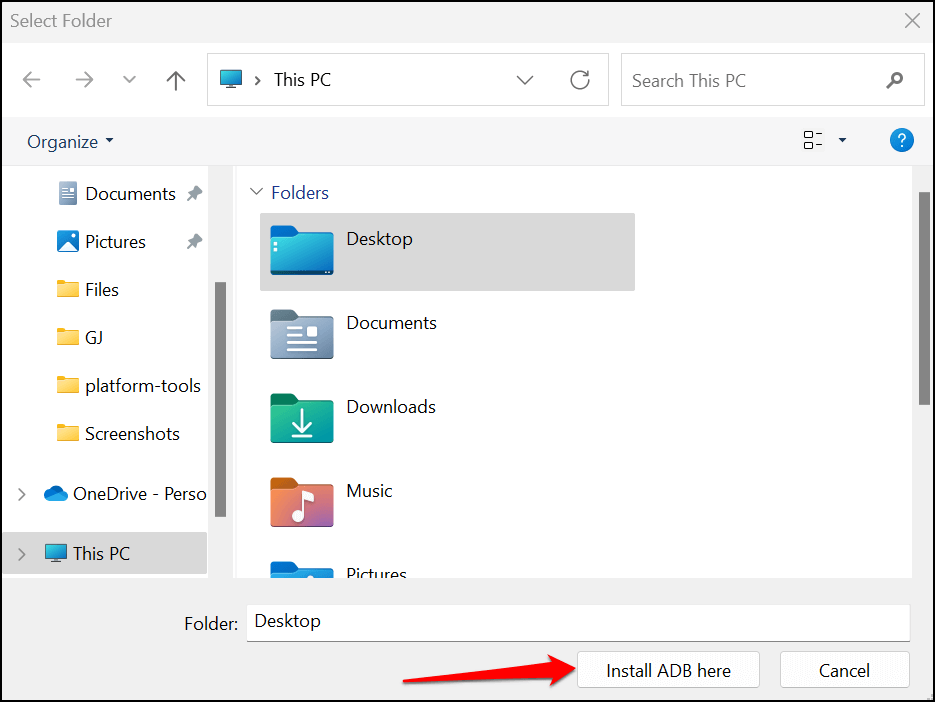
- When ADB gets downloaded, select the Select Folder button to choose a destination folder where WSATools should install ADB.
- Choose a destination folder and select Install ADB here .
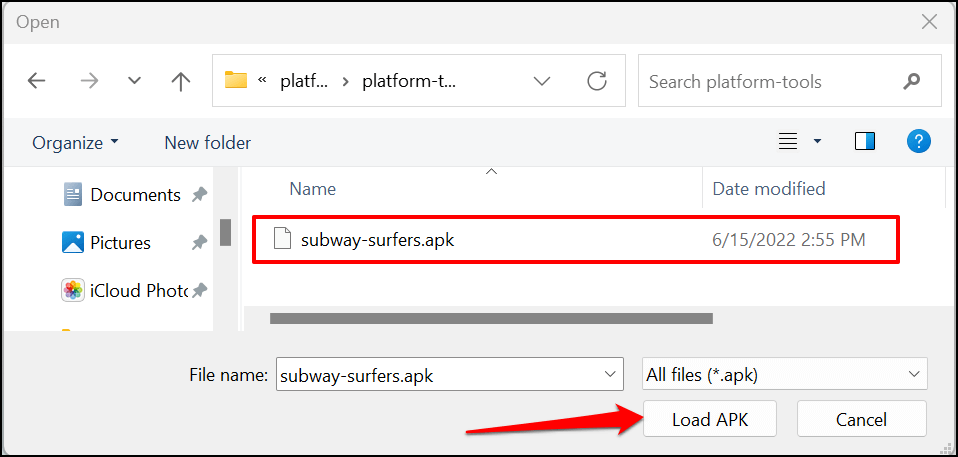
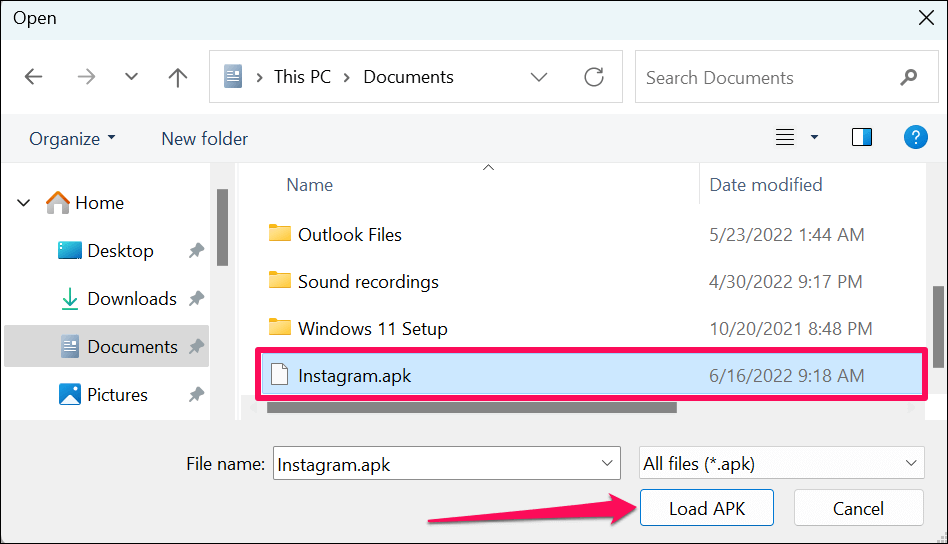
- Locate and select the APK file of the app you want to sideload and select Load APK .
- Select Install .
WSATools should display a success message when the installation is complete. Open your PC’s Start Menu to launch the newly installed applications. If WSATools gets stuck on the installation progress page, close and reopen WSATools, and try again.
Your PC Isn’t an Android Device
So, in the near future, you may barely need to sideload or install apps from unofficial sources. Until then, use the tools and techniques in this tutorial to run Android apps on your Windows PC.
- How to Rename Bluetooth Devices in Windows, Android, iOS, and Mac
- How to Check AirPods Battery in Android and Windows
- How to Install Android Apps on Windows 11
- Sluggish Windows 11 PC? Try These 5 Windows 11 Tricks to Free up Virtual Memory
- How To Turn Off Notifications On Windows 11?
Sodiq has written thousands of tutorials, guides, and explainers over the past 4 years to help people solve problems with Android, iOS, Mac, and Windows devices. He also enjoys reviewing consumer tech products (smartphones, smart home devices, accessories, etc.) and binge-watching comedy series in his spare time. Read Sodiq’s Full Bio
