Microsoft Excel often requires more than just numbers and brief text entries. At times, you may need to fit detailed descriptions or multifaceted data into a single cell. Imagine trying to fit an address or a product description into a single, unbroken line of text. It would be very difficult to read.
Fortunately, you can start a new line of text within a cell in Microsoft Excel. This feature, although simple, is relatively unknown because most programs use Shift + Enter to start a new line. Not Excel.
Start a New Line of Text in a Cell in Excel for Windows and the Web
When working with Excel on a Windows PC or through a web browser , starting a new line of text is the same. Here’s how it’s done.
- Open the Windows or Web version of Excel.
- Double-click the cell you want to insert line break in.
- Place your cursor at the location you want to insert the line break.
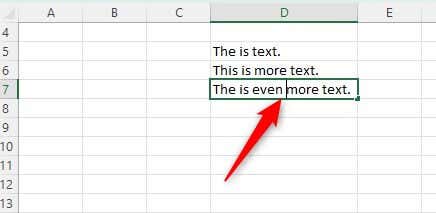
- Press the Alt + Enter keyboard shortcut .
A new line of text is now inserted in the cell.
Start a New Line of Text in a Cell in Excel for Mac
Inserting a line break in Excel for Mac is as simple as doing it for Windows or the Web version. It just requires you to press a different combination of keys.
- Open Excel on your Mac.
- Double-click the cell you want to insert line break in.
- Place your cursor at the location you want to insert the line break.
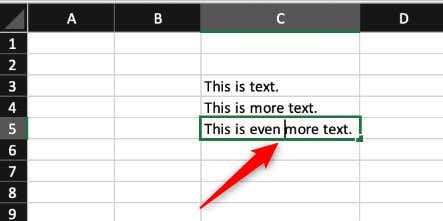
- Press Control + Option + Return .
Start a New Line of Text in a Cell on iOS (iPad only)
You can start a new line of text within a cell if you’re using an iPad. However, line breaks are currently unsupported on iOS for iPhone.
- Open Excel on your iPad.
- Double-tap the cell and place the cursor where you want to use a line break.
- On the number pad, tap and hold the Return key and then slide your finger up to the Line Break key.

That’s all there is to it!
Start a New Line of Text in a Cell on Android
Inserting a line break in Excel for Android is easy, as it gives you the option via a pop-up menu.
- Open Excel on your Android device.
- Double-tap the cell and then place the cursor where you want to use a line break.
- Tap the blue icon where the cursor is.

- A pop-up menu will appear. Here, tap New Line .
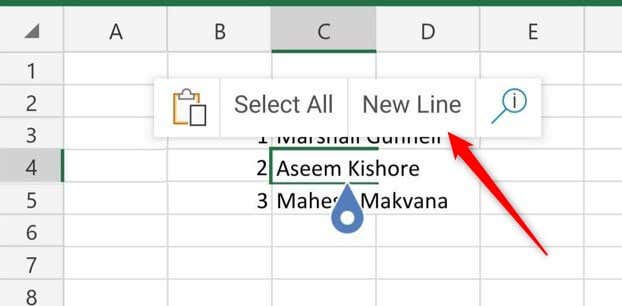
The line break is now inserted within the Excel cell.
Breaking it Down
Starting a new line of text in a Microsoft Excel cell, regardless of your device or operating system, is a straightforward process that can improve the readability and organization of the data .
Using specific key combinations or interface options available on each platform, you can better manage and present information, such as addresses, in a clear and accessible format within your Excel spreadsheets.
- How to Find Circular References in Microsoft Excel
- Name Box in Excel: All You Need to Know
- How to Remove Unwanted Spaces from Excel Spreadsheets
- How to Unhide the First Column or Row in Excel Worksheets
- How to Use the Square Root (SQRT) Function in Excel
Marshall is a technical writer based in Tokyo, Japan. His bylines are found on VGKAMI, How-To Geek, PCWorld, Zapier, and many other online magazines. Read Marshall’s Full Bio
