Siri announces incoming messages and notifications from supported apps when your iPhone or iPad’s locked and connected to AirPods or Beats headphones . We’ll show you how to customize or disable the “Announce Notifications” feature that prompts Siri to read text messages and notifications.

Stop AirPods from Reading Notifications
Apps on your iPhone/iPad classify notifications as general, time-sensitive , and direct messages. Siri announces general and time-sensitive notifications for system applications (Calendar, Messages, Reminders, etc.).
Siri also announces direct messages and general notifications for third-party messaging applications when using Apple AirPods or Beat headphones.
Check the next section to see how to stop Siri from announcing specific notifications when using compatible headphones.
Stop Siri Notifications Announcement
There are several ways to stop Siri from reading message notifications on your iPhone or iPad. You can make the change from the Settings menu or Control Center .
Stop Siri Announcements from Notifications Settings
- Open the Settings app and select Notifications .
- Tap Announce Notifications in the “Siri” section.
- Toggle off Headphones in the “Announce When Connected To” section. That’ll stop Siri from reading notifications when using your AirPods or Beats headphones.
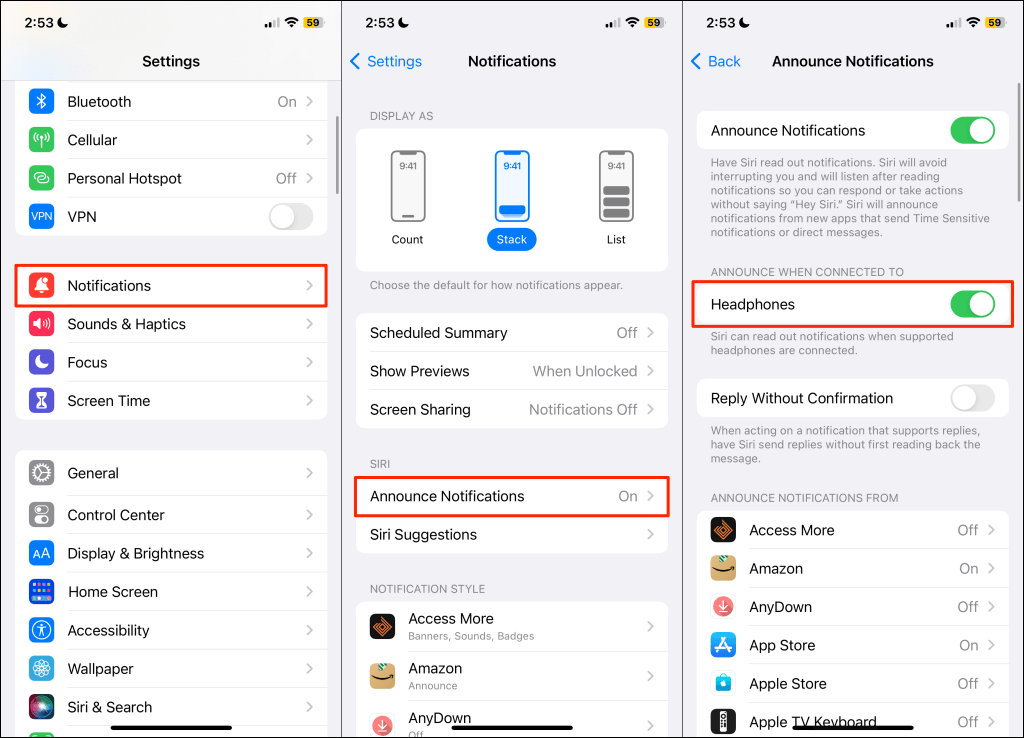
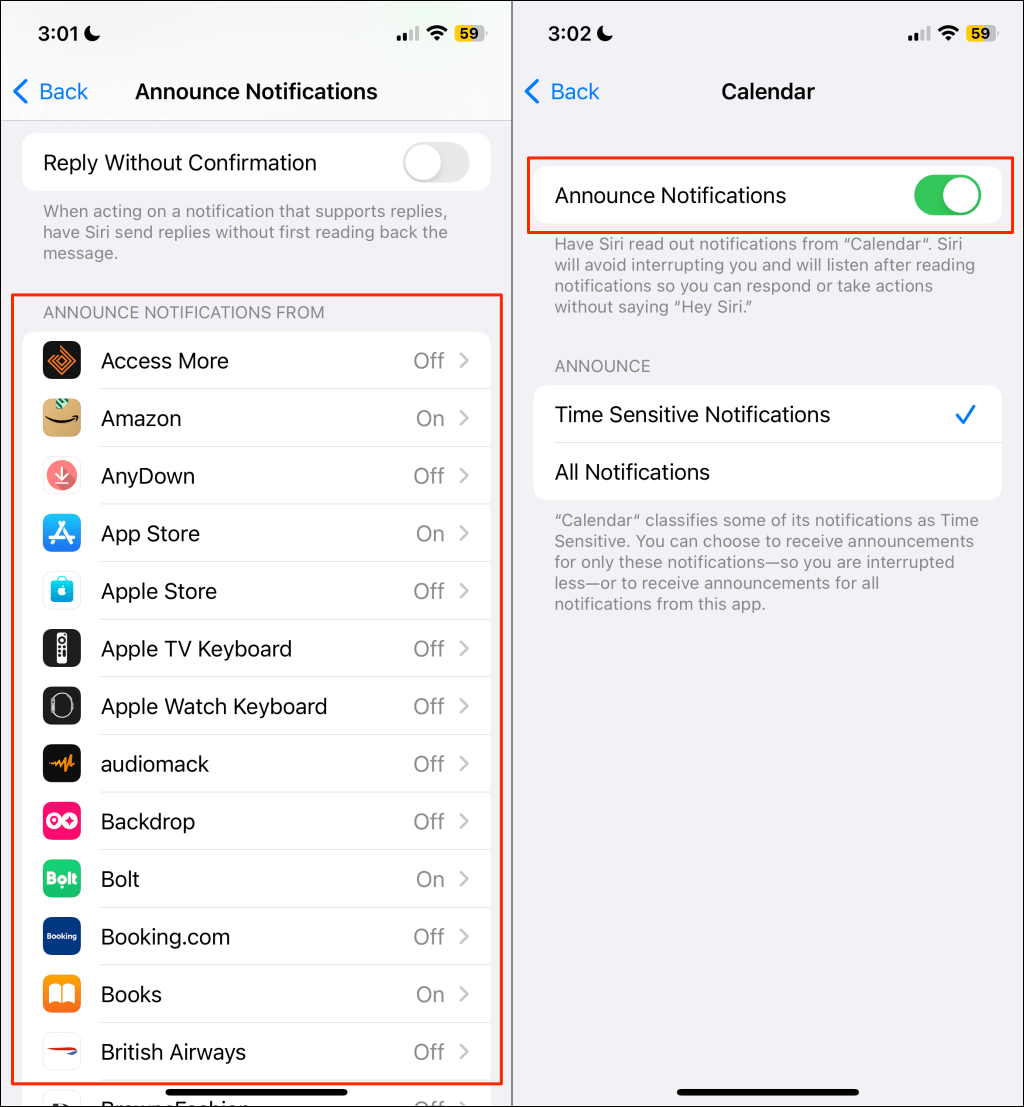
- You can also stop Siri from announcing notifications from specific applications. Select the app in the “Announce Notifications From” section and turn off Announce Notifications .
Stop Siri Announcements from Siri Settings
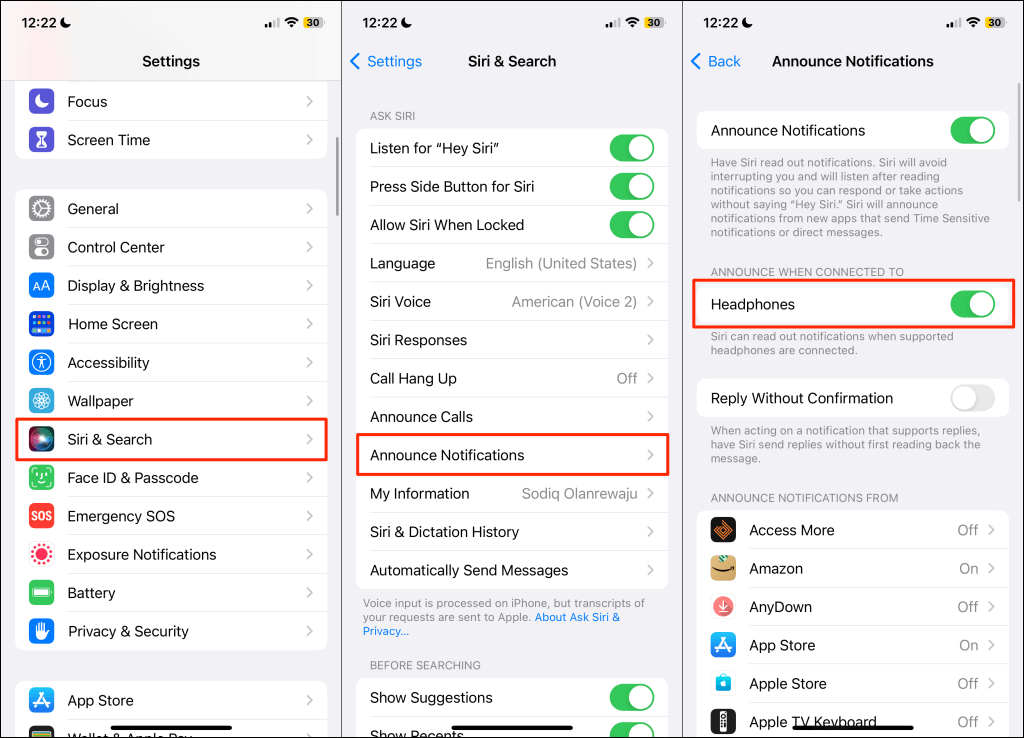
Go to Settings > Siri & Search > Announce Notifications and toggle off Headphones in the “Announce When Connected To” section.
Stop Siri Announcements from Control Panel
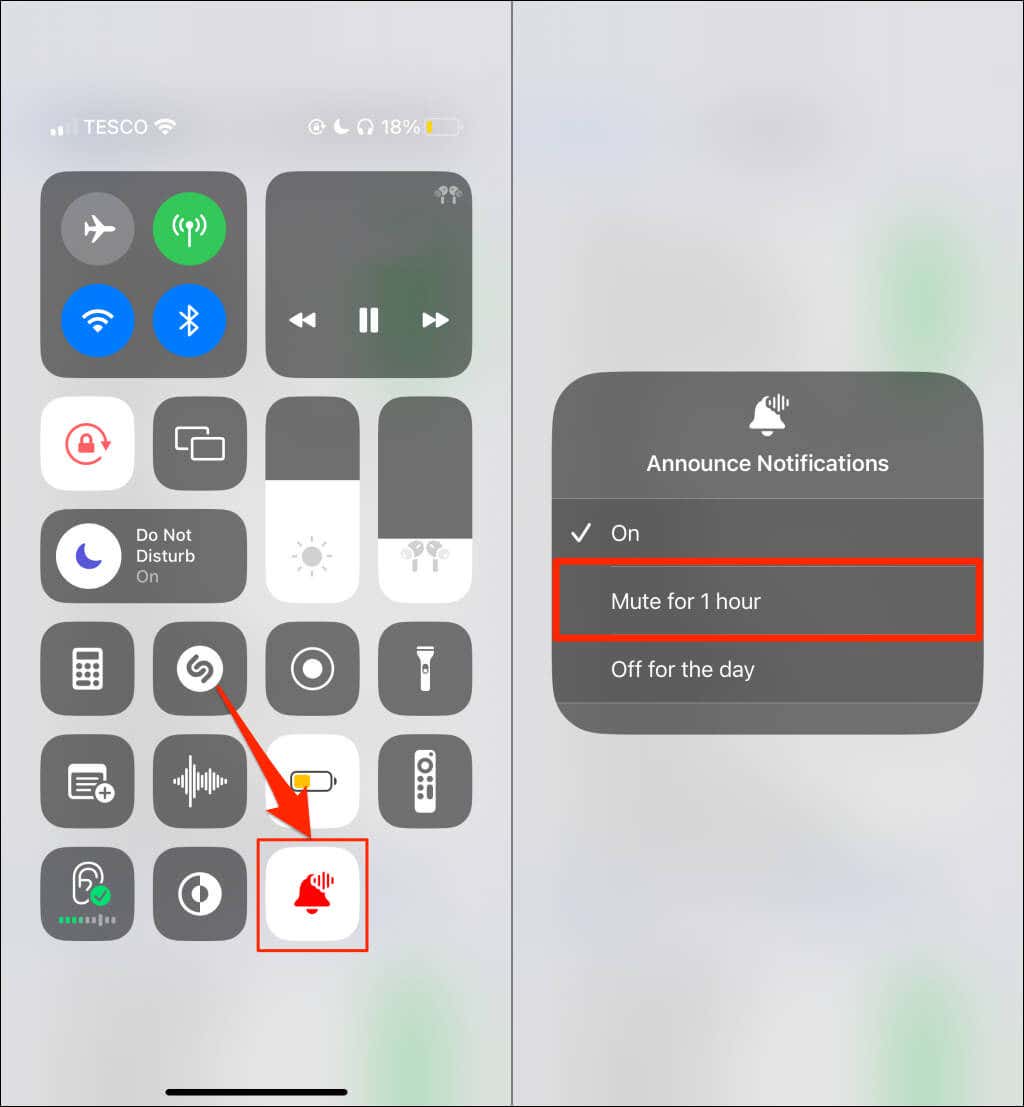
If your device’s Control Center has the “Announce Notifications” control, you can temporarily stop Siri announcements at the tap of a button.
Swipe down from the top-right corner of your iPhone or iPad’s screen to open the Control Center. If your iPhone/iPad has a Home button, swipe up from the screen’s bottom edge instead.
Tap the red bell icon to turn off Siri notification announcements until the next day. You can also mute Siri announcements for an hour—tap and hold the bell icon and select Mute for 1 hour .
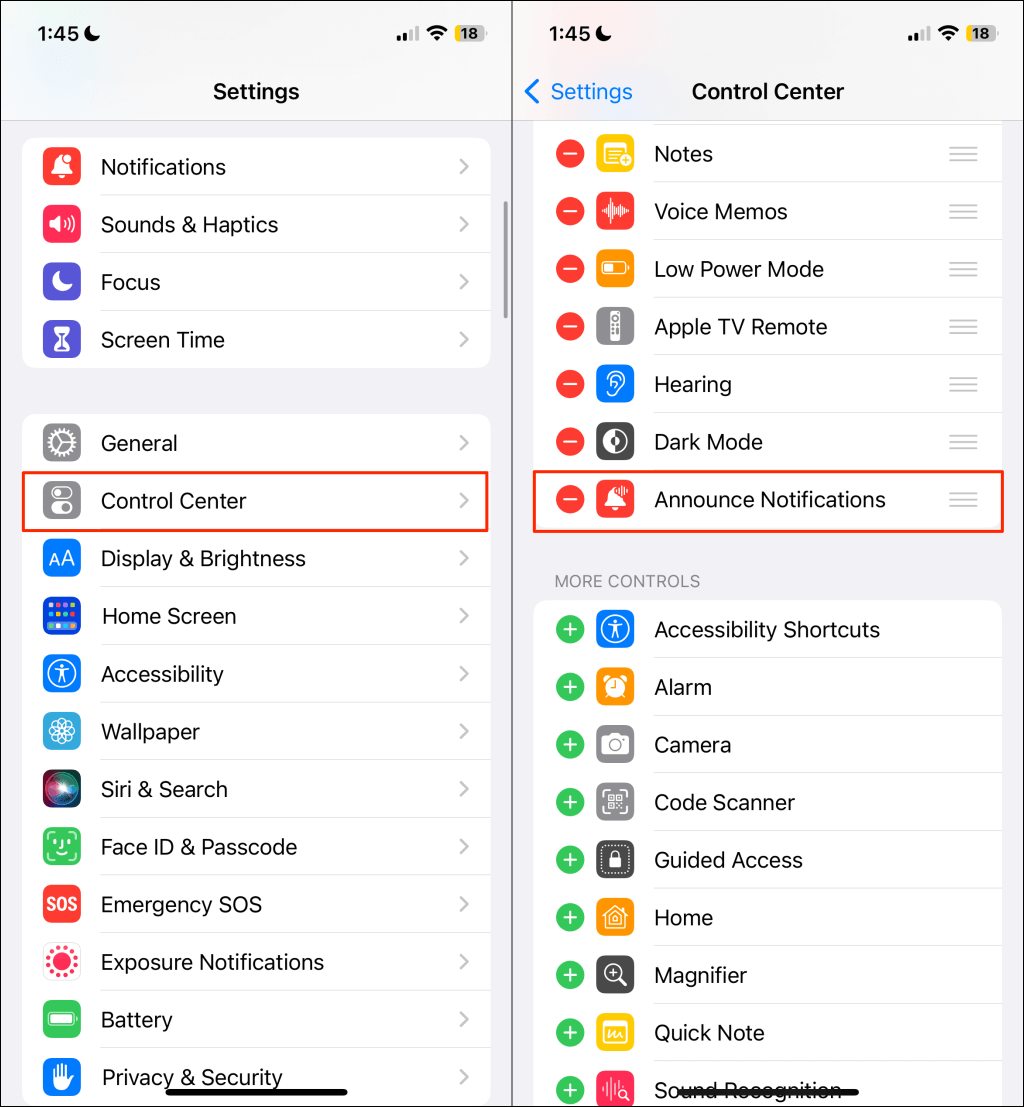
Removing the “Announce Messages” control from the function from the Control Center permanently stops Siri from reading message notifications.
Head to Settings > Control Center and tap the red minus icon next to “Announce Messages.”
Take Out One Earbud
A quick way to stop Siri from announcing multiple notifications is to take out one of your earbuds. Removing AirPods Max or Beats headphones also stops Siri announcements.
Stop Siri Announcements for Specific Notifications or Apps
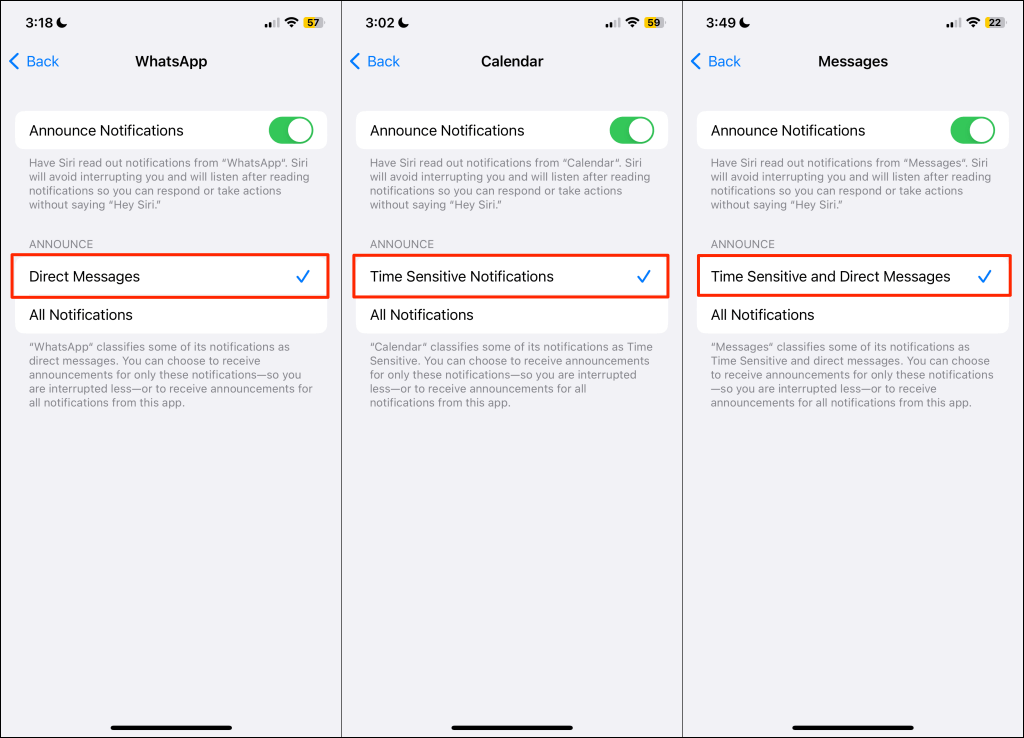
If you don’t want Siri announcing all notifications for an app, configure the app’s Siri notification settings to announce only “Direct Messages,” “Time Sensitive Notifications,” or both.
That silences announcements for general notifications and minimizes Siri interruptions when using headphones. For instance, you can configure Siri to announce only direct messages from Instagram and stay mute for other notifications.
Go to Settings > Notifications > Announce Notifications and select the app in the “Announce Notifications From” section.
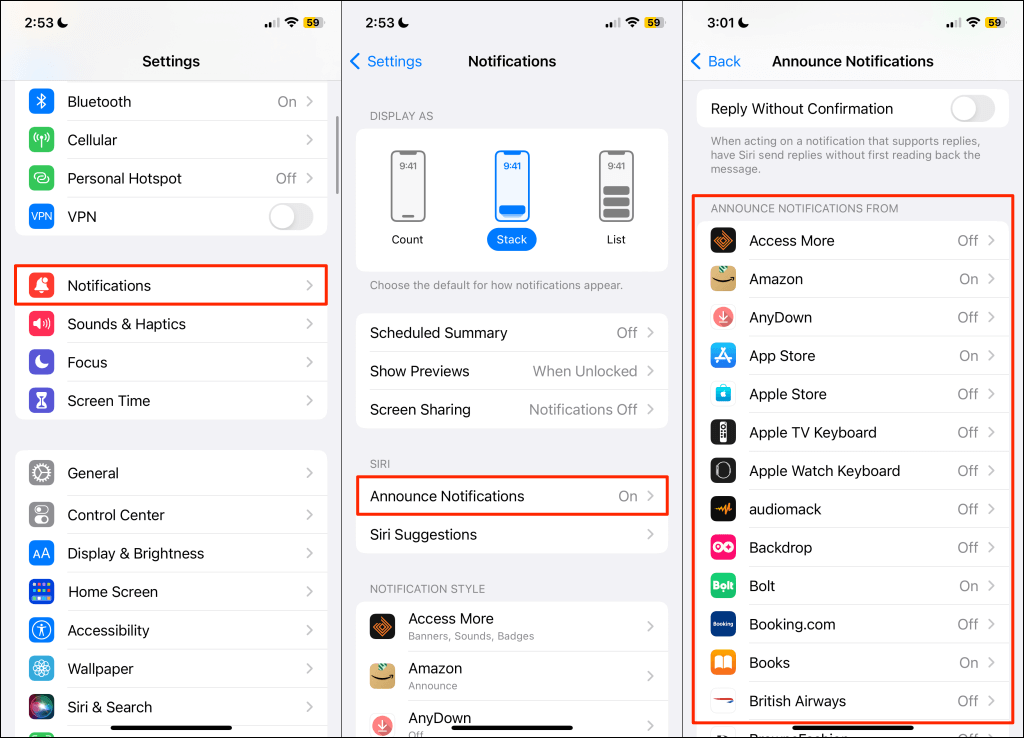
Depending on the application, select Direct Messages , Time Sensitive Notifications , or Time Sensitive and Direct Messages .
No More Messages Announcements
That’s how you stop Siri from reading texts on Apple AirPods or headphones. Customize the “Announce Notifications” feature to allow announcements for specific apps or notification types.
- How to Clean Your AirPods Microphone
- How to Keep AirPods from Falling Out Your Ears
- How to Clean Your AirPods Max (Without Damaging Them)
- How to Dry AirPods You Dropped in Water
- AirPods Making Static Noise? Try These 10 Fixes
