We’ll show you how to stream music, radio stations, and podcasts on Fire TV Sticks using Apple’s streaming services. The steps in this tutorial apply to all Fire TV Stick models/generations that support voice interaction with Alexa.
Use Apple Music on Fire TV Stick
Link Apple Music to Fire TV Stick on the Alexa Mobile App
The easiest way to link Apple Music to a Firestick is through the Alexa app on iOS and Android devices. Download the app from the Google Play Store if you’re using Android or App Store for iPhone and iPad users.
- Open the Amazon Alexa app and sign in to the same Amazon account on your Fire TV Stick.
- Go to the “Home” tab and tap Link Music Services .
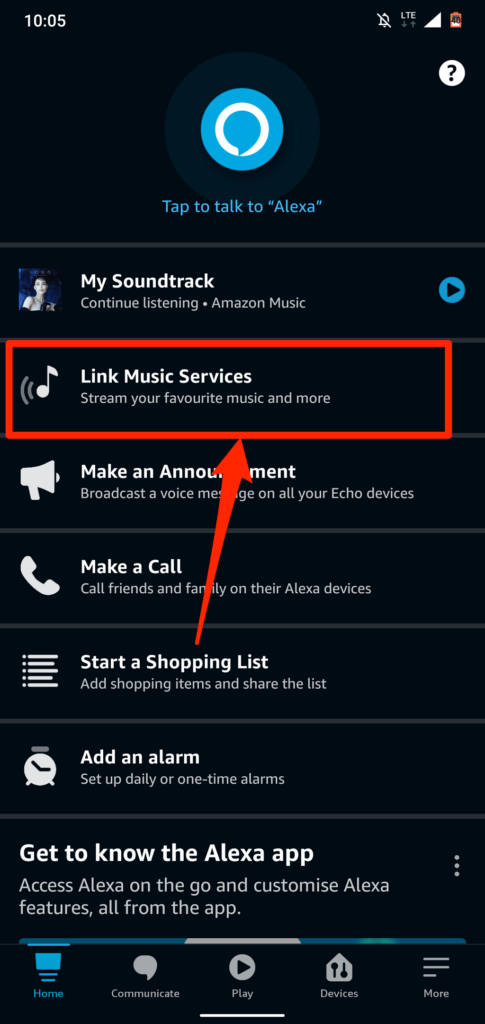
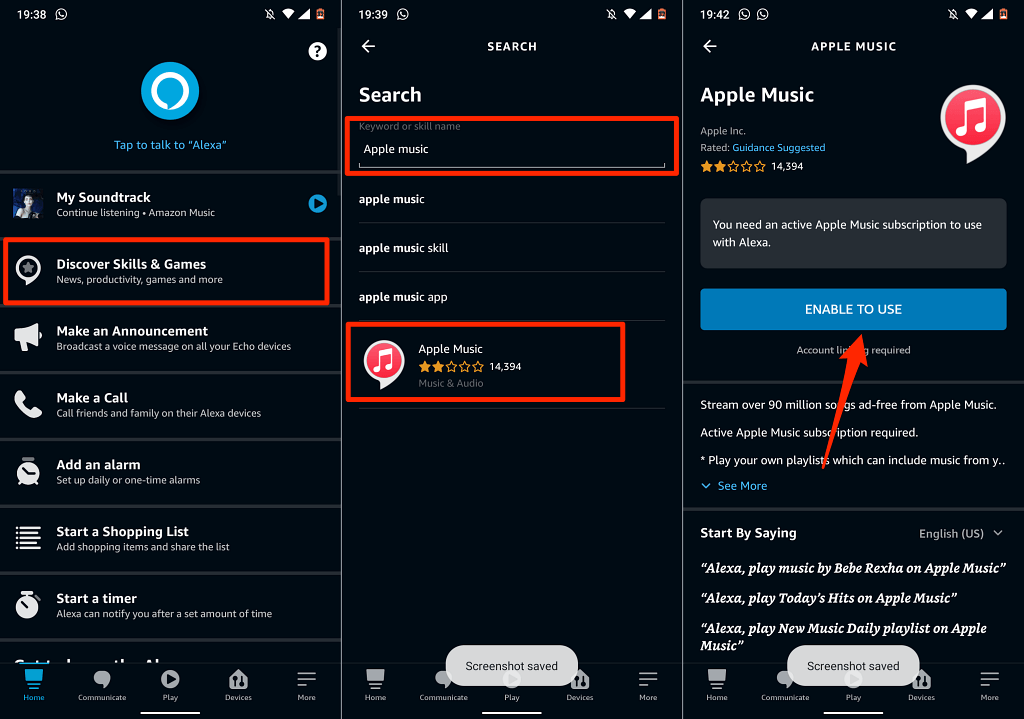
If you don’t find “Link Music Services” on the homepage, select Discover Skills & Games instead.
- Tap the search icon in the top-right corner, type “apple music” in the search box, and select Apple Music in the search results.
- Tap Enable To Use .
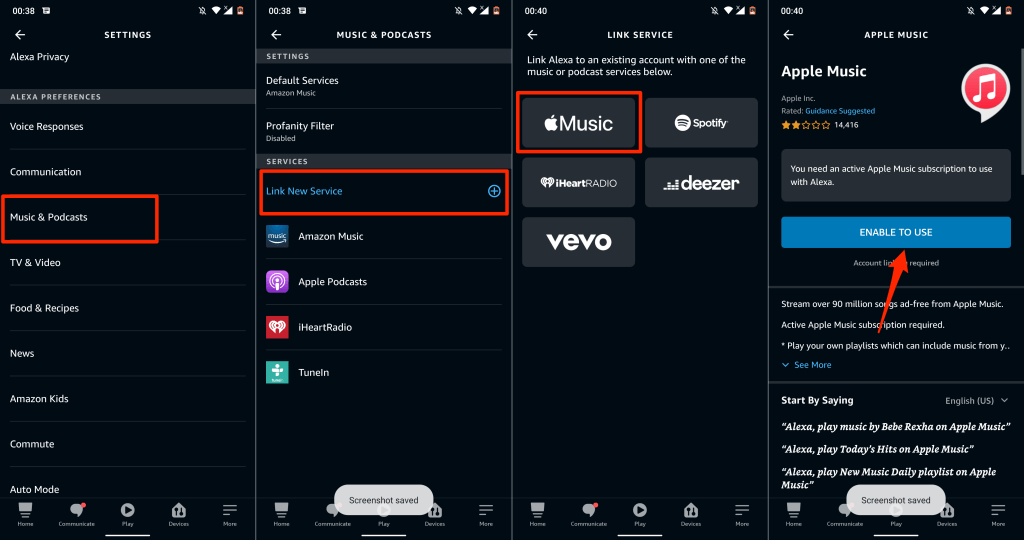
Alternatively, go to Settings > Music & Podcasts > Link New Service , tap Apple Music , and tap Enable To Use .
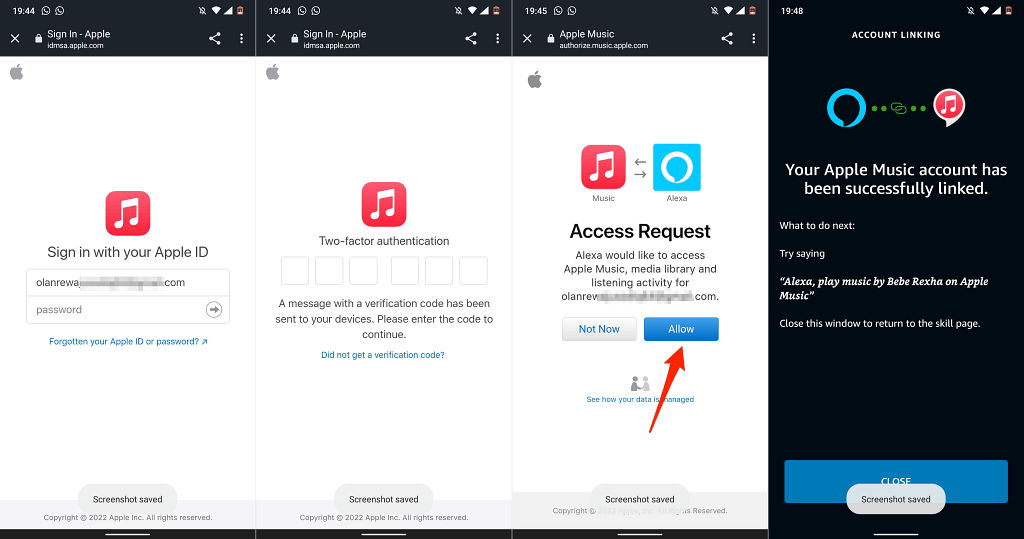
- The app will open the Apple ID sign-in page in your default web browser. Enter your Apple account credentials to link Apple Music to your Amazon account.
If your Apple ID account uses two-factor authentication, provide the security code sent to your phone number or Apple device.
- Finally, tap Allow to grant Amazon Alexa access to your Apple Music subscription.
Link Apple Music to Fire TV Stick on the Alexa Web App
- Visit the Alexa web app ( alexa.amazon.com ) on your web browser and sign in to your Amazon account.
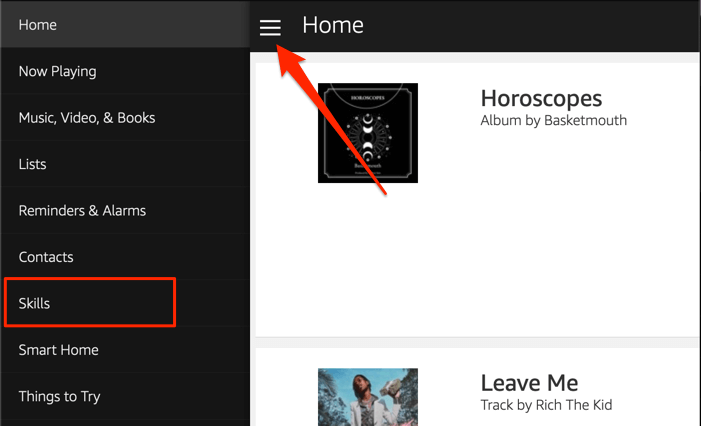
- Select the hamburger menu icon in the top-left corner and select Skills .
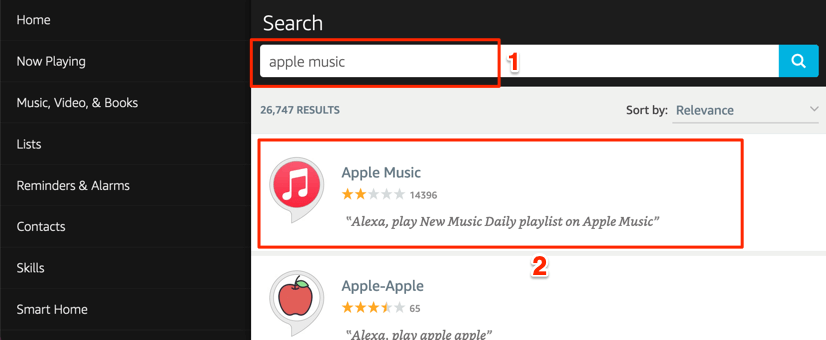
- Type apple music in the search box and select Apple Music in the results.
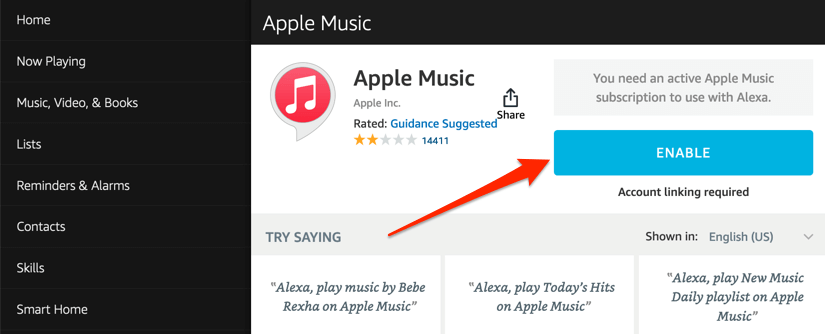
- Select Enable .
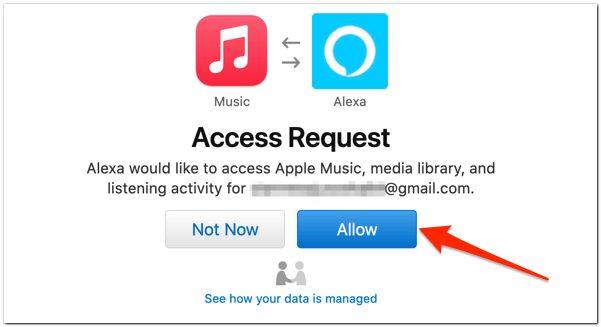
- Sign in to your Apple ID account on the page that pops up and select Allow on the “Access Request” page.
Link Apple Music on the Alexa Skills Webpage
- Visit the Apple Music page on t h e Alexa Skills website and select Enable .
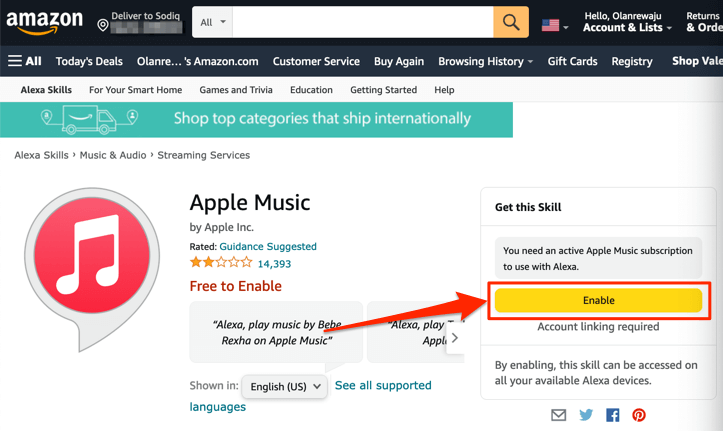
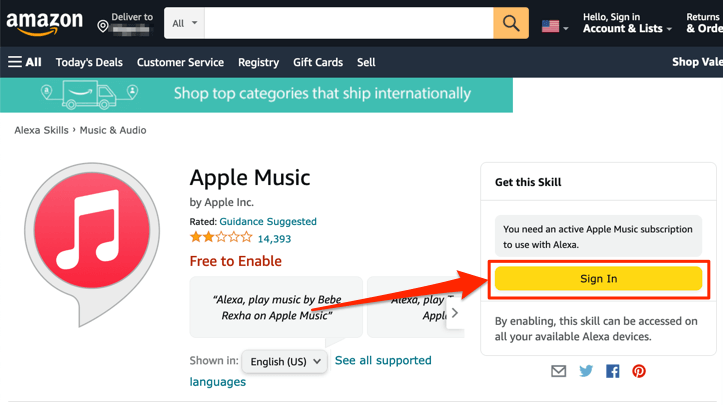
- If you aren’t signed in, select the Sign In button and provide your account credentials on the next page. Jump to step #3 if you’re already signed in.
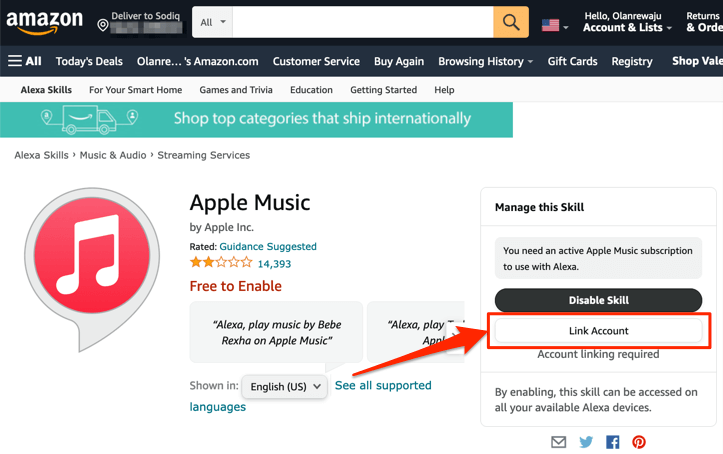
- When you enable the Apple Music skill, your browser should open a new tab to link your Apple ID account. Select the Link Account button If your browser doesn’t open the tab automatically.
- Enter your Apple ID account credentials to link Alexa and Apple Music.
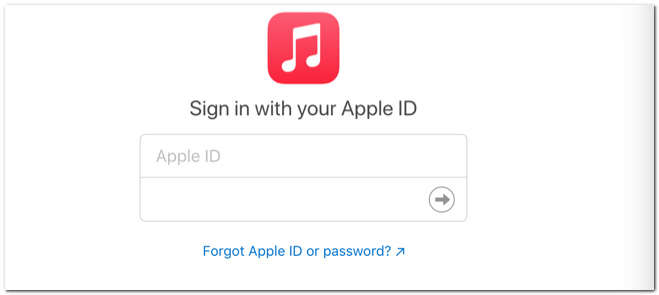
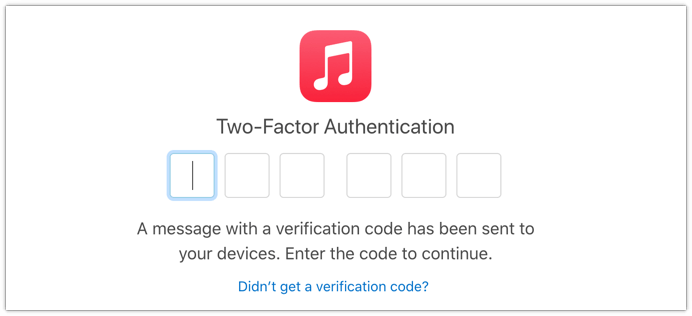
You may need to authenticate the sign-in if your Apple ID account uses two-factor authentication. Provide the code sent to your phone number or Apple devices to proceed.
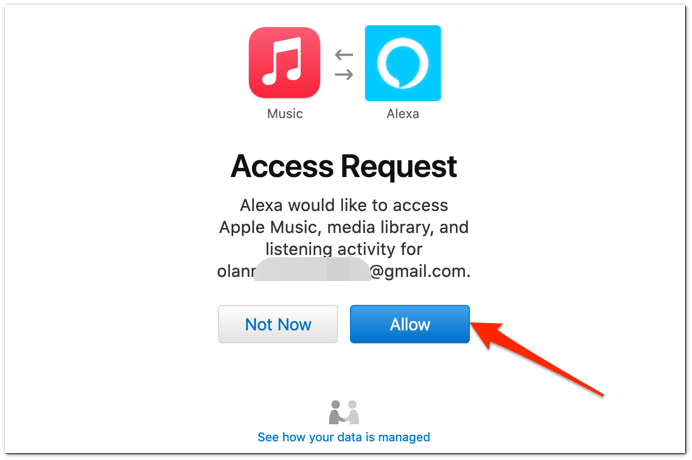
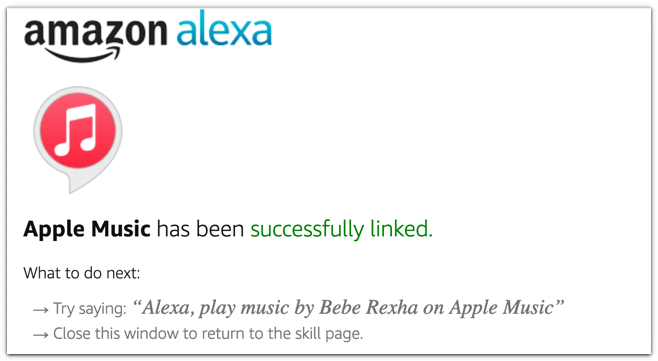
- Select Allow to link both services.
Set Apple Music the Default Music Player
You can only make Apple Music your preferred music streaming service through the Alexa (mobile or web) app.
Method 1: Use the Alexa Mobile App
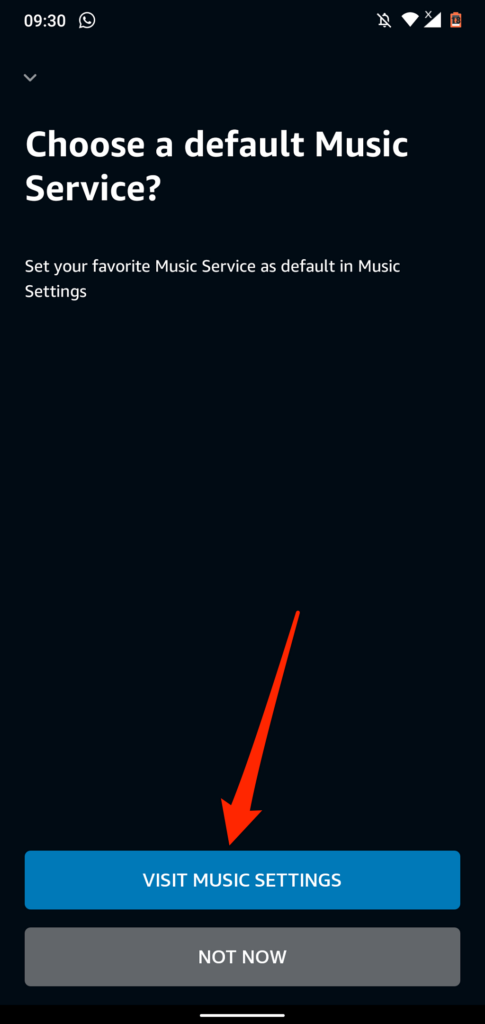
On the Alexa mobile app, you should get a prompt to “Choose a default Music Service” when you link Apple Music.
Tap the Visit Music Settings button, tap Change in the “Music” section, and tap Apple Music .
If you don’t get the prompt, follow the steps below to make Apple Music your default music streaming service.
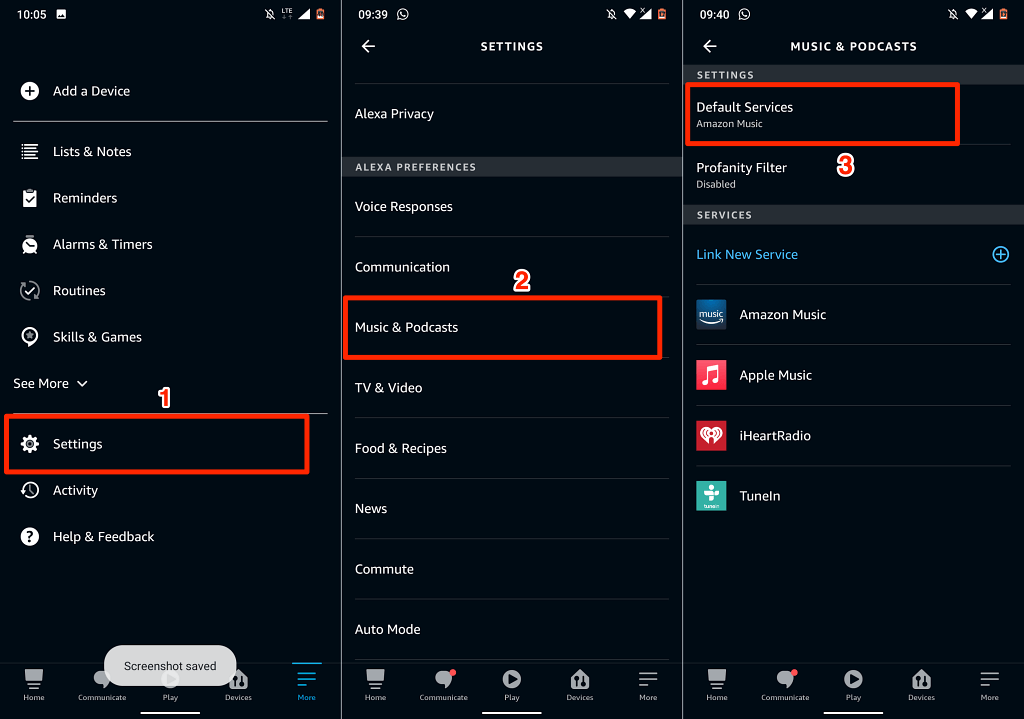
- Open the Alexa app, tap More in the bottom-right corner, and select Settings .
- Scroll to the “Alexa Preferences” section and tap Music & Podcasts .
- Tap Default Services to continue.
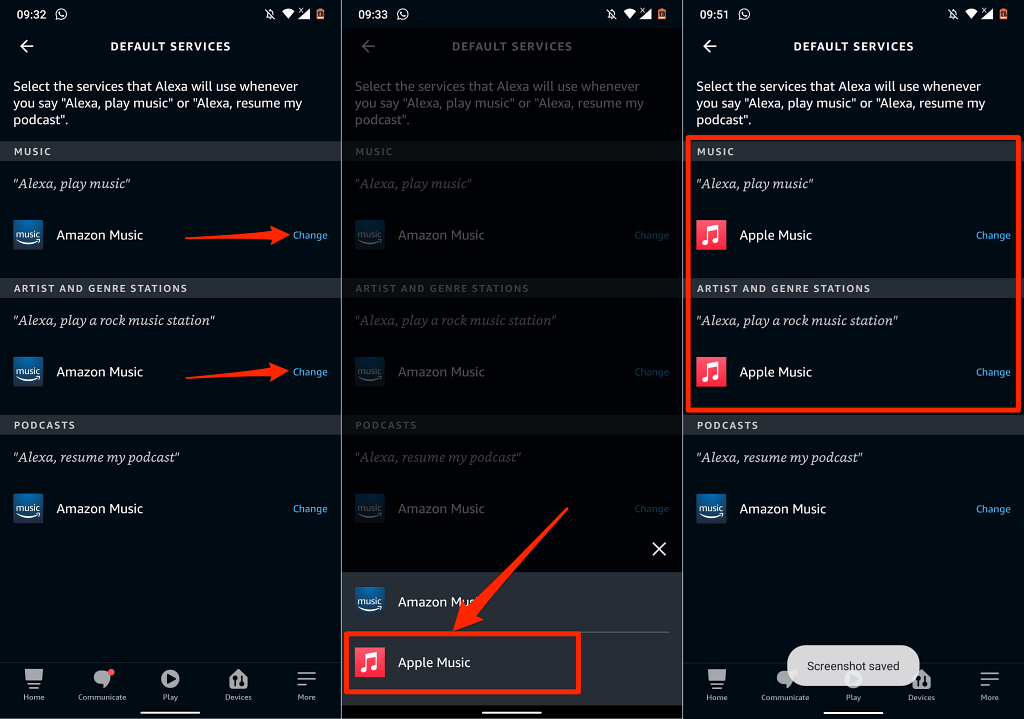
- Tap the Change button in the “Music” and “Artist and Genre Stations” section and select Apple Music .
Method 2: Use the Alexa Web App
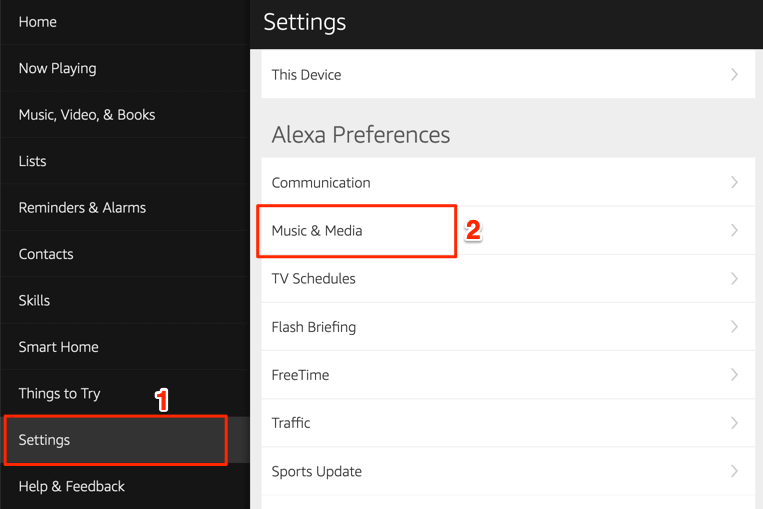
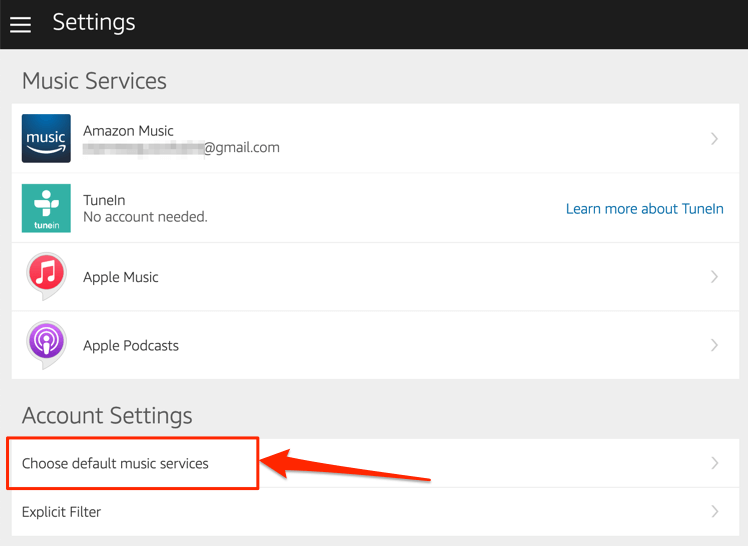
- Visit the Alexa App ( alexa.amazon.com ) on your web browser. Open the Settings menu and select Music & Media in the “Alexa Preferences” section.
- Select Choose default music services in the “Account Settings” section.
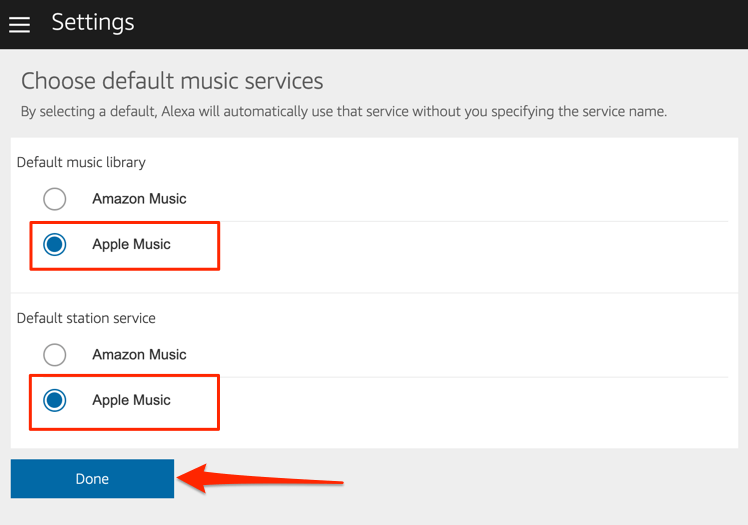
- Choose Apple Music in the “Default music library” and “Default station service” sections. Select Done to save the changes.
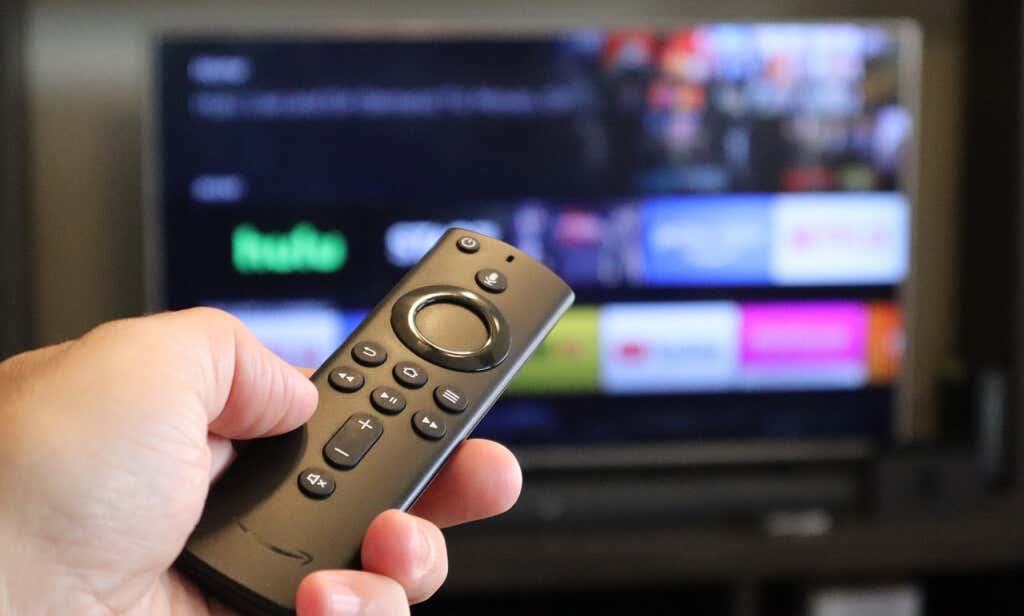
You can also instruct Alexa to play a specific song or album. Press and hold the mic button on your Fire TV remote and say, for example, “Alexa, play ‘Give Me Love’ by Ed Sheeran.”
Link Apple Podcasts to Fire TV Stick
Alexa also supports Apple Podcasts. So if you often stream podcasts on your iPhone or iPad via Apple Podcasts, you should link the podcast service to your Fire TV Stick. Even better, make it your Fire TV’s default podcast service.
Method 1: Use the Alexa Skills Webpage
Visit the Apple Podcasts page on the Alexa Skills website and select Enable . You won’t be required to sign in to your Apple ID account if you’ve done that when linking Apple Music.

Method 2: From the Alexa Web App
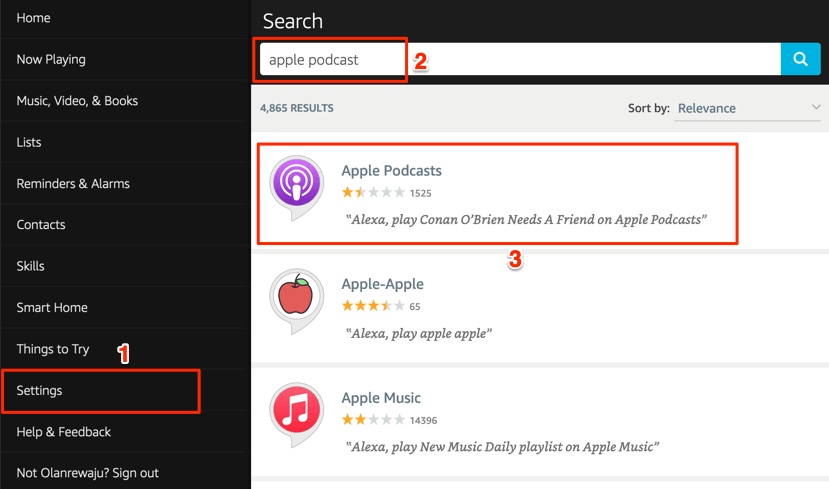
- Open the Alexa App ( alexa.amazon.com ) on your web browser and sign in to your Amazon account. Select Settings on the menu, type apple podcasts in the search bar, and choose Apple Podcasts in results.
- Select Enable .

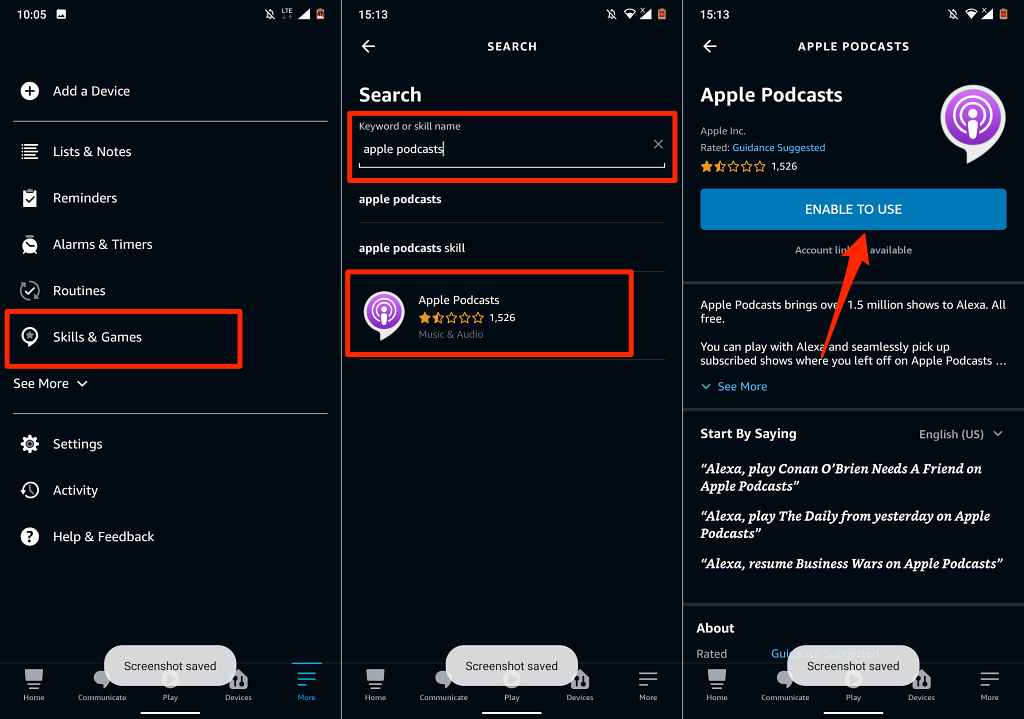
- Open the Amazon Alexa app, tap More in the bottom-right corner, and select Skills & Games .
- Tap the search icon in the top-right corner, type apple podcasts in the search box, and select Apple Podcasts .
- Tap Enable To Use to add Apple Podcasts to Alexa.
Unlink or Disconnect Apple Music and Alexa
If you no longer need Apple Music on your Fire TV Stick, here’s how to unlink the service from Alexa.
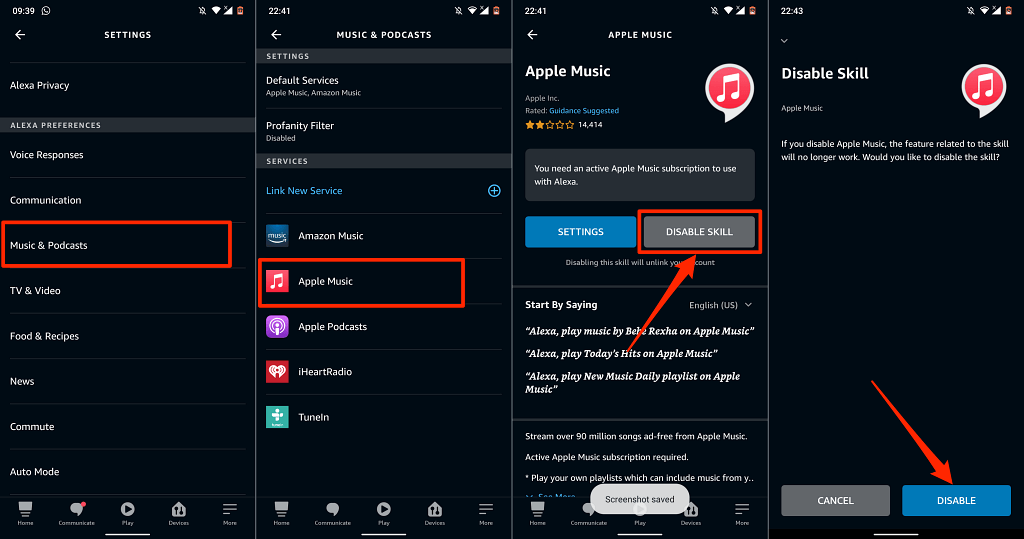
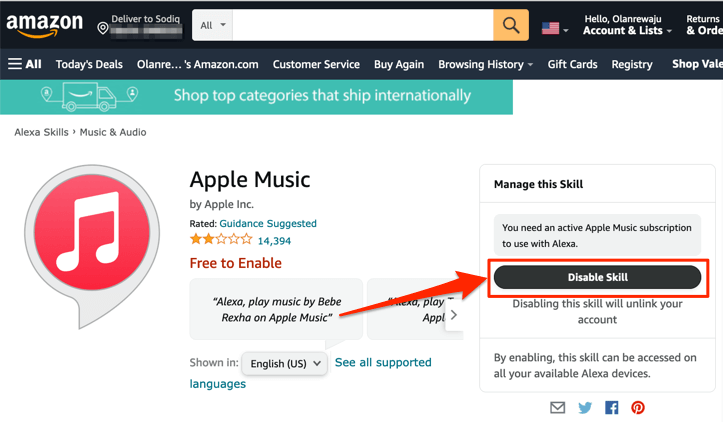
Open the Alexa App settings menu, select Music & Podcasts , select Apple Music , tap Disable Skill , and select Disable .
Apple Music & Podcasts on Your TV
We should mention that the navigation options and features on the Apple Music Alexa Skill aren’t extensive. You can only play/pause music, switch between the previous and next song in your library, and like/dislike songs. Those are the basic controls.
As mentioned earlier, these methods are applicable on all Firesticks—be it the low-end Fire TV Stick Lite or high-end Fire TV Stick 4K Max.
- How to Close Apps on Your Fire TV
- Is Your Fire TV Slow? Here Are 10 Ways to Speed It Up
- Fire TV Keeps Restarting? 8 Fixes to Try
- How to Connect Bluetooth Devices to Your Fire TV
- How to Update Your Fire TV Device
