If you’ve ever thought about hosting a Netflix streaming party, it’s now possible to do so over Discord, a VoIP app primarily used by gaming enthusiasts to communicate while playing games.
So, how is this possible? This article will share how you can stream Netflix on Discord and host your streaming party. We’ll also cover how you can avoid the notorious black screen error.
How to Stream Netflix on Discord on Windows and Mac
Streaming Netflix on Discord is luckily straightforward. Even better, the method below will work for both the Windows and Mac versions of Discord.
Firstly, there are a few things you’re going to need before you can stream Netflix on Discord, including:
- Access to the internet
- A Netflix subscription
- A Discord account and access to a Discord server
If you have these items, here’s how you can stream Netflix over Discord:
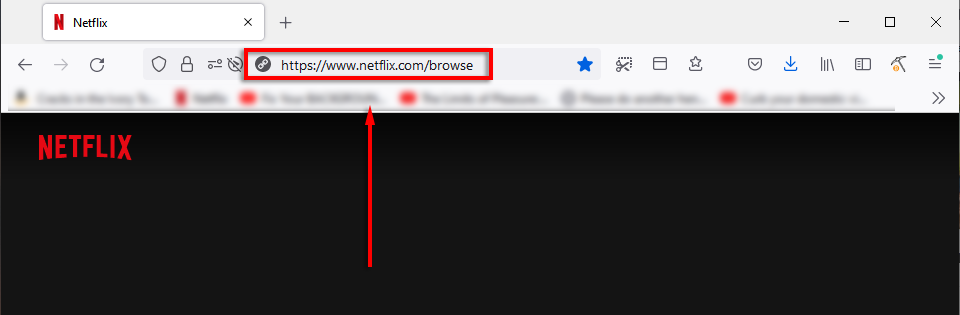
- Open your web browser and load the Netflix website.
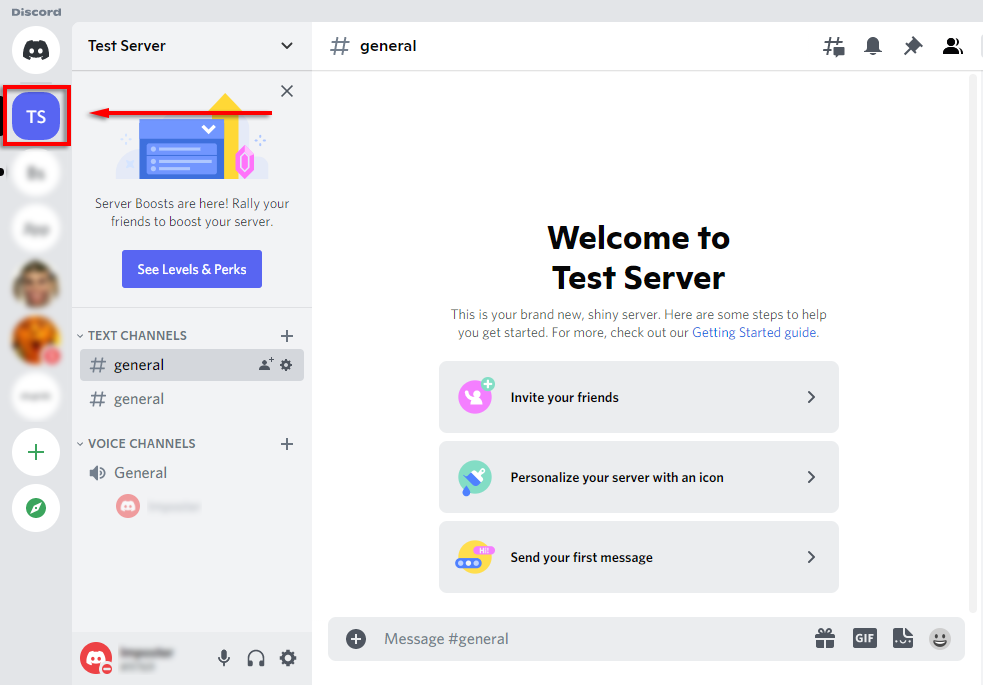
- Open Discord and join a server from the sidebar. If you aren’t on any servers, you can easily create your own.
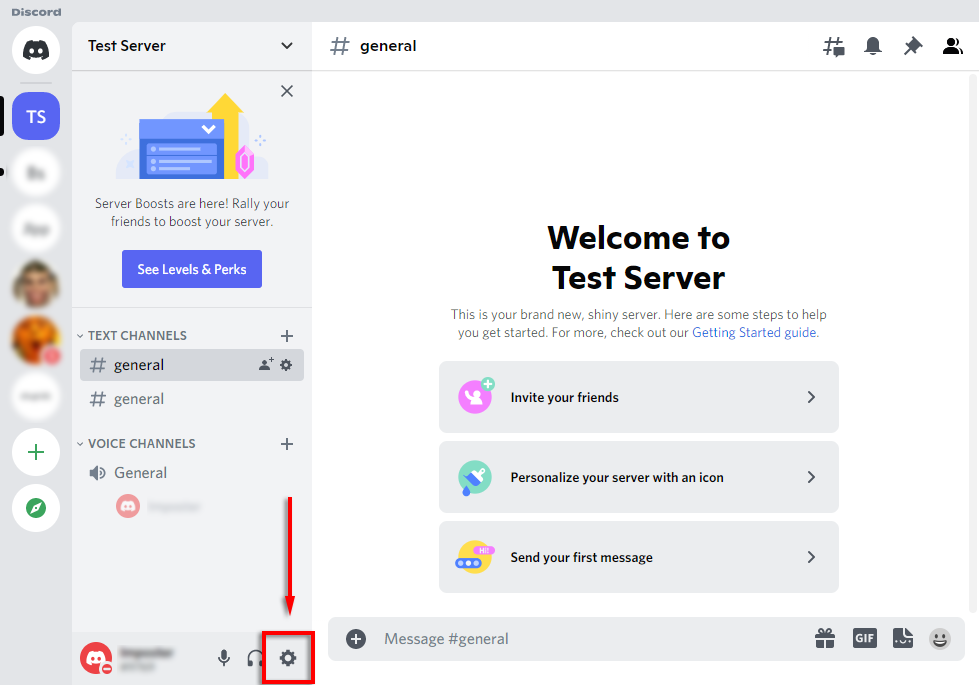
- Click on Settings (the gear icon by your name).
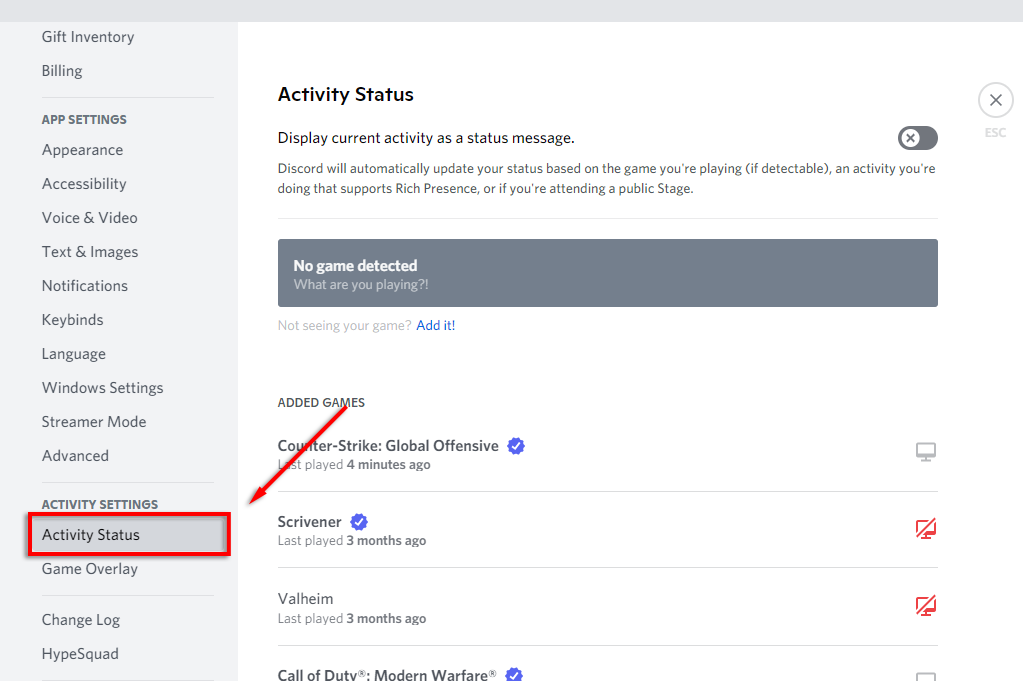
- Select Activity Status from the sidebar.
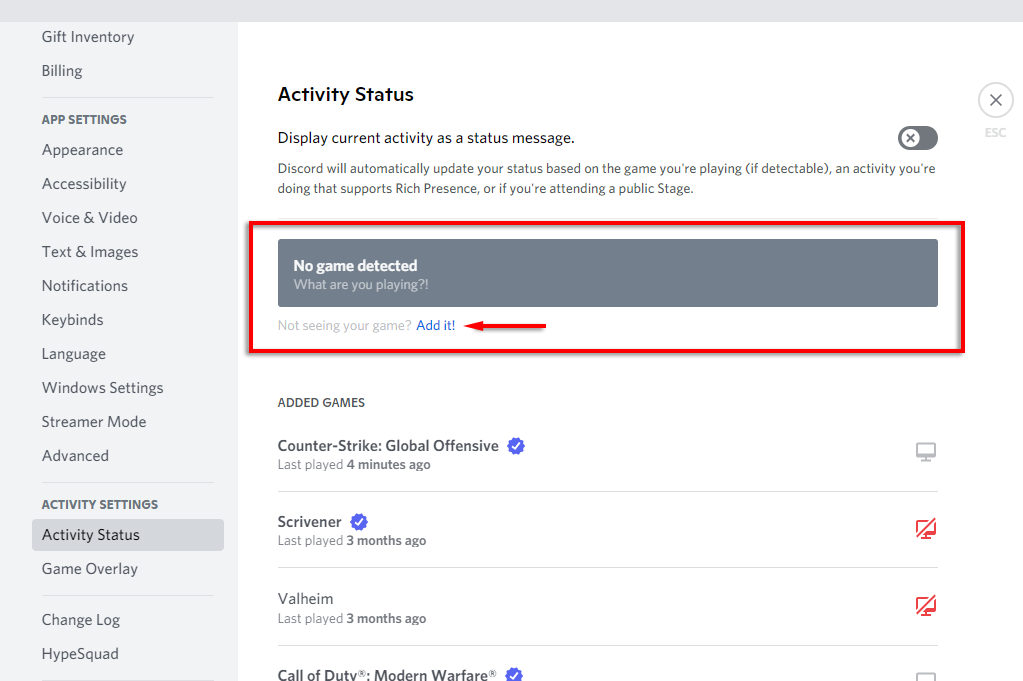
- You should see a banner that says “No game detected”. Beneath this, select Add it!
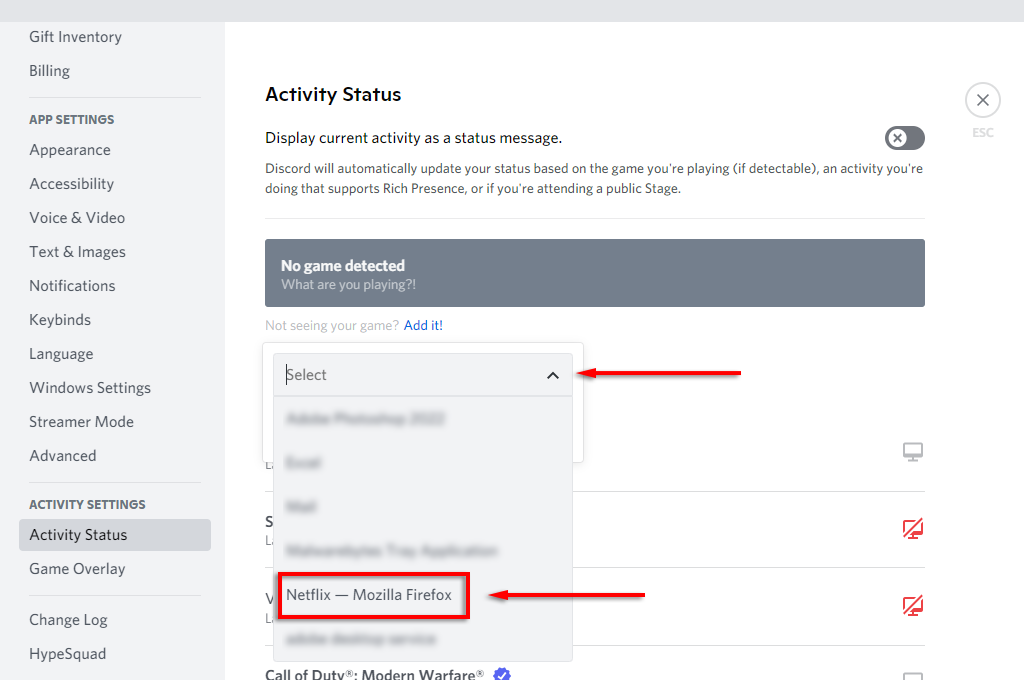
- In the dropdown menu, select your browser then click Add Game .
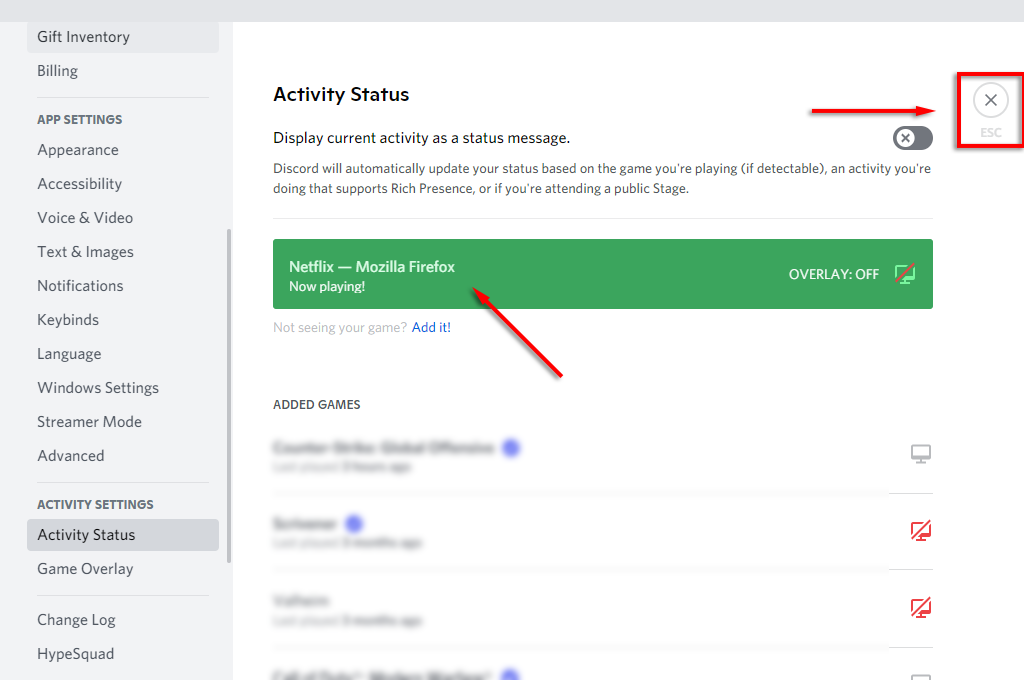
- Head back to the main window by pressing the X at the top-right of the screen.
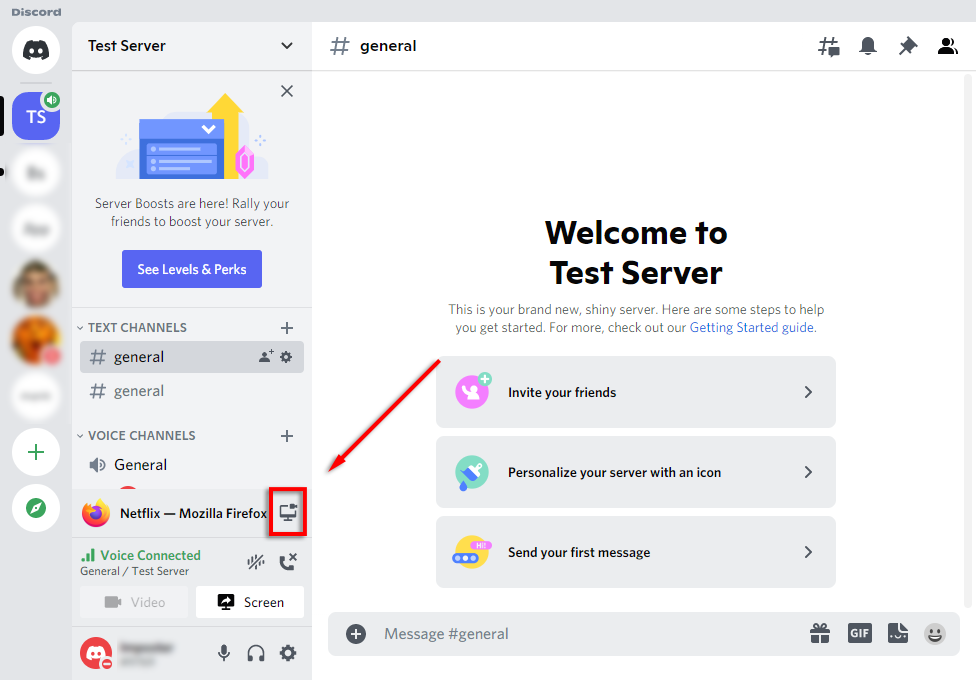
- You should now be able to share your screen. To do so, select the Go Live icon (it looks like a monitor with a camera on top of it).
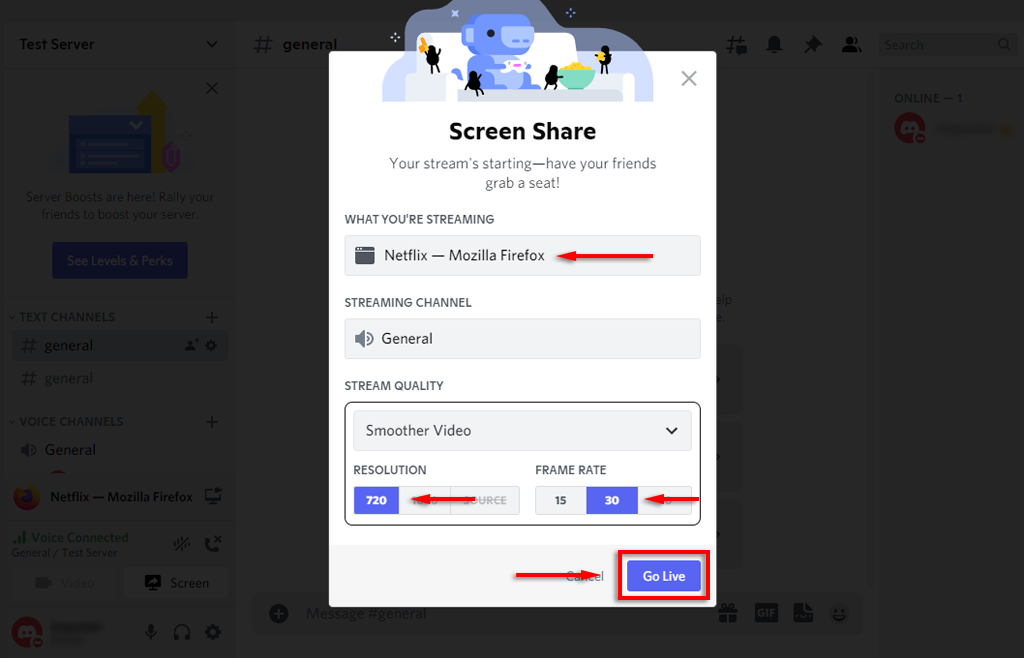
- In the pop-up, make sure your browser is selected, and choose your frame rate, channel, and resolution. Select Go Live .
- A preview window should appear displaying your shared screen. Anyone in your channel should now be able to view your Netflix stream.
Note: This method uses the “Go Live” function, which ensures that audio is shared along with the video in your stream. If you simply use the share screen function, it’s likely that the audio will not be shared. If you’re still having trouble sending or receiving audio, check out our guide to troubleshoot the matter.
How to Stream Netflix on Discord on Android or iPhone
It’s now possible to stream Netflix via Discord on your phone, too. To do this:
- Have your Netflix app open and ready to go.
- Open the Discord app.
- Select a server.
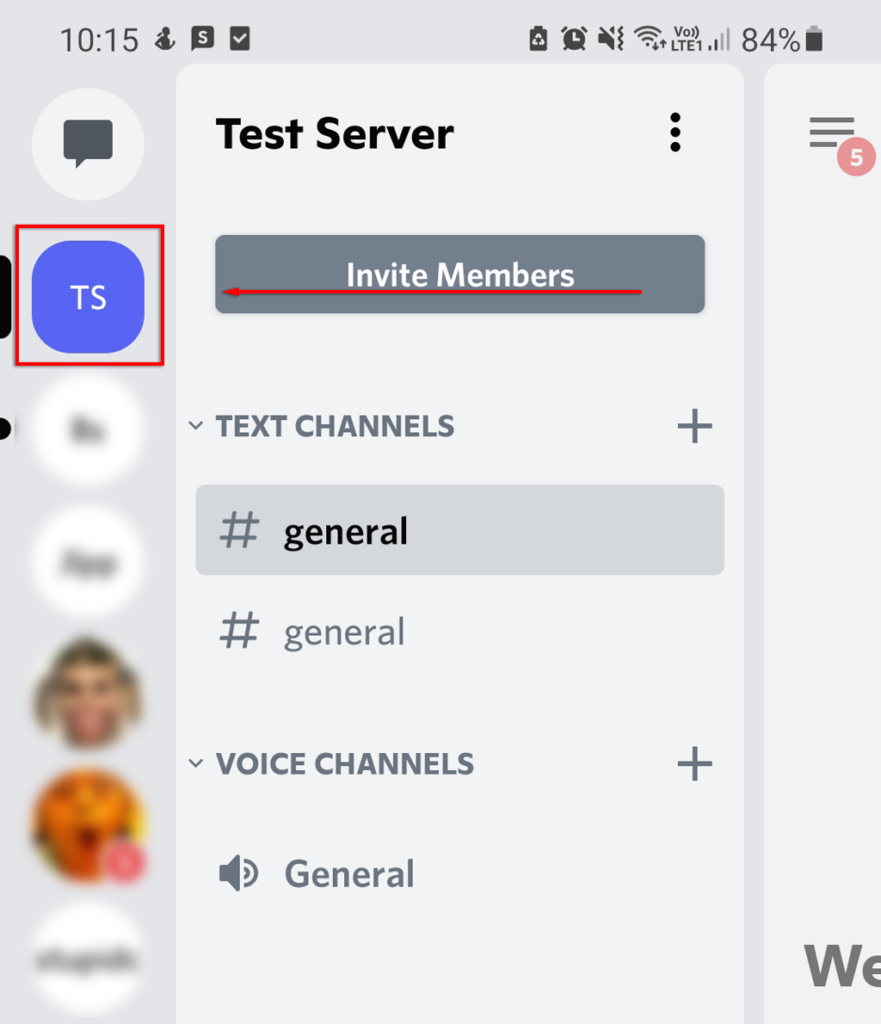
- Select a channel.
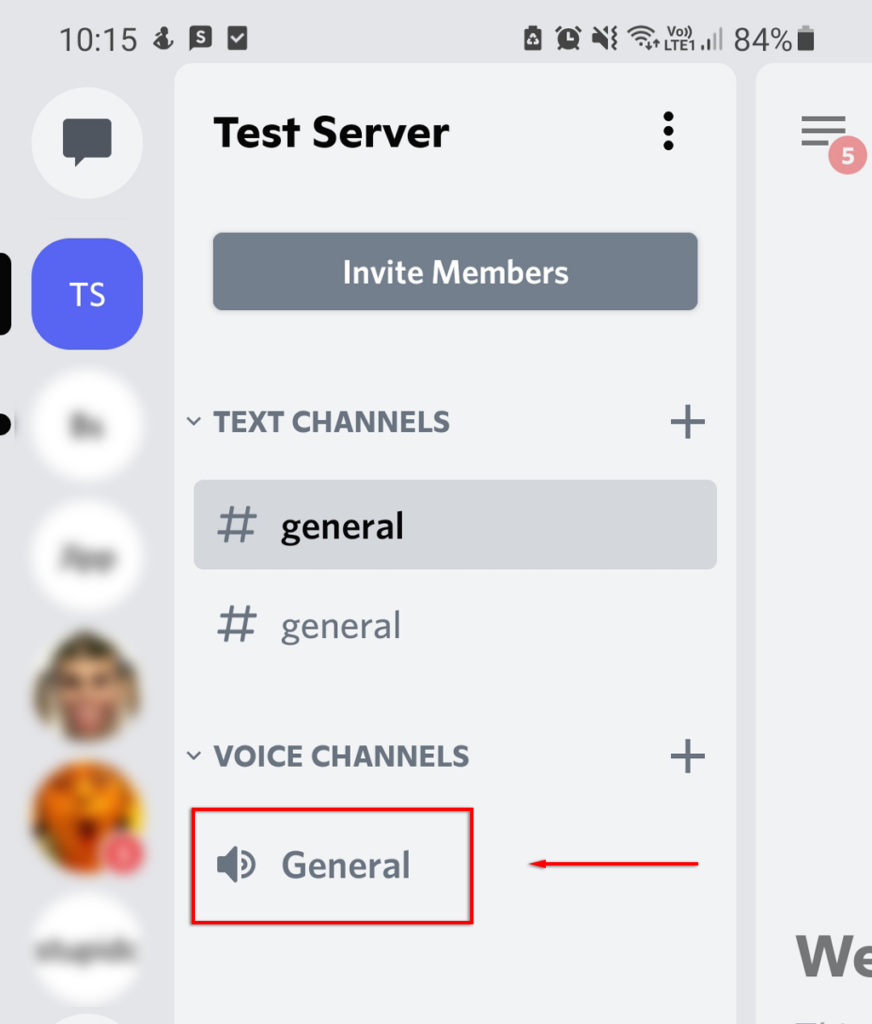
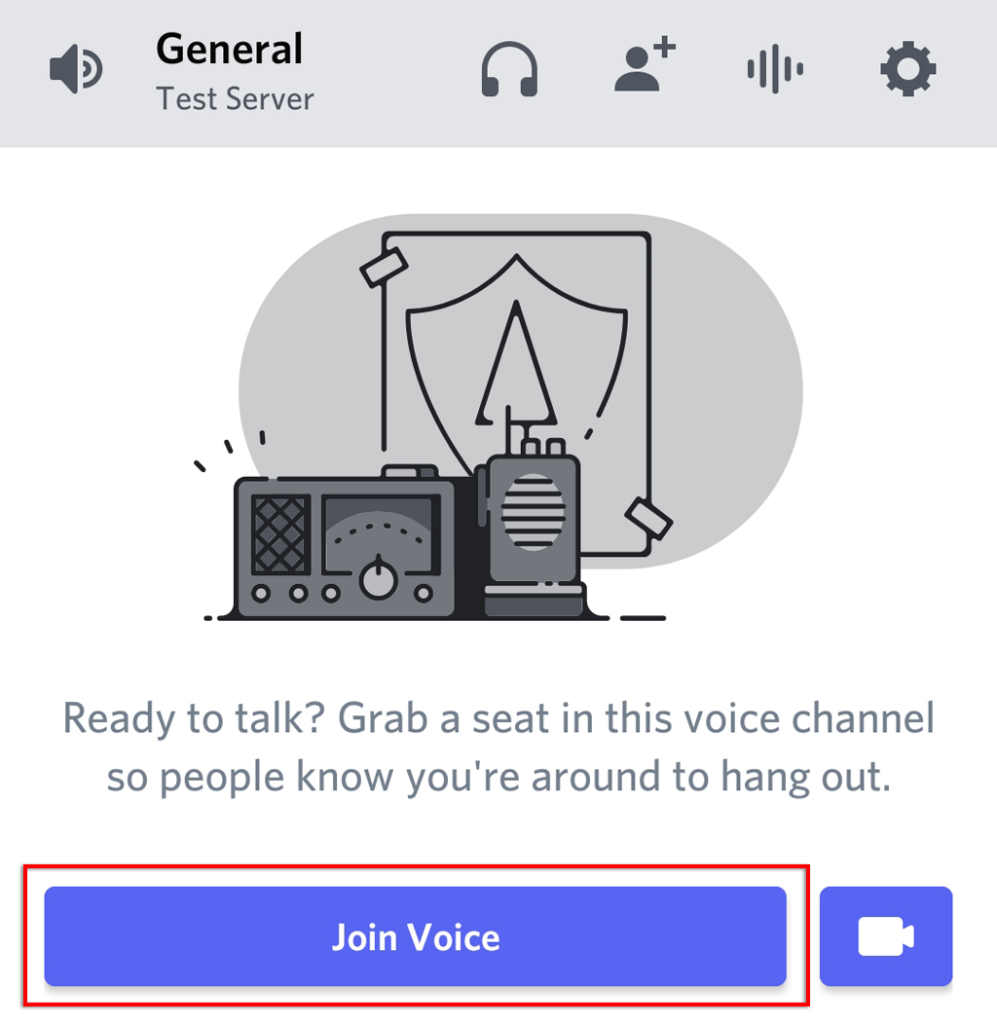
- In the pop-up, select Join Voice .
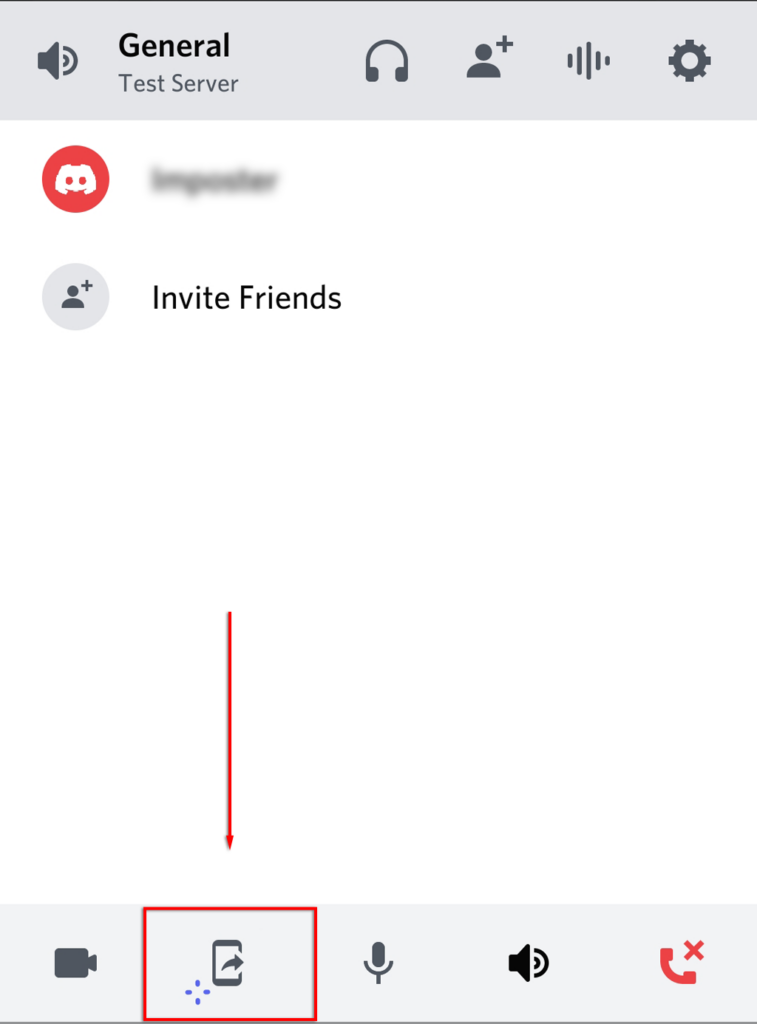
- Select the screen share icon (which looks like a phone with an arrow coming out).
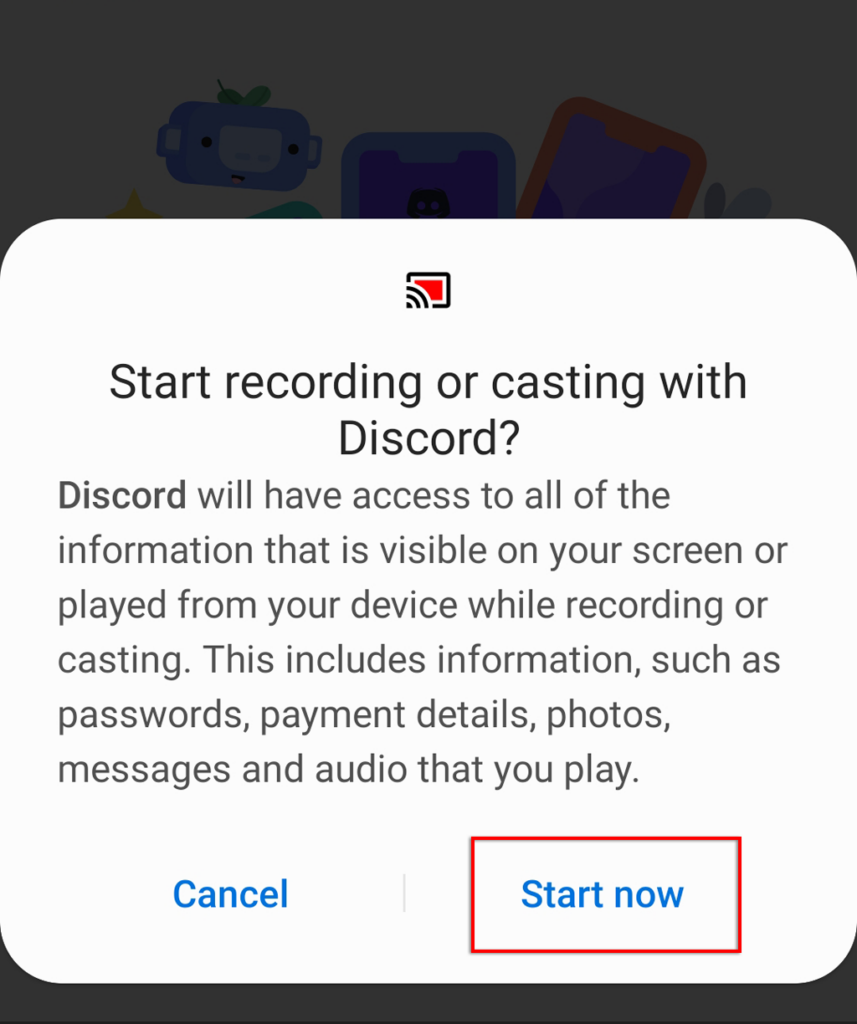
- Select Start Now .
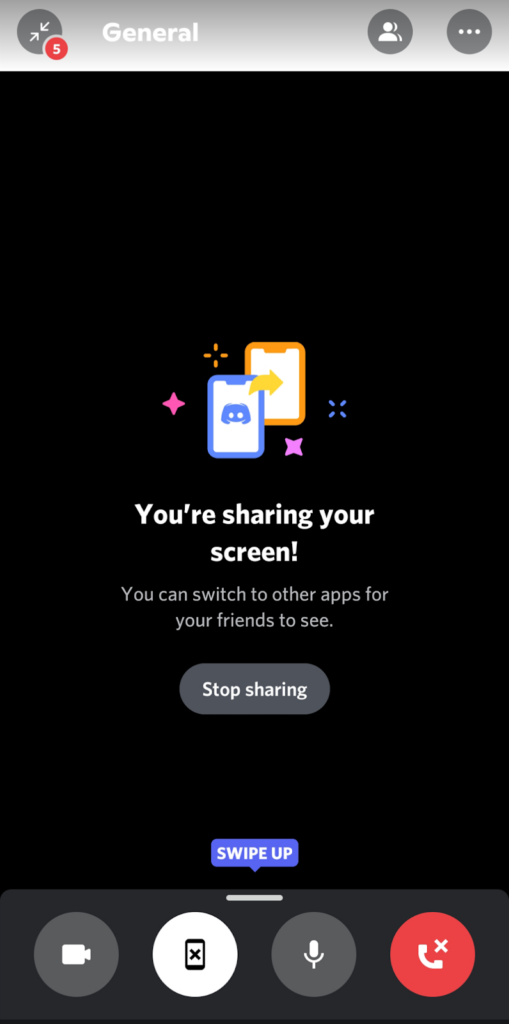
- You are now sharing your screen with anyone in the channel. All you need to do is switch back to the Netflix app and start the movie.
How to Stream Netflix on Discord Without Black Screen
Unfortunately, experiencing a black screen while streaming over Discord is relatively common and makes it impossible to share your Netflix stream. There are many causes for this error, and we’ll cover the most likely fixes below.
Check Permissions
The first thing to check is that Discord has the correct permissions to stream your screen. On Windows, the easiest way to do this is to run Discord as an administrator.
- Open the Start menu and type Discord .
- Right-click Discord and select Run as administrator .
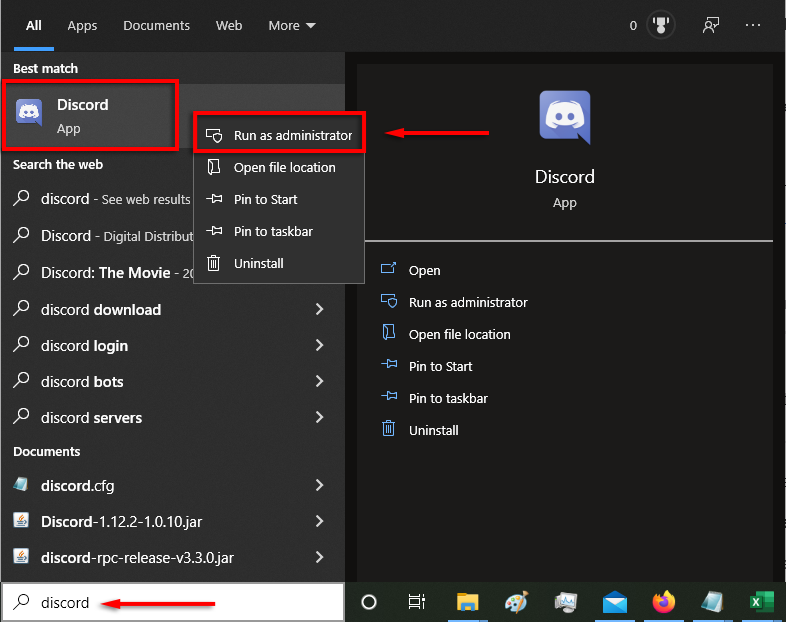
On Mac, the process is slightly more involved. To see how to give Discord screen recording permissions, see our guide .
Disable Hardware Acceleration
A common cause of the black screen is hardware acceleration which attempts to increase the smoothness of Discord by balancing your PC’s resources.
Try turning this off in Discord first:
- Open Settings (the gear icon by your name).
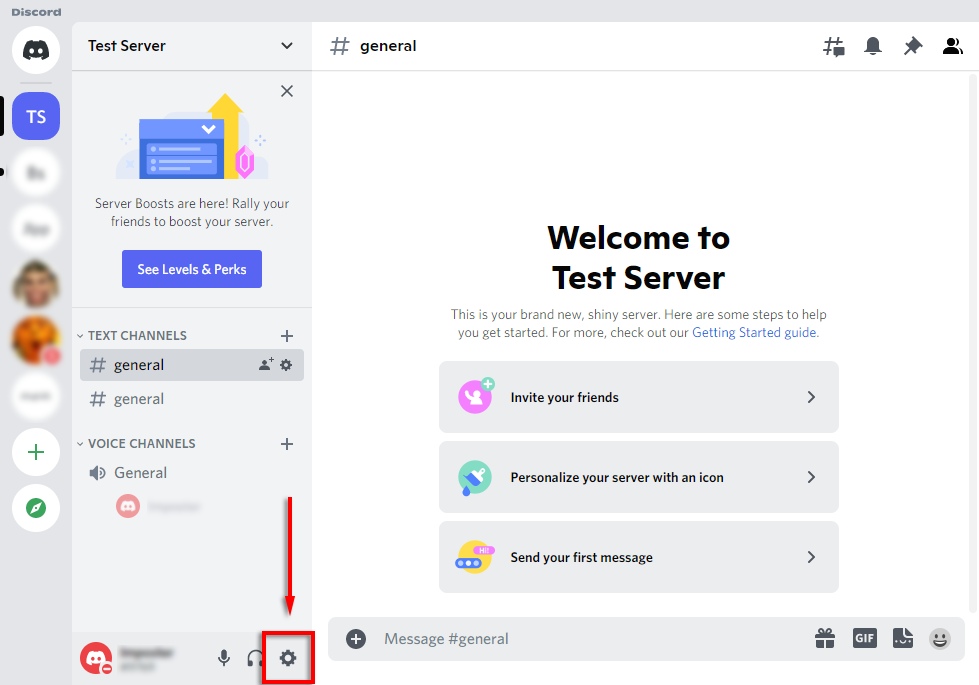
- Select Advanced from the sidebar.
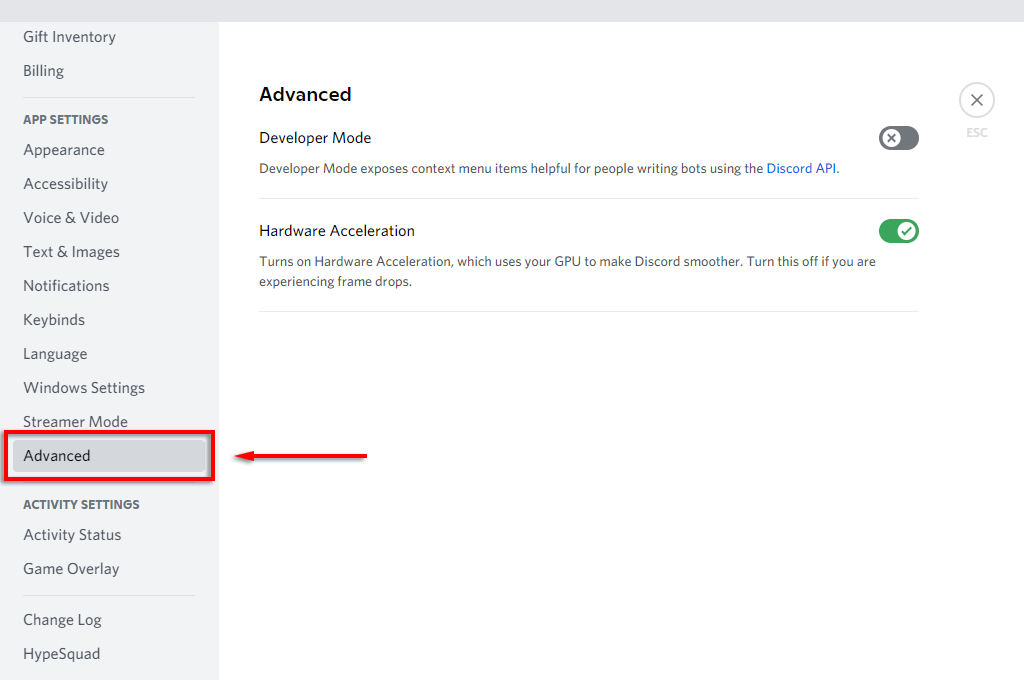
- Toggle off Hardware Acceleration .
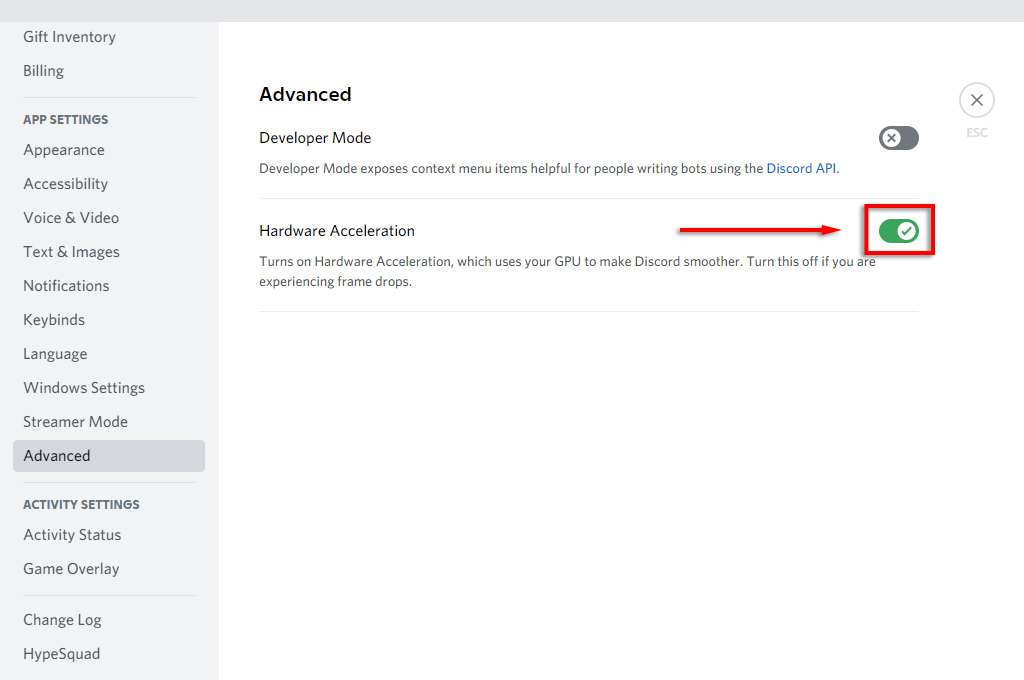
- In the pop-up window, select Okay .
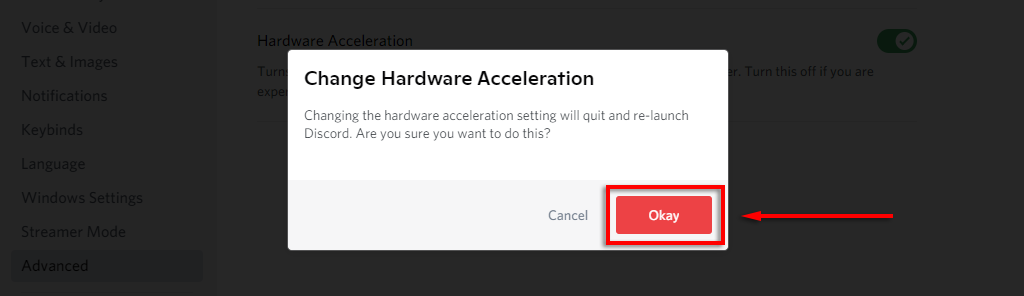
If you’re still getting the black screen, you can try disabling hardware acceleration in your browser too.
To disable hardware acceleration in Google Chrome:
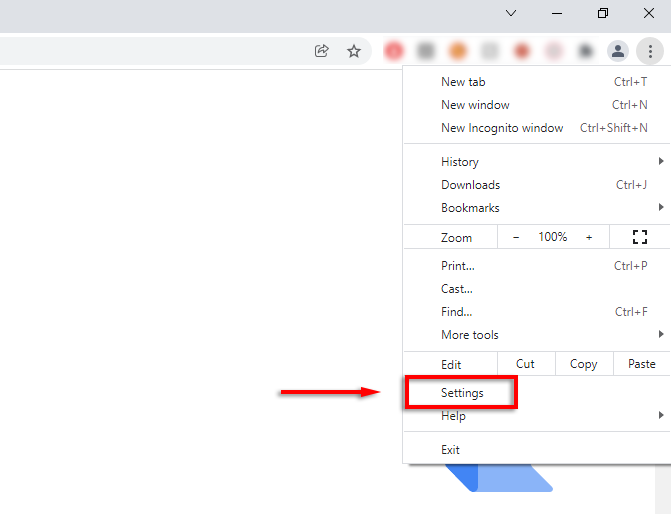
- Open Chrome and select the three vertical dots at the top-right corner.
- Select Settings .
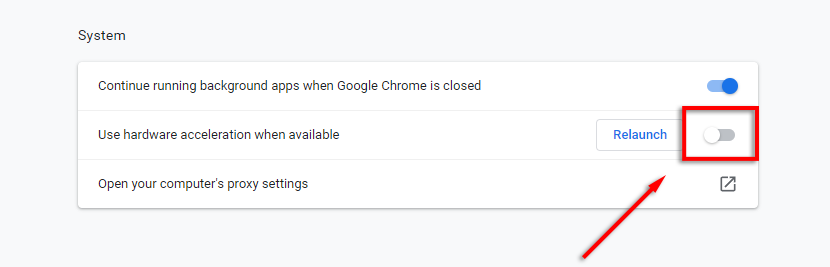
- In the sidebar, select System .
- Under System , toggle off Use hardware acceleration when available .
To do so in Firefox:
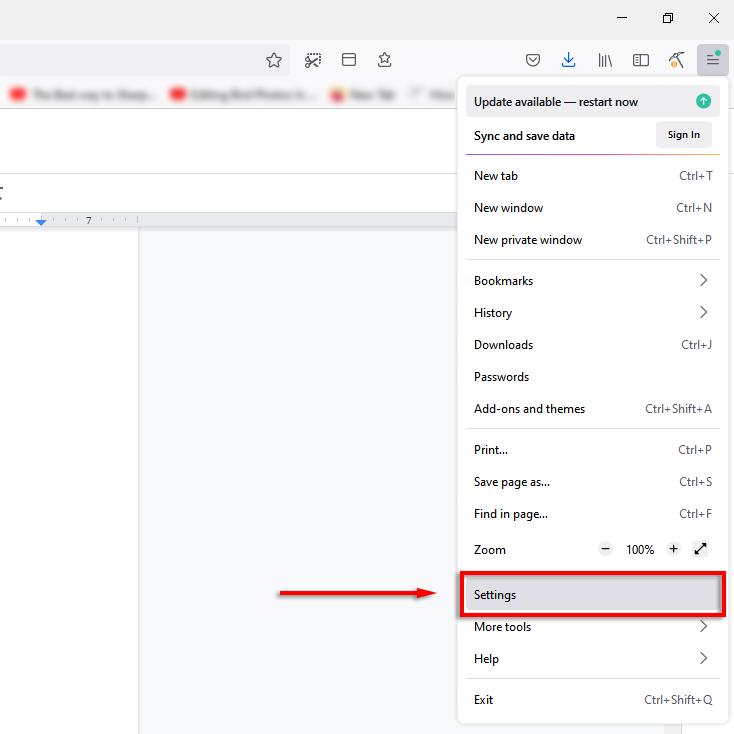
- Open Firefox and select the three horizontal lines .
- Select Settings .
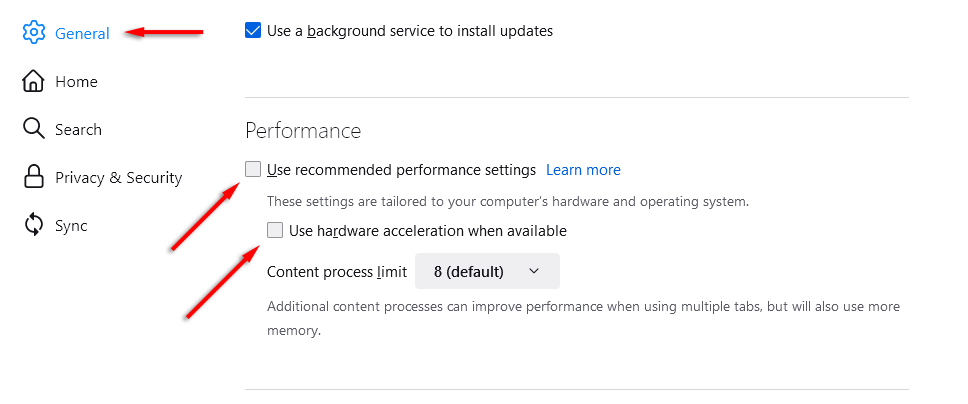
- Under the General tab, scroll down until you reach Performance .
- Uncheck Use recommended performance settings , then uncheck Use hardware acceleration when available .
To disable it in Microsoft Edge:
- Open Edge and select the three horizontal dots at the window’s top-right.
- Select Settings .
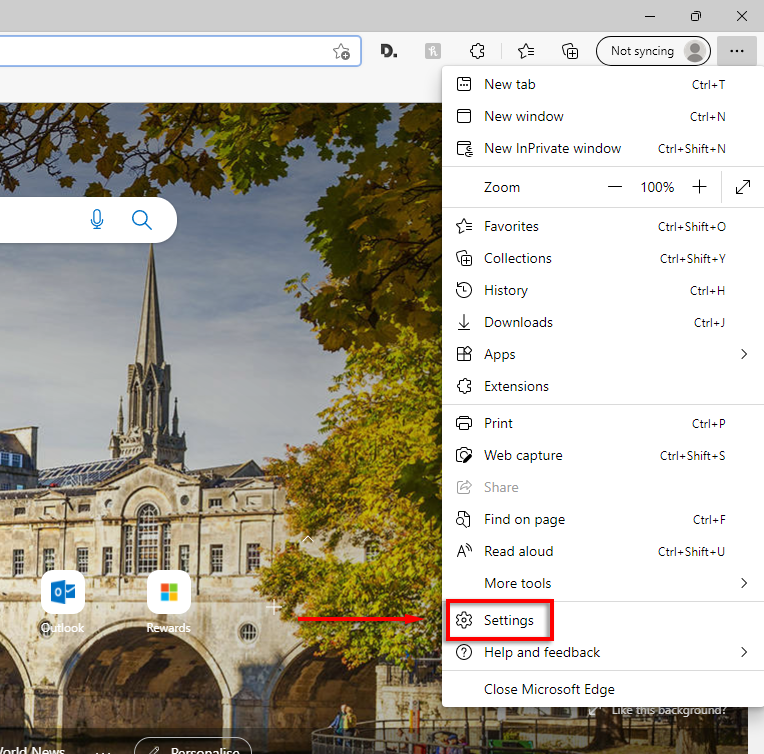
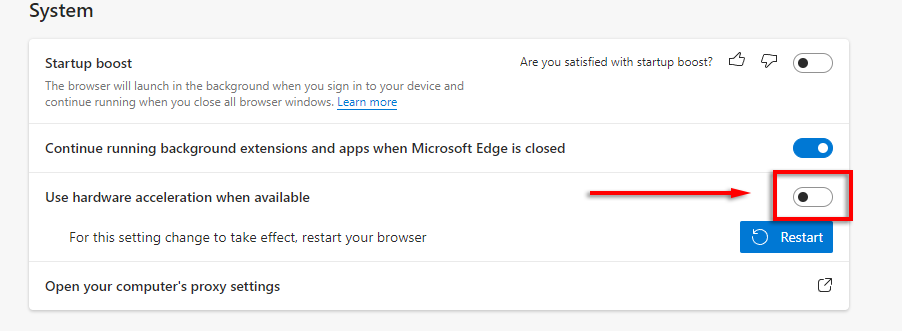
- Select System from the sidebar menu.
- Toggle off Use hardware acceleration when available .
Note: You cannot disable hardware acceleration in Safari on Mac.
Clear the Discord Cache Folder
Some users report that clearing the cache folder fixes the black screen issue in Discord. To do so:
- Close Discord .
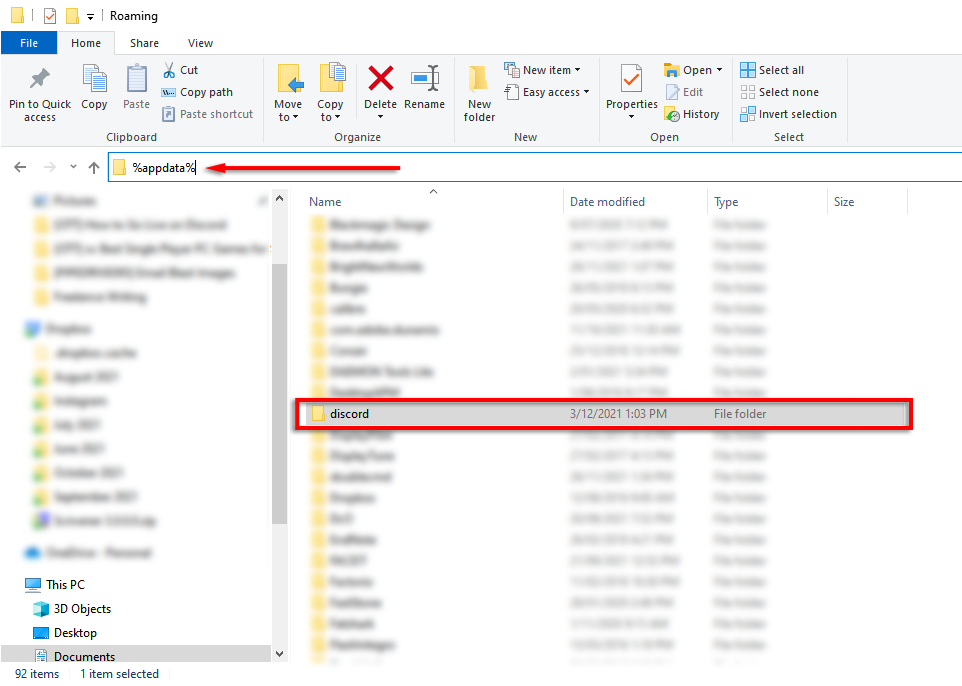
- Open File Explorer .
- In the address bar, type %appdata% to open the roaming folder.
- Find discord and delete this folder. It will be regenerated next time you open Discord.
Switch to Windowed Mode
Generally, Discord will only support screen sharing for apps in Windowed mode. Use your web browser’s window controls to switch it out of fullscreen mode.
Disable “Latest Technology” in Discord
Some users report that the “Latest Technology” setting in Discord causes the black screen issue when trying to stream. To disable this:
- Open Discord .
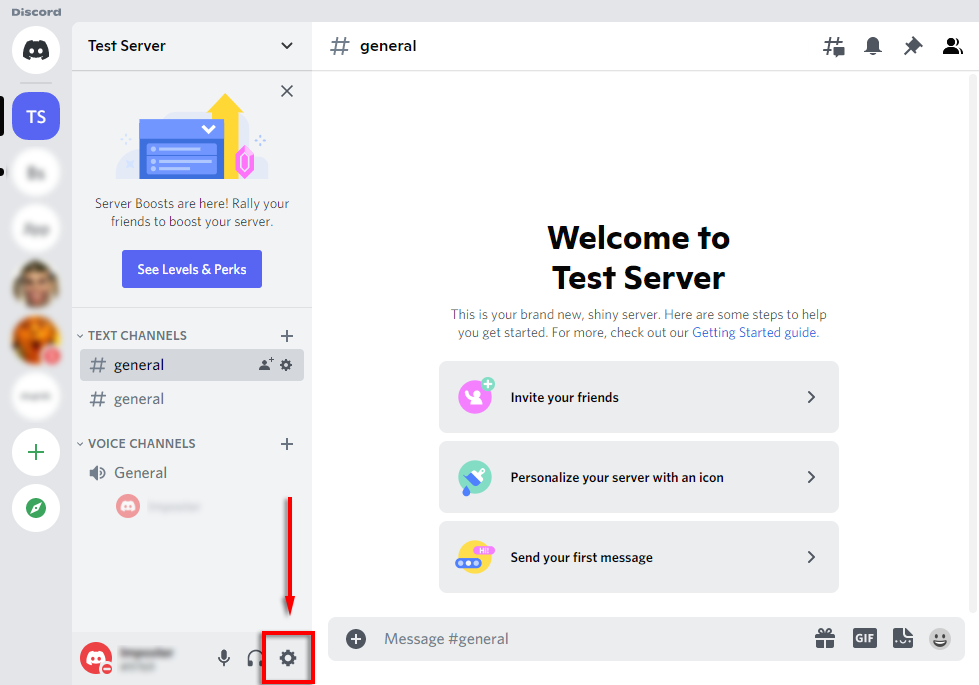
- Select Settings (the cog icon near your username).
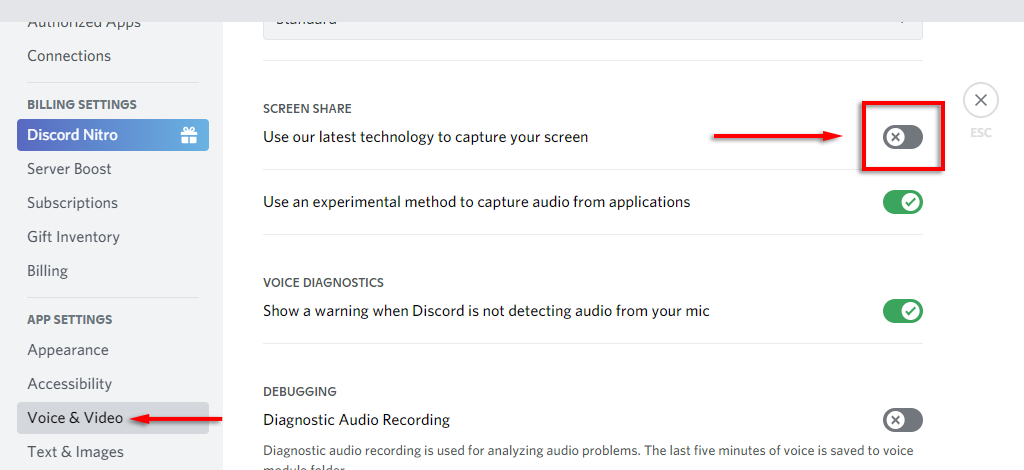
- Select Voice & Video from the sidebar.
- Scroll down to SCREEN SHARE and toggle Use our latest technology to capture your screen off.
Reinstall Discord
The final thing to try is reinstalling Discord. To do so:
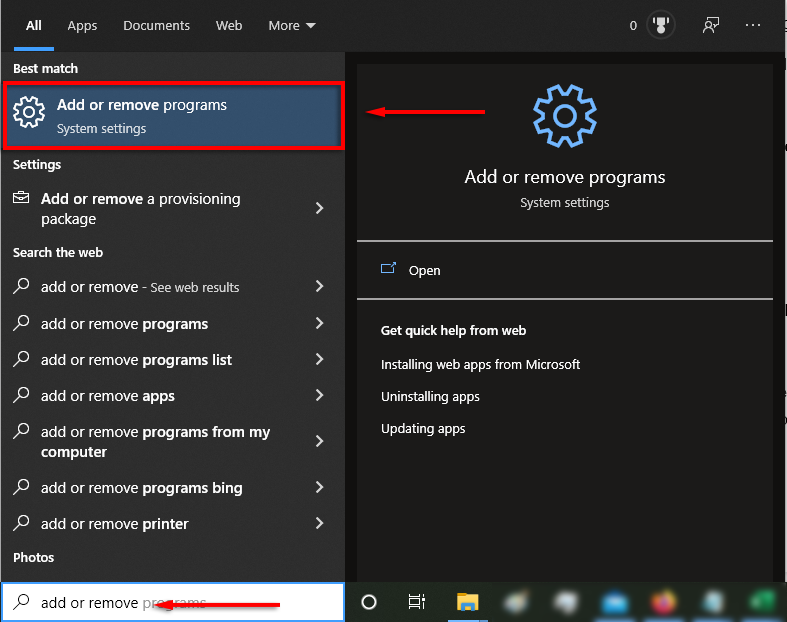
- Open the Start menu and type Add or remove .
- Select Add or remove programs .
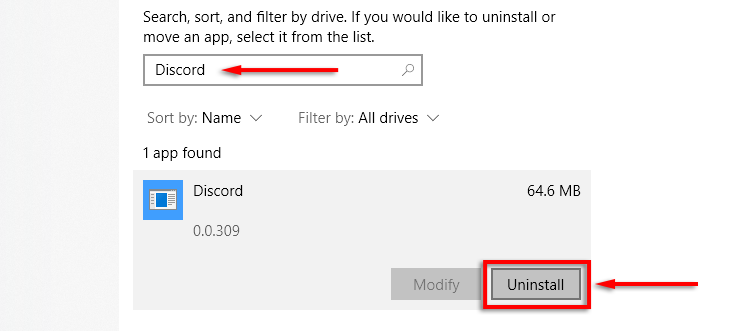
- In the list, find Discord .
- Select Discord and then click Uninstall .
- Once the wizard completes, head to the official Discord website to download the client and reinstall the app.
Time For a Streaming Party
Now you know how to stream Netflix on Discord, and luckily, it’s pretty straightforward. Hopefully, you don’t encounter the black screen issue and you’re able to host a streaming party with no hiccups.
- How to Fix Yellow Border When Screen Sharing in Discord
- How to Stream Disney Plus on Discord
- Discord Keeps Disconnecting and Reconnecting? 15 Ways to Fix
- How to Update Discord on Any Device or Platform
- Discord Messages Failed to Load? 11 Fixes to Try
Jake Harfield is an Australian freelance writer whose passion is finding out how different technologies work. He has written for several online publications, focusing on explaining what he has learned to help others with their tech problems. He’s an avid hiker and birder, and in his spare time you’ll find him in the Aussie bush listening to the birdsong. Read Jake’s Full Bio
