Google Docs is part of the Google suite of cloud-based productivity tools. It makes it easy to collaborate on documents and share them with others. We show you how to track changes in Docs so that you can see what’s different in the latest version.
The Difference with Word’s Track Changes
In Microsoft Word, document collaboration happens serially. One person enables “Track changes,” works on a document, finishes editing, and sends the document to the next person for review. That person can review the tracked changes and make edits, thus creating multiple versions of the same document.
In Google Docs, there aren’t multiple versions of a document, just a single copy in the cloud, which can be edited simultaneously by multiple users.
Remember to Share Your Document
If you want to track changes in a Google Doc so that another person can review them, you need to share the document with that person.
To share a document with another person:
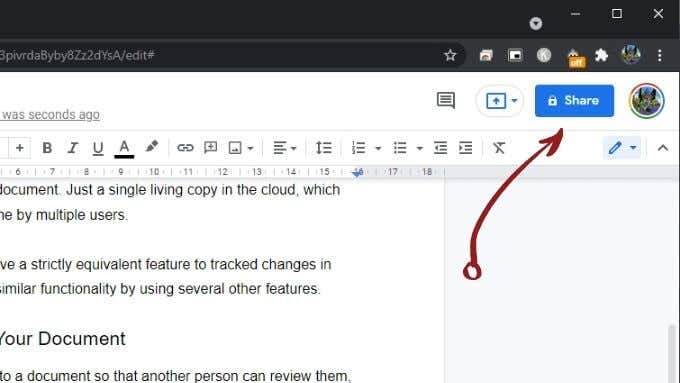
- Select the Share button at the top right of the Google Doc.
- Type the email address of the person under Add people and groups .
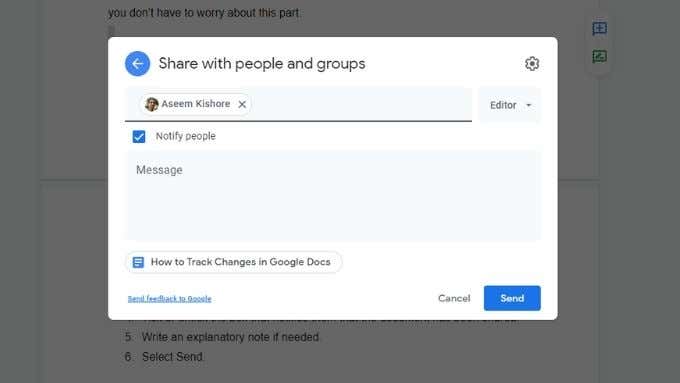
- Once you’re done adding the list of people, choose their role in the right-hand dropdown menu .

- Check or uncheck the box that notifies them that you have shared the document.
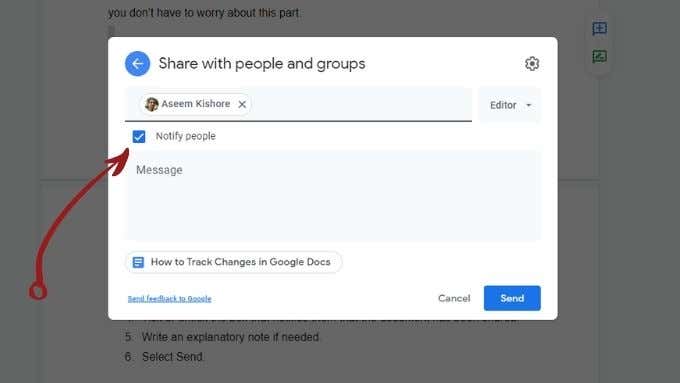
Write an explanatory note if needed.
Select Send .
Check the Document Revision History
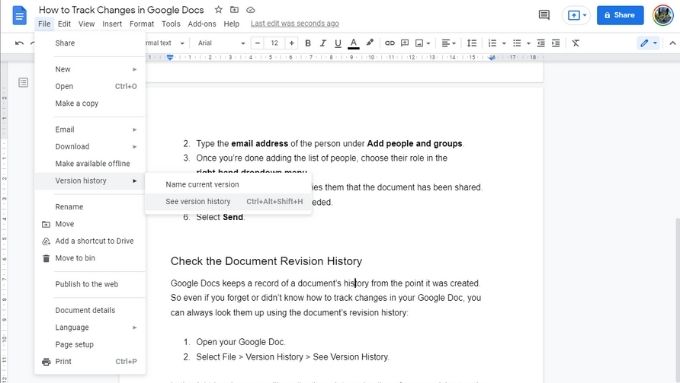
Google Docs keeps a record of a document’s history from the point it was created. So even if you forget or didn’t know how to track changes in your Google Doc, you can always look them up using the document’s revision history:
- Open your Google Doc .
- Select File > Version History > See Version History .
In the right-hand pane, you’ll see the time, date, and author of every revision session for that document. You can click on any one of these and see the changes made by each editor.
By clicking the three vertical dots on any automatically created versions, you can choose to give a particular version a name or to make a copy as a new separate Google Doc.
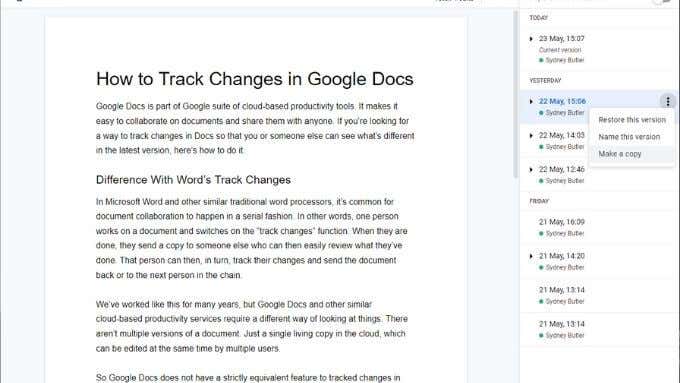
- You can also restore the document to any previous version if someone made destructive edits to the text.
Use Suggesting Mode
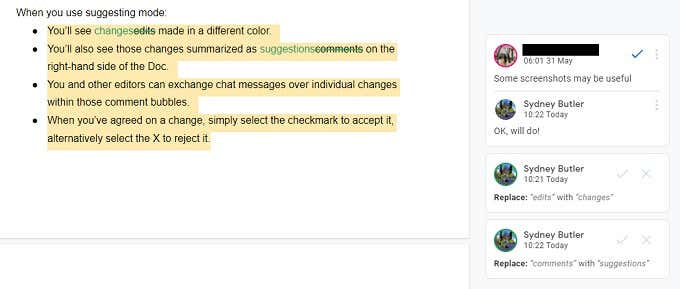
When you use Suggesting mode:
- You’ll see edits made in a different color.
- You’ll also see those changes summarized as comments on the right-hand side of the Doc.
- You and other editors can exchange chat messages over individual changes within those comment bubbles.
- When you’ve agreed on a change, simply select the checkmark to accept it, alternatively select the X to reject it.
Here’s an example of what it looks like:
Turning on Suggesting mode is easy:
- Select the dropdown menu with the pencil icon .
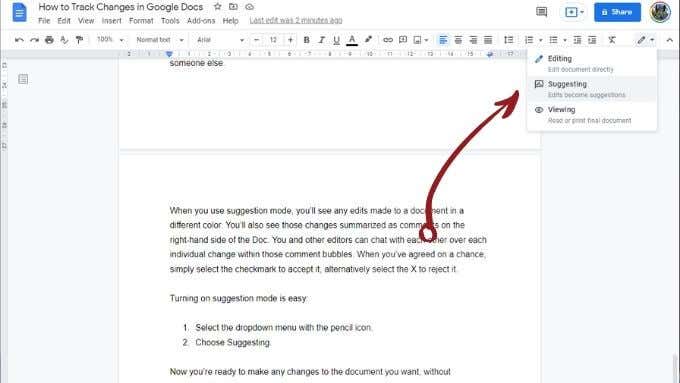
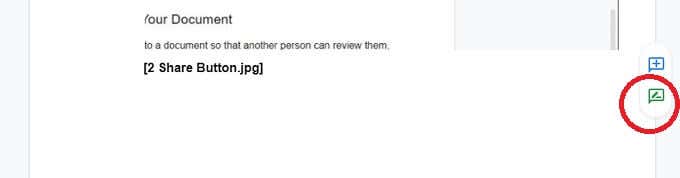
- Choose Suggesting or click this green suggestion shortcut button when you hover over a page.
Now you’re ready to make any changes to the document you want without permanently altering the text.
Open the Google Doc .
Highlight the text you want to comment on or place the cursor at the point you want to leave a comment.
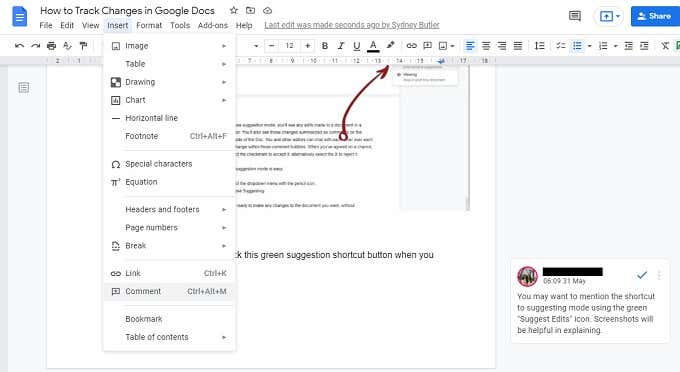
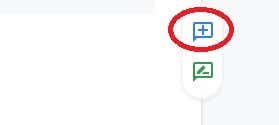
Select Insert > Comment or use the blue “+” shortcut that pops up to the right of the page when you hover over it.
- Type your comment and then select the Comment button.

Remember that you can tag other editors using the @ symbol. You can also use the live chat function if other writers happen to be online at the same time as you.
Download Your Doc as a Word File
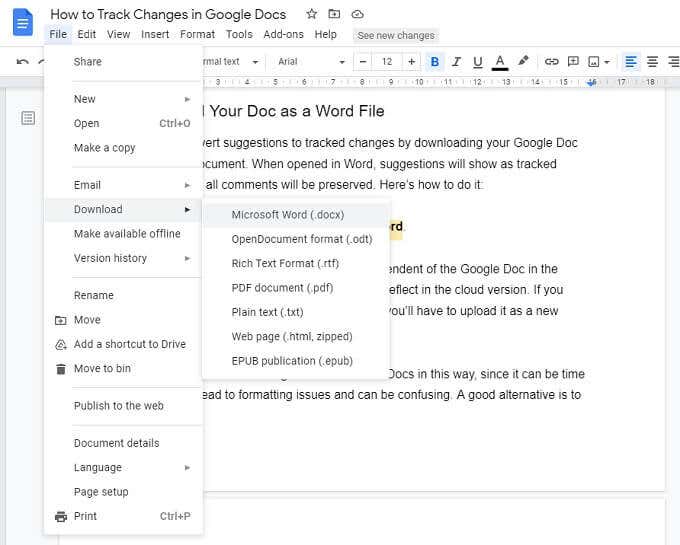
Select File > Download > Microsoft Word .
Note: The downloaded document is now independent of the Google Doc in the cloud. No changes made in that document will reflect in the cloud version. If you want to share the edits of the Word document, you’ll have to upload it as a new Google Doc and share it from scratch.
We don’t recommend editing across Word and Docs in this way since it can be time-consuming, introduce formatting issues, and lead to confusion. A good alternative is to use Microsoft 365, which includes similar cloud-based features and collaboration.
Never Lose Track Again
- How to Flip Images in Google Docs
- How to Fix Mouse Cursor Disappearing on Google Docs
- How to Add Line Numbers in Google Docs
- How to Insert Word Art in Google Docs
- How to Insert Variable Smart Chips (Placeholders) in Google Docs
